How to Fix Puppeteer Cluster Unable to Get Browser Page Errors
Fix Puppeteer Cluster’s “Unable to get browser page” error by identifying whether the failure is in Cluster, Chrome startup, page creation, or navigation.
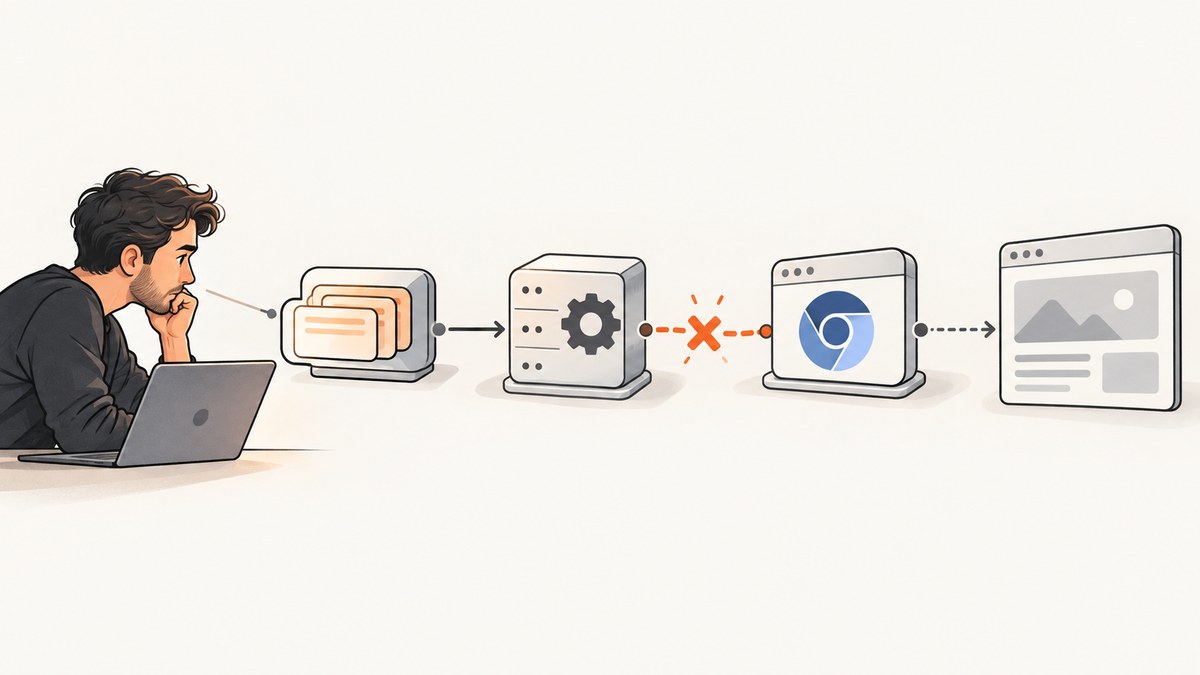
The Puppeteer Cluster error Unable to get browser page means Cluster could not provide a usable page to a worker. The cause may be before your task starts (Chrome is missing, cannot launch, or crashes), during worker creation (resource pressure or concurrency), or inside the task (navigation, network, timeout, or application code). First reproduce the same launch with Puppeteer alone, then turn on Cluster logs and run one worker. Fix the failing layer before increasing timeouts or retries.
This guide gives you a runnable minimal reproduction, a diagnostic sequence, and targeted fixes for local machines, Docker, read-only containers, and Cloud Run. The error text by itself does not identify which layer failed, so preserve the original stack and timing when investigating.
1. Identify which layer failed
A Cluster worker needs a browser and a page before it can run your task. “Unable to get browser page” is therefore a symptom at the handoff, not a complete diagnosis. The task may never have executed. Cluster’s own debugging guidance recommends checking Puppeteer first because the failure may not be in Cluster at all. Its documentation also describes task errors as potentially arising from network errors, code throwing, or a timeout.
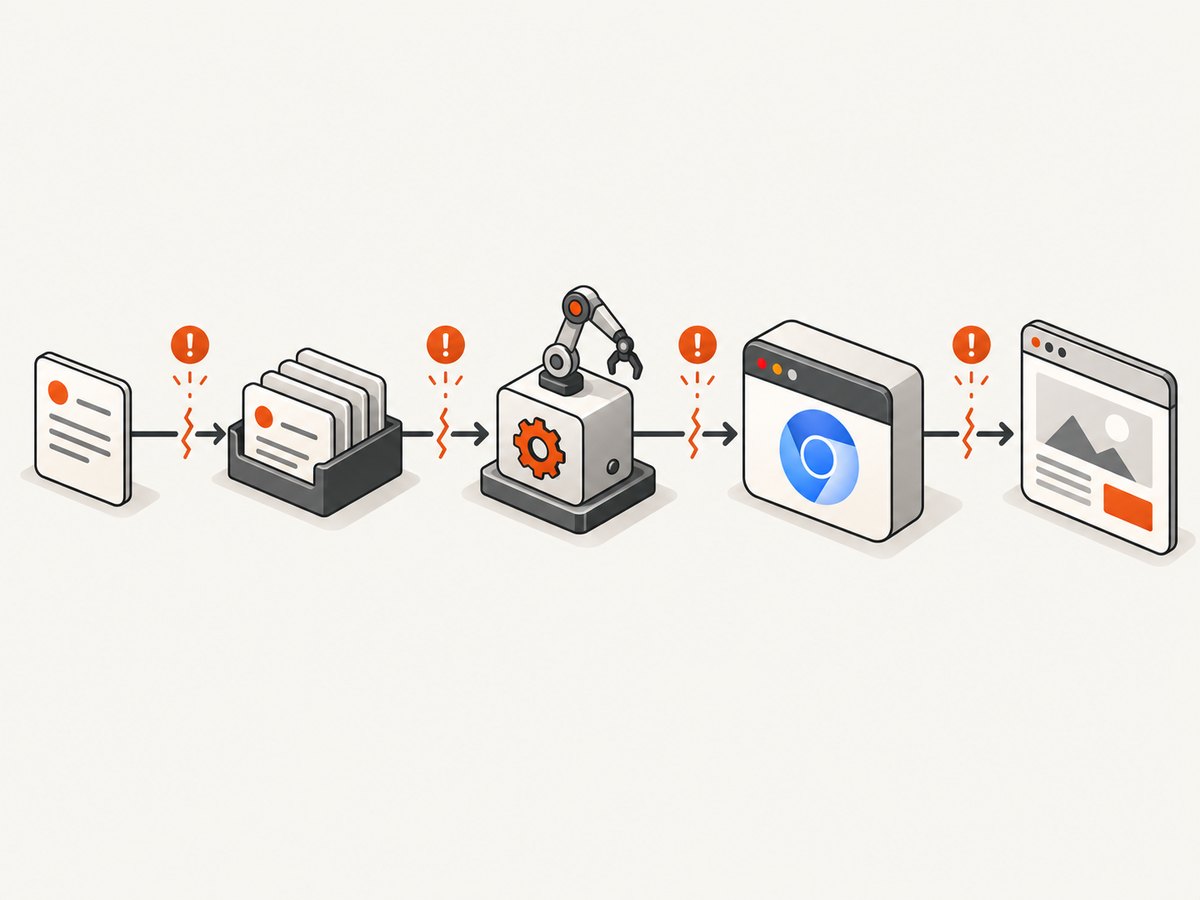
| When it fails | Likely area | First check |
|---|---|---|
At Cluster.launch() |
Browser installation, executable path, launch timeout, Linux libraries, sandbox | Launch Puppeteer directly and inspect Chrome output |
| As workers start or tasks are assigned | Concurrency, memory, CPU, process limits, temporary storage | Set maxConcurrency: 1 and monitor worker logs |
| After the task begins | Navigation timeout, site/network failure, task code | Log before and after page.goto() |
| Only in a container or deployment | Different browser binary, missing libraries, permissions, read-only paths, CPU lifecycle | Compare runtime user, paths, installed packages, and deployment semantics |
Record the full exception and stack, the URL or job data, the worker number if available, and whether the failure occurs during launch, page creation, navigation, or later task code. Avoid logging credentials, cookies, or private page content. A short timestamped log around each awaited operation often shows whether the task ever received a page.
2. Reproduce with one worker and explicit settings
Start with the smallest case: one URL, one worker, an explicit concurrency model, and error handlers. This lets you distinguish a browser startup problem from load-related trouble. Install both packages in a clean project:
npm install puppeteer puppeteer-clusterSave as cluster-check.cjs and run with node cluster-check.cjs https://example.com:
const { Cluster } = require('puppeteer-cluster');

async function main() {
  const url = process.argv[2] || 'https://example.com';
  let cluster;

  try {
    cluster = await Cluster.launch({
      concurrency: Cluster.CONCURRENCY_CONTEXT,
      maxConcurrency: 1,
      monitor: true,
      retryLimit: 0,
      timeout: 60000,
      puppeteerOptions: {
        headless: true,
        dumpio: true,
      },
    });

    cluster.on('taskerror', (err, data, willRetry) => {
      console.error('Cluster task error', {
        url: data,
        message: err.message,
        stack: err.stack,
        willRetry,
      });
    });

    await cluster.task(async ({ page, data }) => {
      console.log('Task started:', data);
      page.on('error', err => console.error('Page crashed:', err.message));
      const response = await page.goto(data, {
        waitUntil: 'domcontentloaded',
        timeout: 30000,
      });
      console.log('Navigation finished:', response?.status(), page.url());
    });

    // execute() resolves with the task result and rejects on task failure.
    await cluster.execute(url);
  } finally {
    if (cluster) await cluster.close();
  }
}

main().catch(err => {
  console.error('Cluster startup or execution failed:', err.stack || err);
  process.exitCode = 1;
});
Here Cluster.execute() is deliberate: its promise rejects if the task fails. Cluster’s taskerror event is for queued jobs; it does not fire for an error from execute(). If you use queue(), attach the event handler and await cluster.idle() before closing. Keep close() in a finally block so a failure does not leave browser processes running.
3. Turn on diagnostics before changing configuration
Cluster’s debug namespace shows worker and job activity. Enable it in the process environment:
DEBUG='puppeteer-cluster:*' node cluster-check.cjs https://example.comIn PowerShell:
$env:DEBUG='puppeteer-cluster:*'
node cluster-check.cjs https://example.com
Read the output chronologically. If no worker starts, investigate launch and environment setup. If a worker starts but a task stalls at navigation, focus on the URL, network, and navigation wait condition. If retries repeat immediately, the root cause is likely deterministic.
monitor: true adds Cluster’s progress monitor. Use puppeteerOptions.dumpio: true to forward Chrome’s stdout and stderr, which can reveal missing shared libraries or profile startup problems. For deeper protocol debugging, run with NODE_DEBUG='puppeteer:*'. Puppeteer also exposes unresolved calls through browser.debugInfo.pendingProtocolErrors in versions that provide that interface. These logs can contain sensitive details; inspect them locally and redact before sharing. See Puppeteer’s debugging guide.
If you can use a desktop-capable environment, temporarily set headless: false and slowMo: 250 in Puppeteer launch options to observe the browser. This is a diagnostic aid, not a production setting. In a server environment without a display, headful mode may fail for unrelated reasons.
4. Verify that a compatible browser exists
The puppeteer package downloads a compatible browser during installation. If your package manager or build process blocked install scripts, the package can exist while its browser does not. Run:
npx puppeteer browsers installThen rerun the one-worker reproduction in the same environment and as the same operating-system user as the service. A browser installed on your laptop does not guarantee that a build image or production container has it.
puppeteer-core does not download a browser. When using it, configure the browser executable explicitly:
const cluster = await Cluster.launch({
  concurrency: Cluster.CONCURRENCY_CONTEXT,
  maxConcurrency: 1,
  puppeteer: require('puppeteer-core'),
  puppeteerOptions: {
    executablePath: '/absolute/path/to/chrome',
    headless: true,
    dumpio: true,
  },
});
Replace the example path with the actual absolute path in your runtime. Check that the file exists and is executable by the service user, and that the Chrome version is compatible with the Puppeteer version you installed. Puppeteer documents that executablePath selects an installed browser and that using it is at the caller’s risk; see the LaunchOptions reference.
5. Choose concurrency for isolation and available resources
Cluster defaults to CONCURRENCY_CONTEXT and maxConcurrency: 1, but explicitly setting both makes troubleshooting easier and protects you from assuming a different default. The Cluster README describes these modes:
| Mode | Isolation | Use when | Trade-off |
|---|---|---|---|
CONCURRENCY_PAGE |
Separate pages, shared cookies and localStorage | Tasks intentionally share browser state | One task’s state can affect another |
CONCURRENCY_CONTEXT |
Separate incognito browser contexts | Most independent jobs | Still shares the browser process and its resources |
CONCURRENCY_BROWSER |
Separate browser per URL | A browser crash must not affect other jobs | Higher process and resource cost |
Keep maxConcurrency: 1 until the error disappears. Then increase it gradually while observing memory, CPU, process count, and temporary storage. Each additional worker adds work for the browser and host; too many simultaneous workers can turn a working setup into failed browser launches or worker creation. If many workers start at once and cause a launch spike, consider Cluster’s workerCreationDelay option. Do not treat concurrency as a timeout fix.
6. Set the timeout at the layer that is actually slow
There are separate clocks. Cluster’s task timeout defaults to 30,000 ms, and Puppeteer’s browser launch timeout also defaults to 30,000 ms. Navigation has its own timeout, such as the timeout passed to page.goto(). A longer timeout only helps if the operation is progressing slowly. It cannot make a missing executable, unwritable profile, or absent Linux library work.
Increase one timeout at a time and log the stage that consumes it. For example, if Cluster.launch() is the part timing out, investigate browser startup and host resources; if page.goto() is timing out, inspect network reachability and navigation behavior. Some sites keep connections open, so waitUntil: 'networkidle0' can wait longer than expected. For a basic availability check, try domcontentloaded and then add application-specific readiness checks.
Retry settings can help with transient failures. Set a finite retryLimit and, where appropriate, retryDelay. A retry cannot repair a missing browser, invalid path, permission denial, or broken sandbox configuration; it simply repeats the same deterministic failure and consumes more resources. Record whether a job will retry in the taskerror handler so retry loops are visible.
7. Fix common Docker and Linux startup failures
Chrome needs its shared libraries, an executable browser, usable temporary and profile directories, and permissions compatible with its sandbox. A minimal container image may omit libraries available on a developer workstation. Check Chrome’s standard output with dumpio; on Linux, ldd /path/to/chrome can help identify missing shared libraries. Install the dependencies for the base image you actually deploy; the Puppeteer troubleshooting guide lists common Linux packages.
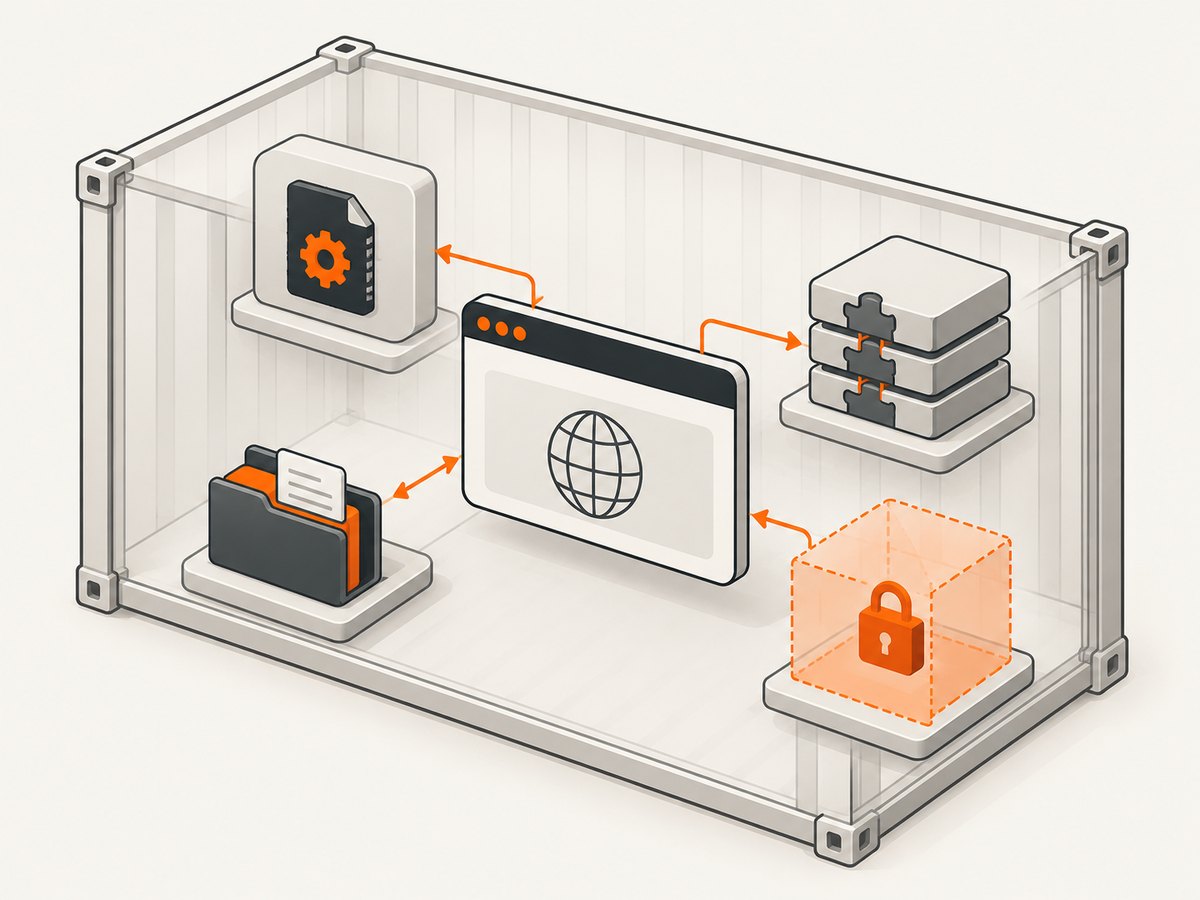
Read-only filesystems are a frequent local-versus-container difference. Chrome writes configuration, cache, and profile data on startup. Point those locations to writable paths. For a container whose /tmp is writable, configure the environment and Puppeteer profile like this:
ENV XDG_CONFIG_HOME=/tmp/.chromium
ENV XDG_CACHE_HOME=/tmp/.chromium
puppeteerOptions: {
userDataDir: '/tmp/.puppeteer-profile',
dumpio: true,
}Create the directories if necessary and ensure the runtime user owns or can write to them. The paths must exist in the container at runtime; setting these values in a different build stage or shell does not configure the running process. Puppeteer documents these requirements in its read-only container guidance.
Sandbox errors need an environment-specific fix. Prefer configuring the container and Chrome sandbox correctly. The --no-sandbox flag disables an isolation boundary; use it only when the deployment environment requires it and the security trade-off is understood. Do not add it reflexively because a browser launch failed.
8. Account for Cloud Run’s execution model
Cloud Run has a deployment-specific behavior that can affect browser work: the Puppeteer troubleshooting guide states that CPU is disabled after an HTTP response is written unless CPU is configured to remain allocated. If your handler sends a response and then expects background screenshot or browser work to continue, the browser may stop making progress. Launch and await the browser work before responding, or configure CPU to remain allocated for the background work pattern you chose. Cloud Run also needs a custom image with the Linux packages Chrome requires. See Puppeteer’s Cloud Run notes.
When a task works locally but fails after deployment, compare the exact Node and package versions, browser binary and version, runtime user, writable paths, available memory, and CPU lifecycle. Avoid debugging a deployment with a local browser executable path that does not exist inside the image.
9. Troubleshooting checklist
- Capture the original failure. Preserve the complete error and stack, task URL/data, and the last logged stage.
- Run one task and one worker. Use explicit
CONCURRENCY_CONTEXTandmaxConcurrency: 1. - Enable Cluster logs and Chrome output. Use
DEBUG='puppeteer-cluster:*',monitor: true, anddumpio: true. - Test Puppeteer without Cluster. If direct launch and
newPage()fail too, fix browser startup before Cluster configuration. - Check the browser installation. Run
npx puppeteer browsers installwhen install scripts were blocked, or set an executable path forpuppeteer-core. - Check container prerequisites. Confirm shared libraries, executable permissions, sandbox setup, and writable cache, config, temp, and profile paths.
- Separate launch from navigation timeouts. Increase only the timeout for the operation that is genuinely slow.
- Scale carefully. Raise concurrency only after the one-worker path is stable; observe resource use as you do.
- Use retries for transient errors only. Keep limits finite and log whether each job will retry.
10. Common errors and what to do
| Symptom | Likely cause | Fix |
|---|---|---|
| Browser executable not found | Install script blocked, or puppeteer-core has no configured browser |
Install with npx puppeteer browsers install or set an absolute executablePath |
| Chrome exits before connection | Missing Linux library, permission or sandbox failure | Inspect dumpio, install required libraries, and fix runtime permissions and sandbox setup |
chrome_crashpad_handler: --database is required |
Often a profile or config path cannot be written | Use writable XDG paths and userDataDir |
| Works at concurrency 1, fails at higher values | Resource pressure or launch spike | Increase gradually, reduce parallelism, and consider workerCreationDelay |
| Task times out during navigation | Slow/unreachable site, wait condition never met, or navigation timeout too short | Log navigation separately, verify network access, and select an appropriate wait condition |
| Repeated failures despite retries | Deterministic startup or permission issue | Disable retries during diagnosis and fix the underlying browser or environment failure |
| Cloud Run task stalls after response | CPU no longer allocated for background work | Finish and await browser work before responding, or configure CPU allocation for the workload |
11. Performance, reliability, and cost considerations
For Cluster, browser isolation and throughput have resource consequences. Page concurrency shares state; context concurrency isolates site data while reusing browser processes; browser concurrency contains process crashes but uses more resources. Start with the lightest model that meets your isolation needs, then measure under representative pages. Pages with heavy scripts or long network activity can consume more time and memory than a simple document.
Reliability comes from making failure visible and handling each class correctly: close the cluster on all paths, preserve task errors, use finite retries for transient problems, and avoid acknowledging background work that the runtime will not continue executing. A retry policy should not hide a browser that never launches. There is no universal concurrency value or timeout suitable for every workload; validate them in the actual deployment environment.
Or skip the browser setup
If the job is simply to get a clean screenshot of a URL, ScreenshotNeo is a website screenshot API and MCP server. It avoids maintaining your own browser cluster for that capture. Its one-call API can return a screenshot image or PDF; see the ScreenshotNeo API docs.
curl -G "https://api.screenshotneo.com/v1/shot" -d access_key=YOUR_API_KEY --data-urlencode url=https://example.com -o shot.webpimport requests
r = requests.get(
"https://api.screenshotneo.com/v1/shot",
params={"access_key": "YOUR_API_KEY", "url": "https://example.com"},
timeout=90,
)
open("shot.webp", "wb").write(r.content)const q = new URLSearchParams({
access_key: 'YOUR_API_KEY',
url: 'https://example.com'
});
const res = await fetch(`https://api.screenshotneo.com/v1/shot?${q}`);
if (!res.ok) throw new Error(`Screenshot request failed: ${res.status}`);
const bytes = Buffer.from(await res.arrayBuffer());
await import('node:fs/promises').then(fs => fs.writeFile('shot.webp', bytes));Cookie and consent banners, newsletter popups, and chat widgets are removed before the shot. Bot checks, blank pages, failed loads, timeouts, and cache hits are not billed. An MCP server lets AI agents use screenshot tools. The free plan includes 1,000 screenshots a month with no card; paid plans start at $5 for 3,000. Create a free ScreenshotNeo account.
12. FAQ
Does the error always mean Cluster has a bug?
No. The failure can be in Puppeteer or Chrome startup, worker creation, resources, navigation, or task code. Test browser launch independently before focusing on Cluster internals.
Should I switch to CONCURRENCY_BROWSER?
Only if per-job browser isolation is worth the higher resource cost, such as when one browser crash must not affect other jobs. It is not the first fix for a missing executable or invalid path.
Will a longer timeout fix “Unable to get browser page”?
Only if the specific launch or task operation is progressing slowly. A timeout increase does not fix a browser that cannot start or write its profile.
Why does my queued task not reach taskerror?
Check how it was submitted. Cluster documents that queued jobs report through taskerror; execute() failures reject the returned promise instead.
Can I run Puppeteer in a read-only container?
Yes, if Chrome’s config, cache, and profile locations point to writable paths, such as a writable /tmp, and the runtime user has the needed permissions.
Primary references: Puppeteer Cluster README and API, Puppeteer’s troubleshooting guide, debugging guide, and LaunchOptions reference.


