How to Fix Puppeteer Could Not Find Chrome Version 119.0.6045.105
Fix Puppeteer’s “Could not find Chrome” error by checking browser installation, cache paths, package choice, and deployment configuration.
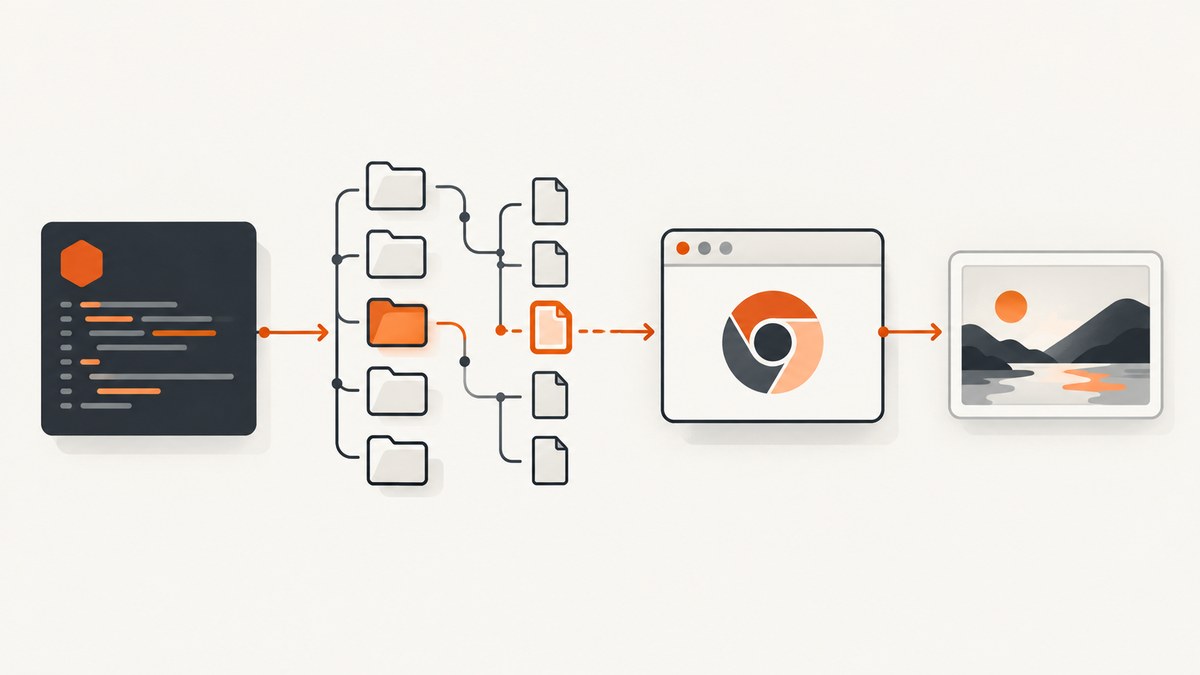
Short answer: Puppeteer cannot find the Chrome executable expected by your installed package. The usual causes are a skipped browser download, a cache directory mismatch, or using puppeteer-core without supplying a browser yourself. Install the browser in the build environment, make its cache available to the runtime, or pass the real executable path to puppeteer-core.
The version in the message, 119.0.6045.105, identifies the browser build Puppeteer expected in one reported issue. It is not a recommendation to downgrade Chrome. Diagnose where your project installs browsers and which executable the running process can access.
What the error means
Puppeteer performs browser discovery before it launches a page. When discovery fails, it reports an error similar to:
Error: Could not find Chrome (ver. 119.0.6045.105).This is different from an error that appears after Chrome has been found but cannot start. A missing executable points first to installation, cache, package selection, or path configuration. Operating-system libraries, sandbox flags, permissions, and CPU architecture belong to the later launch-failure stage.
The exact version string is historical. Your lockfile and current Puppeteer package determine which browser build is expected today.
Choose the correct browser-management model
| Project setup | Who installs Chrome? | What you configure |
|---|---|---|
puppeteer |
Puppeteer normally downloads a compatible browser during package installation. | Make sure install scripts run and the resulting cache is present at runtime. |
puppeteer-core |
Your application, image, or platform supplies Chrome or Chromium. | Pass an explicit executablePath (or supported browser channel). |
puppeteer-core does not download Chrome and does not use Puppeteer’s configuration-file or environment-variable defaults to discover an externally managed browser. See the official installation guide and configuration guide.
Diagnostic checklist
- Print the installed package and version from the project lockfile.
- Check whether your package manager skipped dependency install scripts.
- Run the browser installation command in the same build environment used for deployment.
- Inspect the cache directory and the runtime user’s home directory.
- For
puppeteer-core, locate the actual Chrome/Chromium binary inside the deployed environment. - Only after the binary is found, investigate launch errors such as missing libraries or sandbox restrictions.
Fix 1: install the browser for puppeteer
When your project imports the full puppeteer package, the normal workflow downloads a browser during installation. A package-manager policy can block that post-install step. Install the browser explicitly:
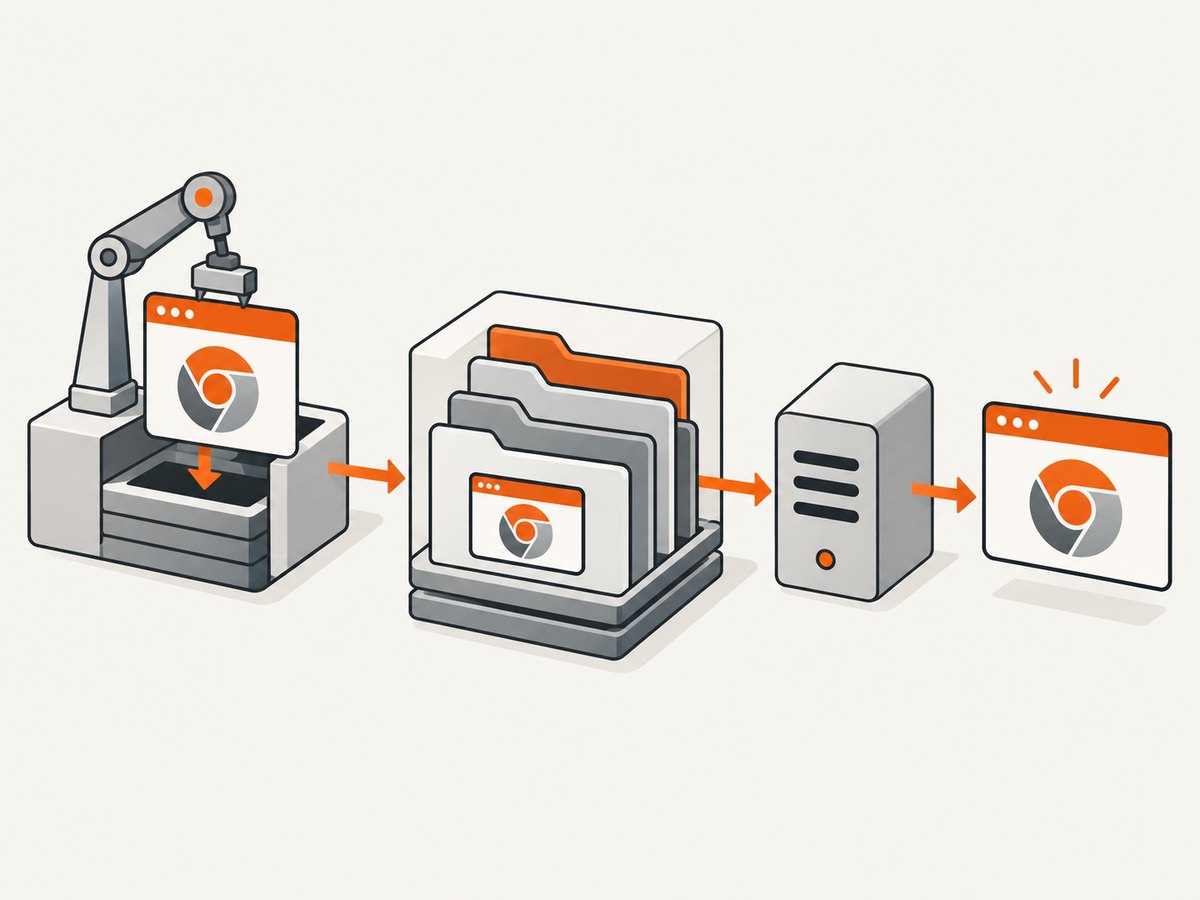
npx puppeteer browsers installRun this command in the image or build job that will execute your service. Installing on a laptop does not help a container or server unless the browser artifact is copied into that runtime image.
Verify the install in the build
node -e "const p=require('puppeteer'); console.log(p.executablePath())"The printed path should exist in the same filesystem available to the deployed process. If it points into a build-only layer, copy the browser into the final image or install it again there.
Package-manager examples
# npm
npm install puppeteer
npx puppeteer browsers install

# A clean CI sequence
npm ci
npx puppeteer browsers install
npm run start
Equivalent browser-install commands are available through other package managers; the important property is that installation runs after dependencies are present and before the service starts.
Fix 2: align the Puppeteer cache directory
Puppeteer stores downloaded browsers under ~/.cache/puppeteer by default. A common deployment failure occurs when the build runs as one user while the service runs as another, or when the build and runtime use different HOME values.
Compare these values in both stages:
node -e "console.log({home: process.env.HOME, cache: process.env.PUPPETEER_CACHE_DIR})"
node -e "const p=require('puppeteer'); console.log(p.executablePath())"
ls -la ~/.cache/puppeteer
For a shared location, set PUPPETEER_CACHE_DIR consistently during installation and execution, then install the browser again:
export PUPPETEER_CACHE_DIR=/opt/puppeteer-cache
npx puppeteer browsers install
node -e "const p=require('puppeteer'); console.log(p.executablePath())"
You can also define the cache in a Puppeteer configuration file. Do not change the directory only at runtime: the browser must be downloaded into that exact directory first. Ensure the runtime account has read and execute permission on every parent directory and on the browser binary.
Fix 3: configure puppeteer-core with an executable path
With puppeteer-core, install Chrome or Chromium through your operating-system image, build system, or hosting platform, then provide the path that exists inside the running environment.
const puppeteer = require('puppeteer-core');

(async () => {
  const browser = await puppeteer.launch({
    executablePath: '/usr/bin/google-chrome'
  });
  const page = await browser.newPage();
  await page.goto('https://example.com', {waitUntil: 'networkidle2'});
  console.log(await page.title());
  await browser.close();
})();
Use the path returned by your image or platform documentation. Do not copy a path from a developer workstation into a container without checking it exists there:
test -x /usr/bin/google-chrome && echo "Chrome is executable"
command -v google-chrome || command -v chromium || command -v chromium-browser
If your platform exposes a supported browser channel, you may configure that channel instead of a path. The essential requirement is that the selected browser is installed and accessible to the process.
Fix 4: make deployment reproducible
“Works locally” usually means the local user has a browser cache that the deployed process does not. Treat the browser as a deployment artifact:
- Pin dependencies with a lockfile.
- Run
npm ci(or your package manager’s frozen-lockfile install) in the build. - Run
npx puppeteer browsers installforpuppeteer. - Use one cache path, user, and
HOMEacross build and runtime, or copy the cache into the final image. - For
puppeteer-core, install Chrome separately and validateexecutablePathduring image creation. - At startup, log the resolved executable path without logging secrets.
In multi-stage container builds, browser files can be accidentally left in the builder stage. Copy the configured cache directory into the final stage and preserve executable permissions.
Common errors and fixes
| Symptom | Likely cause | Fix |
|---|---|---|
The error appears immediately after npm install. |
Install scripts were disabled by package-manager policy. | Run npx puppeteer browsers install in the build environment. |
| It works for one user but not a service account. | The browser is under another user’s home cache. | Use a shared PUPPETEER_CACHE_DIR, reinstall there, and grant read/execute access. |
puppeteer-core reports the same message. |
No externally managed executable path was supplied. | Install Chrome/Chromium and pass its runtime path to launch({executablePath}). |
| The path prints correctly, then launch fails with a new message. | Browser discovery succeeded; this is a launch or platform issue. | Collect the complete new error and platform details before changing flags or installing libraries. |
| Changing the requested Chrome version does not help. | The real problem is location or cache visibility. | Compare package version, cache path, user, and filesystem contents first. |
| Local installation exists but deployment has no browser. | The browser was not copied into the runtime image. | Install during the runtime image build or copy the cache from the builder stage. |
What not to change first
Do not begin by forcing Chrome 119, downloading a random system package, or adding --no-sandbox. Those changes address different problems and can hide the actual configuration mistake. First establish:

- Which package is installed:
puppeteerorpuppeteer-core. - Which browser version the lockfile expects.
- Where installation placed the browser.
- Which cache directory and user the runtime uses.
- Whether the executable exists and is accessible.
Reliability and performance considerations
Browser downloads add build time and image size, so install once during image creation rather than on every request. A shared, immutable browser cache makes replicas start consistently. Keep the browser and Puppeteer versions aligned unless you intentionally manage compatibility yourself.
For serverless or ephemeral workers, verify that the browser is included in the deployed artifact and that the runtime has enough temporary storage and process permissions. If each invocation installs Chrome, cold starts become slower and failures become dependent on network availability.
Log discovery information at startup: package version, resolved executable path, cache directory, and operating-system architecture. Avoid logging cookies, authorization headers, or page contents. When a failure occurs, preserve the distinction between “binary not found” and “binary found but launch failed”; the fixes are different.
Or skip the browser setup
If your goal is a reliable website screenshot rather than maintaining Chrome in your own runtime, ScreenshotNeo provides a hosted screenshot API. It accepts one GET request and returns PNG, JPEG, WebP, or PDF output. The API handles the browser environment for you.
See the ScreenshotNeo API documentation for all options. A minimal call is:
curl -G "https://api.screenshotneo.com/v1/shot" -d access_key=YOUR_API_KEY --data-urlencode url=https://stripe.com -o shot.webpimport requests
r = requests.get("https://api.screenshotneo.com/v1/shot", params={"access_key": "YOUR_API_KEY", "url": "https://stripe.com"}, timeout=90)
open("shot.webp", "wb").write(r.content)const q = new URLSearchParams({ access_key: 'YOUR_API_KEY', url: 'https://stripe.com' });
const res = await fetch(`https://api.screenshotneo.com/v1/shot?${q}`);ScreenshotNeo removes cookie and consent banners, newsletter popups, and chat widgets before capture. Bot checks, blank pages, failed loads, timeouts, and cache hits are not billed, and response headers identify the page verdict and billing result. It also offers an MCP server with take_screenshot, get_page_info, and capture_pdf tools for Claude, Cursor, and other MCP clients.
The Free plan includes 1,000 screenshots each month with no card. Paid plans start at $5 for 3,000 shots, and every feature is available on every plan. Create a free ScreenshotNeo account.
FAQ
Does this error mean Chrome 119 must be installed?
No. The version is the build Puppeteer expected in that environment. Check your current package and lockfile before deciding whether any version change is necessary.
Where is Puppeteer’s browser cache?
The documented default is ~/.cache/puppeteer. PUPPETEER_CACHE_DIR or a configuration file can change it.
Can I use system Chrome with the full puppeteer package?
You can configure a browser path, but if you use puppeteer-core, supplying an explicit path is the expected externally managed workflow.
Why does reinstalling locally not fix CI?
CI may use a different user, home directory, cache path, or final container image. Install and verify the browser in the same environment that runs the service.
What should I do after Puppeteer finds Chrome but cannot launch it?
Capture the new launch error and platform details. That is a separate diagnostic stage involving libraries, permissions, sandboxing, or architecture.


