How to Fix Puppeteer’s “Could Not Find Chrome” Error on Elastic Beanstalk
Diagnose Puppeteer’s “Could Not Find Chrome” error on Elastic Beanstalk by checking browser installation, cache paths, permissions, libraries, and architecture.
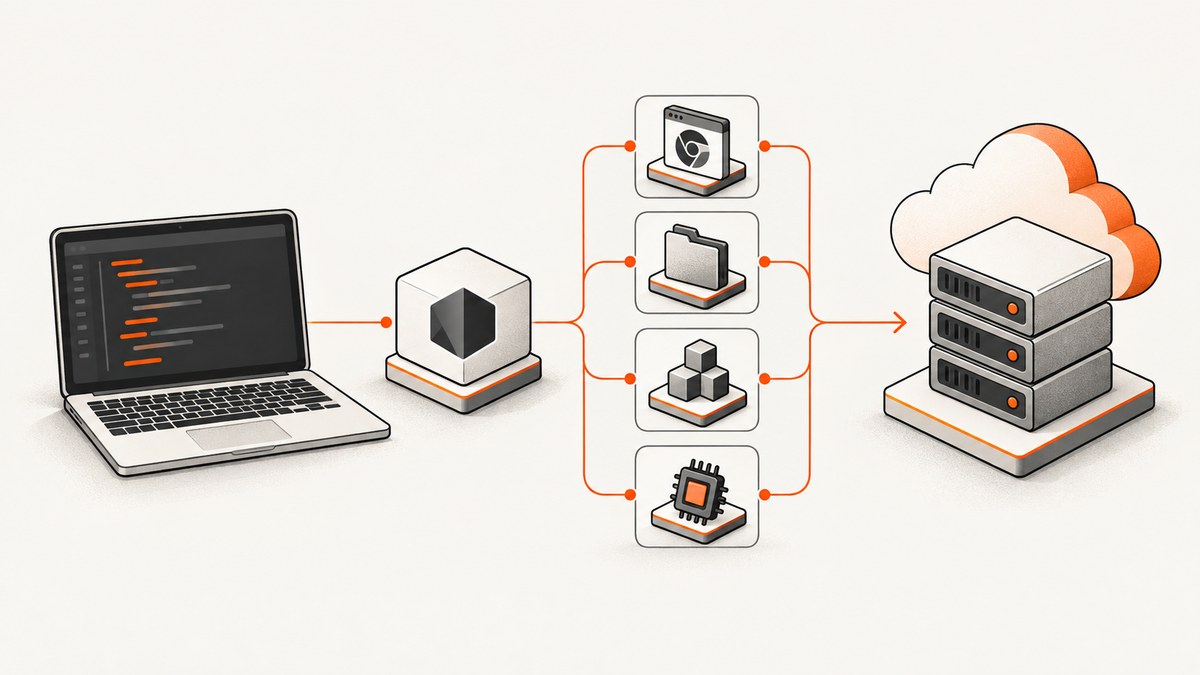
Short answer: On Elastic Beanstalk, Puppeteer’s “Could Not Find Chrome” error usually means one of four things: the browser download script did not run, Chrome was installed under a different user or cache directory, Puppeteer is not pointed at a separately managed executable, or the browser exists but cannot start because a Linux library or CPU architecture is incompatible. Check those conditions in that order.
Installing Chrome on your laptop does not install it on the EC2 instance behind your Elastic Beanstalk environment. Verify the deployment itself, the exact $HOME used during deployment and runtime, and the executable that the application user can access.
1. Confirm what Puppeteer is expected to manage
The first diagnostic question is whether your application uses puppeteer or puppeteer-core.
puppeteernormally downloads a compatible Chrome for Testing browser during installation. Puppeteer’s installation guide says the default cache has been$HOME/.cache/puppeteersince v19.0.0. Starting with v21.6.0, the install also includeschrome-headless-shell. These behaviors are version-qualified and can change in future releases. See the Puppeteer installation guide.puppeteer-coredoes not download Chrome. You must provide a managed browser throughexecutablePathor a recognizedchannel.
Record the Puppeteer version from the deployed application, not only from your local lockfile:
node -p "require('puppeteer/package.json').version"
node -p "require('puppeteer-core/package.json').version"
If the error mentions a version such as Could not find Chrome (ver. 127.0.6533.88), treat that as the browser revision Puppeteer expected in its configured cache. It does not prove that the same revision exists on the instance.
2. Verify that the browser download ran during deployment
Package managers can suppress dependency install scripts. A deployment can therefore finish with the JavaScript package present while its browser is missing. Check your build logs for Puppeteer’s browser installation step and run the documented manual remedy in the actual deployment process:
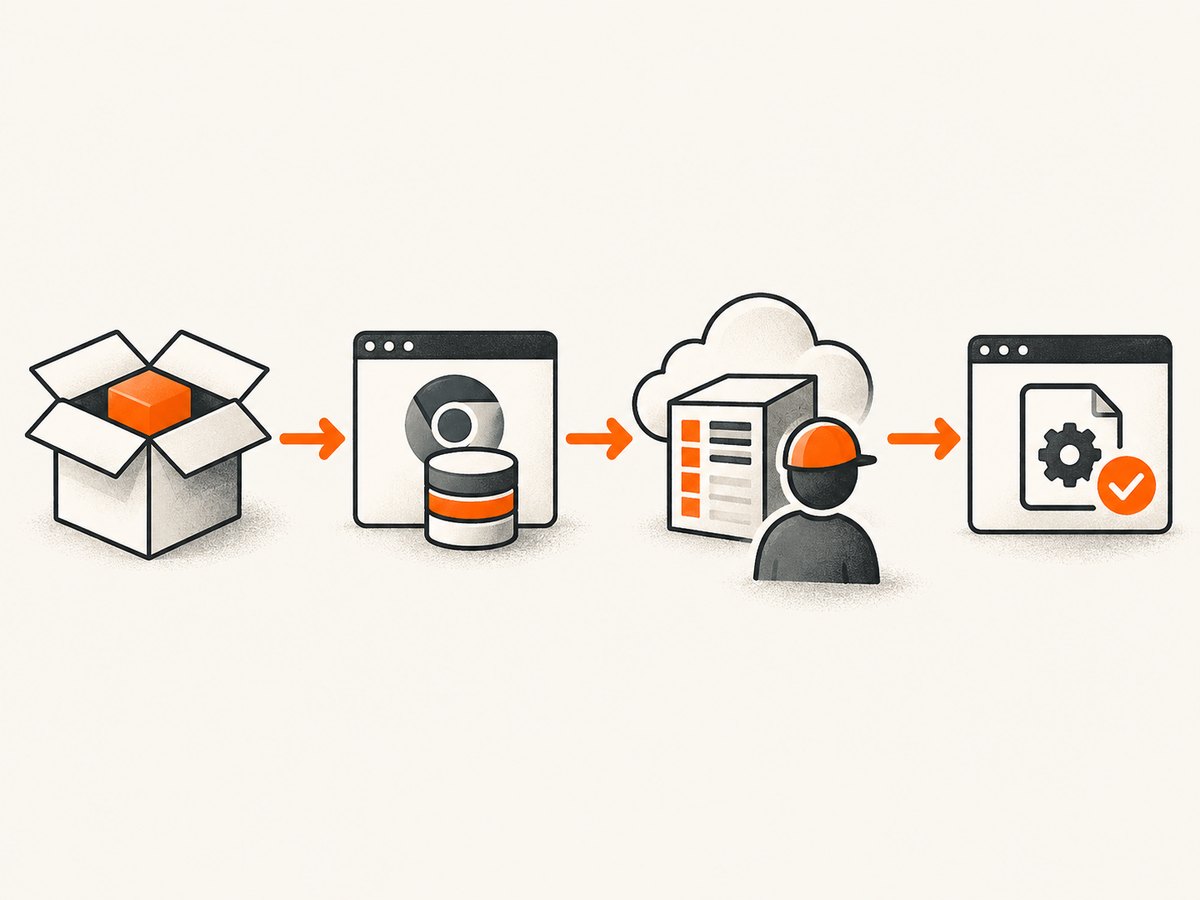
npx puppeteer browsers installRun it on the Elastic Beanstalk instance or in the build phase that produces the deployed application. Running it on a developer workstation is irrelevant to the EC2 filesystem.
If your package manager uses an install-script allowlist, opt Puppeteer’s script back in according to that package manager’s configuration. Keep the install command and the application launch in the same deployment design so the browser revision is reproducible.
A simple deployment check can fail early when the browser was not downloaded:
set -eu
npx puppeteer browsers install
node -e "const fs=require('fs'); const p=process.env.HOME+'/.cache/puppeteer'; console.log('HOME=', process.env.HOME); console.log('cache exists=', fs.existsSync(p), p)"
Puppeteer’s guide estimates browser downloads at approximately 282 MB for Linux, 170 MB for macOS, and 280 MB for Windows. Plan deployment time and disk space around the browser download rather than treating it as a small npm dependency.
3. Check the runtime user and cache path
The full error message reports the cache path Puppeteer checked. Compare it with the path populated during deployment:
whoami
id
printf 'HOME=%s\n' "$HOME"
find "$HOME/.cache/puppeteer" -maxdepth 4 -type f -perm -111 -print 2>/dev/null || true
ls -la "$HOME/.cache/puppeteer" 2>/dev/null || true
AWS documents that Elastic Beanstalk platform hooks run as root. Your application process may run as another account. Consequently, a browser downloaded into /root/.cache/puppeteer may not be visible when the application checks /home/webapp/.cache/puppeteer, or the reverse. This is a condition to test on your environment, not proof that every Elastic Beanstalk setup has the mismatch.
Make installation and runtime use the same HOME and cache configuration, or choose an explicit browser path. For example, if your process is deliberately configured to use a shared cache, set the same value before both installation and launch:
export HOME=/var/app/current/runtime-home
export PUPPETEER_CACHE_DIR="$HOME/.cache/puppeteer"
mkdir -p "$PUPPETEER_CACHE_DIR"
npx puppeteer browsers install
Ensure the application user can read and execute the files. Avoid solving a user mismatch with broad permissions unless you have a specific reason; aligning ownership and paths is easier to reason about during future deployments.
4. Point Puppeteer at a separately managed Chrome
If Chrome is installed outside Puppeteer’s cache, configure it explicitly. Puppeteer supports executablePath; it also supports channel for a browser installed in a recognized standard location. Confirm the path on the target instance and do not copy a path from another operating system or architecture.
import puppeteer from 'puppeteer-core';

const executablePath = process.env.PUPPETEER_EXECUTABLE_PATH;
if (!executablePath) throw new Error('PUPPETEER_EXECUTABLE_PATH is required');

const browser = await puppeteer.launch({
  executablePath,
  headless: true,
  args: ['--no-sandbox', '--disable-setuid-sandbox']
});

try {
  const page = await browser.newPage();
  await page.goto('https://example.com', {waitUntil: 'networkidle2'});
  console.log(await page.title());
} finally {
  await browser.close();
}
The sandbox flags are commonly used in restricted container environments, but they change Chrome’s security posture. Use them only when your deployment requires them and apply the least permissive runtime design that works for your environment.
Before launching, inspect the candidate executable as the application user:
test -x "$PUPPETEER_EXECUTABLE_PATH"
"$PUPPETEER_EXECUTABLE_PATH" --version
With puppeteer-core, this explicit browser management is mandatory because the package does not download Chrome for you.
5. Distinguish “not found” from “cannot launch”
Finding a browser file is only the midpoint. If the executable exists but launch fails, investigate dynamic libraries and architecture.
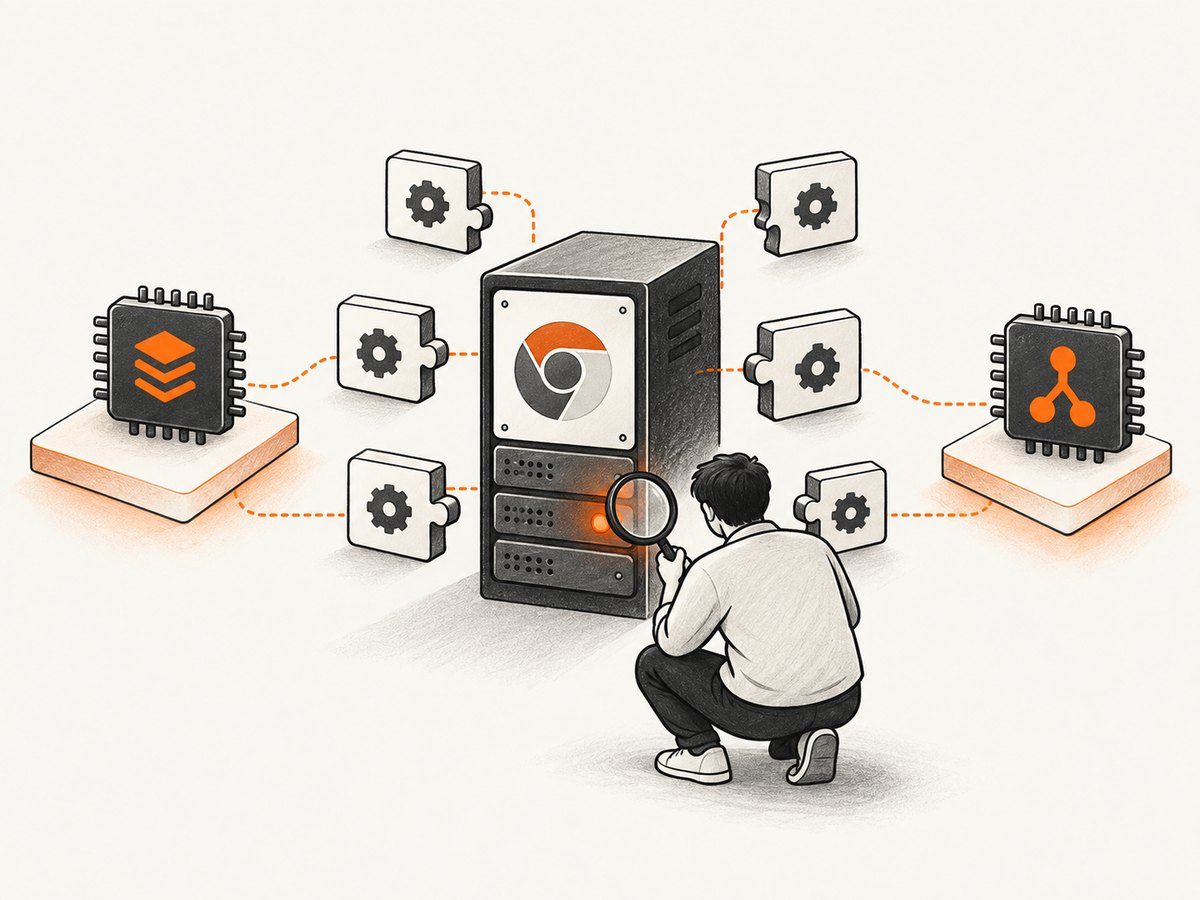
Inspect missing shared libraries
Amazon Linux 2023 community reports describe Chrome for Testing failures caused by missing libraries, including libatk-1.0.so.0. Reported package leads include atk, pango, alsa-lib, libXcomposite, libXdamage, libXrandr, libxkbcommon, cups-libs, libdrm, and mesa-libgbm; another dated Elastic Beanstalk example includes font packages. These are community examples, not a universal AL2023 package list. Package names vary by release and architecture. See the Amazon Linux 2023 discussion.
Check the actual executable and package database on the failing instance:
file "$PUPPETEER_EXECUTABLE_PATH"
ldd "$PUPPETEER_EXECUTABLE_PATH" | grep 'not found' || true
uname -m
cat /etc/os-release
Install only the libraries your target platform identifies as missing, then repeat the version command as the application user. Do not paste a dated package recipe into every AL2023 environment without checking the platform image.
Check CPU architecture
Verify the instance architecture before selecting a browser distribution:
uname -mThe research includes maintainer discussion that Chrome binaries are provided for x86 and community reports of separate ARM Chromium setups. It does not establish a current compatibility matrix for every Puppeteer, Chrome, AL2023, and instance combination. An x86_64 browser recipe is not evidence that the same files work on ARM. Select a browser build that explicitly supports the architecture of the deployed instances, configure its verified executable path, and test it there.
6. Put setup in the correct Elastic Beanstalk lifecycle phase
AWS provides .platform/hooks/prebuild, predeploy, and postdeploy for Linux platform customization. AWS describes postdeploy this way: “Files here run after the Elastic Beanstalk platform engine deploys the application and proxy server.” Hook scripts run as root, execute in lexicographical filename order, and a non-zero exit code aborts deployment. Read the AWS platform hooks documentation before choosing a phase.
Use a hook when the browser must be installed or checked as part of each deployment. Keep the script explicit about the user, HOME, cache directory, and architecture. For example, a diagnostic hook can record the environment without pretending to be a universal browser installer:
#!/bin/bash
set -eu

echo "user=$(whoami)"
echo "HOME=${HOME:-unset}"
echo "arch=$(uname -m)"
node --version
npm --version
npx puppeteer browsers install
Make the file executable and place it under the selected hook directory. If the browser is installed by a root-run hook, make sure the runtime process can access the resulting cache, or install into a deliberately shared location. AWS also documents configuration files for Elastic Beanstalk; use the mechanism that matches your platform and deployment needs rather than assuming one .ebextensions file is universal.
7. A repeatable diagnostic checklist
- Capture the complete error, including the expected Chrome revision and cache path.
- Print Puppeteer’s version on the deployed instance.
- Confirm whether you use
puppeteerorpuppeteer-core. - Verify that install scripts were allowed to run.
- Run
npx puppeteer browsers installduring deployment if the managed browser is missing. - Compare the deployment user, runtime user,
HOME, and cache directory. - If Chrome is managed separately, set and validate
executablePathorchannel. - Run the executable’s
--versioncommand as the application user. - Use
lddand platform package tools to find missing libraries. - Check
uname -mand select a browser build for that architecture. - Move the working setup into an intentional Elastic Beanstalk hook and fail deployment when verification fails.
8. Common errors and fixes
| Symptom | Likely cause | Fix |
|---|---|---|
| “Could not find Chrome” immediately after deploy | Install script was skipped or browser download never ran | Allow the install script and run npx puppeteer browsers install in deployment. |
| Error shows a cache path that is empty | Different HOME, user, or cache setting |
Align installation and runtime paths, ownership, and environment variables. |
Using puppeteer-core with no path |
No browser is downloaded by design | Install a compatible browser and provide executablePath or channel. |
| Executable exists but process exits at launch | Missing shared library, sandbox restriction, or incompatible binary | Run ldd, inspect the OS and architecture, then install matching dependencies or choose a supported build. |
| Works locally but not on Elastic Beanstalk | Local Chrome, user, OS, or architecture differs from the instance | Run every check on the deployed instance as the application user. |
| Deployment fails after adding a hook | Hook returned a non-zero status | Read deployment logs, run the commands manually, and make path and permission assumptions explicit. |
9. Performance, reliability, and cost considerations
A Puppeteer-managed browser adds a large download to deployment and consumes disk space in the cache. Reusing a verified cache can reduce repeated downloads, but only when its ownership, path, browser revision, and lifecycle are controlled. A separately managed system browser can simplify image-level operations, while shifting compatibility and patch maintenance to your team.
For reliability, fail during deployment when the browser cannot be found or its version command fails. This is easier to diagnose than discovering the problem on the first request. Log the effective user, HOME, cache path, executable path, OS release, and architecture without logging secrets. Keep browser installation tied to the same platform image and instance architecture used in production.
There is no single AL2023 dependency list that applies to every Elastic Beanstalk version. Treat package examples as investigation leads and verify missing libraries on the target image. Likewise, do not assume a browser binary built for x86_64 runs on ARM.
10. Or skip the browser setup
If your goal is to obtain screenshots rather than operate Chrome on Elastic Beanstalk, ScreenshotNeo provides a website screenshot API and MCP server. One GET request returns PNG, JPEG, WebP, or PDF, so your application does not need to download or launch Puppeteer on the instance.
See the ScreenshotNeo API documentation for request options. A minimal call is:
cURL
curl -G "https://api.screenshotneo.com/v1/shot" -d access_key=YOUR_API_KEY --data-urlencode url=https://stripe.com -o shot.webpPython
import requests
r = requests.get("https://api.screenshotneo.com/v1/shot", params={"access_key": "YOUR_API_KEY", "url": "https://stripe.com"}, timeout=90)
open("shot.webp", "wb").write(r.content)
Node.js
const q = new URLSearchParams({ access_key: 'YOUR_API_KEY', url: 'https://stripe.com' });
const res = await fetch(`https://api.screenshotneo.com/v1/shot?${q}`);
ScreenshotNeo accepts cookie and consent banners before capture and removes more than 60 known consent platforms, newsletter popups, and chat widgets; each step can be turned off. Bot checks and CAPTCHAs, blank pages, timeouts, failed loads, and cache hits are not billed, and each response identifies the result with X-Page-Verdict and X-Billed headers. Its MCP server provides take_screenshot, get_page_info, and capture_pdf tools for Claude, Cursor, and other MCP clients.
Other options include full-page capture with lazy images loaded, CSS-selector element capture, dark mode, device presets or custom viewports, retina scale, PDF paper sizes and page ranges, custom CSS and JavaScript, clicks, selector or network-idle waits, request blocking, headers, cookies, user agents, authorization, timezone, geolocation, transparent backgrounds, resizing, TTL-based caching, signed links, asynchronous jobs with signed webhooks, bulk capture of up to 100 URLs per call, a usage API, and an OpenAPI specification. Every plan includes every feature: 1,000 shots per month are free with no card; paid plans start at $5 for 3,000 shots. Create a free ScreenshotNeo account.
11. FAQ
Does Elastic Beanstalk install Chrome automatically?
No. Your deployment must install Puppeteer’s managed browser or provide a separately managed executable. A browser on your local machine is not available to the EC2 instance.
Should I use puppeteer or puppeteer-core?
Use puppeteer when you want Puppeteer’s documented browser download workflow. Use puppeteer-core when your environment deliberately manages Chrome and you can provide a compatible path or channel.
Why does the error mention a cache path?
Puppeteer is reporting where it looked for the expected browser. Compare that path with the path populated during deployment and check whether the users have different home directories.
Can I fix this with one package-install command?
Not reliably. The correct dependency names depend on the Elastic Beanstalk platform image and architecture. First determine whether the browser is missing, inaccessible, or unable to start.
Is a missing library the same as “Could Not Find Chrome”?
No. A missing browser or cache path is a discovery problem. A present executable that fails under ldd or at launch is a runtime dependency or compatibility problem.
Where should browser setup live?
Use an Elastic Beanstalk lifecycle hook when installation or verification belongs in deployment. AWS documents hook timing, root execution, ordering, and failure behavior; choose the phase that matches when your application files and proxy are ready.
What is the fastest way to avoid managing Chrome?
Use a remote screenshot service such as ScreenshotNeo and call its API from your application. You avoid browser downloads, cache ownership, Linux library packages, and instance architecture issues.


