How to Fix Puppeteer’s “Could Not Find Chrome” Error in Firebase Functions
Fix Puppeteer’s “Could not find Chrome” error in Firebase Functions by repairing browser installation, cache paths, package choice, and executablePath.

Short answer: Puppeteer cannot find the Chrome revision it expects in the deployed Firebase Functions environment. The usual causes are a blocked Puppeteer postinstall download, a browser cache that is outside the deployed package, using puppeteer-core without supplying Chrome, or an executablePath that does not exist. Repair the browser acquisition and cache first; only then investigate runtime libraries or application code.
This guide explains the deployment model, gives working Firebase Functions examples, and covers the failure modes that produce the error after deployment.
What the error means
When you install the full puppeteer package, Puppeteer normally downloads a compatible Chrome for Testing browser during installation. At runtime, Puppeteer resolves the revision associated with that package. If the browser was never downloaded, was downloaded into a directory that is not deployed, or is referenced through an invalid path, launch fails with an error similar to:
Error: Could not find Chrome (ver. 140.0.7339.82).
This can occur if either
 1. you did not perform an installation before running the script, or
 2. your cache path is incorrectly configured
Installing Chrome on your local computer does not fix this by itself. Firebase builds and deploys the functions project in an environment where your local browser cache is unavailable.
Choose the correct package
| Package | Browser responsibility | Use it when |
|---|---|---|
puppeteer |
Puppeteer downloads a compatible browser during installation. | You want the dependency to manage Chrome for you. |
puppeteer-core |
No browser is downloaded. | Your build or platform provides Chrome and your code supplies its absolute path. |
The official Puppeteer installation guide explains that the automatic download is skipped when a package manager blocks dependency scripts, and that running Puppeteer afterward produces the “Could not find Chrome” error. See the Puppeteer installation guide and configuration guide.
Recommended repair: package Chrome inside the function
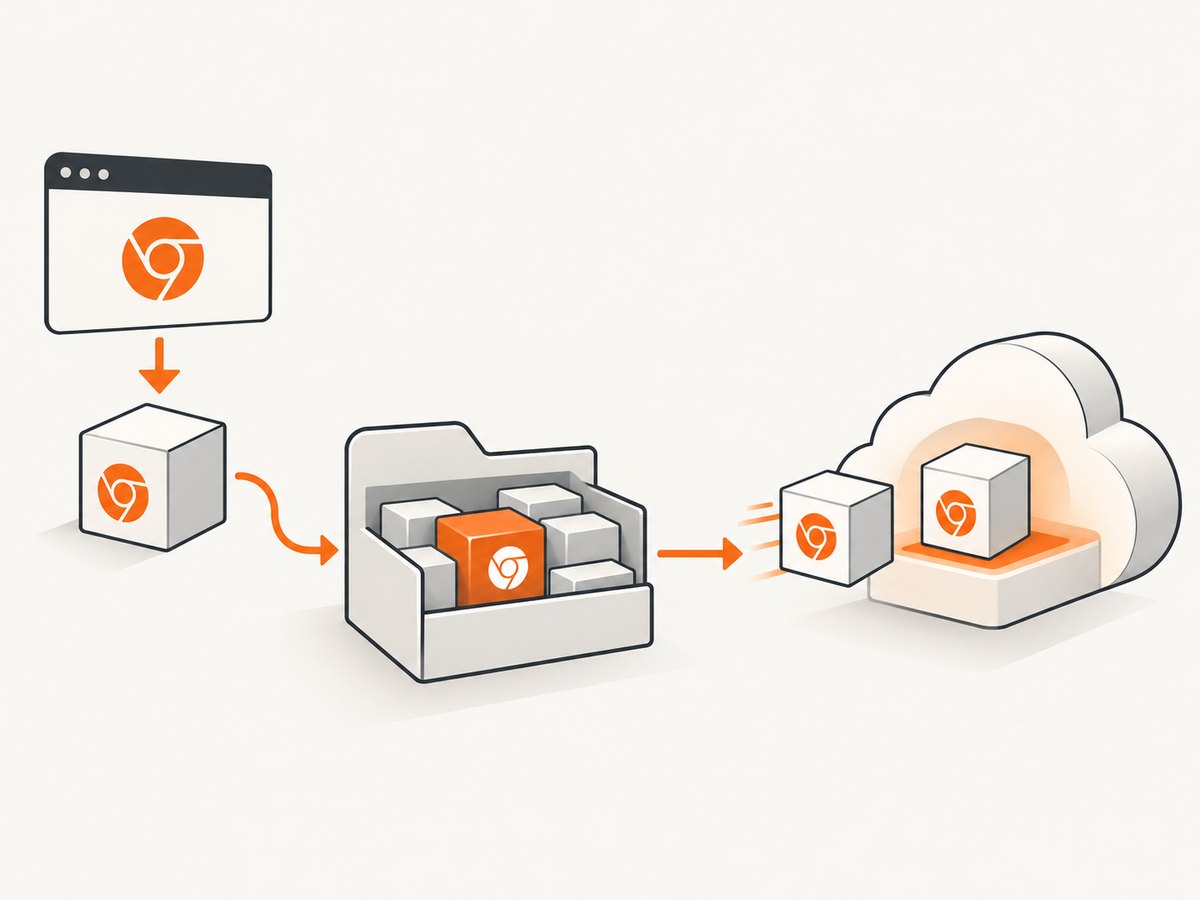
For the standard Firebase Functions Node.js runtime, use puppeteer, run its browser install command during the build, and place its cache under the functions project so the browser is part of the deployed dependency tree.
1. Install dependencies from the functions directory
cd functions
npm install puppeteer
If your package manager has scripts disabled, explicitly install Chrome after dependencies are installed:
npx puppeteer browsers install chrome
# Equivalent official browser CLI form:
npx @puppeteer/browsers install chrome@stable
Do this in the same build context that produces the deployed functions/node_modules. Running the command only in a separate root workspace will not help if that directory is not uploaded.
2. Configure a project-local cache
Create functions/.puppeteerrc.js:
import { join } from 'path';

export default {
  cacheDirectory: join(import.meta.dirname, 'node_modules', '.puppeteer_cache'),
};
This puts the browser under node_modules, which Firebase can include with the function dependencies. The Google Cloud Functions troubleshooting guidance recommends a project-local cache because a cached node_modules directory can make a later build skip Puppeteer’s install process. After changing the cache configuration, reinstall the browser so the new directory is populated.
If your project uses CommonJS rather than ES modules, use a CommonJS configuration file:
const path = require('path');

module.exports = {
  cacheDirectory: path.join(__dirname, 'node_modules', '.puppeteer_cache'),
};
Use one configuration style that matches your package.json. Do not leave a stale configuration pointing at a directory that is not deployed.
3. Verify the browser exists before deployment
From functions, inspect the cache:
find node_modules -maxdepth 4 -type f \( -name chrome -o -name chrome.exe \) -print
find node_modules/.puppeteer_cache -maxdepth 4 -type f -print | head
The exact nested path varies by Puppeteer release. The useful check is that a Chrome executable and its supporting files exist below the configured project-local cache. Also inspect your deployment ignore rules. Do not exclude the browser directory with a broad pattern that removes it from the function bundle.
A complete Firebase Functions example
The following example uses the full puppeteer package. It launches one browser per invocation and closes it in a finally block so failed requests do not leave processes running.
const { onRequest } = require('firebase-functions/v2/https');
const puppeteer = require('puppeteer');

exports.renderTitle = onRequest(
  {
    region: 'us-central1',
    timeoutSeconds: 120,
    memory: '1GiB',
  },
  async (req, res) => {
    const target = typeof req.query.url === 'string'
      ? req.query.url
      : 'https://example.com';

    let browser;
    try {
      browser = await puppeteer.launch({
        headless: true,
        args: ['--no-sandbox', '--disable-setuid-sandbox'],
      });

      const page = await browser.newPage();
      await page.goto(target, {
        waitUntil: 'networkidle2',
        timeout: 90000,
      });

      const title = await page.title();
      res.json({ title, url: page.url() });
    } catch (error) {
      console.error('Puppeteer render failed', error);
      res.status(500).json({ error: error.message });
    } finally {
      if (browser) {
        await browser.close();
      }
    }
  },
);
Deploy from the Firebase project root after confirming the browser is under the functions dependency tree:
firebase deploy --only functions
Firebase currently documents Node.js 20 and 22 as supported Cloud Functions runtimes and says Node.js 18 was deprecated in early 2025. Check the runtime configured for your function before changing dependency versions: Firebase Functions runtime documentation.
When you intentionally use puppeteer-core
puppeteer-core is appropriate only when Chrome is supplied separately. It never downloads Chrome. Your launch code must provide an absolute executable path:
const puppeteer = require('puppeteer-core');

const browser = await puppeteer.launch({
  headless: true,
  executablePath: '/absolute/path/to/chrome',
  args: ['--no-sandbox', '--disable-setuid-sandbox'],
});
Replace the placeholder with a path that exists in the deployed runtime. A path from your laptop, such as /Applications/Google Chrome.app/..., will not exist in Firebase. If you install a custom browser in a build artifact, deploy the binary and all files it needs, then verify that the function user can read and execute it.
The standard Google Cloud Functions Node.js runtime includes the system packages needed for Headless Chrome according to Puppeteer’s troubleshooting documentation. Therefore, this exact error usually indicates browser acquisition, cache placement, package selection, or an invalid path. A custom container, alternate base image, or different serverless runtime can introduce separate Linux-library requirements. See Puppeteer troubleshooting.
Common errors and fixes
| Symptom | Likely cause | Fix |
|---|---|---|
Could not find Chrome (ver. ...) immediately after deploy |
Install script was blocked or never ran. | Allow dependency scripts or run npx puppeteer browsers install chrome during the build. |
| Works locally, fails in Firebase | Local cache is not deployed. | Set cacheDirectory under the functions project’s node_modules, reinstall, and deploy again. |
Error mentions puppeteer-core |
No browser is managed by the package. | Install or provide Chrome separately and pass its absolute executablePath, or switch to puppeteer. |
| “Failed to launch the browser process” after the browser is found | Invalid binary permissions, incompatible custom image, or missing runtime libraries. | Confirm the executable is readable and executable; use the standard Firebase runtime or install the required libraries in your custom image. |
| Deployment succeeds but runtime still uses an old revision | A build cache retained stale node_modules. |
Change the cache configuration, remove and reinstall dependencies in the functions directory, then redeploy. |
| Function times out while launching | Browser download happened at request time or the page never reaches the selected wait condition. | Download during build, set an explicit navigation timeout, and choose a wait condition suited to the page. |
Debug the deployed environment
Add temporary diagnostics that report paths without exposing secrets:
const fs = require('fs');
const puppeteer = require('puppeteer');

console.log('Puppeteer executablePath:',
  typeof puppeteer.executablePath === 'function'
    ? puppeteer.executablePath()
    : 'not available');

console.log('Working directory:', process.cwd());
console.log('Node version:', process.version);
console.log('Executable readable:', fs.existsSync(puppeteer.executablePath()));
View function logs after a fresh deployment. If existsSync is false, the problem is packaging or path resolution, not page navigation. Remove verbose diagnostics after the incident so logs stay useful.
Performance, reliability, and cost considerations
- Build time: downloading Chrome during installation makes builds larger and slower, but it gives each deployment a known browser revision.
- Cold starts: launching Chromium is heavier than a normal HTTP handler. Allocate enough memory and give navigation a realistic timeout.
- Browser lifecycle: close every browser in
finally. Reusing a global browser can reduce cold-start work, but it requires careful handling of crashed pages and concurrent requests. - Navigation waits:
networkidle2can wait indefinitely on pages with long polling. Usedomcontentloadedplus an explicit selector or delay when appropriate. - Concurrency: each page consumes memory. Limit concurrent captures rather than launching unbounded browsers inside one instance.
- Billing: Firebase invocation, compute, and network charges depend on your Google Cloud configuration. The Puppeteer browser download itself is a build artifact, not a separate Chrome license.

Or skip the browser setup
If your goal is a reliable website screenshot rather than maintaining Chromium in Firebase, ScreenshotNeo provides a single HTTP endpoint. It accepts the consent banner like a visitor and removes more than 60 known consent platforms, newsletter popups, and chat widgets before capture; each step can be disabled. Bot checks, blank pages, timeouts, failed loads, and cache hits cost nothing, and the response identifies the result with X-Page-Verdict and X-Billed headers.
See the ScreenshotNeo API documentation for all options. A basic call is:
curl -G "https://api.screenshotneo.com/v1/shot" -d access_key=YOUR_API_KEY --data-urlencode url=https://stripe.com -o shot.webpPython:
import requests

r = requests.get(
    "https://api.screenshotneo.com/v1/shot",
    params={"access_key": "YOUR_API_KEY", "url": "https://stripe.com"},
    timeout=90,
)
r.raise_for_status()
open("shot.webp", "wb").write(r.content)
Node.js:
const q = new URLSearchParams({ access_key: 'YOUR_API_KEY', url: 'https://stripe.com' });
const res = await fetch(`https://api.screenshotneo.com/v1/shot?${q}`);
if (!res.ok) throw new Error(`Screenshot failed: ${res.status}`);
const bytes = await res.arrayBuffer();
await import('node:fs/promises').then(fs => fs.writeFile('shot.webp', Buffer.from(bytes)));
ScreenshotNeo also supports full-page captures with lazy images loaded, CSS-selector element captures, dark mode, 12 device presets plus custom viewports, retina scale, PDF output, custom CSS and JavaScript, clicks, selector or network-idle waits, blocked ads and resource types, headers, cookies, user agents, authorization, timezone, geolocation, transparent backgrounds, resizing, configurable caching, signed links, asynchronous jobs with signed webhooks, bulk capture for 100 URLs per call, a usage API, and an OpenAPI specification. An MCP server provides take_screenshot, get_page_info, and capture_pdf tools for Claude, Cursor, and other MCP clients.
There are 1,000 screenshots per month free with no card. Paid plans start at $5 for 3,000 shots, and every feature is available on every plan. Create a free ScreenshotNeo account.
Checklist before redeploying
- Confirm the function runtime is Node.js 20 or 22.
- Use
puppeteerunless you intentionally supply Chrome yourself. - Allow Puppeteer’s install script or run the browser install command.
- Set the cache directory below the functions project’s deployed dependencies.
- Reinstall Chrome after changing that configuration.
- Check that the executable exists in the build output and is readable at runtime.
- Remove ignore rules that exclude the browser cache.
- Redeploy, inspect logs, and verify the resolved executable path.
- Close browsers in a
finallyblock and set explicit navigation timeouts.
FAQ
Does installing Google Chrome on my laptop solve the Firebase error?
No. Firebase runs your deployed package in a separate environment. The browser must be downloaded into or supplied to that deployment.
Should I use Chrome for Testing?
Puppeteer’s managed browser is Chrome for Testing, an automation-focused Chrome build. Letting Puppeteer install its compatible revision avoids manually matching browser and library versions. See Chrome for Developers.
Can I fix this by adding --no-sandbox?
That flag can address a sandbox launch restriction in some server environments, but it does not download Chrome or repair an invalid executable path. Resolve the “Could not find Chrome” cause first.
Why does a second deploy still fail after I installed Puppeteer?
The browser may have been installed into a cache directory that is not packaged, or a dependency cache may have skipped the install script. Use a project-local cache, reinstall explicitly, and inspect the deployed dependency tree.


