How to Fix Puppeteer Could Not Find Chrome Errors
Fix Puppeteer’s “Could not find Chrome” error by repairing browser installation, cache paths, executable settings, and Linux dependencies.
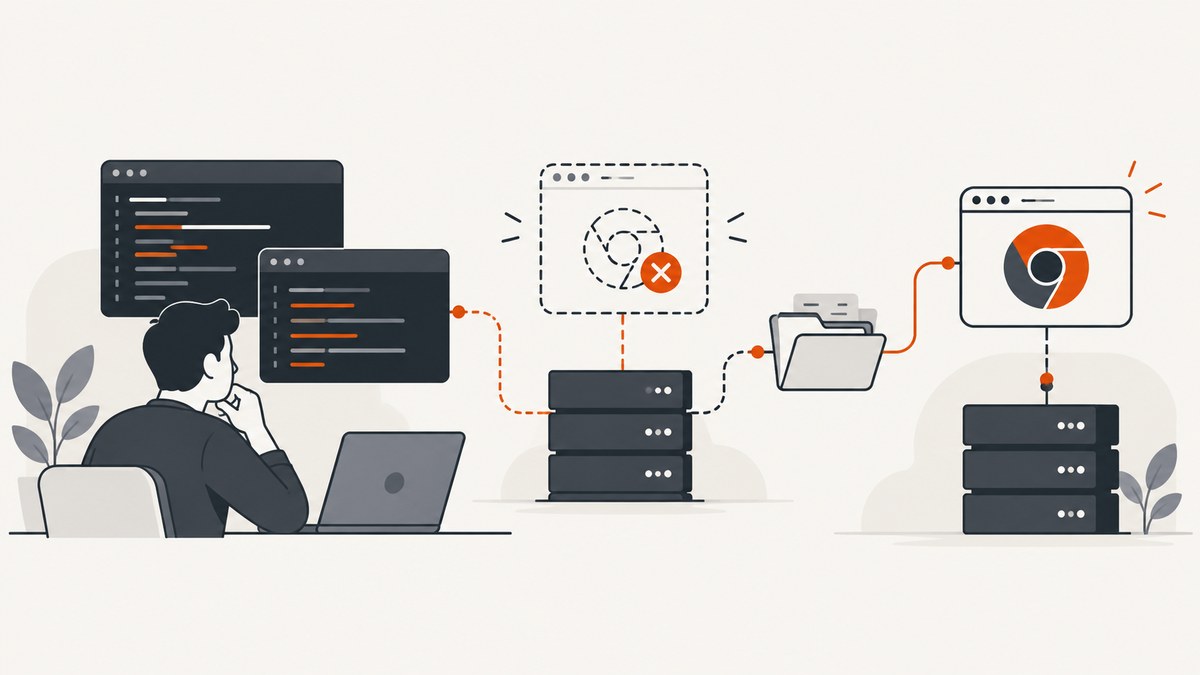
Puppeteer’s Could not find Chrome (ver. ...) error usually means the package was installed but its matching browser was not downloaded, or the browser was installed somewhere the runtime cannot see. Start by checking whether your project uses puppeteer or puppeteer-core, then install the browser explicitly and verify that installation and runtime use the same cache and user.
The shortest repair for a normal Puppeteer project is:
npx puppeteer browsers installIf that does not work, continue through the discovery checks below. A browser that cannot be found requires a different fix from a browser that is found but exits during launch.
1. Identify which Puppeteer package you installed
The package name determines who is responsible for Chrome:
| Package | Browser behavior | Typical fix |
|---|---|---|
puppeteer |
Downloads a compatible browser during installation. | Allow its install script or run npx puppeteer browsers install. |
puppeteer-core |
Does not download Chrome. | Provide executablePath, channel, or a remote browser connection. |
Check the dependency in package.json and inspect the installed version:
npm ls puppeteer puppeteer-core
node --version
npm --version
The standard puppeteer package depends on an installation step that downloads a compatible browser. Package managers can block dependency scripts, leaving the JavaScript package present while the browser is absent. The official installation guide documents this situation and the manual browser command: Puppeteer installation guide.
2. Install the browser manually
Run the command from the same project and environment where your application will execute:
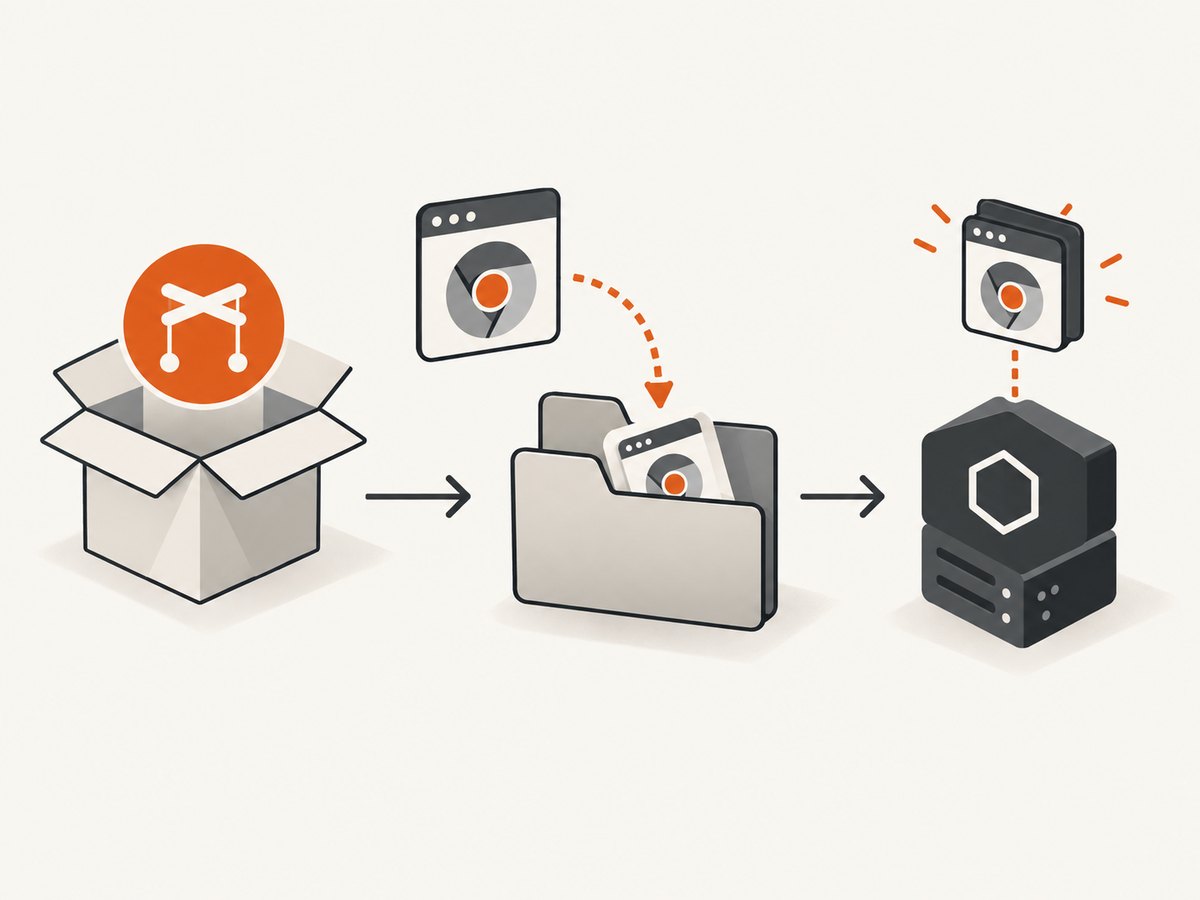
npx puppeteer browsers installEquivalent commands for other package managers are:
yarn dlx puppeteer browsers install
pnpm dlx puppeteer browsers install
bun x puppeteer browsers install
After installation, run a minimal launch test:
const puppeteer = require('puppeteer');

(async () => {
  const browser = await puppeteer.launch({ headless: true });
  const page = await browser.newPage();
  await page.goto('https://example.com', { waitUntil: 'domcontentloaded' });
  console.log(await page.title());
  await browser.close();
})();
If the command succeeds locally but fails in CI or production, the browser was probably installed in a different filesystem, under a different home directory, or during a build stage that is not present at runtime.
3. Check whether an install script was blocked
Recent npm, pnpm, Yarn Berry, Bun, and Deno workflows can restrict dependency install scripts. When Puppeteer’s postinstall script is blocked, the package manager may report a successful dependency install without downloading Chrome.
Review the package-manager output for warnings about ignored or blocked scripts. Then either allow Puppeteer’s install script according to your package manager’s current policy, or keep scripts restricted and run the explicit browser installation command during setup:
npm ci
npx puppeteer browsers install
In CI, make this an explicit build step. In a container, run it while building the image so the browser is included in the final runtime layer. Do not copy only node_modules from one environment unless the Puppeteer cache is copied as well.
4. Verify the Puppeteer cache directory
Since Puppeteer v19.0.0, the default browser cache is based on the user home directory and normally lives at ~/.cache/puppeteer. A changed HOME, a different container user, or a separate build and runtime account can make an installed browser appear to be missing.
Print the identity and relevant environment values in both the installation and runtime contexts:
node -e "console.log({home: require('os').homedir(), user: process.env.USER, cache: process.env.PUPPETEER_CACHE_DIR})"
ls -la ~/.cache/puppeteer
To choose a stable cache location, set PUPPETEER_CACHE_DIR before installing and before launching:
export PUPPETEER_CACHE_DIR="$PWD/.puppeteer-cache"
npx puppeteer browsers install
node app.js
You can also configure a cache directory in .puppeteerrc.js or puppeteer.config.js:
module.exports = {
  cacheDirectory: './.puppeteer-cache'
};
After changing a configuration-file cache directory, reinstall Puppeteer’s browser so the new setting is applied:
npx puppeteer browsers installCommit the configuration, document the cache path in your build, and ensure the runtime user can read and execute the browser files. The cache behavior and configuration details are covered in the Puppeteer troubleshooting guide.
5. Use an explicit executable path with puppeteer-core
puppeteer-core is intended for separately managed or remote browsers. It will not download Chrome for you. If you install Chrome through the operating system, a package image, or a browser-management service, pass the executable location:
const puppeteer = require('puppeteer-core');

(async () => {
  const browser = await puppeteer.launch({
    headless: true,
    executablePath: '/usr/bin/google-chrome'
  });
  const page = await browser.newPage();
  await page.goto('https://example.com');
  await page.screenshot({ path: 'example.png' });
  await browser.close();
})();
If Chrome is installed in a standard location, you can select a channel instead:
const browser = await puppeteer.launch({
  channel: 'chrome',
  headless: true
});
Use executablePath when you need an exact binary, and channel when the expected browser channel is installed conventionally. The Puppeteer installation documentation specifically recommends one of these options for user-managed browsers.
6. Separate “not found” from “failed to launch”
These messages indicate different branches:
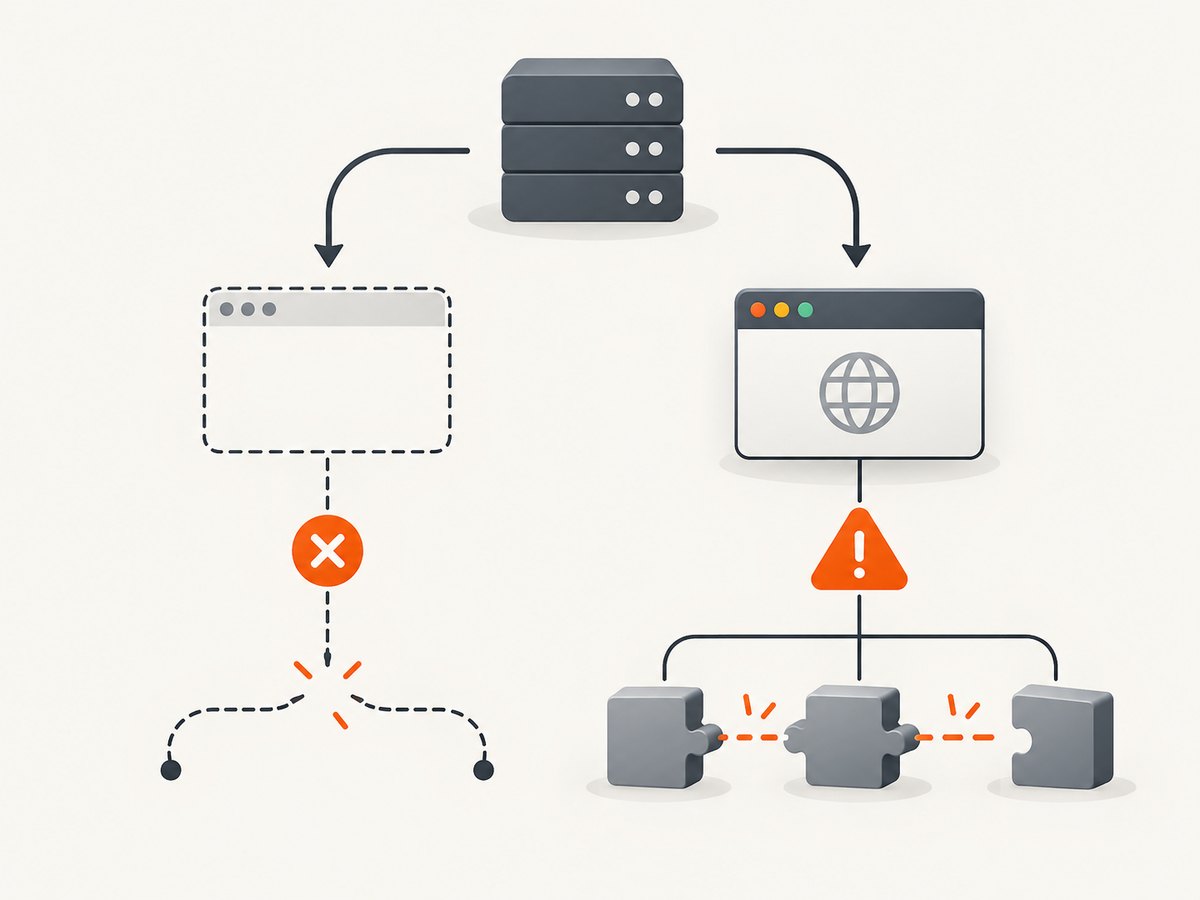
- Could not find Chrome: Puppeteer cannot resolve a browser path. Check package type, installation scripts, cache settings, and executable configuration.
- Browser process failed to start: Puppeteer found a binary, but the operating system prevented it from running. Check shared libraries, permissions, sandbox policy, and architecture.
On Linux, inspect missing shared libraries with:
ldd /path/to/chrome | grep notThe exact dependency packages vary by distribution and image. Use the current dependency list for your Debian, Ubuntu, CentOS, Alpine, or other target rather than copying a package list intended for another release. Also verify that the browser architecture matches the host architecture and that the executable bit is set:
file /path/to/chrome
ls -l /path/to/chrome
Sandbox errors are launch errors, not missing-browser errors. Keep Chrome sandboxing enabled where possible. Puppeteer’s troubleshooting guide strongly discourages using --no-sandbox; add it only when you understand the isolation trade-off and the execution environment requires it.
7. Fix common CI and container mistakes
Build and runtime use different users
A Docker build may install Chrome under /root, while the application runs as an unprivileged user with another home directory. Set a shared PUPPETEER_CACHE_DIR, install there, and grant the runtime user read and execute access.
The cache is excluded from the image
Multi-stage builds often copy application files but omit hidden cache directories. Confirm that the final image contains the configured cache or install the browser in the final stage.
Installation runs without network access
If the browser download is blocked by a firewall or restricted build network, install it in a networked build stage and preserve the resulting files. A package-lock file alone does not contain the browser binary.
Environment variables differ
Compare HOME, PUPPETEER_CACHE_DIR, PATH, and the current user between shell, CI, worker, and web-process environments. A service manager may provide a different environment from your interactive terminal.
Remote browser assumptions
If your code connects to a remote browser, do not call local launch() and expect the remote executable to be discovered. Use the connection method required by that service and keep local Puppeteer versions compatible with the remote browser protocol.
8. A repeatable diagnostic checklist
- Run
npm ls puppeteer puppeteer-core. - If using
puppeteer, runnpx puppeteer browsers install. - Print
os.homedir(),HOME, andPUPPETEER_CACHE_DIR. - Inspect the cache directory in the same environment that launches the app.
- If using
puppeteer-core, verifyexecutablePathorchannel. - If a path resolves, run
ldd chrome | grep noton Linux. - Check permissions, architecture, sandbox policy, and container layers.
- Repeat the minimal launch test before adding navigation, authentication, or screenshot logic.
9. Performance, reliability, and cost considerations
Browser startup is usually more expensive than opening a new page in an existing process. For a service that captures many URLs, keep one controlled browser process alive and create isolated pages or contexts per job. Close pages and contexts after each capture to prevent memory growth.
Cache the browser installation in CI rather than downloading it for every job, but invalidate that cache when the Puppeteer version or browser revision changes. Pin your dependency versions so a lockfile update does not silently change the expected browser.
Set navigation and operation timeouts deliberately. A page can load its initial HTML while fonts, images, or client-rendered content continue loading. Choose domcontentloaded, load, or networkidle based on the page, and add a bounded selector wait for applications that render asynchronously.
Self-hosting means you pay for compute, storage, browser downloads, maintenance, and failed jobs. If you only need a screenshot result, a hosted API can remove browser installation from your application.
10. Or skip the browser setup
ScreenshotNeo provides a website screenshot API and MCP server. One GET request returns a PNG, JPEG, WebP, or PDF, so your application does not need to install or locate Chrome.
See the ScreenshotNeo API documentation for request options. A minimal call is:
cURL
curl -G "https://api.screenshotneo.com/v1/shot" \
  -d access_key=YOUR_API_KEY \
  --data-urlencode url=https://stripe.com \
  -o shot.webp
Python
import requests

r = requests.get(
    "https://api.screenshotneo.com/v1/shot",
    params={"access_key": "YOUR_API_KEY", "url": "https://stripe.com"},
    timeout=90,
)
r.raise_for_status()
open("shot.webp", "wb").write(r.content)
Node.js
const q = new URLSearchParams({ access_key: 'YOUR_API_KEY', url: 'https://stripe.com' });
const res = await fetch(`https://api.screenshotneo.com/v1/shot?${q}`);
if (!res.ok) throw new Error(`Screenshot failed: ${res.status}`);
const data = Buffer.from(await res.arrayBuffer());
require('fs').writeFileSync('shot.webp', data);
ScreenshotNeo removes cookie and consent banners, newsletter popups, and chat widgets before capture; each cleanup step can be disabled. Bot checks, blank pages, timeouts, failed loads, and cache hits are not billed, and response headers report the page verdict and whether the request was billed. It also supports full-page and element capture, lazy-image loading, dark mode, device presets, custom viewports, retina scale, PDFs, custom CSS and JavaScript, clicks, selector waits, network-idle waits, request blocking, headers, cookies, user agents, authorization, timezone, geolocation, transparent backgrounds, resizing, configurable caching, signed links, asynchronous jobs, signed webhooks, bulk capture of up to 100 URLs per call, usage data, and an OpenAPI specification.
An MCP server exposes take_screenshot, get_page_info, and capture_pdf to Claude, Cursor, and other MCP clients. The Free plan includes 1,000 screenshots per month with no card; paid plans start at $5 for 3,000 screenshots. Create a free ScreenshotNeo account.
FAQ
Does reinstalling Puppeteer always fix the error?
No. Reinstallation helps when the browser download was skipped, but it will not fix a different cache directory, a wrong user, puppeteer-core, or missing Linux libraries.
Can I use my existing Chrome installation?
Yes. With a separately managed browser, pass its path through executablePath or select a standard installation with channel.
Why does it work locally but fail in deployment?
The deployment environment may use another user, home directory, architecture, filesystem, or package-manager script policy. Compare those values and install the browser in the final runtime environment.
Is --no-sandbox the missing-browser fix?
No. It addresses certain launch restrictions after a browser has been found, and it reduces isolation. Diagnose the actual error before changing sandbox settings.
Which cache setting should I use?
Use one explicit, writable directory shared by installation and runtime, configured with PUPPETEER_CACHE_DIR or a Puppeteer configuration file.


