How to Fix Puppeteer’s “Could Not Find Chromium” Error on Vercel
Fix Puppeteer’s missing Chromium error on Vercel with build-time downloads, Sparticuz Chromium, runtime settings, diagnostics, and a browser-free option.

Short answer: Vercel cannot see the Chromium cached on your laptop. Either make Puppeteer download Chrome for Testing during the deployment build, or use puppeteer-core with an explicitly packaged Linux binary such as @sparticuz/chromium. The same error also appears when lifecycle scripts are disabled, a custom cache path is wrong, or a bundler leaves the browser binary out of the function bundle.
This guide explains both deployment patterns, shows complete Vercel code, and gives a diagnostic path for cold starts, memory, temporary files, and function limits. It also covers when a hosted screenshot API is a better fit.
1. What “Could Not Find Chromium” means
Puppeteer drives a browser through the Chrome DevTools Protocol. The puppeteer package normally downloads a compatible Chrome for Testing build when it is installed. The approximate download is 170 MB on macOS, 282 MB on Linux, and 280 MB on Windows. Since Puppeteer v19, the default browser cache is $HOME/.cache/puppeteer.
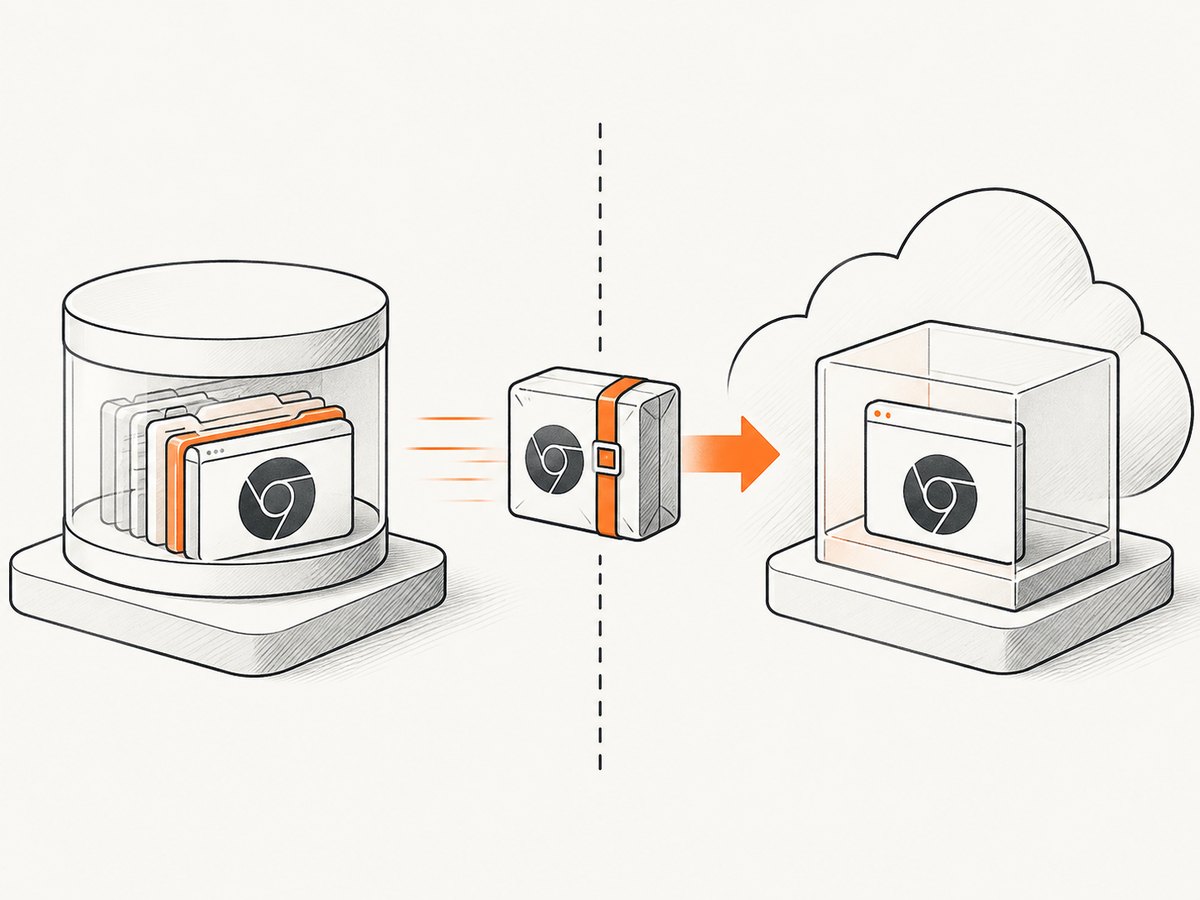
That cache is machine-local. A Vercel build and its deployed function run in an isolated Linux environment, so a browser downloaded under your personal home directory is not automatically included. The diagnostic message points to two usual causes: installation did not happen, or Puppeteer is looking in the wrong cache directory.
Typical causes
- Production dependency missing: only
puppeteer-coreis installed, or Puppeteer was placed indevDependenciesand omitted from the production install. - Lifecycle scripts blocked: a package-manager setting skipped Puppeteer’s postinstall download.
- Cache not bundled: the build downloaded Chrome somewhere that the function output does not contain.
- Custom cache mismatch:
cacheDirectorychanged after installation, or the runtime uses a different path. - Wrong executable:
puppeteer-corewas launched withoutexecutablePathor a supportedchannel. - Serverless packaging: a bundler excluded Chromium files or rewrote relative paths.
2. Choose a deployment strategy
| Approach | Use it when | Main checks |
|---|---|---|
puppeteer managed download |
Your build can download and package Chrome for Testing | Install scripts, bundle size, cache path, function size |
puppeteer-core + @sparticuz/chromium |
You want an explicit serverless Linux executable | Memory, extraction space, bundler externals, /tmp |
| Remote browser | A local Chromium payload or cold start is too expensive | Provider region, security, latency, pricing, terms |
Sparticuz Chromium is built for Linux. It will not run on macOS or Windows, so use a local Chrome installation for development and select the Sparticuz branch in the deployed Linux function.
3. Fix A: make Puppeteer download Chrome during the build
Step 1: install the correct production dependency
npm install puppeteer
Do not install only puppeteer-core for this strategy. Confirm puppeteer is in dependencies in package.json. Commit the lockfile and redeploy.
Step 2: verify lifecycle scripts
Puppeteer documents that blocked install scripts skip the browser download. Check your package-manager configuration and CI settings for options such as ignored scripts or a frozen install mode that requires explicit approval. If scripts were skipped, run the browser installer in the Vercel build:
npx puppeteer browsers install
You can place that command in a build script after dependencies are installed:
{
  "scripts": {
    "build": "next build && npx puppeteer browsers install"
  }
}
For a non-Next.js project, use your framework’s normal build command followed by the Puppeteer install command. The important requirement is that the command runs in the deployment environment, not only on your workstation.
Step 3: make the cache location explicit when needed
If you configure a custom cache directory, add a .puppeteerrc.js file and reinstall Puppeteer so the postinstall process uses the new location:
/** @type {import('puppeteer').Configuration} */
module.exports = {
  cacheDirectory: './.cache/puppeteer'
};
Inspect the deployment output and function bundle. A local $HOME/.cache/puppeteer directory is not evidence that the deployed function contains Chrome.
Step 4: launch Puppeteer and close it reliably
import puppeteer from 'puppeteer';

export default async function handler(req, res) {
  let browser;
  try {
    browser = await puppeteer.launch({ headless: true });
    const page = await browser.newPage();
    await page.goto('https://example.com', {
      waitUntil: 'networkidle2',
      timeout: 45_000
    });
    const image = await page.screenshot({ fullPage: true, type: 'png' });
    res.setHeader('Content-Type', 'image/png');
    res.status(200).send(image);
  } catch (error) {
    console.error('Screenshot failed', error);
    res.status(500).json({ error: 'Screenshot failed' });
  } finally {
    if (browser) await browser.close();
  }
}
Use a finally block. Warm Vercel invocations can reuse a process; leaving browsers open causes memory growth and eventually failed launches.
4. Fix B: package Chromium explicitly with Sparticuz
Install dependencies
npm install puppeteer-core @sparticuz/chromium
puppeteer-core never downloads Chrome. Your code must provide an executable path.
Launch code for a Vercel Linux function
import puppeteer from "puppeteer-core";
import chromium from "@sparticuz/chromium";

export default async function handler(req, res) {
  let browser;
  try {
    browser = await puppeteer.launch({
      args: await puppeteer.defaultArgs({ args: chromium.args, headless: "shell" }),
      defaultViewport: chromium.defaultViewport,
      executablePath: await chromium.executablePath(),
      headless: "shell",
    });

    const page = await browser.newPage();
    await page.goto('https://example.com', {
      waitUntil: 'networkidle2',
      timeout: 45_000,
    });
    const png = await page.screenshot({ fullPage: true, type: 'png' });
    res.setHeader('Content-Type', 'image/png');
    res.status(200).send(png);
  } catch (error) {
    console.error(error);
    res.status(500).json({ error: 'Chromium launch failed' });
  } finally {
    if (browser) await browser.close();
  }
}
The package documentation recommends at least 512 MB of RAM, with 1600 MB or more recommended. Configure the Vercel function memory and maximum duration for your workload. Extraction and temporary browser profiles use writable /tmp; the rest of the filesystem is read-only and /tmp is limited to 500 MB.
Bundler configuration
With esbuild, webpack, Rollup, or another bundler, mark @sparticuz/chromium as external so its relative binary paths survive bundling. If the compressed payload exceeds a provider limit, use @sparticuz/chromium-min with a separately hosted pack and pass that location to executablePath().
5. Local development and production branching
Do not expect the Linux Sparticuz binary to launch on a developer’s Mac or Windows machine. Select a locally installed browser outside Vercel and Sparticuz inside Vercel:
import puppeteer from 'puppeteer-core';
import chromium from '@sparticuz/chromium';

const isVercel = Boolean(process.env.VERCEL);
const executablePath = isVercel
  ? await chromium.executablePath()
  : process.env.LOCAL_CHROME_PATH;

const browser = await puppeteer.launch({
  executablePath,
  args: isVercel ? chromium.args : [],
  headless: true,
});
Set LOCAL_CHROME_PATH to an installed Chrome or Chromium executable on your machine. Keep the variable out of source control.
6. Vercel settings that affect reliability
- Memory: increase function memory for large pages, PDFs, multiple tabs, or image-heavy sites. Sparticuz recommends 512 MB minimum and 1600 MB or more for a safer margin.
- Duration: set a maximum duration that covers DNS, page load, JavaScript execution, screenshot encoding, and browser shutdown.
- Temporary files: write profiles and extracted data only under
/tmp; remove large files after each invocation. - Concurrency: limit parallel pages per function. Each page consumes memory and file descriptors.
- Navigation waits: use a bounded timeout.
networkidle2can never settle on pages with persistent analytics or sockets, so use a selector or a fixed delay when appropriate. - Authentication: pass cookies or headers deliberately and never log secrets.

7. Troubleshooting checklist
| Symptom | Cause | Fix |
|---|---|---|
| “Could not find Chrome” after deploy | Install script skipped or browser not packaged | Run npx puppeteer browsers install, confirm production dependency, inspect bundle |
puppeteer-core launch error |
No executable supplied | Set executablePath from Sparticuz or a managed browser |
| Works locally, fails only on Vercel | Local cache or OS-specific Chrome | Use a Linux-compatible binary and test the deployed function |
| ENOENT for Chromium files | Bundler removed relative assets | Mark @sparticuz/chromium external; verify output files |
| Function exceeds size limit | Compressed browser payload too large | Use @sparticuz/chromium-min and a separately hosted pack |
| Browser crashes or times out | Insufficient memory, duration, or /tmp space |
Raise memory/duration, close pages, clean temporary files, reduce concurrency |
| Blank or partial screenshot | Capture ran before content or lazy images loaded | Wait for a selector, a controlled delay, or an appropriate network state |
Log the facts that identify the failure
console.log({
  node: process.version,
  platform: process.platform,
  arch: process.arch,
  vercel: process.env.VERCEL,
  tmp: process.env.TMPDIR || '/tmp',
});
Do not print API keys, cookies, authorization headers, or full private URLs. The platform and architecture quickly reveal an accidental local binary; the Vercel flag confirms which branch ran.
8. Performance, reliability, and cost considerations
A managed Puppeteer download can add build time and deployment size. Sparticuz moves the work to runtime extraction and needs adequate memory. Full-page screenshots, PDF generation, custom fonts, animations, and large client-side applications increase both CPU time and temporary storage. Reuse a browser only within a warm invocation when you can isolate pages safely, and always close it when the handler finishes.
For repeated URLs, cache at the application layer with an explicit expiration policy. Avoid unbounded parallel captures: serverless concurrency multiplies Chromium memory. Set navigation and overall request deadlines so a page that never finishes does not consume the entire function duration.
When the browser payload, cold start, or operational work is not justified, a hosted screenshot service removes browser packaging from your deployment. Verify any provider’s current region, security model, latency, pricing, and terms before committing.
9. Or skip the browser setup
ScreenshotNeo is a website screenshot API and MCP server. One GET request returns PNG, JPEG, WebP, or PDF, so your Vercel function does not need to download or launch Chromium.
cURL:
curl -G "https://api.screenshotneo.com/v1/shot" -d access_key=YOUR_API_KEY --data-urlencode url=https://stripe.com -o shot.webpPython:
import requests
r = requests.get("https://api.screenshotneo.com/v1/shot", params={"access_key": "YOUR_API_KEY", "url": "https://stripe.com"}, timeout=90)
open("shot.webp", "wb").write(r.content)
Node.js:
const q = new URLSearchParams({ access_key: 'YOUR_API_KEY', url: 'https://stripe.com' });
const res = await fetch(`https://api.screenshotneo.com/v1/shot?${q}`);
See the ScreenshotNeo API documentation for request options. It accepts full-page capture with lazy images loaded, CSS selectors for one element, device presets or custom viewports, dark mode, retina scale, PDF settings, custom CSS and JavaScript, clicks, waits, blocked resource types, headers, cookies, user agents, authorization, timezone, geolocation, transparent backgrounds, resizing, caching TTLs, signed links, asynchronous jobs, bulk capture, usage data, and an OpenAPI specification.
Cookie and consent banners, newsletter popups, and chat widgets are removed before capture. Bot checks, blank pages, timeouts, failed loads, and cache hits are not billed, and response headers report the page verdict and billing result. An MCP server provides take_screenshot, get_page_info, and capture_pdf for Claude, Cursor, and other MCP clients. The Free plan includes 1,000 screenshots per month with no card; paid plans start at $5 for 3,000.
Create a free ScreenshotNeo account and try 1,000 screenshots a month without a card.
10. FAQ
Does puppeteer-core download Chromium?
No. It is a DevTools Protocol client and requires an executable supplied by your application or environment.
Can I copy my local Puppeteer cache into Vercel?
Do not rely on it. Build output and function bundles must contain a Linux-compatible browser at the path used at runtime.
Why does networkidle2 hang?
Persistent analytics, sockets, or polling can prevent the network from becoming idle. Use a selector wait, bounded delay, or another explicit readiness condition.
What directory can a Vercel function write?
The filesystem is read-only except for writable /tmp, which has up to 500 MB available. Keep extraction, profiles, and temporary output within that limit.
Which approach should I start with?
Use managed puppeteer when your build can package Chrome and scripts are allowed. Use Sparticuz when you need an explicit serverless Linux binary. Use a hosted API when browser packaging and runtime limits are not a good fit.


