How to Fix Puppeteer in Docker After Deployment
Puppeteer works locally but fails in deployed Docker? Diagnose browser, libraries, sandbox, filesystem, and process issues with a reliable repair checklist.
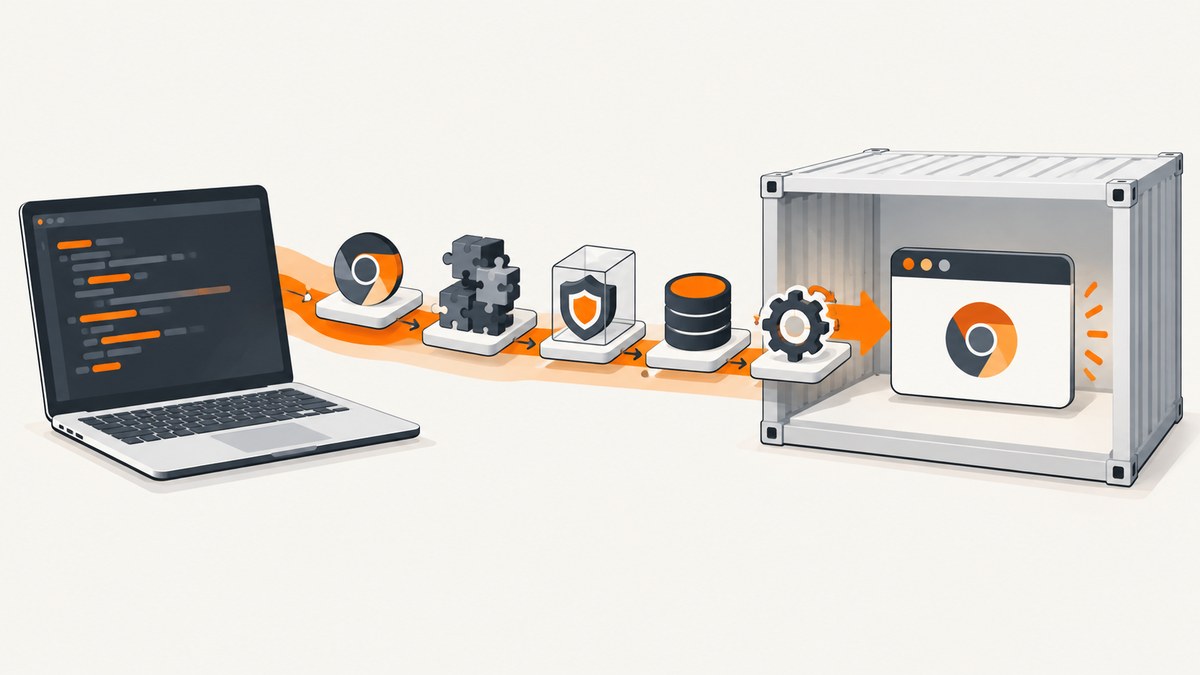
Direct answer: Puppeteer usually fails after deployment because the production container does not contain the browser binary Puppeteer expects, lacks Chrome’s Linux libraries, cannot create a sandbox or writable profile, or leaves child processes unmanaged. Capture the complete launch error first, then fix only the matching failure class. The easiest documented baseline is Puppeteer’s official image, which includes Chrome for Testing, required dependencies, and a compatible Puppeteer version.
Do not begin by adding --no-sandbox. That flag can hide the real problem and weakens Chrome isolation. Compare the deployed image, Puppeteer version, browser path, runtime user, architecture, and filesystem permissions with your local environment.
1. Collect the evidence before changing the image
Run the deployed container with temporary diagnostics and save the entire stderr output. A truncated message such as “Failed to launch the browser process” is not enough to choose a fix.
const puppeteer = require('puppeteer');

(async () => {
  const browser = await puppeteer.launch({
    headless: true,
    dumpio: true
  });
  try {
    const page = await browser.newPage();
    await page.goto('https://example.com', {waitUntil: 'networkidle2'});
    console.log(await page.title());
  } finally {
    await browser.close();
  }
})();
Puppeteer’s debugging guide also documents NODE_DEBUG="puppeteer:*" for protocol-level logs. Enable verbose logging briefly, because browser and page URLs can contain sensitive data. Record:
- Full Chrome stderr and the first stack trace.
- Puppeteer version from the lockfile and
npm list puppeteer. - Browser version and executable path.
- Base image distribution, CPU architecture, and runtime user.
- Whether the root filesystem is read-only and which directories are mounted writable.
These checks follow the official Puppeteer debugging guidance.
2. Start with the official Puppeteer Docker image
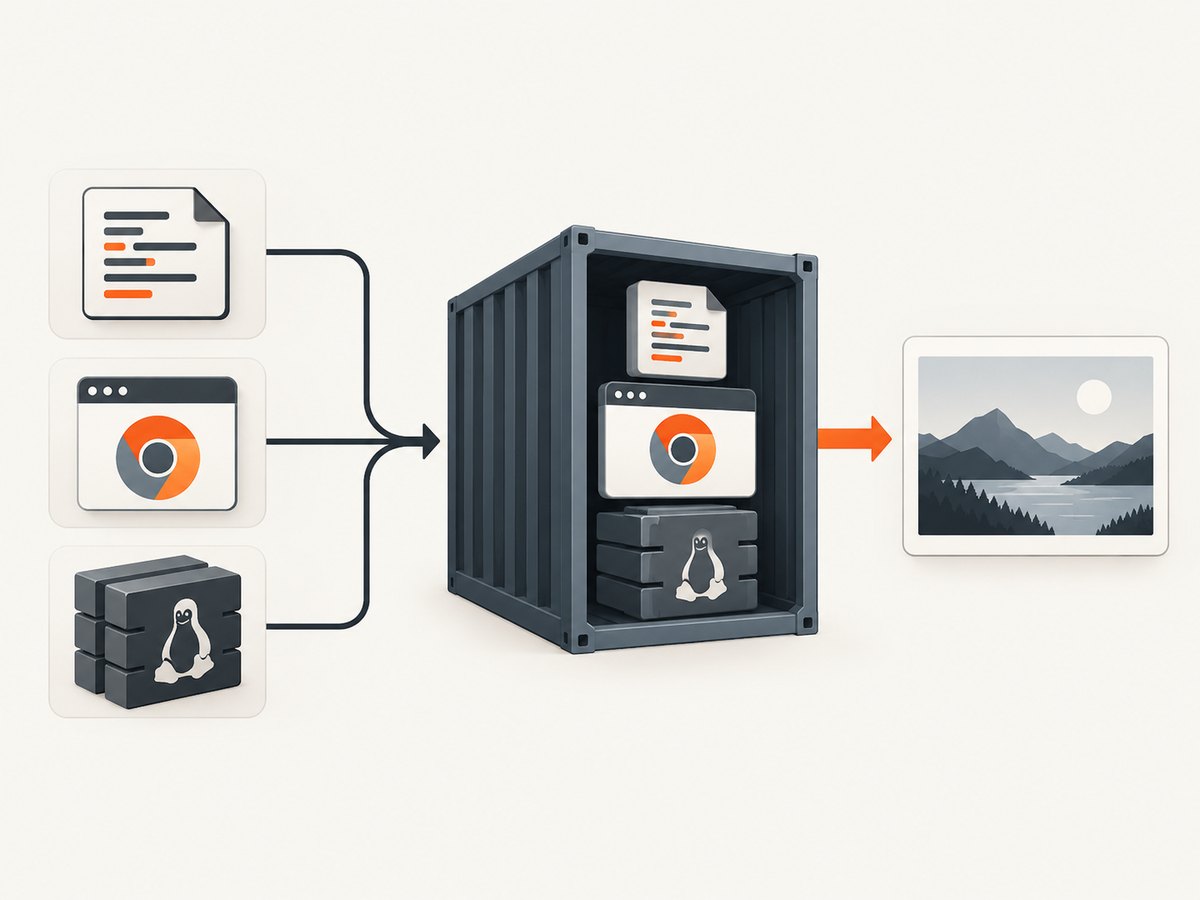
The official image at ghcr.io/puppeteer/puppeteer is the shortest path to a known-good deployment. It includes Chrome for Testing, its runtime dependencies, and a pre-installed Puppeteer version. The latest tag is mutable; use a version tag in production and update it deliberately.
FROM ghcr.io/puppeteer/puppeteer:25.12.0

WORKDIR /app
COPY package*.json ./
RUN npm ci --omit=dev
COPY . .

CMD ["node", "server.js"]
Use the image’s documented sandbox setup when starting it:
docker run --init --cap-add=SYS_ADMIN \
  --rm your-image:tag
--init gives the container a small init process that reaps child processes. SYS_ADMIN is part of the official image’s documented sandbox run example. Read the official Docker guide for the tag matching your Puppeteer release and your platform’s security policy.
3. Build a custom image when you need a different base
A custom Debian, Ubuntu, Fedora, or openSUSE image gives you control over the base distribution and package footprint, but you must reproduce the browser and dependency setup. Use Puppeteer’s official Dockerfile as the starting point rather than guessing at packages.
FROM node:22-bookworm

ENV PUPPETEER_CACHE_DIR=/home/pptruser/.cache/puppeteer
WORKDIR /app

RUN groupadd --system pptruser \
 && useradd --system --create-home --gid pptruser pptruser

COPY package*.json ./
RUN npm ci

# Confirm the install step downloaded the browser before switching users.
RUN npx puppeteer browsers list

COPY . .
RUN mkdir -p /home/pptruser/.cache /tmp/puppeteer \
 && chown -R pptruser:pptruser /app /home/pptruser /tmp/puppeteer
USER pptruser

CMD ["node", "server.js"]
The exact shared-library list varies by distribution and Chrome release. After locating the installed Chrome binary, inspect unresolved dependencies:
ldd /path/to/chrome | grep notInstall the missing libraries using packages for your base distribution. Puppeteer’s troubleshooting guide contains Debian-family examples and explains why lists change across releases.
4. Fix browser-not-found and version mismatches
Errors such as Could not find Chrome (ver. ...), Could not find expected browser locally, or ENOENT mean the runtime cannot find the browser Puppeteer was configured to use. Common causes are skipped install scripts, a cache created in a build stage but absent in the final stage, a different runtime user, or an incorrect executable path.
- Check that the dependency install ran in the image build and that browser download scripts were not disabled by your package manager.
- Run
npx puppeteer browsers listinside the built image. - Check the cache location. Puppeteer uses
~/.cache/puppeteerby default in newer releases; setPUPPETEER_CACHE_DIRwhen the build and runtime users differ. - Use the browser Puppeteer installed unless you have a reason to manage Chrome separately.
const puppeteer = require('puppeteer');

(async () => {
  const browser = await puppeteer.launch({
    headless: true,
    userDataDir: '/tmp/puppeteer-profile'
  });
  try {
    const page = await browser.newPage();
    await page.goto('https://example.com', {waitUntil: 'domcontentloaded'});
  } finally {
    await browser.close();
  }
})();
Puppeteer releases are paired with specific browser releases and guarantee operation with the bundled browser. If you intentionally use system Chrome, set executablePath explicitly and validate the browser against the installed Puppeteer version. A custom browser combination is not covered by the same compatibility guarantee. See the Puppeteer FAQ and configuration reference.
5. Resolve sandbox failures safely
No usable sandbox! indicates that Chrome cannot initialize its isolation mechanism in the container. Prefer a supported sandbox configuration: use the official image, follow its documented capability settings, and run as a non-root user where your platform permits it.
Puppeteer states that running without a sandbox is strongly discouraged. Only consider --no-sandbox for tightly controlled, trusted content when your security team accepts the trade-off:
const browser = await puppeteer.launch({
  headless: true,
  args: ['--no-sandbox', '--disable-setuid-sandbox']
});
Do not treat these flags as a universal deployment fix. They do not install missing libraries, restore a browser download, or make a read-only filesystem writable.
6. Give Chrome writable profile and cache paths
Chrome writes profile, configuration, cache, and crash-report data during startup. Read-only serverless containers and locked-down Kubernetes pods can fail with messages such as chrome_crashpad_handler: --database is required or an early browser exit.
ENV XDG_CONFIG_HOME=/tmp/chrome-config
ENV XDG_CACHE_HOME=/tmp/chrome-cache

# In application code:
const browser = await puppeteer.launch({
  headless: true,
  userDataDir: '/tmp/chrome-profile'
});
Create these directories at startup if the platform does not provide them. For a mounted volume, make sure the runtime user owns it. Avoid sharing one profile between concurrent browser instances; give each job its own temporary directory and remove it after shutdown.
7. Manage processes and close every browser
Containerized workers can accumulate Chrome processes when requests time out or exceptions bypass cleanup. Start the container with Docker’s --init flag or a custom init entrypoint, as recommended in Puppeteer’s Docker guide. Always close pages and browsers in a finally block.
let browser;
try {
  browser = await puppeteer.launch({headless: true});
  const page = await browser.newPage();
  await page.goto(target, {waitUntil: 'networkidle2', timeout: 45000});
  return await page.screenshot({type: 'png'});
} finally {
  if (browser) await browser.close();
}
For a queue worker, limit concurrent browsers to the memory available to the container, recycle workers after a bounded number of jobs, and handle termination signals so in-flight browsers close cleanly.
8. A repeatable deployment checklist
| Symptom | Likely cause | Targeted fix |
|---|---|---|
| Browser executable ENOENT | Skipped download, wrong cache, or wrong path | Verify install scripts, cache directory, and executablePath |
Missing .so library |
Incomplete OS dependencies | Run ldd chrome | grep not and install matching packages |
No usable sandbox! |
Container sandbox unavailable | Use official sandbox configuration and documented capability |
| Crashpad or profile startup error | Read-only or unwritable paths | Set writable XDG paths and userDataDir |
| Processes remain after jobs | No init process or missing cleanup | Use --init and close browsers in finally |
9. Performance, reliability, and cost considerations
- Image reproducibility: Pin the Puppeteer image or base-image digest. A mutable
latesttag can change browser and OS contents between deployments. - Cold starts: Keep the browser in the image layer so requests do not download it at runtime. Reuse a browser for several jobs when isolation requirements allow, but create separate pages and close them promptly.
- Memory: Full-page screenshots, many simultaneous pages, and large PDFs increase memory pressure. Set queue concurrency from observed container limits rather than host capacity.
- Timeouts: Set navigation and job timeouts explicitly. Always close the browser when a timeout fires.
- Security: Keep Chrome sandboxed where possible, run as a non-root user, and avoid logging cookies, authorization headers, or private URLs.
- Cost: Browser containers consume CPU and memory even when a page fails. Cache stable assets and avoid launching a new browser for every small operation when your workload permits safe reuse.
10. Or skip the browser setup
If your goal is a reliable website screenshot rather than operating Chrome, ScreenshotNeo provides a single API request. Cookie and consent banners are accepted and removed before capture, along with 60+ known consent platforms, newsletter popups, and chat widgets. Bot checks, blank pages, timeouts, failed loads, and cache hits cost nothing, and the response identifies the result with X-Page-Verdict and X-Billed headers. It also offers an MCP server for Claude, Cursor, and other MCP clients.

See the ScreenshotNeo API documentation for all options.
cURL
curl -G "https://api.screenshotneo.com/v1/shot" \
  -d access_key=YOUR_API_KEY \
  --data-urlencode url=https://stripe.com \
  -o shot.webp
Python
import requests

r = requests.get(
    "https://api.screenshotneo.com/v1/shot",
    params={"access_key": "YOUR_API_KEY", "url": "https://stripe.com"},
    timeout=90,
)
r.raise_for_status()
open("shot.webp", "wb").write(r.content)
Node.js
const q = new URLSearchParams({ access_key: 'YOUR_API_KEY', url: 'https://stripe.com' });
const res = await fetch(`https://api.screenshotneo.com/v1/shot?${q}`);
if (!res.ok) throw new Error(`Screenshot failed: ${res.status}`);
const fs = require('node:fs/promises');
await fs.writeFile('shot.webp', Buffer.from(await res.arrayBuffer()));
ScreenshotNeo supports full-page captures with lazy images loaded, CSS element selection, dark mode, device presets and custom viewports, retina scale, PDF output, custom CSS and JavaScript, clicks, selector or network-idle waits, request blocking, headers, cookies, user agents, authorization, timezone, geolocation, transparent backgrounds, resizing, selectable cache TTLs, signed image links, asynchronous jobs with signed webhooks, bulk capture of up to 100 URLs per call, a usage API, and an OpenAPI specification.
There are 1,000 screenshots per month free with no card. Paid plans start at $5 for 3,000 shots; every feature is available on every plan. Create a free ScreenshotNeo account.
11. FAQ
Should I use Chromium from my operating system?
Use Puppeteer’s bundled browser first. If you choose system Chrome or Chromium, configure its path explicitly and validate protocol compatibility with your Puppeteer version.
Why does the same Dockerfile work on x64 but fail on ARM?
Browser builds and OS packages differ by architecture. Confirm that your Puppeteer release and selected image publish binaries for the deployment architecture, then inspect missing libraries inside that image.
Can I solve every deployment error with --no-sandbox?
No. It only changes sandbox behavior and is strongly discouraged for untrusted content. Browser installation, libraries, writable paths, and process cleanup still need to be correct.
Where should I look for the next version-specific requirement?
Check Puppeteer’s system requirements for the version in your lockfile and compare them with the deployed base image.


