How to Fix Puppeteer Screenshots That Save as Empty Image Files
Trace an empty Puppeteer screenshot through navigation, page readiness, geometry, assets, file paths, and async completion—with runnable checks and fixes.
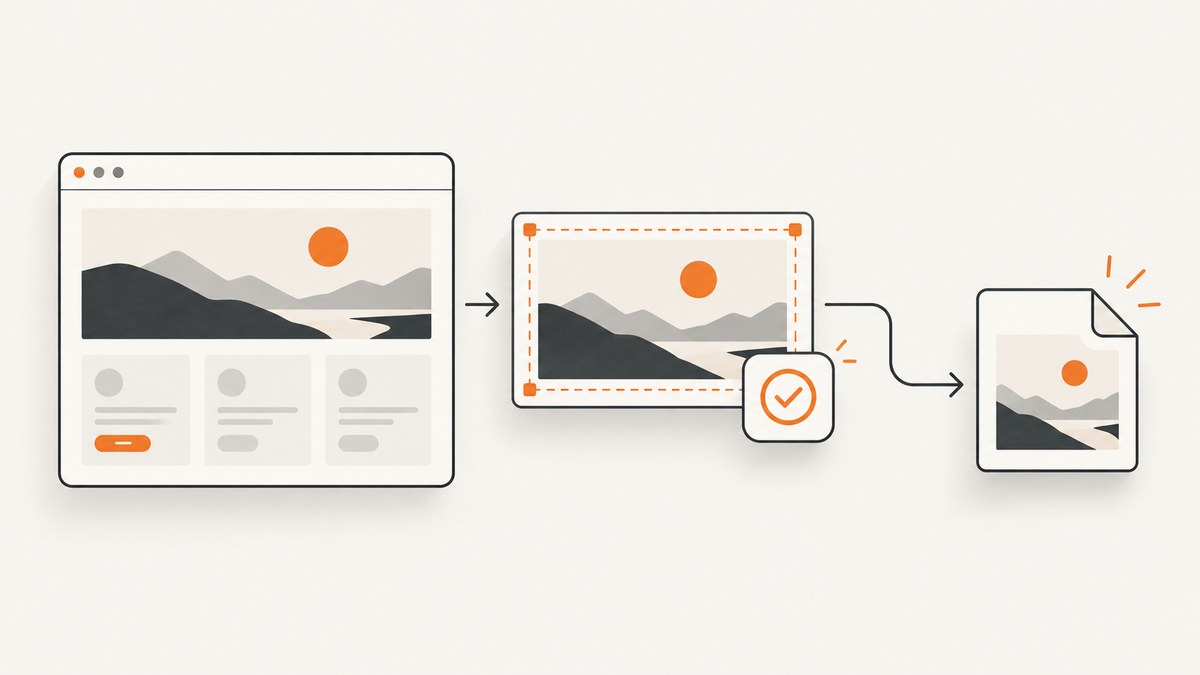
A Puppeteer screenshot that is blank or zero bytes usually points to one of two different problems: the browser captured an empty or not-yet-rendered page, or the capture succeeded but the output file was saved or handled incorrectly. Debug those paths in order: navigation, content readiness, geometry, assets, capture options, output path, and asynchronous completion.
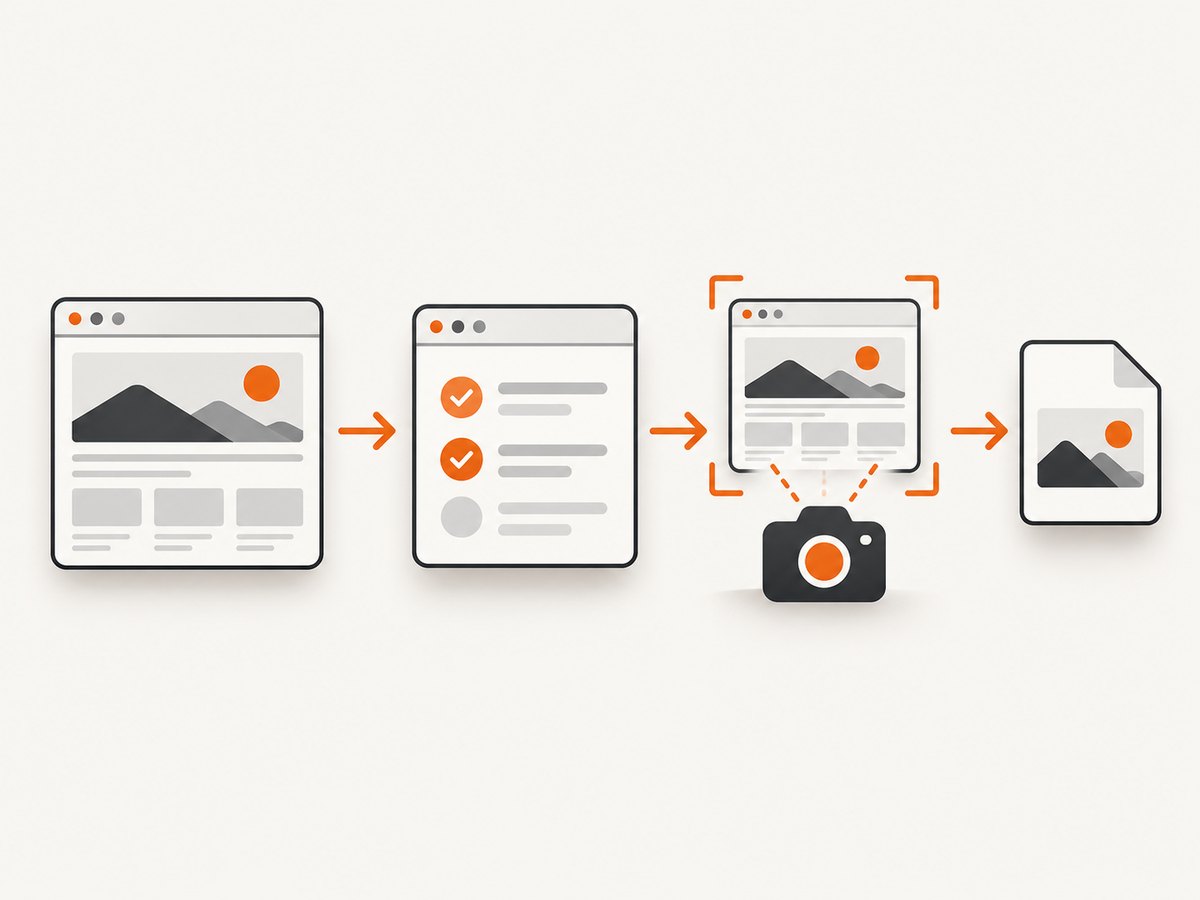
The most important rule is to await page.screenshot() and keep the page and browser open until it finishes. Then check the response URL and status, wait for the page’s actual ready state, confirm the capture target has visible dimensions, and verify the output file exists and has content.
1. Start with a diagnostic capture
This example checks the common failure points before saving a full-page PNG. It expects the target site to expose a visible main element; replace that selector with a reliable marker from your application.
import puppeteer from 'puppeteer';
import path from 'node:path';
import fs from 'node:fs/promises';

const browser = await puppeteer.launch();
try {
  const page = await browser.newPage();
  await page.setViewport({ width: 1280, height: 800, deviceScaleFactor: 1 });

  const response = await page.goto('https://example.com', {
    waitUntil: 'networkidle2',
    timeout: 30_000,
  });
  if (!response) throw new Error('Navigation returned no response');
  console.log({ status: response.status(), url: page.url(), title: await page.title() });

  await page.waitForSelector('main', { visible: true, timeout: 15_000 });
  await page.evaluate(async () => {
    await document.fonts.ready;
    for (const image of document.images) {
      await image.decode();
      if (!image.naturalWidth) throw new Error(`Broken image: ${image.src}`);
    }
  });

  const box = await page.locator('main').boundingBox();
  if (!box || box.width <= 0 || box.height <= 0) {
    throw new Error('Target has no positive geometry');
  }

  const output = path.resolve(process.cwd(), 'artifacts/screenshot.png');
  await fs.mkdir(path.dirname(output), { recursive: true });
  await page.screenshot({ path: output, type: 'png', fullPage: true });
  const stat = await fs.stat(output);
  console.log({ output, bytes: stat.size, target: box });
  if (stat.size === 0) throw new Error('Screenshot file is empty');
} finally {
  await browser.close();
}
The official Puppeteer guide demonstrates navigating before calling page.screenshot(), and shows networkidle2 and waiting for a selector before an element screenshot. Consult the Puppeteer screenshot guide and Page API when checking version-specific behavior.
2. Verify navigation reached the intended page
A screenshot can succeed while showing an unhelpful document. Redirects, login walls, access-denied pages, error templates, and an accidental about:blank are all worth ruling out before inspecting image bytes.
- Log
response.status(),page.url(), andawait page.title()immediately after navigation. - Check whether the final URL differs from the requested one. Follow redirects intentionally, and handle authentication or consent flows if your application requires them.
- Inspect the returned response. Navigation to
about:blankcan complete without an HTTP response, so Puppeteer may returnnull. - For an HTTP error status, decide whether the document is still useful to capture; a completed navigation does not mean the expected application rendered.
Use a navigation condition that suits the site. domcontentloaded waits for HTML parsing, load waits for the load event, and networkidle2 waits for a period with few active network connections. None proves that a client-rendered application has finished displaying its content.
3. Wait for the application, not just the network
Single-page applications often fetch data or render components after navigation. A network-idle condition can happen before the important content appears, and some sites keep analytics or streaming requests open indefinitely. Wait for a stable, page-specific signal, such as a main heading, a result list, or an application-set ready marker.
// Wait for the content that should appear in the capture.
await page.waitForSelector('[data-testid="report-ready"]', {
  visible: true,
  timeout: 15_000,
});

// Or wait for a measurable application condition, with a deadline.
await page.waitForFunction(() => {
  const root = document.querySelector('#app');
  return root?.children.length > 0 && document.body.innerText.includes('Report');
}, { timeout: 15_000 });
visible: true requires the element to exist and not be hidden with display:none or visibility:hidden. It does not guarantee that the element is in the viewport or that its contents are meaningful, so check dimensions and expected text when needed.
A fixed delay can help diagnose a race, but it is a weak production readiness condition: pages vary in load time, and waiting longer cannot guarantee an application is ready. Prefer a selector or bounded condition that represents the content you intend to capture. If a page is known to animate, wait for its completion or disable the animation for the capture.
4. Check viewport, element geometry, and full-page behavior
Set an explicit viewport before navigation or capture. Otherwise, the default viewport or a prior emulation setting may change responsive layout and make the desired content disappear. For a specific node, inspect its bounding box before taking the screenshot.
const locator = page.locator('.invoice');
await locator.wait();
const box = await locator.boundingBox();
console.log(box);
if (!box || box.width <= 0 || box.height <= 0) {
  throw new Error('Invoice is missing, hidden, or has no size');
}
await locator.screenshot({ path: 'invoice.png' });
A missing or zero-sized box can mean the selector matched nothing, the node is hidden, a responsive breakpoint removed it, or the node was detached while the page changed. Re-query after a render or navigation instead of reusing a stale element handle. If the page uses frames, check that the selector belongs to the frame you are querying.
| Capture mode | What it captures | Typical failure to check |
|---|---|---|
| Viewport | The current visible viewport | Wrong viewport size or content below the fold |
fullPage: true |
The document’s current full height | Assuming it loads content that appears only during scrolling |
| Element screenshot | A selected node | Hidden, detached, or zero-size target |
clip |
A defined rectangle | Invalid or out-of-bounds coordinates |
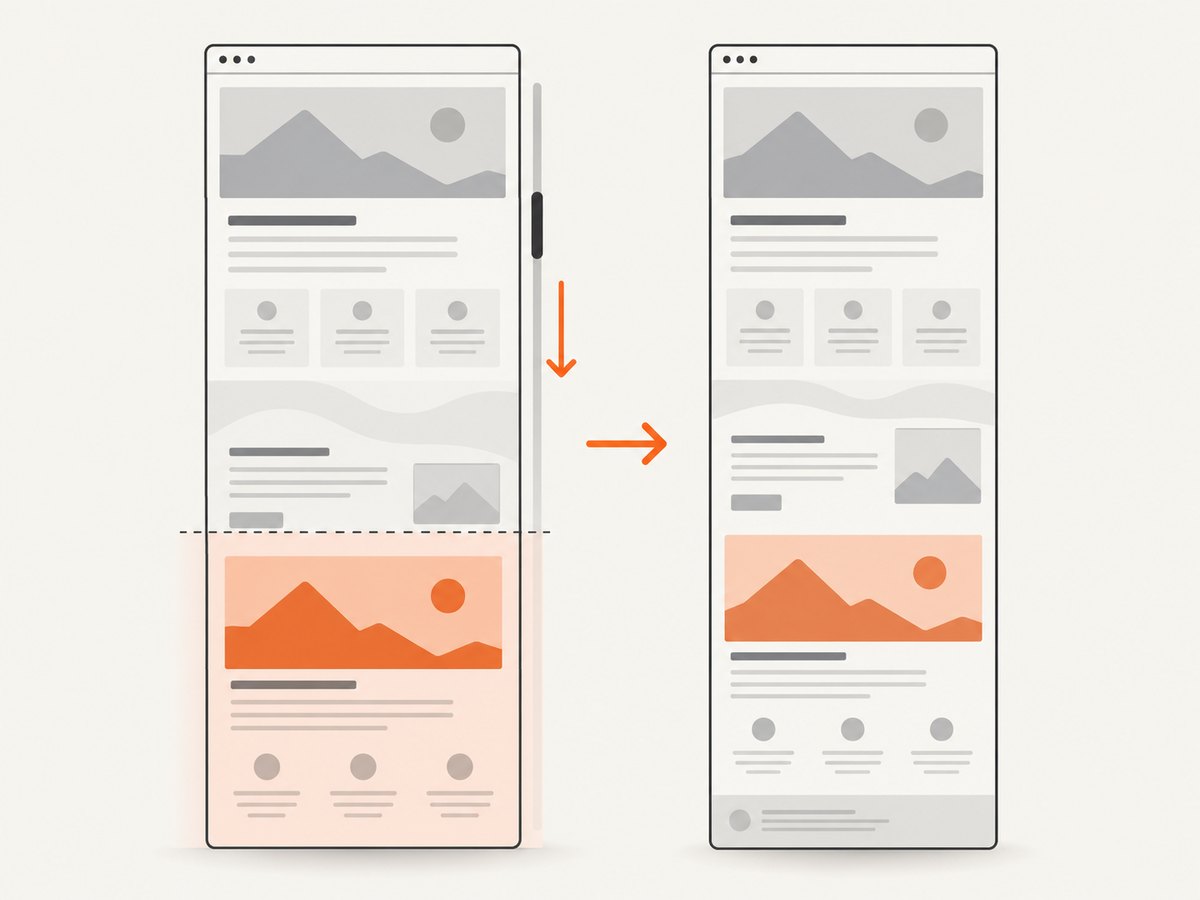
fullPage: true captures the document as it currently exists; it does not scroll through an infinite feed to trigger lazy loading. If the page loads more content on scroll, scroll in controlled increments, wait for each batch, and then capture. For a known crop, use a positive clip rectangle. Do not combine clip and fullPage.
5. Wait for fonts and images that affect the result
Navigation readiness does not guarantee that fonts, images, or assets inserted later have loaded. A page can therefore look empty, incomplete, or differently laid out even though the screenshot call returns normally. Wait for fonts and decode the images that matter to the capture.
await page.evaluate(async () => {
  await document.fonts.ready;
  const images = [...document.images];
  await Promise.all(images.map(image => image.decode()));
  const broken = images.filter(image => image.naturalWidth === 0);
  if (broken.length) {
    throw new Error(`Images failed: ${broken.map(image => image.src).join(', ')}`);
  }
});
For long pages, checking every image may be slow or unnecessary. Restrict the check to the target region or to assets that make the intended screenshot understandable. If an image fails, inspect its URL and browser network errors, including authentication, cross-origin restrictions, blocked requests, and server responses. An image can be absent while the rest of the capture is valid.
6. Separate screenshot bytes from file output
The path option is optional. When supplied, a relative path is resolved from the Node.js process working directory, which may differ from the source file’s directory, especially in containers and job runners. Resolve it explicitly and create its parent directory.
import fs from 'node:fs/promises';
import path from 'node:path';

const output = path.resolve(process.cwd(), 'artifacts/page.webp');
await fs.mkdir(path.dirname(output), { recursive: true });
const bytes = await page.screenshot({ type: 'webp', quality: 80 });
console.log('screenshot bytes:', bytes.length);
await fs.writeFile(output, bytes);
console.log('saved to:', output, 'cwd:', process.cwd());
This isolates rendering from filesystem problems. If bytes.length is positive but the saved file is empty or missing, check directory permissions, volume mounts, parent-directory creation, and any later image processing or upload step. If the bytes are non-empty but the image looks blank, open the file in an image viewer and continue debugging the rendered page, transparency, or crop.
Screenshot type is inferred from the extension when using path; PNG is the default. PNG ignores the quality option. JPEG and WebP accept a quality value. omitBackground: true creates transparent output; a white or otherwise unsuitable viewer background can make transparent pixels look blank. Try a normal background before diagnosing the page as empty.
7. Await completion and avoid concurrent page changes
page.screenshot() is asynchronous. If the script exits, closes the page, or closes the browser before the promise settles, the output may be missing or incomplete. Keep the await and close the browser in a finally block after the capture has completed.
A screenshot returns binary data by default and a string when base64 output is requested. Do not confuse a base64 string with raw image bytes when writing it to disk. Also avoid overlapping operations that mutate the same page, such as navigation, viewport changes, DOM interaction, or a second screenshot. Serialize capture work per page, or use separate pages for independent jobs.
8. Common errors and fixes
| Symptom | Likely cause | What to do |
|---|---|---|
| Zero-byte or missing file | Screenshot promise was not awaited, path parent is missing, or a later step overwrote the file | Await capture, resolve the absolute path, create the directory, then check file size |
| Blank image with non-zero bytes | Wrong page, early capture, hidden content, transparent background, or wrong crop | Log final URL/title, wait for a ready selector, inspect geometry, and try an opaque background |
Navigation returned no response |
For example, navigation to about:blank returned no HTTP response |
Check the URL and handle a null response rather than dereferencing it |
TimeoutError during navigation |
Network-idle never occurs, the site is slow, or requests remain open | Choose an appropriate waitUntil, set a bounded timeout, then wait for an application selector |
| Selector timeout | Wrong selector, wrong frame, app error, or content not rendered | Confirm URL and title, inspect the DOM, and query the correct frame |
| Element screenshot is blank or fails | Target is hidden, detached, or has no positive dimensions | Wait for a visible selector, re-query after updates, and inspect its bounding box |
| Full-page image has empty lower area | Lazy or infinite-scroll content was never inserted | Scroll to trigger loading, wait for new content, then capture the resulting document |
| Images or text look incomplete | Fonts or images were still loading or failed | Wait for document.fonts.ready, decode relevant images, and inspect failed asset requests |
9. Performance, reliability, and cost considerations
For a reliable capture, wait only for the conditions the page needs. Waiting for every network connection to stop can be slow or impossible on pages with polling, analytics, or streaming. A specific selector plus font and relevant-image readiness usually gives a more useful boundary. Keep waits bounded, log the final URL, status, output path, and byte count, and preserve enough context to reproduce failures.
Full-page captures and high device scale factors produce larger images and can require more browser memory. Use viewport screenshots or element captures when those match the task. Decode only relevant images on very long pages. If your workflow captures many pages, limit concurrency according to available memory and avoid sharing one mutable page among simultaneous jobs.
Browser automation has operational costs: the browser process, page load time, and any retry work. A screenshot that is blank because the page failed should be treated separately from one that rendered correctly but failed to save. Record those outcomes so your application can decide whether to retry, report a site error, or fix its storage path.
10. Or skip the browser setup
If the goal is a website screenshot rather than controlling a local Puppeteer browser, ScreenshotNeo provides a one-request screenshot API and an MCP server for AI agents. Its capture flow accepts cookie and consent banners and removes more than 60 known consent platforms, newsletter popups, and chat widgets before the shot; each step can be turned off. Bot checks and CAPTCHAs, blank pages, timeouts, failed loads, and cache hits cost nothing, and response headers report the page verdict and billing status. MCP tools include take_screenshot, get_page_info, and capture_pdf.
curl -G "https://api.screenshotneo.com/v1/shot" \
  -d access_key=YOUR_API_KEY \
  --data-urlencode url=https://stripe.com \
  -o shot.webp
See the ScreenshotNeo API documentation for setup and options. One GET request returns PNG, JPEG, WebP, or PDF. The API also supports full-page capture, element selection, dark mode, device presets and custom viewports, retina scale, custom CSS and JavaScript, wait conditions, request blocking, headers and cookies, geolocation, caching, async jobs, bulk capture, and signed links for public image tags. Parameter names used by other screenshot APIs also work, which can simplify switching.
Free includes 1,000 screenshots per month with no card. Paid plans start at $5 for 3,000 screenshots; all features are available on every plan, and yearly billing gives two months free. Create a free account at ScreenshotNeo sign-up and try the API with your page URL.
Frequently asked questions
Can Puppeteer save a screenshot without a file path?
Yes. Await page.screenshot() and inspect the returned binary data. Write it to a file yourself if needed.
Does networkidle2 mean a single-page app is ready?
No. It is a network activity heuristic. Wait for a selector or application condition that signals the specific content you need.
Why does my screenshot look empty in an image viewer?
Check whether you requested transparent output with omitBackground, whether the capture clipped the content, and whether the expected page rendered at all.
Does a full-page screenshot trigger infinite scrolling?
No. It captures the document’s current height. Scroll and wait for lazy or infinite content to load before taking the screenshot.
Which file type should I use?
Use PNG for lossless output, or JPEG and WebP when their quality settings and smaller output fit your workflow. Match the file extension to the intended format when saving by path.


