How to Fix Puppeteer’s “Failed to Launch the Browser Process” Error
Diagnose Puppeteer’s generic launch error with a practical flow for missing browsers, libraries, permissions, policies, Docker, CI, and version regressions.
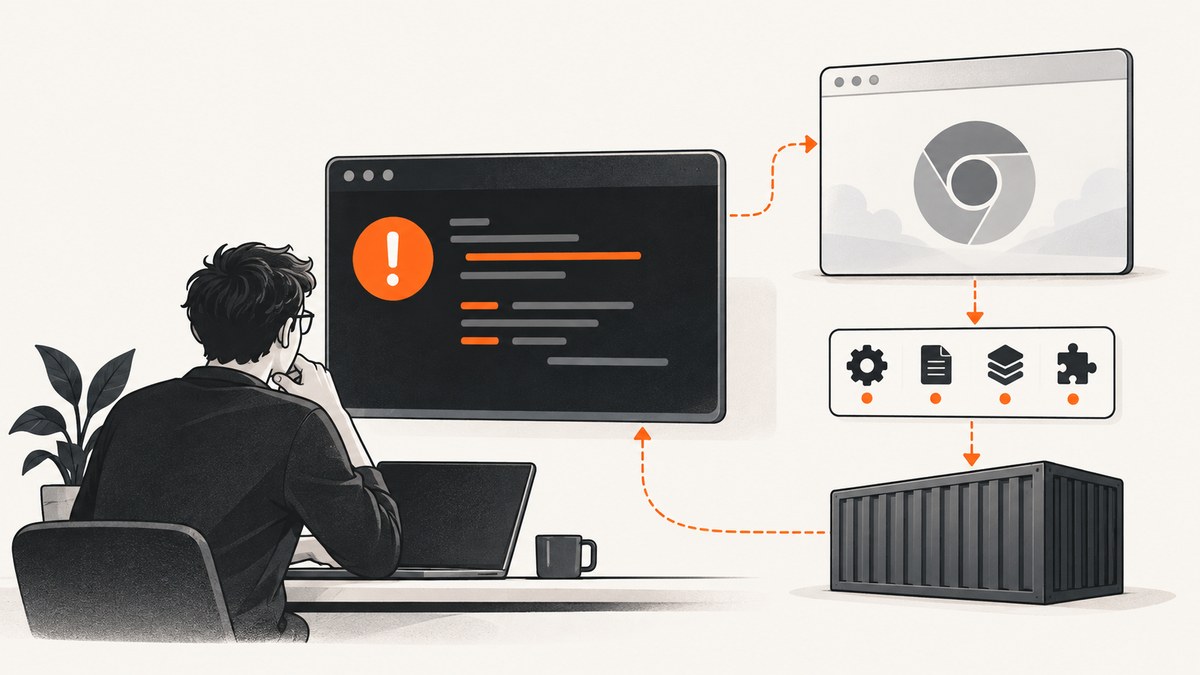
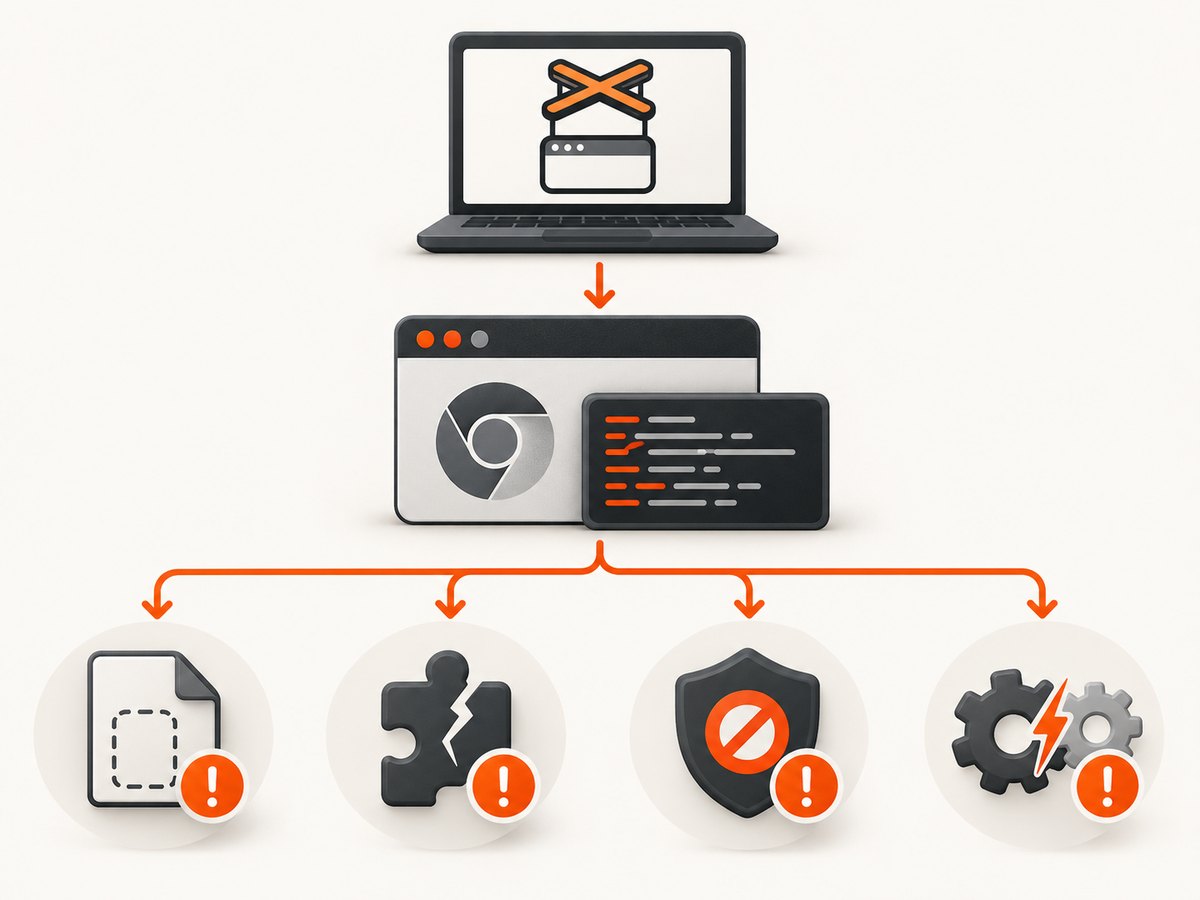
“Failed to launch the browser process” is a wrapper message, not a diagnosis. Puppeteer reports it when the Chromium process exits before it connects. The useful cause is usually in Chromium’s stderr: a missing executable, missing shared library, permission or sandbox failure, browser policy conflict, or a regression between the Puppeteer and browser versions.
Start by collecting the complete error output, Puppeteer version, browser version, operating system and base image, configured executable path, and runtime type (local machine, CI, Docker, serverless, or another hosted environment). Then read the first specific browser error beneath the generic message.
This guide follows the official Puppeteer troubleshooting documentation. Its central advice is simple: “Make sure all the necessary dependencies are installed.”
1. Capture the real failure before changing flags
Run the smallest possible launch script and preserve all output. Do not begin by adding --no-sandbox, downgrading Chromium, or changing several settings at once. Those changes can hide the actual failure and make the result harder to reproduce.
const puppeteer = require('puppeteer');

(async () => {
  try {
    const browser = await puppeteer.launch({ headless: true });
    const page = await browser.newPage();
    await page.goto('https://example.com', { waitUntil: 'domcontentloaded' });
    console.log(await page.title());
    await browser.close();
  } catch (error) {
    console.error('Puppeteer launch failed:');
    console.error(error.stack || error);
    process.exitCode = 1;
  }
})();
Record these details with the error:
node --version, Puppeteer package version, and the browser revision Puppeteer expects.- Operating system, CPU architecture, Docker base image, and whether the process runs as root or an unprivileged user.
- The value of
executablePath, if configured, and the result of checking that path. - Whether installation scripts ran in CI or were disabled by a package manager.
- The complete stderr text, especially lines containing
Could not find expected browser locally,error while loading shared libraries, sandbox errors, or policy errors.
2. Follow the diagnostic sequence
Step 1: Read Chromium’s stderr
The generic Puppeteer exception is often followed by the browser’s own message. The first specific line is the best lead. For example, a Linux report may identify libnss3.so as missing. That is a system dependency problem, not evidence that the Puppeteer API call is wrong.
Classify the first concrete message:
| Failure signature | Likely cause | Next check |
|---|---|---|
Could not find expected browser locally |
Browser was not downloaded or the cache is unavailable | Inspect installation, cache, and executable path |
error while loading shared libraries |
Linux dependency missing from the runtime image | Run ldd against the browser binary |
| Sandbox, permission, or file access error | User, filesystem, or sandbox-file permissions | Check ownership, mount options, and browser sandbox files |
| Browser starts then exits after an update | Version or environment regression | Compare the last known-good Puppeteer and browser pair |
Step 2: Verify the browser installation and cache
Since Puppeteer 19, downloaded browsers are stored under ~/.cache/puppeteer by default. If that directory is ephemeral, inaccessible to the runtime user, or absent in a deployment image, launch fails even though the npm package is installed.
npm ls puppeteer
npx puppeteer browsers list
ls -la ~/.cache/puppeteer
which google-chrome || true
which chromium || true
You can move the cache with PUPPETEER_CACHE_DIR:
export PUPPETEER_CACHE_DIR=/opt/puppeteer-cache
npx puppeteer browsers install
If a package manager blocked install scripts, run the documented browser installation command explicitly:
npx puppeteer browsers installAfter changing Puppeteer configuration, reinstall Puppeteer so the configuration is applied. In CI, make browser installation a separate, visible build step and cache the resulting directory only when the cache key includes the Puppeteer version.
Step 3: Check the executable path
Use Puppeteer’s managed browser unless you have a specific reason to use a system browser. If you set executablePath, confirm that the path exists inside the same machine or container that launches it.
const browser = await puppeteer.launch({
  headless: true,
  executablePath: process.env.CHROME_PATH || undefined
});
A path that works on a laptop may not exist in Docker, a CI runner, or a hosted function. Avoid copying a host path into an image without verifying it during the image build.
Step 4: Inspect Linux shared libraries in the target runtime
Run the test against the actual browser binary inside the target image:
ldd /path/to/chrome | grep 'not found' || trueCommon Debian or Ubuntu dependencies include libnss3, libatk1.0-0, libgbm1, libasound2, and libgtk-3-0, along with related graphics, font, X11, and accessibility libraries. Package names differ by distribution and release. Use the dependency list declared by the current Chrome installer for your base image instead of blindly copying a command written for another distribution.
Test after installing dependencies in the same image and as the same user that runs Node. A browser that launches as root during an image build can still fail for an unprivileged application user at runtime.
Step 5: Check permissions and OS-specific policies
Verify that the runtime user can read the browser executable, traverse every parent directory, write to its temporary directory, and access the Puppeteer cache. Also inspect downloaded Chrome sandbox files. Puppeteer 22.14.0 and later attempts to set permissions for downloaded Chrome sandbox files; older versions or continuing failures may require a manual permission check.
On Windows, enterprise Chrome policies can require extensions. Puppeteer disables extensions by default, so a policy that requires them can prevent launch. The documented option for that scenario is:
const browser = await puppeteer.launch({
  headless: true,
  enableExtensions: true
});
Use this only when the policy error points to extensions. Do not treat it as a general launch fix.
Step 6: Compare versions narrowly
When the browser worked before a dependency update, compare the exact Puppeteer, Chromium, Node.js, OS image, and architecture versions. A Puppeteer issue reported a Docker setup using Puppeteer 23.9.0 and Chromium 131 that worked after pinning Chromium 130. That is a dated, individual report, not a universal recommendation to downgrade Chromium.
Isolate the change first. If a rollback is necessary, pin a tested pair temporarily, document why, and schedule a current-version upgrade. Check the current Puppeteer requirements because browser and operating-system support changes over time.
3. Complete Puppeteer examples
Minimal launch with useful logging
const puppeteer = require('puppeteer');

(async () => {
  const launchOptions = {
    headless: true,
    dumpio: true,
    args: []
  };

  console.log({
    puppeteer: require('puppeteer/package.json').version,
    executablePath: launchOptions.executablePath || '(managed browser)'
  });

  const browser = await puppeteer.launch(launchOptions);
  try {
    const page = await browser.newPage();
    await page.goto('https://example.com', {
      waitUntil: 'networkidle2',
      timeout: 30000
    });
    console.log(await page.title());
  } finally {
    await browser.close();
  }
})();
dumpio: true forwards browser process output to the parent process, which helps expose the first specific stderr line in CI logs.
Docker pattern
FROM node:22-bookworm
WORKDIR /app
COPY package*.json ./
RUN npm ci
RUN npx puppeteer browsers install
COPY . .
CMD ["node", "capture.js"]
Use a base image and dependency set supported by your current browser version. Confirm the binary, cache, libraries, and permissions during the image build, then run the capture as the same user used in production.
CI checklist
- Install npm dependencies with scripts enabled, or run
npx puppeteer browsers installexplicitly. - Cache the browser directory using a key that includes the Puppeteer version and operating-system image.
- Print versions and the resolved executable path in the job log.
- Run
lddinside the runner or container, not on the developer workstation. - Archive the complete stderr output when the launch step fails.
4. Common errors and fixes
| Error | Cause | Fix |
|---|---|---|
Could not find expected browser locally |
Browser download did not run, cache was moved, or the runtime user cannot read it. | Run npx puppeteer browsers install, inspect ~/.cache/puppeteer, set PUPPETEER_CACHE_DIR consistently, and verify permissions. |
error while loading shared libraries: libnss3.so |
Required Linux library is absent. | Install the dependency for the image’s distribution and repeat ldd ... | grep not. |
| Browser exits immediately in Docker | Missing libraries, inaccessible temporary directory, incompatible architecture, or sandbox permissions. | Inspect stderr, verify architecture and libraries in the image, test as the production user, and check sandbox files. |
| Works locally, fails in CI | Different OS image, blocked install scripts, empty cache, or restricted filesystem. | Make installation explicit, print versions, and reproduce inside the CI image. |
| Windows launch failure mentions extensions or policy | Enterprise policy requires extensions while Puppeteer disables them. | Use enableExtensions: true when the policy requires it, then retest. |
| Failure begins after a browser update | Version regression or changed dependency requirements. | Compare the last known-good pair and pin temporarily only after isolating the change. |
5. Reliability, performance, and cost considerations
Browser startup is expensive compared with reusing a browser process. For a service that captures many pages, launch one browser per worker and create a new page or context per job. Always close pages and browsers in finally blocks, and recycle workers when memory grows over time.
Set explicit navigation and operation timeouts. Use domcontentloaded when you do not need every image, and use networkidle2 only when the page’s network behavior makes it reliable. A page can remain busy because of analytics, chat, or long polling, so network-idle waits can increase latency or time out.
For deterministic builds, pin Node, Puppeteer, the browser revision, the OS image, and the architecture. Keep a smoke test that launches the browser, opens a stable page, and records the browser version. Treat browser upgrades as deployment changes, not just npm updates.
Local browsers also carry operational costs: dependency maintenance, cold starts, disk space, sandbox permissions, and debugging time in every runtime. If those constraints dominate, a hosted screenshot API can move browser installation and capture infrastructure out of your deployment.
6. Or skip the browser setup
ScreenshotNeo provides a website screenshot API and MCP server. One GET request returns a PNG, JPEG, WebP, or PDF, so your application does not need to install or launch Chromium.

See the ScreenshotNeo API documentation for the complete option list. The same request supports full-page capture with lazy images, CSS-element capture, device presets or custom viewports, retina scale, dark mode, custom CSS and JavaScript, clicks, selector or network-idle waits, blocked resources, headers, cookies, user agents, authorization, timezone, geolocation, transparency, resizing, caching, signed links, asynchronous jobs, webhooks, bulk capture, usage data, and PDF settings.
cURL
curl -G "https://api.screenshotneo.com/v1/shot" -d access_key=YOUR_API_KEY --data-urlencode url=https://stripe.com -o shot.webpPython
import requests

r = requests.get(
    "https://api.screenshotneo.com/v1/shot",
    params={"access_key": "YOUR_API_KEY", "url": "https://stripe.com"},
    timeout=90,
)
r.raise_for_status()
open("shot.webp", "wb").write(r.content)
Node.js
const q = new URLSearchParams({ access_key: 'YOUR_API_KEY', url: 'https://stripe.com' });
const res = await fetch(`https://api.screenshotneo.com/v1/shot?${q}`);
if (!res.ok) throw new Error(`Screenshot failed: ${res.status}`);
const fs = await import('node:fs/promises');
await fs.writeFile('shot.webp', Buffer.from(await res.arrayBuffer()));
ScreenshotNeo accepts consent banners before capture and removes more than 60 known consent platforms, newsletter popups, and chat widgets; each step can be disabled. Bot checks, CAPTCHAs, blank pages, timeouts, failed loads, and cache hits cost nothing, and the response identifies the result with X-Page-Verdict and X-Billed headers. Its MCP server provides take_screenshot, get_page_info, and capture_pdf tools for Claude, Cursor, and other MCP clients.
The Free plan includes 1,000 screenshots per month without a card. Paid plans start at $5 for 3,000 shots; yearly billing gives two months free. Create a free ScreenshotNeo account.
7. Short FAQ
Is this always a Puppeteer bug?
No. The top-level message is generic. Missing libraries, an absent browser download, permissions, policies, and runtime differences are common causes.
Should I always add --no-sandbox?
No. The supplied sources do not establish that disabling the sandbox is generally safe or necessary. Diagnose the sandbox or permission error in your actual environment first.
Why does reinstalling npm packages sometimes help?
It can rerun browser installation and restore a missing cache, but it does not install Linux libraries or fix filesystem permissions. Confirm which condition changed.
Can I use a system Chrome executable?
Yes, with a verified executablePath, but the binary must exist and be compatible inside the runtime where Puppeteer runs. A managed Puppeteer browser is usually simpler to reproduce.
What should I include in a bug report?
Include the complete stderr, Puppeteer and browser versions, Node version, OS or base image, architecture, executable path, installation method, and whether the failure occurs locally, in CI, Docker, or a hosted runtime.
8. Final launch checklist
- Read the first specific Chromium stderr line.
- Confirm the browser exists in the target runtime.
- Verify cache location, executable path, and runtime-user permissions.
- Run
lddand install missing Linux libraries for the actual distribution. - Check Windows policies and downloaded sandbox-file permissions.
- Compare exact Puppeteer, browser, Node, image, and architecture versions.
- Make browser installation and smoke tests explicit in CI.
- Use a hosted screenshot API when maintaining a browser runtime is the wrong operational tradeoff.


