How to Fix Puppeteer File Chooser Events That Do Nothing
Fix Puppeteer file chooser events that do nothing: register the wait before clicking, handle unsupported picker APIs, paths, races, and remote browsers.
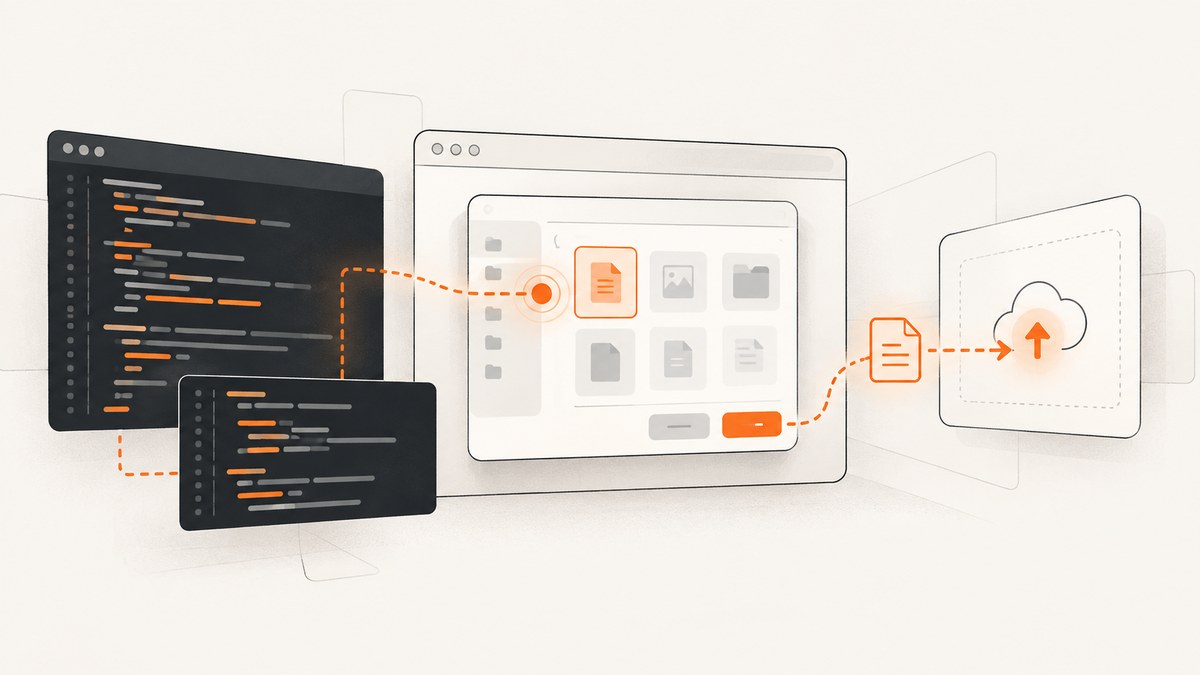
Direct fix: start page.waitForFileChooser() before the action that opens the chooser, usually by starting it and the click in Promise.all. Then accept or cancel the returned chooser. Puppeteer cannot return a chooser that is already active.
const [fileChooser] = await Promise.all([
  page.waitForFileChooser(),
  page.click('#upload-file-button'),
]);

await fileChooser.accept(['/absolute/path/to/file.pdf']);
This pattern is the documented approach in Puppeteer’s Page.waitForFileChooser API reference. If the promise still times out, check which browser API the site uses, whether the file path is available to Chrome, and whether an earlier chooser is still unresolved.
Why a file chooser appears to do nothing
There are several different events that look like “file selection” in a web application:
- A click launches a browser file chooser that Puppeteer can intercept.
- A page uses a normal
<input type="file">element that may be handled directly through the DOM. - A page calls
window.showOpenFilePicker()or another DOM picker API that Puppeteer’s file chooser interception does not support. - The chooser is intercepted correctly, but the supplied path does not exist in the browser’s execution environment.
waitForFileChooser() only solves the first case. Puppeteer’s documentation states that the wait must be registered before the chooser launches and will not return a currently active chooser. The same documentation says interception of DOM APIs such as window.showOpenFilePicker is unsupported.
The reliable Puppeteer pattern
1. Launch a browser and open the page
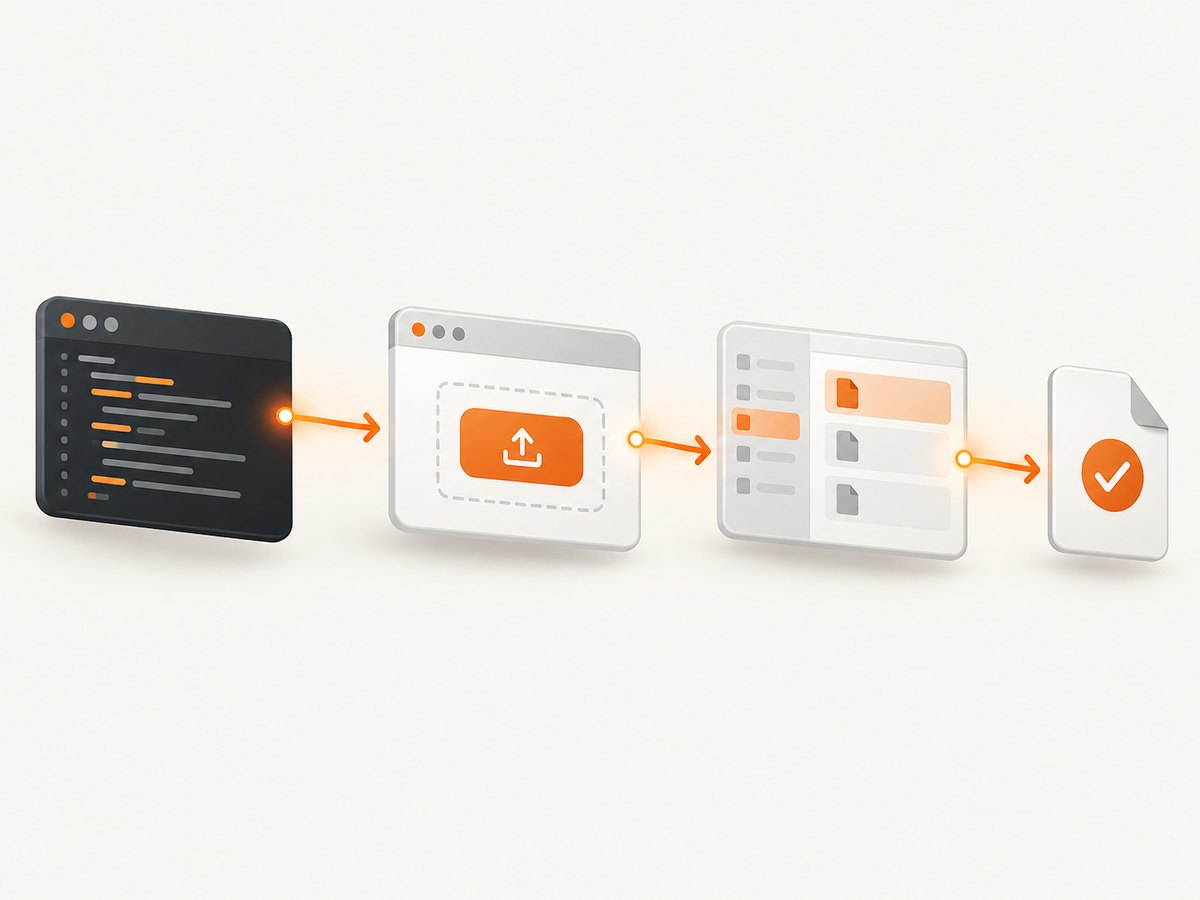
The following complete Node.js script demonstrates the sequence. Install Puppeteer with npm install puppeteer, save this as upload.js, and run it with node upload.js.
const puppeteer = require('puppeteer');

(async () => {
  const browser = await puppeteer.launch({
    headless: true,
  });

  try {
    const page = await browser.newPage();
    await page.goto('https://example.com/upload', {
      waitUntil: 'networkidle2',
      timeout: 60000,
    });

    const [fileChooser] = await Promise.all([
      page.waitForFileChooser({ timeout: 30000 }),
      page.click('#upload-file-button'),
    ]);

    await fileChooser.accept(['/absolute/path/to/file.pdf']);
    await page.waitForSelector('#upload-complete', { timeout: 30000 });

    console.log('Upload completed');
  } finally {
    await browser.close();
  }
})();
Replace the URL, button selector, completion selector, and file path with values from your application. The wait and click must be created in the same operation. Calling page.click() first and page.waitForFileChooser() afterward is too late when the chooser has already opened.
2. Accept or cancel every chooser
A chooser remains active until your script accepts or cancels it. An unresolved chooser can block later chooser requests, so always finish the interaction, including error paths.
const [fileChooser] = await Promise.all([
  page.waitForFileChooser(),
  page.click('#upload-file-button'),
]);

try {
  await fileChooser.accept(['/absolute/path/to/document.pdf']);
} catch (error) {
  await fileChooser.cancel().catch(() => {});
  throw error;
}
Use cancel() when the test needs to verify that no file was selected, or when validation means the upload should be abandoned.
const [fileChooser] = await Promise.all([
  page.waitForFileChooser(),
  page.click('#upload-file-button'),
]);

await fileChooser.cancel();
3. Handle a sequence of chooser requests
Only one chooser can be open at a time. If a workflow asks for multiple files through separate controls, complete the first chooser before starting the second wait.
const first = await Promise.all([
  page.waitForFileChooser(),
  page.click('#front-document'),
]);
await first[0].accept(['/files/front.pdf']);

const second = await Promise.all([
  page.waitForFileChooser(),
  page.click('#back-document'),
]);
await second[0].accept(['/files/back.pdf']);
If the application supports selecting multiple files in one dialog, pass an array of paths to one accept() call. The paths still need to be accessible to the browser process.
Confirm which file-selection mechanism the page uses
Supported chooser interception
A custom button often calls input.click() on a file input. In supported cases, the browser emits a chooser event and the Promise.all pattern resolves. Add logging around both promises to distinguish a click failure from a chooser timeout.
const chooserPromise = page.waitForFileChooser({ timeout: 10000 });
const clickPromise = page.click('#upload-file-button');

await clickPromise;
console.log('Trigger click completed');

const fileChooser = await chooserPromise;
console.log('Chooser intercepted');
await fileChooser.accept(['/absolute/path/to/file.pdf']);
Unsupported DOM picker APIs
Some modern applications call window.showOpenFilePicker(). Puppeteer’s current API documentation says that DOM picker dialogs of this kind are not intercepted by waitForFileChooser(). In that case, the wait can remain pending even though a picker is visible to a human.
Inspect the page source, application bundle, or event handlers to identify the API. If the site exposes a normal file input, determine whether your test can interact with that input directly using the Puppeteer version you run. The exact direct-input method depends on the page structure and should be verified against that version’s API documentation.
File paths: local, relative, and remote Chrome
fileChooser.accept(paths) does not check that a path exists before sending it to the browser. A typo can therefore look like a chooser event failure. Check the file on disk before the browser step.
const fs = require('fs');
const path = require('path');

const uploadPath = path.resolve(__dirname, 'fixtures/document.pdf');
if (!fs.existsSync(uploadPath)) {
  throw new Error(`Missing upload file: ${uploadPath}`);
}

const [fileChooser] = await Promise.all([
  page.waitForFileChooser(),
  page.click('#upload-file-button'),
]);
await fileChooser.accept([uploadPath]);
Relative paths resolve from the current working directory. Use path.resolve() so the location is explicit. When Puppeteer connects to remote Chrome, the path must be absolute and available in the environment where the relevant browser process can read it. A file on your laptop is not automatically visible to a Chrome instance running in a container or another host.
Headless and headful behavior
In headful mode, Puppeteer suppresses the native operating-system picker while it intercepts the chooser. You may click the button and see no native dialog. That is expected; the script is supposed to receive a FileChooser object instead.
Use headful mode for visual debugging, but do not use the appearance of the operating-system dialog as proof that interception failed. Log when the wait resolves and inspect the page after accept().
const browser = await puppeteer.launch({
  headless: false,
  slowMo: 50,
});
Debugging checklist
- Register the wait first. Put
waitForFileChooser()and the triggering click inPromise.all. - Verify the selector. A click that targets a hidden or detached element may never launch a chooser.
- Check the picker API. A
showOpenFilePicker()call is outside the supported interception path. - Finish earlier choosers. Accept or cancel every previous chooser.
- Use an absolute path. Resolve the path and confirm it exists where Chrome runs.
- Check page readiness. Wait for the upload control before clicking it.
- Increase the timeout only after fixing ordering. A longer timeout cannot recover a chooser that was already active.
- Check the browser version. Re-read the current API reference if you use a newer Puppeteer release.
Common errors and fixes
| Symptom | Likely cause | Fix |
|---|---|---|
waitForFileChooser() times out immediately after a click |
The wait started after the chooser was launched | Start the wait and click together in Promise.all. |
| The page shows a picker but the wait never resolves | The app uses window.showOpenFilePicker() or another unsupported DOM picker API |
Identify the API and use a supported file input path if the page exposes one. |
| The first upload works, the second does nothing | The first chooser was not accepted or canceled | Complete each chooser before starting the next wait. |
accept() returns but no file appears |
The path is wrong or unavailable to Chrome | Resolve it to an absolute path, check existence, and place the file in the remote browser environment. |
| No native dialog appears in headful mode | Puppeteer is intercepting the dialog | Treat the resolved FileChooser as the expected result and continue with accept(). |
| The click throws a timeout | The control is not visible, enabled, or attached | Wait for the selector, inspect visibility, and confirm that no overlay blocks the click. |
| Upload completes locally but fails in CI | Different working directory, missing fixture, or remote/container filesystem | Use path.resolve(), package fixtures with the job, and log the resolved path. |
Historical race reports and version boundaries
Older issue reports are useful clues but should not be treated as universal explanations. A 2020 report discussed a possible race between chooser interception setup and a click and showed a private CDP workaround. The current public API documentation does not recommend that internal workaround as the default solution.
A separate 2022 report described a timeout despite a visible picker with Puppeteer 13.3.2 on Windows 10 and Node.js 12.22.4. It was closed as not planned and does not establish a current general defect. The current API reference displayed Puppeteer 25.12.0 on September 29, 2026; check the reference for the release you actually deploy.
Performance and reliability guidance
The chooser operation itself is normally quick. Most delay comes from page navigation, overlays, application validation, upload transfer, or a remote browser connection.
- Use a targeted selector instead of clicking a broad container that may trigger unrelated handlers.
- Wait for the upload control, then start the chooser wait immediately before the click.
- Keep the file in the same execution environment as Chrome to avoid network filesystem delays.
- Use a timeout that reflects the browser and upload environment, but keep a separate timeout for navigation and upload completion.
- After
accept(), wait for an application-level confirmation such as a status element or upload request result. - Close the browser in a
finallyblock so a failed chooser does not leak processes in CI. - Capture console messages and page errors when diagnosing a site-specific picker implementation.
Do not solve a race by adding arbitrary delays before waitForFileChooser(). A delay after the click makes the ordering problem worse. If a site changes its picker implementation, revisit the mechanism rather than increasing the timeout indefinitely.
Or skip the browser setup
If your goal is a reliable screenshot of the page after an upload workflow, ScreenshotNeo provides a website screenshot API and MCP server. It does not replace Puppeteer when you must operate a private file input, but it removes the browser setup for ordinary URL captures.

One GET request returns a PNG, JPEG, WebP, or PDF. See the ScreenshotNeo API documentation for all options.
cURL
curl -G "https://api.screenshotneo.com/v1/shot" -d access_key=YOUR_API_KEY --data-urlencode url=https://stripe.com -o shot.webpPython
import requests

r = requests.get("https://api.screenshotneo.com/v1/shot", params={"access_key": "YOUR_API_KEY", "url": "https://stripe.com"}, timeout=90)
open("shot.webp", "wb").write(r.content)
Node.js
const q = new URLSearchParams({ access_key: 'YOUR_API_KEY', url: 'https://stripe.com' });
const res = await fetch(`https://api.screenshotneo.com/v1/shot?${q}`);
ScreenshotNeo accepts cookie and consent banners before capture and removes more than 60 known consent platforms, newsletter popups, and chat widgets. Each step can be turned off. Bot checks, blank pages, timeouts, failed loads, and cache hits are not billed; response headers identify the page verdict and whether the shot was billed. An MCP server provides take_screenshot, get_page_info, and capture_pdf tools for Claude, Cursor, and other MCP clients.
The Free plan includes 1,000 screenshots per month with no card. Paid plans start at $5 for 3,000 screenshots, and every feature is available on every plan. Create a free ScreenshotNeo account.
FAQ
Can I call waitForFileChooser() after clicking?
No. The wait must be registered before the chooser launches. Use Promise.all with the wait and triggering action.
Why does the native picker not appear in headful mode?
Puppeteer suppresses the native picker while intercepting it. A resolved FileChooser is the expected signal.
Does Puppeteer intercept window.showOpenFilePicker()?
The current Puppeteer documentation says DOM picker APIs such as window.showOpenFilePicker are unsupported by file chooser interception.
Do paths passed to accept() need to be absolute?
Relative paths use the current working directory. Absolute paths are safer, and remote Chrome requires the files to be available in its execution environment.
Should I use an old CDP workaround for a chooser race?
No as a default. Historical reports mention private CDP setup, but current public API documentation should guide your implementation for the Puppeteer version you run.


