How to Fix Puppeteer Firefox Launch Errors After Apt Installation
Diagnose Puppeteer Firefox launch failures after APT installation by checking browser pairing, executable paths, package type, and the actual error.

If Puppeteer fails to launch Firefox after an APT installation, first find out which Firefox executable Puppeteer is starting and whether that browser version is supported by your installed Puppeteer release. APT-installed Firefox and Puppeteer-managed Firefox are separate installation paths; the error could be browser discovery, an archive unpacking problem, or a process that starts and exits. There is no single APT-specific fix that applies to every host. This guide answers “How to Fix Puppeteer Firefox Launch Errors After Apt Installation” with a diagnostic sequence that uses the full error and your environment to choose the fix.
1. Capture the facts before changing the installation
Record the Node.js and Puppeteer versions, Linux distribution and release, Firefox package source, configured executable path, and complete launch error including Firefox stderr. Those details distinguish a missing browser from a browser that was found but could not run.
node --version
npm ls puppeteer @puppeteer/browsers
cat /etc/os-release
command -v firefox
readlink -f "$(command -v firefox)"
firefox --version
The readlink command may show that the command resolves to a wrapper rather than a Firefox binary. On Ubuntu, Firefox may be installed as a snap or as a DEB package; check what is actually present instead of inferring the package type from the command name. Mozilla’s [Linux installation guidance](https://support.mozilla.org/en-US/kb/install-firefox-linux) describes its supported package routes and the snap-to-DEB transition.
Also preserve the complete exception and stderr from your application. A “could not find browser” message points toward path or installation configuration. An extraction error points toward download utilities. A process that starts and exits requires its actual stderr and host details; the title alone does not establish a particular missing library, sandbox setting, or permission problem.
2. Check that Puppeteer and Firefox are a supported pair
Puppeteer’s supported-browser documentation says stable Firefox support began with Puppeteer 23.0.0. Puppeteer releases are paired with browser versions because its browser protocol implementation must remain compatible. Check the [supported browsers and version mapping](https://pptr.dev/supported-browsers) for the exact Puppeteer version installed in your project. Do not assume an arbitrary Firefox version supplied by APT matches it.
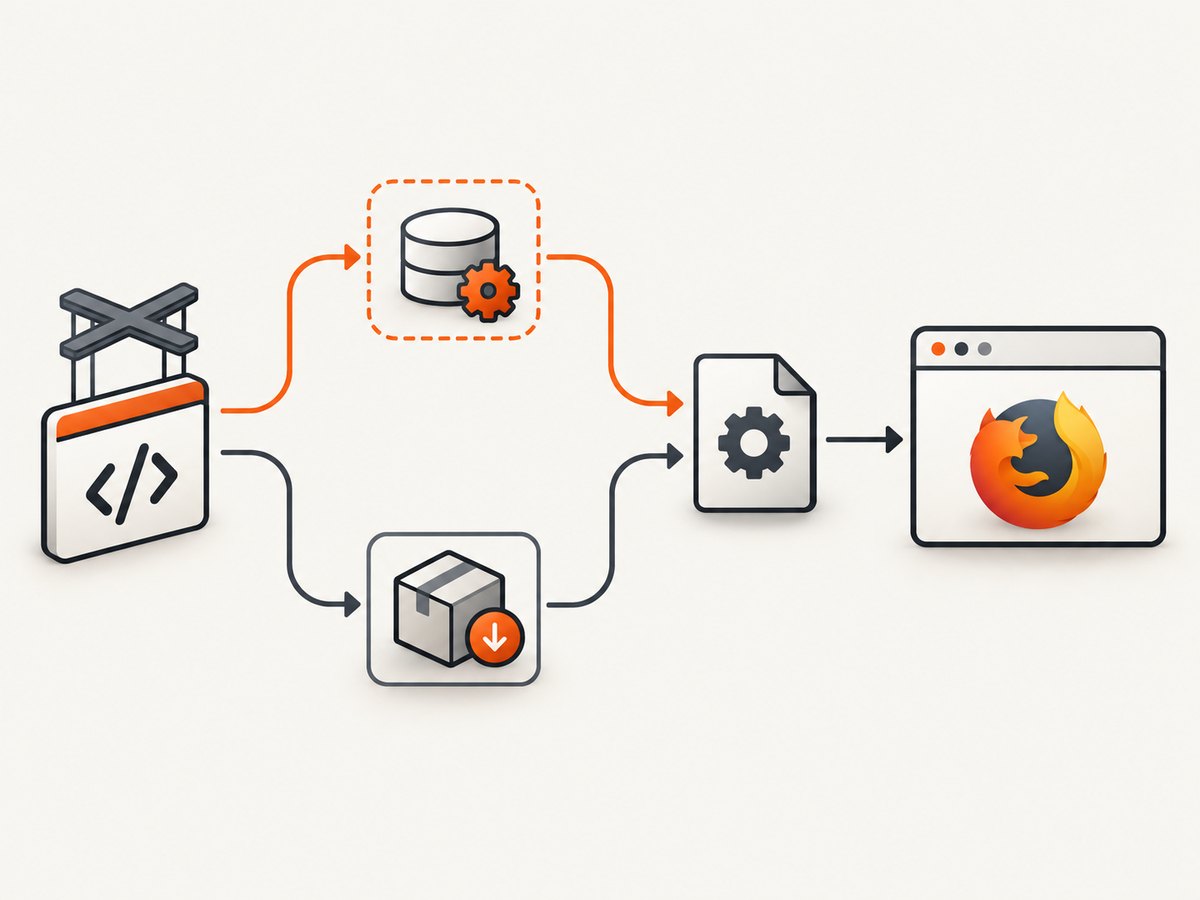
To check the project’s installed version directly:
node -p "require('puppeteer/package.json').version"Use the version mapping on Puppeteer’s documentation site rather than copying a browser version from an old post: the mapping changes between releases. If you need Puppeteer-managed Firefox, install or repair the browser version associated with your Puppeteer release using the browser tooling documented for that release. Review the [Puppeteer browser management guide](https://pptr.dev/browsers-api) and the [configuration API](https://pptr.dev/api/puppeteer.configuration) for the supported commands and settings.
Puppeteer’s current system requirements page, for the documented v25.12.0 release, lists Node.js 22.12 or newer. Treat that as version-specific current documentation, not as a timeless requirement for every Puppeteer release; check the requirements for the version you use.
3. Determine which Firefox Puppeteer is configured to launch
Puppeteer configuration can select a browser and set an executable path. Environment overrides can also affect the path. Inspect your project configuration, launch options, and environment for executablePath, PUPPETEER_EXECUTABLE_PATH, browser selection, and Firefox download settings. The [configuration documentation](https://pptr.dev/guides/configuration) describes these controls.
A minimal diagnostic launch that prints the full exception is:
const puppeteer = require('puppeteer');

(async () => {
  let browser;
  try {
    browser = await puppeteer.launch({
      browser: 'firefox',
      headless: true,
      dumpio: true
    });
    console.log('Launched:', await browser.version());
  } catch (error) {
    console.error('Firefox launch failed:', error);
    process.exitCode = 1;
  } finally {
    if (browser) await browser.close();
  }
})();
Run this in the same project directory, user account, container, or service environment as the failing application. A shell may have a different PATH or environment from a systemd service, Docker container, CI job, or deployment process.
Do not assume that Puppeteer’s system-browser discovery supports Firefox just because a system-installed Chrome or Chromium can be launched through a documented route. The browser management documentation describes system-browser launching as a Chrome/Chromium capability. For Firefox, use the supported managed-browser flow or explicitly configure a Firefox path only where your installed Puppeteer version supports that use.
4. Choose the matching fix for the failure stage
| What failed | What to check | Next action |
|---|---|---|
| Browser not found or invalid path | Configured executable path, environment overrides, project configuration, browser selection, and Puppeteer cache/install state. | Correct the path or install the Puppeteer-managed Firefox build paired with your release. |
| Download or archive extraction fails | Whether the installation uses a Puppeteer-managed Firefox archive and whether Linux has the required extraction tools. | Install the missing archive utilities, then rerun the documented browser installation command. |
| Firefox process starts and exits | Complete stderr, package type, libraries on the host, permissions, and headless/display configuration. | Diagnose the specific reported failure. Do not apply a generic Chrome dependency list as a Firefox fix. |
| Ubuntu launches an unexpected wrapper | Where /usr/bin/firefox resolves and whether the installation is snap, DEB, or another package route. |
Follow Mozilla’s instructions for the chosen package route and configure Puppeteer for the actual supported executable. |
If a Puppeteer Firefox download will not unpack
Puppeteer lists xz and bzip2 as Linux requirements for unpacking Firefox archives. Check that they are available:
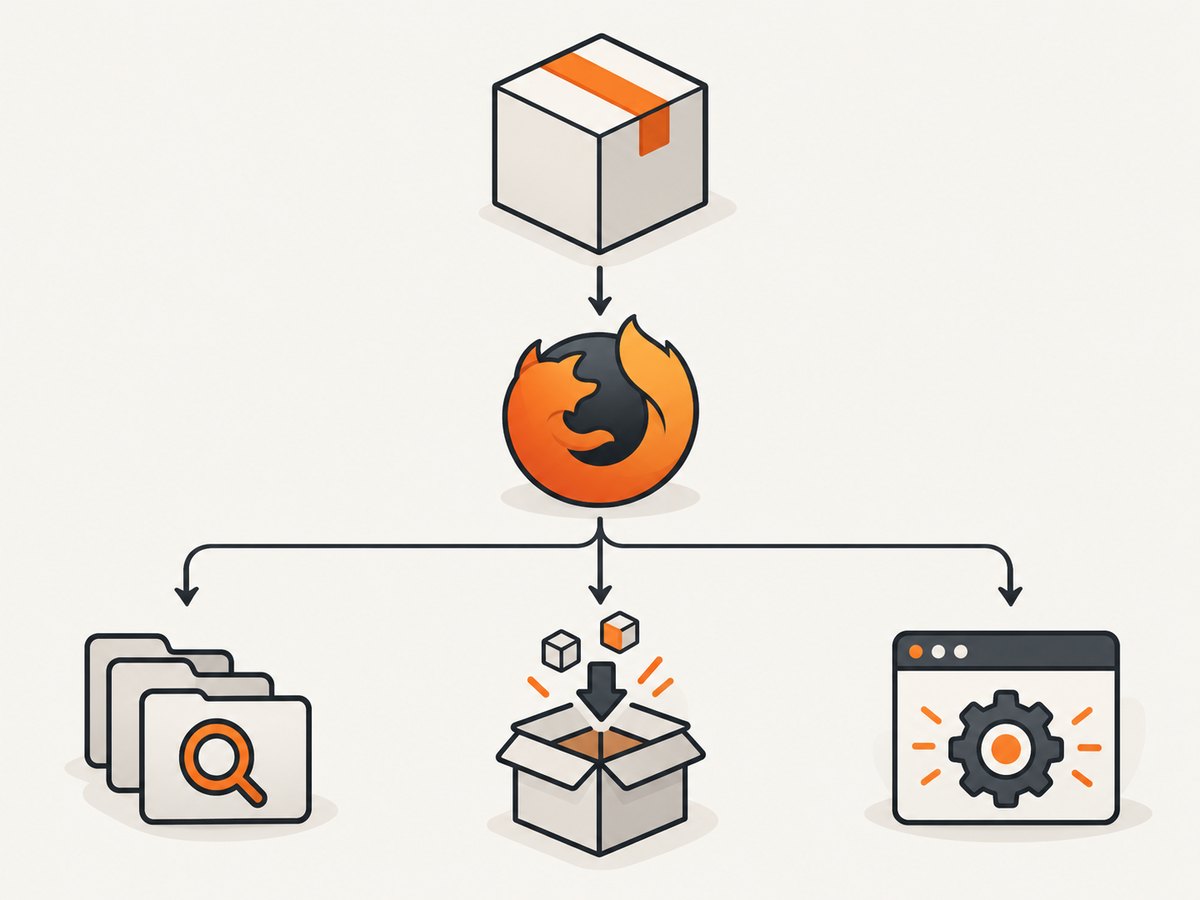
command -v xz
command -v bzip2
If either command is missing, install the corresponding utility using your distribution’s package manager, then rerun the Puppeteer browser installation step. This branch applies to a download or unpack failure; it does not explain a Firefox process that already starts and exits.
If you intentionally want the APT-installed Firefox
First establish its real path and package origin. On Ubuntu, Mozilla warns that replacing the snap with its DEB version requires pinning the snap package through APT before removing it, or APT may reinstall the snap during a later operation. Follow the current [Mozilla Ubuntu guidance](https://support.mozilla.org/en-US/kb/install-firefox-linux) for your distribution and release. Do not make package changes based only on a launch error with no path or package details.
Then verify that your Puppeteer release supports the intended Firefox use and version. If its documentation does not support launching that system Firefox, use the documented managed Firefox build rather than forcing an unsupported pairing.
Do not copy Chrome’s dependency fix
Puppeteer’s Linux troubleshooting and dependency instructions are substantially Chrome-focused. Its browser-management guide scopes Debian/Ubuntu dependency installation to Chrome; installDeps is documented for Chrome on Debian/Ubuntu and requires system privileges. The Chrome shared-library package list is not a validated Firefox dependency list. Only investigate libraries when the actual Firefox error identifies a missing library, and use the package guidance for your Firefox build and operating system.
5. Make the launch path explicit and repeatable
Once you have chosen a supported managed Firefox installation, keep browser installation and runtime selection aligned. Avoid relying on an interactive shell’s implicit PATH when the program runs in a container or service. For a system executable, use an explicit path only after confirming that your Puppeteer release supports that configuration.
const puppeteer = require('puppeteer');

(async () => {
  const browser = await puppeteer.launch({
    browser: 'firefox',
    headless: true
    // Add executablePath only for a path supported by this Puppeteer release.
  });
  try {
    const page = await browser.newPage();
    await page.goto('https://example.com', { waitUntil: 'domcontentloaded' });
    console.log(await page.title());
  } finally {
    await browser.close();
  }
})();
Keep the Puppeteer package version, browser installation step, and runtime image in the same deployment process. If the container image is rebuilt without the browser cache or required utilities, a local development success will not guarantee that deployment can launch.
6. Common errors and practical fixes
| Symptom | Likely category | Fix |
|---|---|---|
Could not find Firefox or executable path does not exist |
Browser absent, wrong selected browser, stale path, or cache/install mismatch. | Inspect Puppeteer configuration and environment overrides; install the matching managed browser or correct a supported explicit path. |
| Archive extraction reports an error | Missing Linux unpacking utility or incomplete download. | Check xz and bzip2, then retry the documented installation process. |
| Firefox launches and immediately exits | Host-specific startup failure, such as a library or permission issue. | Read the first concrete Firefox stderr message and investigate that condition on the target host. |
| Works locally but not in CI or a service | Different user, PATH, environment variables, filesystem, or browser cache. | Capture version, path, package, and stderr from the failing runtime itself; provision the same supported browser there. |
| Ubuntu path resolves to a snap launcher unexpectedly | Package route differs from expectation or snap was reinstalled. | Verify actual package and follow Mozilla’s current snap/DEB instructions; do not treat the path name alone as proof of a DEB install. |
| Chrome dependency command was suggested for Firefox | Chrome-specific troubleshooting applied to the wrong browser. | Use Firefox’s actual error and package documentation; Puppeteer’s cited dependency procedure is Chrome-scoped. |
7. Reliability, performance, and cost considerations
A managed browser makes the Puppeteer-to-browser version pairing explicit and can make deployments more repeatable, provided the same installation process runs in every environment. An OS-managed browser can be convenient for host patching, but its version and packaging can change independently of the Puppeteer release. Whichever route you choose, record the browser version and executable location in deployment diagnostics.
Browser startup adds process and resource overhead. Reuse a browser process for a batch of pages when your application’s lifecycle and isolation requirements allow it, and close pages and browsers deliberately. Avoid repeatedly downloading a browser at application startup; provision it during image or build setup. A launch timeout should prompt investigation of startup logs and host conditions, not an arbitrary increase that hides an absent executable or failed process.
For screenshot work, a local Puppeteer setup means you operate the browser runtime and its deployment environment. If you instead use a screenshot API, compare its request options, billing rules, and failure behavior against your workload. ScreenshotNeo is a website screenshot API and MCP server; it returns PNG, JPEG, WebP, or PDF from a GET request and bills only clean shots, with response headers identifying page verdict and billing status.
Or skip the browser setup
ScreenshotNeo can capture a URL with one request. See the [API documentation](https://screenshotneo.com/docs/) for request options. This example saves the response body as an image:
curl -G "https://api.screenshotneo.com/v1/shot" \
  -d access_key=YOUR_API_KEY \
  --data-urlencode url=https://example.com \
  -o shot.webp
Cookie banners, popups, and chat widgets are removed before the shot. Bot checks, blank pages, and failed loads are never billed. An MCP server lets AI agents use take_screenshot, get_page_info, and capture_pdf. The free plan includes 1,000 screenshots per month with no card; paid plans start at $5 for 3,000 shots. ScreenshotNeo has 63 options, including full-page and element capture, device presets, custom CSS and JavaScript, waits, request blocking, caching, and async jobs. Visit [ScreenshotNeo](https://screenshotneo.com) and [sign up for 1,000 free screenshots a month, no card](https://screenshotneo.com/account/sign-up/).
FAQ
Does installing Firefox with APT automatically make it usable by Puppeteer?
No. Confirm that your Puppeteer version supports the Firefox version and launch route, then check the actual executable path.
Can I use installDeps to fix Firefox?
The documented Debian/Ubuntu installDeps facility is for Chrome and requires system privileges. It is not a general Firefox dependency installer.
What should I include when asking for help?
Provide the full error and stderr, Node and Puppeteer versions, OS release, Firefox version and package source, configured path, and the launch code with secrets removed.
Does the error title identify one root cause?
No. Without the actual error and host details, it is not possible to distinguish browser discovery, archive extraction, package routing, and process startup failures.


