How to Fix Puppeteer Font Cache Issues on Ubuntu
Diagnose missing glyphs, fallback fonts, and browser-cache confusion in Puppeteer on Ubuntu with a safe, symptom-based repair workflow.

When Puppeteer screenshots show missing glyphs, unexpected fallback fonts, or different text metrics on Ubuntu, the fix is usually not to delete Puppeteer’s browser cache. Ubuntu has a Fontconfig metadata cache, while Puppeteer has a separate cache for downloaded browser binaries. Diagnose the failing stage first, then install the required font files, rebuild Fontconfig, and verify the result in the same runtime that produces your screenshots.
This guide covers desktop Ubuntu, CI runners, Docker containers, and read-only environments. It also separates font discovery problems from Chrome installation, sandbox, shared-library, and writable-directory errors.
1. Identify which cache or stage is failing
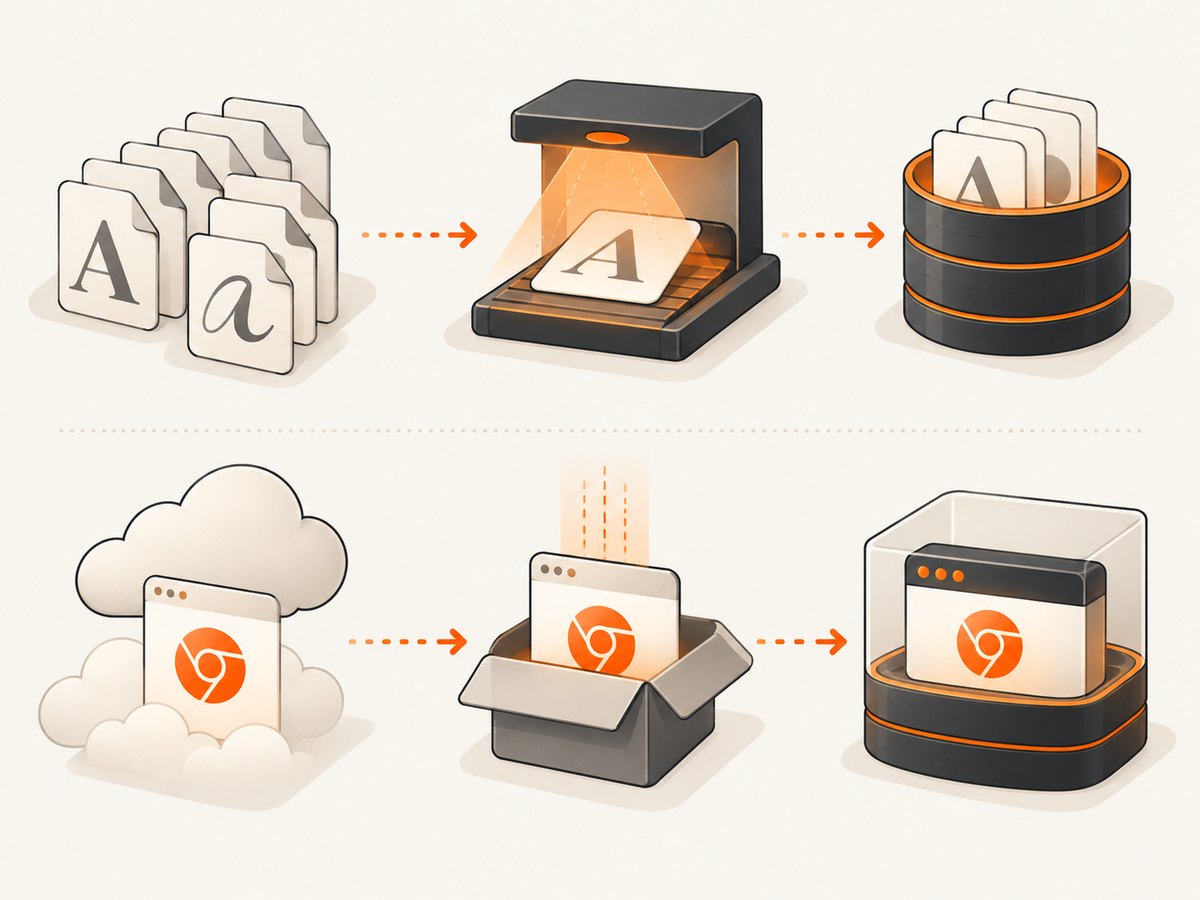
There are two unrelated caches:
| Component | Purpose | Typical symptom | Relevant repair |
|---|---|---|---|
| Fontconfig cache | Indexes installed font files for Linux applications | Missing glyphs, fallback typeface, changed line wrapping | Install fonts, then run fc-cache |
| Puppeteer browser cache | Stores downloaded Chrome for Testing binaries | “Could not find Chrome” or browser lookup failure | Install or configure the browser separately |
| Chrome launch environment | Provides sandbox, libraries, permissions, and writable paths | No usable sandbox!, process exits before rendering |
Fix AppArmor, dependencies, sandbox, or paths |
Puppeteer’s configuration guide says that, from v19.0.0, downloaded browsers are stored under ~/.cache/puppeteer by default. That directory does not contain Ubuntu’s font metadata. Ubuntu’s fc-cache scans configured font directories and builds the files Fontconfig applications use to resolve fonts.
Classify the symptom
- Boxes, blank characters, or missing accents: the required font file or script coverage is probably absent.
- Text renders in Arial, Noto Sans, or another fallback: the requested family may not be installed, may have a different name, or may not be visible to the capture user.
- Different wrapping or layout: the font may resolve to a different face, weight, or variable-font instance.
- “Could not find Chrome”: this is a browser installation or cache configuration issue, not a stale font cache.
No usable sandbox!or an early browser exit: investigate sandbox and Ubuntu security settings before changing fonts.
2. Confirm the font files exist and are readable
A cache rebuild cannot create a font that is not installed. First identify the exact family, weight, and writing system your page needs. Latin-only pages, Chinese, Japanese, Korean, Arabic, Indic scripts, emoji, and mathematical symbols often require different packages. Puppeteer’s Linux guidance explicitly notes that additional font files may be needed for Chinese, Japanese, or Korean rendering.
Inspect installed fonts
fc-list : family style file | head -50
fc-match "Your Font Family"
fc-match :lang=ja
fc-match :lang=zh
fc-match :lang=ko
fc-match reports the face Fontconfig would choose. If it returns a fallback or no useful result, install a package that provides the required coverage for your Ubuntu release. Keep the package choice tied to the script and typeface; there is no single package that supplies every language or brand font.
Check the capture user
Fonts installed in one user’s home directory may not be visible to a service account, CI user, or container user. Compare the interactive shell with the account that launches Node:
id
printf 'HOME=%s\nXDG_CACHE_HOME=%s\n' "$HOME" "$XDG_CACHE_HOME"
fc-match "Your Font Family"
ls -la ~/.local/share/fonts 2>/dev/null
For a system-wide installation, place licensed font files in a configured system font directory and make sure the browser user can read them. For a per-user installation, put them under that user’s font directory and rebuild the cache as that user.
3. Rebuild Ubuntu’s Fontconfig cache
Run the normal repair first:
fc-cache -f -v-f forces regeneration and -v prints status. Ubuntu’s Jammy manual describes fc-cache as scanning font directories and building font information cache files for applications that use Fontconfig.
If you have evidence that stale cache files themselves are corrupt, erase and rescan:
fc-cache -r -vThe -r option removes existing cache files before rescanning. It is more disruptive than a forced rebuild, so use it when the normal rebuild does not resolve the problem or when cache files are known to be damaged.
Verify the command succeeded
fc-cache -f -v
status=$?
printf 'fc-cache exit status: %s\n' "$status"
test "$status" -eq 0
Then resolve the family again:
fc-match "Your Font Family"
fc-match "Your Font Family:style=Bold"
Do not stop at a successful command. The useful test is a Puppeteer capture running under the same user, container, environment variables, and browser binary as production.
4. Prove the font inside Puppeteer
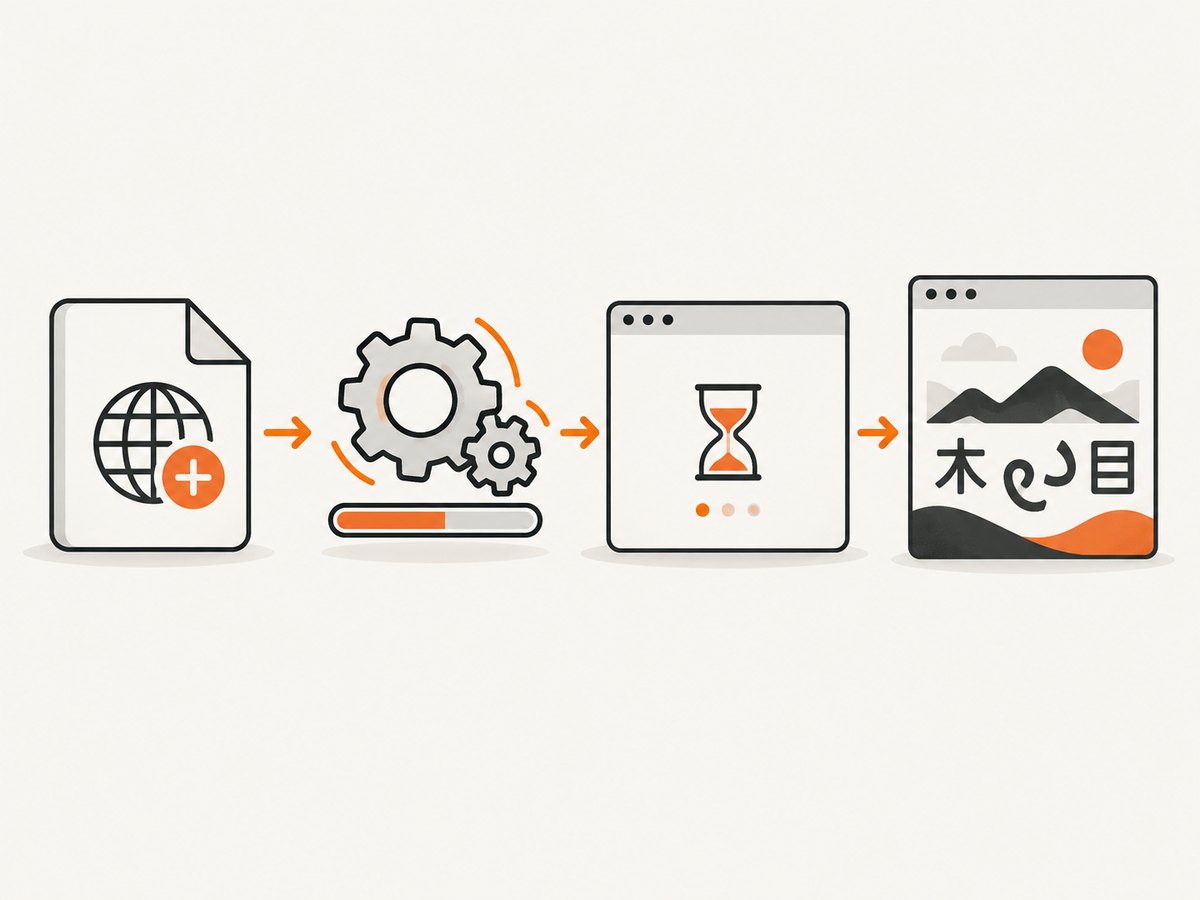
The browser can expose a different result from a shell command if it runs as another user or if the page’s CSS requests a family name that does not match the installed metadata. Create a small diagnostic page and inspect the browser’s font loading API.
import puppeteer from 'puppeteer';

const browser = await puppeteer.launch({
  headless: true
});
const page = await browser.newPage();
await page.setContent(`
  <style>
    body { font-family: "Your Font Family", sans-serif; }
  </style>
  <div id="sample">Latin Ελληνικά العربية 中文 日本語 한국어 😀</div>
`);

const result = await page.evaluate(async () => {
  await document.fonts.ready;
  const sample = document.querySelector('#sample');
  const requested = getComputedStyle(sample).fontFamily;
  return {
    status: document.fonts.status,
    requested,
    width: sample.getBoundingClientRect().width,
    fonts: [...document.fonts].map(font => ({
      family: font.family,
      style: font.style,
      weight: font.weight,
      status: font.status
    }))
  };
});

console.log(JSON.stringify(result, null, 2));
await browser.close();
This confirms that the document reached document.fonts.ready and records the CSS request. It does not prove that every glyph came from the intended family; mixed-script fallback is normal when one family lacks coverage. Compare a screenshot or measured text width with a known-good environment.
5. Make web fonts deterministic
If the page uses @font-face, wait for the font before capturing. A screenshot taken while a web font is still loading can contain fallback text even when Ubuntu has the correct local font.
await page.goto('https://example.com', { waitUntil: 'networkidle2' });
await page.evaluate(async () => {
  await document.fonts.ready;
  await document.fonts.load('400 16px "Your Web Font"');
  await document.fonts.load('700 16px "Your Web Font"');
});
await page.screenshot({ path: 'shot.png', fullPage: true });
Use a font URL that the capture environment can reach. Check response status, CORS headers, and certificate errors. If a font is intentionally bundled with the application, verify that the file is copied into the image and that its license permits server-side use.
6. Keep browser installation separate
Puppeteer normally downloads a compatible Chrome for Testing during installation. If a package manager, CI policy, or npm configuration skipped the postinstall script, install the browser explicitly:
npx puppeteer browsers installAlternatively, allow Puppeteer’s installation script according to your package manager’s policy. If your organization supplies Chrome, pass its executable path explicitly and document that choice in the deployment image.
const browser = await puppeteer.launch({
  executablePath: process.env.CHROME_PATH,
  headless: true
});
Deleting ~/.cache/puppeteer can force a browser download, but it is not the routine repair for missing glyphs. Use it only when the diagnostic error is about the browser binary or a corrupted download.
7. Troubleshoot launch and container errors independently
No usable sandbox! on Ubuntu 23.10+
Puppeteer documents an AppArmor interaction on Ubuntu 23.10 and newer that can prevent downloaded Chrome for Testing from using user namespaces. The result is a sandbox error before rendering. Follow Puppeteer’s Ubuntu-specific guidance and fix the host policy or browser installation. Do not add --no-sandbox as a font workaround; Puppeteer strongly discourages running without the sandbox.
Docker shared libraries
Minimal images may lack libraries required by Chrome. A missing library causes launch failure, not a stale Fontconfig index. Use Puppeteer’s Docker and Linux troubleshooting list to build an image with the required dependencies, then verify the browser starts before diagnosing page fonts.
Read-only containers and cache paths
Chrome and Fontconfig may need writable cache, configuration, and user-data directories. In a read-only container, set writable locations such as:
export XDG_CACHE_HOME=/tmp/xdg-cache
export XDG_CONFIG_HOME=/tmp/xdg-config
export PUPPETEER_CACHE_DIR=/tmp/puppeteer-cache
mkdir -p "$XDG_CACHE_HOME" "$XDG_CONFIG_HOME" "$PUPPETEER_CACHE_DIR"
Use paths allowed by your runtime and ensure the process can create files there. A browser that starts with one user but fails in a service is often a permissions or path problem.
8. A repeatable CI and Docker checklist
- Pin the Ubuntu base image and Puppeteer version.
- Install the font packages and any licensed application fonts required by your scripts.
- Run
fc-cache -f -vwhile building the image. - Run
fc-matchas the runtime user. - Install Chrome for Testing with
npx puppeteer browsers install, or configure the supplied browser path. - Set writable XDG, Puppeteer cache, and Chrome user-data directories.
- Run a smoke capture that waits for
document.fonts.ready. - Store the rendered image and diagnostic JSON when the smoke test fails.
9. Performance, reliability, and cost considerations
Font-cache rebuilding is usually a deployment step, not work to perform before every screenshot. Rebuilding on every request adds filesystem work and can create race conditions when several workers share a directory. Bake fonts and the Fontconfig cache into an image, or rebuild once during startup before accepting jobs.
Keep browser binaries and font files on the same image revision. A browser update can change text metrics even when the font files are unchanged. Conversely, changing fonts without rebuilding the cache can produce inconsistent workers. Log the Ubuntu release, Puppeteer version, browser version, effective user, and fc-match result when diagnosing a mismatch.
For high-volume rendering, reuse a browser process or a controlled pool of pages, but isolate user data directories when jobs require different profiles. Wait only for the readiness condition your page needs: networkidle2, a selector, or document.fonts.ready. Excessive fixed delays reduce throughput and do not guarantee font readiness.
10. Or skip the browser setup
If your goal is a dependable website screenshot rather than maintaining Chrome and Ubuntu font packages, ScreenshotNeo provides a single API request. Its capture pipeline accepts cookie and consent banners like a visitor, then removes more than 60 known consent platforms, newsletter popups, and chat widgets; each step can be disabled. Only clean shots are billed: bot checks, CAPTCHAs, blank pages, timeouts, failed loads, and cache hits cost nothing, and response headers identify the page verdict and billing result.
See the ScreenshotNeo API documentation for all options. The endpoint supports full-page capture with lazy images loaded, CSS-element capture, dark mode, device presets or custom viewports, retina scale, PDF output, custom CSS and JavaScript, click and wait actions, request blocking, headers, cookies, user agents, authorization, timezone, geolocation, transparent backgrounds, resizing, cache TTLs, signed links, asynchronous webhooks, bulk capture, usage reporting, and an OpenAPI specification.
cURL
curl -G "https://api.screenshotneo.com/v1/shot" \
  -d access_key=YOUR_API_KEY \
  --data-urlencode url=https://stripe.com \
  -o shot.webp
Python
import requests

r = requests.get(
    "https://api.screenshotneo.com/v1/shot",
    params={"access_key": "YOUR_API_KEY", "url": "https://stripe.com"},
    timeout=90,
)
r.raise_for_status()
open("shot.webp", "wb").write(r.content)
Node.js
const q = new URLSearchParams({ access_key: 'YOUR_API_KEY', url: 'https://stripe.com' });
const res = await fetch(`https://api.screenshotneo.com/v1/shot?${q}`);
if (!res.ok) throw new Error(`Screenshot failed: ${res.status}`);
const buffer = Buffer.from(await res.arrayBuffer());
await import('node:fs/promises').then(fs => fs.writeFile('shot.webp', buffer));
ScreenshotNeo includes an MCP server with take_screenshot, get_page_info, and capture_pdf tools for Claude, Cursor, and other MCP clients. Free accounts include 1,000 screenshots per month with no card; paid plans start at $5 for 3,000 shots. Create a free ScreenshotNeo account.
11. Troubleshooting table
| Error or symptom | Likely cause | Fix |
|---|---|---|
| Glyphs appear as squares | Font lacks the script or is absent | Install a package with the required coverage; run fc-cache -f -v; verify with fc-match. |
| Family falls back unexpectedly | Wrong family name, unreadable file, or different runtime user | Inspect CSS and fc-match as the capture user; check permissions. |
| Layout differs between machines | Different font version, weight, browser, or web-font timing | Pin image and browser versions; await document.fonts.ready. |
| “Could not find Chrome” | Skipped browser download or wrong cache/path | Run npx puppeteer browsers install or set executablePath. |
No usable sandbox! |
Ubuntu AppArmor/user-namespace interaction | Apply Puppeteer’s Ubuntu sandbox guidance; do not treat it as a font issue. |
| Browser exits in Docker | Missing shared libraries or writable directories | Install documented dependencies and set writable XDG, cache, and user-data paths. |
| Font works locally but not in CI | Different user, image, network, or installed packages | Run diagnostics inside CI and compare fc-match, versions, and environment. |
12. FAQ
Should I delete ~/.cache/puppeteer to fix missing fonts?
No. That directory stores downloaded browser binaries. Rebuild Fontconfig and install the missing font files unless the error explicitly says Puppeteer cannot find or launch Chrome.
Does fc-cache install fonts?
No. It indexes fonts that already exist in configured directories. Install suitable files first.
Why does one language render while another is broken?
Font coverage differs by script. A family may contain Latin glyphs but not Chinese, Japanese, Korean, Arabic, Indic characters, or emoji. Use fc-match :lang=... to inspect fallback.
Is a fixed delay enough before a screenshot?
No. A delay may finish before a web font loads or may waste time after it has loaded. Combine a navigation condition with document.fonts.ready and an explicit document.fonts.load call for critical faces.
Can a read-only container render fonts?
Yes, if the required font files are present and Chrome, Fontconfig, and the browser user-data paths have suitable writable locations. Configure temporary XDG and cache directories when required.
Primary references
- Puppeteer configuration (browser cache location and configuration).
- Puppeteer installation guide (browser installation).
- Puppeteer troubleshooting (Linux dependencies, Docker, sandbox, and writable paths).
- Ubuntu Jammy fc-cache manual (force, verbose, erase, and rescan options).


