How to Fix the puppeteer-full-page-screenshot Package
Fix common full-page screenshot problems with puppeteer-full-page-screenshot, from repeated sticky elements to tall-page capture and setup checks.
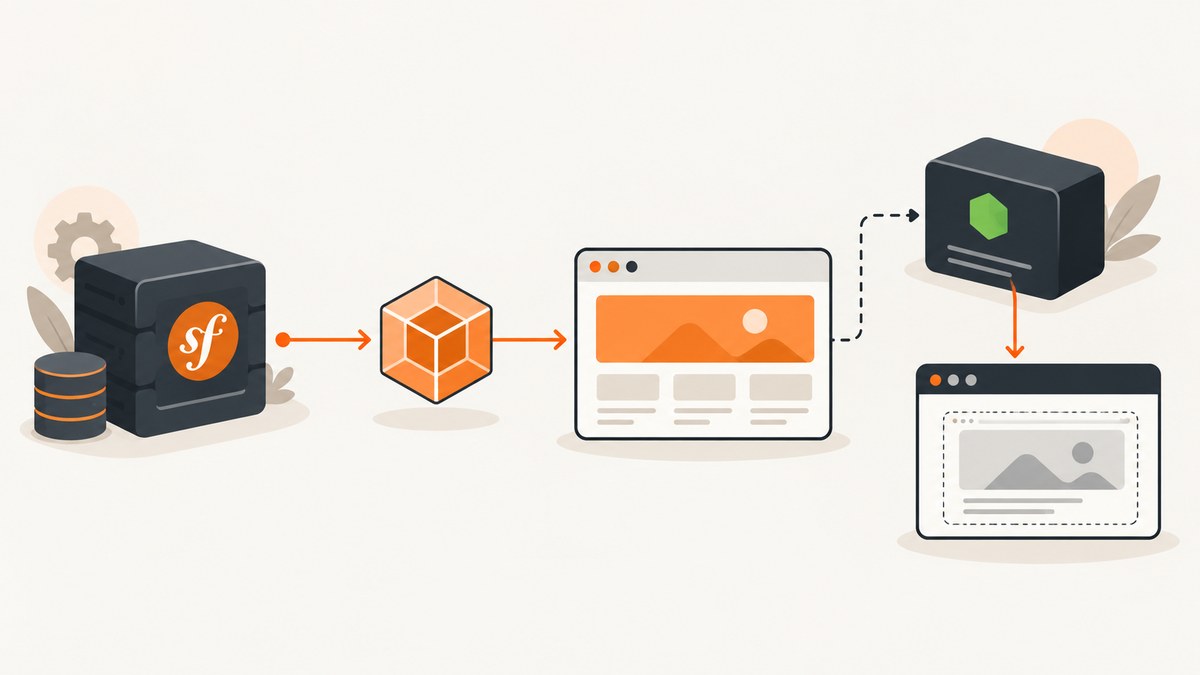
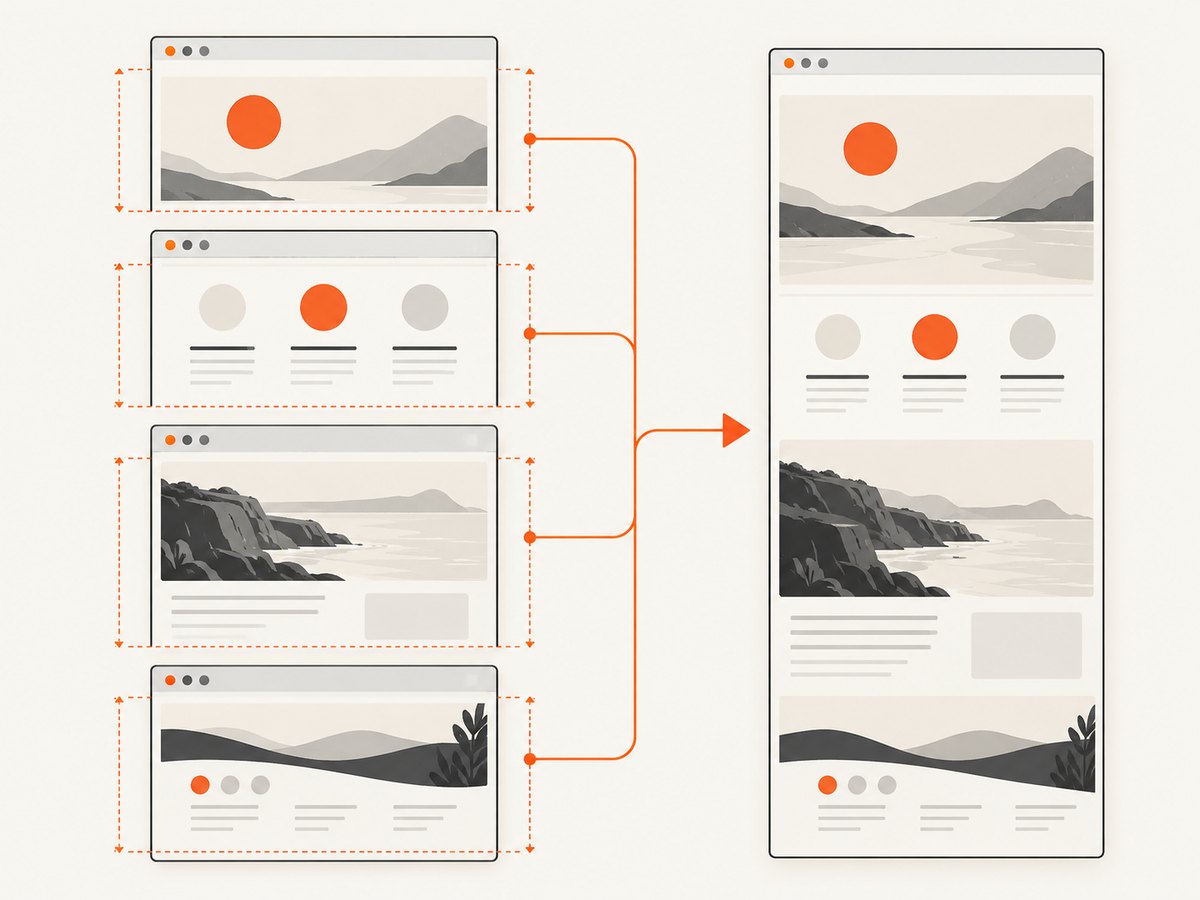
puppeteer-full-page-screenshot is a JavaScript helper for Puppeteer that captures a page in multiple sections and merges the results. It is intended for cases where Puppeteer’s built-in full-page screenshot does not behave as needed on tall pages or pages with viewport-relative elements such as height: 100vh. Its documented visual caveat is that sticky elements can appear repeatedly in the merged image.
Install the package, follow its documented import-and-call pattern, and, if sticky content repeats, inject page-specific CSS that resets the relevant sticky elements just before capture. The package README documents path and delay options and says Puppeteer screenshot options are supported. Verify option behavior with the exact versions installed: the reviewed documentation does not establish a supported-version matrix or fixes for every runtime error.
1. What the package does and when to use it
Puppeteer’s Page.screenshot() API captures a page screenshot and accepts screenshot options. The package README describes a different strategy for full-page cases it targets: take multiple screenshots internally, then merge them. This can be useful when one full-page capture does not render a tall page or viewport-relative layout as expected. It is not a general guarantee that every site will produce a perfect image.
| Situation | What to try |
|---|---|
| A normal page fits the usual capture behavior | Start with Puppeteer’s built-in page.screenshot() and its fullPage option. |
| A tall page or viewport-relative content is cut off or laid out poorly | Try this package’s multi-section capture and merge approach. |
| A sticky header, banner, or floating control repeats | Identify the page’s relevant selectors and reset their sticky positioning immediately before capture. |
| The issue is an exception, blank output, or navigation failure | Reduce to one URL and one capture call, record exact versions and error text, then compare with the README and matching Puppeteer API docs. |
Choose between the built-in API and the helper based on the page’s geometry and observed output. The available sources do not establish benchmark results, a universal image-quality winner, or compatibility with every Puppeteer release.
2. Install the package and make a baseline capture
The project README shows installation through npm or Yarn. Use one package manager for your project:
# npm
npm install puppeteer puppeteer-full-page-screenshot --save

# or Yarn
yarn add puppeteer puppeteer-full-page-screenshot
The package README’s example imports Puppeteer and the helper, launches a browser, opens a page, sets a viewport, navigates to a URL, captures to a path, then closes the browser. This runnable CommonJS version follows that documented flow:
// capture.cjs
const puppeteer = require('puppeteer');
const fullPageScreenshot = require('puppeteer-full-page-screenshot');

async function main() {
  const browser = await puppeteer.launch({ headless: true });
  try {
    const page = await browser.newPage();
    await page.setViewport({ width: 1440, height: 900 });
    await page.goto('https://example.com', { waitUntil: 'networkidle2' });
    await fullPageScreenshot(page, { path: './page.png' });
  } finally {
    await browser.close();
  }
}

main().catch((error) => {
  console.error(error);
  process.exitCode = 1;
});
Run it with node capture.cjs. Replace the example URL with a page you are authorized to capture. The finally block closes the browser even if navigation or capture fails, which helps avoid leaving a browser process running after an error.
For an ES module project, use the README’s import style instead:
import puppeteer from 'puppeteer';
import fullPageScreenshot from 'puppeteer-full-page-screenshot';

const browser = await puppeteer.launch({ headless: true });
try {
  const page = await browser.newPage();
  await page.setViewport({ width: 1440, height: 900 });
  await page.goto('https://example.com', { waitUntil: 'networkidle2' });
  await fullPageScreenshot(page, { path: './page.png' });
} finally {
  await browser.close();
}
The package documentation does not establish a supported Node.js, Puppeteer, or package-version matrix. If installation or import fails, record the versions rather than assuming a particular combination is supported.
3. Fix repeated sticky elements
Repeated sticky content is the package’s documented caveat. A sticky header may be visible in each internal viewport capture, so it can appear at several positions after those sections are merged. The README recommends adding custom styles that reset sticky-positioned elements immediately before taking the screenshot.

There is no reliable site-independent selector for sticky UI. Inspect the target page’s DOM, find the header or floating element that repeats, and use the actual selector. For example, if your page’s own markup has a header with the class site-header, a targeted reset could look like this:
await page.addStyleTag({
  content: `
    .site-header {
      position: static !important;
      top: auto !important;
    }
  `
});
await fullPageScreenshot(page, { path: './page.png' });
This is an example of adapting the documented mitigation, not a universal fix: the selector, position rules, and layout consequences depend on the captured site. Applying a broad rule to every position: sticky element can disrupt intended layout. Start with the one repeated component, capture again, and check the resulting image.
For a floating chat control or consent panel, first determine whether it should be present in the desired image. If not, hide that specific element with a site-appropriate selector before capture. Avoid removing unrelated content just to eliminate one duplicate.
4. Configure path, delay, and screenshot options
The package README documents these options:
| Option | Purpose | Practical guidance |
|---|---|---|
path |
Sets the output image path. | Use a path writable by the process. Check that the parent directory exists and inspect the actual output location. |
delay |
Pauses between internal screenshots. | Use it when the page needs time between sections to settle; the README does not prescribe a universally correct value. |
| Puppeteer screenshot options | The README says other page screenshot options are supported. | Confirm a specific option against the installed package and Puppeteer versions before depending on it. |
The available package documentation does not enumerate every forwarded screenshot option or define all interactions with multi-section capture. Puppeteer’s current API reference describes Page.screenshot() as a configurable screenshot API, but the reference identifies version 25.12.0 and does not prove this package supports that version. Check the API reference matching your installed Puppeteer release: Puppeteer Page.screenshot() documentation.
Use a delay only to address a visible settling issue. It adds time to capture, and a delay alone does not establish that asynchronous content has loaded. For dynamic pages, make readiness explicit in your navigation or page logic, then use a delay only if the content still changes between sections.
5. Diagnose common failures
The reviewed README does not provide an error-by-error troubleshooting table. The steps below are diagnostic checks, not claims that each symptom has one confirmed package-specific cause.
| Symptom | What to check | Next action |
|---|---|---|
| Sticky header repeats down the image | Whether the repeated element uses sticky or fixed positioning. | Use a page-specific style reset just before capture, following the documented mitigation. |
| Bottom of the page is missing | Whether navigation finished, the page has more content after scrolling, or the output is being inspected from the expected file. | Reproduce on one page, confirm the baseline README call, and compare built-in capture with the package approach. |
| Output file is absent | The path value and whether its directory is writable and exists. |
Try a simple local output path and inspect the thrown error and process working directory. |
| Import or module error | Module system, installed package name, and versions of Node.js, Puppeteer, and the helper. | Use the import form appropriate to the project, reinstall through its package manager if needed, and reduce to the README example. |
| Navigation times out or page is blank | The exact navigation error, URL reachability from the capture environment, and page readiness. | Separate navigation from screenshot capture; log the navigation result and reproduce with one URL. |
| Sections look inconsistent | Content that changes as the page scrolls, viewport-relative layout, or lazy content. | Inspect the page at the chosen viewport and compare a simpler page to isolate the layout behavior. |
- Save the complete error message and stack trace.
- Record the exact versions of
puppeteer-full-page-screenshot,puppeteer, and Node.js. - Reduce the reproduction to one page, one viewport, one navigation call, and one screenshot call.
- Compare the reduced script with the package README and the screenshot API documentation for your installed Puppeteer version.
- Change one variable at a time: built-in capture versus helper, then page-specific sticky reset, then a documented delay if needed.
6. Capture quality, performance, and reliability
The multi-section approach does more than a single screenshot operation conceptually: it captures sections and merges them, as described by the project. The README gives no timing or memory benchmarks, so plan with the actual target pages and runtime instead of assuming a speed or resource profile.
- Page geometry: fix the viewport deliberately and keep it consistent across captures. A different viewport can change responsive layout and where content wraps.
- Dynamic content: animations, rotating content, and scroll-triggered elements can change between sections. Where possible, make the page state stable before invoking capture.
- Sticky UI: decide whether it belongs in the output; reset or hide only the relevant site-specific elements.
- Output and cleanup: ensure the destination is writable and close the browser in a
finallyblock. - Compatibility: pin and record the versions that work in your environment. The sources do not provide a compatibility matrix.
For a production capture job, treat a screenshot as successful only after the operation completes and the output can be read. Keep the URL, viewport, package versions, and exact error or outcome in logs so a page-specific regression can be separated from a dependency change. These are operational practices; the package README does not claim a reliability rate.
7. Or skip the browser setup
ScreenshotNeo is a website screenshot API and MCP server. A GET request returns a PNG, JPEG, WebP, or PDF. For a quick capture, use the supplied API call pattern and replace the target URL:
curl -G "https://api.screenshotneo.com/v1/shot" -d access_key=YOUR_API_KEY --data-urlencode url=https://stripe.com -o shot.webpimport requests
r = requests.get("https://api.screenshotneo.com/v1/shot", params={"access_key": "YOUR_API_KEY", "url": "https://stripe.com"}, timeout=90)
open("shot.webp", "wb").write(r.content)const q = new URLSearchParams({ access_key: 'YOUR_API_KEY', url: 'https://stripe.com' });
const res = await fetch(`https://api.screenshotneo.com/v1/shot?${q}`);See the ScreenshotNeo API documentation for configuration. It removes cookie banners, popups, and chat widgets before the shot; bot checks, blank pages, and failed loads are never billed. Its MCP server lets AI agents take screenshots. The free plan includes 1,000 screenshots a month with no card, and paid plans start at $5 for 3,000.
Sign up free for 1,000 screenshots a month, with no card required.
8. Frequently asked questions
Does this package replace Puppeteer?
No. The documented usage passes a Puppeteer page to the helper, so it is used alongside Puppeteer.
Can I use the package’s delay to wait for a selector?
The README documents a delay between internal screenshots, not a selector wait. Do not assume it provides selector-based readiness behavior.
Which Puppeteer versions are supported?
The reviewed sources do not state a supported-version matrix. Check the package’s current documentation and verify the exact installed versions in your project.
Should I always use the helper for full-page capture?
No single approach is established as best for every page. Start with the built-in API for a simple case, and try the helper when the page behavior matches the package’s stated use case.
Sources
- puppeteer-full-page-screenshot project README for installation, usage, options, purpose, and sticky-element caveat.
- Puppeteer Page.screenshot() API reference for underlying screenshot API context.


