How to Fix Puppeteer page.goto() and Screenshot Failures
Fix Puppeteer navigation and screenshot failures with practical timeout, readiness, response, browser, PDF, and debugging guidance.
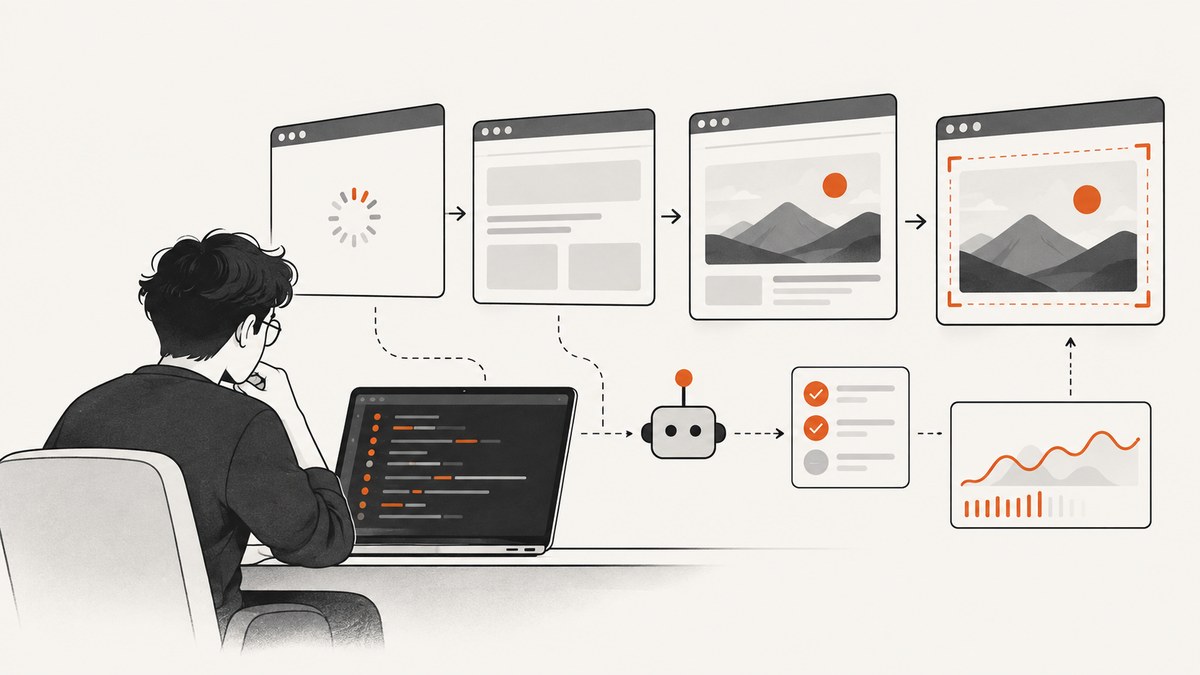
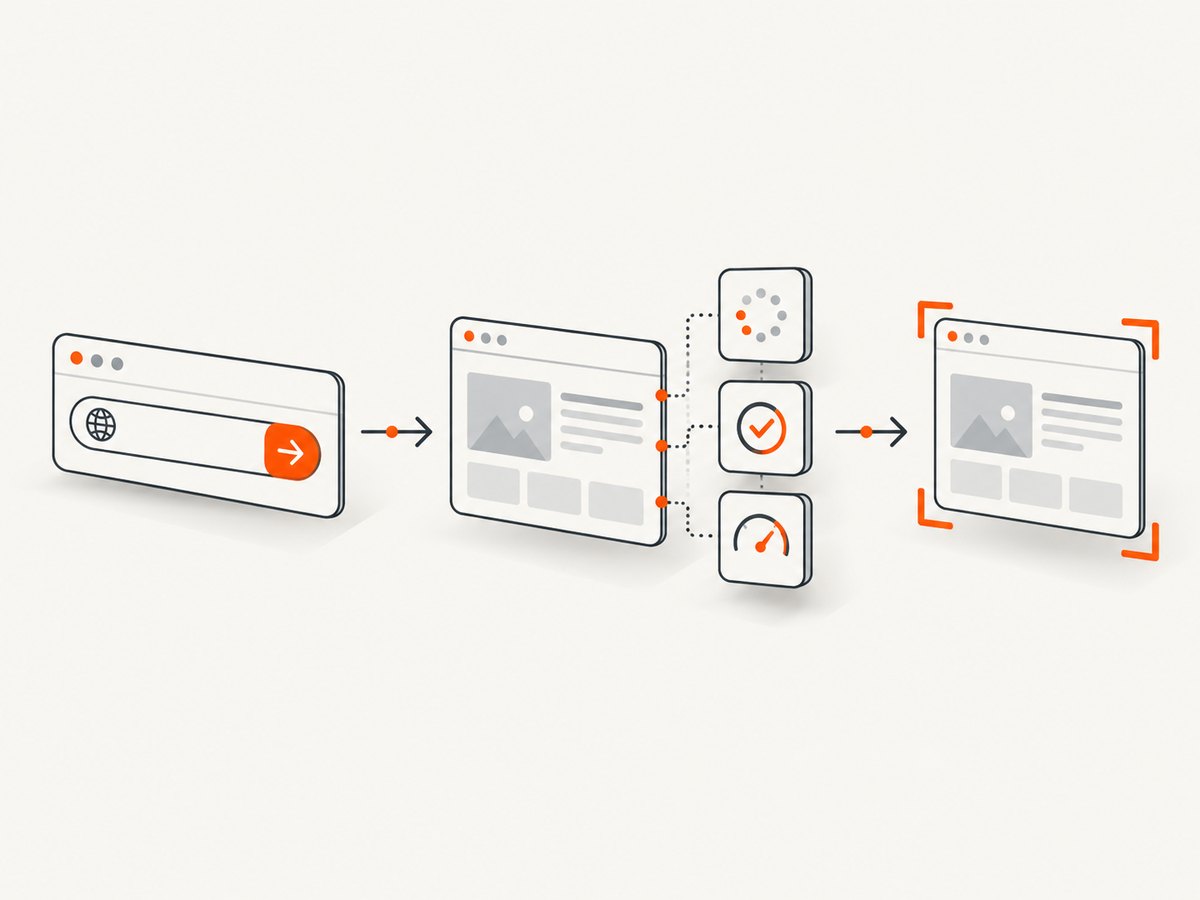
Puppeteer screenshot jobs usually fail for one of three reasons: navigation never reaches the condition you selected, the page is not ready when you capture it, or the browser runtime cannot launch or communicate correctly. Fixing the problem starts by separating those stages. Treat page.goto() as navigation, inspect its response as an HTTP result, wait for the page state your image needs, then await page.screenshot() before closing the page.
This guide covers the complete workflow for Chromium and Firefox automation, including timeouts, waitUntil, dynamic applications, full-page captures, HTTP errors, browser compatibility, sandbox failures, and PDF targets.
1. A reliable baseline
Start with a small script that records each stage independently. Use an absolute URL with a scheme such as https://. Puppeteer resolves goto to the main resource response after redirects; navigation to about:blank or the same URL with only a different hash returns null (Page.goto documentation).
import puppeteer from 'puppeteer';

const browser = await puppeteer.launch({headless: true});
const page = await browser.newPage();
page.setViewport({width: 1440, height: 900, deviceScaleFactor: 1});

try {
  const response = await page.goto('https://example.com', {
    waitUntil: 'domcontentloaded',
    timeout: 30000
  });

  if (response && response.status() >= 400) {
    throw new Error(`HTTP status ${response.status()}`);
  }

  await page.waitForSelector('body', {timeout: 10000});
  await page.screenshot({path: 'shot.png', fullPage: true});
} finally {
  await browser.close();
}
The documented default navigation timeout is 30 seconds. Set it per call with timeout, globally with page.setDefaultNavigationTimeout(), or disable it with timeout: 0. A zero timeout should be paired with an outer job deadline so a hung page cannot consume a worker forever.
2. Validate the URL and HTTP response
A resolved navigation promise does not mean your application received a successful page. In headless shell, a valid 404 or 500 response can still resolve. Capture the response and define your own success policy.
const response = await page.goto(targetUrl, {
  waitUntil: 'load',
  timeout: 45000
});

if (response === null) {
  console.log('No main resource response (for example about:blank or hash-only navigation)');
} else {
  const status = response.status();
  const finalUrl = response.url();
  console.log({status, finalUrl});
  if (status < 200 || status >= 400) {
    throw new Error(`Unexpected HTTP status ${status} at ${finalUrl}`);
  }
}
URL checklist
- Use
https://example.com, notexample.com. - Log the final URL because redirects may send you to a login, error, or consent page.
- Confirm DNS, TLS, proxy, and authentication settings from the same runtime that launches the browser.
- Decide whether 3xx, 4xx, and 5xx responses should fail the job or produce a diagnostic image.
3. Choose the right waitUntil condition
waitUntil controls when navigation is considered finished. Pick the least strict condition that matches the image you need.
| Condition | Use it when | Typical failure |
|---|---|---|
domcontentloaded |
The DOM is enough and images or late scripts are not required. | Fonts, images, or data-driven components may still be missing. |
load |
Resources participating in the load event matter. | Third-party resources can delay or block completion. |
networkidle2 |
Background requests settle and the page has no persistent polling. | Analytics, chat, ads, or polling keep the page busy indefinitely. |
networkidle0 |
You control the page and can guarantee no active connections remain. | Modern applications rarely become completely idle. |
The official screenshot guide uses networkidle2 in its example, but it is not universally correct. For dashboards and single-page apps, navigation can finish before the component you need appears. Wait for an application-specific selector or readiness flag instead.
await page.goto(url, {waitUntil: 'domcontentloaded', timeout: 30000});
await page.waitForSelector('[data-screenshot-ready="true"]', {timeout: 20000});
await page.screenshot({path: 'dashboard.png', fullPage: true});
A selector wait is better than an unconditional long sleep because it synchronizes with the state that matters. If no selector exists, expose a small readiness flag from the application or wait for a specific response:
await page.goto(url, {waitUntil: 'domcontentloaded'});
await page.waitForResponse(r => r.url().endsWith('/api/report') && r.ok(), {timeout: 20000});
await page.screenshot({path: 'report.png'});
4. Make screenshot capture deterministic
Page.screenshot() is asynchronous. Await it before closing or reusing the page. Puppeteer coordinates lifecycle events while a screenshot is in progress, so closing the target early can produce truncated files or a Target closed error (Page.screenshot documentation).
await page.goto(url, {waitUntil: 'domcontentloaded'});
await page.waitForSelector('main');
await page.evaluate(() => document.fonts.ready);
await page.screenshot({path: 'final.webp', type: 'webp', fullPage: true});
Viewport and fullPage choices
- Set the viewport before navigation so responsive breakpoints, layout, and lazy loading use the intended dimensions.
- Use
fullPage: falsefor the visible viewport andfullPage: truefor the complete document. - For full-page captures, verify that content is not loaded only after scrolling. Trigger lazy loading deliberately when needed.
- Use a stable device scale factor. A high factor increases output dimensions and memory use.
- Capture one element with
elementHandle.screenshot()when the page contains unrelated content.
const card = await page.waitForSelector('.invoice-card');
await card.screenshot({path: 'invoice-card.png'});
Fonts, images, and animations
Wait for document.fonts.ready when typography affects layout. For important images, wait until they report complete:
await page.evaluate(async () => {
  await document.fonts.ready;
  const images = [...document.images];
  await Promise.all(images.map(img => img.complete ? undefined : new Promise(resolve => {
    img.addEventListener('load', resolve, {once: true});
    img.addEventListener('error', resolve, {once: true});
  })));
});
Freeze animations when deterministic pixels matter:
await page.addStyleTag({content: `*, *::before, *::after {
  animation: none !important;
  transition: none !important;
}`});
5. Tune timeouts without hiding hangs
Keep the 30-second default for normal pages. Increase the per-navigation timeout for known slow origins, or set a consistent policy for all pages:
page.setDefaultNavigationTimeout(60000);
page.setDefaultTimeout(20000);

await page.goto(url, {waitUntil: 'load', timeout: 60000});
Navigation timeout and selector timeout are separate. A page can navigate successfully and then fail while waiting for a selector. Log elapsed time around each operation so you know which budget was consumed.
const started = Date.now();
try {
  await page.goto(url, {waitUntil: 'domcontentloaded', timeout: 45000});
  console.log('goto_ms', Date.now() - started);
  await page.waitForSelector('.ready', {timeout: 15000});
  console.log('ready_ms', Date.now() - started);
} catch (error) {
  console.error({name: error.name, message: error.message, elapsed_ms: Date.now() - started});
  throw error;
}
6. Diagnose browser and protocol failures
If both navigation and screenshot fail across unrelated URLs, investigate the runtime before changing selectors. Puppeteer controls Chrome or Firefox through the DevTools Protocol or WebDriver BiDi. A missing executable, incompatible browser version, sandbox restriction, or crashed process can break every API call.
- Confirm the browser executable exists and is executable by the service user.
- Check that the Puppeteer release and browser version are compatible.
- Review browser stderr and protocol logs, especially around launch and target creation.
- Check memory, file descriptors, shared memory, and process limits in containers.
- Apply the sandbox policy required by your environment; do not copy flags blindly into a privileged production runtime.
Errors such as Failed to launch the browser process, Target closed, or a protocol disconnect usually indicate process or environment problems rather than a bad CSS selector. Reproduce with a minimal page and preserve the complete error name and message.
7. Authentication, bot checks, and pages that never become idle
Authenticated pages need an explicit session. Set cookies or headers before navigation, then wait for the post-login state:
await page.setCookie({name: 'session', value: process.env.SESSION, domain: 'example.com', path: '/'});
await page.goto('https://example.com/account', {waitUntil: 'domcontentloaded'});
await page.waitForSelector('.account-home', {timeout: 20000});
Bot checks and CAPTCHAs can replace the intended document. Detect their selectors or title and classify the result instead of retrying forever. A page with persistent analytics, chat, or polling may never satisfy a network-idle condition; use domcontentloaded plus a readiness selector.
8. PDF navigation is a special case
Headless shell does not support navigation to a PDF document. A direct PDF URL can therefore fail even when ordinary HTML navigation works. Use a supported browser mode or a PDF-specific path for PDF targets. If your goal is to create a PDF from HTML, navigate to the HTML page and call Puppeteer’s PDF API after readiness:
await page.goto('https://example.com/invoice', {waitUntil: 'networkidle2'});
await page.waitForSelector('#invoice');
await page.pdf({path: 'invoice.pdf', format: 'A4', printBackground: true});
9. Common errors and fixes
| Error or symptom | Cause | Fix |
|---|---|---|
| Navigation Timeout Exceeded | Selected event never occurs or page is genuinely slow. | Use a realistic timeout, switch from network idle to a selector, and set an outer deadline. |
goto resolves but image is an error page |
HTTP 4xx/5xx is still a valid response. | Inspect response.status() and enforce your status policy. |
| Blank or incomplete fullPage image | Lazy content, fonts, or app data is not ready. | Wait for readiness, fonts, images, and required API responses. |
Target closed |
Browser crashed, page closed, or screenshot was not awaited. | Await capture, inspect browser stderr, and check memory and process limits. |
| Selector timeout | Wrong selector, alternate state, authentication redirect, or failed data request. | Save HTML, log the final URL, verify the selector in DevTools, and detect error states. |
| PDF navigation error in headless shell | Direct PDF navigation is unsupported in that mode. | Use a supported mode or generate a PDF from an HTML page. |
| Browser will not launch | Missing executable, sandbox permissions, or version mismatch. | Verify installation, permissions, compatibility, and launch logs. |
10. Performance, reliability, and cost practices
Performance
- Reuse a browser process and create isolated pages for jobs; launching a browser for every URL adds substantial overhead.
- Use the smallest viewport and capture scope that meets the requirement.
- Block nonessential images, fonts, ads, or analytics only when doing so does not change the result you need.
- Prefer a readiness selector over long sleeps and over network-idle waits on chatty applications.
- Set concurrency from observed CPU and memory limits. More pages can reduce throughput after contention begins.
Reliability
- Record URL, final URL, Puppeteer version, browser mode, status code, timing, and complete error details.
- Take a diagnostic HTML snapshot or console log on failure when policy permits.
- Retry transient launch or network failures with a bounded count and backoff; do not retry deterministic selector or PDF-mode errors indefinitely.
- Keep an outer job deadline even when individual Puppeteer timeouts are disabled.
Cost
Self-hosted Puppeteer costs are driven by browser CPU, memory, storage, and engineering time. Full-page images, high device scale factors, and concurrent pages increase resource use. A managed screenshot API can shift browser maintenance to the provider; compare its billing rule for failed loads, bot checks, and cache hits before estimating spend.
11. Or skip the browser setup
ScreenshotNeo provides a one-request screenshot API and an MCP server for AI agents. It handles consent banners before capture and removes more than 60 known consent platforms, newsletter popups, and chat widgets; each cleanup step can be turned off. Only clean shots are billed: bot checks or CAPTCHAs, blank pages, timeouts, failed loads, and cache hits cost nothing, and the response identifies the result with X-Page-Verdict and X-Billed headers.

See the ScreenshotNeo API documentation for all options. The same endpoint supports full-page and element captures, dark mode, device presets or custom viewports, retina scale, PDF output, custom CSS and JavaScript, clicks, selector or delay waits, network-idle waits, request blocking, headers, cookies, user agents, authorization, timezone, geolocation, transparent backgrounds, resizing, TTL caching, signed links, asynchronous jobs with signed webhooks, bulk capture of up to 100 URLs per call, usage data, and an OpenAPI specification.
cURL
curl -G "https://api.screenshotneo.com/v1/shot" -d access_key=YOUR_API_KEY --data-urlencode url=https://stripe.com -o shot.webpPython
import requests
r = requests.get("https://api.screenshotneo.com/v1/shot", params={"access_key": "YOUR_API_KEY", "url": "https://stripe.com"}, timeout=90)
open("shot.webp", "wb").write(r.content)
Node.js
const q = new URLSearchParams({ access_key: 'YOUR_API_KEY', url: 'https://stripe.com' });
const res = await fetch(`https://api.screenshotneo.com/v1/shot?${q}`);
const body = Buffer.from(await res.arrayBuffer());
await import('node:fs/promises').then(fs => fs.writeFile('shot.webp', body));
ScreenshotNeo includes an MCP server with take_screenshot, get_page_info, and capture_pdf tools for Claude, Cursor, and other MCP clients. The Free plan includes 1,000 shots each month with no card; paid plans start at $5 for 3,000 shots. Create a free ScreenshotNeo account.
12. Debugging checklist
- Is the URL absolute and reachable from the worker?
- What final URL and HTTP status did
gotoreturn? - Which completion condition was used, and can it ever settle on this page?
- Did the application-specific selector, API response, fonts, and images become ready?
- Was the screenshot promise awaited before page or browser shutdown?
- Are viewport, full-page mode, device scale, and lazy loading intentional?
- Do browser executable, version, sandbox, memory, and protocol logs look healthy?
- Is the target a PDF URL that headless shell cannot navigate to?
13. FAQ
Should I always use networkidle2?
No. Use it only when background requests settle. Dynamic applications are usually more reliable with domcontentloaded followed by a selector or application-ready signal.
Does a successful goto prove the page is valid?
No. Inspect the returned response and apply an explicit status policy. A 404 or 500 can still resolve as a navigation.
Why is my screenshot blank after a successful wait?
Check the final URL, authentication state, viewport, lazy content, fonts, and whether the screenshot was awaited before closing the page.
Can Puppeteer navigate directly to a PDF in headless shell?
No. Use a supported browser mode or generate the PDF from an HTML page.
When should I use an API instead of maintaining Puppeteer?
Use an API when you want capture, cleanup, retries, billing, and browser maintenance handled as one service. ScreenshotNeo adds consent and widget removal, verdict headers, MCP tools, and a free monthly tier.


