How to Fix Puppeteer Headed Mode Errors on Ubuntu
Fix Puppeteer headed Chrome failures on Ubuntu by checking display access, libraries, sandbox policy, and launch logs.
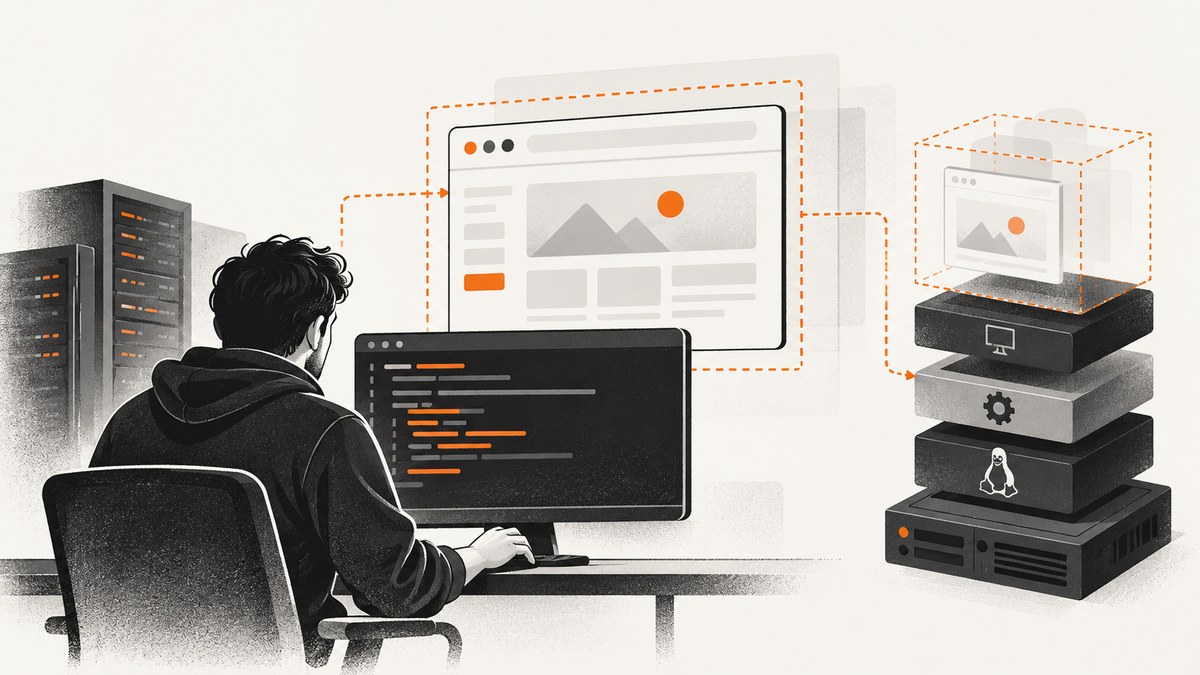
Set headless: false to request a visible Chrome window, then diagnose the host. Headed Chrome fails when the Ubuntu process cannot reach a graphical display, when Chrome’s Linux libraries are missing, or when sandbox policy blocks the browser. These are separate problems, so the correct fix depends on the exact error and environment.
This guide gives you a working launch script, a decision tree for desktop, server, CI, and containers, commands for checking dependencies, and safe handling of sandbox errors. Puppeteer launches headless Chrome by default; its documented headed setting is headless: false (Puppeteer headless modes).
1. Start with a diagnostic launch
Use this minimal Node.js program before changing flags or installing packages:
const puppeteer = require('puppeteer');

(async () => {
  const browser = await puppeteer.launch({
    headless: false,
    dumpio: true,
  });

  const page = await browser.newPage();
  await page.goto('https://example.com', { waitUntil: 'networkidle2' });
  console.log('Page title:', await page.title());
  await browser.close();
})().catch((error) => {
  console.error(error);
  process.exitCode = 1;
});
dumpio: true forwards Chrome’s process output to Node’s standard output and error streams. Keep the complete message, including lines before the final exception. Record your Puppeteer version, Chrome version and executable path, Ubuntu release, whether the process runs in CI or a container, and whether a desktop session exists.
2. Confirm what “headed” requires
Headed mode means Chrome must connect to a display server. On a normal Ubuntu desktop, that is usually an existing X11 or Wayland session. On a cloud VM, SSH session, CI worker, or container, there may be no display at all. In that case headless: false is correct but insufficient.
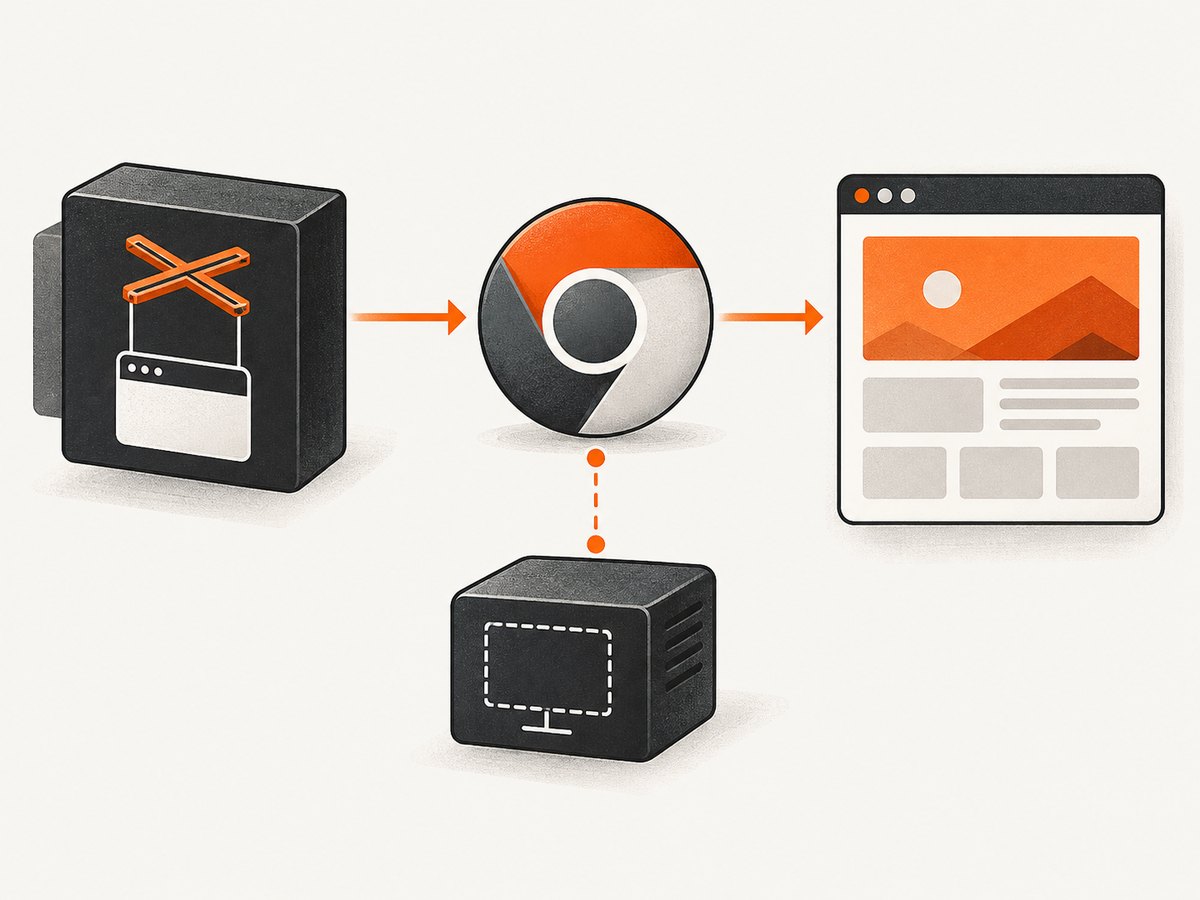
Check the display environment
echo "$DISPLAY"
echo "$WAYLAND_DISPLAY"
ps -ef | grep -E '[X]org|[X]vfb|[W]ayland'
An empty DISPLAY on a machine without a graphical session is a strong indication that headed Chrome has nowhere to draw. Do not diagnose this as a Puppeteer API bug until display access is established.
Use Xvfb in CI or on a server
Puppeteer’s troubleshooting guide specifically recommends starting Xvfb for non-headless Chrome in CI (Puppeteer troubleshooting). Install the package using your Ubuntu package manager, start a virtual display, and expose it to the process:
sudo apt-get update
sudo apt-get install -y xvfb
Xvfb :99 -screen 0 1280x800x24 &
export DISPLAY=:99
node headed.js
In CI, start Xvfb in the job before invoking Node. Make sure the same user can access the display and that the Xvfb process remains alive for the whole browser run. A virtual display makes headed Chrome render somewhere; it does not repair missing libraries or sandbox policy.
3. Check Chrome’s shared libraries
A launch error mentioning a missing shared object, GTK, NSS, GBM, X11, font, or similar library means the browser binary cannot load its Linux runtime dependencies. Check the actual Chrome executable, rather than a path copied from another machine:
ldd /path/to/chrome | grep notIf this prints lines, install the packages that provide those libraries according to the current Ubuntu and Chrome requirements. Puppeteer maintains the dependency guidance because the list can change with browser versions. Its browser CLI also documents an Ubuntu/Debian helper:
npx puppeteer browsers install chrome --install-depsThe command uses apt-get and therefore needs system-level privileges. Run it in an environment where package installation is allowed, then repeat the ldd check. Avoid blindly pasting an old dependency list from an unrelated tutorial: the Chrome binary and Ubuntu release determine what is required. See the official troubleshooting guide and system requirements for current details.
4. Treat sandbox errors as a separate branch
Chrome’s sandbox isolates web content and is a security boundary. Puppeteer says the recommended way to run Chrome is with sandboxes. Do not make --no-sandbox your general fix.
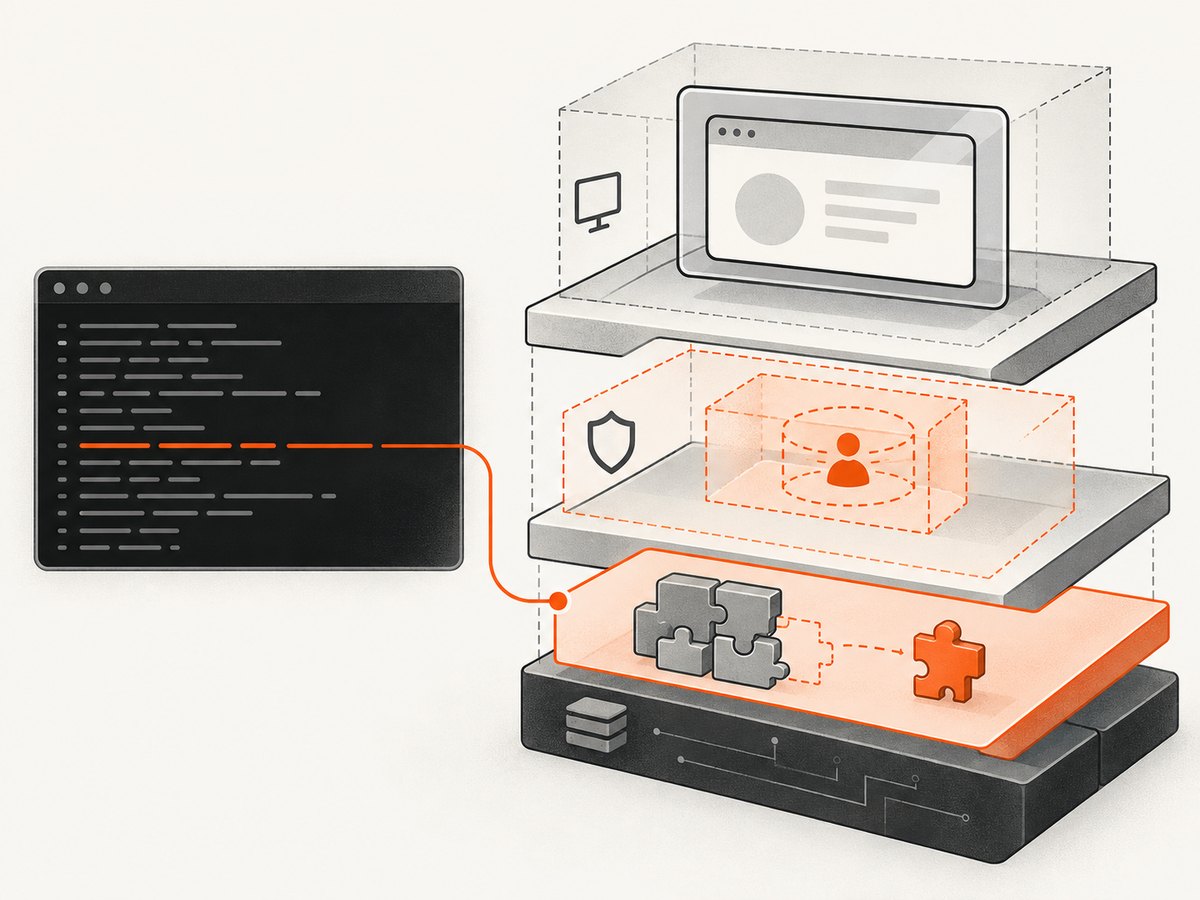
“No usable sandbox!”
This exact message means Chrome could not establish a usable sandbox in the current environment. First check that you are not running with an unusual user, restricted kernel, or container policy. Then check the Ubuntu-specific case documented by Puppeteer: Ubuntu 23.10 and newer may install an AppArmor policy for Chrome Stable at /opt/google/chrome/chrome. That policy can prevent Puppeteer-downloaded Chrome for Testing from using user namespaces and produce the same message.
Follow the Chromium AppArmor and user-namespace guidance linked from Puppeteer’s sandbox troubleshooting section, selecting a change that matches your host’s security policy. The Stable Chrome AppArmor profile and Puppeteer’s Chrome for Testing binary are not automatically interchangeable.
Why --no-sandbox is risky
Disabling the sandbox reduces isolation between browser content and the operating system. It may be acceptable as a narrowly controlled workaround for fully trusted pages in an isolated environment, but it is not an Ubuntu dependency fix and should not be copied into production launch code without a security review.
5. A practical diagnosis table
| Symptom or environment | Likely cause | Next step |
|---|---|---|
No usable sandbox! |
Sandbox setup, user namespaces, or Ubuntu 23.10+ AppArmor interaction | Inspect sandbox policy and the Ubuntu-specific guidance; keep the sandbox enabled where possible. |
| Missing shared object or library load error | Chrome runtime dependencies | Run ldd chrome | grep not; install dependencies for the actual binary. |
| Desktop works but CI/server fails | No display available | Start Xvfb, set DISPLAY, and verify the process can access it. |
| Chrome exits with little detail | Chrome output is hidden | Set dumpio: true and preserve the complete process log. |
6. Make the launch reproducible
Once the diagnostic script works, make the environment explicit. Pin or record the Puppeteer version, use one known Chrome installation method, and log the executable path:
const puppeteer = require('puppeteer');

(async () => {
  const executablePath = puppeteer.executablePath();
  console.log({
    puppeteer: require('puppeteer/package.json').version,
    executablePath,
    display: process.env.DISPLAY || null,
  });

  const browser = await puppeteer.launch({
    headless: false,
    executablePath,
    dumpio: true,
    defaultViewport: { width: 1280, height: 800 },
  });

  try {
    const page = await browser.newPage();
    await page.goto('https://example.com', {
      waitUntil: 'networkidle2',
      timeout: 60000,
    });
    await page.screenshot({ path: 'headed.png' });
  } finally {
    await browser.close();
  }
})().catch((error) => {
  console.error(error);
  process.exitCode = 1;
});
Current Puppeteer system requirements list Debian/Ubuntu on x64 and arm64 for Chrome for Testing and a current Node.js requirement. Check the live requirements before standardizing a new CI image; browser support and package requirements change over time.
7. Containers and CI-specific checks
Containers add two independent constraints: process permissions and display access. Puppeteer’s Docker documentation describes an image containing Chrome for Testing and its dependencies. Its documented sandboxed setup requires SYS_ADMIN and recommends an init process to manage browser processes (Puppeteer Docker guide).
- Confirm the container contains the same Chrome binary you inspect with
ldd. - Start Xvfb inside the container or pass through a deliberately configured host display.
- Set
DISPLAYfor the Node process, not only for an unrelated shell. - Use an init process so orphaned Chrome processes do not accumulate.
- Check container seccomp, user namespace, AppArmor, and Linux capability settings before changing Chrome flags.
A container that has Xvfb but blocks user namespaces can still fail with a sandbox error. A container with a valid sandbox but no X server can still fail to launch headed Chrome. Resolve each layer separately.
8. Common errors and fixes
“Failed to connect to the bus” or display connection errors
These messages often appear when a desktop integration service is unavailable or when DISPLAY points nowhere. Verify the display server and permissions first. In CI, start Xvfb and export DISPLAY=:99 in the same job step that runs Node.
“error while loading shared libraries”
Use ldd against the exact executable and install the missing provider packages. Re-run the check after installation; changing Puppeteer flags cannot load a library that is absent.
Chrome downloads but will not start
Confirm the downloaded browser is compatible with the host architecture and current Puppeteer release. Check executable permissions, disk space, and the path printed by puppeteer.executablePath(). Then enable dumpio for the browser’s own reason.
The window opens and immediately closes
Keep the browser alive long enough to observe it and catch rejected promises. In automation, ensure your script does not exit immediately after launch(); wait for navigation or another explicit operation inside a try/finally block.
9. Performance, reliability, and cost considerations
Headed mode adds a display server and usually consumes more resources than headless mode. Use it when you need to observe or reproduce a graphical-session problem. For repeatable screenshots in CI, stabilize the browser version, viewport, fonts, display size, and network conditions. Set navigation and operation timeouts deliberately, close every browser in a finally block, and capture logs on failure.
Xvfb is a virtual display service, not a speed guarantee. More concurrent headed browsers require more CPU, memory, file descriptors, and display capacity. If a task only needs an image or PDF and does not require an interactive browser session, a screenshot API can remove the display-server and dependency-maintenance work.
Or skip the browser setup
ScreenshotNeo provides a website screenshot API and MCP server. One GET request returns PNG, JPEG, WebP, or PDF without you installing Chrome, Xvfb, or Ubuntu GUI libraries. Cookie and consent banners are accepted and removed before capture, along with 60+ known consent platforms, newsletter popups, and chat widgets; each cleanup step can be turned off. Bot checks and CAPTCHAs, blank pages, timeouts, failed loads, and cache hits cost nothing, and the response identifies the result with X-Page-Verdict and X-Billed headers.
See the ScreenshotNeo API documentation for all options. The same service supports full-page captures with lazy images loaded, CSS element capture, dark mode, device presets and custom viewports, retina scale, PDF paper and margin settings, custom CSS and JavaScript, clicks, waits, request blocking, headers, cookies, user agents, authorization, timezone, geolocation, transparent backgrounds, resizing, configurable caching, signed image links, asynchronous jobs with signed webhooks, bulk capture of up to 100 URLs per call, usage data, and an OpenAPI specification. It also accepts parameter names used by other screenshot APIs, which simplifies migration.
cURL
curl -G "https://api.screenshotneo.com/v1/shot" \
  -d access_key=YOUR_API_KEY \
  --data-urlencode url=https://stripe.com \
  -o shot.webp
Python
import requests

r = requests.get(
    "https://api.screenshotneo.com/v1/shot",
    params={"access_key": "YOUR_API_KEY", "url": "https://stripe.com"},
    timeout=90,
)
r.raise_for_status()
open("shot.webp", "wb").write(r.content)
Node.js
const q = new URLSearchParams({ access_key: 'YOUR_API_KEY', url: 'https://stripe.com' });
const res = await fetch(`https://api.screenshotneo.com/v1/shot?${q}`);
if (!res.ok) throw new Error(`Screenshot failed: ${res.status}`);
const fs = require('node:fs/promises');
await fs.writeFile('shot.webp', Buffer.from(await res.arrayBuffer()));
ScreenshotNeo includes an MCP server with take_screenshot, get_page_info, and capture_pdf tools for Claude, Cursor, and other MCP clients. The Free plan includes 1,000 shots per month with no card; paid plans start at $5 for 3,000 shots. Create a free ScreenshotNeo account.
10. A repeatable checklist
- Run with
headless: falseanddumpio: true. - Record the exact error, Ubuntu release, Node/Puppeteer/Chrome versions, and execution environment.
- Verify an accessible desktop session or start Xvfb and set
DISPLAY. - Run
ldd /path/to/chrome | grep notand install current dependencies. - For sandbox errors, inspect user namespaces, container policy, and Ubuntu 23.10+ AppArmor behavior.
- Keep the sandbox enabled unless a narrowly scoped, trusted workaround has been reviewed.
- Close browsers reliably and preserve Chrome logs in CI.
FAQ
Does headless: false install a display server?
No. It requests headed Chrome; the Ubuntu host must already provide a graphical display or you must run Xvfb.
Can I fix every failure with --no-sandbox?
No. It does not solve missing libraries or absent displays and reduces browser isolation. Investigate the actual sandbox and host policy first.
Why does it work locally but fail in GitHub Actions or another CI worker?
Your desktop likely has a display and libraries that the worker lacks. Add a supported Chrome environment, start Xvfb for headed mode, and verify permissions and sandbox policy.
Which detail is most useful when asking for help?
Provide the complete dumpio output plus Ubuntu release, architecture, Puppeteer and Chrome versions, executable path, display variables, and whether the process runs in a container.


