How to Fix Puppeteer Headless Detection by Google
Diagnose Puppeteer blocks by separating browser compatibility from Google’s rules on automated queries, then choose a supported, reliable path forward.
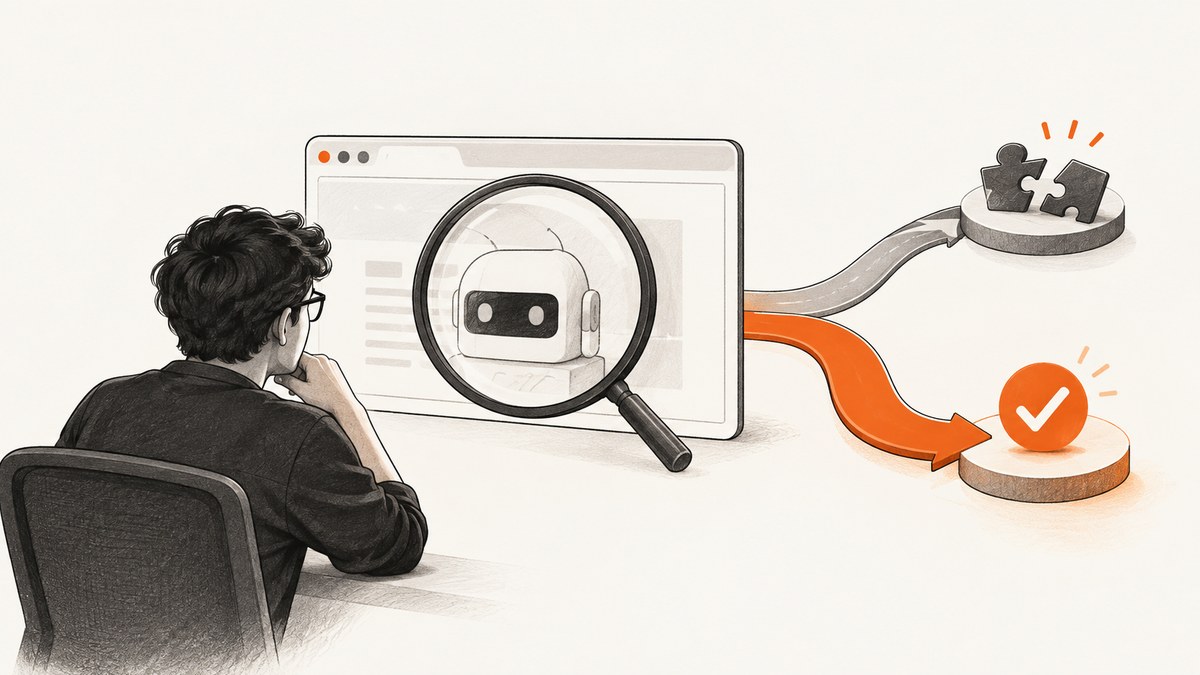
If Google blocks a Puppeteer run, first determine what is being blocked. A rendering or compatibility problem calls for checking your Chrome and Puppeteer versions and launch mode. A Google Search challenge or rejection of automated queries is a policy issue: there is no guaranteed, policy-neutral setting that makes Puppeteer invisible, and you should use an authorized API or another permitted source for production work.
This guide shows how to reproduce and diagnose the failure with supported Puppeteer modes, how to gather useful evidence, and when to stop debugging browser fingerprints and change the data source. It does not promise that a user-agent change, stealth patch, or proxy will bypass Google.
1. Identify what “Google detection” means
“Google” can mean Google Search itself, a Google-owned service, or a site that uses Google infrastructure. The right fix depends on the destination and the symptom. A page that renders incorrectly is different from a search results page that presents a challenge or refuses automated requests.
| Symptom | Likely category | First action |
|---|---|---|
| Navigation fails, page is blank, or assets do not load | Browser, network, or page compatibility | Record the navigation error and reproduce with Puppeteer’s bundled browser. |
| Page loads but layout or behavior differs in headless mode | Rendering or environment difference | Compare headless and headful using the same browser version and a controlled profile. |
| Google Search shows a challenge, denies results, or blocks repeated queries | Automated-query restriction | Stop sending automated Search queries unless you have express permission; use an approved API or permitted source. |
| A Google-hosted service fails while Search works | Service-specific authentication, permissions, or compatibility | Check that service’s documented access method, account permissions, and API options. |
Google defines machine-generated traffic as automated queries to Google. Its Search spam policies say scraping or rank checking without express permission violates its policies and Terms of Service. A browser fingerprint adjustment does not change whether the workload is authorized. See Google Search Central’s spam policies.
2. Collect a reproducible failure report
Before changing flags or installing plugins, capture enough information to compare runs. Change one variable at a time so you can tell whether a result is caused by browser mode, version, profile, or network.
- Record the Puppeteer package version and the actual Chrome version.
- Record the exact launch options and arguments, including whether a custom executable path is set.
- Log when the failure occurs: during launch, navigation, after navigation, or after an interaction.
- Save the navigation response status, final URL, page title, visible challenge text, and relevant console and page errors.
- Note whether the failure is repeatable, whether it affects only Google Search, and whether it changes in a visible browser.
- Reproduce in a clean environment with the browser bundled for your Puppeteer version before adding custom configuration.
Do not collect or store credentials, session cookies, or personal data unless your task requires it and you have a suitable basis to handle it. For a diagnostic run, keep logs focused on the request and browser behavior.
3. Test Puppeteer’s documented Chrome modes
Chrome’s current architecture uses unified headless and headful modes. Puppeteer’s headless: true selects unified headless by default; headless: false opens a visible browser. headless: 'shell' selects the separate old headless shell. Chrome 132.0.6793.0 and later distribute the old implementation as a standalone chrome-headless-shell binary. See Chrome’s Headless mode documentation and Puppeteer’s headless mode guide.
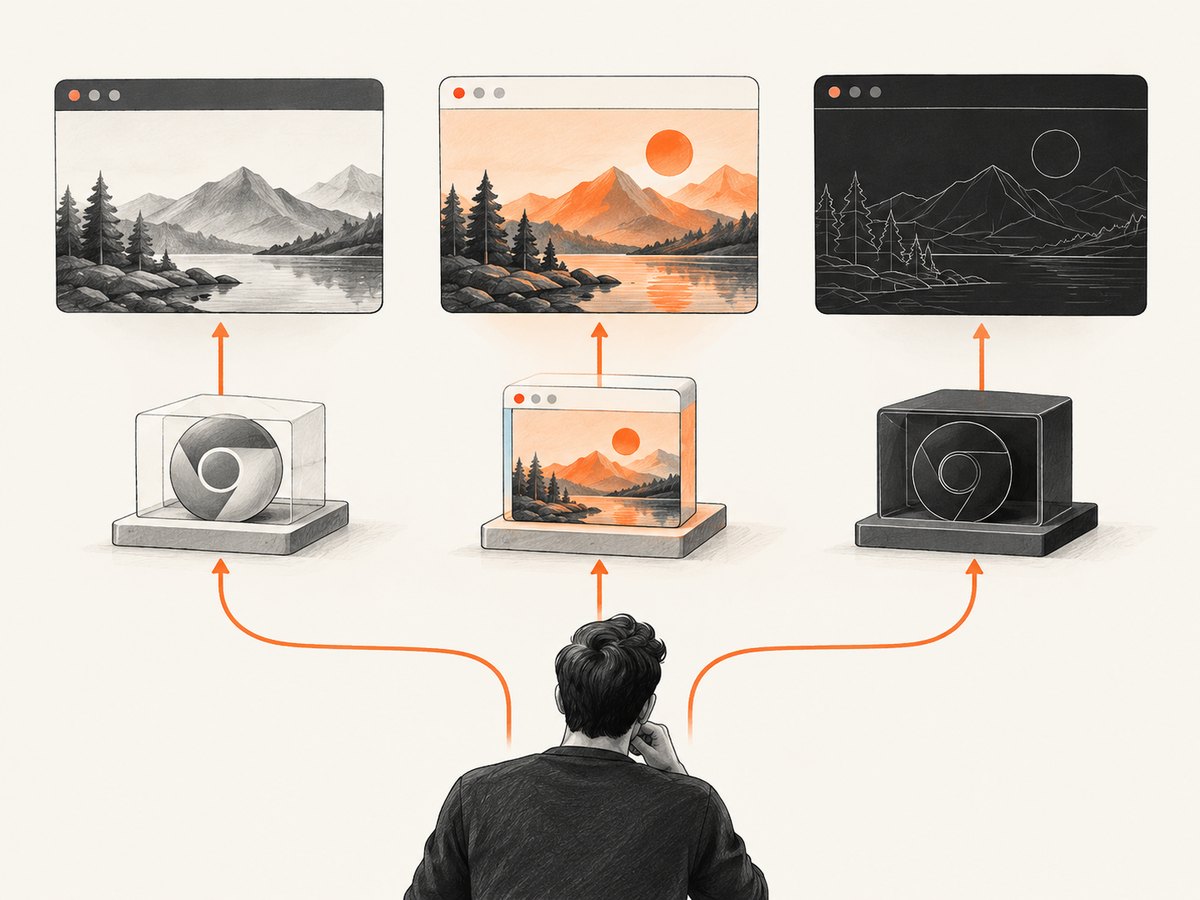
Use the default bundled browser first. This small script reports useful version and navigation information and lets you choose a mode from an environment variable. It is for diagnosis on a page you are authorized to automate; do not use it to evade a Google Search restriction.
import puppeteer from 'puppeteer';

const mode = process.env.PPTR_MODE ?? 'true';
const headless = mode === 'false' ? false : mode === 'shell' ? 'shell' : true;
const target = process.env.TARGET_URL ?? 'https://example.com';

const browser = await puppeteer.launch({ headless });
try {
  const page = await browser.newPage();
  page.on('console', message => console.log('console:', message.type(), message.text()));
  page.on('pageerror', error => console.error('page error:', error.message));
  page.on('requestfailed', request =>
    console.error('request failed:', request.url(), request.failure()?.errorText));

  console.log('Puppeteer browser:', await browser.version());
  const response = await page.goto(target, {
    waitUntil: 'domcontentloaded',
    timeout: 30000
  });
  console.log({
    status: response?.status(),
    finalUrl: page.url(),
    title: await page.title(),
    text: (await page.locator('body').innerText().catch(() => '')).slice(0, 1000)
  });
  await page.screenshot({ path: 'diagnostic.png', fullPage: true });
} finally {
  await browser.close();
}
Run it with node diagnose.mjs for unified headless, PPTR_MODE=false node diagnose.mjs for headful Chrome, or PPTR_MODE=shell node diagnose.mjs for the old headless shell. Set TARGET_URL to a page you are permitted to automate. On Linux servers, headful mode may require a desktop session or display server; that is an environment requirement, not a method to bypass a site restriction.
What the comparison tells you
- All modes fail before a page renders: investigate DNS, TLS, outbound network rules, browser installation, and launch errors.
- Only one mode renders incorrectly: compare the browser version, graphics and font availability, permissions, extensions, profile state, and timing. Preserve the same inputs while testing.
- Headful renders, but Google Search rejects headless requests: this shows a mode-dependent symptom. It does not establish that a stealth change is reliable or that automated queries are allowed.
- A challenge page appears in every mode: treat it as a destination-side restriction. If the destination is Google Search, use an authorized access path rather than cycling through browser identities.
4. Keep Puppeteer and Chrome aligned
Puppeteer is tested against its bundled browser. Its API reference warns that using another executable is at the operator’s risk; an arbitrary system Chrome can introduce version and behavior differences. See Puppeteer’s LaunchOptions reference and supported browser versions.
For a reproducible setup, pin the Puppeteer dependency in your lockfile, install dependencies from that lockfile in CI, and let Puppeteer manage its supported browser unless you have a specific reason to supply another executable. If you do set executablePath, record the exact Chrome build in logs and verify it is compatible with the Puppeteer release you use. Browser compatibility tables change, so check the official supported-browsers page when publishing or upgrading rather than relying on a version number copied into an old guide.
Avoid adding a pile of launch flags to “make it look real.” Unnecessary flags make failures harder to reproduce and may break sandboxing, graphics, permissions, or security assumptions. Start with the defaults; add only a documented option required by your environment.
5. Decide whether to keep using a browser
Puppeteer is useful when you need to exercise a website as a browser: validate your own UI, test interactions, render a page you are authorized to capture, or inspect client-side behavior. It carries the operational cost of installing and maintaining a browser, provisioning CPU and memory, handling startup and navigation timeouts, and keeping the runtime aligned with your deployment environment.
For data from Google Search, first determine whether Google offers an API or other documented access method for your use case. If it does, use that route and its terms, quotas, and authentication. If it does not, choose a source that explicitly permits your intended automated access. Respect site terms, robots directives, rate limits, and applicable law.
For permitted screenshot work, an API can remove browser setup from your application. ScreenshotNeo is a website screenshot API and MCP server from Yorker Media. It accepts one GET request with a URL and returns a PNG, JPEG, WebP, or PDF. See ScreenshotNeo and its API documentation. A screenshot API does not authorize access to Google Search or override a site’s restrictions.
Or skip the browser setup
For a page you are permitted to capture, one request returns the image:
curl -G "https://api.screenshotneo.com/v1/shot" \
  -d access_key=YOUR_API_KEY \
  --data-urlencode url=https://stripe.com \
  -o shot.webp
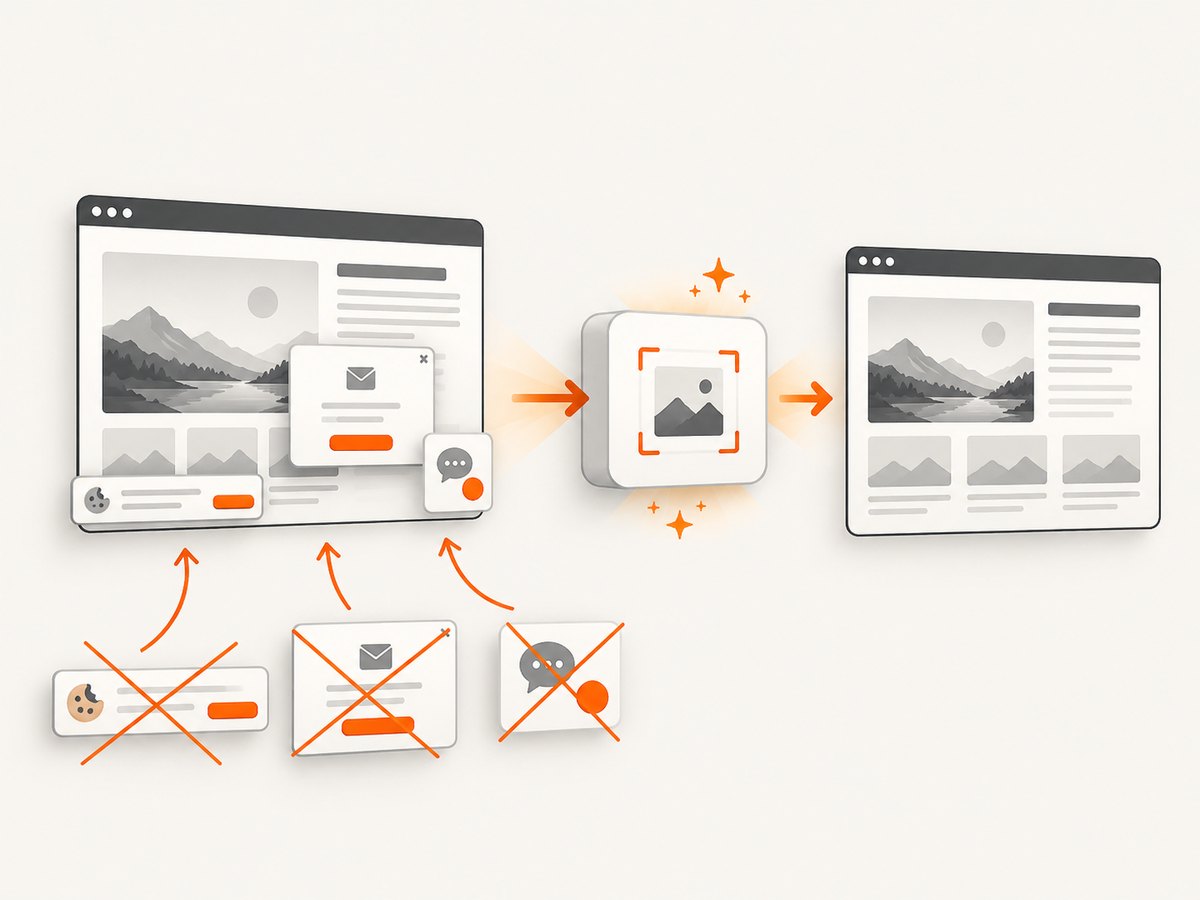
ScreenshotNeo accepts cookie and consent banners before capture and removes more than 60 known consent platforms, newsletter popups, and chat widgets; each step can be turned off. Bot checks, blank pages, timeouts, failed loads, and cache hits cost nothing, and response headers report the page verdict and billing status. Its MCP server gives AI agents tools named take_screenshot, get_page_info, and capture_pdf. The free plan includes 1,000 shots a month with no card; paid plans start at $5 for 3,000 shots. Those features are available on every plan.
Create a free ScreenshotNeo account for 1,000 screenshots a month with no card.
6. cURL, Python, and Node.js request examples
These examples call Puppeteer from Node.js because Puppeteer is a Node.js browser automation library. cURL and Python examples below call the ScreenshotNeo screenshot API; they are not alternate ways to launch Puppeteer. Use a permitted target URL and keep API keys out of source control.
cURL: call ScreenshotNeo
curl -G "https://api.screenshotneo.com/v1/shot" \
  -d access_key=YOUR_API_KEY \
  --data-urlencode url=https://stripe.com \
  -o shot.webp
Python: call ScreenshotNeo
import requests

r = requests.get(
    "https://api.screenshotneo.com/v1/shot",
    params={"access_key": "YOUR_API_KEY", "url": "https://stripe.com"},
    timeout=90,
)
r.raise_for_status()
with open("shot.webp", "wb") as f:
    f.write(r.content)
Node.js: call ScreenshotNeo
const q = new URLSearchParams({
  access_key: 'YOUR_API_KEY',
  url: 'https://stripe.com'
});
const res = await fetch(`https://api.screenshotneo.com/v1/shot?${q}`);
if (!res.ok) throw new Error(`Screenshot request failed: ${res.status}`);
await import('node:fs/promises').then(fs => fs.writeFile('shot.webp', Buffer.from(await res.arrayBuffer())));
See ScreenshotNeo’s docs for request parameters. Options include full-page capture with lazy images loaded, CSS-selector element capture, dark mode, device presets or custom viewport, retina scale, PDF paper size and ranges, custom CSS and JavaScript, clicking or waiting for selectors, hiding selectors, request blocking, headers, cookies, user agent, authorization, timezone, geolocation, transparent background, resizing, configurable cache TTL, signed links, asynchronous jobs and signed webhooks, bulk capture of up to 100 URLs per call, usage API, and OpenAPI spec. Parameter names used by other screenshot APIs also work to ease migration.
7. Troubleshooting Puppeteer failures
| Error or symptom | Common cause | Fix |
|---|---|---|
| Browser executable not found | Browser install step was skipped, or the configured path is stale. | Install the browser for the pinned Puppeteer release and remove an unnecessary custom executable path. |
| Protocol or target closed errors | Chrome crashed, was killed for memory, or exited before the operation completed. | Check process and memory limits, capture browser logs, and reduce concurrent browser instances. |
| Navigation timeout | Slow network, long-running page requests, or waiting for an overly strict lifecycle event. | Log the failing URL and stage; use a suitable wait condition for your task, and set a timeout that matches your service budget. |
| Blank screenshot | Capture ran before meaningful content appeared, navigation failed, or the page requires client-side data. | Check response status and page text; wait for a page-specific selector when authorized and appropriate. |
| Works locally, fails in CI | Different browser build, fonts, permissions, network egress, or resource limits. | Pin dependencies, record browser version, and align CI with the local runtime before changing launch arguments. |
| Google Search challenge or denial | Automated queries are restricted or the request pattern is not permitted. | Do not try to defeat the challenge. Obtain express permission or use an approved API or permitted data source. |
| Different results between headful and headless | Mode-dependent rendering, profile, extensions, permissions, timing, or network behavior. | Compare these factors one at a time. Treat the comparison as diagnosis, not evidence that a fingerprint patch is an approved fix. |
8. Reliability, performance, and cost
For your own permitted browser workload, reliability comes from repeatable inputs: a pinned package, a known browser build, clean test profiles, bounded timeouts, and logs that preserve the failure stage. Reuse browser processes when appropriate for your application, but cap concurrency to avoid exhausting memory or CPU. Close pages and browsers in cleanup paths, including after exceptions.
Mode choice has operational tradeoffs. Headful Chrome may need a display environment and uses resources for a visible session. Unified headless avoids displaying a window while sharing Chrome’s current implementation. The separate headless shell exists for cases where its performance or compatibility characteristics are specifically needed; it is a distinct binary and should be tested as such. Do not assume one mode is universally faster or more compatible: measure within your workload and environment.
For ScreenshotNeo, pricing is Free: 1,000 shots/month; Starter: $5 for 3,000; Growth: $15 for 15,000; Pro: $39 for 60,000; Scale: $99 for 250,000; Business: $249 for 1,000,000. Yearly billing gives two months free. Every feature is on every plan. Clean shots are billed; bot checks, blank pages, timeouts, failed loads, and cache hits are not. Inspect X-Page-Verdict and X-Billed in each response when you need to distinguish outcomes. Choose a plan based on expected volume and monitor usage rather than treating attempted requests as billable captures.
FAQ
Does navigator.webdriver explain every block?
No. A single browser property cannot explain every challenge or establish whether automated access is permitted. Diagnose the actual failure and destination policy.
Should I install a stealth plugin?
Not as a guaranteed fix. The official sources here do not endorse stealth plugins as a way to bypass Google, and such changes do not grant permission to automate Search.
When should I use headless: 'shell'?
Use it when you specifically need to evaluate the old headless shell’s compatibility or performance behavior. For general diagnosis, begin with unified headless and compare with headful.
Can a screenshot API retrieve blocked Google results?
A screenshot API captures pages; it does not grant access or bypass destination restrictions. Use it only for URLs and workloads you are allowed to access.
What should I do if there is no suitable Google API?
Seek express permission or use a data source whose terms permit your intended automation. Do not turn browser fingerprint changes into a substitute for authorization.


