How to Fix Puppeteer Chrome Headless Shell Download Failures on CI
Diagnose Puppeteer Headless Shell download failures on CI, from blocked install scripts and missing caches to incompatible versions and launch errors.
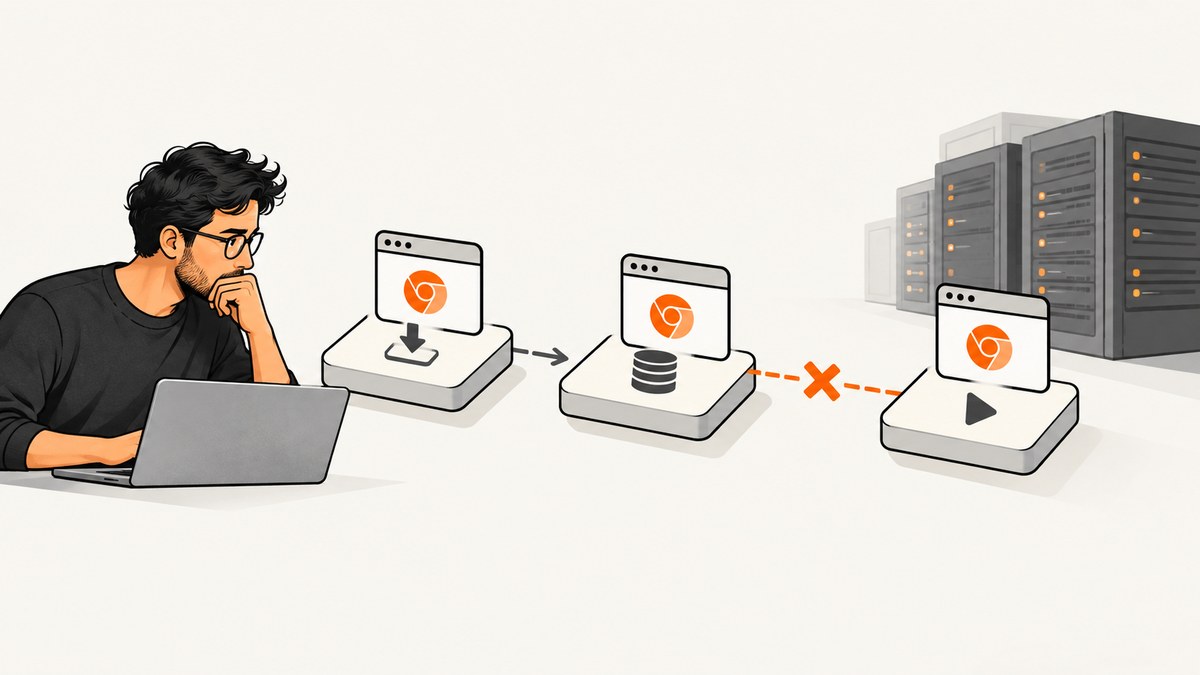
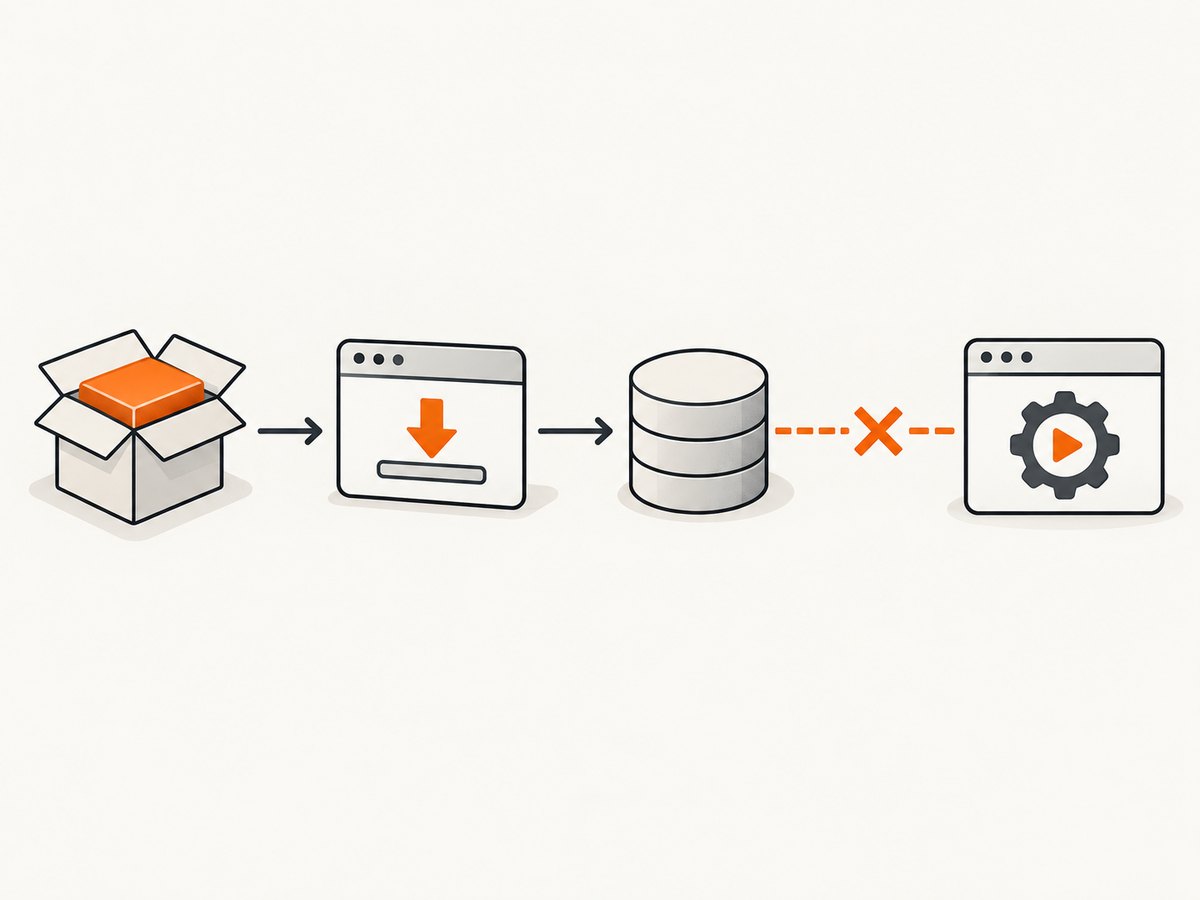
If Puppeteer reports that Chrome cannot be found on CI, first identify when it fails: dependency installation, an explicit browser download, or puppeteer.launch(). The fix depends on the stage. The most common causes are a blocked package install script, a browser cache that is missing in the runtime job, a download host the runner cannot reach, or a Puppeteer/browser version mismatch.
Chrome Headless Shell is a separate browser binary. Puppeteer has downloaded it since v21.6.0, and headless: 'shell' selects it. Regular headless Chrome uses a different mode. Confirm which one your code requests before changing the browser installation. See the [Puppeteer installation guide](https://pptr.dev/guides/installation) and [headless modes guide](https://pptr.dev/guides/headless-modes).
1. Locate the failing stage
Start by recording the exact error and the environment that produced it. A “Could not find Chrome” error during launch usually means the expected browser was never installed or is not visible at the configured cache path. A failed download points instead to network access, host configuration, or artifact selection. A process that finds the binary and then exits has a launch or system-dependency issue.
Collect these details from the failing job:
- Full error output and whether it occurs during install, browser installation, or launch.
- Installed
puppeteerorpuppeteer-coreversion, Node version, package manager and version. - Runner operating system, architecture, and whether install and runtime happen in different jobs or containers.
- Effective home directory and the values of
PUPPETEER_CACHE_DIRand any browser download settings. - Whether the application requests regular headless mode or
headless: 'shell'.
Do not start by adding launch flags. A flag cannot restore an artifact that was never downloaded, and sandbox options do not fix a missing cache.
2. Install the browser when lifecycle scripts were blocked
The puppeteer package normally downloads a compatible Chrome for Testing browser and Headless Shell during installation. If your package manager or repository policy blocks dependency lifecycle scripts, that download can be skipped. Puppeteer documents this as a cause of the “Could not find Chrome” error. See [Puppeteer installation](https://pptr.dev/guides/installation) and [installation troubleshooting](https://pptr.dev/troubleshooting).
Run Puppeteer’s browser installer explicitly in the CI job after dependencies are installed. The command below uses the documented CLI form; check the command and package-manager script policy against the Puppeteer version and package manager pinned by your project.
npx puppeteer browsers installMake that command part of the same environment that runs the tests, or ensure its browser cache is deliberately shared with the runtime job. If your package manager supports an allow-list for install scripts, you can also allow Puppeteer’s install script according to that manager’s current documentation. Do not copy a policy setting from a different package-manager version without checking its syntax.
Check which package you use. puppeteer handles browser installation; puppeteer-core does not download Chrome and is intended for cases where another system manages the browser. With puppeteer-core, install or provide the browser yourself and configure its executable path. The [installation guide](https://pptr.dev/guides/installation) describes this distinction.
3. Keep the browser cache available to the runtime
Since Puppeteer v19, the default browser cache is ~/.cache/puppeteer, based on the home directory of the process. CI jobs often use different containers, users, or home directories for dependency installation and test execution. A browser can therefore download successfully and still be absent from the runtime’s view.
Choose one cache path and set it consistently during installation and launch. For example, set PUPPETEER_CACHE_DIR in both steps:
export PUPPETEER_CACHE_DIR="$PWD/.cache/puppeteer"
npx puppeteer browsers install
node scripts/capture.js
The matching Puppeteer configuration option is cacheDirectory. Create or update the project’s Puppeteer configuration if you prefer a checked-in setting:
// .puppeteerrc.cjs
module.exports = {
  cacheDirectory: `${process.cwd()}/.cache/puppeteer`,
};
Use a path that exists and is writable in the relevant CI steps. If you change the cache configuration, Puppeteer’s troubleshooting guide says to reinstall so the browser is placed at the new location. A persisted cache is optional; if you use one, key it on the relevant Puppeteer/browser version and runner platform so incompatible artifacts are not reused. The documentation explains browser versions and platform-specific downloads, but does not prescribe a cache key for a particular CI provider.
4. Check download host and version settings
If the runner cannot reach Puppeteer’s configured download host, inspect outbound network rules, proxy configuration, and the exact failed URL in the install log. Headless Shell has its own download base URL and version configuration. A mirror can help where policy blocks the default host, but it must expose the artifact at the expected path and provide the correct platform and version.
Configuration names can vary by Puppeteer release. The current API reference documents downloadBaseUrl and version for Headless Shell, with environment-variable overrides. Check the [Headless Shell configuration reference](https://pptr.dev/next/api/puppeteer.browsersettings.chromeheadlessshell) and your installed release before setting them. A configured base URL may include a path prefix and should not end with a slash, as documented there.
Prefer Puppeteer’s bundled browser version unless there is a concrete reason to manage browser versions separately. Puppeteer maps releases to browser versions in its [supported browsers reference](https://pptr.dev/supported-browsers). Its launch API cautions that an arbitrary executable path is not guaranteed to work with Puppeteer. See [Puppeteer launch options](https://pptr.dev/api/puppeteer.launchoptions).
5. Make sure Headless Shell is the browser you need
Puppeteer’s headless guide distinguishes headless: true, which uses regular Chrome’s headless mode, from headless: 'shell', which launches the separate Chrome Headless Shell binary. Shell can suit automation workloads, but its behavior is not identical to regular Chrome.
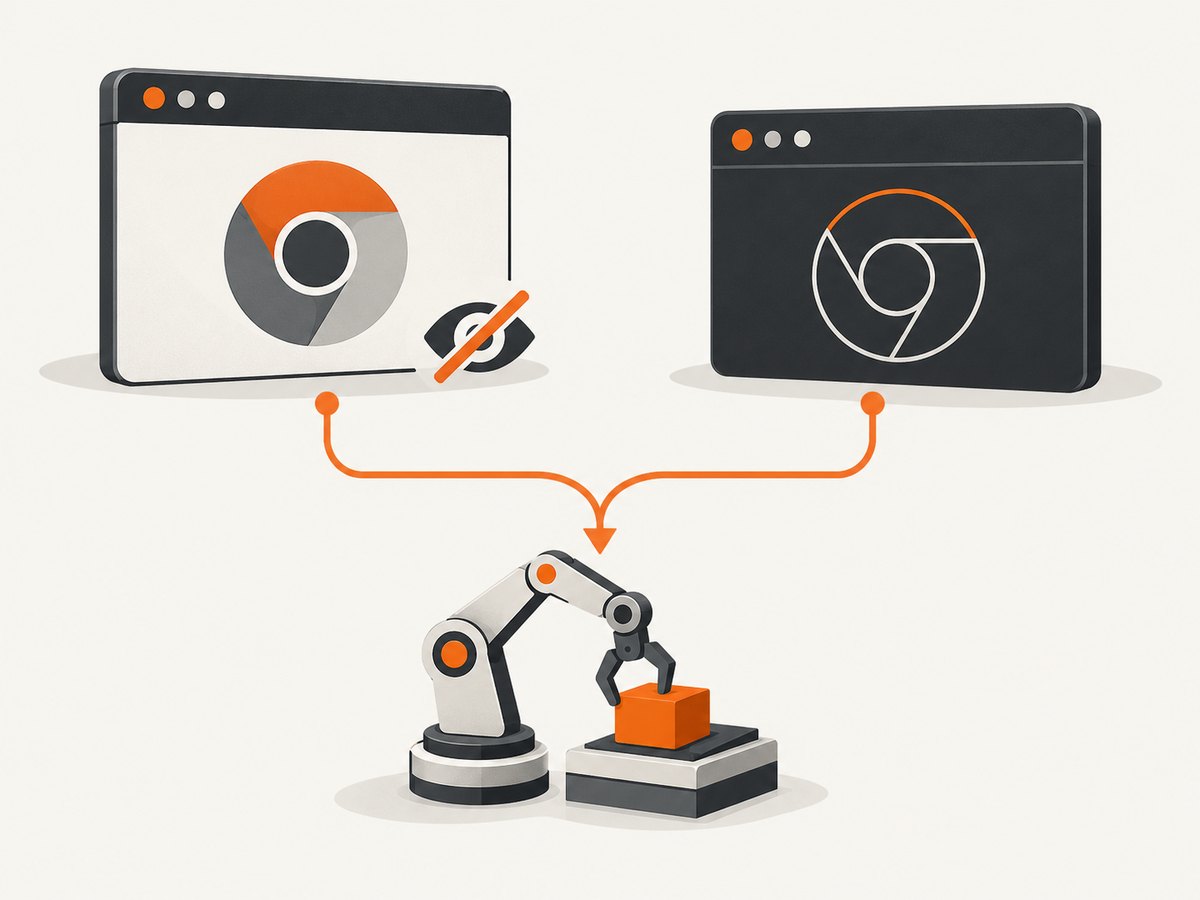
If your application does not require Shell specifically, changing to headless: true may remove the need for that particular binary. This changes the browser mode and can change page behavior; it is not a repair for a broken Shell download when Shell remains a requirement.
const browser = await puppeteer.launch({
  headless: 'shell', // requires Chrome Headless Shell
});
const browser = await puppeteer.launch({
headless: true, // regular Chrome headless mode
});Choose based on the behavior your automation needs, then keep the corresponding browser installation and launch configuration aligned. The [headless modes guide](https://pptr.dev/guides/headless-modes) describes the differences.
6. Separate installation errors from launch errors
A successful download does not guarantee that the runner can launch the browser. Confirm that the binary exists in the configured cache first. Then check Node and operating-system support, architecture, required system libraries, permissions, and archive extraction tools.
The current Puppeteer system requirements page lists Node.js 22.12 or newer and supported Chrome for Testing platforms: Windows x64; macOS x64 and arm64; and Debian/Ubuntu or openSUSE/Fedora Linux x64 and arm64. It also documents distribution packages and extraction requirements such as tar, PowerShell, or unzip, unless the optional yauzl dependency is installed. These requirements are version-sensitive; compare the [system requirements](https://pptr.dev/guides/system-requirements) with your pinned Puppeteer release.
If launch reports a missing shared library, install the required operating-system dependency for the runner image. If it reports permission or sandbox errors, follow Puppeteer’s Linux guidance for that environment. The troubleshooting page flags some sandbox advice as out of date, so do not apply --no-sandbox as a universal fix. A sandbox change affects security and should be based on the runner’s actual constraints.
7. A repeatable CI installation pattern
The following shell sequence makes the browser setup explicit. Run it in the job or image that will execute Puppeteer. It assumes dependencies have already been installed and the Puppeteer CLI is available locally.
set -eu

node --version
npm ls puppeteer puppeteer-core || true

export PUPPETEER_CACHE_DIR="$PWD/.cache/puppeteer"
npx puppeteer browsers install

node -e "console.log('Puppeteer browser installation step completed')"
Then run your actual capture script with the same cache path and user. The small Node command only confirms that the preceding shell steps completed; the meaningful check is launching Puppeteer in your own application. For a project using puppeteer-core, replace the browser-installer step with your separately managed browser installation and set the executable path required by your project.
If setup and tests must run in separate jobs, persist the browser cache or repeat installation in the test job. Persisting is useful when download time matters and the cache can be keyed correctly; repeating is simpler and avoids stale cache artifacts. Choose based on your CI’s time and storage constraints.
8. Troubleshooting by symptom
| Symptom | Likely cause | What to check or change |
|---|---|---|
Could not find Chrome (ver. ...) immediately at launch |
Install script was blocked, browser install was omitted, or launch sees a different cache/home directory. | Run npx puppeteer browsers install; compare install/runtime user, HOME, and PUPPETEER_CACHE_DIR. |
| Browser installer fails to fetch an archive | Network policy, proxy, DNS, or configured download host is inaccessible. | Inspect the failing URL and network error; verify proxy/egress settings or use a correctly structured mirror and matching version. |
| Download succeeds in one job, binary is absent in another | Jobs have isolated filesystems, users, or home directories. | Install in the runtime job or persist the configured cache and restore it at the same path. |
| Archive downloads but extraction fails | Missing or incompatible extraction utility, interrupted archive, or insufficient disk space/permissions. | Check the error, free space, writable cache directory, and the extraction tools required by the matching Puppeteer version. |
| Executable exists but launch reports missing libraries | Runner image lacks operating-system dependencies. | Use Puppeteer’s platform requirements for the pinned release and install the named system libraries. |
| Launch fails with a sandbox or permission error | Runner security configuration or user permissions prevent startup. | Inspect the runner’s constraints and Puppeteer’s Linux troubleshooting guidance; avoid blanket sandbox disabling. |
Only puppeteer-core is installed |
This package does not download a browser. | Install/manage the browser separately and configure its executable path deliberately. |
| Failure began after upgrading Puppeteer | Browser version, cache contents, Node requirement, or package-manager policy may have changed. | Reinstall with the new release, review its supported browser and system requirements, and invalidate stale cache entries. |
9. Performance, reliability, and cost considerations
Browser downloads can add noticeable setup time and storage use. Puppeteer’s installation documentation reports approximate downloads of 170 MB for macOS, 282 MB for Linux, and 280 MB for Windows for the documented browser artifacts. These figures are version-sensitive; consult the current [installation guide](https://pptr.dev/guides/installation) for the release you use.
A CI cache can reduce repeated download work, but stale or cross-platform cache entries can cause confusing failures. Include Puppeteer/browser version and platform in the cache identity, and install afresh after changing cache configuration. If reliability matters more than avoiding downloads, install in each isolated runtime job. If speed matters, persist a version- and platform-specific cache and keep the install and launch paths identical.
Budget for browser storage and network transfer in ephemeral runners. Avoid installing multiple browser revisions unless your test matrix needs them. Keep Puppeteer and its managed browser paired; independently upgrading one side can create failures that resemble a download problem.
Or skip the browser setup
If the job only needs a screenshot of a URL, [ScreenshotNeo](https://screenshotneo.com) provides a one-request screenshot API and MCP server for developers. Its API accepts a URL and returns PNG, JPEG, WebP, or PDF. Here is the documented cURL request; see the [ScreenshotNeo API docs](https://screenshotneo.com/docs/) for parameters.
curl -G "https://api.screenshotneo.com/v1/shot" \
  -d access_key=YOUR_API_KEY \
  --data-urlencode url=https://stripe.com \
  -o shot.webp
ScreenshotNeo accepts cookie and consent banners before capture and removes more than 60 known consent platforms, newsletter popups, and chat widgets; each step can be turned off. Bot checks, blank pages, timeouts, failed loads, and cache hits are not billed, and response headers identify the page verdict and billing status. Its MCP server provides take_screenshot, get_page_info, and capture_pdf for Claude, Cursor, and other MCP clients. The free plan includes 1,000 screenshots per month with no card; paid plans start at $5 for 3,000 shots. [Create a free account](https://screenshotneo.com/account/sign-up/).
FAQ
Does Puppeteer download Chrome Headless Shell automatically?
puppeteer installs browser binaries through its installation process, including Headless Shell since v21.6.0. A package-manager policy that blocks install scripts can skip the download; puppeteer-core does not download a browser.
Can I use regular headless Chrome instead of Shell?
Yes, if your application does not depend on Shell-specific behavior. Use headless: true and ensure the corresponding Chrome browser is installed. Review the headless modes guide before switching.
Should I set executablePath to the system Chrome?
Only when you deliberately manage that browser and have verified compatibility. Puppeteer guarantees its bundled browser pairing, not every arbitrary executable path.
Do I need to cache the browser in CI?
No. You can install it in each runtime job. Caching can reduce repeated downloads, but requires a consistent path and a cache identity that reflects browser version and platform.
Will --no-sandbox fix a missing Shell download?
No. It affects browser launch security behavior; it does not download or locate the binary. Diagnose installation and cache visibility first.


