How to Fix Puppeteer’s “input.on Is Not a Function” Error
Diagnose Puppeteer’s input.on error by tracing Chrome launch, versions, Linux dependencies, executable paths, and sandbox configuration.
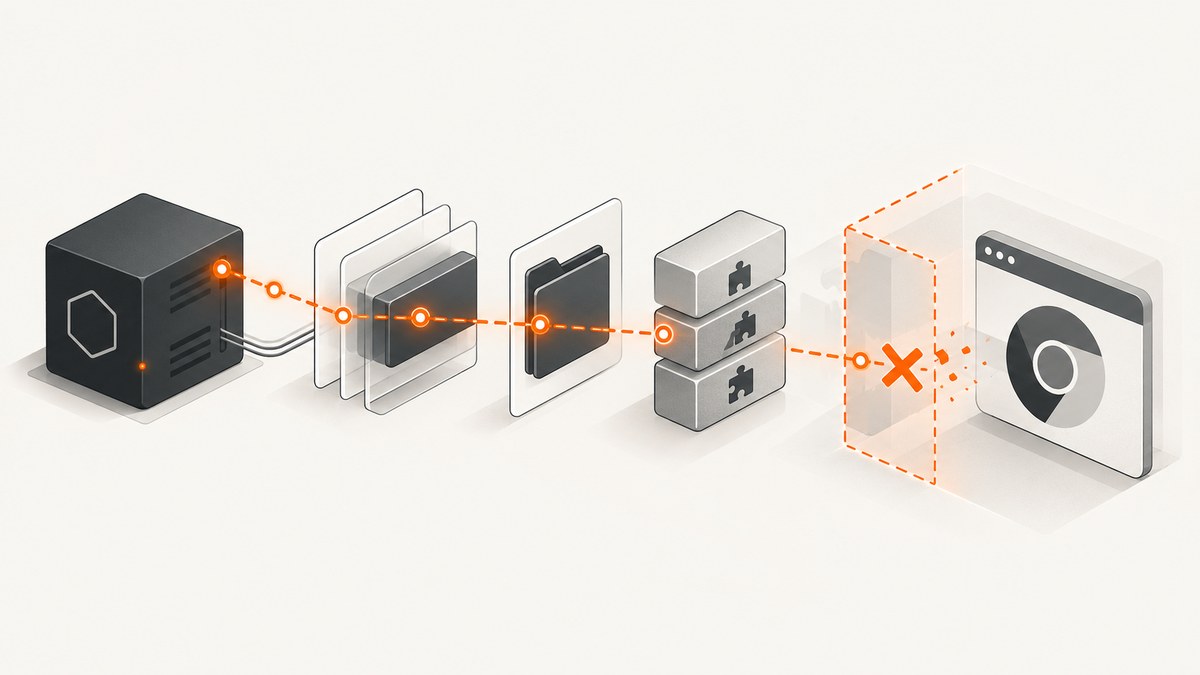
Direct answer: Puppeteer’s input.on is not a function exception usually appears during browser startup, while Puppeteer is waiting for Chrome’s WebSocket endpoint. It is raised by Node’s readline constructor from the launch path, not by a page-level page.type() or keyboard call. The message means that the value passed as input did not provide the EventEmitter-style .on() method. The exception alone does not identify why that value was wrong.
Fix it as a launch diagnosis: record the complete environment and stack trace, expose Chrome’s stderr, verify the browser executable and version, install missing Linux libraries, and check the Chrome sandbox. Treat flags such as --disable-setuid-sandbox as environment-specific workarounds. Keep the sandbox enabled whenever possible; Puppeteer’s documentation says, “Running without a sandbox is strongly discouraged.”
What the error means
In the commonly indexed incident, the stack reaches Node’s readline interface and Puppeteer functions named waitForWSEndpoint and Launcher.launch. That places the failure in the launch/bootstrap sequence while Puppeteer waits for Chrome to start and announce its debugging endpoint. The trace is not proof of one universal Puppeteer bug or one universal bad option.
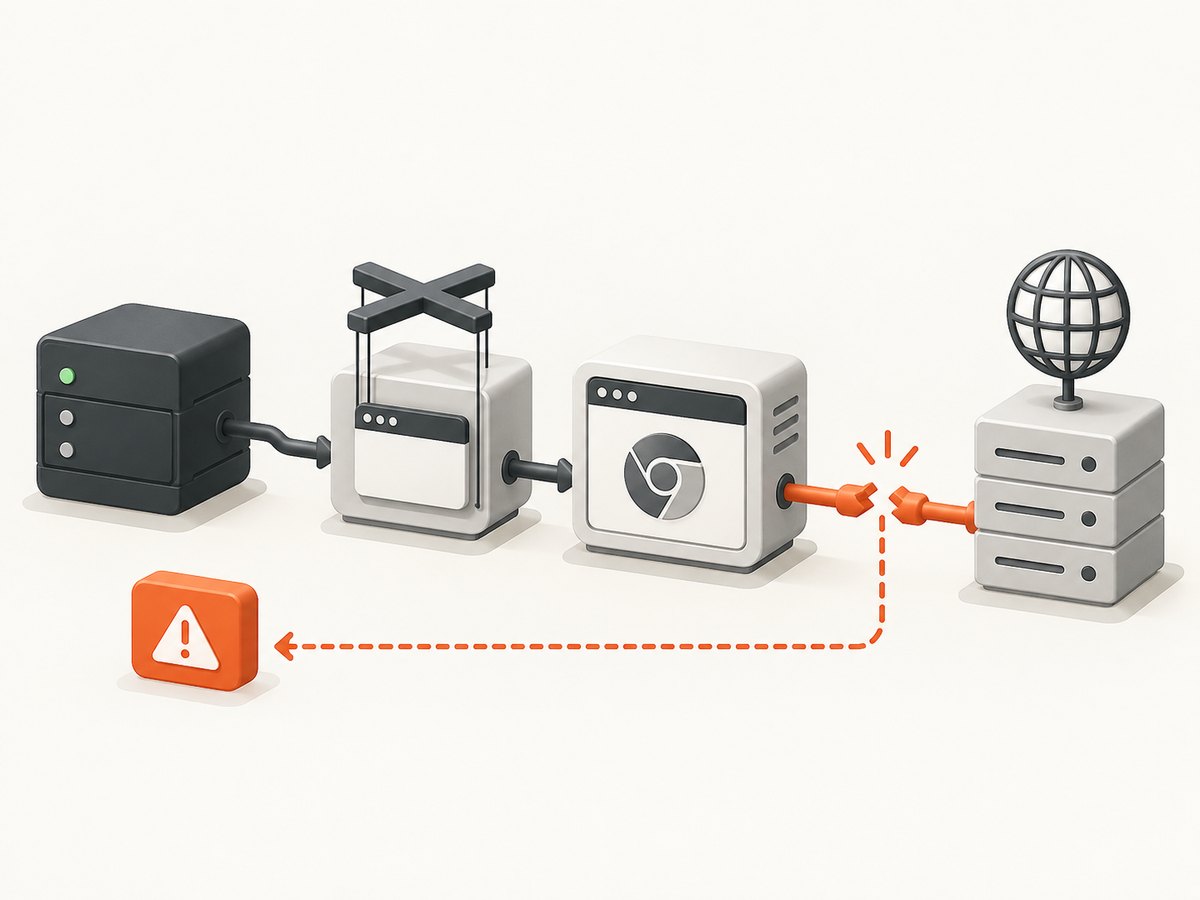
Node’s readline.createInterface() expects an input stream with event methods such as on(). If startup code supplies an incompatible value, the constructor throws. A failed Chrome process, an unexpected stream, an incompatible dependency combination, or a wrapper that changes process streams can all be relevant. Begin with evidence instead of changing random launch flags.
1. Capture the exact environment
Before changing code, save the versions and runtime details that determine how Puppeteer selects and launches Chrome.
node --version
npm ls puppeteer puppeteer-core
uname -a
cat /etc/os-release
which google-chrome || true
which chromium || true
Also record:
- Whether the package is
puppeteerorpuppeteer-core. - The Puppeteer version and lockfile state.
- The operating system and container base image.
- Whether you use Puppeteer’s downloaded Chrome for Testing, a system Chrome/Chromium, a browser
channel, or an explicitexecutablePath. - The complete stack trace, including the first error printed before the
input.onexception. - The service user that starts Chrome and its working directory.
The indexed Stack Overflow report is from 2021 on Linux/RHEL. Do not assume its dependency versions or launch behavior describe current releases. Compare your setup with the current Puppeteer troubleshooting guidance.
2. Turn on browser output
Use Puppeteer’s documented dumpio: true launch option to forward the browser process’s standard output and error streams to Node. Preserve this output around the failure. It can reveal a missing shared library, an invalid executable, a sandbox error, or an immediate Chrome crash that occurs before the later readline exception.
const puppeteer = require('puppeteer');

(async () => {
  try {
    const browser = await puppeteer.launch({
      headless: true,
      dumpio: true
    });
    const page = await browser.newPage();
    await page.goto('https://example.com', { waitUntil: 'domcontentloaded' });
    console.log(await page.title());
    await browser.close();
  } catch (error) {
    console.error('Puppeteer launch failed:', error);
    process.exitCode = 1;
  }
})();
Do not discard stderr by redirecting it to /dev/null. The first Chrome message is often more actionable than the JavaScript exception that follows.
3. Verify browser selection and executable paths
Puppeteer works best with the Chrome for Testing build it downloads by default. The project does not guarantee compatibility with arbitrary Chrome versions. If you use puppeteer-core, you must provide a browser through executablePath or channel; it does not behave like the full puppeteer package’s managed browser installation.
Use the downloaded browser first
const puppeteer = require('puppeteer');

(async () => {
  const browser = await puppeteer.launch({
    headless: true,
    dumpio: true
  });
  await browser.close();
})();
If this works while a custom executable fails, the difference is the browser path or version rather than your page code. Check the installed browser directly as the same user that runs Node:
/opt/google/chrome/chrome --version
/opt/google/chrome/chrome --headless --disable-gpu --dump-dom https://example.com
Use an explicit executable only when required
const puppeteer = require('puppeteer-core');

(async () => {
  const browser = await puppeteer.launch({
    executablePath: process.env.CHROME_BIN || '/usr/bin/google-chrome',
    headless: true,
    dumpio: true
  });
  await browser.close();
})();
Confirm that the path exists, is executable, and is visible inside the container or service account’s namespace. A path that works in an interactive shell can fail under systemd, a queue worker, or a container with a different filesystem.
4. Check Linux libraries and the Chrome sandbox
Minimal Linux images frequently omit libraries Chrome needs. Puppeteer’s troubleshooting page suggests inspecting the browser binary with ldd and searching for unresolved dependencies:
ldd /path/to/chrome | grep 'not found' || true
Install the packages required by your distribution and image, then rerun with dumpio. The exact package names vary by Debian, Ubuntu, RHEL, Alpine, and other distributions, so use the base image’s package manager and Puppeteer’s current dependency list rather than copying a package command for a different OS.
Chrome can also stop with a message such as No usable sandbox! when the host sandbox is unavailable or incorrectly configured. Fix the host permissions and sandbox installation first. Running without a sandbox reduces isolation and should not be the normal production setting.
5. Test launch arguments in the smallest possible change
A Stack Overflow user reported that adding --disable-setuid-sandbox resolved their Linux case. The reported answer included several other arguments, so it does not isolate that flag as the cause, and it is not a general fix for every input.on failure.
const browser = await puppeteer.launch({
  headless: true,
  dumpio: true,
  args: ['--disable-setuid-sandbox']
});
Apply one justified change at a time and keep the original configuration available for comparison. If the host cannot provide a usable sandbox in a disposable, trusted test environment, you may see examples using --no-sandbox:
const browser = await puppeteer.launch({
  headless: true,
  dumpio: true,
  args: ['--no-sandbox']
});
Use that only when the content opened in Chrome is absolutely trusted and you understand the security trade-off. It should not be the first response to this exception.
6. Reduce the launch to a known-good baseline
Remove application wrappers, custom browser arguments, proxy settings, and page code until a minimal launch succeeds. Then add settings back one at a time.
const puppeteer = require('puppeteer');

async function smokeTest() {
  const browser = await puppeteer.launch({
    headless: true,
    dumpio: true
  });
  const version = await browser.version();
  console.log(version);
  await browser.close();
}

smokeTest().catch((error) => {
  console.error(error);
  process.exitCode = 1;
});
If the smoke test fails, page selectors, cookies, request interception, and navigation waits are not involved yet. Focus on Node, Puppeteer, Chrome, libraries, permissions, and the sandbox. If it succeeds, reintroduce your production options gradually.
Common causes and fixes
| Symptom | Likely area | Action |
|---|---|---|
input.on is not a function appears immediately during launch |
Bootstrap or process stream mismatch | Capture the full trace, enable dumpio, and identify the first browser error. |
| Chrome exits with a missing library message | Linux dependencies | Run ldd chrome | grep not; install dependencies for the actual base image. |
No usable sandbox! |
Sandbox permissions or host setup | Repair the sandbox; use a disabling flag only for a constrained, trusted test. |
| Custom path fails but default Puppeteer launch works | Executable path or browser version | Verify the path and use Puppeteer’s downloaded Chrome for Testing. |
| Works locally but fails in a worker or container | Different user, filesystem, libraries, or permissions | Run the same version and executable checks inside the worker/container. |
| Failure began after dependency updates | Version or lockfile change | Compare npm ls, lockfiles, Node versions, and the selected browser. |

Reliability and performance after launch succeeds
Once Chrome starts, make captures predictable:
- Reuse a browser process for multiple pages when isolation requirements allow it; launching Chrome for every URL adds startup cost.
- Close pages and browsers in
finallyblocks so crashes do not accumulate processes. - Set explicit navigation and operation timeouts. A page that never reaches a load event can otherwise hold a worker indefinitely.
- Log the browser version, Puppeteer version, URL, launch options, and elapsed time for each job.
- Keep concurrency below the memory and CPU capacity of the host. More tabs can increase throughput until contention causes timeouts.
- Pin dependency versions in CI and rebuild browser binaries deliberately. A floating browser or Node upgrade can change startup behavior.
const puppeteer = require('puppeteer');

async function capture(url) {
  const browser = await puppeteer.launch({ headless: true, dumpio: true });
  try {
    const page = await browser.newPage();
    page.setDefaultNavigationTimeout(30_000);
    await page.goto(url, { waitUntil: 'networkidle2' });
    return await page.screenshot({ type: 'png', fullPage: true });
  } finally {
    await browser.close();
  }
}

capture('https://example.com').then((png) => {
  require('fs').writeFileSync('example.png', png);
}).catch(console.error);
Or skip the browser setup
If your goal is a reliable website screenshot rather than maintaining Chrome, ScreenshotNeo provides a single HTTP request. It accepts a URL and returns PNG, JPEG, WebP, or PDF. Cookie and consent banners are accepted before capture, and more than 60 known consent platforms, newsletter popups, and chat widgets are removed. Bot checks, blank pages, timeouts, failed loads, and cache hits are not billed; response headers identify the page verdict and whether the shot was billed.
See the ScreenshotNeo API documentation for all options, including full-page lazy-image loading, CSS-selector element capture, dark mode, device presets, retina scale, PDF paper and page settings, custom CSS and JavaScript, clicks, selector or network-idle waits, request blocking, headers, cookies, user agents, authorization, timezone, geolocation, transparent backgrounds, resizing, TTL caching, signed image links, asynchronous webhooks, bulk capture, usage data, and the OpenAPI specification.
cURL
curl -G "https://api.screenshotneo.com/v1/shot" \
  -d access_key=YOUR_API_KEY \
  --data-urlencode url=https://stripe.com \
  -o shot.webp
Python
import requests

r = requests.get(
    "https://api.screenshotneo.com/v1/shot",
    params={"access_key": "YOUR_API_KEY", "url": "https://stripe.com"},
    timeout=90,
)
r.raise_for_status()
open("shot.webp", "wb").write(r.content)
Node.js
const q = new URLSearchParams({
  access_key: 'YOUR_API_KEY',
  url: 'https://stripe.com'
});
const res = await fetch(`https://api.screenshotneo.com/v1/shot?${q}`);
if (!res.ok) throw new Error(`Screenshot failed: ${res.status}`);
const data = Buffer.from(await res.arrayBuffer());
require('fs').writeFileSync('shot.webp', data);
ScreenshotNeo also offers an MCP server with take_screenshot, get_page_info, and capture_pdf tools for Claude, Cursor, and other MCP clients. Free accounts include 1,000 screenshots per month with no card. Paid plans start at $5 for 3,000 shots, and every feature is available on every plan. Create a free ScreenshotNeo account.
FAQ
Is this caused by page.type()?
Usually no. In the indexed incident, the stack is in the launch path before normal page interaction. Confirm with the complete trace.
Should I always add --no-sandbox?
No. Repair the host sandbox first. Puppeteer strongly discourages running without one.
Does upgrading Puppeteer guarantee a fix?
No. The exception text does not establish a single version defect. Upgrade deliberately, compare Node and browser versions, and retain browser stderr.
Why does it work with puppeteer but not puppeteer-core?
The packages differ in browser management. With puppeteer-core, verify that executablePath or channel points to a compatible, runnable browser.
Can a screenshot API avoid this class of failure?
Yes. A hosted capture API such as ScreenshotNeo removes local Chrome installation, Linux library, and sandbox maintenance from your application. You still need to handle HTTP errors and choose capture options appropriate for the page.
Diagnostic checklist
- Save Node.js, Puppeteer, OS, container, and browser versions.
- Capture the entire stack trace and Chrome stderr.
- Run with
dumpio: true. - Test Puppeteer’s downloaded Chrome for Testing.
- Validate custom executable paths as the service user.
- Run
ldd chrome | grep noton Linux. - Repair the sandbox before considering disabling flags.
- Change one launch option at a time.
- Use a minimal smoke test before adding application code.
- Pin versions and clean up browser processes after each job.


