How to Fix Puppeteer Installation and Startup Failures
Diagnose Puppeteer failures by layer—install, browser download, cache, OS libraries, sandbox, or launch—and apply the exact repair.
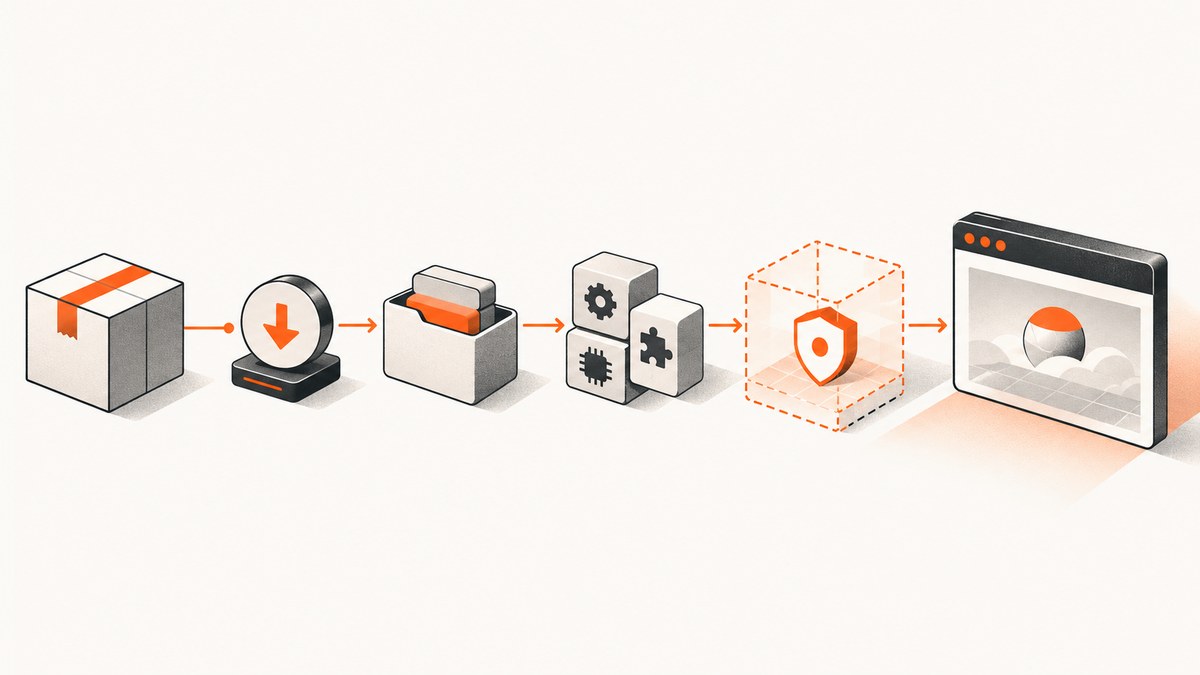
Short answer: identify which layer failed—package install, browser download, browser discovery, OS dependencies, or launch—then fix that layer. A “startup failure” is not one problem. Capture the exact error, Puppeteer version, Node.js version, OS/architecture, package manager, and whether you installed puppeteer or puppeteer-core before changing flags.
1. Classify the failure before changing code
| Symptom | Likely layer | First check |
|---|---|---|
Could not find expected browser locally or Could not find Chrome (ver. ...) |
Browser download, cache, or discovery | Install scripts, PUPPETEER_SKIP_DOWNLOAD, cache path, and the installed browser list |
Failed to launch chrome! |
OS libraries, permissions, profile, architecture, or security policy | Browser stderr, ldd, writable temp/profile directories |
No usable sandbox! |
Sandbox and platform security | OS policy, user namespaces, browser permissions |
| Works locally, fails in CI or a container | Environment drift | Install user versus runtime user, cache persistence, image libraries, and install scripts |
Keep the complete stderr output. Puppeteer’s documented strings are diagnostic clues, not proof of a single cause. Check the official troubleshooting guide and installation guide against the version you actually installed.
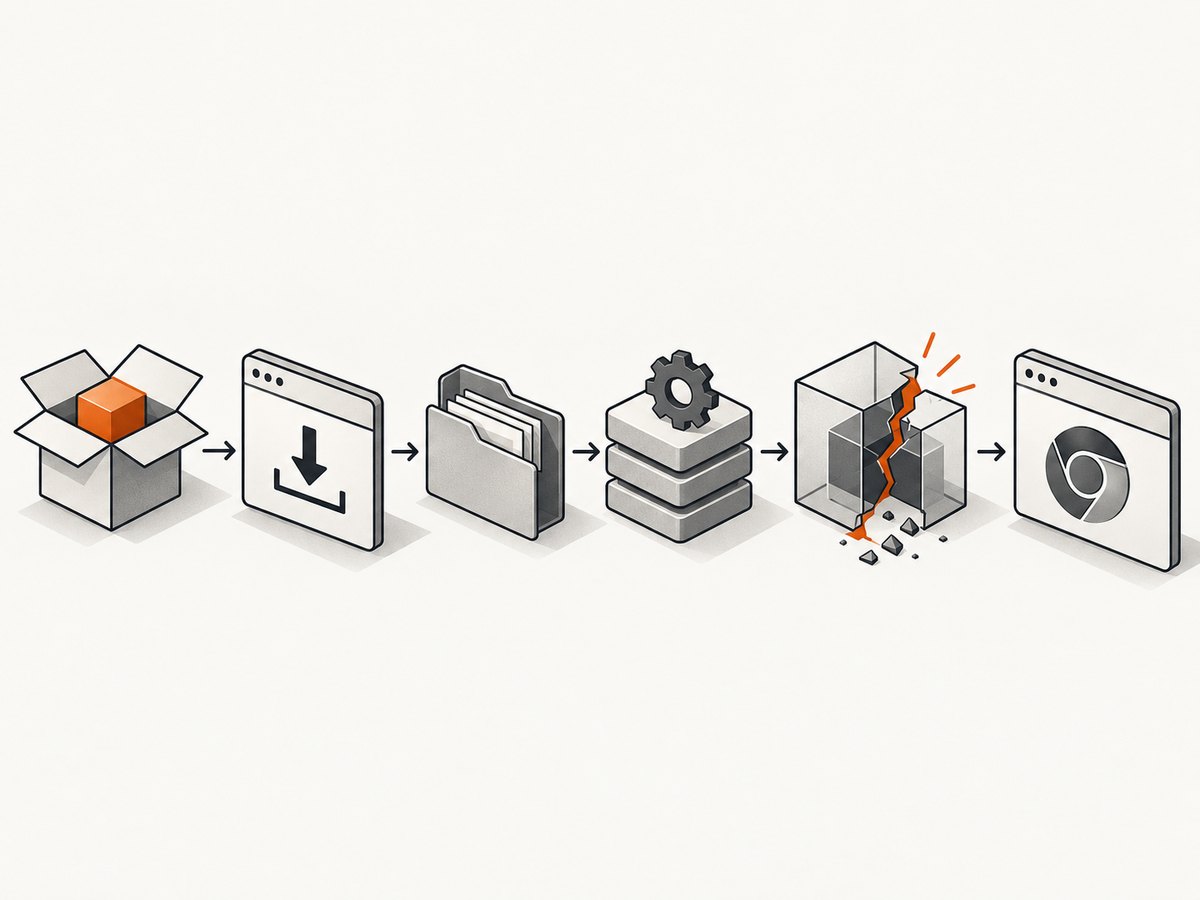
2. Verify package, runtime, and browser choice
Check what is installed
node --version
npm ls puppeteer puppeteer-core
npm config get ignore-scripts
node -p "process.platform + ' ' + process.arch"
puppeteer normally downloads a compatible Chrome for Testing during installation. puppeteer-core intentionally does not download a browser; it is for an externally managed or remote browser and requires an explicit executable path, channel, or connection. Mixing examples for these packages is a common source of “browser not found” errors.
Requirements change with releases. The requirements page surfaced for Puppeteer 25.12.0 lists Node.js 22.12 or newer and Chrome for Testing support on Windows x64, macOS x64/arm64, Debian/Ubuntu Linux x64/arm64, and openSUSE/Fedora Linux x64/arm64. Confirm the current requirements for your installed version rather than copying an old issue.
Use the bundled browser first
The bundled browser is the compatibility-guaranteed path. An external Chrome or Chromium can work, but Puppeteer does not guarantee every external browser/version combination.
import puppeteer from 'puppeteer';

const browser = await puppeteer.launch({
  headless: true
});
const page = await browser.newPage();
await page.goto('https://example.com', {waitUntil: 'domcontentloaded'});
console.log(await page.title());
await browser.close();
3. Restore a missing browser download
Package managers and build systems can disable dependency install scripts. In that case installation appears successful but no Chrome exists. After installing puppeteer, run the documented recovery command:
npx puppeteer browsers installIf your package manager blocks scripts, explicitly allow Puppeteer’s install script according to that manager, then rerun installation. Check the package’s browser-install options in the browser installation documentation. Do not rely on a command copied from an older Puppeteer issue.
Useful checks:
npm rebuild puppeteer
npx puppeteer browsers list
NODE_DEBUG='puppeteer:browsers:*' npx puppeteer browsers install
PUPPETEER_SKIP_DOWNLOAD is useful only when you intentionally provide a browser. If it is set accidentally in CI, remove it or configure an explicit executable.
4. Align the browser cache between build and runtime
Since Puppeteer v19, the default cache is ~/.cache/puppeteer. A build may download Chrome as one user while the runtime uses another home directory, or a container may discard the cache between stages. Set one persistent location for both installation and execution:
export PUPPETEER_CACHE_DIR=/opt/puppeteer-cache
npx puppeteer browsers install
node app.js
You can also set cacheDirectory in Puppeteer’s configuration file. Changing the location does not move an existing browser; rerun the browser installation after changing it. Ensure the runtime user can read and execute the files. The configuration guide documents configuration precedence and cache settings.
5. Supply a browser deliberately with puppeteer-core
With puppeteer-core, provide a managed executable:
import puppeteer from 'puppeteer-core';

const browser = await puppeteer.launch({
  executablePath: process.env.CHROME_PATH,
  headless: true,
  userDataDir: '/tmp/puppeteer-profile'
});
try {
  const page = await browser.newPage();
  await page.goto('https://example.com', {waitUntil: 'networkidle2'});
} finally {
  await browser.close();
}
Alternatively use a supported browser channel where available. Treat the browser version, architecture, and launch flags as part of your deployment artifact. A system Chrome update can change behavior independently of your npm lockfile.
6. Fix Linux libraries, profiles, and permissions
When Chrome is found but exits immediately, inspect the actual executable:
ldd /path/to/chrome | grep notInstall the missing libraries using your distribution’s current Chrome/Chromium dependency list. Do not paste a Debian package list into Alpine or another release. WSL needs the same shared libraries plus a writable temporary profile. Set userDataDir to a directory owned by the browser user.
Alpine is not supported out of the box. Establish compatibility for the selected Chromium and Puppeteer versions, and validate it in the exact image; the troubleshooting guide flags Chromium timeout issues on Alpine 3.20. In Cloud Run, the default Node.js runtime lacks Chrome system packages, so add them in the image or use a base image that supplies them. App Engine and Cloud Functions builds may need the cache under node_modules when build caching prevents the postinstall step from running.
7. Handle sandbox errors securely
No usable sandbox! requires platform-specific investigation. Ubuntu 23.10 and newer can have AppArmor restrictions that block user namespaces for Puppeteer-downloaded Chrome for Testing. Windows errors can involve downloaded-browser file permissions or an enforced Chrome policy.
Puppeteer’s guidance says running without a sandbox is strongly discouraged. Do not make --no-sandbox your routine fix. First run as a suitable non-root user, repair permissions and user-namespace policy, and use the browser’s supported sandbox. If your security team approves an exception for an isolated environment, document the threat model and keep that change scoped to the container.
8. Make launch failures observable
Pipe browser stderr while diagnosing:
const browser = await puppeteer.launch({
  headless: true,
  dumpio: true,
  timeout: 30000
});
Use NODE_DEBUG='puppeteer:browsers:*' for cache, file, installation, and launcher diagnostics. Log the resolved executable path, effective cache directory, OS/architecture, and the user running the process. Remove secrets such as cookies and authorization headers from logs.
9. A repeatable repair checklist
- Record the full error, versions, OS, architecture, package manager, and package name.
- Run
npm lsand verify whether install scripts were ignored. - For
puppeteer, runnpx puppeteer browsers install; forpuppeteer-core, configure a browser explicitly. - Make cache and profile paths persistent and writable by the runtime user.
- Check
lddoutput and install dependencies for the exact Linux distribution. - Compare local and CI/container images, users, environment variables, and CPU architecture.
- Enable browser stderr and Puppeteer debug logging, then retry.
- Investigate sandbox policy before considering any security-reducing flag.
10. Performance, reliability, and cost notes
Browser startup is expensive. Reuse one browser process and create or close pages per job instead of launching Chrome for every URL. Keep a warm worker in long-lived services, but recycle it after repeated crashes or memory growth. Set navigation and launch timeouts explicitly, wait for the event that matches your page (DOM content, network idle, or a selector), and cap concurrency to the memory available in your container.
Persisting the browser cache avoids repeated downloads and shortens cold starts. Cache invalidation must follow Puppeteer’s browser revision, so reinstall when upgrading Puppeteer. For reproducible CI, pin your package lockfile and base image, install browsers in the build stage, and verify the executable in a smoke job.
Every failed launch still consumes compute time even when no page is produced. Track launch duration, navigation timeout rate, browser exit codes, and memory usage. External browsers can reduce download work but add compatibility and patching responsibility.
11. Or skip the browser setup
If your goal is a rendered image or PDF rather than browser automation, ScreenshotNeo provides a hosted screenshot API. One GET request returns PNG, JPEG, WebP, or PDF, so there is no local Chrome binary, cache, OS library, or sandbox to maintain.

curl -G 'https://api.screenshotneo.com/v1/shot' \
  -d access_key=YOUR_API_KEY \
  --data-urlencode url=https://stripe.com \
  -o shot.webp
import requests
r = requests.get('https://api.screenshotneo.com/v1/shot', params={'access_key': 'YOUR_API_KEY', 'url': 'https://stripe.com'}, timeout=90)
open('shot.webp', 'wb').write(r.content)const q = new URLSearchParams({ access_key: 'YOUR_API_KEY', url: 'https://stripe.com' });
const res = await fetch(`https://api.screenshotneo.com/v1/shot?${q}`);See the ScreenshotNeo API documentation for authentication, output formats, and all options. It can load lazy images for full-page shots, capture an element by CSS selector, emulate dark mode and 12 device presets, set any viewport and retina scale, render PDFs with paper size, margins, landscape, and page ranges, convert HTML/CSS, run custom CSS or JavaScript, click before capture, hide selectors, wait for a selector, delay, or network idle, block ads, trackers, requests, or resource types, set headers, cookies, user agent, and Authorization, set timezone and geolocation, use transparent backgrounds, resize images, cache with a custom TTL, create signed image links, run async jobs with signed webhooks, capture up to 100 URLs per call, and report usage.
Before capture it accepts consent banners and removes more than 60 known consent platforms, newsletter popups, and chat widgets; each step can be disabled. Bot checks, CAPTCHAs, blank pages, timeouts, failed loads, and cache hits are not billed. Response headers report the page verdict and whether the shot was billed (X-Page-Verdict, X-Billed). An MCP server exposes take_screenshot, get_page_info, and capture_pdf to Claude, Cursor, and other MCP clients.
The Free plan includes 1,000 shots per month without a card. Paid plans start at $5 for 3,000 shots; every feature is on every plan, and yearly billing gives two months free. Create a free ScreenshotNeo account.
12. Frequently asked questions
Why does npm install finish without Chrome?
Install scripts may be disabled, or PUPPETEER_SKIP_DOWNLOAD may be set. Run npx puppeteer browsers install and align the cache path.
Can I point Puppeteer at any Chrome?
You can provide an executable path or channel, but only the bundled browser is the compatibility-guaranteed path. Validate external versions in your target image.
Why does it work on my laptop but not in CI?
Compare users, cache persistence, install-script policy, OS libraries, architecture, profile permissions, and sandbox policy. CI often builds and runs in different stages.
Should I always add --no-sandbox?
No. Investigate the platform’s sandbox and permissions first; disabling it reduces isolation and is strongly discouraged by Puppeteer’s guidance.
When is puppeteer-core the right package?
Use it when a platform or service owns the browser. Your deployment must provide and maintain the executable or remote connection.


