How to Fix Puppeteer libgobject-2.0.so.0 Shared Library Errors
Fix Puppeteer's libgobject-2.0.so.0 error by finding missing Chrome libraries, installing the right Linux packages, and rebuilding your runtime.
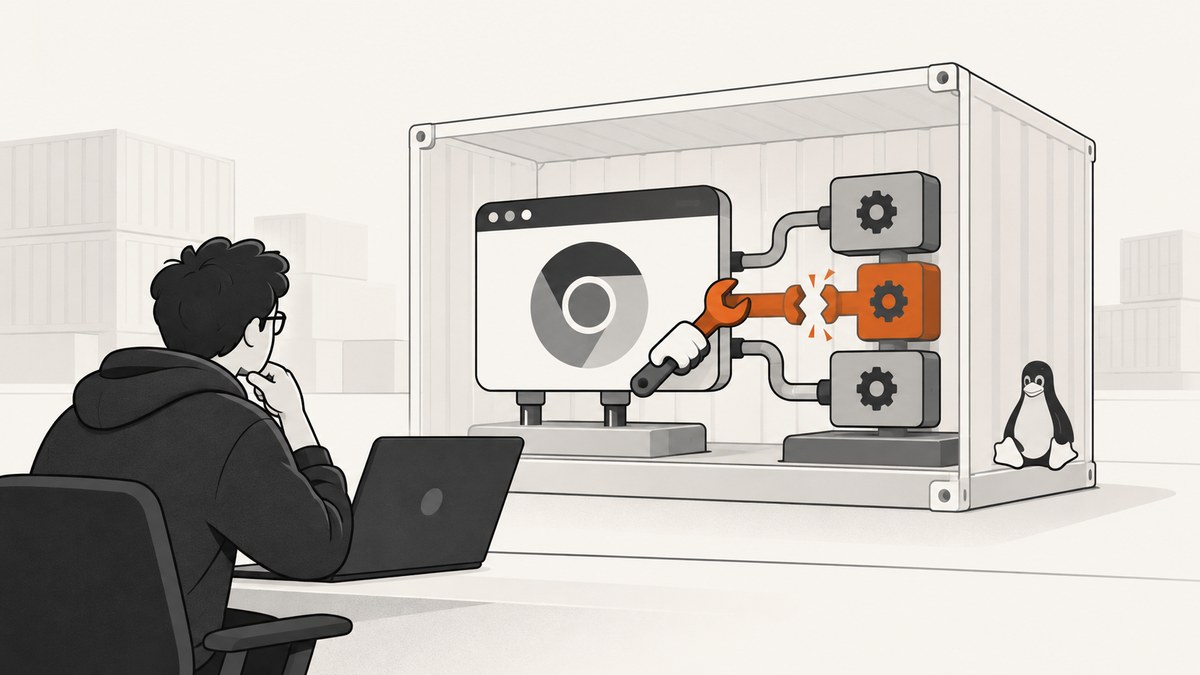
Direct answer: libgobject-2.0.so.0: cannot open shared object file: No such file or directory means that the Chrome executable launched by Puppeteer cannot load a Linux shared library. Find the exact browser binary, run ldd against it, install the package that provides every library reported as not found, and rebuild the image or runtime where Chrome actually runs. On Debian and Ubuntu, the missing GLib library is commonly supplied by libglib2.0-0. Do not add --no-sandbox; that flag addresses a different failure and does not install libraries.
Puppeteer is the JavaScript automation library. The failing process is Chrome for Testing, chrome-headless-shell, or a browser you configured yourself. The same diagnosis applies whether you run on a workstation, Docker, CI, or a hosted worker.
What the error means
Linux programs load shared objects at startup. Chrome depends on GLib and many other graphical, font, audio, accessibility, and system libraries. If the dynamic loader cannot find one, Chrome exits before Puppeteer can create a page. Puppeteer then reports a generic launch failure around the more useful loader message.
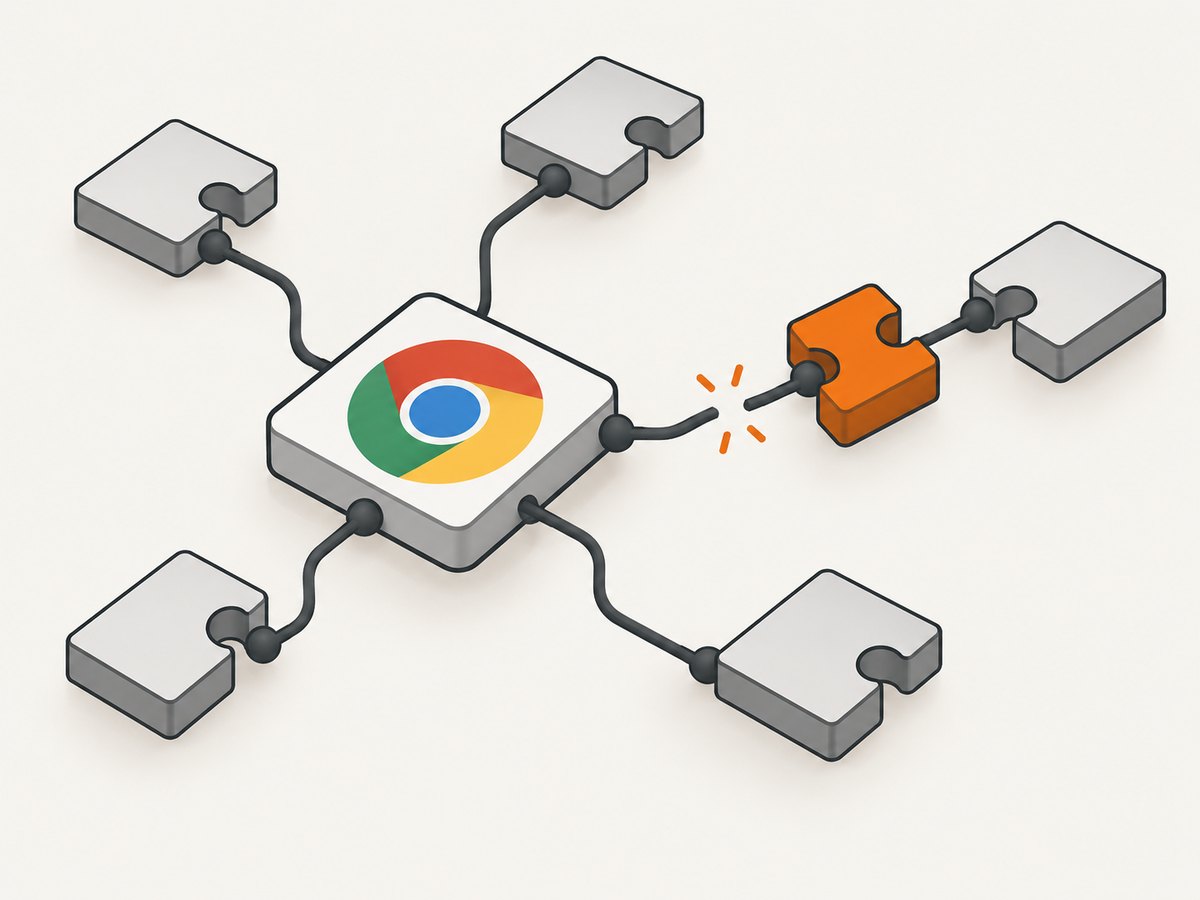
The filename is a clue, not always the complete repair. Installing one package may reveal the next missing dependency, so always inspect the executable and fix all unresolved entries.
1. Reproduce the failure and identify the browser
Start with a minimal script so application code does not hide the launch error:
const puppeteer = require('puppeteer');

(async () => {
  const browser = await puppeteer.launch({ headless: true });
  const page = await browser.newPage();
  await page.goto('https://example.com', { waitUntil: 'domcontentloaded' });
  console.log(await page.title());
  await browser.close();
})();
Run it in the same shell, container, or CI job that normally fails. Record whether your package is puppeteer or puppeteer-core:
npm list puppeteer puppeteer-core
node -p "require('puppeteer').executablePath()"
A normal puppeteer installation downloads Chrome for Testing (and, from Puppeteer 21.6.0, chrome-headless-shell). Its cached browser is commonly under $HOME/.cache/puppeteer, although configuration can change that location. puppeteer-core does not download a browser; you must provide a managed executable or channel. A missing download and a missing shared library are separate problems.
If your code sets executablePath, inspect that path instead of the value returned by Puppeteer:
const browser = await puppeteer.launch({
  executablePath: process.env.CHROME_PATH,
  headless: true
});
2. Use ldd to find every missing library
Run the diagnostic against the exact Chrome binary in the failing runtime:
ldd /absolute/path/to/chrome | grep 'not found'For a cached Puppeteer browser, locate candidates first:
find "$HOME/.cache/puppeteer" -type f \( -name chrome -o -name chrome-headless-shell \) -perm -111Use the path printed by find with ldd. An output such as libgobject-2.0.so.0 => not found confirms an operating-system dependency issue. If ldd prints no missing entries, check that you inspected the binary Puppeteer really launches and that the failure is not a sandbox, permissions, display, or download problem.
3. Install the package for your distribution
Debian and Ubuntu
On Debian-family systems, Puppeteer’s Linux dependency guidance commonly includes libglib2.0-0, which provides the GLib libraries used by Chrome. Install every package needed by your ldd output and verify names against the release inside your image:
sudo apt-get update
sudo apt-get install -y libglib2.0-0
ldd /absolute/path/to/chrome | grep 'not found'
Chrome often needs additional packages. Do not assume the one command above is a complete universal list; the base image, Chrome build, and distribution release determine the result. Puppeteer’s official Linux troubleshooting page maintains examples of common Debian and CentOS dependencies: Puppeteer troubleshooting.
CentOS, RHEL, Fedora, and other distributions
Use the package manager and package names for the image you deploy. A Debian apt-get command will not repair an Alpine, Fedora, or RHEL runtime. Search the distribution’s package index for the SONAME shown by ldd, install it, and repeat the check:
# Fedora/RHEL-style example; confirm names for your release
sudo dnf install -y glib2
ldd /absolute/path/to/chrome | grep 'not found'
Alpine uses musl rather than glibc, and Chrome binaries built for glibc may require a different base image or compatibility packages. If you control the image, a Debian or Ubuntu base that matches Puppeteer’s documented dependencies is often simpler than assembling an incompatible runtime.
4. Make the fix part of Docker and CI
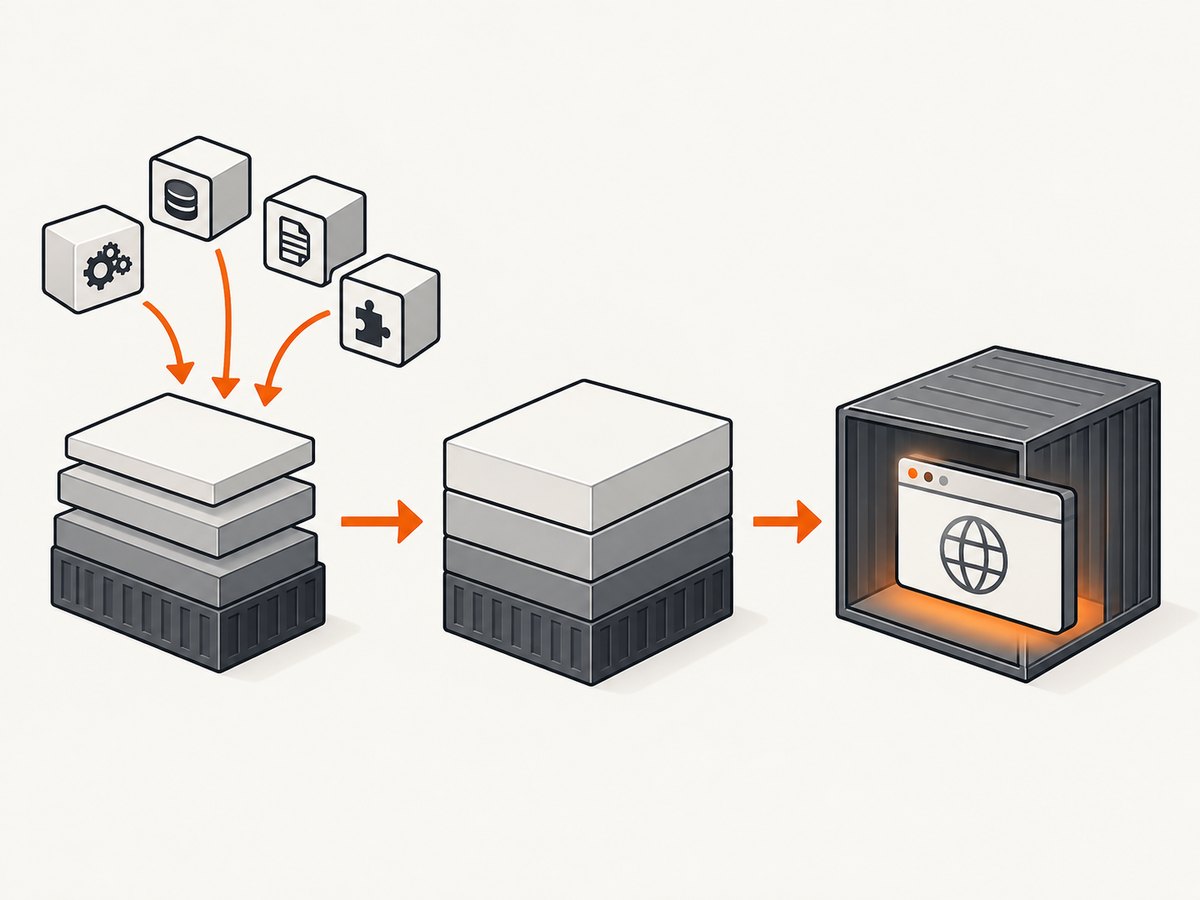
Installing a library on your laptop does nothing for a separate container. Put the packages in the Dockerfile, rebuild, and deploy that image:
FROM node:22-bookworm
WORKDIR /app
COPY package*.json ./
RUN npm ci
RUN apt-get update \
    && apt-get install -y --no-install-recommends libglib2.0-0 \
    && rm -rf /var/lib/apt/lists/*
COPY . .
CMD ["node", "capture.js"]
The example shows the package named in the error. Use ldd during image development and add all missing runtime dependencies reported there. Then run the same diagnostic in a container created from the final image:
docker build -t puppeteer-capture .
docker run --rm puppeteer-capture node -e "console.log(require('puppeteer').executablePath())"
In CI, verify the job’s actual image, not only the runner host. A cached dependency layer can also preserve an old image; invalidate or rebuild it after changing the package list.
5. Check browser installation separately
Package managers or deployment systems sometimes skip install scripts, leaving Puppeteer without its downloaded browser. Install it explicitly:
npx puppeteer browsers installThis solves a missing browser download, not a missing libgobject library. After installation, print the selected executable path and run ldd against it. For puppeteer-core, install Chrome through your image or operating-system package manager and pass its path:
const puppeteer = require('puppeteer-core');
const browser = await puppeteer.launch({
  executablePath: '/usr/bin/google-chrome-stable',
  headless: true
});
Puppeteer’s installation documentation explains browser download behavior and cache configuration: installation guide.
Launch options that are commonly confused with this error
| Option or symptom | What it actually means | Correct action |
|---|---|---|
--no-sandbox appears in examples |
Usually a sandbox permission or kernel configuration issue | Configure a supported sandbox; do not use it to repair missing libraries |
Could not find Chrome |
Browser was not downloaded or the path is wrong | Run npx puppeteer browsers install or set executablePath |
error while loading shared libraries |
Dynamic loader cannot find an OS package | Run ldd, install the provider package, and rebuild the runtime |
| Fails only in Docker | Container differs from the host | Install dependencies in the Docker image and test inside it |
| Fails only in CI | Runner image, permissions, or cache differs | Print browser path, inspect with ldd, and rebuild the CI image |
Troubleshooting checklist
- Confirm the binary. Print Puppeteer’s executable path or inspect your configured
executablePath. - Run
lddin the failing environment. Host output is irrelevant if Chrome runs in a container. - Install every unresolved provider. Start with the package matching
libgobject-2.0.so.0, then repeat until no entries saynot found. - Check architecture. A 64-bit browser needs compatible 64-bit libraries; an ARM image needs an ARM-compatible browser build.
- Check permissions. The runtime user must be able to traverse the browser directory and execute the binary.
- Rebuild without stale layers. Push and run the newly built image in the same job that captures pages.
- Capture the full stderr log. The first loader error is more useful than Puppeteer’s final “failed to launch” wrapper.
Performance, reliability, and cost considerations
Dependency installation affects image build time and image size, not the per-page JavaScript runtime directly. Keep packages in the image rather than installing them at every job start. Cache npm ci and browser downloads where your CI system supports safe caching, but invalidate the cache when changing the base image or Puppeteer version.
Pin a compatible Node, Puppeteer, and base-image combination. When upgrading Puppeteer, rerun ldd because a new Chrome build can have different requirements. A health check that launches Chrome against a simple local page catches missing libraries before production traffic arrives.
Do not hide failures by retrying indefinitely. A retry cannot install a missing shared object. Classify launch failures separately from page timeouts and navigation errors, and log the selected browser path, image version, and loader output.
Or skip the browser setup
If your goal is a clean website screenshot rather than maintaining Chrome dependencies, ScreenshotNeo provides a GET-based screenshot API. Its browser environment handles the capture service for you:
curl -G "https://api.screenshotneo.com/v1/shot" -d access_key=YOUR_API_KEY --data-urlencode url=https://stripe.com -o shot.webpimport requests
r = requests.get("https://api.screenshotneo.com/v1/shot", params={"access_key": "YOUR_API_KEY", "url": "https://stripe.com"}, timeout=90)
open("shot.webp", "wb").write(r.content)const q = new URLSearchParams({ access_key: 'YOUR_API_KEY', url: 'https://stripe.com' });
const res = await fetch(`https://api.screenshotneo.com/v1/shot?${q}`);See the ScreenshotNeo API documentation for request options. Cookie and consent banners, newsletter popups, and chat widgets are removed before the shot. Bot checks, blank pages, failed loads, timeouts, and cache hits are not billed, and response headers identify the page verdict and billing result. Its MCP server lets AI agents use take_screenshot, get_page_info, and capture_pdf. The Free plan includes 1,000 screenshots per month with no card; paid plans start at $5 for 3,000 shots. Create a free ScreenshotNeo account.
FAQ
Does reinstalling Puppeteer fix this error?
Only if the browser download was missing. A downloaded browser still needs the operating-system libraries reported by ldd.
Should I copy a long dependency command from a blog?
Use it as a starting point only. Package names vary by distribution release and image. Diagnose the exact executable in your runtime.
Why does it work locally but fail in a container?
Your host has libraries that the container does not. Add them to the Dockerfile, rebuild, and run ldd inside the resulting image.
Can I use a system Chrome instead?
Yes. With puppeteer-core or an explicit executablePath, manage that browser yourself and inspect that binary’s dependencies.
Is --no-sandbox a permanent solution?
No. It does not provide libgobject-2.0.so.0 and weakens browser isolation. Repair the loader and configure sandboxing for your environment.
Key takeaways
- The error is a Linux runtime dependency failure in Chrome.
lddagainst the exact Puppeteer browser reveals the missing libraries.- Install packages in the image or runtime where Chrome executes.
- Browser download problems and shared-library problems require separate fixes.
- Repeat the check after upgrades and before deploying a new container.


