How to Fix Puppeteer’s Missing X Server or $DISPLAY Error
Fix Puppeteer's Missing X server or $DISPLAY error with headless Chromium, a real display, or Xvfb—plus Docker troubleshooting and reliable alternatives.
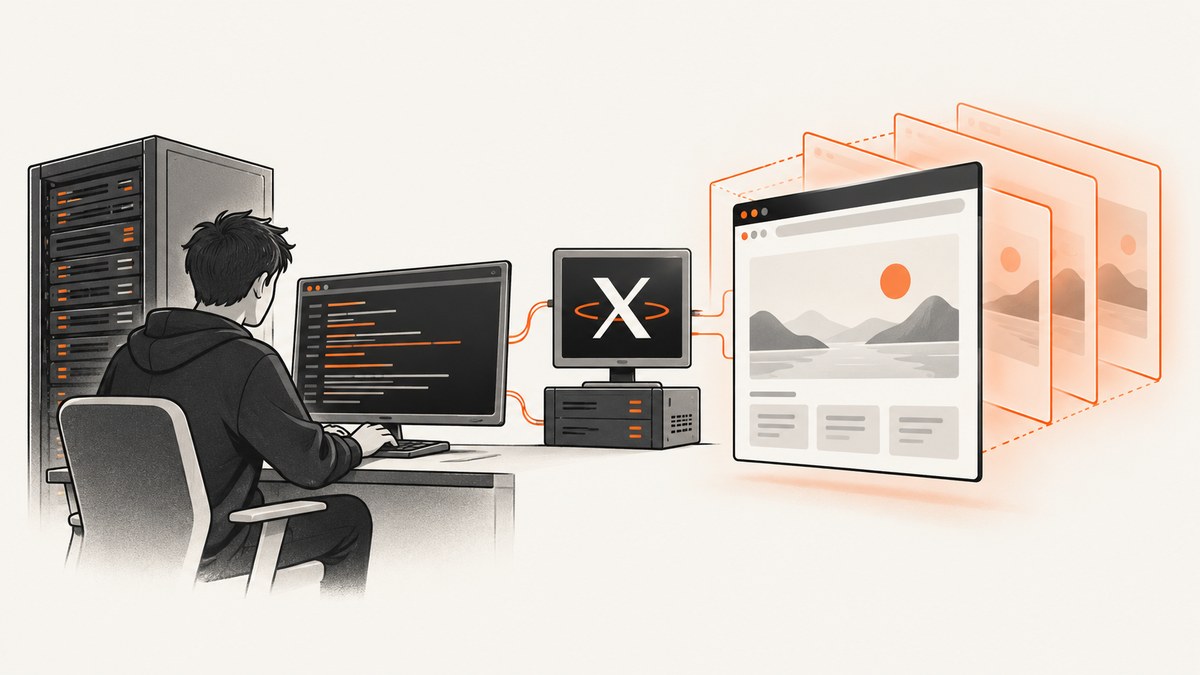
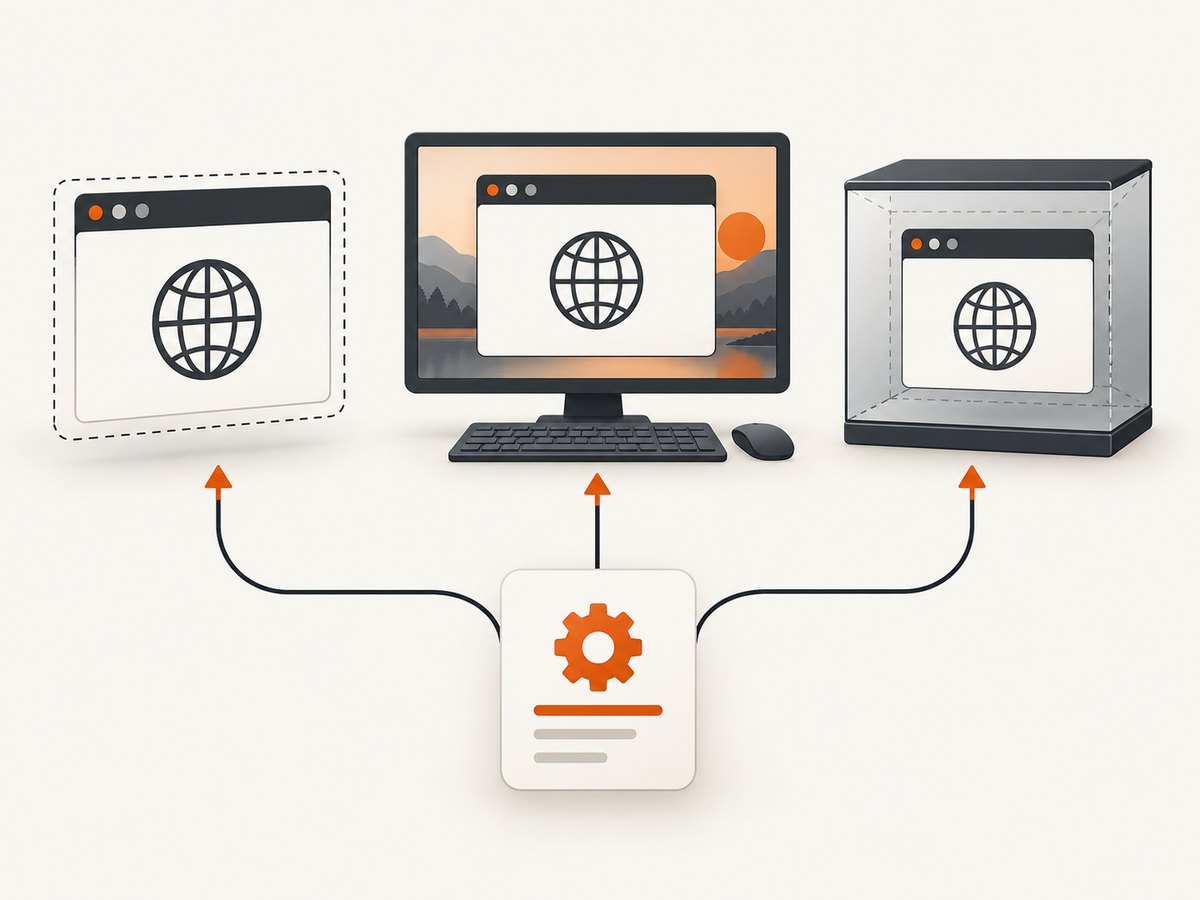
Puppeteer’s Missing X server or $DISPLAY error means Chromium tried to open a visible browser window but could not reach an X display. On a server, CI runner, or Docker container, the fastest fix is usually to launch Chromium in headless mode. If your test genuinely needs a visible window, connect Chromium to a working desktop display or start a virtual display such as Xvfb.
Setting DISPLAY=:0.0 does not create an X server. The display named by that variable must already be running and accessible to the browser process. This error is separate from Chromium sandbox errors, so adding --no-sandbox does not solve it and weakens browser isolation.
Choose the right fix
| Approach | Use it when | What must exist | Main limitation |
|---|---|---|---|
| Headless Chromium | You need screenshots, PDFs, page interaction, or scraping without a visible window | A Puppeteer version configured for headless launch | It does not provide a visible desktop window |
| Existing X display | The browser must appear on a real desktop or remote session | A running X server plus permission for Chromium to connect | Containers need an actual host display connection, not just an environment variable |
| Xvfb | A headful-style test needs a display but no physical desktop is attached | A virtual X server installed and started in the runtime | Commands and package names vary by operating system |
1. Confirm that Puppeteer is launching headful Chromium
Inspect your puppeteer.launch() call and any shared launch helper. A common trigger is changing from headless execution to headless: false. Headless mode can work on the same machine because it does not require an X display, while headful mode fails during browser startup.
const puppeteer = require('puppeteer');

(async () => {
  const browser = await puppeteer.launch({
    headless: false
  });
  const page = await browser.newPage();
  await page.goto('https://example.com', { waitUntil: 'networkidle2' });
  await page.screenshot({ path: 'example.png' });
  await browser.close();
})();
If the visible window is not part of the requirement, change the launch configuration to the headless mode supported by your installed Puppeteer version. Puppeteer’s headless API and defaults have changed across releases, so check the documentation for the version in your lockfile rather than assuming a universal default.
const puppeteer = require('puppeteer');

(async () => {
  const browser = await puppeteer.launch({
    headless: true
  });
  const page = await browser.newPage();
  await page.goto('https://example.com', { waitUntil: 'networkidle2' });
  await page.screenshot({ path: 'example.png', fullPage: true });
  await browser.close();
})();
When headless is the correct answer
- Server-side screenshot generation
- PDF generation
- Automated page checks and scraping
- CI jobs with no desktop session
- Docker workloads that only need the rendered page
2. Run headful Puppeteer with an existing display
For a real visible browser, Chromium must be able to authenticate to and connect to a live X server. First inspect the environment:
printf 'DISPLAY=%s\n' "$DISPLAY"
command -v xdpyinfo && xdpyinfo | head
ps aux | grep -E '[X]org|[X]wayland|[X]vfb'
A valid DISPLAY value is only an address, commonly something such as :0. It is not proof that a server is listening. If xdpyinfo cannot connect, fix the display session or permissions before starting Puppeteer.
Local Linux desktop
Run the Node process as the same user that owns the graphical session, or explicitly grant that user access with your desktop’s supported X authorization mechanism. Launching Puppeteer through sudo often changes the user, environment, and X authority file. Preserve the correct display and authorization settings instead of copying only DISPLAY.
DISPLAY=:0 node capture.jsIf the command still fails, compare the environment of the working terminal session with the environment used by your service manager, cron job, or CI runner. Services frequently start without the desktop session’s DISPLAY and Xauthority variables.
Remote desktop or SSH
An SSH shell does not automatically provide the same display as an interactive desktop. X11 forwarding, a remote desktop session, or a dedicated virtual display must be configured for the target machine. Test connectivity with xdpyinfo before debugging Puppeteer itself.
3. Use Xvfb when headful behavior is required without a physical display
Xvfb is a virtual X server. It gives Chromium a display surface while keeping the browser off-screen. Chromium’s own debugging guidance describes using an Xvfb wrapper so tests can run without a real display attached. The exact package and wrapper command depend on your distribution and CI image.
Typical Debian or Ubuntu setup
sudo apt-get update
sudo apt-get install -y xvfb
xvfb-run --auto-servernum --server-args='-screen 0 1280x900x24' node capture.js
Inside a container or CI image, install Xvfb during image creation and run the wrapper as the process entrypoint:
FROM node:22-bookworm
WORKDIR /app
COPY package*.json ./
RUN npm ci
RUN apt-get update && apt-get install -y --no-install-recommends xvfb && rm -rf /var/lib/apt/lists/*
COPY . .
CMD ["xvfb-run", "--auto-servernum", "--server-args=-screen 0 1280x900x24", "node", "capture.js"]
This example is a starting point, not a universal Docker recipe. Confirm that the image contains a compatible Chromium binary, required shared libraries, fonts, and the Xvfb package. If your test needs a specific screen size or color depth, set those values in the server arguments.
Start Xvfb yourself
Xvfb :99 -screen 0 1280x900x24 &
export DISPLAY=:99
node capture.js
When managing the process yourself, make sure Xvfb is ready before launching Chromium and terminate it when the job exits. In parallel CI jobs, allocate different display numbers or use an automatic wrapper to avoid collisions.
4. Docker-specific diagnosis
A container does not acquire the host’s graphical session merely because you set DISPLAY=:0.0. The reported Puppeteer Docker failure demonstrates why: the variable pointed at a display that the container could not actually reach. You need either a real host display connection with matching permissions or a virtual display running inside the container.
Questions to answer inside the container
- Is an X server running at the address in
DISPLAY? - Can the container reach the host or socket where that server listens?
- Does the Chromium user have X authorization?
- Would an in-container Xvfb be simpler for this workload?
echo "$DISPLAY"
which xdpyinfo || true
xdpyinfo >/tmp/display-check.txt 2>&1; echo "xdpyinfo exit=$?"
cat /tmp/display-check.txt
For screenshot and PDF services, headless Chromium or in-container Xvfb is usually easier to operate than sharing a developer’s desktop display. Keep display setup separate from sandbox configuration; changing sandbox flags cannot make an unavailable X server appear.
5. Keep browser launch configuration explicit
Make the display requirement visible in code and logs. This avoids accidentally deploying a development setting such as headless: false to a server.
const puppeteer = require('puppeteer');

const needsVisibleWindow = process.env.BROWSER_HEADFUL === '1';

(async () => {
  const browser = await puppeteer.launch({
    headless: !needsVisibleWindow,
    timeout: 30000
  });

  try {
    const page = await browser.newPage();
    await page.setViewport({ width: 1280, height: 900, deviceScaleFactor: 1 });
    await page.goto(process.env.TARGET_URL || 'https://example.com', {
      waitUntil: 'networkidle2',
      timeout: 60000
    });
    await page.screenshot({ path: 'capture.png', fullPage: true });
  } finally {
    await browser.close();
  }
})();
Use environment-specific configuration for the headful flag, URL, viewport, and timeouts. Do not hide a display failure by endlessly increasing the navigation timeout: the browser must start before navigation can begin.
Troubleshooting common errors
| Symptom | Likely cause | Fix |
|---|---|---|
Missing X server or $DISPLAY immediately at launch |
Headful Chromium has no reachable display | Use headless mode, connect to a real X session, or run Xvfb |
DISPLAY=:0 is set but the error remains |
The display server is absent, unreachable, or access is denied | Run xdpyinfo; verify socket/network access and X authorization |
| Works in a terminal, fails in CI | CI has no desktop environment or does not inherit display variables | Use headless mode or start Xvfb in the job before Puppeteer |
Works as one user, fails under sudo |
Different user and Xauthority credentials | Run as the session user or configure authorization deliberately |
| Docker image starts Chromium but crashes later | Missing shared libraries, fonts, or compatible browser dependencies | Use a supported Puppeteer image/base image and inspect the browser stderr separately |
Adding --no-sandbox changes nothing |
Sandbox settings are unrelated to a missing display | Restore the safer sandbox configuration and fix display availability |
| Parallel jobs report display-number conflicts | Multiple Xvfb instances use the same display number | Use --auto-servernum or allocate unique display numbers |
| Browser opens but captures a blank page | Navigation, resources, authentication, or timing problem | Log navigation errors, wait for a selector or network idle, and verify the URL independently |
Reliability and performance considerations
Headless versus Xvfb overhead
Headless mode removes the display-server process and is generally the simplest architecture for non-interactive jobs. Xvfb adds another process and a startup dependency, but it is appropriate when the test depends on headful behavior or a windowing API. Measure your own workload rather than assuming one mode is faster for every page.
Wait for the page state you need
The display error happens before navigation, but fixing it can expose separate rendering issues. Use a deliberate readiness condition: a required selector, a bounded delay for a known animation, or an appropriate network-idle setting. Avoid unbounded waits, which make failed jobs expensive and hard to diagnose.
Reuse browsers carefully
Keeping one browser process alive can avoid repeated startup cost, but isolate pages or browser contexts between jobs. Close pages and contexts after each capture, and recycle the browser after repeated crashes or memory growth. If you use Xvfb, keep its lifecycle aligned with the worker process.
Logging checklist
- Puppeteer and Chromium versions
- Launch mode and full launch options (excluding secrets)
DISPLAYvalue and Xvfb command, if used- Browser stderr and process exit code
- Navigation URL, timeout, and readiness condition
- Container image and operating system
Or skip the browser setup
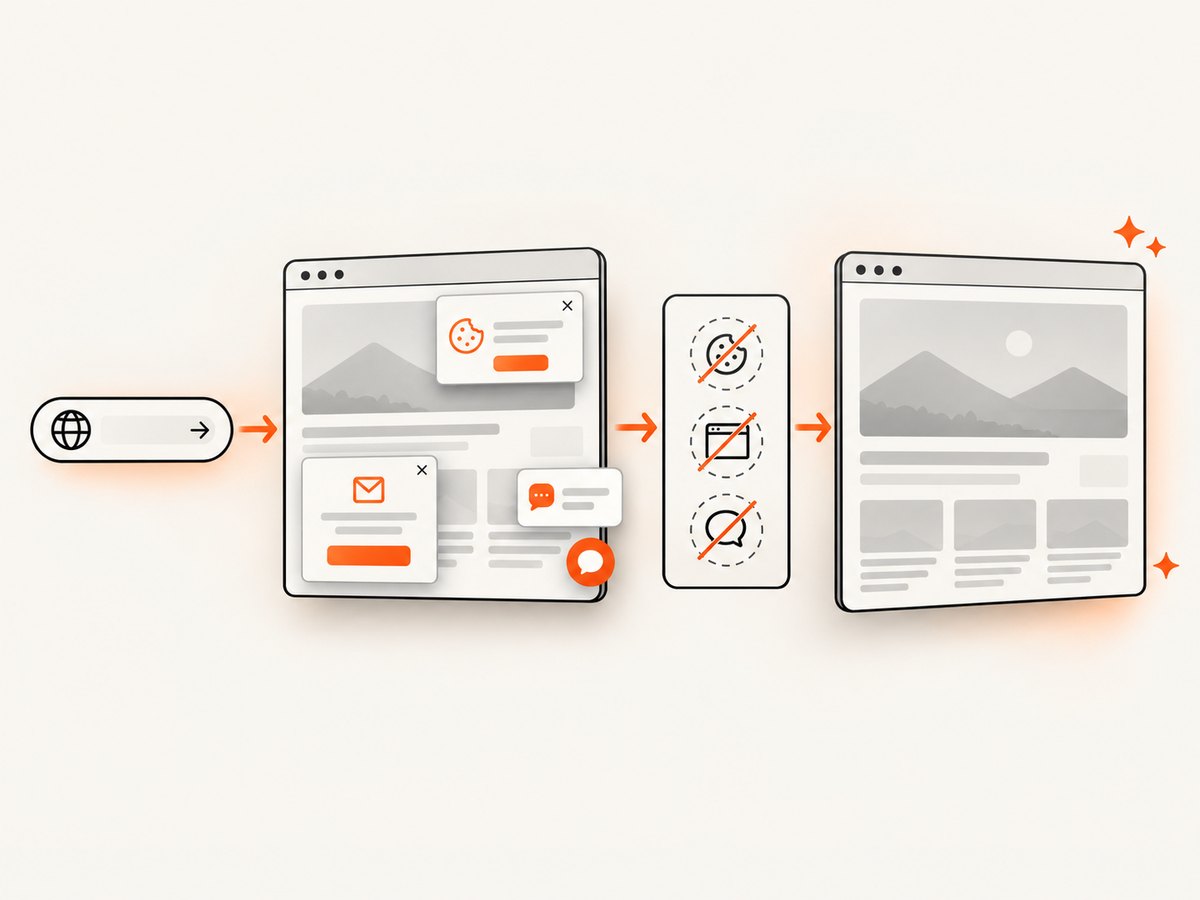
If your goal is a clean website screenshot rather than controlling a visible Chromium window, ScreenshotNeo provides a single HTTP request. Its capture process accepts cookie and consent banners like a visitor, then removes more than 60 known consent platforms, newsletter popups, and chat widgets before the shot. Each step can be turned off. Bot checks or CAPTCHAs, blank pages, timeouts, failed loads, and cache hits are not billed, and the response identifies the result with X-Page-Verdict and X-Billed headers.
See the ScreenshotNeo API documentation for all options, including full-page capture with lazy images, element selectors, device presets, custom viewports, dark mode, retina scale, custom CSS and JavaScript, waits, request blocking, headers, cookies, user agents, geolocation, PDFs, caching, signed links, asynchronous jobs, bulk capture, and usage reporting.
cURL
curl -G 'https://api.screenshotneo.com/v1/shot' \
  -d access_key=YOUR_API_KEY \
  --data-urlencode url=https://stripe.com \
  -o shot.webp
Python
import requests

r = requests.get(
    'https://api.screenshotneo.com/v1/shot',
    params={'access_key': 'YOUR_API_KEY', 'url': 'https://stripe.com'},
    timeout=90,
)
r.raise_for_status()
open('shot.webp', 'wb').write(r.content)
Node.js
const q = new URLSearchParams({
  access_key: 'YOUR_API_KEY',
  url: 'https://stripe.com'
});
const res = await fetch(`https://api.screenshotneo.com/v1/shot?${q}`);
if (!res.ok) throw new Error(`Screenshot failed: ${res.status}`);
const fs = require('node:fs/promises');
await fs.writeFile('shot.webp', Buffer.from(await res.arrayBuffer()));
ScreenshotNeo also has an MCP server with take_screenshot, get_page_info, and capture_pdf tools for Claude, Cursor, and other MCP clients. The Free plan includes 1,000 screenshots per month without a card; paid plans start at $5 for 3,000 shots. Every feature is available on every plan. Create a free ScreenshotNeo account.
FAQ
Does this error mean Chromium is missing?
No. Chromium may be installed correctly but unable to connect to a display required by headful mode.
Can I fix it by exporting any DISPLAY value?
No. The value must identify a running, reachable display server for which the browser has permission.
Should I always use Xvfb?
No. Use headless mode when no visible window is required. Use Xvfb when your test needs headful-style behavior without a physical desktop.
Is Wayland the same as X?
Not necessarily. Your desktop compatibility layer and Chromium configuration determine whether an X display is available. Verify connectivity in the actual runtime instead of assuming the host desktop is visible to the process.
Why does ScreenshotNeo avoid this Puppeteer error?
Your application calls its HTTP API instead of launching a local visible browser. ScreenshotNeo manages the capture environment and returns an image or PDF response.


