How to Fix Puppeteer Name Resolution Errors on Firebase Cloud Functions
Fix ERR_NAME_RESOLUTION_FAILED and getaddrinfo ENOTFOUND in Puppeteer on Firebase Cloud Functions with a practical networking and deployment checklist.

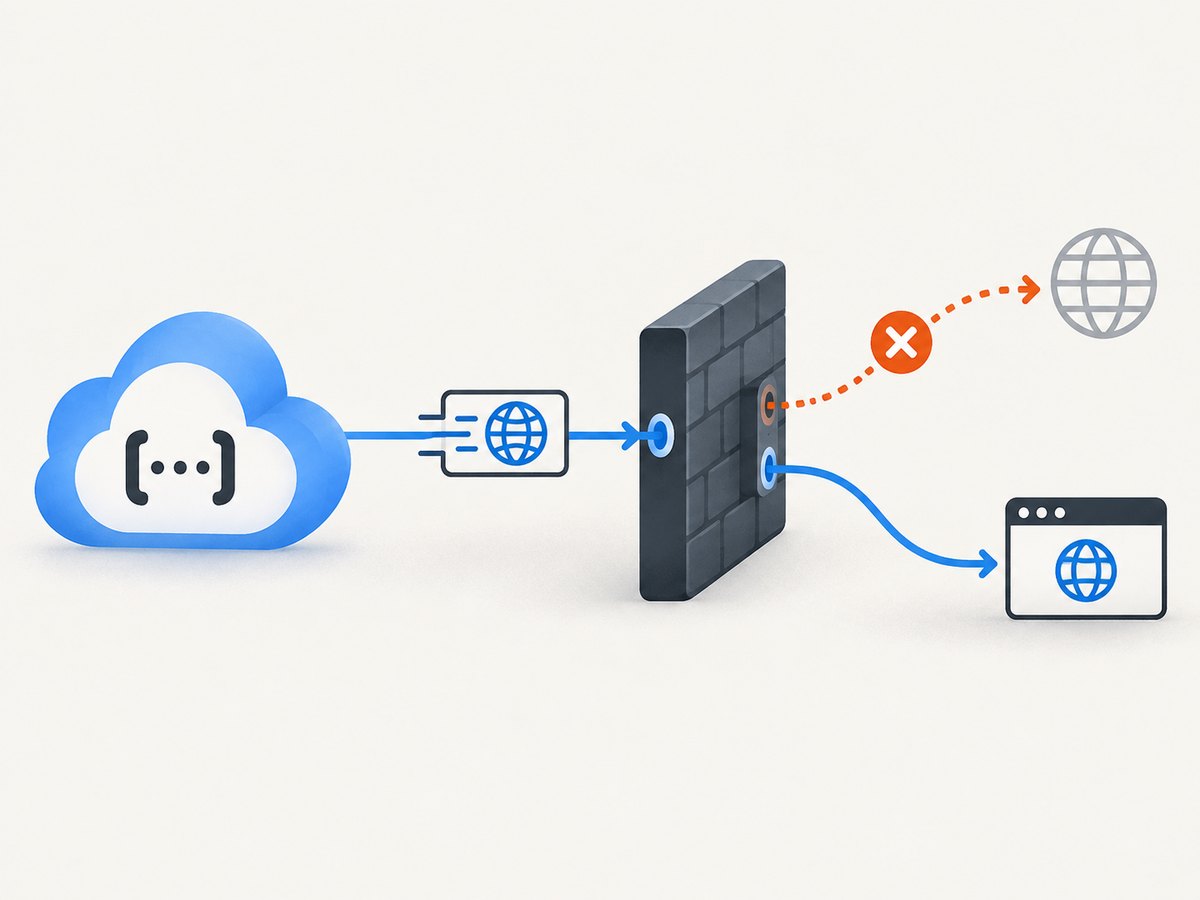
Direct answer: Puppeteer reports ERR_NAME_RESOLUTION_FAILED or Node reports getaddrinfo ENOTFOUND when the deployed Cloud Function cannot resolve or reach the hostname you passed to page.goto(). Start by checking the function’s current billing plan, Cloud Functions generation, region, VPC and egress settings. Historical Firebase reports tie this exact failure to the free Spark plan’s Google-only outbound networking, and one author fixed it by enabling billing. That historical behavior must be verified in your current project rather than assumed. If outbound access is allowed, check Puppeteer’s browser packaging and runtime configuration next.
What the error means
DNS resolution converts a hostname such as www.example.com into an IP address. Puppeteer cannot navigate until that lookup and the subsequent network connection succeed. Typical messages include:
net::ERR_NAME_RESOLUTION_FAILED at https://example.comError: getaddrinfo ENOTFOUND example.comNavigation failed because browser disconnectedafter a failed external request
The error is emitted by the deployed runtime’s network path. It does not prove that the target site is down. In the original Firebase report, requests that did not use a URL worked, while navigation to an external Wikipedia URL failed. A related report showed the same behavior for Google and quoted the Spark restriction as “Outbound networking: Google services only.” Those reports are community evidence from 2018–2019, not a current contract. Confirm today’s policy for your project, generation and region in the Firebase and Google Cloud consoles.
Minimal reproducible function
Use a known external hostname and log the complete error before changing dependencies. This isolates DNS or egress from browser-launch problems.
import * as functions from "firebase-functions";
import puppeteer from "puppeteer";

export const checkExternalHost = functions.https.onRequest(async (req, res) => {
  let browser;
  try {
    browser = await puppeteer.launch({headless: "new", args: ["--no-sandbox", "--disable-setuid-sandbox"]});
    const page = await browser.newPage();
    await page.goto("https://www.google.com", {
      waitUntil: "domcontentloaded",
      timeout: 30000
    });
    res.status(200).json({ok: true, url: page.url()});
  } catch (error) {
    console.error("external navigation failed", {
      name: error?.name,
      message: error?.message,
      stack: error?.stack
    });
    res.status(502).json({ok: false, error: error?.message});
  } finally {
    await browser?.close();
  }
});
Deploy this test separately from your production capture route. Record the hostname, port, region, timestamp and complete stack trace. A failure before any page content loads points toward egress or DNS; a browser executable error points toward packaging.
Fix the network path first
1. Verify plan and outbound authorization
- Open the Firebase project and identify whether the function runs on 1st gen or 2nd gen Cloud Functions.
- Check the active billing plan and any project-level outbound networking restrictions.
- Confirm the deployed region. VPC connectors, routes and firewall policies can differ by region.
- Inspect Google Cloud logging and quota dashboards for DNS, connection or socket errors.
Historical accepted answers associate Spark with blocked connections to non-Google hosts; enabling billing resolved the reported Puppeteer navigation failure. Treat that as a diagnostic lead, not a universal present-day rule. Google and Firebase can change plan behavior, and generation-specific networking differs. If your console shows that external egress is blocked, code changes cannot bypass it. Change the authorized plan or network configuration, then redeploy and rerun the minimal test.
2. Inspect VPC and firewall settings
If your project uses a Serverless VPC Access connector, verify that its route mode permits the destination and that Cloud NAT is available when traffic must leave a private network. Review firewall rules and organization policies for denied egress. Compare an external hostname with a Google-controlled endpoint, and inspect the function logs for the exact destination and port. Do not infer DNS health from a successful call to an internal service.
3. Test DNS and HTTPS from the deployed runtime
import dns from "node:dns/promises";

export const networkProbe = functions.https.onRequest(async (req, res) => {
  const host = String(req.query.host || "example.com");
  try {
    const addresses = await dns.lookup(host, {all: true});
    const response = await fetch(`https://${host}`, {signal: AbortSignal.timeout(15000)});
    res.json({host, addresses, status: response.status});
  } catch (error) {
    console.error({host, error: error?.message, code: error?.code});
    res.status(502).json({host, error: error?.message, code: error?.code});
  }
});
Only run this diagnostic behind authentication or remove it after use. It reveals whether failure occurs during DNS lookup or during HTTPS negotiation. A successful lookup followed by a timeout suggests routing, firewall, TLS or target-side filtering rather than name resolution.
Make Puppeteer deploy correctly
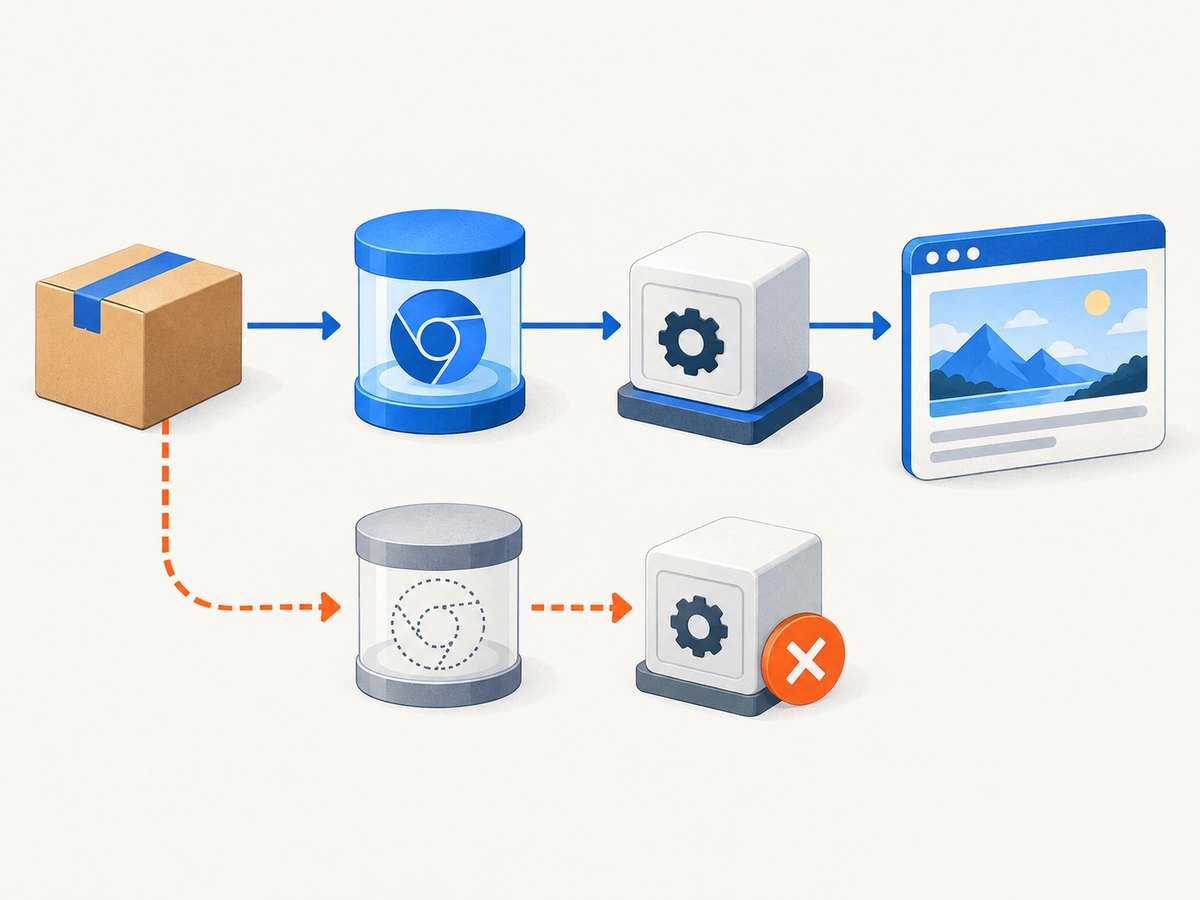
Once outbound access is authorized, ensure Chrome is present in the deployed artifact. Puppeteer’s documentation describes it as a JavaScript library for controlling Chrome or Firefox over DevTools Protocol or WebDriver BiDi, and npm i puppeteer downloads a compatible Chrome during installation. See the official Puppeteer troubleshooting guidance and Puppeteer documentation.
Use the documented Cloud Functions cache directory
The Google Cloud Functions runtime includes the system packages needed by headless Chrome. Puppeteer recommends placing its cache under node_modules/.puppeteer_cache because Cloud Functions can cache node_modules; a stale cache can otherwise prevent the browser installation step from running.
import {join} from "path";

export default {
  cacheDirectory: join(import.meta.dirname, "node_modules", ".puppeteer_cache"),
};
Adapt the module format to your project. If installation scripts are disabled, run the documented browser installation command during your build:
npx puppeteer browsers installThen redeploy. This corrects missing-browser and packaging failures; it does not grant external network access.
Check package scripts and artifact contents
- Do not use
puppeteer-coreunless you provide a compatible Chrome executable yourself. - Ensure deployment does not set
npm_config_ignore_scripts=trueunless your build explicitly installs the browser. - Inspect build logs for Puppeteer’s browser download step.
- Keep the cache directory inside the function’s deployed dependency tree.
- Set a supported Node runtime in
package.jsonand deploy from the directory containing that file.
Runtime and redeployment checklist
Firebase’s runtime FAQ recommends updating the engines field, using the latest Firebase CLI, optionally testing with the Local Emulator Suite, and redeploying all functions when upgrading runtimes.
{
  "engines": {
    "node": "20"
  },
  "scripts": {
    "build": "npm run compile"
  },
  "dependencies": {
    "firebase-functions": "latest",
    "puppeteer": "latest"
  }
}
Choose a Node version supported by your Firebase generation and verify the current supported list before deployment. After changing the runtime or dependency lockfile, deploy every affected function so an old revision is not receiving traffic:
npm install
npx firebase-tools --version
npx firebase deploy --only functions
Browser launch and navigation settings
Use conservative launch flags and explicit timeouts. Avoid creating many browsers in one invocation; close pages and browsers in finally blocks. A navigation timeout is different from ENOTFOUND: the former means a host may have resolved but the page did not reach the selected readiness condition.
const browser = await puppeteer.launch({
  headless: "new",
  args: ["--no-sandbox", "--disable-setuid-sandbox"],
  timeout: 30000
});
const page = await browser.newPage();
await page.setViewport({width: 1365, height: 768, deviceScaleFactor: 1});
await page.goto(targetUrl, {
  waitUntil: "networkidle2",
  timeout: 60000
});
Use domcontentloaded for pages with analytics or long-lived connections. Use networkidle2 when late resources matter, but expect slower completion. Validate and allow-list target URLs if users can supply them; this avoids accidental requests to internal services.
Reliability and performance after access is enabled
Firebase’s networking guide identifies reducing CPU spent establishing outbound connections and avoiding DNS or connection quota exhaustion as optimization goals. Reuse persistent HTTP connections where practical, avoid starting a new browser for every operation when your workload permits, and monitor logs and quotas.
- Warm instances: Keep a browser reference at module scope and create a new page per request, then close the page. Handle a disconnected browser by recreating it.
- Concurrency: Limit simultaneous pages to the memory available to the function. Chrome processes can consume substantial memory.
- Timeouts: Set separate browser-launch, DNS/HTTP and navigation timeouts so retries do not run indefinitely.
- Retries: Retry transient connection resets with exponential backoff. Do not retry deterministic
ENOTFOUNDuntil DNS or egress configuration changes. - Observability: Log hostname, region, generation, timing and error code. Avoid logging credentials, cookies or full authorization headers.
Persistent connections reduce setup and quota pressure; they cannot override a plan or firewall that blocks external egress. If failures appear only at scale, inspect DNS and connection quotas before increasing retry counts.
Troubleshooting table
| Symptom | Likely cause | Fix |
|---|---|---|
getaddrinfo ENOTFOUND host |
DNS cannot resolve the host, or outbound access is restricted. | Check plan, region, VPC routes and DNS from a deployed probe; verify the hostname. |
ERR_NAME_RESOLUTION_FAILED only in production |
Local network differs from Cloud Functions egress policy. | Compare deployed logs with emulator results and confirm current billing/network rules. |
| Browser executable missing | Puppeteer install script was skipped or cache is stale. | Configure node_modules/.puppeteer_cache, run npx puppeteer browsers install, redeploy. |
| Navigation timeout | Host resolved but page, resources or scripts never reached the readiness condition. | Try domcontentloaded, increase timeout, inspect target availability and resource blocking. |
| Works for Google but not a target site | Target DNS, firewall, TLS or bot policy differs. | Resolve the exact hostname, test HTTPS, and inspect target-side restrictions. |
| Intermittent failures under load | DNS/socket quotas, too many browsers or exhausted memory. | Reuse connections/browser instances, cap concurrency and monitor quotas. |
| Changes have no effect | Traffic still reaches an old revision or wrong region. | Deploy all functions, verify revision and region, and check timestamps in logs. |
Or skip the browser setup
If your goal is a reliable website screenshot rather than managing Chrome inside a function, ScreenshotNeo provides a single HTTP request. Its capture pipeline accepts cookie and consent banners like a visitor, then removes more than 60 known consent platforms plus newsletter popups and chat widgets. Bot checks, blank pages, timeouts, failed loads and cache hits are not billed, and response headers identify the page verdict and billing status.
Read the ScreenshotNeo API documentation for all options. A minimal call is:
curl -G "https://api.screenshotneo.com/v1/shot" -d access_key=YOUR_API_KEY --data-urlencode url=https://stripe.com -o shot.webpimport requests
r = requests.get("https://api.screenshotneo.com/v1/shot", params={"access_key": "YOUR_API_KEY", "url": "https://stripe.com"}, timeout=90)
open("shot.webp", "wb").write(r.content)const q = new URLSearchParams({ access_key: 'YOUR_API_KEY', url: 'https://stripe.com' });
const res = await fetch(`https://api.screenshotneo.com/v1/shot?${q}`);
const buffer = Buffer.from(await res.arrayBuffer());
await import('node:fs/promises').then(fs => fs.writeFile('shot.webp', buffer));You can also use full-page capture with lazy images, CSS element capture, dark mode, device presets or custom viewports, retina scale, PDF output, custom CSS and JavaScript, clicks, selector or network-idle waits, request blocking, headers, cookies, user agents, authorization, timezone, geolocation, transparent backgrounds, resizing, TTL caching, signed links, asynchronous jobs with signed webhooks, bulk capture for up to 100 URLs per call, a usage API and an OpenAPI specification. Parameter names used by other screenshot APIs also work, which simplifies migration. An MCP server exposes take_screenshot, get_page_info and capture_pdf to Claude, Cursor and other MCP clients.
The Free plan includes 1,000 screenshots per month with no card. Paid plans start at $5 for 3,000 shots; yearly billing provides two months free, and every feature is available on every plan. Create a free ScreenshotNeo account and try the request without configuring a browser runtime.
Cost and operational notes
For self-hosted Puppeteer, budget for function invocations, memory, execution time, outbound networking and any NAT or connector resources. Browser startup and high memory settings can materially affect invocation cost. Measure cold and warm paths in your own region. A billing upgrade may authorize egress but changes the project’s cloud charges, so review the current Firebase and Google Cloud pricing pages before committing.
ScreenshotNeo charges only for clean shots. Bot checks, blank pages, failed loads, timeouts and cache hits are free, and the X-Page-Verdict and X-Billed headers let a caller reconcile usage. Select a cache TTL when repeated captures are acceptable, and use asynchronous jobs or bulk capture for larger batches.
FAQ
Is ENOTFOUND always a Firebase billing problem?
No. It can be a misspelled hostname, DNS failure, VPC route, firewall rule or target-specific issue. Historical Spark restrictions make billing a key check, but verify the current project policy.
Will installing Chrome fix ERR_NAME_RESOLUTION_FAILED?
No. Browser installation fixes missing executable and packaging errors. Name resolution requires working DNS and authorized outbound networking.
Should I use the Firebase emulator to prove production networking works?
No. The emulator uses your development machine’s network. It is useful for application logic, but only a deployed probe confirms Cloud Functions egress.
Can retries solve intermittent DNS errors?
Retries can mask transient resets or quota pressure. They cannot solve blocked egress, a nonexistent hostname or a persistent DNS configuration error.
Which details should I provide when escalating?
Include the exact hostname and port, full error code, function generation, region, billing plan, VPC settings, deployment revision and UTC timestamps. Remove secrets from logs.


