How to Fix Puppeteer Navigation Timeouts in AWS Lambda
Find out whether Puppeteer, Lambda, or VPC networking caused the timeout, then apply the right fix with runnable Node.js examples.
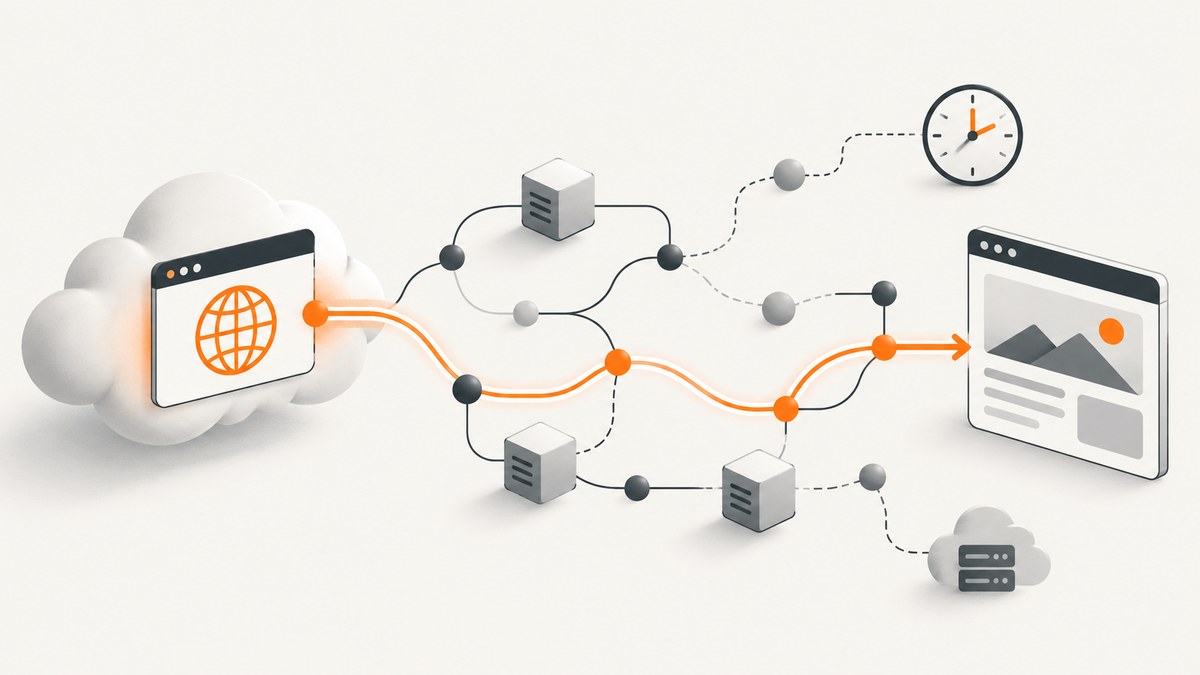
A Puppeteer page.goto() timeout in AWS Lambda can come from three different limits: Puppeteer stopped waiting for navigation, Lambda stopped the invocation, or the function could not reach the destination. Identify which one occurred before changing a timeout. A larger Lambda timeout cannot repair a missing VPC internet route, and a longer navigation wait cannot make an unreachable site respond.
This guide shows how to diagnose each layer, configure a Lambda-compatible Chromium deployment, choose a navigation readiness condition, and leave enough time for the entire invocation. It also covers the common packaging, network, and resource problems that can look like navigation timeouts.
1. Identify which timeout fired
Start with the complete error, the time navigation began, and the invocation’s CloudWatch report. These clues distinguish a Puppeteer rejection from a Lambda timeout.
| Evidence | Likely layer | Next check |
|---|---|---|
Navigation timeout of ... ms exceeded, followed by a completed Lambda invocation |
Puppeteer navigation wait | waitUntil, navigation timeout, site behavior, and reachability |
Status: timeout on the CloudWatch REPORT line, or legacy Task timed out |
Lambda invocation | Configured function timeout and total work duration |
net::ERR_..., ETIMEDOUT, DNS or TLS errors |
Network, destination, or browser | VPC egress, DNS, security rules, destination access, and Chromium compatibility |
AWS recommends finding timed-out invocation request IDs in CloudWatch Logs and inspecting the associated logs. Search for Status: timeout; legacy logs may say Task timed out. A Puppeteer exception by itself does not prove Lambda reached its own limit. AWS re:Post: troubleshoot Lambda invocation timeouts.
Log timings around browser work
Record elapsed time at browser launch, navigation start and completion, page processing, and cleanup. Include Lambda’s remaining-time estimate in logs. That gives a useful timeline without recording page contents or credentials.
const started = Date.now();
const mark = (label, context) => console.log(JSON.stringify({
  label,
  elapsedMs: Date.now() - started,
  remainingMs: context.getRemainingTimeInMillis(),
}));

// In your handler:
mark("before-launch", context);
// launch browser
mark("before-navigation", context);
// page.goto(...)
mark("after-navigation", context);
2. Use a navigation condition that fits the page
Navigation waiting is not the same as waiting for every script, image, analytics request, and long poll to stop. Pages with persistent connections may never become idle even though the content your task needs is ready.
commit: wait for the response to begin and the document to be committed. Use when you need the earliest navigation signal and will perform a separate readiness check.domcontentloaded: wait for HTML parsing and the DOMContentLoaded event. Often a practical starting point for scraping DOM content.load: wait for the load event, which may take longer when the page loads many assets.networkidle0ornetworkidle2: wait for network activity to quiet under the corresponding condition. These can be unsuitable for pages with analytics, polling, streaming, or chat connections.
Names and supported options can vary by Puppeteer version. Check the API documentation matching the version in your lockfile; avoid relying on an assumed default. When possible, wait for a specific selector or application-ready signal with a finite timeout instead of treating network quiet as proof that the page is ready.
const response = await page.goto(targetUrl, {
  waitUntil: "domcontentloaded",
  timeout: 25_000,
});

if (!response) {
  throw new Error("Navigation returned no main-resource response");
}
if (!response.ok()) {
  throw new Error(`Main document returned HTTP ${response.status()}`);
}

await page.waitForSelector("main article", { timeout: 8_000 });
Set the navigation limit intentionally. If it is too short, a slow but reachable page will fail; if too long, a broken route can consume most of the invocation budget before your handler can report a useful error.
3. Budget the full Lambda invocation
Lambda’s standard function timeout defaults to 3 seconds and can be configured from 1 to 900 seconds. Lambda stops the invocation when that limit is reached. Reserve time for Chromium startup, navigation, any selector or page processing waits, output generation, and browser cleanup. The invocation limit should exceed the expected upper-bound workload, not merely the average observed duration. AWS: configure Lambda function timeout.
For example, if your measured workload can take 40 seconds, a 45-second limit leaves little room for variability or cleanup. Set an appropriate larger budget, then investigate the duration distribution under representative pages. AWS cautions that settings close to average runtime can produce unexpected timeouts. A longer limit is headroom, not a fix for a stalled request.
Set it in the console under Configuration → General configuration → Edit → Timeout, or with the CLI:
aws lambda update-function-configuration \
  --function-name capture-page \
  --timeout 90
In AWS SAM, set Timeout on the function resource. Remember that an upstream caller, such as an API gateway or job runner, can have its own request timeout. Raising Lambda’s limit does not automatically raise the caller’s limit.
4. Check outbound networking, especially in a VPC
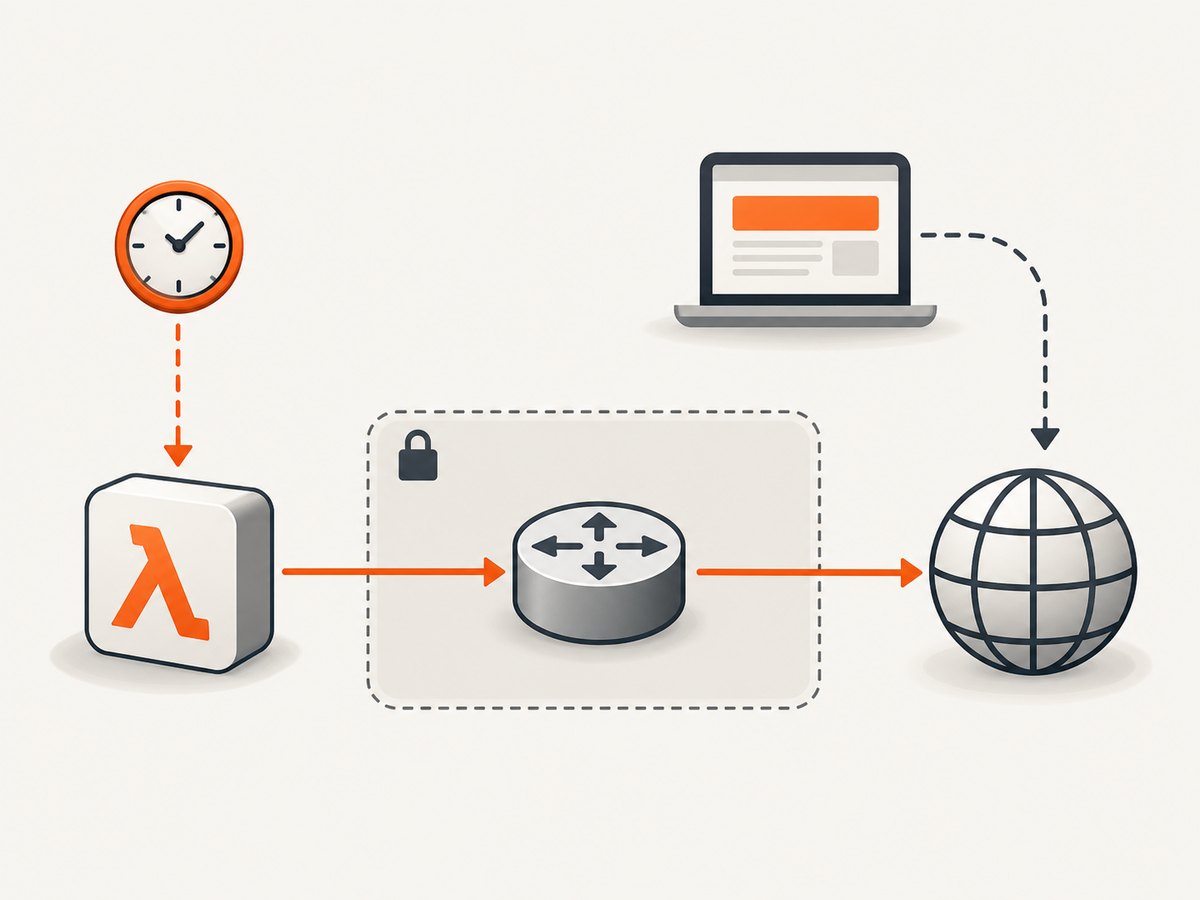
A Lambda function that is not attached to your VPC has public internet access by default. Once attached to a VPC, the function uses that VPC’s networking. A function in a private subnet generally needs a route through a NAT gateway in a public subnet to reach public websites. AWS documents this route and notes that incorrect routing, security group rules, network ACLs, DNS, or NAT can cause connection timeouts. AWS: troubleshoot networking issues in Lambda.
- Confirm the Lambda subnets and their route tables.
- For public internet egress from private subnets, verify the private route table sends
0.0.0.0/0to a NAT gateway, and that the NAT gateway’s public subnet routes to an internet gateway. - Confirm outbound security group rules permit the needed traffic, typically HTTPS to the destination.
- Check network ACL rules for both outbound traffic and return traffic. A restrictive ACL can block ephemeral ports.
- Check DNS resolution, proxy configuration, TLS errors, destination allowlists, and whether the target blocks requests from your egress IP.
Do not add a NAT gateway automatically if the function is not VPC-connected or the destination is private and already reachable. Conversely, if a public-site navigation hangs only after connecting the function to a VPC, inspect the route before increasing Puppeteer’s wait.
5. Use a Lambda-compatible browser package
Chromium and the Node.js package that drives it must be compatible with the Lambda runtime, architecture, and deployment artifact. Puppeteer’s troubleshooting guide notes Lambda deployment package constraints and points to @sparticuz/chromium as a Lambda-oriented Chromium option. Treat the exact versions, binary path, and packaging steps as deployment-specific, and check the project’s compatibility guidance for your runtime. Puppeteer: troubleshooting · @sparticuz/chromium project.
The following CommonJS handler illustrates the important runtime shape. Install compatible versions of puppeteer-core and @sparticuz/chromium in the deployment artifact; verify the selected versions and architecture before deployment. This is a template, not a claim that any arbitrary version pair will work.
const puppeteer = require("puppeteer-core");
const chromium = require("@sparticuz/chromium");

exports.handler = async (event, context) => {
  const targetUrl = event.url;
  if (typeof targetUrl !== "string" || !/^https?:\/\//.test(targetUrl)) {
    return { statusCode: 400, body: "Provide an http(s) URL" };
  }

  let browser;
  try {
    browser = await puppeteer.launch({
      args: chromium.args,
      defaultViewport: chromium.defaultViewport,
      executablePath: await chromium.executablePath(),
      headless: true,
    });

    const page = await browser.newPage();
    const remainingMs = context.getRemainingTimeInMillis();
    const navigationTimeout = Math.max(1_000, Math.min(25_000, remainingMs - 8_000));
    page.setDefaultNavigationTimeout(navigationTimeout);

    const response = await page.goto(targetUrl, {
      waitUntil: "domcontentloaded",
      timeout: navigationTimeout,
    });
    if (!response) throw new Error("No main-resource response");

    await page.waitForSelector("body", { timeout: Math.min(5_000, navigationTimeout) });
    const title = await page.title();
    return {
      statusCode: 200,
      body: JSON.stringify({ title, status: response.status() }),
    };
  } catch (error) {
    console.error("capture failed", {
      name: error.name,
      message: error.message,
      remainingMs: context.getRemainingTimeInMillis(),
    });
    return { statusCode: 502, body: "Page capture failed" };
  } finally {
    if (browser) await browser.close().catch((error) => {
      console.error("browser close failed", error.message);
    });
  }
};
The remaining-time calculation prevents starting a navigation with a deadline beyond the invocation’s available budget. The fixed reserve is an example: tune it to your own cleanup and response work. Validate and constrain user-supplied URLs in production; a browser endpoint that accepts arbitrary URLs can be abused to request internal services.
6. Measure memory, startup, and repeatability
Chromium can use meaningful memory and CPU. AWS allocates CPU in proportion to Lambda memory; increasing memory may reduce runtime when CPU, memory, or network performance is the bottleneck. Inspect CloudWatch duration and maximum memory used, then compare representative workloads at different settings. There is no universal right memory size for every page. AWS: configure Lambda function memory.
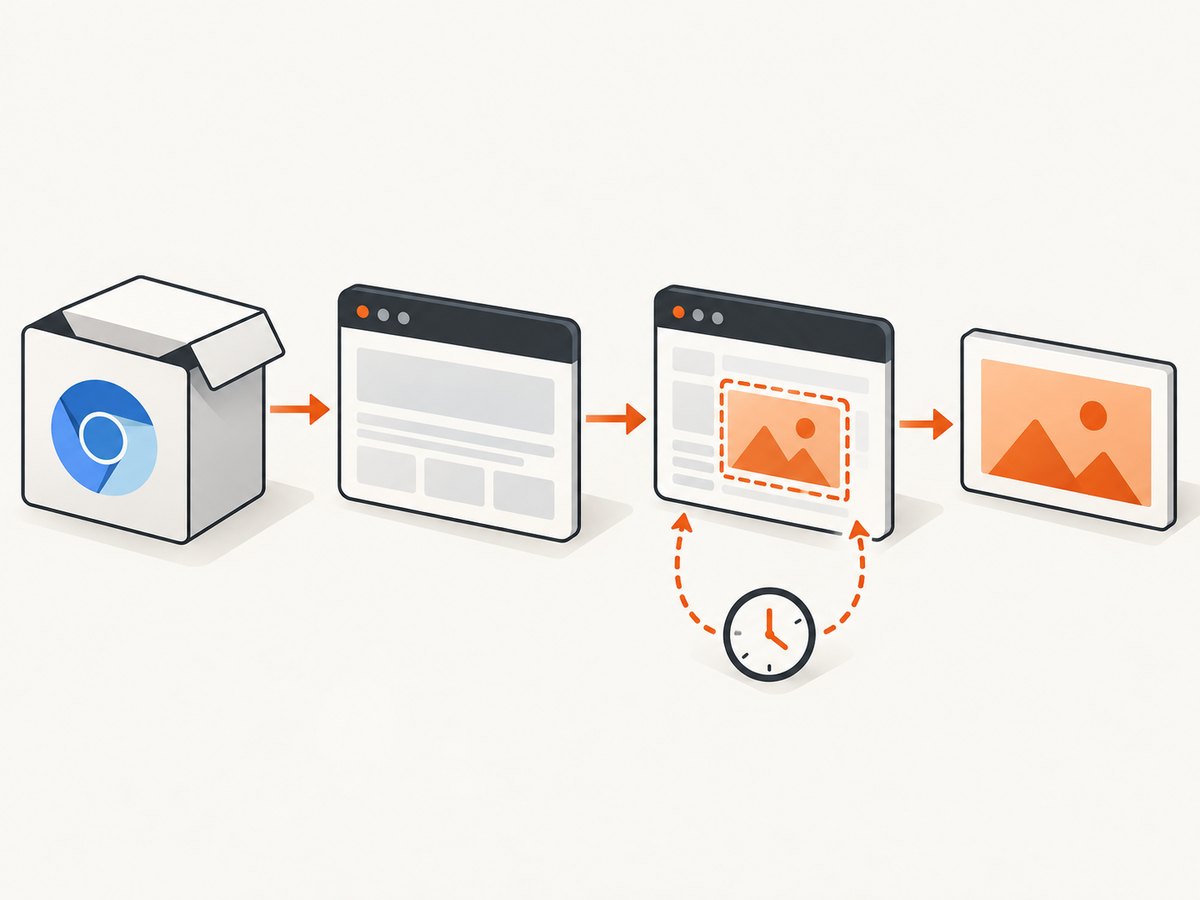
Separate cold-start behavior from warm invocations in your measurements. Log browser launch and navigation separately so a slow launch does not get misdiagnosed as a slow website. Test large and script-heavy pages, slow responses, error responses, and pages that keep network connections open. AWS recommends realistic workload testing and warns against setting timeouts too close to average duration. AWS: troubleshoot Lambda configuration issues.
For reliability, always close the browser in a finally block, keep navigation and readiness waits bounded, and report enough context to distinguish launch, navigation, and processing failures. Do not log cookies, authorization headers, or sensitive page data. If work regularly approaches Lambda’s 900-second standard maximum, or needs long-lived browser sessions, reassess whether one synchronous Lambda invocation is the right execution shape.
7. Troubleshooting: error, cause, fix
| Symptom | Likely cause | Fix |
|---|---|---|
Navigation timeout ... exceeded but Lambda report is successful |
Puppeteer wait condition is too strict, or page is slow | Choose a condition suited to the task; use a bounded selector wait; inspect failed and pending requests. |
Status: timeout / Task timed out |
Invocation exhausted its configured budget | Measure each phase; set a realistic Lambda timeout with headroom; optimize the actual slow phase. |
connect ETIMEDOUT to a public IP |
Missing VPC egress route, blocked egress, or destination issue | Check subnet route, NAT and internet gateway, security groups, ACLs, DNS, and destination access. |
| Browser executable missing or launch fails | Chromium absent, wrong path, incompatible package/runtime, or artifact packaging issue | Inspect the deployed artifact; align Puppeteer and Chromium versions, architecture, runtime, and launch path. |
| Browser disconnects or crashes on larger pages | Resource pressure, browser incompatibility, or process failure | Review max memory and duration; test a higher memory allocation; reproduce with the same page and artifact. |
| Navigation succeeds, selector wait times out | Selector differs by page variant, content is gated, or client rendering failed | Verify the selector on the actual response; handle alternate layouts and failed scripts; keep the wait bounded. |
| Works locally but fails only in Lambda | Different network, architecture, runtime, filesystem, or browser binary | Compare deployed runtime and artifact; log launch details; test from the same VPC and destination path. |
8. Practical deployment checklist
- Record Puppeteer, Chromium, Node.js runtime, and Lambda architecture.
- Confirm Chromium launches successfully from the deployed artifact.
- Log navigation options, phase timings, Lambda request ID, and remaining time.
- Inspect CloudWatch for the Lambda timeout marker before changing limits.
- Check VPC routing and destination access if the failure is a connection timeout.
- Set bounded navigation and readiness waits, with invocation time reserved for cleanup.
- Compare cold and warm runs, memory use, and representative upper-bound pages.
- For support, include the error and stack, configuration, page class, route setup, and request ID; redact credentials, cookies, and private URLs.
Or skip the browser setup
If the task is to capture a website screenshot, ScreenshotNeo is a website screenshot API and MCP server from Yorker Media. One GET request returns a PNG, JPEG, WebP, or PDF. This skips deploying Chromium and troubleshooting its Lambda package and runtime.
cURL:
curl -G "https://api.screenshotneo.com/v1/shot" -d access_key=YOUR_API_KEY --data-urlencode url=https://stripe.com -o shot.webpPython:
import requests

r = requests.get(
    "https://api.screenshotneo.com/v1/shot",
    params={"access_key": "YOUR_API_KEY", "url": "https://stripe.com"},
    timeout=90,
)
open("shot.webp", "wb").write(r.content)
Node.js:
const q = new URLSearchParams({ access_key: 'YOUR_API_KEY', url: 'https://stripe.com' });
const res = await fetch(`https://api.screenshotneo.com/v1/shot?${q}`);
if (!res.ok) throw new Error(`ScreenshotNeo returned ${res.status}`);
await Bun.write("shot.webp", res);
See the ScreenshotNeo API documentation for request options. Cookie banners, popups, and chat widgets are removed before the shot; each cleanup step can be turned off. Bot checks, blank pages, timeouts, and failed loads are never billed, and cache hits cost nothing. The MCP server lets AI agents use take_screenshot, get_page_info, and capture_pdf. The free plan includes 1,000 screenshots a month with no card; paid plans start at $5 for 3,000. Sign up for 1,000 free screenshots a month, no card required.
FAQ
Does a VPC-connected Lambda always need a NAT gateway?
It needs a working egress route to reach a public website. AWS describes a NAT gateway in a public subnet as the route for internet access from private subnets. If your function is not VPC-connected, or the destination is private and reachable through your network, the answer may differ.
Should I always use networkidle0?
No. Persistent requests can prevent an idle condition even when the page’s useful content is ready. Pick a condition based on the task and wait for a specific signal when possible.
What details help diagnose an intermittent timeout?
Provide the full error, invocation request ID, duration, memory and timeout settings, browser and Puppeteer versions, cold or warm status, navigation options, and VPC egress setup. Remove secrets and sensitive URLs before sharing logs.


