How to Fix Inconsistent Navigation Timeouts in Puppeteer
Diagnose Puppeteer navigation timeouts, eliminate click races, choose the right wait condition, and make browser automation reliable.
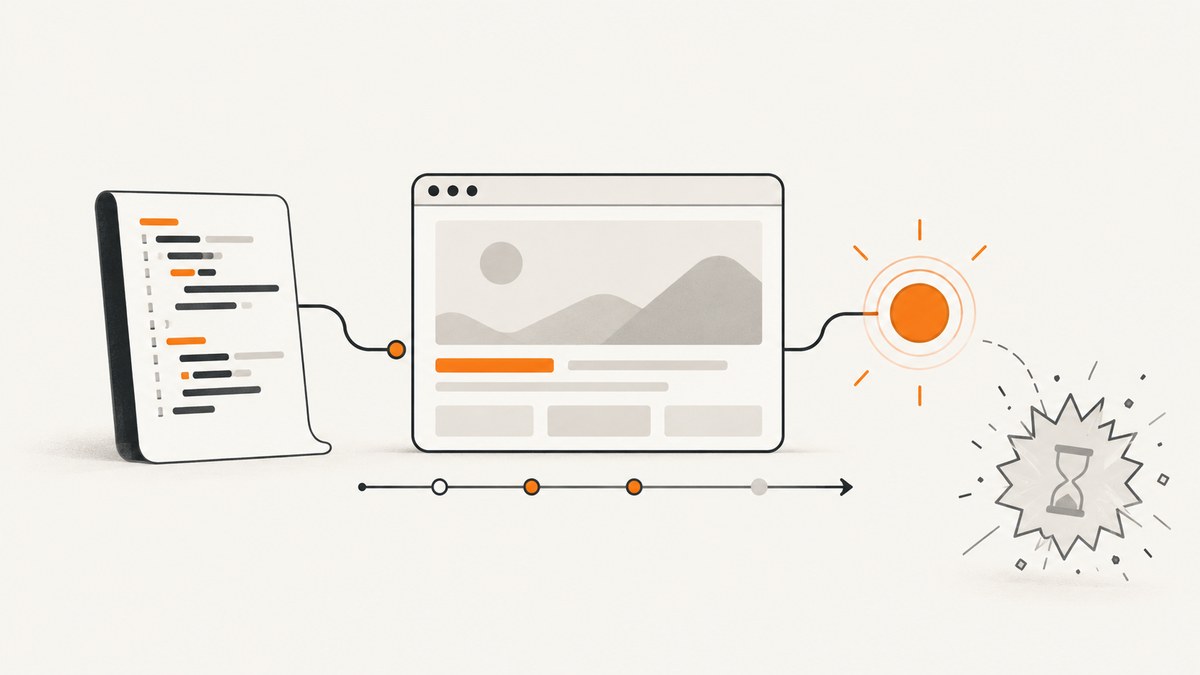
Puppeteer navigation timeouts become predictable once you identify which wait failed and define what “ready” means for the next step. A page.goto() timeout, a page.waitForNavigation() timeout, a selector timeout, and a browser-start timeout have different causes and fixes.
The current Puppeteer API reference documents a 30,000 millisecond default for wait operations. You can change that default with page.setDefaultTimeout() or page.setDefaultNavigationTimeout(); setting a timeout to 0 disables it. The default waitUntil value is load. See the WaitForOptions reference.
1. Identify the timeout before changing it
Start by recording the exact rejecting method and its complete error message. Also record your Puppeteer version, browser version, URL, explicit per-call options, and any page-wide timeout configuration. This prevents a common mistake: increasing a navigation timeout when the failing operation is actually a selector, request, locator, or browser-launch wait.
| Failing operation | What it waits for | First place to inspect |
|---|---|---|
page.goto() |
A document navigation and its selected lifecycle event | URL, waitUntil, and navigation timeout |
page.waitForNavigation() |
A navigation caused by an action or script | Wait registration order and completion signal |
page.waitForSelector() |
A matching DOM element | Selector correctness and page default timeout |
page.waitForResponse() |
A response matching a predicate or URL | Request pattern and response timing |
| Locator action | Action preconditions such as visibility and enabled state | Locator timeout and element state |
puppeteer.launch() |
Browser startup | LaunchOptions.timeout, separate from page navigation |
The navigation timeout API applies to goBack, goForward, goto, reload, setContent, and waitForNavigation. The general page timeout is used by other timeout-controlled waits as well. You can inspect the active navigation value with page.getDefaultNavigationTimeout().
2. Configure timeouts at the right scope
Use a call-level timeout when one operation is expected to be unusually slow. Use a page-wide default when all operations in a workflow share the same service characteristics. Keep browser startup configuration separate.
import puppeteer from 'puppeteer';

const browser = await puppeteer.launch({
  // This controls browser startup, not page navigation.
  timeout: 30000
});

const page = await browser.newPage();

// Applies to selector, response, locator and related waits.
page.setDefaultTimeout(15000);

// Applies to navigation methods listed in Puppeteer's API reference.
page.setDefaultNavigationTimeout(45000);

console.log('Navigation timeout:', page.getDefaultNavigationTimeout());

await page.goto('https://example.com', {
  waitUntil: 'domcontentloaded',
  timeout: 45000
});

await browser.close();
A larger number only helps when the expected condition eventually occurs. It cannot fix a selector that never appears, a navigation event that was missed, an unsuitable waitUntil value, or an application that changes state without loading a new document. Avoid setting every timeout to zero: an operation that waits forever can consume workers and hide an outage.
3. Eliminate the click and navigation race
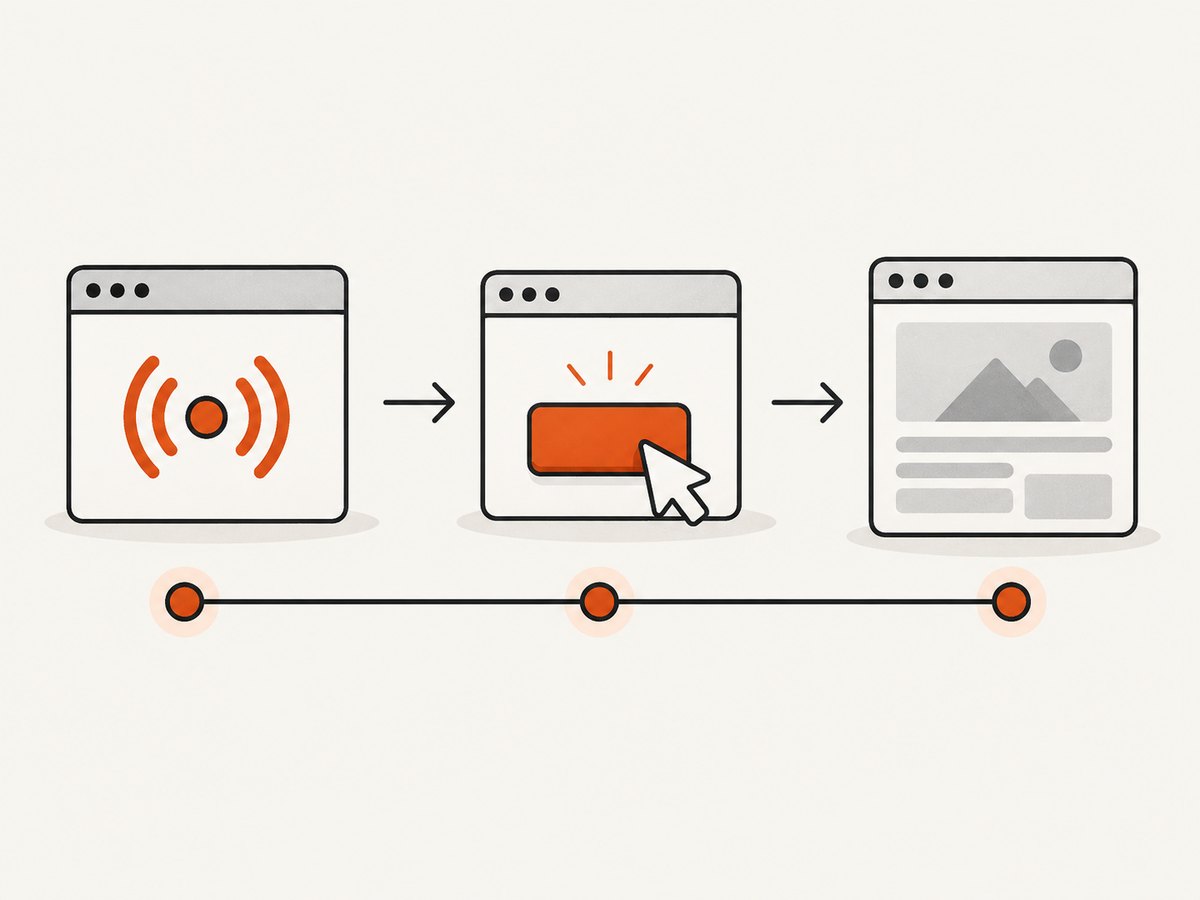
If a click can trigger navigation, register waitForNavigation() before the click. Puppeteer’s documented pattern uses Promise.all:
const [response] = await Promise.all([
  page.waitForNavigation({
    waitUntil: 'domcontentloaded',
    timeout: 45000
  }),
  page.click('a.my-link')
]);

console.log('Main response:', response ? response.url() : 'no main-resource response');
Waiting in two sequential statements can race:
// Risky when the click starts navigation immediately.
await page.click('a.my-link');
await page.waitForNavigation();
The listener may be attached after the navigation has already started or completed. The combined form attaches the wait first, so the action and its expected transition are coordinated. See the Page.waitForNavigation reference.
4. Choose a completion signal that matches the application
waitUntil is a lifecycle criterion, not a universal “the page is usable” test. Puppeteer supports lifecycle events such as domcontentloaded and load, plus network-idle conditions. The default is load.
domcontentloaded: use when the parsed document is enough for the next operation.load: use when the page’s load event is part of your requirement.networkidle0ornetworkidle2: use only when network quiet is meaningful for this page. Analytics, polling, sockets, and long-lived requests can make network idle a poor readiness proxy.- An array of events: use when more than one lifecycle condition must be observed.
await page.goto('https://example.com/dashboard', {
  waitUntil: ['domcontentloaded', 'load'],
  timeout: 45000
});
For a single-page application, a URL change or rendered state may happen without a new main-resource response. Puppeteer considers History API URL changes navigation, but waitForNavigation() can resolve with null because there is no main-resource response. Do not use a non-null response as your only proof that an SPA transition completed.
const navigation = page.waitForNavigation({
  waitUntil: 'domcontentloaded',
  timeout: 30000
});

await page.click('button[data-route="reports"]');
await navigation;

// The application-specific signal is the real readiness condition.
await page.waitForSelector('[data-page="reports"]', {
  visible: true,
  timeout: 15000
});
Alternatively, wait for the expected URL or a response that represents the operation:
await page.click('button[data-route="reports"]');
await page.waitForFunction(
  () => location.pathname === '/reports',
  { timeout: 15000 }
);

await page.waitForResponse(
  response => response.url().endsWith('/api/reports') && response.ok(),
  { timeout: 15000 }
);
Use one concrete signal for each requirement. “The URL changed,” “the API returned data,” and “the results panel is visible” are different conditions.
5. Separate interaction readiness from navigation completion
Modern Puppeteer locators wait for action preconditions such as visibility, enabled state, and a stable bounding box. They inherit the page timeout by default and can receive an individual timeout with setTimeout. A locator can make clicking more reliable, but it does not decide when a navigation or SPA transition is complete.
const submit = page.locator('button[type="submit"]');
submit.setTimeout(10000);

await Promise.all([
  page.waitForNavigation({ waitUntil: 'domcontentloaded', timeout: 30000 }),
  submit.click()
]);
For an application that does not navigate, keep the locator action and the result wait separate:
const submit = page.locator('button[type="submit"]');
submit.setTimeout(10000);
await submit.click();
await page.locator('[role="status"]').wait();
6. A complete diagnostic script
This example logs the relevant configuration, captures page-level failures, and uses a navigation wait that is registered before the click.
import puppeteer from 'puppeteer';

const browser = await puppeteer.launch({ timeout: 30000 });
const page = await browser.newPage();

page.setDefaultTimeout(15000);
page.setDefaultNavigationTimeout(45000);

page.on('console', message => {
  console.log('[browser console]', message.type(), message.text());
});
page.on('pageerror', error => console.error('[page error]', error));
page.on('requestfailed', request => {
  console.error('[request failed]', request.url(), request.failure());
});

try {
  console.log({
    puppeteer: puppeteer.version,
    navigationTimeout: page.getDefaultNavigationTimeout()
  });

  await page.goto('https://example.com', {
    waitUntil: 'domcontentloaded',
    timeout: 45000
  });

  const navigation = page.waitForNavigation({
    waitUntil: 'domcontentloaded',
    timeout: 30000
  });
  await page.click('a.my-link');
  const response = await navigation;

  console.log('Navigation complete', {
    url: page.url(),
    responseUrl: response?.url() ?? null
  });
} catch (error) {
  console.error('Automation failed', {
    name: error.name,
    message: error.message,
    url: page.url()
  });
  throw error;
} finally {
  await browser.close();
}
7. Troubleshooting checklist
“Navigation timeout of 30000 ms exceeded” from goto
Check the URL, selected waitUntil event, per-call timeout, and page navigation default. Try domcontentloaded if the next step only needs the document structure. If the page is genuinely slow, increase the timeout based on observed behavior.
waitForNavigation times out after a click
Use the Promise.all pattern and confirm the click really causes document navigation. If it changes state through the History API, wait for the expected URL, response, or DOM state instead.
The wait returns null
This can be correct for History API navigation or an anchor change without a main-resource response. Treat the URL or application state as the completion signal.
waitForSelector times out
This is not a navigation timeout. Verify the selector, frame, visibility, and page state. If the element is inside an iframe, obtain the correct frame before waiting.
A locator click times out
The element may be hidden, disabled, moving, covered, or absent. Inspect the DOM and use a locator-specific timeout only after confirming the element eventually becomes actionable.
Browser launch times out
Inspect puppeteer.launch({ timeout }), executable configuration, process limits, and the browser installation. Changing setDefaultNavigationTimeout cannot affect startup.
Network-idle waits never finish
Background polling, analytics, advertisements, WebSockets, or other persistent requests may prevent the selected idle condition. Replace it with a lifecycle event plus a selector, URL, or response that represents readiness.
Works locally, fails in CI
Log the installed Puppeteer and browser versions, URL, effective timeout values, and the exact failing method. Reproduce with the same browser, network, authentication state, and page data. A larger timeout may accommodate a slower CI machine, but it will not repair a missing event or incorrect selector.
8. Performance, reliability, and cost considerations
- Use the earliest sufficient signal. Waiting for
domcontentloadedcan avoid unnecessary delay when images and third-party resources are irrelevant to the next action. - Do not wait for silence by habit. Network-idle conditions can add latency or never resolve on pages with ongoing requests.
- Keep waits bounded. Explicit limits prevent a stuck page from occupying a worker indefinitely.
- Retry deliberately. Retry only operations that are safe to repeat, and record whether the first attempt reached the application.
- Capture diagnostics. URL, console errors, failed requests, versions, and selected wait conditions make intermittent failures actionable.
- Measure before raising defaults. A higher global timeout can hide regressions and slow failure detection for conditions that will never occur.
9. Or skip the browser setup
If your goal is a reliable screenshot rather than browser orchestration, ScreenshotNeo provides a single screenshot request. Its capture pipeline accepts cookie and consent banners like a visitor, then removes more than 60 known consent platforms, newsletter popups, and chat widgets before the shot. Each step can be turned off.

Only clean shots are billed. Bot checks or CAPTCHAs, blank pages, timeouts, failed loads, and cache hits cost nothing, and the response identifies the result with X-Page-Verdict and X-Billed headers. The API supports PNG, JPEG, WebP, and PDF output.
See the ScreenshotNeo API documentation for all options.
cURL
curl -G "https://api.screenshotneo.com/v1/shot" -d access_key=YOUR_API_KEY --data-urlencode url=https://stripe.com -o shot.webpPython
import requests

r = requests.get(
    "https://api.screenshotneo.com/v1/shot",
    params={"access_key": "YOUR_API_KEY", "url": "https://stripe.com"},
    timeout=90,
)
r.raise_for_status()
open("shot.webp", "wb").write(r.content)
Node.js
const q = new URLSearchParams({ access_key: 'YOUR_API_KEY', url: 'https://stripe.com' });
const res = await fetch(`https://api.screenshotneo.com/v1/shot?${q}`);
if (!res.ok) throw new Error(`Screenshot failed: ${res.status}`);
const data = Buffer.from(await res.arrayBuffer());
await import('node:fs/promises').then(fs => fs.writeFile('shot.webp', data));
For more control, ScreenshotNeo supports full-page capture with lazy images loaded, CSS-selector element capture, dark mode, 12 device presets or any viewport, retina scale, PDF paper size and margins, page ranges, custom CSS and JavaScript, clicks before capture, selector waits, delays, network idle, ad and tracker blocking, custom headers, cookies, user agents, Authorization, timezone, geolocation, transparent backgrounds, resizing, configurable cache TTLs, signed links, asynchronous jobs with signed webhooks, bulk capture for up to 100 URLs per call, a usage API, and an OpenAPI specification. Common parameter names used by other screenshot APIs also work.
An MCP server provides take_screenshot, get_page_info, and capture_pdf tools for Claude, Cursor, and other MCP clients. The Free plan includes 1,000 screenshots per month without a card; paid plans start at $5 for 3,000 shots. Create a free ScreenshotNeo account.
10. Practical decision guide
| Requirement | Recommended wait |
|---|---|
| Need parsed HTML | domcontentloaded |
| Need the browser load event | load |
| Need a click-triggered document navigation | Promise.all([waitForNavigation(), click()]) |
| Need an SPA route | Expected URL or History API state |
| Need a rendered result | Selector, locator, or application state |
| Need a backend operation | waitForResponse() with a precise predicate |
| Need browser startup | LaunchOptions.timeout |
FAQ
Should I always use networkidle0 for screenshots?
No. Use it only when network quiet represents readiness. Persistent analytics or polling can prevent completion; a selector or explicit delay may be more accurate.
Does setDefaultTimeout() change navigation timeouts?
Navigation has its own default configured by setDefaultNavigationTimeout(). Keep the two settings explicit so each wait has a clear scope.
Why does navigation succeed but the page still look incomplete?
Document navigation and application rendering are separate. Wait for the element, response, or state that proves the content you need is ready.
Is a 30-second timeout a performance guarantee?
No. It is a documented default, not a runtime benchmark. Choose limits from the behavior of your page and environment.
Can I disable Puppeteer timeouts?
For wait options, 0 disables the timeout. Use that sparingly because a condition that never occurs can block the workflow indefinitely.


