How to Fix Puppeteer Hanging at newPage()
Diagnose Puppeteer newPage() hangs by isolating the stalled operation, checking Chromium health, and fixing sandbox, dependencies, and filesystem issues.

Direct answer: await browser.newPage() has no documented per-call timeout, so a stall usually means the Chromium process or browser connection is unhealthy, or the runtime cannot create and operate a page. First prove which awaited operation is stuck, then inspect Chromium output and process state. Next check the environment issues Puppeteer documents: missing Linux libraries, sandbox restrictions, unwritable profile or cache paths, Alpine compatibility, browser installation, and serverless CPU allocation. Do not start by increasing a test timeout or adding --no-sandbox.
This guide gives a diagnostic path for local scripts, CI, containers, long-running services, and serverless deployments. The examples use JavaScript and Puppeteer, followed by cURL, Python, and Node.js alternatives for taking a screenshot without managing Chromium yourself.
1. Prove exactly what is hanging
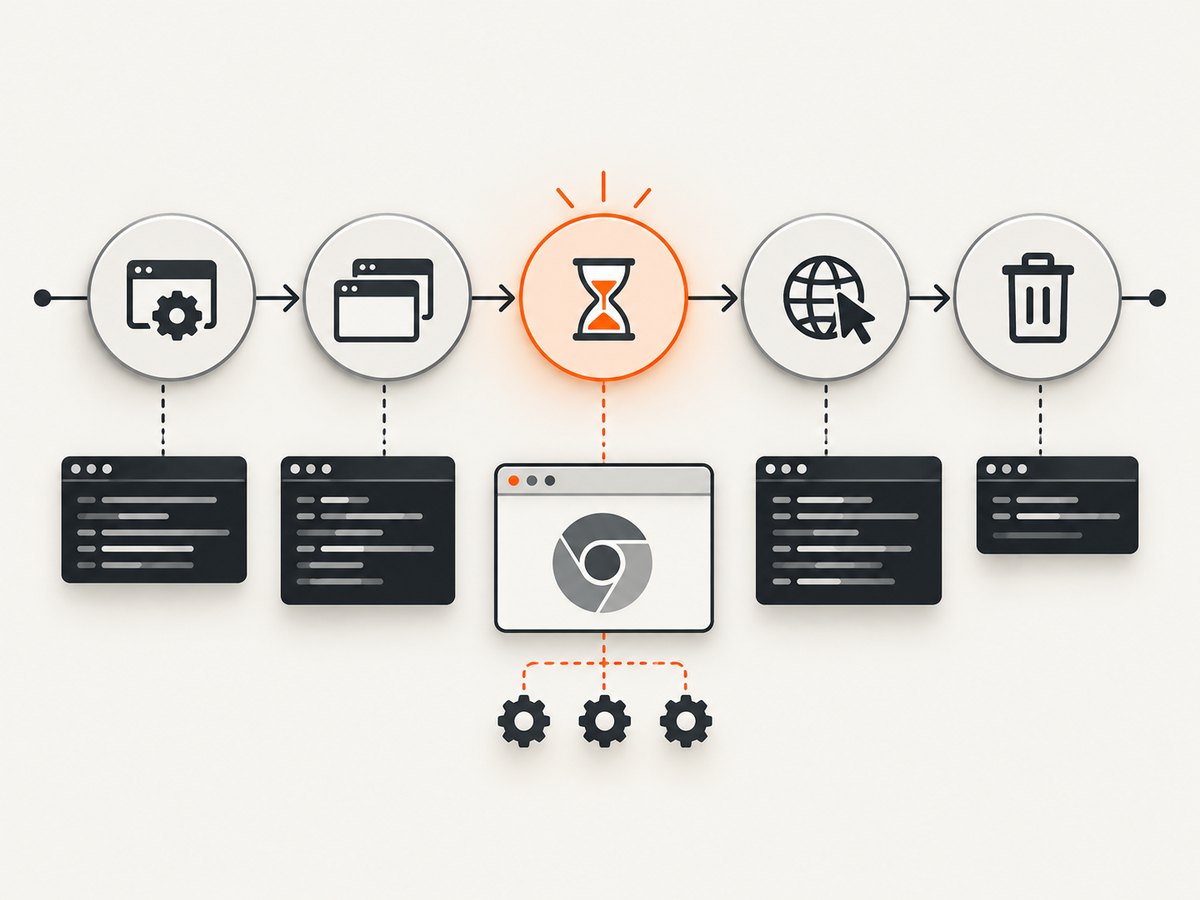
A log line that says a test stopped at newPage() does not prove that page creation is the operation that stalled. Navigation, application hooks, a test timeout, or cleanup may be responsible. Puppeteer documents Browser.newPage() as creating a page in the default browser context and returning a Promise<Page>; the API reference does not define a per-call timeout or a universal hang diagnosis.
const puppeteer = require('puppeteer');

(async () => {
  let browser;
  try {
    console.log('before launch');
    browser = await puppeteer.launch({
      headless: true,
      dumpio: true
    });
    console.log('after launch');

    console.log('before newPage');
    const page = await browser.newPage();
    console.log('after newPage');

    console.log('before goto');
    await page.goto('https://example.com', {
      waitUntil: 'domcontentloaded',
      timeout: 30_000
    });
    console.log('after goto');
  } catch (error) {
    console.error('Puppeteer operation failed:', error);
  } finally {
    console.log('before close');
    if (browser) await browser.close();
    console.log('after close');
  }
})();
Run this smallest script without application concurrency, test hooks, request interception, or custom plugins. If after launch never appears, investigate launch. If it appears but after newPage does not, investigate Chromium health, the connection, and the host environment. If page creation succeeds but goto does not, use navigation diagnostics instead. If cleanup stalls, inspect process shutdown and open resources.
2. Check Chromium health and connection state
When launch() succeeds but newPage() never resolves, collect Chromium’s stderr/stdout and check whether the process is alive. The dumpio: true option forwards browser process output to the Node process. Also record the browser process ID where your deployment permits it, and inspect container or service logs for crashes, out-of-memory events, sandbox errors, and file permission failures.
A Puppeteer issue report describes newPage() and pages() hanging in a setup where the author observed Chromium crashes. It is marked as needing feedback and not reproducible, so treat it as a debugging clue rather than proof of a universal cause (issue #12864). Another report describes an unresolved newPage() after hours of repeated use without identifying a general fix (issue #4039).
console.log({
  connected: browser.connected(),
  pagesBefore: (await browser.pages()).length
});

browser.on('disconnected', () => {
  console.error('Puppeteer disconnected from Chromium');
});
If browser.connected() is false, reconnect or restart the browser rather than waiting on another page operation. In a long-running worker, add a health check before each job and replace a browser that has disconnected or repeatedly failed. Avoid hiding the problem with an application-level timeout alone: a timeout can release your request while leaving a broken Chromium process behind.
3. Verify the host environment
Linux shared libraries
Chromium needs system libraries that may be absent in a minimal image. Puppeteer’s troubleshooting guide recommends checking the browser binary’s dependencies, for example:
ldd /path/to/chrome | grep notInstall the missing packages for your distribution and use the current dependency list in the Puppeteer troubleshooting guide. Do this before changing application code. A missing library can make Chromium crash during startup or later when a target is created.
Sandbox restrictions
Chrome may fail with an error such as No usable sandbox! when the host does not provide a usable sandbox. Configure the kernel, user namespaces, container permissions, and browser user correctly. Puppeteer’s guidance states: “Running without a sandbox is strongly discouraged. Consider configuring a sandbox instead.” Do not copy --no-sandbox as a default fix. It weakens isolation and can conceal a deployment configuration problem.
// Use the default sandbox whenever the host supports it.
const browser = await puppeteer.launch({
  headless: true,
  args: []
});
Only consider disabling the sandbox for content you absolutely trust and after understanding the security trade-off. If a managed platform prevents a sandbox, document that constraint and isolate the workload with the platform’s supported security model.
Ubuntu AppArmor and user namespaces
Puppeteer’s guide describes an AppArmor restriction affecting Chrome for Testing user namespaces on Ubuntu 23.10 and later. Check the actual Chrome binary, kernel, AppArmor profile, and host logs before applying a workaround. A workaround for one binary or distribution may be wrong for another.
Writable profile and cache directories
Chrome writes profile, configuration, and cache data. Read-only containers commonly fail when the browser user cannot write those paths. Set XDG directories and Puppeteer’s user-data directory to writable locations, or mount writable volumes owned by the browser user.
const path = require('node:path');
const puppeteer = require('puppeteer');

const browser = await puppeteer.launch({
  headless: true,
  userDataDir: path.join('/tmp', 'puppeteer-profile'),
  env: {
    ...process.env,
    XDG_CONFIG_HOME: '/tmp/xdg-config',
    XDG_CACHE_HOME: '/tmp/xdg-cache'
  }
});
Confirm those directories exist and are writable by the same user that starts Chromium. In a container, check the mounted volume and its ownership rather than only checking permissions on the image layer.
Alpine Linux
Chrome is not supported on Alpine out of the box. Install compatible dependencies and pair the installed Chromium with a Puppeteer-supported browser version. Compatibility and timeout behavior can change with browser and Puppeteer releases, so consult the current Alpine and browser guidance instead of transplanting an old Dockerfile.
Browser installation and package-manager scripts
If your package manager blocks install scripts, Puppeteer’s browser download may never have run. Verify the executable before debugging page creation. The documented installation command is:
npx puppeteer browsers installAlternatively, enable the package manager policy that permits the Puppeteer install script, then reinstall. If you use an externally installed Chrome, pass its verified executable path and check that the version is compatible with your Puppeteer release.
Cloud Run and deferred work
When a service starts Puppeteer after returning an HTTP response, Cloud Run CPU allocation can make browser work extremely slow or effectively stalled if CPU is not kept allocated. This applies only to that execution pattern. Keep CPU allocated while the browser job runs, or move capture work into a request or worker model whose lifetime includes the browser operation.
4. Isolate lifecycle and context problems
Puppeteer supports both launching a browser and connecting to an existing browser. Keep those paths separate in logs. A browser context isolates cookies and local storage from other contexts; closing a context closes its pages. Use a fresh context or a fresh browser as a controlled comparison when hangs appear only after repeated jobs.
const context = await browser.createBrowserContext();
const page = await context.newPage();
try {
  await page.goto('https://example.com', { waitUntil: 'domcontentloaded' });
} finally {
  await context.close();
}
browser.disconnect() disconnects Puppeteer while leaving the browser and its pages running. browser.close() shuts down the browser. Choose deliberately: disconnect is useful when another supervisor owns Chromium; close is appropriate for a browser you launched for one job. The browser-management documentation covers both workflows and lifecycle behavior (Puppeteer browser management).
For a service, avoid unbounded page creation. Close each page in a finally block, limit concurrent jobs, and recycle a browser after repeated crashes or disconnects. If the failure is age-related, record job count, page count, memory, and browser restarts so you can distinguish a resource leak from an environmental failure.
5. Capture versions and make one change at a time
Record the Puppeteer version, Chromium or Chrome version, Node.js version, operating system or container image, launch arguments, executable path, and whether the browser is bundled or external. Save the smallest reproducer and the complete browser stderr output.
Change one supported variable per run: install a missing library, correct a writable path, repair sandbox configuration, align browser versions, or adjust CPU allocation. Increasing a Jest timeout can prevent an early test failure, but it does not make an unresolved browser promise complete. A timeout in an issue report is not evidence that increasing it fixes Chromium.
6. Troubleshooting checklist
| Symptom | Likely area | Action |
|---|---|---|
launch() never completes |
Browser install, dependencies, sandbox | Verify executable, run ldd ... | grep not, inspect stderr, and check sandbox logs. |
launch() completes; newPage() stalls |
Chromium crash or unhealthy connection | Enable dumpio, check process state, listen for disconnected, and try a fresh browser. |
| Works locally, fails in a container | Filesystem, user, libraries, sandbox | Use writable XDG and profile paths, install current dependencies, and run as the intended browser user. |
| Fails only on Alpine | Unsupported or mismatched browser stack | Use compatible dependencies and versions, or choose a supported base image. |
| Fails after hours of jobs | Leak, crash, or stale connection | Close pages and contexts, cap concurrency, monitor memory, and recycle unhealthy browsers. |
| Fails after an HTTP response | Serverless CPU lifecycle | Keep CPU allocated during capture or move work into a worker/request lifetime. |
7. Or skip the browser setup
If your goal is a clean website image rather than browser automation, ScreenshotNeo provides a GET endpoint that returns PNG, JPEG, WebP, or PDF. It handles the browser environment for you and exposes the result through response headers.
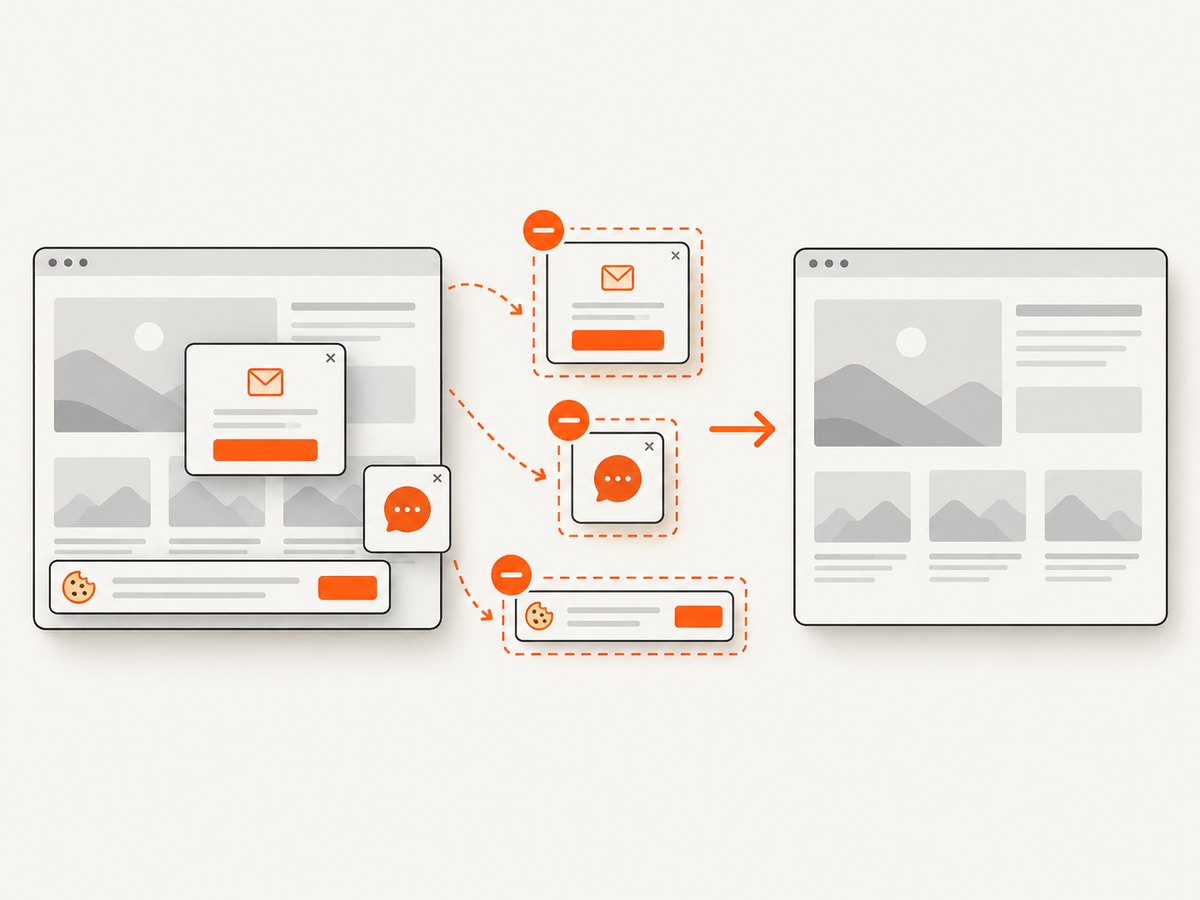
With ScreenshotNeo, cookie and consent banners are accepted before capture, and more than 60 known consent platforms, newsletter popups, and chat widgets are removed. Each cleanup step can be turned off. Bot checks and CAPTCHAs, blank pages, timeouts, failed loads, and cache hits are not billed; the response identifies the result with X-Page-Verdict and X-Billed headers.
Read the full parameter list in the ScreenshotNeo documentation. Relevant controls include full-page capture with lazy images loaded, CSS-selector element capture, dark mode, 12 device presets or a custom viewport, retina scale, PDF paper size and margins, custom CSS and JavaScript, clicks, selector or network-idle waits, ad and tracker blocking, custom headers and cookies, user agent, Authorization, timezone, geolocation, transparent backgrounds, resizing, configurable caching TTL, signed image links, asynchronous jobs with signed webhooks, bulk capture of up to 100 URLs per call, usage reporting, and an OpenAPI specification.
cURL
curl -G "https://api.screenshotneo.com/v1/shot" \
  -d access_key=YOUR_API_KEY \
  --data-urlencode url=https://stripe.com \
  -o shot.webp
Python
import requests

r = requests.get(
    "https://api.screenshotneo.com/v1/shot",
    params={"access_key": "YOUR_API_KEY", "url": "https://stripe.com"},
    timeout=90,
)
r.raise_for_status()
open("shot.webp", "wb").write(r.content)
Node.js
const q = new URLSearchParams({
  access_key: 'YOUR_API_KEY',
  url: 'https://stripe.com'
});
const res = await fetch(`https://api.screenshotneo.com/v1/shot?${q}`);
if (!res.ok) throw new Error(`Screenshot failed: ${res.status}`);
const fs = require('node:fs/promises');
await fs.writeFile('shot.webp', Buffer.from(await res.arrayBuffer()));
ScreenshotNeo also has an MCP server with take_screenshot, get_page_info, and capture_pdf tools for Claude, Cursor, and other MCP clients. The Free plan includes 1,000 screenshots per month with no card; paid plans start at $5 for 3,000 shots. Every feature is available on every plan. Create an account at ScreenshotNeo free sign-up.
8. Performance, reliability, and cost considerations
For Puppeteer, page creation is only one part of total latency. Browser startup, navigation, JavaScript execution, image loading, and cleanup each consume time. Reuse a healthy browser for related jobs, but cap concurrency and monitor memory. Use a new context for isolation and a new browser when the existing process is disconnected or demonstrably unhealthy. Set navigation timeouts separately from your outer job timeout so logs identify the operation that exceeded its budget.
For repeat screenshots, caching can reduce browser work, while a chosen wait condition determines whether late content is included. Full-page screenshots can trigger lazy image loading and use more memory than an element capture. Blocking unnecessary ads, trackers, or resource types can reduce load time, but verify that the page still contains the content you need.
With ScreenshotNeo, only clean shots are billed. Failed loads, bot checks, blank pages, timeouts, and cache hits are free, and the response headers show which verdict occurred. Plans are Free (1,000/month), Starter ($5 for 3,000), Growth ($15 for 15,000), Pro ($39 for 60,000), Scale ($99 for 250,000), and Business ($249 for 1,000,000); yearly billing gives two months free.
9. FAQ
Does Puppeteer provide a timeout for browser.newPage()?
The API documents a promise that resolves to a page, but it does not specify a per-call timeout. Apply your own operation-level watchdog only to produce diagnostics and controlled recovery.
Should I always add --no-sandbox in Docker?
No. Puppeteer strongly discourages running without a sandbox. Configure a usable sandbox and investigate the host restriction first.
Can a navigation timeout cause newPage() to hang?
They are separate awaited operations. Log before and after each call so a navigation problem is not attributed to page creation.
Is a fresh browser always better than reusing one?
No. Reuse reduces startup cost, but replace a browser that has disconnected, crashed, leaked resources, or repeatedly fails page creation.
What should I include in a bug report?
Include the smallest reproducer, exact awaited operation, versions, OS or image, launch options, executable path, browser stderr, and whether the issue occurs with a fresh browser and no application concurrency.


