How to Fix Puppeteer Pagination Click Errors in a Scraping Loop
Fix Puppeteer pagination loops by matching the wait to full navigation or in-place updates, then verify every page advanced before scraping.
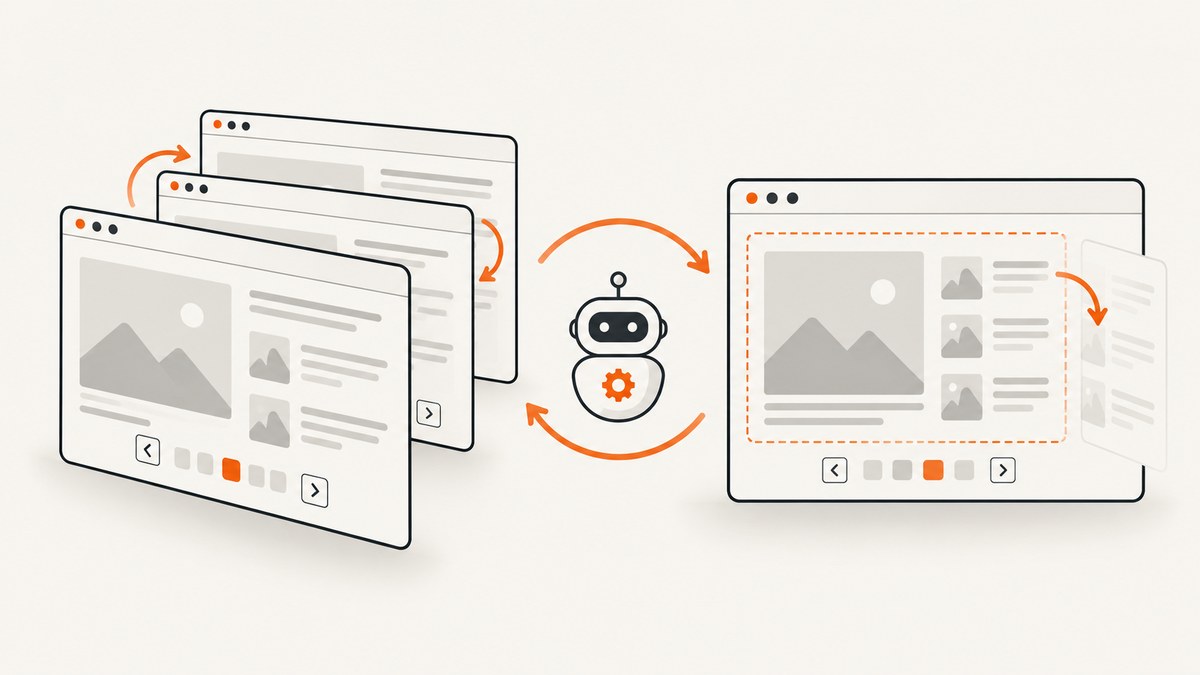
Puppeteer pagination failures usually come from one of four different problems: the selector does not match the live DOM, the click is aimed at the wrong matching element, the click triggers navigation but the wait is armed too late, or the site replaces results in place and never performs a document navigation. Fixing the loop starts by identifying which transition the site actually makes.
For a control that causes a full navigation, arm the navigation wait before the click and await both operations together:
const [response] = await Promise.all([
  page.waitForNavigation(),
  page.click('a.next-page'),
]);
This Promise.all pattern avoids the race condition documented by Puppeteer. For in-place pagination, wait for a changed result, page indicator, or other site-specific readiness condition instead. A click resolving only proves that Puppeteer dispatched the action; it does not prove that the next page is ready to scrape.
1. Capture the real failure before changing the loop
Do not begin by adding arbitrary delays. Save the complete error message and stack trace, the selector used, the Puppeteer version, the browser version, and the URL at the time of failure. The distinction matters:
| Observed error or behavior | What it usually means | First check |
|---|---|---|
waiting for selector ... failed or selector rejection |
No matching element existed in the current frame and DOM at the time of the action. | Inspect the live DOM, frame, and render timing. |
| Navigation wait times out after a successful click | The click may update results in place, or the navigation wait was not armed before the click. | Determine whether the document, URL, or result container changes. |
| The loop repeats identical results | The control did not advance, or extraction started before replacement content was ready. | Compare a page number, URL, item key, or result fingerprint before and after. |
| The wrong page advances | Several matching “next” controls exist and Page.click uses the first match. |
Narrow the selector or use a locator for the intended control. |
Puppeteer’s Page.click documentation warns that a separate navigation wait can race with a click-triggered navigation. Its Page.waitForNavigation documentation also explains what Puppeteer considers navigation, including History API URL changes. These APIs cannot tell you whether a site’s newly displayed results are semantically ready, so your loop still needs a progress check.
2. Check the selector, frame, and element state
Use a selector that identifies the actual next control
Open the page in DevTools and confirm the control’s tag, attributes, disabled state, and parent container. A class copied from a transient CSS module, a selector that matches a hidden mobile control, or a selector evaluated in the wrong frame can all produce failures.
await page.waitForSelector('a.next-page', {
  visible: true,
  timeout: 15000,
});

const next = await page.$('a.next-page');
if (!next) {
  throw new Error('Next-page control was not found');
}

const disabled = await page.$eval('a.next-page', el =>
  el.matches('[disabled], [aria-disabled="true"]') ||
  el.classList.contains('disabled')
);
if (disabled) {
  console.log('Reached the final page');
}
Page.waitForSelector can wait for presence or visibility. Visibility does not guarantee that the element is enabled or that it represents the current pagination state, so check those properties when the site exposes them.
Check frames
If pagination is inside an iframe, querying the top-level page will never find it. List frames and query the frame whose URL or name identifies the results area:
const frame = page.frames().find(f => f.url().includes('/results'));
if (!frame) throw new Error('Results frame not found');
await frame.waitForSelector('button.next', { visible: true });
await frame.click('button.next');
Make the selector specific
If a desktop and mobile control both exist, select the visible one, the control inside the active pagination region, or a button with the current state. Puppeteer’s page click targets the first matching element. A broad selector such as button.next can therefore click a hidden or unrelated control.
3. Fix full-document navigation with Promise.all
Use this branch when clicking “Next” loads a new document, changes the URL through a navigation, or otherwise triggers a navigation event. Start waiting and clicking in the same expression:
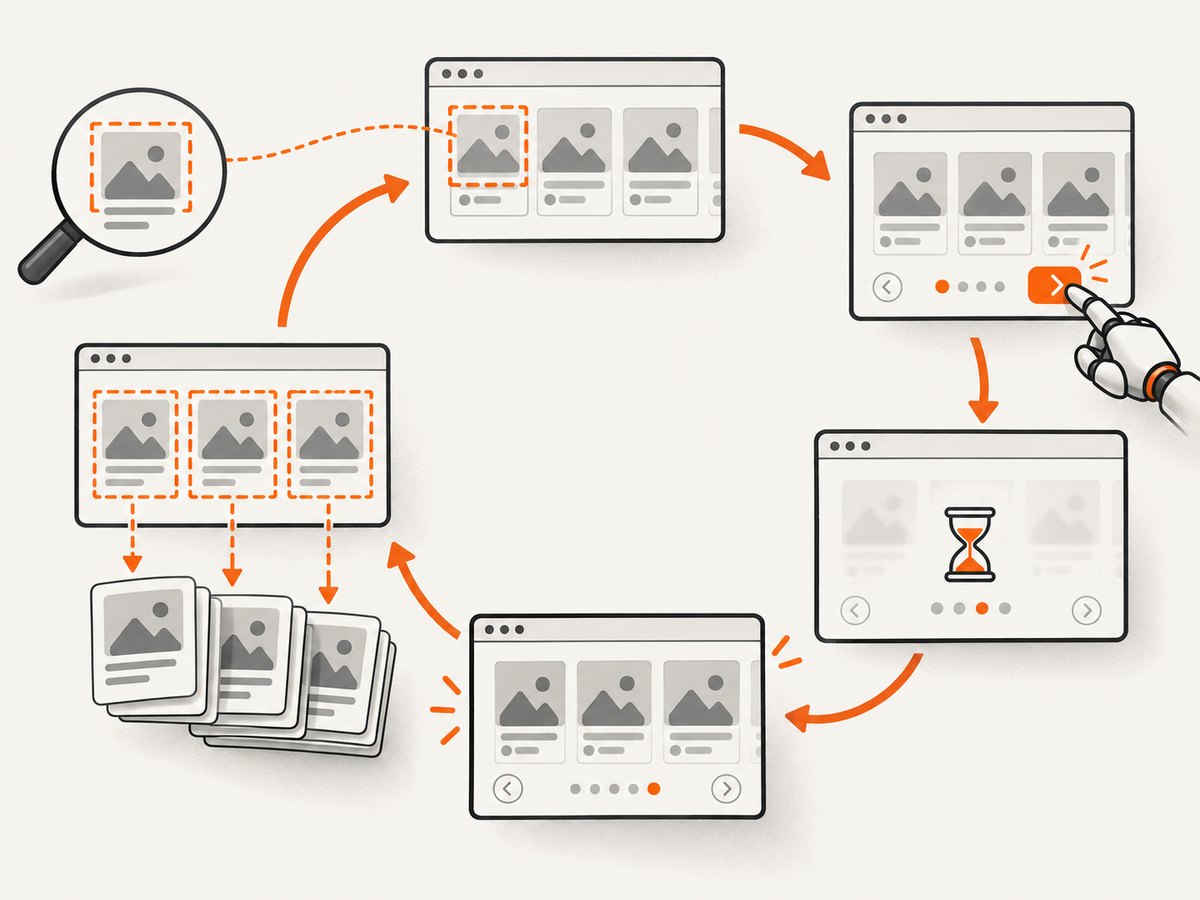
async function clickNextAfterNavigation(page) {
  await page.waitForSelector('a.next-page', { visible: true });

  const previousUrl = page.url();
  const [response] = await Promise.all([
    page.waitForNavigation({
      waitUntil: 'domcontentloaded',
      timeout: 30000,
    }),
    page.click('a.next-page'),
  ]);

  if (!response) {
    throw new Error('Navigation completed without a response object');
  }

  if (page.url() === previousUrl) {
    throw new Error('Navigation wait completed but URL did not change');
  }

  await page.waitForSelector('.result-card', { visible: true });
}
Arm waitForNavigation before the click because the navigation can begin immediately. Setting up the wait afterward can miss the event and leave the promise pending until timeout. Choose domcontentloaded, load, or networkidle according to the page, then wait for the result selector that proves the content you need is present.
Complete navigation-based loop
import puppeteer from 'puppeteer';

const browser = await puppeteer.launch({ headless: true });
const page = await browser.newPage();
await page.goto('https://example.com/articles?page=1', {
  waitUntil: 'domcontentloaded',
  timeout: 30000,
});

const rows = [];
for (let pageNumber = 1; pageNumber <= 20; pageNumber++) {
  await page.waitForSelector('.result-card', { visible: true });

  const pageRows = await page.$$eval('.result-card', cards =>
    cards.map(card => ({
      title: card.querySelector('h2')?.textContent?.trim() ?? '',
      href: card.querySelector('a')?.href ?? '',
    }))
  );
  rows.push(...pageRows);

  const next = await page.$('a.next-page');
  if (!next) break;

  const isDisabled = await page.$eval('a.next-page', el =>
    el.matches('[disabled], [aria-disabled="true"]') ||
    el.classList.contains('disabled')
  );
  if (isDisabled) break;

  await Promise.all([
    page.waitForNavigation({ waitUntil: 'domcontentloaded', timeout: 30000 }),
    page.click('a.next-page'),
  ]);
}

await browser.close();
console.log(JSON.stringify(rows, null, 2));
4. Fix in-place pagination with a content or state wait
Many modern sites fetch the next batch with fetch or XHR, replace a result container, and keep the document loaded. In that case, waitForNavigation is the wrong synchronization primitive. Record a state value before clicking, then wait until that value changes.
Wait for a page indicator
const oldPage = await page.$eval('.pagination .current', el =>
  el.textContent.trim()
);

await page.click('button.next');

await page.waitForFunction(
  previous => document.querySelector('.pagination .current')?.textContent.trim() !== previous,
  { timeout: 30000 },
  oldPage
);

await page.waitForSelector('.result-card', { visible: true });
Wait for a result fingerprint to change
const firstBefore = await page.$eval('.result-card', el =>
  el.getAttribute('data-id') || el.textContent.trim()
);

await page.click('button.next');

await page.waitForFunction(
  previous => {
    const first = document.querySelector('.result-card');
    if (!first) return false;
    return (first.getAttribute('data-id') || first.textContent.trim()) !== previous;
  },
  { timeout: 30000 },
  firstBefore
);
waitForFunction should test a condition tied to the target site. Waiting for a fixed 1,000 milliseconds can be too short on a slow response and unnecessarily expensive on a fast one. If the page indicator is updated before the result cards, combine the indicator wait with a result-selector wait.
Use locators for interaction readiness
Puppeteer locators automatically wait for an element to be present and in an appropriate state for the action. They can reduce timing errors around controls that are rendered or enabled asynchronously:
const next = page.locator('button.next');
await next.click();
await page.waitForFunction(() =>
  document.querySelector('.pagination .current')?.textContent.trim() === '2'
);
Locators improve readiness handling for the control itself. You still need a wait that represents the resulting page or changed content.
5. Build progress checks into every loop
A robust scraper treats pagination as a state transition. Before clicking, capture an observable value such as the current URL, page number, first result ID, or hash of result links. After the wait, assert that it changed. Also stop when the next control is absent or disabled.
async function readState(page) {
  return page.evaluate(() => ({
    url: location.href,
    page: document.querySelector('.pagination .current')?.textContent.trim() || '',
    firstId: document.querySelector('.result-card')?.getAttribute('data-id') || '',
  }));
}

const before = await readState(page);
await page.click('button.next');
await page.waitForFunction(previous => {
  const current = document.querySelector('.pagination .current')?.textContent.trim() || '';
  const firstId = document.querySelector('.result-card')?.getAttribute('data-id') || '';
  return current !== previous.page || firstId !== previous.firstId;
}, {}, before);
const after = await readState(page);

if (before.url === after.url && before.page === after.page && before.firstId === after.firstId) {
  throw new Error('Pagination did not advance');
}
Keep a set of visited page identifiers or first-result IDs. This prevents an accidental loop when a site wraps from the last page to the first page or ignores a click.
6. Common errors and precise fixes
| Error pattern | Cause to investigate | Fix |
|---|---|---|
| Selector timeout | The control is rendered later, hidden behind a consent layer, inside an iframe, or named differently. | Inspect the live DOM, select the correct frame, wait for visibility, and use a stable attribute. |
Node is either not clickable or not an Element |
The node moved, is covered, detached, or matched a noninteractive element. | Use a locator, wait for the control to be visible and enabled, and re-query immediately before clicking. |
Navigation timeout exceeded |
The click performs an in-place update, or the page never reaches the chosen lifecycle event. | Use a content predicate for in-place updates; for navigation, choose a suitable waitUntil and still wait for results. |
| Same records on every iteration | The click had no effect or extraction raced the replacement. | Compare a page indicator or first result before and after, then wait for the changed state. |
| Wrong “next” control clicked | Several elements match and the first is not the active control. | Narrow the selector to the active pagination container or use a locator. |
| Works headed, fails headless | Viewport, responsive markup, timing, or overlays differ. | Set an explicit viewport, inspect screenshots during debugging, and target the headless DOM. |
7. Reliability and performance practices
- Set explicit timeouts for navigation, selectors, and state predicates so one broken page cannot hang the entire job.
- Use bounded retries only for transient network failures. Re-read state after a retry so you do not duplicate a page.
- Persist results after each successful page. A crash then resumes from a known page instead of restarting blindly.
- Prefer stable IDs or URLs over visual text such as “Next,” which may change with localization.
- Use
domcontentloadedfor the initial document when your extraction does not require every image, then wait for the exact result condition. - Keep concurrency bounded. Opening many pages can exhaust memory and trigger site defenses; pagination correctness comes before parallelism.
- Log URL, page indicator, selector, elapsed wait, and result count for each iteration. These fields make a stuck loop diagnosable.
Do not add a global delay after every click as a substitute for a readiness condition. It increases total runtime and still fails when server or client latency varies. A predicate tied to the actual result state is both faster and more reliable.
8. Or skip the browser setup
If your goal is a clean image or PDF of each page rather than DOM-level extraction, ScreenshotNeo provides a single screenshot API request. Read the complete option list in the ScreenshotNeo API documentation.

cURL
curl -G "https://api.screenshotneo.com/v1/shot" \
  -d access_key=YOUR_API_KEY \
  --data-urlencode url=https://stripe.com \
  -o shot.webp
Python
import requests

r = requests.get(
    "https://api.screenshotneo.com/v1/shot",
    params={"access_key": "YOUR_API_KEY", "url": "https://stripe.com"},
    timeout=90,
)
r.raise_for_status()
open("shot.webp", "wb").write(r.content)
Node.js
const q = new URLSearchParams({ access_key: 'YOUR_API_KEY', url: 'https://stripe.com' });
const res = await fetch(`https://api.screenshotneo.com/v1/shot?${q}`);
if (!res.ok) throw new Error(`Screenshot failed: ${res.status}`);
const bytes = await res.arrayBuffer();
await Bun.write('shot.webp', bytes);
ScreenshotNeo removes cookie and consent banners, newsletter popups, and chat widgets before capture. Bot checks, blank pages, timeouts, failed loads, and cache hits are not billed, and the response reports the result through X-Page-Verdict and X-Billed headers. Its MCP server exposes take_screenshot, get_page_info, and capture_pdf for Claude, Cursor, and other MCP clients.
It also supports full-page captures with lazy images loaded, element selectors, custom CSS and JavaScript, waits, request blocking, headers, cookies, user agents, authentication, timezone and geolocation, resizing, caching, signed links, asynchronous jobs, bulk capture of up to 100 URLs per call, and a usage API. The Free plan includes 1,000 screenshots per month with no card; paid plans start at $5 for 3,000 screenshots.
Create a free ScreenshotNeo account and start with 1,000 screenshots per month at no charge.
9. FAQ
Should I use waitForNavigation after every pagination click?
No. Use it when the click causes document navigation. For an AJAX or History API update, wait for a changed result or page indicator.
Why can a URL change still produce old results?
A History API transition can change the URL before the application finishes rendering. Treat the URL as a navigation signal, then wait for the result state you scrape.
Is networkidle always the right wait?
No. Analytics, sockets, and background polling can prevent network idle. A target-specific selector or predicate is usually a clearer readiness signal.
How do I know the loop reached the last page?
Check for a missing or disabled next control, and stop when the site’s page indicator or result state shows no further page. Keep a visited-state set as a safeguard.
Can a locator replace my progress check?
No. A locator helps Puppeteer interact with a ready control. You still need to verify that the subsequent page or result set changed before extracting.


