How to Fix Background Colors Ending Midway on Puppeteer PDF Pages
Fix PDF backgrounds that stop at page breaks by checking print CSS, printBackground, fragmentation, and page geometry in Puppeteer.
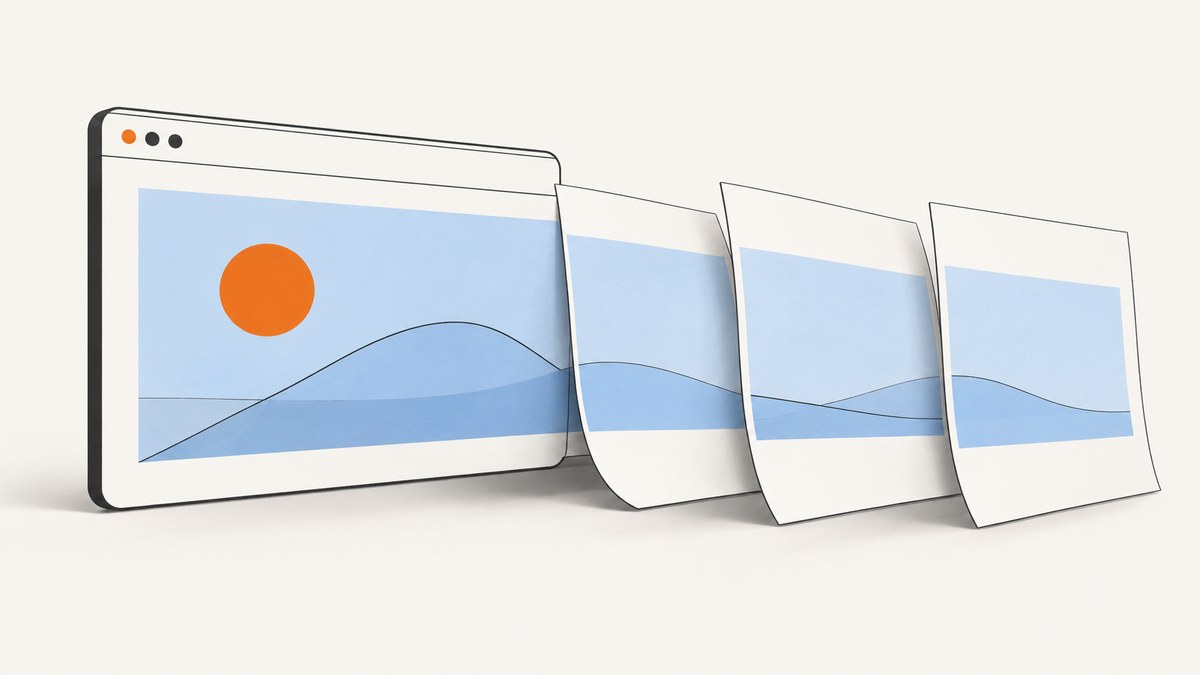
If a background color stops halfway down a Puppeteer PDF page, the cause is usually one of four things: PDF generation uses print CSS by default, backgrounds are not printed unless enabled, a colored box is being split across pages, or page geometry moves the break to an unexpected place. Check those in that order.
Start with this PDF call and the print CSS below. Keep emulateMediaType('screen') only if you want screen styles; omit it when the document is designed for print.
await page.emulateMediaType('screen'); // omit if print CSS is intended
await page.pdf({
  path: 'output.pdf',
  format: 'A4',
  printBackground: true,
  preferCSSPageSize: true
});
.colored-section {
background: #eef3ff;
print-color-adjust: exact;
-webkit-print-color-adjust: exact;
}
@media print {
.colored-card {
break-inside: avoid;
page-break-inside: avoid;
}
}These settings address different problems. printBackground asks Puppeteer to include backgrounds. print-color-adjust asks the browser to preserve authored colors. The break rules affect how a box is divided between pages. Page size, margins, and scale determine where those divisions happen.
1. Confirm which CSS media type the PDF uses
page.pdf() uses the print CSS media type by default. That means a page that looks correct in a normal browser window can produce a different PDF: print-specific styles may remove the background, change the element height, alter display or positioning, or replace colors for print.
If your intended output should match the screen layout, tell Puppeteer to emulate the screen media type before generating the PDF:
await page.emulateMediaType('screen');
const pdf = await page.pdf({
  printBackground: true,
  format: 'A4'
});
If the document has deliberate print styles, leave the media mode at its default and fix the print stylesheet instead. Using screen CSS can restore a background while also undoing useful page-specific layout, typography, or visibility rules. Inspect the element’s computed style with print media active and confirm that its background color is still set.
2. Enable background printing
Puppeteer’s printBackground option defaults to false. Set it to true in the actual page.pdf() call that writes the file. A background visible in the page is not evidence that the PDF export includes it.
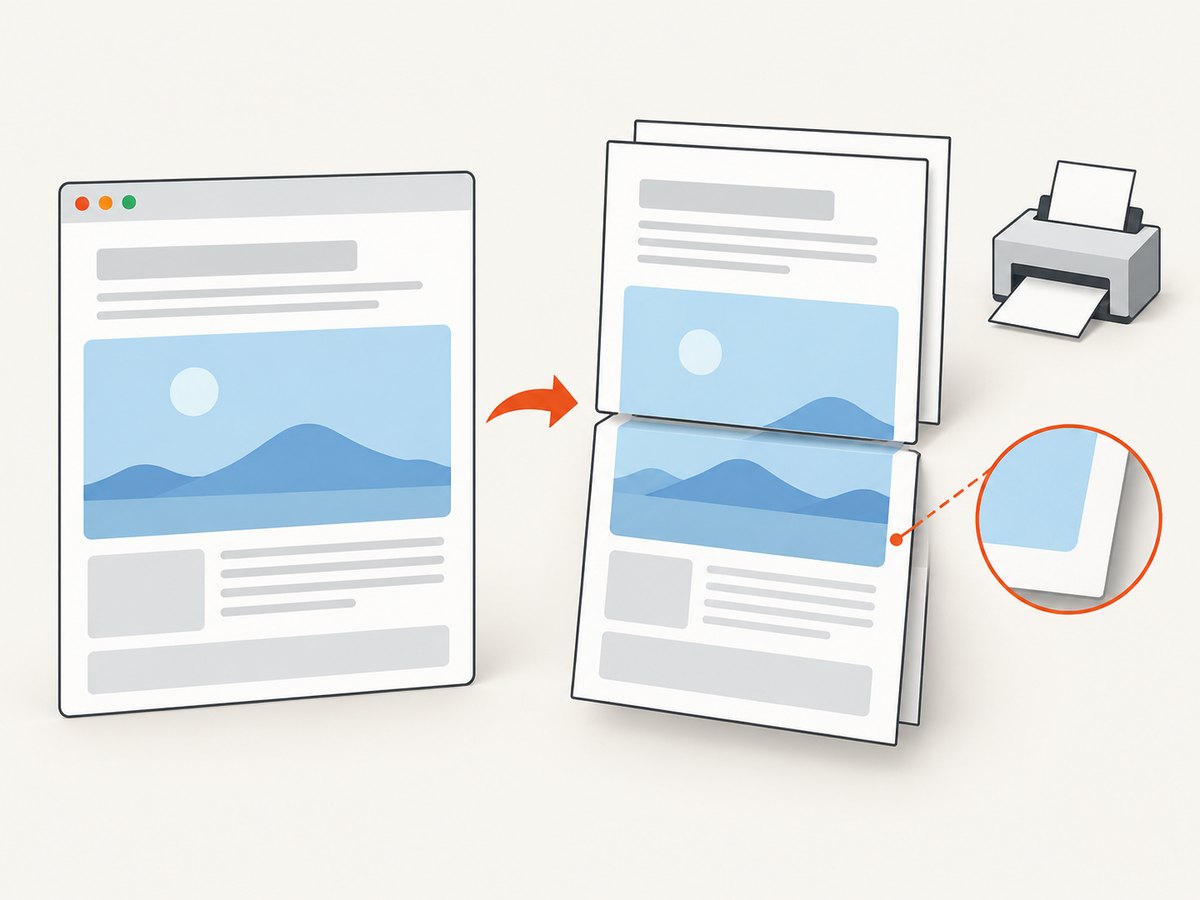
const pdf = await page.pdf({
  path: 'output.pdf',
  format: 'A4',
  printBackground: true
});
For a color that continues across every page fragment, add print color adjustment to the relevant element or print stylesheet:
@media print {
  .colored-section {
    background-color: #eef3ff;
    print-color-adjust: exact;
    -webkit-print-color-adjust: exact;
  }
}
This is a request to preserve the authored colors, not an absolute guarantee. Browser behavior and a user’s print preferences can still affect printed backgrounds. Check the PDF produced by the Chromium version and settings used in deployment.
3. Decide whether the colored element should split
A box taller than the remaining space on a page may be fragmented. If a card or figure should stay together and fits on one page, prevent an internal page break:
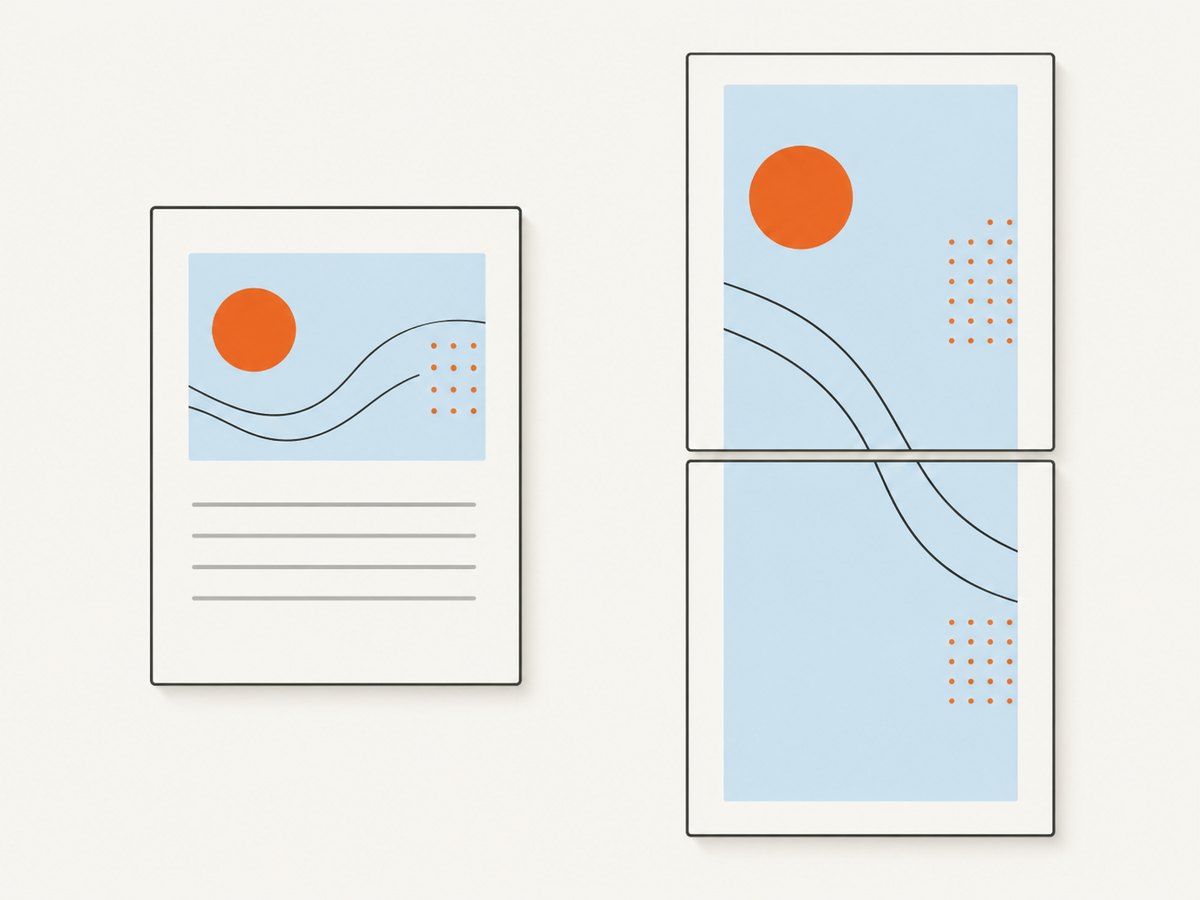
@media print {
  .colored-card,
  figure,
  .summary-panel {
    break-inside: avoid;
    page-break-inside: avoid;
  }
}
page-break-inside is the legacy alias retained for older print CSS. The modern break-inside property controls whether a break may occur inside a generated box. This rule is not a way to shrink content: an element taller than a page cannot be kept intact on one page, so the browser still needs to fragment or overflow it.
For an intentionally long section that must span pages, choose how its decoration behaves. With box-decoration-break: clone, each fragment can receive its own decoration; with slice, decoration is treated as one continuous box sliced at the page boundary. Test the choice in the target browser because the desired appearance depends on the layout and print engine.
@media print {
  .long-colored-section {
    box-decoration-break: clone;
    -webkit-box-decoration-break: clone;
  }

  /* Use this instead if a continuous sliced decoration is desired. */
  .long-colored-section--continuous {
    box-decoration-break: slice;
    -webkit-box-decoration-break: slice;
  }
}
Make sure the background belongs to the element that actually fragments. A background on a short child, positioned pseudo-element, or wrapper with a different height may end while the content continues.
4. Check page size and available height
Color settings cannot fix a page break caused by unexpected geometry. The paper size, margins, scale, and CSS @page rules determine how much content fits on each page and where a colored box is split. Puppeteer can use its own paper options, or honor CSS page size with preferCSSPageSize.
For example, use a CSS page size and ask Puppeteer to prefer it:
@page {
  size: A4;
  margin: 12mm;
}

@media print {
  html, body {
    margin: 0;
  }
}
await page.pdf({
path: 'output.pdf',
printBackground: true,
preferCSSPageSize: true
});If instead you specify format, width, or height in the PDF options, compare those values with the CSS @page size and margins. A change in available content height can move a break into the colored element and make a previously hidden fragmentation issue visible.
5. A complete Node.js reproduction
This runnable example creates a browser, loads a minimal HTML page, and writes a PDF. It uses print CSS by default, enables backgrounds, keeps a short card together, and gives a long section a repeated background on its page fragments. Remove the screen emulation if you want the print rules to control rendering.
const puppeteer = require('puppeteer');

async function main() {
  const browser = await puppeteer.launch({ headless: true });
  try {
    const page = await browser.newPage();
    await page.setContent(`
      <!doctype html>
      <html>
        <head>
          <style>
            @page { size: A4; margin: 14mm; }
            body { font: 16px Arial, sans-serif; }
            .card {
              background: #eef3ff;
              padding: 20px;
              margin: 0 0 18px;
              print-color-adjust: exact;
              -webkit-print-color-adjust: exact;
            }
            .keep-together { break-inside: avoid; page-break-inside: avoid; }
            .long-section {
              min-height: 1500px;
              box-decoration-break: clone;
              -webkit-box-decoration-break: clone;
            }
            @media print {
              .screen-only { display: none; }
            }
          </style>
        </head>
        <body>
          <section class="card keep-together">
            <h1>A short card</h1>
            <p>This card should stay on one page when it fits.</p>
          </section>
          <section class="card long-section">
            <h2>A section that spans pages</h2>
            <p>Its background is configured for each page fragment.</p>
          </section>
        </body>
      </html>
    `, { waitUntil: 'load' });

    // Optional: enable this if screen rules, not print rules, define the PDF.
    // await page.emulateMediaType('screen');

    await page.pdf({
      path: 'output.pdf',
      format: 'A4',
      printBackground: true,
      preferCSSPageSize: true
    });
  } finally {
    await browser.close();
  }
}

main().catch((error) => {
  console.error(error);
  process.exitCode = 1;
});
6. Diagnose the issue in a fixed order
- Check the computed print style. Confirm the element has the intended background under
@media print. Look for print rules that set the background to transparent, change its height, or hide its wrapper. - Check the PDF call. Ensure
printBackground: trueis present on the call that actually creates the file, not just in a separate config that is not used. - Check media emulation. Decide whether the output should use print or screen CSS. The default is print; call
emulateMediaType('screen')only when screen styling is intended. - Locate the page break. Temporarily outline the element and inspect the PDF page boundary. Determine whether the element ends, is clipped, or is fragmented there.
- Check fragmentation rules. Keep short cards together with
break-inside: avoid. For long content, select and test the intendedbox-decoration-breakbehavior. - Check geometry. Compare
@pagedimensions and margins with Puppeteer’s paper options, scale, andpreferCSSPageSize. - Reduce to a minimal page. If the small reproduction works, restore production styles in groups to find the rule involving overflow, transforms, inherited print styles, or layout changes.
7. Common errors and fixes
| Symptom | Likely cause | Fix |
|---|---|---|
| All backgrounds are missing | printBackground was omitted or is false. |
Set it to true on the PDF call. |
| The screen has a color but the PDF does not | Print media rules differ from screen rules, or print color adjustment is absent. | Inspect computed print styles; use screen emulation only if screen CSS is the intended design; request exact print colors. |
| The color stops at a page boundary | The background’s box is fragmented, or the background is on an element that ends before its content. | Keep a fitting box together, or apply the chosen decoration behavior to the box that spans pages. |
| A card jumps to another page | break-inside: avoid moves a fitting card as a unit. |
This is expected when preserving the card; remove the rule if splitting is preferable. |
| A very tall element still splits | It cannot fit on one page, so an avoid rule cannot keep it intact. | Allow fragmentation and choose clone or slice decoration behavior. |
| The break moved after changing paper options | Page size, margins, scale, or CSS page-size precedence changed available height. | Align @page and Puppeteer options; inspect preferCSSPageSize. |
| The PDF still drops backgrounds on another machine | Browser print preferences may override color adjustment. | Check the Chromium version and print settings used by that environment; print-color-adjust: exact is a request, not a guarantee. |
8. Performance, reliability, and cost
These fixes are mostly CSS and PDF option changes; they do not require a screenshot service. For reliable output, keep the rendering environment and Chromium version consistent, use an explicit page size and margins, and inspect representative PDFs after stylesheet changes. A minimal reproduction helps separate a browser behavior from application-specific layout.
For long documents, avoid forcing every element to stay together: that can create large blank areas when content is moved to the next page. Apply avoid rules to components that sensibly fit as a unit, then validate long sections separately. Do not assume a visual check in screen mode predicts print output.
Generating a PDF locally has no per-capture API charge, but your application owns browser setup, Chromium execution, layout debugging, and output handling. When a task is a website capture rather than a custom Puppeteer document, a hosted screenshot API can remove that browser setup work. ScreenshotNeo is a website screenshot API and MCP server from Yorker Media; it returns PNG, JPEG, WebP, or PDF from a URL in one GET request. See the ScreenshotNeo site and API documentation.
Or skip the browser setup
For a URL-based PDF or screenshot capture, call ScreenshotNeo directly. This example uses the documented endpoint and saves the response body:
curl -G "https://api.screenshotneo.com/v1/shot" \
  -d access_key=YOUR_API_KEY \
  --data-urlencode url=https://stripe.com \
  -o shot.webp
ScreenshotNeo removes cookie banners, newsletter popups, and chat widgets before the shot; each cleanup step can be turned off. Bot checks, blank pages, timeouts, failed loads, and cache hits cost nothing, and the response identifies the page verdict and billing status in headers. Its MCP server gives AI agents tools for screenshots, page information, and PDF capture. The free plan includes 1,000 shots a month with no card; paid plans start at $5 for 3,000. Every feature is available on every plan. This is suited to URL capture; use Puppeteer when you need to control a custom browser page or application-specific PDF layout.
Sign up free for 1,000 screenshots a month, no card required.
FAQ
Does print-color-adjust: exact guarantee the PDF will show the color?
No. It requests authored colors, but browser behavior and print preferences can still override backgrounds.
Should I always use screen media for PDF generation?
No. Use it when the screen stylesheet is the intended document design. Print media is the default and is often the right choice for a paginated document.
Can break-inside: avoid keep any element on one page?
Only when the element can fit within the page’s available space. An over-tall element still needs a fragmentation strategy.
Why did this start after a paper-size change?
Different paper dimensions, margins, or scale change the available page height and can move a break through a colored box.


