How to Fix Weird Copy-and-Paste Text in Puppeteer-Generated PDFs
Fix reversed, missing, or garbled text in Puppeteer PDFs by separating rendering from extraction, checking fonts, print CSS, mappings, and versions.
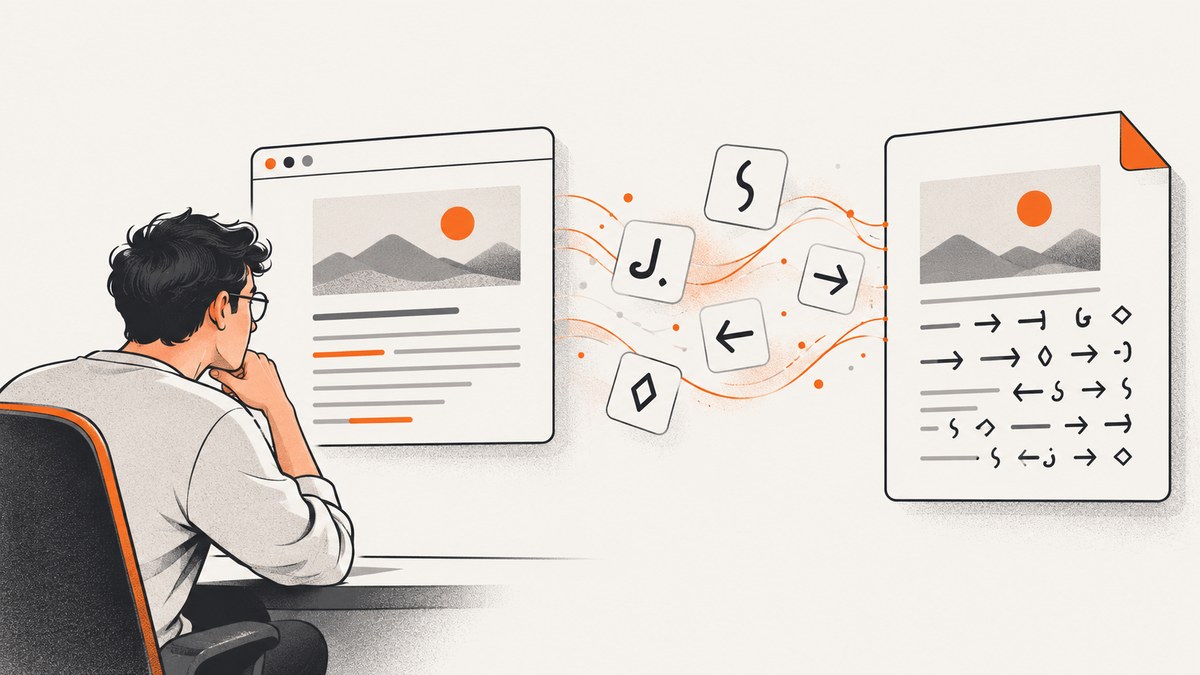
A Puppeteer PDF can look perfect on screen and still produce reversed words, missing characters, broken spaces, or gibberish when someone selects, copies, searches, or extracts its text. The visible glyphs and the PDF’s text-extraction data are related but separate. The reliable way to fix the problem is to identify which layer is failing, then test the HTML encoding, loaded font, print styles, PDF mappings, extraction order, and exact Puppeteer/Chromium build.
This guide gives you a repeatable diagnostic process, runnable Puppeteer examples, extraction checks, troubleshooting steps, and production recommendations.
1. Start by separating visual rendering from text extraction
First classify the symptom. Open the PDF and check all four behaviors:
- Visual rendering: Do the glyphs on the page look correct?
- Selection: Can you select the expected characters?
- Copy and paste: Does pasted text preserve characters, spaces, and order?
- Search or extraction: Can a PDF reader or extractor find the words?
A page that looks correct but pastes backwards usually has a problem in the PDF’s character mapping or reading order, not in the pixels you see. If the page itself shows replacement boxes or wrong glyphs, investigate encoding and font loading first. Test the same file in another PDF reader or text extractor; a viewer-specific ordering problem can look like a malformed PDF.
Keep a small sample containing the exact failures: accented characters, non-Latin scripts, emoji if relevant, punctuation, and a sentence whose word order reverses. Compare the pasted result with the original JavaScript string and the HTML source.
2. Build a minimal reproducible PDF
Reduce the page to one heading, one paragraph, and the font rule that triggers the issue. This tells you whether the problem belongs to your application or to a specific browser/font combination.

import puppeteer from 'puppeteer';
const html = `
Copy this sentence
Résumé — naïve café. مرحبًا بالعالم. 你好,世界。
`;
const browser = await puppeteer.launch({headless: true});
try {
const page = await browser.newPage();
await page.setContent(html, {waitUntil: 'networkidle0'});
await page.pdf({
path: 'minimal.pdf',
format: 'A4',
printBackground: true
});
} finally {
await browser.close();
}Generate this file with the same Puppeteer dependency and runtime that produce the failing document. If the minimal file copies correctly, add your custom font, CSS, scripts, and content one at a time until the behavior returns.
3. Verify HTML encoding and the source characters
Make UTF-8 explicit in both the document and the HTTP response that serves it. A meta tag cannot repair text that was already decoded incorrectly before it reached the browser.
<meta charset="utf-8">When you use page.setContent(), pass a JavaScript string and inspect its code points before rendering:
const sample = 'Résumé — naïve café. مرحبًا بالعالم. 你好,世界.';
console.log([...sample].map(ch => `${ch} U+${ch.codePointAt(0).toString(16).toUpperCase()}`));
await page.setContent(`<meta charset="utf-8"><p>${sample}</p>`);
If you load a URL, check the server’s Content-Type header and charset. Also check whether a template, JSON parser, database driver, or URL decoder changed the string before it became HTML. Look for double encoding such as literal É, replacement characters (U+FFFD), or a string that is already mojibake before Chromium sees it.
4. Check which font actually loaded
Custom webfonts are a frequent boundary in reports of reversed copy order. A CSS declaration alone does not prove that the intended font loaded, finished, and embedded with usable mappings.
Inspect the browser’s computed font and the document’s font readiness:
await page.evaluate(async () => {
  await document.fonts.ready;
  const el = document.querySelector('p');
  return {
    status: document.fonts.status,
    fonts: [...document.fonts].map(font => ({
      family: font.family,
      status: font.status,
      weight: font.weight,
      style: font.style
    })),
    computedFamily: getComputedStyle(el).fontFamily
  };
}).then(console.dir);
For diagnosis, replace the custom font with a simple known font such as Arial or a system sans-serif. If copy and search become correct, compare the font file format, subsetter, variation axes, right-to-left tables, and CSS declarations. Make sure the font URL is reachable from the browser process and does not require credentials that the page lacks.
Puppeteer’s current PDF guide says Page.pdf() waits for fonts by default. That default is useful, but it does not guarantee that every requested font completed its network path or that its embedded character mapping is suitable for extraction. You should still await readiness explicitly when diagnosing:
await page.evaluate(() => document.fonts.ready);
await page.pdf({path: 'checked-fonts.pdf'});
5. Understand print CSS and rendering media
Page.pdf() generates with the print CSS media type by default, as documented in Puppeteer’s Page.pdf() API and PDF generation guide. Print rules can select a different font, hide content, change direction, or alter layout. They can therefore change the text runs that Chromium writes to the PDF.
Compare print and screen media deliberately:
// Default: print media
await page.pdf({path: 'print.pdf'});

// Generate using screen styles
await page.emulateMediaType('screen');
await page.pdf({path: 'screen-media.pdf'});
Do not treat emulateMediaType('screen') as a universal repair. It only changes the active CSS media rules. If both files extract incorrectly, return to the font, source text, PDF mapping, and runtime checks.
6. Compare extraction, copy, and reading order
Use the same PDF in at least two consumers. Record whether each consumer reports wrong glyphs, missing characters, reversed sequence, broken word spacing, or merely a different column order. A two-column page may copy in visual order that differs from the logical order a parser chooses.
PDF 32000-1:2008 explains the distinction: display uses character codes to select glyphs, while copy, search, text-to-speech, and export need Unicode mappings and interpretable reading order. Tagged PDF defines rules so characters, words, and text order can be determined reliably. A visually correct page therefore does not prove that its extraction mapping is correct.
When accessibility and extraction matter, keep the HTML semantic: use real headings, paragraphs, lists, and tables. Avoid drawing all text onto a canvas or converting it to outlines. Preserve a logical DOM order, especially for columns, flex layouts, and right-to-left content.
7. Check Puppeteer and Chromium versions
Record both the Puppeteer package version and the browser revision it launches:
npm ls puppeteer
node -p "require('puppeteer/package.json').version"
node -e "const p=require('puppeteer'); p.launch().then(async b => { console.log(await b.version()); await b.close(); })"
Issue reports show why this matters. A 2018 report described a PDF that looked normal but pasted with reversed words; later comments connected similar behavior with a custom font and a version boundary. A December 2024 report described reverse-order copying with embedded Noto Sans data on Puppeteer 23.8.0 and said earlier releases in that test worked while later releases did not. That report was closed as “not planned.” These are case-specific reports, not proof of a universal regression or a guaranteed downgrade fix.
Keep a lockfile and test the exact browser revision in CI. If a version change correlates with the failure, reproduce it with the minimal HTML and font, compare the generated PDFs, and document the result before pinning or changing versions. Do not assume that upgrading or downgrading alone repairs every PDF.
8. A production diagnostic checklist
- Save the original HTML, source string, Puppeteer version, Chromium version, operating system, and PDF consumer.
- Classify the symptom as visual, character, order, spacing, search, or viewer-specific.
- Generate the minimal PDF with a known system font.
- Add
<meta charset="utf-8">and verify response headers. - Await
document.fonts.readyand inspect actual font status. - Compare print media with
screenmedia. - Compare the custom font with a known font and then test the custom font alone.
- Open the same PDF in another reader or extractor.
- Repeat on a locked, known Puppeteer/Chromium build.
- Attach a minimal HTML example and the generated PDF to the bug report.
9. Common errors and fixes
| Symptom | Likely cause | What to try |
|---|---|---|
| Correct pixels, reversed words | Font mapping or text-run order | Test a known font, inspect extraction in another reader, compare runtime versions, and reduce to a minimal document. |
| Accents become boxes or replacement characters | Wrong source encoding or missing glyphs | Verify UTF-8 at every boundary, inspect code points, and confirm the loaded font contains the characters. |
| Only one language fails | Fallback font, shaping, or direction rules | Test that language in isolation, inspect computed fonts, and check dir, unicode-bidi, and font fallback. |
| Print PDF differs from screenshot | Print CSS or print-only font rule | Compare with page.emulateMediaType('screen') and inspect @media print. |
| Text works locally but not in CI | Different Chromium, OS fonts, or blocked font URL | Log versions, package the required font, wait for readiness, and make network failures visible. |
| One reader pastes incorrectly | Viewer extraction order | Compare another reader/extractor before changing generation code. |
| Copied columns are interleaved | Ambiguous visual layout order | Use semantic DOM order, tagged structure where available, and simpler layout for export. |
10. Performance, reliability, and cost considerations
Font readiness and network idle waits improve determinism but can increase capture time. Use a bounded navigation timeout, fail clearly when a required font cannot load, and avoid waiting forever for analytics or advertising requests. For repeatable output, self-host the fonts and assets used in the PDF, pin dependency versions, and run a small text-extraction smoke test alongside a visual snapshot test.
Cache the input HTML and font assets where appropriate, but invalidate the cache when typography or browser versions change. Store the generated PDF and metadata needed to reproduce it. A visual diff alone will miss broken Unicode mappings, so include copied text and search assertions for representative languages.
11. Or skip the browser setup
If your goal is a clean image or PDF of a URL rather than control over Chromium internals, ScreenshotNeo provides a single HTTP request. Its API accepts capture options for PDF paper size, margins, landscape mode, and page ranges, along with custom CSS and JavaScript, waits, headers, cookies, user agents, and other browser controls. See the ScreenshotNeo API documentation for the complete option list.
curl -G "https://api.screenshotneo.com/v1/shot" -d access_key=YOUR_API_KEY --data-urlencode url=https://stripe.com -o shot.webpimport requests
r = requests.get("https://api.screenshotneo.com/v1/shot", params={"access_key": "YOUR_API_KEY", "url": "https://stripe.com"}, timeout=90)
open("shot.webp", "wb").write(r.content)const q = new URLSearchParams({ access_key: 'YOUR_API_KEY', url: 'https://stripe.com' });
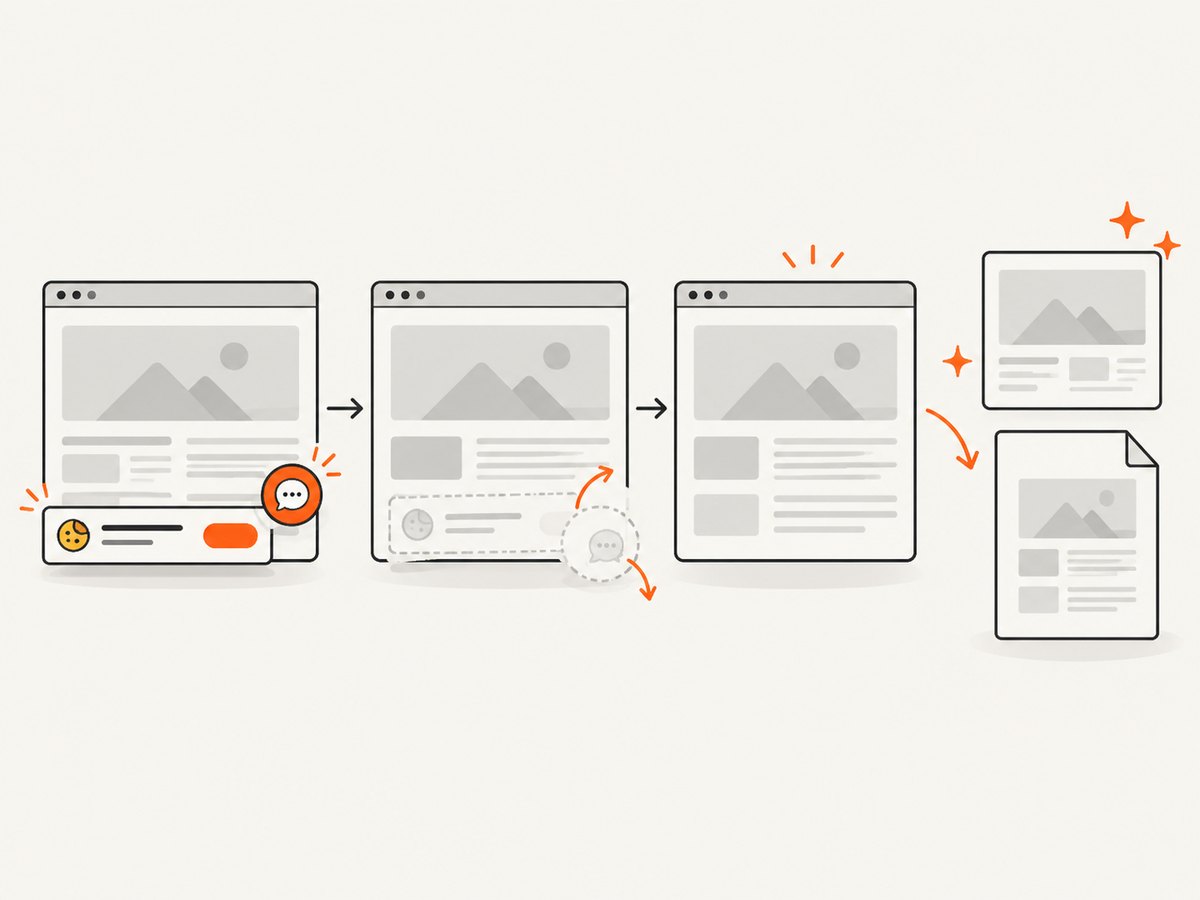
const res = await fetch(`https://api.screenshotneo.com/v1/shot?${q}`);ScreenshotNeo removes cookie and consent banners, newsletter popups, and chat widgets before capture. Bot checks, blank pages, failed loads, timeouts, and cache hits are not billed, and the response identifies the result with X-Page-Verdict and X-Billed headers. It also offers an MCP server with take_screenshot, get_page_info, and capture_pdf tools for Claude, Cursor, and other MCP clients.
The Free plan includes 1,000 screenshots per month with no card. Paid plans start at $5 for 3,000 shots, and every feature is available on every plan. Create a free ScreenshotNeo account to get started.
12. FAQ
Does a correct-looking PDF prove its text is valid?
No. Glyph rendering can be correct while Unicode mappings or reading order used for copy and search are wrong.
Should I always use screen media for PDFs?
No. Use the media type your document requires, then test extraction. Screen media changes CSS; it does not repair malformed mappings.
Is Puppeteer 23.8.0 broken?
A 2024 issue reported a version-specific reverse-copy symptom with embedded Noto Sans, but it does not establish a universal defect or a guaranteed fix.
What information should a bug report include?
Include the visual and copy symptoms, affected characters, HTML and encoding, actual loaded font, Puppeteer and Chromium versions, operating system, PDF consumer, minimal HTML, and generated PDF.
Can changing readers fix the generated file?
It can reveal a viewer-specific extraction problem, but it does not prove the PDF’s mappings are correct. Compare multiple consumers and test search and copied text.


