How to Fix Custom Fonts Missing in Puppeteer PDFs but Appearing in Screenshots
Puppeteer screenshots can show the right font while PDFs use a fallback. Diagnose print CSS, font loading, media mode, and deployment access.
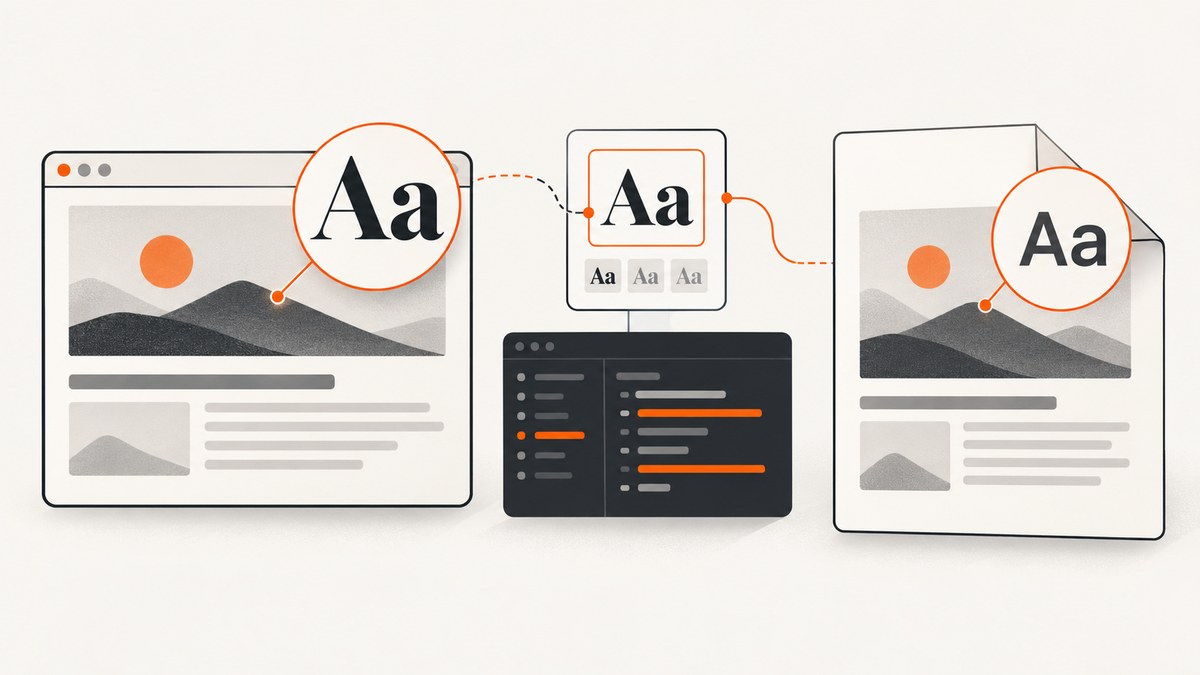
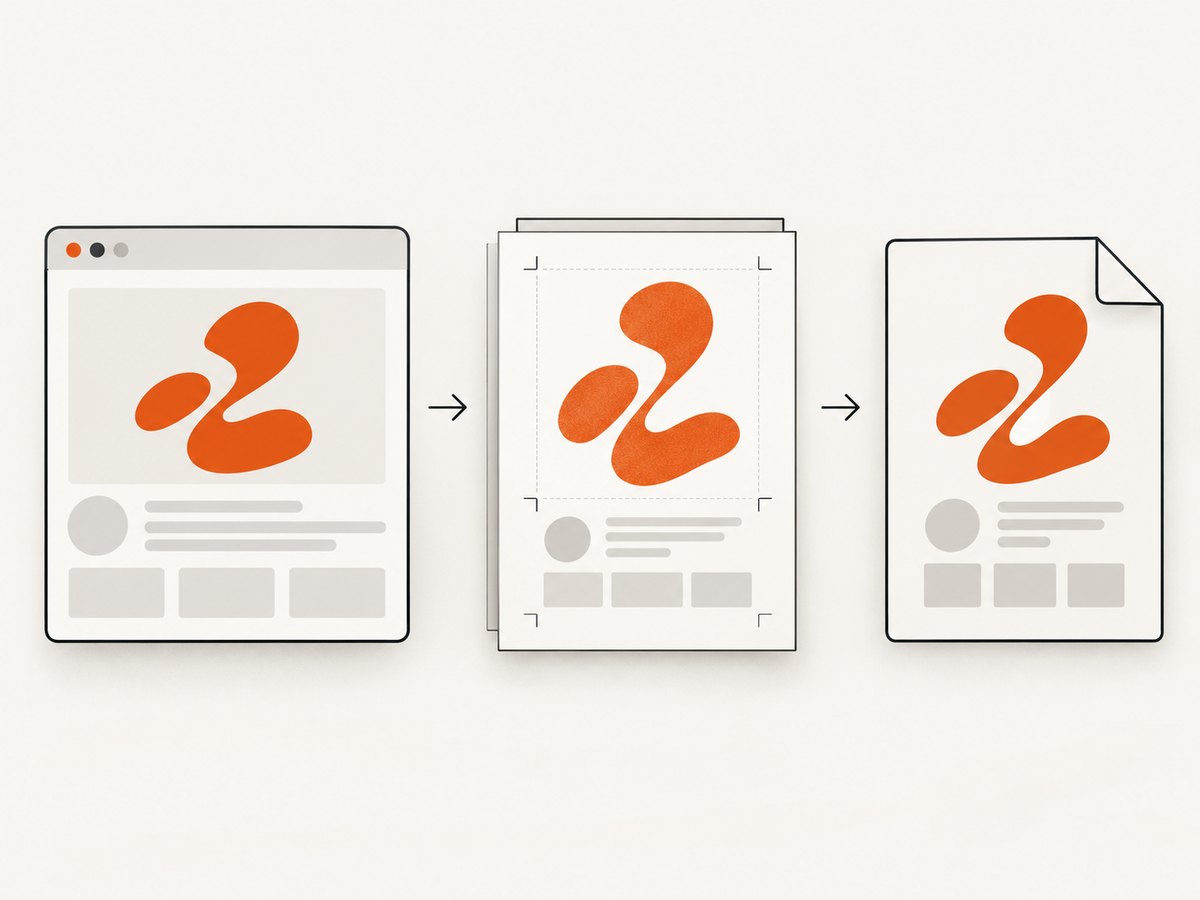
A custom font can appear correctly in a Puppeteer screenshot and still be missing from the generated PDF. The usual reason is that the two outputs use different rendering conditions: page.screenshot() captures the screen presentation, while page.pdf() uses the print CSS media type. Print rules may select another family or weight, hide the intended content, or expose a font request that is unavailable in the PDF runtime.
Puppeteer already waits for document.fonts.ready before creating a PDF by default. That wait only says the document’s font loading promise settled; it does not prove that the intended face was downloaded, selected by print CSS, or rendered by Chromium. Fix the problem by comparing screen and print styles, checking the actual font requests and computed styles, and then verifying the generated PDF.
1. Reproduce the difference with one page instance
Use one browser page to create both outputs. This removes timing differences between separate navigations and gives you a reliable baseline.
import puppeteer from 'puppeteer';

const browser = await puppeteer.launch({
  headless: true,
});
const page = await browser.newPage();

page.on('console', message => {
  console.log('[page console]', message.type(), message.text());
});
page.on('requestfailed', request => {
  console.error('[request failed]', request.url(), request.failure()?.errorText);
});
page.on('response', response => {
  const url = response.url();
  if (/\.(woff2?|ttf|otf)(\?|$)/i.test(url)) {
    console.log('[font]', response.status(), url);
  }
});

await page.goto('https://example.com/document', {
  waitUntil: 'networkidle0',
});

await page.screenshot({
  path: 'screen.png',
  fullPage: true,
});

await page.bringToFront();
await page.pdf({
  path: 'print.pdf',
  format: 'A4',
  printBackground: true,
  waitForFonts: true,
});

await browser.close();
The Puppeteer Page.pdf() API documents that PDF generation uses the print CSS media type. Its PDF options document waitForFonts, which defaults to true, and note that page.bringToFront() may be needed when a background page prevents the wait from resolving.
2. Check print CSS before changing font files
Open the page’s stylesheets and search for:
@media printblocks that replacefont-family,font-weight, orfont-style.- Print selectors that hide the element containing the custom font and reveal a fallback version.
@font-facedeclarations scoped by media queries or loaded only by a screen stylesheet.- Weight mismatches, such as requesting
600when only a400file is declared. font-displaybehavior that leaves a fallback visible while a remote face is still loading.
Inspect computed styles while print media is active. Puppeteer provides the documented option of emulating screen media before PDF generation when the PDF should reproduce screen styling:
await page.emulateMediaType('screen');
await page.pdf({
  path: 'screen-style.pdf',
  format: 'A4',
  printBackground: true,
  waitForFonts: true,
});
Use this only when the PDF is intentionally a screen-style export. A document designed for printing should keep print media and fix its print rules instead.
3. Verify the intended face is available
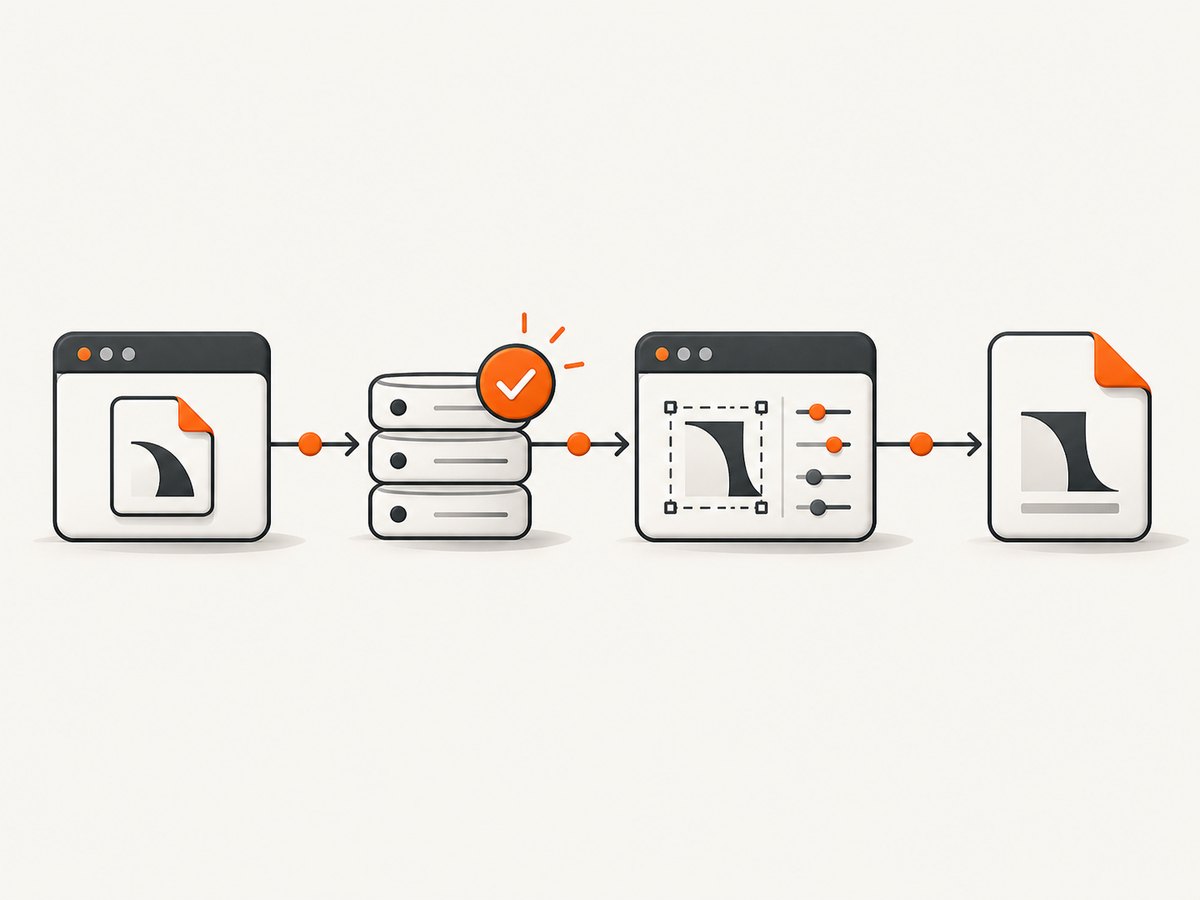
document.fonts.ready is useful synchronization, but it is not a visual identity check. Query the FontFaceSet, the element’s computed style, and the exact family and weight used by the content.
const result = await page.evaluate(async () => {
  await document.fonts.ready;

  const target = document.querySelector('.invoice-title');
  if (!target) throw new Error('Target element was not found');

  const style = getComputedStyle(target);
  const shorthand = `
    ${style.fontStyle} ${style.fontWeight} ${style.fontSize}
    ${style.fontFamily}
  `;

  return {
    status: document.fonts.status,
    expectedFontAvailable: document.fonts.check(shorthand, target.textContent || 'Sample text'),
    family: style.fontFamily,
    weight: style.fontWeight,
    style: style.fontStyle,
  };
});

console.log(result);
Run this check with the same media type used for PDF generation and with the target element present. A true result means the browser considers a matching face usable for the check; compare it with network responses and computed styles before concluding that the visual output must be correct.
4. Make font loading explicit when diagnosing
Current Puppeteer documentation says PDF generation waits for fonts by default. Making the option explicit improves readability and protects you from confusion when code is upgraded or shared. You can also wait for a specific face before creating the PDF.
await page.bringToFront();
await page.emulateMediaType('print');

await page.evaluate(async () => {
  await document.fonts.ready;
  await document.fonts.load('400 16px "Example Font"', 'The text that must use the font');
  await document.fonts.load('700 16px "Example Font"', 'The text that must use the font');
});

await page.pdf({
  path: 'output.pdf',
  format: 'A4',
  waitForFonts: true,
  printBackground: true,
});
document.fonts.load() asks the browser to load a matching face. It still does not replace checking the response status, MIME type, CORS policy, and computed style.
5. Inspect failed or blocked font requests
If print CSS names the correct family but the PDF uses a fallback, inspect the request itself. A screenshot may have been captured after a cached font load, while the PDF run may use a fresh browser context or a different deployment environment.
- Log
requestfailedevents and font response status codes. - Check that the PDF process can resolve and reach the font host.
- Verify the response is a real font file, not an HTML error page or an authentication redirect.
- Check CORS headers when fonts are served from another origin.
- Confirm that a content security policy is not blocking the font.
- Compare the browser, Puppeteer, OS, and container versions used locally and in production.
Do not install an operating-system font package until the evidence points to a missing local font. Web fonts declared with @font-face and fonts expected from the operating system fail for different reasons.
6. A complete diagnostic script
The following script captures both modes, records font activity, checks a target element, and creates a PDF. Replace the URL and selector with your page.
import puppeteer from 'puppeteer';

const url = 'https://example.com/document';
const selector = '.invoice-title';
const browser = await puppeteer.launch({ headless: true });
const page = await browser.newPage();

page.on('console', msg => console.log('console:', msg.text()));
page.on('requestfailed', req => {
  console.error('failed:', req.url(), req.failure()?.errorText);
});
page.on('response', res => {
  if (/\.(woff2?|ttf|otf)(\?|$)/i.test(res.url())) {
    console.log('font response:', res.status(), res.url());
  }
});

await page.goto(url, { waitUntil: 'networkidle0' });
await page.screenshot({ path: 'screen.png', fullPage: true });

await page.emulateMediaType('print');
const diagnostics = await page.evaluate(async (selector) => {
  await document.fonts.ready;
  const node = document.querySelector(selector);
  if (!node) return { error: `Missing selector: ${selector}` };
  const style = getComputedStyle(node);
  return {
    fontStatus: document.fonts.status,
    family: style.fontFamily,
    weight: style.fontWeight,
    style: style.fontStyle,
    check: document.fonts.check(
      `${style.fontStyle} ${style.fontWeight} ${style.fontSize} ${style.fontFamily}`,
      node.textContent || 'Sample text'
    ),
  };
}, selector);
console.log('print diagnostics:', diagnostics);

await page.bringToFront();
await page.pdf({
  path: 'print.pdf',
  format: 'A4',
  printBackground: true,
  waitForFonts: true,
});

await browser.close();
7. Choose the correct output mode
| Choice | Use it when | Trade-off |
|---|---|---|
| Keep print media | The PDF is a printable document and print rules are intentional. | Print CSS must retain the required family, weights, and layout. |
emulateMediaType('screen') |
The PDF should match the screen presentation. | Screen rules may produce poor pagination, margins, or page breaks. |
Set the media type before the font diagnostic and before page.pdf(). Otherwise you can validate a screen style and generate a print PDF, which recreates the original confusion.
8. Common errors and fixes
“The screenshot is correct, but the PDF uses Arial.”
Cause: print CSS selects a fallback or the custom face is unavailable under print conditions. Fix: inspect computed font-family after emulateMediaType('print'), then inspect the font request.
“I set waitForFonts: true, but the font is still wrong.”
Cause: the option waits for document.fonts.ready; it does not validate the intended family or weight. Fix: use document.fonts.check(), computed styles, console logs, and network response logs together.
“The PDF hangs while waiting for fonts.”
Cause: the page is backgrounded or a font-loading operation never settles. Fix: call page.bringToFront(), inspect failed requests, and test a minimal page containing only the font declaration.
“Only bold text is wrong.”
Cause: the stylesheet requests a weight for which no matching face exists, so Chromium synthesizes or substitutes it. Fix: declare the exact weights used by the content and verify the computed weight.
“It works locally but fails in a container.”
Cause: different browser versions, DNS access, certificates, proxy rules, CORS headers, or local font availability. Fix: record versions and compare font response status, URL, content type, and runtime access in the deployment environment.
“The page looks right in a cached browser only.”
Cause: the cached font hides a slow or unreliable request. Fix: test a fresh context, wait for network idle, and capture request failures. A successful screenshot from one run does not prove every PDF worker can fetch the face.
9. Performance, reliability, and cost considerations
Font files add network latency and memory use. Prefer appropriately subsetted WOFF2 files, request only the weights you render, and reuse a browser instance for multiple jobs. Avoid making a PDF immediately after navigation when the page starts font loading from JavaScript; wait for the relevant face and content instead of relying on an arbitrary delay.
For reliable output, pin compatible Puppeteer and Chromium versions, log failed requests, keep a small PDF fixture for regression checks, and preserve the generated PDF when reporting a suspected Chromium issue. A historical Puppeteer issue report records that developers have encountered custom-font PDF symptoms, but it does not prove that the same root cause exists in current releases.
PDF generation also depends on page size, margins, background printing, and pagination. A font substitution can change line breaks and push content onto another page, so compare both font identity and page geometry when reviewing output.
Or skip the browser setup
If you only need a clean image or PDF from a URL, ScreenshotNeo provides a website screenshot API and MCP server. Its capture pipeline accepts consent banners and removes more than 60 known consent platforms, newsletter popups, and chat widgets before the shot; each step can be turned off. Bot checks, blank pages, timeouts, failed loads, and cache hits are not billed, and response headers identify the page verdict and billing status.
See the ScreenshotNeo API documentation for all options.
curl -G "https://api.screenshotneo.com/v1/shot" \
  -d access_key=YOUR_API_KEY \
  --data-urlencode url=https://stripe.com \
  -o shot.webp
import requests
r = requests.get(
"https://api.screenshotneo.com/v1/shot",
params={"access_key": "YOUR_API_KEY", "url": "https://stripe.com"},
timeout=90,
)
r.raise_for_status()
open("shot.webp", "wb").write(r.content)const q = new URLSearchParams({
access_key: 'YOUR_API_KEY',
url: 'https://stripe.com',
});
const res = await fetch(`https://api.screenshotneo.com/v1/shot?${q}`);
if (!res.ok) throw new Error(`Screenshot failed: ${res.status}`);
const bytes = new Uint8Array(await res.arrayBuffer());
await Bun.write('shot.webp', bytes);ScreenshotNeo also supports PDF output, custom CSS and JavaScript, cookies, headers, user agents, authorization, device presets, full-page capture with lazy images, selector capture, dark mode, waits, request blocking, caching, signed links, asynchronous jobs, webhooks, bulk capture, and an MCP server with take_screenshot, get_page_info, and capture_pdf tools for Claude, Cursor, and other MCP clients.
There is no browser to package or font-loading race to debug in your worker. The Free plan includes 1,000 screenshots per month with no card; paid plans start at $5 for 3,000 shots. Create a free ScreenshotNeo account.
FAQ
Does Puppeteer always use print CSS for PDFs?
Yes, Page.pdf() is documented as generating output with the print CSS media type unless you emulate screen media first.
Does document.fonts.ready prove that my brand font rendered?
No. It indicates that the document font set reached readiness. Check the requested face, computed style, network response, and generated PDF together.
Should I use a screenshot and convert it to PDF?
Only when a pixel image is acceptable. Image-based PDFs lose selectable text and accessible document structure. Fix print rendering when you need a real document PDF.
Can installing a system font fix every case?
No. It helps only when the page depends on a local operating-system font. Remote @font-face failures require checking URLs, responses, CORS, certificates, and deployment access.
When should I report a Puppeteer or Chromium bug?
After confirming the print computed style names the intended face, the font request succeeds, and a minimal reproduction still produces a mismatch. Include versions, CSS, logs, and the PDF.


