How to Fix Puppeteer PDF Generation on a Deployed Server
Puppeteer works locally but fails in production? Follow this diagnostic path for browser installs, Linux libraries, sandboxes, Docker, and PDF options.
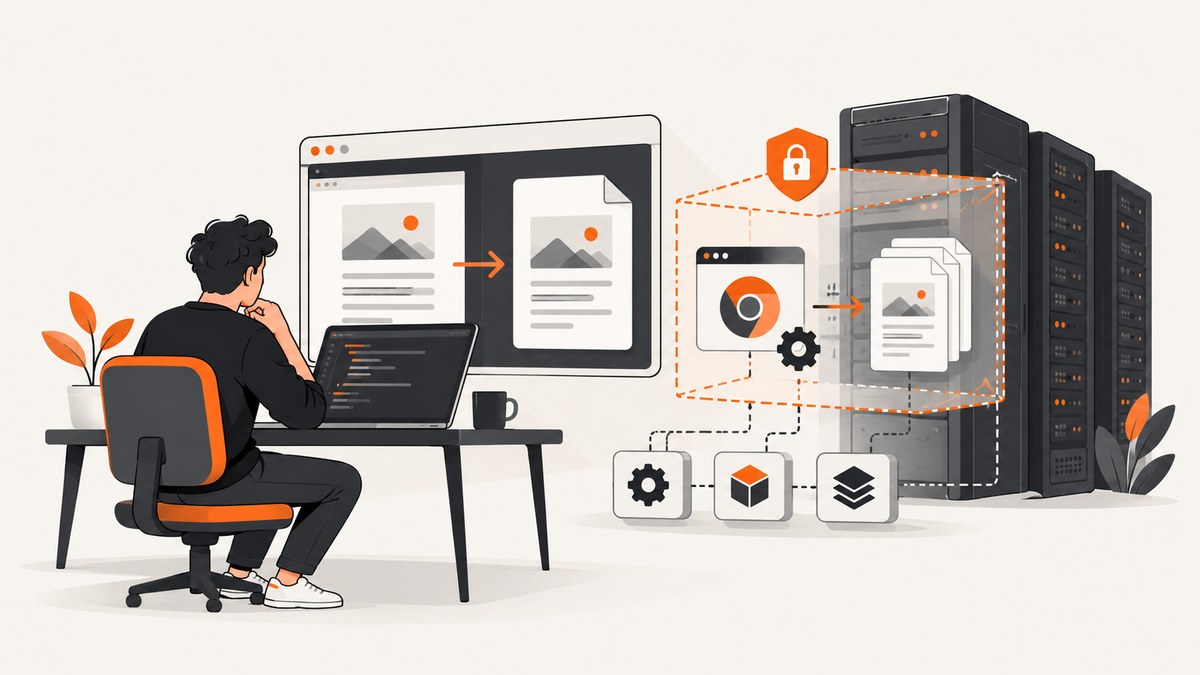
Puppeteer PDF generation usually fails on a deployed server because the production environment is different from the development machine. The application may be missing Chrome for Testing, shared libraries, a writable cache or output directory, a compatible executable, or a usable Chrome sandbox. A browser launch failure and a PDF rendering failure are separate problems, so diagnose them in that order.
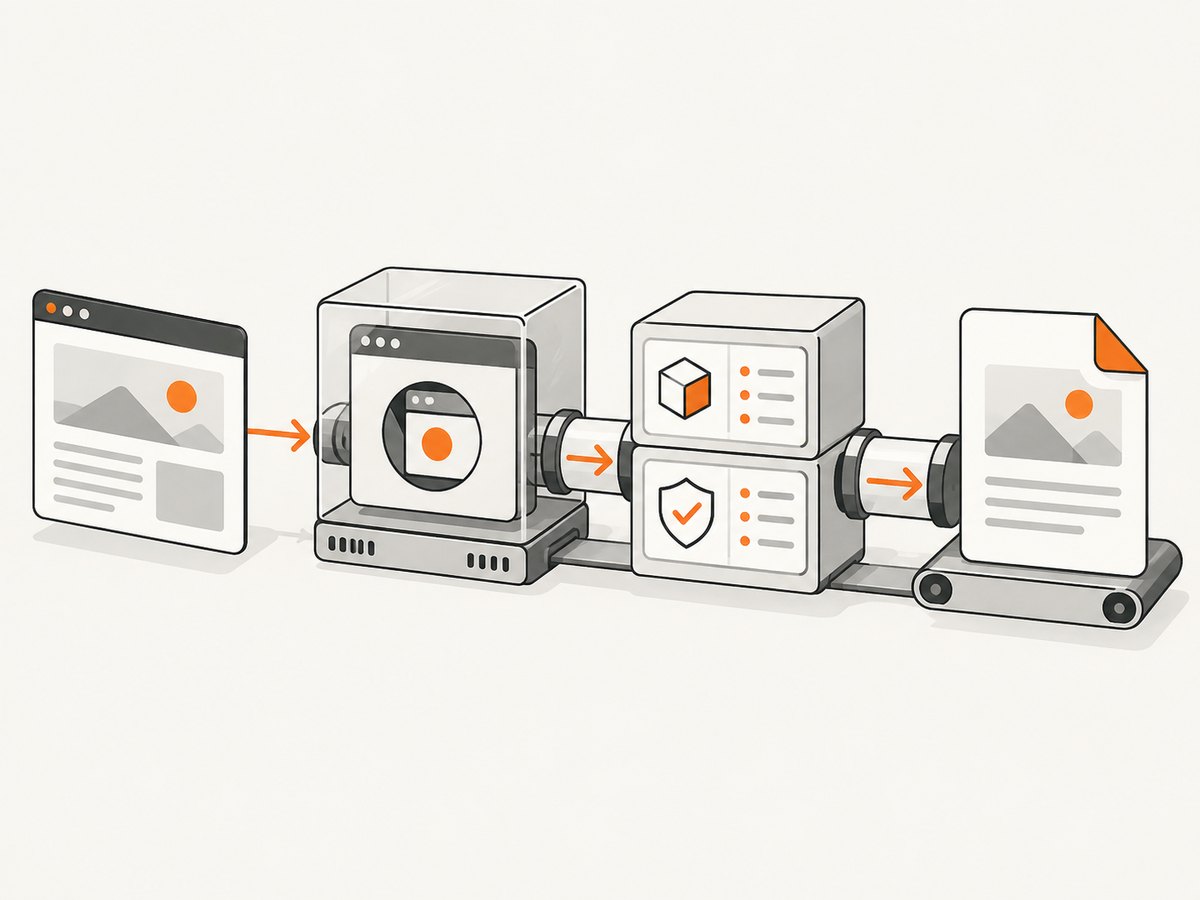
The reliable sequence is:
- Capture the complete server error and browser output.
- Confirm that a compatible browser exists in the deployed image.
- Check its executable path and cache directory.
- Check Linux native libraries and sandbox policy.
- Verify Docker capabilities and process management.
- Only after Chrome launches, debug page readiness and PDF options.
Puppeteer’s requirements change with releases. The current system requirements document lists Node 22.12 or newer for the documented release and specifies supported Chrome for Testing platforms. Check the requirements for the exact version installed in your application before changing the deployment. See the official system requirements.
1. Capture the real failure first
Do not start by adding random Chrome flags. Save the entire exception, including the nested browser message and the server’s standard error output. Launch with dumpio: true so Chrome’s process logs reach your Node.js logs:
import puppeteer from 'puppeteer';

const browser = await puppeteer.launch({
  headless: true,
  dumpio: true
});

try {
  const page = await browser.newPage();
  await page.goto('https://example.com', { waitUntil: 'networkidle2' });
  await page.pdf({ path: '/tmp/example.pdf', format: 'A4', printBackground: true });
} finally {
  await browser.close();
}
Use protocol logging only while diagnosing and protect the resulting logs. Puppeteer’s debugging guidance warns that logs can contain sensitive information. Remove cookies, authorization headers, page content and tokens before sharing an error report. Read the troubleshooting guidance.
2. Confirm that Chrome was installed in production
A common local-to-production mismatch is that the browser download ran on a laptop but did not run during deployment. Package managers can block install scripts, and environment variables can deliberately skip the download. Puppeteer’s configuration supports browser download control, an explicit executable path, a cache directory and a temporary directory. The corresponding environment variables include PUPPETEER_SKIP_DOWNLOAD, PUPPETEER_EXECUTABLE_PATH and PUPPETEER_CACHE_DIR. Review the configuration interface.
Run these checks inside the deployed environment, not on your workstation:
node --version
node -e "console.log(require('puppeteer/package.json').version)"
node -e "import('puppeteer').then(async p => console.log(await p.default.executablePath()))"
which google-chrome || true
which chromium || true
which chromium-browser || true
ls -la node_modules/puppeteer/.local-chromium 2>/dev/null || true
If the expected browser is absent, install it as part of the image or deployment process. Current Puppeteer documentation describes an explicit browser installer; use the installer that matches your installed Puppeteer version. If you intentionally set PUPPETEER_SKIP_DOWNLOAD=true, install a compatible browser yourself and set PUPPETEER_EXECUTABLE_PATH to its real location.
Keep Puppeteer and the browser paired
Puppeteer states that every release is tightly bundled with a specific browser release to preserve compatibility with Chrome DevTools Protocol and WebDriver BiDi. An externally installed browser may work, but the bundled browser is the compatibility target. Avoid silently upgrading the operating-system browser while leaving Puppeteer pinned to an old version. See the Puppeteer FAQ.
3. Check Linux libraries and the executable
Minimal Linux images often omit libraries that Chrome needs for fonts, graphics, sandboxing, audio, networking and display support. A browser binary can exist and still fail immediately because its dynamic libraries are missing.
Find the executable Puppeteer will run and inspect its dependencies:
CHROME_PATH="$(node -e "import('puppeteer').then(async p => process.stdout.write(await p.default.executablePath()))")"
echo "$CHROME_PATH"
ldd "$CHROME_PATH" | grep "not found" || true
"$CHROME_PATH" --version
The exact package list depends on the distribution and base image. Use the package requirements for your Puppeteer release and image rather than copying an unrelated Ubuntu list into Alpine, Debian or Fedora. If ldd reports missing libraries, add them to the deployed image and repeat the check there.
Also check writable locations. Chrome needs a usable temporary directory, and your application needs permission to create the PDF. An absolute path such as /tmp/report.pdf avoids surprises caused by a different process working directory. Puppeteer resolves a relative PDF path from the process working directory.
4. Treat sandbox errors as host configuration issues
Chrome uses sandbox layers to isolate page content. When the host does not provide a usable sandbox, the browser can exit with No usable sandbox!. Puppeteer’s troubleshooting documentation says running without a sandbox is strongly discouraged.
First investigate:
- Whether the container or VM permits the sandbox mechanism required by Chrome.
- Whether the Chrome binary has the expected ownership and permissions.
- Whether a restrictive security profile, user namespace policy or orchestration setting blocks it.
- Whether the process runs as a user suitable for the image’s sandbox setup.
Do not make --no-sandbox the routine fix. It removes an important isolation boundary. If a trusted, isolated environment leaves no alternative, document the risk, restrict the pages that can be opened, and obtain a security review. A successful PDF is not evidence that disabling the sandbox is safe.
5. Make Docker contain the complete browser environment
Your production image must contain the browser, its native dependencies, fonts required by your documents and a process setup that reaps child processes. Puppeteer publishes a Docker image containing Chrome for Testing and its dependencies. The Docker guide says that image is intended to run Chrome sandboxed and requires the SYS_ADMIN capability; it also recommends an init process so processes started by Puppeteer are managed correctly. Read the Docker guide.
Whether you use the published image or build your own, add a smoke check to the same image that serves production:
import puppeteer from 'puppeteer';

const browser = await puppeteer.launch({ headless: true });
const page = await browser.newPage();
await page.setContent('<h1>Smoke test</h1>', { waitUntil: 'load' });
await page.pdf({ path: '/tmp/smoke.pdf', format: 'A4' });
await browser.close();
console.log('PDF smoke test passed');
Run it during image validation or a deployment health check. This catches missing libraries, permissions and sandbox problems before a user submits a document.
6. Platform-specific deployment checks
Cloud platforms impose different filesystem and process constraints. Use platform-specific guidance only when it matches your host:
| Environment | What to verify |
|---|---|
| Google App Engine or Cloud Functions | Use a writable Puppeteer cache path and confirm the runtime’s documented system packages. A cache under node_modules can help when cached dependencies prevent install steps from running. |
| Cloud Run | Use a custom Dockerfile that installs the browser packages and dependencies required by your Puppeteer version. |
| Heroku | Use a supported Chrome buildpack or equivalent documented setup, and verify the executable path during the build. |
These are deployment patterns, not universal fixes. The server error and the actual image contents should determine which one applies.
7. Once Chrome launches, debug PDF generation separately
If a browser can open a page but PDF creation fails or produces an empty document, inspect page readiness and PDF inputs.
Wait for the page your document needs
await page.goto('https://example.com/invoice/123', {
  waitUntil: 'networkidle2',
  timeout: 60_000
});

await page.waitForSelector('#invoice-total', { timeout: 30_000 });
await page.evaluate(() => document.fonts.ready);
Use a selector when a client-side application renders asynchronously. Use a bounded delay only for a known animation or third-party widget; an unbounded wait can consume your request timeout.
Set paper, margins and backgrounds explicitly
await page.pdf({
  path: '/tmp/invoice.pdf',
  format: 'A4',
  printBackground: true,
  preferCSSPageSize: true,
  margin: {
    top: '16mm',
    right: '14mm',
    bottom: '16mm',
    left: '14mm'
  },
  waitForFonts: true
});
Use CSS for repeatable layout:
<style>
  @page { size: A4; margin: 16mm 14mm; }
  @media print {
    .screen-only { display: none !important; }
    .avoid-break { break-inside: avoid; }
  }
</style>
Check fonts in the deployed image. A missing font can change line wrapping and push content onto additional pages. Verify the output path and permissions, and remember that the default PDF timeout is 30 seconds. Increasing timeout helps a slow page, but cannot repair a browser that never launched. See the PDFOptions reference.
Useful PDF options
| Option | Use it when | Common mistake |
|---|---|---|
format |
You want a standard paper size such as A4 or Letter. | Assuming CSS page size will win without preferCSSPageSize. |
width, height |
You need an exact custom page. | Mixing units or forgetting margins consume page area. |
landscape |
The document is wider than it is tall. | Keeping portrait CSS dimensions. |
margin |
You need printer-safe whitespace. | Using CSS margins and PDF margins without accounting for both. |
pageRanges |
You need selected pages. | Requesting pages that do not exist. |
printBackground |
Colors, cards or background images are part of the design. | Expecting screen backgrounds by default. |
waitForFonts |
Web fonts affect layout. | Capturing before document.fonts.ready. |
8. Common errors and precise fixes
| Error or symptom | Likely cause | Fix |
|---|---|---|
Could not find Chrome or executable missing |
Download skipped, cache absent or path wrong. | Install the browser in the image; inspect PUPPETEER_CACHE_DIR and PUPPETEER_EXECUTABLE_PATH. |
Failed to launch the browser process |
Missing shared library, incompatible binary or permissions. | Run ldd, check the binary version and inspect dumpio output. |
No usable sandbox! |
Host or container sandbox policy blocks Chrome. | Fix sandbox and container capabilities; treat --no-sandbox as a last-resort security exception. |
| PDF timeout | Slow navigation, never-ending requests or a missing selector. | Use a bounded navigation timeout, wait for a meaningful selector, block irrelevant resources where appropriate and inspect network behavior. |
| Blank PDF | Capture occurred before client rendering or the wrong frame was used. | Wait for the application’s ready selector and fonts; verify the URL and page content. |
| Fonts or images missing | Assets unavailable from the server or not loaded before capture. | Check outbound access, credentials, font files and readiness conditions. |
EACCES writing PDF |
Output directory is read-only. | Write to a permitted temporary directory, then upload or move the file. |
| Works locally, fails only in Docker | Different libraries, user, capabilities or cache. | Run the smoke test in the final image and compare executable paths and environment variables. |

9. Reliability, performance and cost planning
Browser startup is expensive compared with rendering another page in an already running browser. For a service that handles multiple PDFs, keep a bounded browser pool and create isolated pages per job. Always close pages, set navigation and selector timeouts, and recycle a browser after repeated crashes. Limit concurrent pages to the CPU and memory available in the deployed image; more concurrency can increase failures when Chrome processes compete for memory.
Reduce work before capture: serve print-specific HTML, avoid unnecessary third-party requests, wait for a precise readiness signal, and use resource blocking only when you understand which fonts, images and scripts the document needs. Cache deterministic PDFs when the source data and rendering version are unchanged. Record the Puppeteer version, browser version, image digest and PDF options with each job so a layout change can be reproduced.
There is no official failure-rate or performance benchmark in the sources for this topic. Treat compatibility requirements as requirements, not as statistics. Self-managed rendering gives you control over the browser, data path and image, but you maintain dependencies, sandbox configuration and runtime capacity. A managed browser or PDF service removes much of that maintenance, but introduces provider limits, data-handling decisions and per-use cost. Compare those tradeoffs against your application’s version and compliance needs.
Or skip the browser setup
ScreenshotNeo provides a website capture API and MCP server when maintaining Chrome in your deployment is unnecessary. One GET request returns a PNG, JPEG, WebP or PDF. Cookie and consent banners are accepted and 60-plus known consent platforms, newsletter popups and chat widgets are removed before capture; each step can be turned off. Bot checks, blank pages, timeouts, failed loads and cache hits are not billed, and response headers identify the page verdict and billing result.
For a PDF or screenshot call, see the ScreenshotNeo API documentation:
curl -G "https://api.screenshotneo.com/v1/shot" \
  -d access_key=YOUR_API_KEY \
  --data-urlencode url=https://stripe.com \
  -o shot.webp
import requests
r = requests.get(
"https://api.screenshotneo.com/v1/shot",
params={"access_key": "YOUR_API_KEY", "url": "https://stripe.com"},
timeout=90,
)
r.raise_for_status()
open("shot.webp", "wb").write(r.content)const q = new URLSearchParams({
access_key: 'YOUR_API_KEY',
url: 'https://stripe.com'
});
const res = await fetch(`https://api.screenshotneo.com/v1/shot?${q}`);
if (!res.ok) throw new Error(`HTTP ${res.status}`);
const data = Buffer.from(await res.arrayBuffer());
await import('node:fs/promises').then(fs => fs.writeFile('shot.webp', data));ScreenshotNeo also offers an MCP server with take_screenshot, get_page_info and capture_pdf tools for Claude, Cursor and other MCP clients. It supports full-page and element capture, device presets and custom viewports, retina scale, PDF paper and margin settings, custom CSS and JavaScript, selectors to hide or click, waits, request blocking, headers, cookies, user agents, authorization, timezone, geolocation, transparent backgrounds, resizing, configurable caching, signed links, asynchronous jobs with signed webhooks, bulk capture of up to 100 URLs per call, a usage API and an OpenAPI specification.
The Free plan includes 1,000 screenshots per month with no card. Paid plans start at $5 for 3,000 shots; yearly billing provides two months free. Create a free ScreenshotNeo account.
FAQ
Should I use Chromium from my operating system?
You can, but Puppeteer guarantees compatibility with its bundled browser. If you use an external browser, pin and validate the pairing in the deployed image.
Will increasing the PDF timeout fix launch errors?
No. A timeout helps a browser that launched and is rendering slowly. Missing binaries, libraries and sandbox failures must be fixed at the deployment layer.
Why does a relative PDF path fail in production?
Puppeteer resolves it from the process working directory, which may differ between local development and a service. Use a known writable absolute path such as /tmp/report.pdf.
Is --no-sandbox acceptable in production?
It is strongly discouraged because it removes browser isolation. Fix the host sandbox and container policy first; use an exception only for trusted content in an environment where the security tradeoff is documented.
When should I choose a managed capture service?
Consider one when maintaining browser binaries, native libraries, sandbox capability and capacity is a larger operational burden than sending capture jobs to a service whose data handling and limits fit your requirements.


