How to Fix PDF File Size Issues in Node.js Puppeteer
Puppeteer has layout controls, but no general PDF compression slider. Learn how to trim generated content, inspect large assets, and compare qpdf or Ghostscript safely.
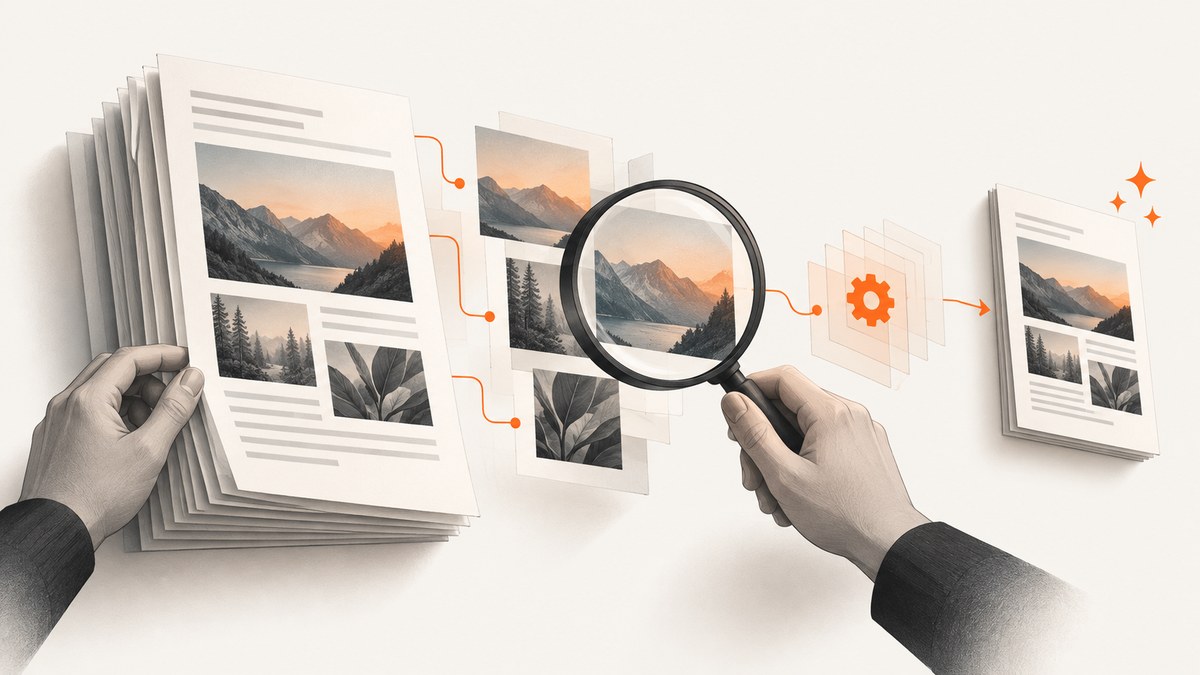
If a PDF from Node.js Puppeteer is too large, first check what the page is printing and whether it contains oversized images or unnecessary backgrounds. Puppeteer’s page.pdf() controls what gets included and how content is laid out, but its documented options do not include a general compression-quality slider. If generation choices are not enough, compare a structural rewrite with qpdf against a rewrite that can downsample images with Ghostscript. Measure each output and inspect it: neither tool guarantees a smaller file.
This guide covers a practical workflow, complete Node.js examples, qpdf and Ghostscript commands, tradeoffs, troubleshooting, and validation. Puppeteer’s cited API documentation is version 25.12.0; confirm option names and defaults against the version installed in your project.
1. Check what Puppeteer is rendering
page.pdf() uses print media by default. That means print CSS can hide or rearrange content, and a page intended to look like its screen version may produce an unexpected document. To generate using screen media, call page.emulateMediaType('screen') before page.pdf(). This changes rendering behavior, not PDF compression.
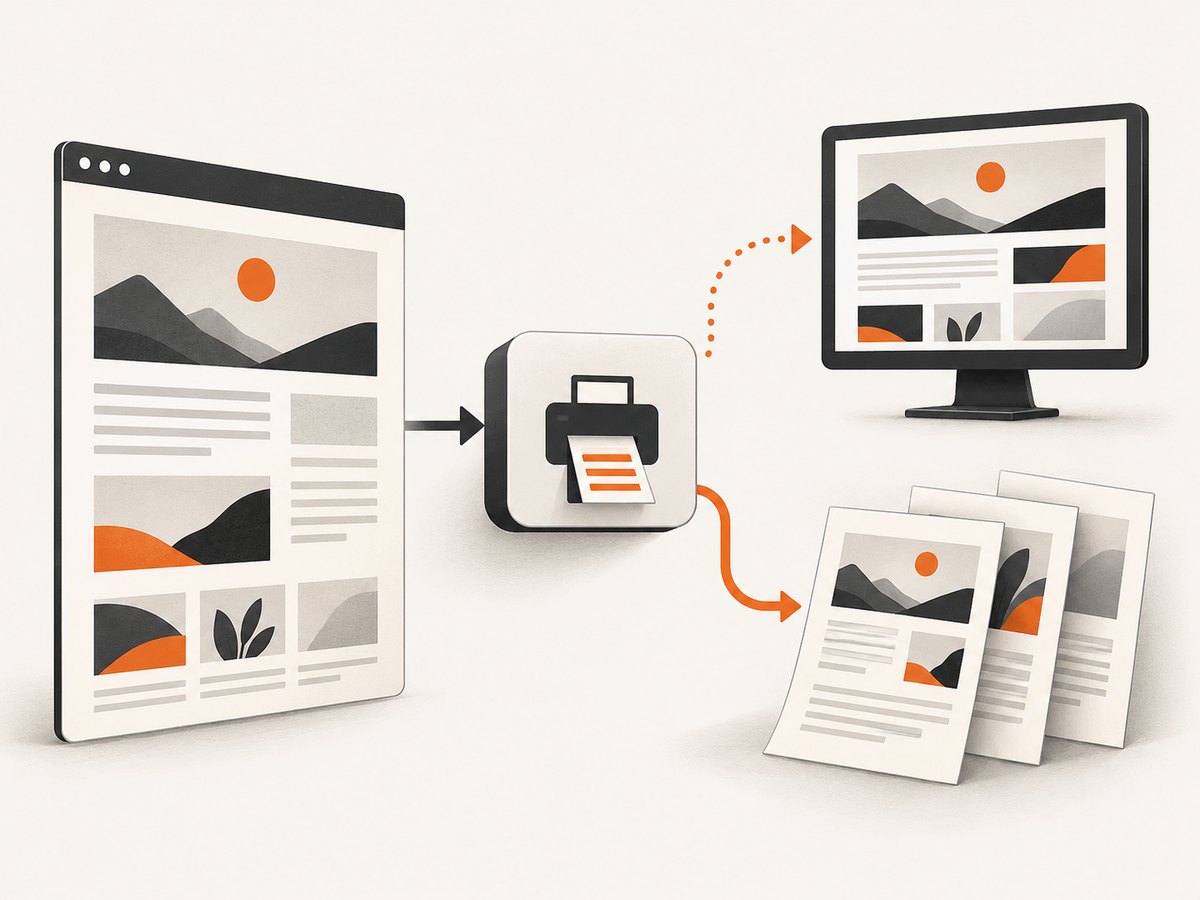
Start by reproducing the PDF and recording its exact byte size. Confirm the selected media type, inspect the page count, and check whether the document contains full-bleed backgrounds or large photographs that the recipient actually needs. A large PDF can result from rendered content, image data, or document structure; do not assume there is one cause.
2. Trim output with Puppeteer’s PDF options
These options control content or layout. They can affect the resulting size, but their documented purpose is not to guarantee compression.
| Option | Documented behavior | When to consider it |
|---|---|---|
printBackground |
Defaults to false; includes background graphics when true. |
Leave backgrounds out if the design does not require them. Large background images and colors may be unnecessary in a document export. |
pageRanges |
Selects which pages to print. | Limit output when a workflow needs only particular pages. Check page numbering and required content. |
format |
Paper format; defaults to Letter. | Choose the intended paper size. A different size changes layout and scaling, not necessarily file size in a predictable direction. |
preferCSSPageSize |
Defaults to false. When true, CSS @page size takes priority; otherwise content is scaled to fit the explicit paper size. |
Use when your stylesheet defines the page dimensions and that is the desired output. |
scale |
Defaults to 1 and accepts values from 0.1 to 2. | Adjust only when changing rendered dimensions is acceptable. Verify text legibility, page breaks, and image appearance. |
landscape |
Controls landscape orientation. | Use when the document’s intended layout is wider than tall. |
Puppeteer waits for fonts to load by default during PDF generation. That is a rendering behavior; the cited documentation does not describe changing font waiting as a way to reduce file size. Likewise, do not toggle an option simply because it sounds like an optimizer. Make changes according to the document’s requirements, then inspect pagination, legibility, and included content.
Runnable Node.js example
Install Puppeteer in your project and use this script as a baseline. It writes the generated PDF to a file and reports its byte size. Set USE_SCREEN_MEDIA to 1 only if screen styling is the intended output.
const puppeteer = require('puppeteer');
const fs = require('node:fs/promises');

(async () => {
  const browser = await puppeteer.launch({ headless: true });
  try {
    const page = await browser.newPage();
    await page.goto('https://example.com', {
      waitUntil: 'networkidle0',
      timeout: 60000,
    });

    if (process.env.USE_SCREEN_MEDIA === '1') {
      await page.emulateMediaType('screen');
    }

    const pdf = await page.pdf({
      path: 'report.pdf',
      format: 'A4',
      printBackground: false,
      preferCSSPageSize: true,
      scale: 1,
      // Example only: use a range only if these are the pages you need.
      // pageRanges: '1-3',
    });

    const stat = await fs.stat('report.pdf');
    console.log(`PDF: ${stat.size} bytes; buffer: ${pdf.byteLength} bytes`);
  } finally {
    await browser.close();
  }
})().catch((error) => {
  console.error(error);
  process.exitCode = 1;
});
If you already have HTML and assets under your control, inspect whether the source images are much larger than the document’s viewing or print needs. Prefer removing content that is not needed or choosing suitable source assets before rendering, while preserving the original images if they are needed elsewhere. There is no universal resolution that fits every screen, print, accessibility, or archival requirement.
3. Diagnose whether images dominate the PDF
Photographs, screenshots, and other raster images are a useful place to investigate in image-heavy documents. Ghostscript’s optimization material notes that image data can account for many bytes, but that is a diagnostic lead, not proof about a particular PDF. Compare source assets with the rendered document, especially at the intended display or print size.
Keep a baseline copy. Then change one factor at a time: generation settings, source image choices, qpdf, or Ghostscript. Record actual output bytes and inspect representative pages. A smaller file is useful only if it still meets the document’s quality and behavior requirements.
4. Rewrite an existing PDF with qpdf
qpdf focuses on PDF structure and streams. Its manual describes stream compression, recompressing Flate streams, higher compression levels, and object streams as possible ways to make some files smaller. The tool describes itself as not primarily a file-size optimizer, so modest or zero change is possible.
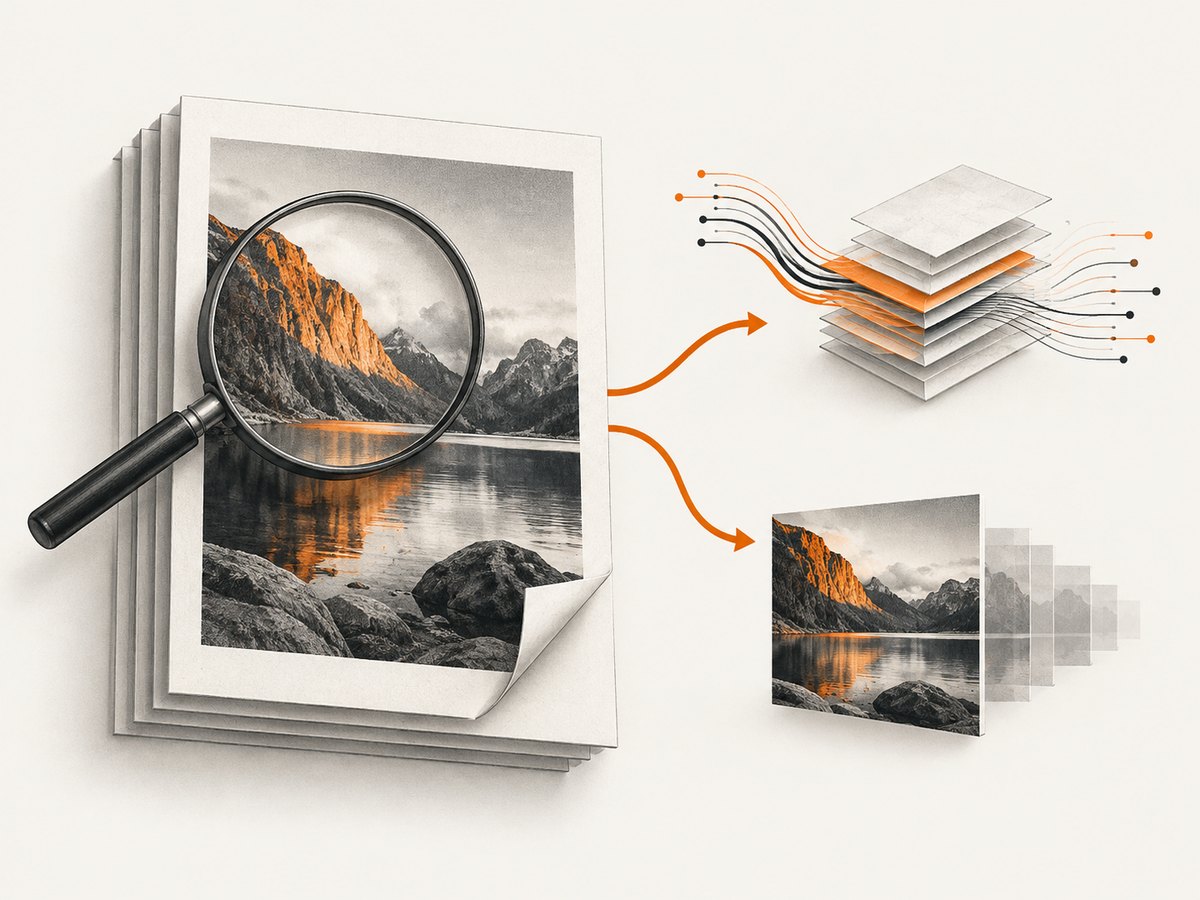
For eligible non-JPEG images, --optimize-images can try DCT/JPEG compression when the resulting image data is smaller. It does not resample images. JPEG conversion is lossy, so inspect affected images at their intended size. Check the installed qpdf manual because options can differ across releases.
# Structural/stream rewrite; preserve the source as the baseline.
qpdf --recompress-flate --compression-level=9 --object-streams=generate \
  input.pdf output-qpdf.pdf

# Optional image optimization for eligible non-JPEG images.
# JPEG conversion is lossy; review image quality afterward.
qpdf --optimize-images input.pdf output-qpdf-images.pdf
Treat these as alternative trials against the same original input, not as a promise that stacking every switch will help. Compare output size, image quality, and the document’s required features. Consult the documentation installed with your qpdf release before using less common options in a production pipeline.
5. Rewrite and downsample with Ghostscript
Ghostscript’s pdfwrite device rewrites a PDF and supports settings for image downsampling and compression. Its presets trade image quality against output characteristics: the project article describes /screen as smaller and low resolution, /ebook as a medium-resolution balance, /printer as higher-resolution and larger, and /prepress as the highest quality and largest among those choices. These are starting points, not a guarantee of the result you want.
The Ghostscript project explicitly cautions that “there is no guarantee that processing a PDF file with the pdfwrite output device will produce a smaller file” (Ken Sharp, September 29, 2022). Use a separate output path and inspect quality before replacing or distributing anything.
# Example trial using the ebook preset. Adjust the preset to your needs.
gs -sDEVICE=pdfwrite -dPDFSETTINGS=/ebook \
  -o output-ebook.pdf input.pdf

# A lower-resolution trial; image quality may change.
gs -sDEVICE=pdfwrite -dPDFSETTINGS=/screen \
  -o output-screen.pdf input.pdf
Ghostscript’s device documentation also describes object streams and cross-reference streams as structural features that can reduce output in some cases. Check the installed version’s documentation before adding such options. The documentation notes that pdfwrite does not support object streams while linearizing output, so object streams are disabled when linearization is active. Linearization targets fast web viewing; do not treat it as a guaranteed size reduction.
6. Compare results and validate the PDF
Run controlled comparisons against the same original. Record bytes rather than relying on a tool’s preset name or an assumed compression ratio. No universal savings estimate is established for Puppeteer-generated PDFs.
| Variant | Change | Size | Review |
|---|---|---|---|
| Baseline | Existing Puppeteer options | Record bytes | Keep as reference. |
| Generation trim | Remove unneeded backgrounds/pages; verify media and sizing | Record bytes | Check content and pagination. |
| qpdf | Structural or stream compression; optionally eligible image optimization | Record bytes | Inspect images and document behavior. |
| Ghostscript | pdfwrite preset or deliberate downsampling | Record bytes | Inspect image and text quality and required features. |
- Check small text, fine lines, transparency, and color on representative pages.
- Verify links, forms, annotations, metadata, and accessibility features required by your workflow.
- Open the result in the viewers your recipients use, if compatibility matters.
- Keep the original until the rewritten file passes your checks.
7. Troubleshooting common problems
| Symptom | Likely cause | What to do |
|---|---|---|
| PDF layout differs from the browser | page.pdf() uses print media by default, or print CSS changes content. |
Check print styles. If screen styling is intended, call page.emulateMediaType('screen') before page.pdf() and compare pagination. |
| Backgrounds disappear | printBackground defaults to false. |
Set it to true only when those graphics are required; then measure and review output. |
| Only some pages are present | pageRanges limits the output, or layout changes moved content. |
Remove or correct the range and inspect page breaks and the selected media type. |
| qpdf output is unchanged or larger | The PDF may already be compact, or the available structural changes do not help its contents. | Keep the baseline. Try a different supported qpdf option only when appropriate, or inspect image payloads and compare another method. |
| Images look soft after Ghostscript | A preset or downsampling setting reduced image detail. | Try a higher-quality preset or avoid downsampling. Validate at the intended print or display size. |
| Ghostscript output is larger | Rewriting can change structure and encoding without reducing total bytes. | Do not assume a rewrite is an optimization. Compare against the original and retain the smaller acceptable file. |
| PDF opens but a required feature is missing | A rewrite may alter document structure or preserve features differently. | Check links, forms, annotations, metadata, and accessibility needs after each tool; use the original if requirements are not met. |
8. Performance, reliability, and cost considerations
PDF generation and post-processing each consume runtime and storage. A useful pipeline keeps the original, writes each candidate to a different path, records byte size and tool/version details, and promotes a candidate only after validation. For batch jobs, avoid processing the same input repeatedly when the inputs and chosen settings have not changed; cache or retain accepted outputs according to your application’s data policy.
qpdf’s structural work may be suitable when image resolution matters, while Ghostscript can offer more direct image reduction at the cost of possible quality changes. Actual processing time and output size depend on the document and settings; the cited sources provide no universal performance or savings figures. Benchmark your representative files. Include review effort and compatibility requirements in the cost of choosing an aggressive reduction.
Or skip the browser setup
If your task is to capture a webpage as an image or PDF rather than build a custom Puppeteer PDF pipeline, ScreenshotNeo offers a one-call screenshot API. Its PDF options include paper size, margins, landscape orientation, and page ranges. See the ScreenshotNeo API documentation for request details.
curl -G "https://api.screenshotneo.com/v1/shot" -d access_key=YOUR_API_KEY --data-urlencode url=https://stripe.com -o shot.webpScreenshotNeo accepts cookie and consent banners before capture and removes 60+ known consent platforms, newsletter popups, and chat widgets; each step can be turned off. Bot checks, blank pages, timeouts, failed loads, and cache hits cost nothing, and response headers identify the page verdict and billing status. Its MCP server gives AI agents tools including take_screenshot, get_page_info, and capture_pdf. The free plan includes 1,000 shots a month with no card; paid plans start at $5 for 3,000 shots.
Sign up free for 1,000 screenshots a month with no card.
FAQ
Does Puppeteer have a PDF quality setting?
The documented PDFOptions interface has layout and content controls, but no general compression-quality option. For image-heavy PDFs, inspect source assets and consider a post-processing tool.
Should I use qpdf or Ghostscript?
Choose based on the tradeoff: qpdf emphasizes structural and stream changes and does not resample images; Ghostscript offers rewriting with image downsampling and compression controls. Compare actual outputs and validate required features.
Can I expect a particular percentage reduction?
No. The result depends on the source PDF and settings, and neither tool guarantees a smaller file. Measure your own document and inspect its quality.
Does changing Puppeteer’s font wait reduce size?
The cited Puppeteer guide documents font-loading behavior, not a size-reduction effect. Do not use font waiting as a compression tactic without separate evidence relevant to your application.


