How to Fix Different PDF Fonts Across Puppeteer Environments
Fix PDF font differences in Puppeteer by checking font availability, web font loading, print CSS, and browser runtime differences across environments.
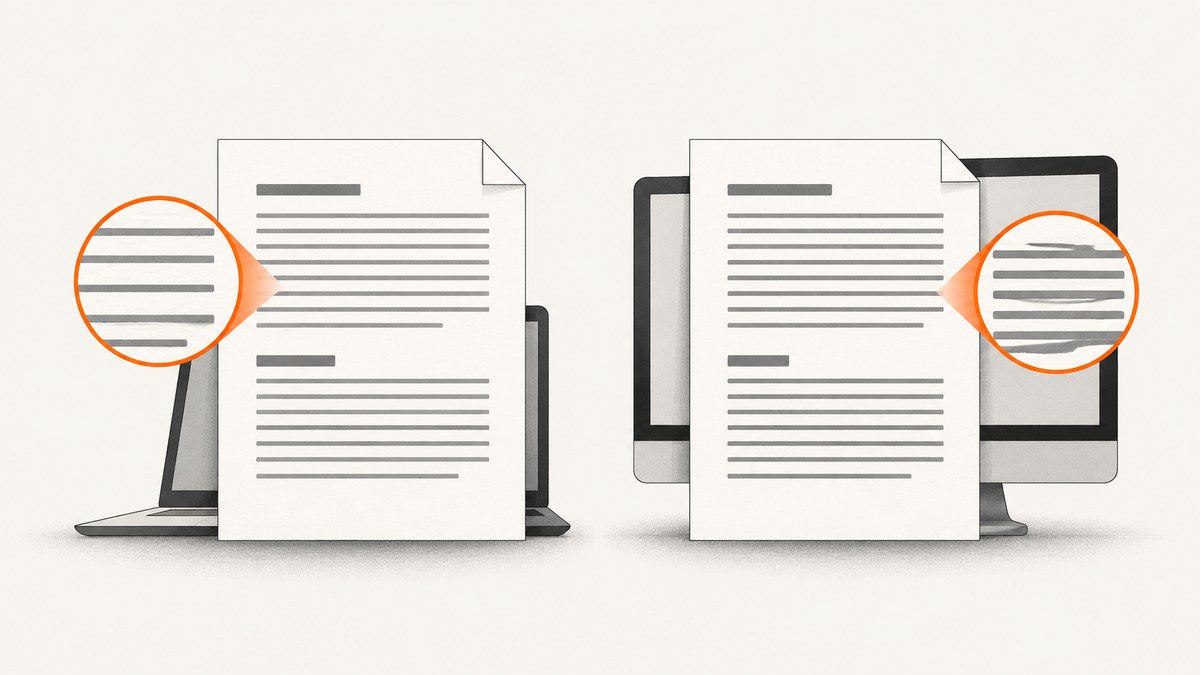
Different PDF fonts across Puppeteer environments usually mean the environments did not render the same font files under the same conditions. Check that each runtime has the intended system fonts or can load the same web fonts, that those fonts finish loading, and that print CSS and Puppeteer/Chrome versions match. Then compare the operating system, architecture, and PDF options. page.pdf() uses print media by default and waits for document fonts by default, but neither behavior installs missing fonts or guarantees identical output across operating systems.
This guide gives you a repeatable diagnosis, runnable Puppeteer code, container guidance, and a checklist for CI and production. It also explains when to use screen media and how to isolate font coverage, fallback, and layout issues.
1. Find out which font the PDF should use
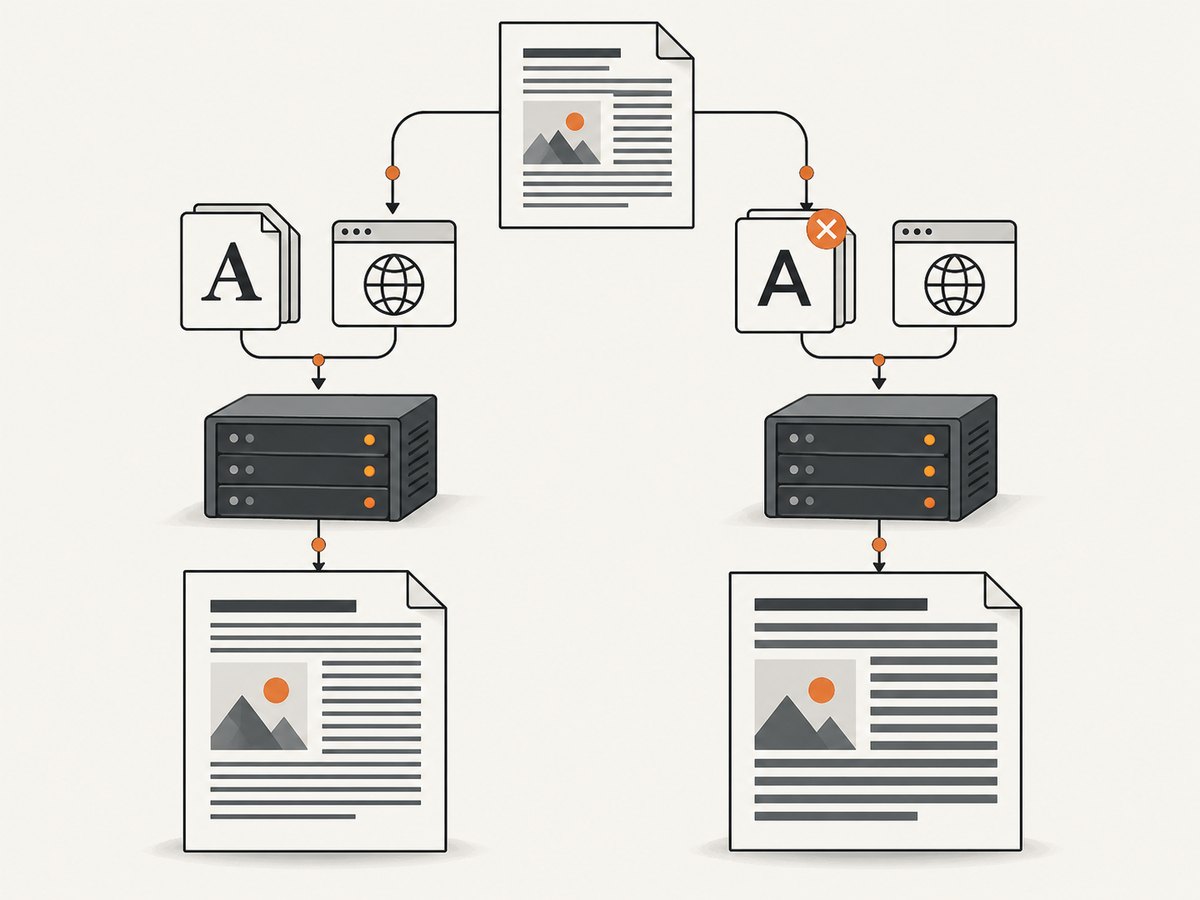
Start with the document’s intended font family, weight, and style. A CSS declaration such as font-family: "Acme Sans" does not prove that the browser found that face. If it is missing, inaccessible, or does not contain the needed glyphs, Chromium may use a fallback. The text can remain readable while its widths and line breaks change.
Check the font source and the exact face names:
- System font: the font file must be installed and discoverable in every runtime that produces a PDF.
- Web font: the page must request the same font file successfully in each environment. Check the network request, response status, CORS behavior where relevant, and the declared family and weight.
- Glyph coverage: the font needs the characters used in the document. A family can cover Latin text but lack characters from another script, causing only some runs to fall back.
Use the browser’s computed styles and font inspection tools where available, and inspect the generated PDF’s embedded fonts with your normal PDF inspection utility. These checks answer different questions: computed styles show CSS selection, while PDF inspection helps determine what font data the output contains. A CSS family name alone is not conclusive proof of the final glyph font.
2. Check font loading before creating the PDF
Puppeteer’s PDF guide says PDF generation waits for fonts by default. Its waitForFonts option defaults to true and waits for document.fonts.ready. This is a useful safeguard for web fonts; it cannot repair a failed font request or make a font available when the runtime lacks it. If the page is backgrounded, the option documentation notes that bringing it to the front may be needed. See the PDF generation guide and PDF options reference.
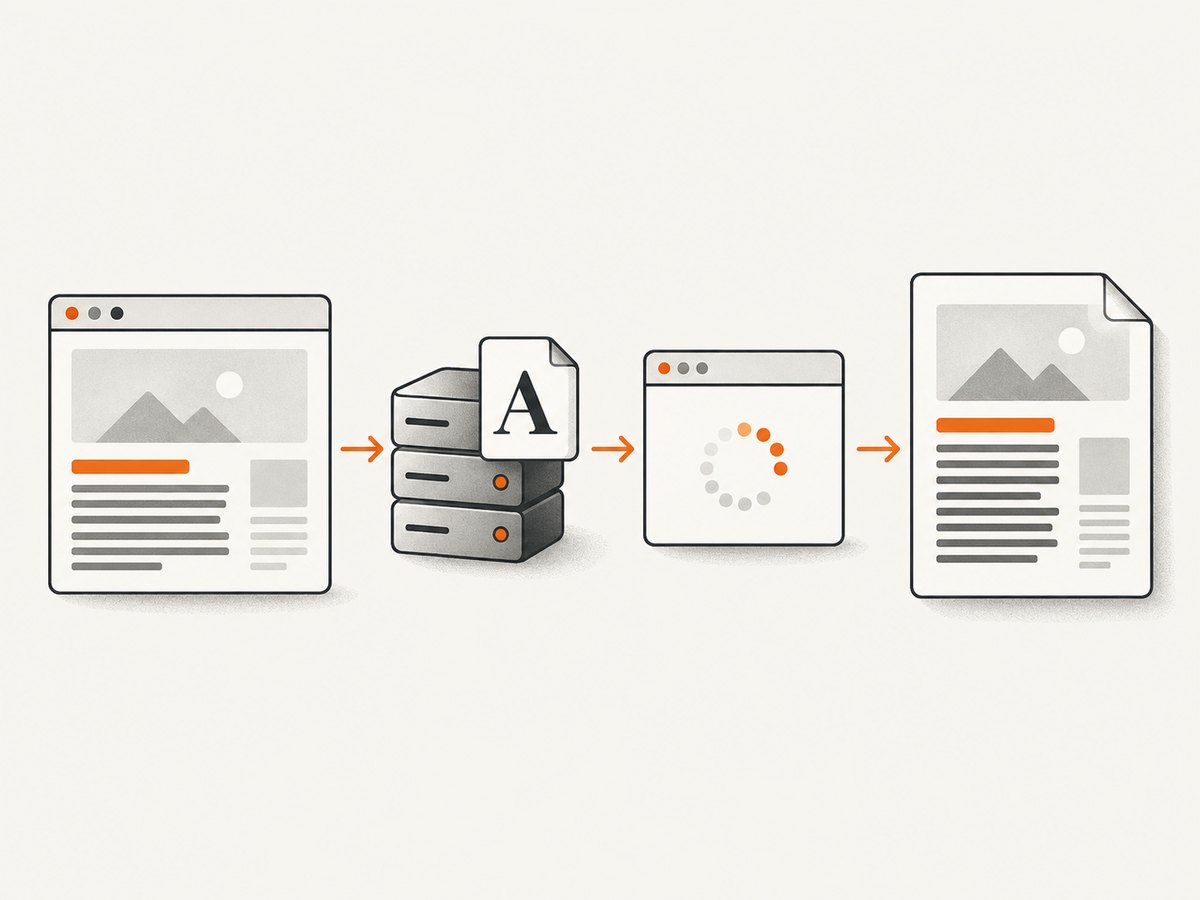
Use this diagnostic script with an HTML file or a URL you control. It logs font loading state, waits for the page’s font set, and writes the PDF. Install Puppeteer in your project using its normal package-manager workflow.
const puppeteer = require('puppeteer');

(async () => {
  const browser = await puppeteer.launch({ headless: true });
  try {
    const page = await browser.newPage();
    await page.goto('http://localhost:3000/report', {
      waitUntil: 'networkidle0',
    });

    const fontInfo = await page.evaluate(async () => {
      await document.fonts.ready;
      return {
        status: document.fonts.status,
        acmeRegular: document.fonts.check('16px "Acme Sans"'),
        acmeBold: document.fonts.check('700 16px "Acme Sans"'),
      };
    });
    console.log('Font state:', fontInfo);

    await page.pdf({
      path: 'report.pdf',
      format: 'A4',
      printBackground: true,
      waitForFonts: true,
    });
  } finally {
    await browser.close();
  }
})();
Replace the URL and family checks with the page and faces your document actually uses. document.fonts.check() is a browser-side diagnostic, not a substitute for reviewing the network requests and PDF output. For diagnosis, remove any waitForFonts: false override. Keep waiting enabled for normal generation unless you have a specific, measured reason to change it.
3. Match the CSS media mode and PDF settings
Page.pdf() renders with print CSS by default. Rules inside @media print can change the font family, weight, size, line height, or layout. Compare print rules across deployments, including imported stylesheets and CSS variables. Puppeteer documents that you can call page.emulateMediaType('screen') before PDF generation when screen media output is specifically intended; do not use it as a general font fix. See the Page.pdf() API.
await page.emulateMediaType('print'); // explicit; this is Page.pdf()'s default
await page.pdf({
  path: 'report.pdf',
  format: 'A4',
  printBackground: true,
  preferCSSPageSize: true,
  waitForFonts: true,
});
If your intended output should follow screen styles, set the mode before calling pdf():
await page.emulateMediaType('screen');
await page.pdf({ path: 'screen-styled.pdf', format: 'A4', waitForFonts: true });
Choose one mode deliberately and keep it the same across environments. Also compare the PDF options and CSS page rules: paper size, margins, scale, page size preference, headers and footers, and background printing can affect pagination and layout. They do not install fonts, but layout differences can make font discrepancies appear worse.
4. Install the needed fonts in the actual runtime
In containers and Linux hosts, make fonts part of the deployable environment. Installing a font on a developer laptop does not install it in a CI image or server container. Confirm the browser can discover the font after installation, and verify the container also has the shared libraries needed by the supported browser build.
Puppeteer’s troubleshooting guide lists Linux dependencies including libfontconfig1 and provides Docker examples that install extra fonts for broader script coverage. The appropriate package names and browser dependencies vary by distribution and supported browser version. Follow the current Puppeteer troubleshooting guide and system requirements for your base image. For a Debian-based image, the general shape is:
# Example shape only: confirm package names and browser dependencies
# for your chosen Debian/Ubuntu image and Puppeteer version.
RUN apt-get update && apt-get install -y --no-install-recommends \
    fontconfig \
    libfontconfig1 \
    fonts-liberation \
    && rm -rf /var/lib/apt/lists/*

# Copy and install your licensed application font files using the
# distribution's documented font installation path and refresh its cache.
The example is not a universal Docker recipe: package availability changes between distributions and base images, and the browser may require additional libraries. Add the specific fonts your content needs, including appropriate script coverage. Confirm font licensing permits deployment in the image. If you serve web fonts instead, ensure the app’s assets are reachable from every rendering environment.
5. Compare environments one variable at a time
Make a small reproducible case from identical HTML and assets. Record these values for every output:
| Input | What to compare | Why it matters |
|---|---|---|
| Puppeteer and browser | Puppeteer version and Chrome/Chrome for Testing version | Different browser builds can alter rendering behavior. |
| Host runtime | OS distribution, version, architecture, container image | Font discovery and browser dependencies vary by platform. |
| Font inventory | Installed files, family/style names, and script coverage | Missing faces or glyphs trigger fallback. |
| Font loading | Request success, loaded state, and timing | A PDF can use a fallback if the intended web font is unavailable. |
| Styles and PDF options | Print CSS, media mode, paper, margins, scale, and wait settings | Style or pagination changes may resemble font metric differences. |
Use the same input files and URL data in each environment. Change one factor at a time, then compare the resulting PDFs and logs. Current Puppeteer system requirements list supported Windows x64, macOS x64/arm64, and Linux distributions and architectures; check the linked requirements for the browser build you run. A user report describes PDF widths differing between desktop Chrome printing and Puppeteer, with variation by font and environment. That report shows the problem can occur; it does not establish a universal flag or fix. See the reported Puppeteer issue.
6. Common errors and fixes
| Symptom | Likely cause | What to do |
|---|---|---|
| Text is wider or wraps differently in CI | Different or missing font face, browser build, or OS font rendering inputs | Compare font files and browser/runtime versions first; reproduce with identical HTML and PDF settings. |
| Only one weight looks wrong | The requested weight is not available or does not match the face declaration | Check CSS weight and the installed/served face mapping. Ensure regular and bold files are both available where needed. |
| Some languages or symbols use a different face | The chosen font lacks glyphs for those characters | Install or serve a font with the required coverage and verify the exact text runs. |
| PDF differs from browser screenshot | PDF uses print media while the screenshot uses screen media | Inspect @media print and compare media mode explicitly. |
| Web font sometimes appears and sometimes falls back | Failed, late, or inaccessible font request; disabled wait option | Inspect network failures, await document.fonts.ready, and leave waitForFonts enabled. |
| Fonts work locally but not in a container | Host-installed fonts or required Linux libraries are absent from the image | Install dependencies and font files in the image itself; check current Puppeteer platform guidance. |
| Changing a Chromium flag has no consistent effect | A rendering flag does not address the root font or environment mismatch | First align fonts, CSS, browser, and runtime. Treat flags suggested in issue discussions as experiments and validate on target environments. |
7. Reliability, performance, and cost considerations
Font determinism is a deployment property: the application assets, browser, fonts, and host image all contribute to the PDF. Pin compatible browser and Puppeteer versions through your normal dependency process, keep font files with the app or image, and include a small representative document in your release checks if your team already runs output comparisons. This makes a missing font easier to detect before a batch job or user request produces many inconsistent files.
Font loading can add network or startup time, especially if the browser has to fetch web fonts on every fresh page. Keep assets reachable and avoid needless repeated navigation; where appropriate, reuse a browser process while isolating pages and their data. Do not skip font waits just to reduce latency until you have confirmed it does not create fallback output. Caching and browser lifecycle choices depend on your application’s security and concurrency needs.
Cost depends on where PDFs are rendered: browser compute, container runtime, storage, and any font delivery or hosting. The research sources do not give a universal cost or timing benchmark, so measure with your document and deployment. Compare output and latency using the same sample, and account for retries caused by missing assets or failed loads.
8. Or skip the browser setup
If your goal is a PDF rather than control over a local Puppeteer runtime, ScreenshotNeo provides a screenshot API and MCP server. The PDF endpoint is documented with its available parameters at ScreenshotNeo’s API docs. For example, its one-call screenshot API returns an image:
curl -G "https://api.screenshotneo.com/v1/shot" \
  -d access_key=YOUR_API_KEY \
  --data-urlencode url=https://stripe.com \
  -o shot.webp
Python:
import requests

r = requests.get(
    "https://api.screenshotneo.com/v1/shot",
    params={"access_key": "YOUR_API_KEY", "url": "https://stripe.com"},
    timeout=90,
)
open("shot.webp", "wb").write(r.content)
Node.js:
const q = new URLSearchParams({ access_key: 'YOUR_API_KEY', url: 'https://stripe.com' });
const res = await fetch(`https://api.screenshotneo.com/v1/shot?${q}`);
For a PDF, use the documented PDF option and its parameters. ScreenshotNeo removes cookie/consent banners, newsletter popups, and chat widgets before capture; those steps can be turned off. Bot checks, blank pages, failed loads, timeouts, and cache hits are not billed, and response headers report the page verdict and billing status. Its MCP server lets AI agents use take_screenshot, get_page_info, and capture_pdf. The free plan includes 1,000 shots a month with no card; paid plans start at $5 for 3,000 shots. These capabilities remove browser installation and capture orchestration from your application, while page font rendering still depends on the target page and service behavior. Sign up for 1,000 free screenshots a month with no card.
9. Quick checklist
- Write down the intended families, weights, styles, and character coverage.
- Confirm the fonts are installed or served in every runtime.
- Check font requests and wait for
document.fonts.ready. - Compare print CSS and explicitly record media mode.
- Match Puppeteer, Chrome, OS image, architecture, and PDF options.
- Reproduce with identical HTML and assets, changing one variable at a time.
- Validate any experimental rendering flags in every target environment.
10. FAQ
Does waitForFonts: true make PDFs identical?
No. It waits for document fonts to be ready, but does not provide missing fonts or standardize operating systems and browser versions.
Should I use screen media to fix PDF font widths?
Only when screen CSS is the intended PDF design. Otherwise inspect and correct print CSS, because print media is the default for PDF generation.
Can I solve this with one Chromium launch flag?
There is no general fix established by the cited sources. Align the font files and runtime inputs first, then test a flag only as a controlled experiment.
Why do only a few characters look different?
The primary suspect is missing glyph coverage for those characters, which can cause fallback for just part of a line or paragraph.


