How to Fix Images Rendering Incorrectly in Puppeteer PDFs
Fix missing, blank, or distorted images in Puppeteer PDFs by checking print CSS, backgrounds, lazy loading, readiness, and image diagnostics.
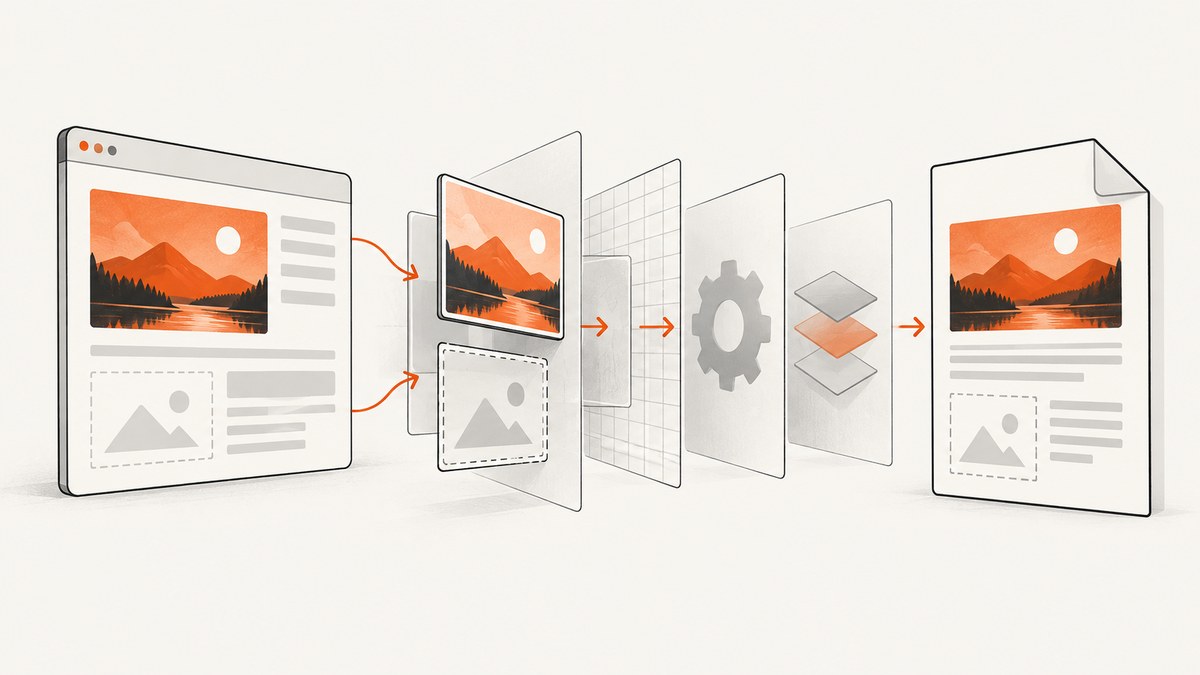
Start here: Puppeteer generates PDFs with the print CSS media type by default. Compare the page under print media with its normal screen rendering, enable printBackground for CSS background graphics, and wait for the page’s actual image readiness condition before calling page.pdf(). Network idle helps, but it does not prove that every lazy image, deferred component, or client-side decode has finished.
This guide gives you a repeatable diagnosis, complete Puppeteer code, checks for <img>, <picture>, lazy loading and CSS backgrounds, and fixes for color and print-style differences. It also covers reliability, performance, and an API alternative when you do not want to maintain browser setup.
1. Classify the failure before changing code
Open the page in Puppeteer immediately before PDF generation and determine which kind of content is wrong:
- An image element is missing or blank: inspect
<img>,<picture>,srcset, loading errors, and lazy-load state. - A CSS background is missing: the documented
printBackgrounddefault isfalse. - The image exists but the layout or colors differ: PDF generation is using print media and print color adjustment.
- The PDF captures an earlier state: navigation, JavaScript rendering, image decoding, or an application-specific “ready” event has not completed.
Save a screenshot of the same page just before page.pdf(). If the screenshot is already wrong, investigate navigation, requests, CSS, and application state. If the screenshot is correct but the PDF is wrong, focus on print media, backgrounds, and PDF options.
2. Use screen styles when the PDF should match the browser
Page.pdf() uses print CSS media by default, so print-only rules and @media print overrides can hide or replace content. The official Page API describes PDF generation as using the print CSS media type. If your desired output is the screen design, call emulateMediaType('screen') before generating the PDF.
import puppeteer from 'puppeteer';

const browser = await puppeteer.launch({ headless: true });
const page = await browser.newPage();

await page.goto('https://example.com/report', {
  waitUntil: 'networkidle2'
});

// Use screen media when the PDF should match the on-screen design.
await page.emulateMediaType('screen');

await page.pdf({
  path: 'report.pdf',
  format: 'A4',
  printBackground: true
});

await browser.close();
Use emulateMediaType('print') explicitly when you want to debug or design print-specific output. Check your stylesheet for rules such as display: none, alternate URLs, hidden containers, changed dimensions, and print color declarations.
3. Enable background graphics for CSS images
The printBackground option defaults to false. Set it to true when the missing visual is supplied by background-image, gradients, background colors, or another CSS background graphic.
await page.pdf({
  path: 'with-backgrounds.pdf',
  format: 'A4',
  printBackground: true
});
This option is not a universal fix for missing <img> elements. An image element still needs a valid source, successful loading, and a layout state that exists when the PDF is generated.
4. Wait for the page’s real image readiness
The Puppeteer PDF guide demonstrates navigation with waitUntil: 'networkidle2'. That lifecycle event waits until there are no more than two network connections for at least 500 milliseconds. networkidle0 waits for zero connections for the same minimum interval. page.waitForNetworkIdle() is another option and waits at least the configured idle time.
These are synchronization points, not a guarantee that a site’s lazy images, framework effects, canvas drawing, or deferred rendering are complete. A page can become network-idle before an image is requested by an intersection observer, before a component inserts its src, or while a service worker and application state are still changing. Wait for the application’s own ready signal when one exists.
await page.goto('https://example.com/report', {
  waitUntil: 'domcontentloaded'
});

await page.waitForNetworkIdle({
  idleTime: 750,
  timeout: 30000
});

// Prefer a concrete application condition when available.
await page.waitForSelector('[data-report-ready="true"]', {
  timeout: 30000
});
If no application signal exists, inspect the actual image elements and wait for each one to finish loading or fail. This is a diagnostic and synchronization technique that you should adapt to the page’s markup.
await page.waitForFunction(() => {
  const images = Array.from(document.images);
  return images.every((img) => img.complete && img.naturalWidth > 0);
}, { timeout: 30000 });
The predicate above treats a broken image as not ready. If a page intentionally includes optional images, collect and report failures instead of blocking forever:
const imageReport = await page.evaluate(() => {
  return Array.from(document.images).map((img) => ({
    src: img.currentSrc || img.src,
    complete: img.complete,
    naturalWidth: img.naturalWidth,
    naturalHeight: img.naturalHeight
  }));
});

const failed = imageReport.filter((img) => img.complete && img.naturalWidth === 0);
console.log({ imageCount: imageReport.length, failed });
5. Make lazy-loaded images discoverable
Lazy loading commonly uses loading="lazy", an IntersectionObserver, a data attribute such as data-src, or a framework component that requests the asset only after it enters the viewport. A full-page PDF can therefore be generated before lower sections have requested their images.
First, scroll through the document to trigger viewport-based loading. Then wait for the site’s readiness signal or image state.
await page.evaluate(async () => {
  await new Promise((resolve) => {
    let y = 0;
    const step = 600;
    const timer = setInterval(() => {
      window.scrollBy(0, step);
      y += step;
      if (y >= document.body.scrollHeight) {
        clearInterval(timer);
        window.scrollTo(0, 0);
        resolve();
      }
    }, 50);
  });
});

await page.waitForFunction(() =>
  Array.from(document.images).every((img) => img.complete && img.naturalWidth > 0),
  { timeout: 30000 }
);
Some applications do not use a real <img> until an observer runs. In that case, use the application’s documented event, wait for a selector that indicates completion, or call a page-specific function exposed by the app. Do not assume a fixed delay is reliable across machines and network conditions.
6. Check image URLs, request failures, and browser context
When an image is blank, log failed requests and inspect the resolved URL. Relative URLs, redirects, signed URLs, authentication, certificate problems, CSP, and hotlink protection can all affect a headless browser differently from your local browser.
page.on('requestfailed', (request) => {
  const type = request.resourceType();
  if (type === 'image' || type === 'stylesheet' || type === 'font') {
    console.error('Request failed', {
      type,
      url: request.url(),
      error: request.failure()?.errorText
    });
  }
});

page.on('response', async (response) => {
  const request = response.request();
  if (request.resourceType() === 'image' && !response.ok()) {
    console.error('Image HTTP error', response.status(), response.url());
  }
});
For protected pages, configure the same cookies, headers, user agent, or authorization that the page needs. A URL that works in an authenticated browser profile may return a login page or a 403 response in a fresh Puppeteer context.
7. Distinguish fonts from images
Puppeteer’s PDF generation documentation says PDF generation waits for fonts by default. The PDF options reference documents waitForFonts: true as the default and notes that a background page may need page.bringToFront() for font loading to finish. This behavior does not mean images are ready.
await page.bringToFront();
await page.evaluate(() => document.fonts.ready);

await page.pdf({
  path: 'fonts-and-images.pdf',
  waitForFonts: true,
  printBackground: true
});
Keep font readiness and image readiness as separate checks. A PDF can have correct typography while still containing missing or partially decoded images.
8. Preserve colors and print appearance
PDF rendering can modify colors for print. If the images are present but the page looks washed out, compare print and screen media and review -webkit-print-color-adjust. Use it when exact colors are required and the design can tolerate print output.
@media print {
  :root {
    -webkit-print-color-adjust: exact;
    print-color-adjust: exact;
  }
}
Use this deliberately: exact color preservation can increase ink use and may not be appropriate for every document. Also check whether a print stylesheet changes opacity, filters, blend modes, or image dimensions.
9. A complete diagnostic script
The following script combines the main checks. Replace the URL and readiness selector with values from your application.
import puppeteer from 'puppeteer';

const url = process.env.URL || 'https://example.com/report';
const browser = await puppeteer.launch({ headless: true });
const page = await browser.newPage();

page.on('requestfailed', (request) => {
  if (['image', 'stylesheet', 'font'].includes(request.resourceType())) {
    console.error('Request failed:', request.resourceType(), request.url(), request.failure());
  }
});

try {
  await page.goto(url, {
    waitUntil: 'domcontentloaded',
    timeout: 60000
  });

  await page.waitForNetworkIdle({
    idleTime: 750,
    timeout: 30000
  }).catch(() => console.warn('Network did not become idle before timeout'));

  await page.emulateMediaType('screen');

  await page.evaluate(async () => {
    window.scrollTo(0, document.body.scrollHeight);
    await new Promise((resolve) => setTimeout(resolve, 250));
    window.scrollTo(0, 0);
  });

  const report = await page.evaluate(() => Array.from(document.images).map((img) => ({
    src: img.currentSrc || img.src,
    complete: img.complete,
    width: img.naturalWidth,
    height: img.naturalHeight
  })));
  console.table(report);

  await page.waitForFunction(() => {
    const images = Array.from(document.images);
    return images.every((img) => img.complete && img.naturalWidth > 0);
  }, { timeout: 30000 });

  await page.bringToFront();
  await page.evaluate(() => document.fonts.ready);

  await page.pdf({
    path: 'fixed.pdf',
    format: 'A4',
    printBackground: true,
    waitForFonts: true,
    preferCSSPageSize: true
  });
} finally {
  await browser.close();
}
10. Troubleshooting table
| Symptom | Likely cause | Fix |
|---|---|---|
| CSS background is absent | printBackground is false |
Set printBackground: true. |
| Image is hidden only in PDF | Print media rule changes display or visibility | Inspect @media print; use emulateMediaType('screen') if screen output is intended. |
| Lower-page images are blank | Lazy loading has not been triggered | Scroll the page, wait for the app’s ready condition, then check complete and naturalWidth. |
| Image URL works locally but not in CI | Missing cookies, headers, auth, DNS, or certificate access | Log request failures and configure the browser context for the target environment. |
| PDF captures a skeleton screen | Client rendering continues after navigation | Wait for a concrete selector, event, or predicate owned by the application. |
| Colors are different | Print media and print color adjustment | Compare media types and use -webkit-print-color-adjust: exact when appropriate. |
| Fonts look wrong while images work | Font loading or background-page behavior | Use page.bringToFront() and retain waitForFonts: true. |
| Waiting hangs indefinitely | A broken or optional image never reaches the success predicate | Set a timeout, report failed images, and distinguish required from optional assets. |
11. Performance and reliability
Use the narrowest readiness condition that matches the document. A long fixed delay makes every capture slower; a short delay creates intermittent PDFs. Prefer an application selector or event, then add a bounded network-idle wait for outstanding requests. For large pages, scrolling can trigger many downloads, so monitor memory and avoid retaining unnecessary page objects.
Set navigation and readiness timeouts explicitly. Capture logs for the URL, media type, image report, failed requests, and final PDF options so intermittent failures can be compared. Retry only transient navigation or network failures; repeated retries will not fix a deterministic print CSS rule or a permanently invalid image URL.
Pin and review your Puppeteer version. The cited documentation is version-sensitive, and defaults should be checked against the version installed in your project. Keep browser and operating-system dependencies consistent between development and production.
12. Or skip the browser setup
If you only need a clean screenshot or PDF from a URL, ScreenshotNeo provides a single request API. It accepts the cookie or consent banner like a visitor and removes more than 60 known consent platforms, newsletter popups, and chat widgets before capture. You can turn each step off. Clean shots are the only billed captures; bot checks, CAPTCHAs, blank pages, timeouts, failed loads, and cache hits cost nothing, and each response identifies the result with X-Page-Verdict and X-Billed headers.
See the ScreenshotNeo API documentation for all options, including full-page capture with lazy images loaded, element capture by CSS selector, dark mode, device presets, arbitrary viewports, retina scale, PDF paper size and margins, custom CSS and JavaScript, clicks, selector or network-idle waits, request blocking, headers, cookies, user agents, authorization, timezone, geolocation, transparent backgrounds, resizing, caching, signed links, asynchronous jobs, bulk capture, usage data, and the OpenAPI specification.
One request with cURL
curl -G "https://api.screenshotneo.com/v1/shot" \
  -d access_key=YOUR_API_KEY \
  --data-urlencode url=https://stripe.com \
  -o shot.webp
Python
import requests

r = requests.get(
    "https://api.screenshotneo.com/v1/shot",
    params={"access_key": "YOUR_API_KEY", "url": "https://stripe.com"},
    timeout=90,
)
r.raise_for_status()
open("shot.webp", "wb").write(r.content)
Node.js
const q = new URLSearchParams({ access_key: 'YOUR_API_KEY', url: 'https://stripe.com' });
const res = await fetch(`https://api.screenshotneo.com/v1/shot?${q}`);
if (!res.ok) throw new Error(`HTTP ${res.status}`);
const buffer = Buffer.from(await res.arrayBuffer());
require('fs').writeFileSync('shot.webp', buffer);
ScreenshotNeo also has an MCP server with take_screenshot, get_page_info, and capture_pdf tools for Claude, Cursor, and other MCP clients. The free plan includes 1,000 screenshots per month with no card; paid plans start at $5 for 3,000 shots. Create a free ScreenshotNeo account.
13. FAQ
Does networkidle2 guarantee that every image is loaded?
No. It limits active connections for a period of time, but lazy loading and application rendering can occur later. Check the relevant images or wait for an application-specific signal.
Should I always set printBackground: true?
Set it when the document needs CSS backgrounds or background colors. It does not repair an <img> with a failed request.
Why does the PDF differ from a screenshot?
PDFs use print media by default and can apply print color adjustments. Compare media types and inspect print styles.
Does waitForFonts wait for images?
No. It covers font readiness. Image loading needs its own checks.
What is the safest wait strategy?
Use a bounded navigation wait, then the page’s own ready selector or event, followed by direct image checks for required assets.


