How to Fix Puppeteer PDF Page Break Differences on Heroku
Make Puppeteer PDFs paginate consistently on Heroku by aligning print CSS, fonts, browser versions, page geometry, and Linux dependencies.
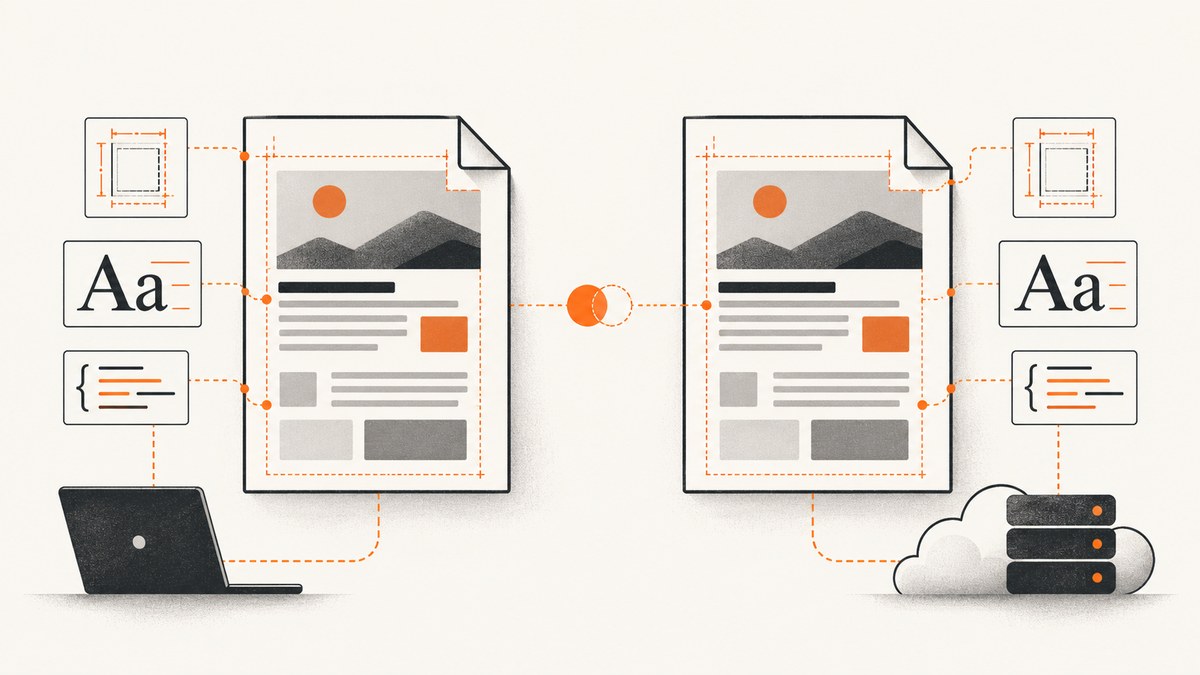
Page breaks change on Heroku when the rendering inputs change. The most reliable fix is to compare and align print CSS, fonts, browser and Puppeteer versions, paper dimensions, margins, scale, and Linux dependencies before changing manual break rules. Then wait for the same resources, generate both PDFs from identical input, and isolate the first page where layout diverges.
Puppeteer renders page.pdf() with the print CSS media type by default. That means @media print, @page, font availability, and available page area all affect wrapping and pagination. Heroku can also use a different Chromium build, font set, or shared-library environment than a developer laptop.
1. Reproduce the difference with identical inputs
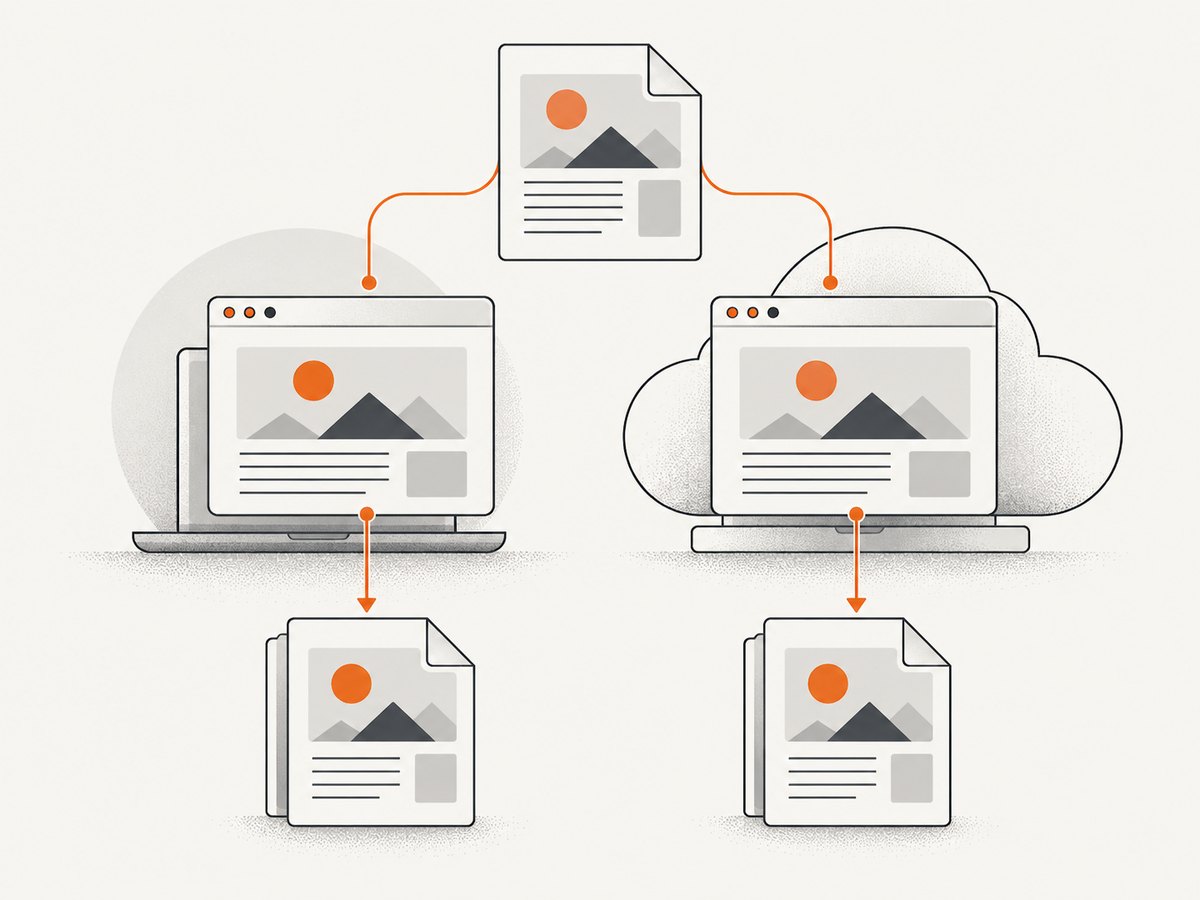
Start with a fixed HTML document or application record that produces a mismatch. Save the exact data, HTML, CSS, images, and PDF options. Run the same capture locally and on Heroku. Do not begin by adding break-before or break-inside; those rules can hide the real difference and fail again when the environment changes.
const puppeteer = require('puppeteer');
const fs = require('node:fs/promises');

async function createPdf() {
  const browser = await puppeteer.launch({
    // Use the launch flags required by your Heroku browser setup.
    args: ['--no-sandbox', '--disable-setuid-sandbox']
  });

  try {
    const page = await browser.newPage();
    await page.setContent(await fs.readFile('./fixture.html', 'utf8'), {
      waitUntil: 'networkidle0'
    });

    await page.pdf({
      path: './output.pdf',
      format: 'A4',
      printBackground: true,
      margin: {
        top: '16mm',
        right: '16mm',
        bottom: '16mm',
        left: '16mm'
      },
      preferCSSPageSize: false,
      scale: 1,
      waitForFonts: true
    });
  } finally {
    await browser.close();
  }
}

createPdf().catch(error => {
  console.error(error);
  process.exitCode = 1;
});
Record the resulting file, the first page that differs, and the environment metadata. Keep the fixture unchanged while you test one variable at a time.
2. Confirm print media and print-only CSS
The Puppeteer API states that PDF generation uses the print CSS media type by default. A print stylesheet may hide navigation, alter widths, change display modes, or introduce different margins. Review every @media print rule and inspect @page declarations before comparing screenshots from the browser window.
If the intended design is the screen layout, explicitly select screen media before creating the PDF:
await page.emulateMediaType('screen');
await page.pdf({
  path: 'screen-styled.pdf',
  format: 'A4',
  printBackground: true
});
Use screen media only when that is the desired output. If the document is meant to use print styles, leave the default in place and make the print rules deterministic.
Inspect the effective print layout
- Check whether a print rule changes
display,position,width,font-size, orline-height. - Look for fixed heights and overflow clipping that can move content at a page boundary.
- Check whether a flex or grid container receives a different width after print margins are applied.
- Review
break-before,break-after, andbreak-insideonly after the base geometry matches.
3. Make paper size, margins, scale, and CSS page size explicit
Puppeteer defaults to Letter paper. When format is supplied, it takes priority over width and height. The scale default is 1 and its documented range is 0.1 to 2. Margins are undefined unless you set them. preferCSSPageSize defaults to false, so content is normally scaled to fit the paper option rather than allowing CSS @page size to win.
| Setting | What to align | Typical failure |
|---|---|---|
format |
Use the same named paper size everywhere | Letter locally, A4 on Heroku changes line wrapping |
width/height |
Use identical units and values | Pixels, millimeters, and CSS page size compete |
margin |
Set all four sides explicitly | Different usable page height moves a block |
preferCSSPageSize |
Choose CSS or Puppeteer as the authority | @page silently changes the paper geometry |
scale |
Keep one value, normally 1 | Small scaling changes cause earlier wrapping |
printBackground |
Set deliberately for visual parity | Backgrounds disappear and make comparison misleading |
A deterministic CSS and API pairing might look like this:
@page {
  size: A4;
  margin: 16mm;
}

@media print {
  .page-break-before { break-before: page; }
  .avoid-split { break-inside: avoid; }
}
await page.pdf({
  path: 'report.pdf',
  format: 'A4',
  margin: { top: '16mm', right: '16mm', bottom: '16mm', left: '16mm' },
  preferCSSPageSize: false,
  scale: 1,
  printBackground: true,
  waitForFonts: true
});
If CSS should control the page size, use preferCSSPageSize: true and remove conflicting API dimensions. The important requirement is that local and Heroku use the same choice.
4. Install and verify the same fonts
Font substitution is one of the most common causes of a different page count. A fallback font can have different glyph widths, ascent, descent, and line height. A few extra wrapped words can move every later section. Puppeteer waits for fonts by default, but waiting cannot install a font that is absent from the Heroku dyno.
Compare the actual font files and loaded faces in both environments, including weight and style variants. Pay special attention to Chinese, Japanese, and Korean text, for which Puppeteer’s Heroku guidance notes that additional font files may be required.
await page.evaluate(async () => {
  await document.fonts.ready;
  return Array.from(document.fonts).map(font => ({
    family: font.family,
    style: font.style,
    weight: font.weight,
    status: font.status
  }));
}).then(fonts => console.log(JSON.stringify(fonts, null, 2)));
Also verify that each font request succeeds. A 404, blocked cross-origin request, or incorrect MIME type can trigger fallback. Keep waitForFonts: true unless you have a specific reason to disable it, and still check that the intended faces are available.
5. Align Chromium, Puppeteer, and Heroku dependencies
Do not assume that a local Chrome installation matches the browser downloaded or supplied in production. Record the exact Puppeteer package version, lockfile revision, browser version, Heroku stack, buildpacks, launch arguments, and executable path.
console.log({
  puppeteerPackage: require('puppeteer/package.json').version,
  browserVersion: await browser.version(),
  userAgent: await page.evaluate(() => navigator.userAgent)
});
Heroku’s Puppeteer troubleshooting guidance recommends adding the Puppeteer Heroku buildpack through app buildpack settings, using the launch configuration required by the deployed browser, and checking missing Linux libraries with ldd chrome | grep not. Dependency requirements vary with the browser package and Linux base, so inspect the current setup instead of copying an old dependency list blindly.
# Run in a Heroku shell after locating the deployed Chrome binary.
ldd /path/to/chrome | grep not
A missing shared library can cause a launch failure. A different but valid browser build can launch successfully while producing slightly different layout metrics. Pin versions during diagnosis and redeploy after changing one dependency.
6. Wait for all layout-affecting resources
networkidle0 helps with initial loading, but it does not guarantee that an application has finished rendering after a client-side route change, data fetch, image decode, or font swap. Wait for a stable application marker and for fonts before generating the PDF.
await page.goto(process.env.REPORT_URL, { waitUntil: 'networkidle0' });
await page.waitForSelector('[data-report-ready]', { timeout: 30000 });
await page.evaluate(async () => {
  await document.fonts.ready;
  const images = Array.from(document.images);
  await Promise.all(images.map(image => {
    if (image.complete) return Promise.resolve();
    return new Promise(resolve => {
      image.addEventListener('load', resolve, { once: true });
      image.addEventListener('error', resolve, { once: true });
    });
  }));
});
For lazy-loaded content, scroll the page or use the application’s documented “ready” signal before capture. Otherwise, a missing image or late layout shift can move a page break.
7. A systematic diagnosis checklist
- Save one representative HTML/data fixture.
- Capture it locally and on Heroku with identical PDF options.
- Log Puppeteer and browser versions, user agent, executable path, and fonts.
- Compare print CSS and
@pagerules. - Set paper size, margins, scale, and CSS page-size precedence explicitly.
- Verify font requests, loaded faces, and non-Latin coverage.
- Check Heroku buildpacks and missing libraries with
ldd. - Find the first divergent page and inspect the last element before the break.
- Reduce the fixture to a minimal HTML/CSS case.
- Change one variable at a time, then add a regression fixture.
8. Common errors and fixes
| Symptom | Likely cause | Fix |
|---|---|---|
| PDF has more pages on Heroku | Fallback font, smaller paper area, or larger print margins | Install and verify exact fonts; align format and margins |
| PDF has fewer pages | Different scale, missing print rule, or wider fallback font | Compare scale, media type, computed styles, and font faces |
| Break moves after a deploy | Browser or Puppeteer version changed | Pin versions and log the deployed browser version |
| Content is missing | Capture occurs before route data, images, or fonts finish | Wait for a ready selector, document.fonts.ready, and image completion |
| Browser fails to launch | Missing Linux shared library or sandbox restriction | Check the current Heroku buildpack and ldd output; use required launch flags |
@page size appears ignored |
preferCSSPageSize is false or API dimensions conflict |
Choose one authority and set the option explicitly |
| Background colors differ | printBackground differs |
Set printBackground: true when backgrounds are part of the expected output |
| Manual breaks still drift | Underlying line wrapping differs | Fix environment and geometry first; then use break rules for intentional boundaries |
9. Performance and reliability considerations
PDF generation is sensitive to cold starts, browser startup, network assets, and font downloads. Reuse a browser process where your application model allows it, create a fresh page per job, and always close pages. Set navigation, selector, and PDF job timeouts so a stuck resource does not consume a dyno indefinitely.
For repeatable output, serve critical fonts and assets from stable locations, avoid relying on third-party content, and keep the HTML fixture available for regression checks. Compare generated PDFs after dependency upgrades. A visual diff or page-count check can detect a pagination change, but inspect the first differing page to identify the cause.
Heroku’s filesystem is ephemeral, so write temporary PDFs to a temporary path and upload or return them before the process ends. Keep browser concurrency within the dyno’s memory budget; too many simultaneous Chromium pages can cause crashes that look like rendering failures.
10. Or skip the browser setup
If your application only needs a clean screenshot or PDF endpoint and you do not want to maintain Chromium, fonts, Heroku buildpacks, and pagination infrastructure, ScreenshotNeo provides a hosted capture API. See the ScreenshotNeo documentation for request options.
curl -G "https://api.screenshotneo.com/v1/shot" -d access_key=YOUR_API_KEY --data-urlencode url=https://stripe.com -o shot.webpimport requests
r = requests.get("https://api.screenshotneo.com/v1/shot", params={"access_key": "YOUR_API_KEY", "url": "https://stripe.com"}, timeout=90)
open("shot.webp", "wb").write(r.content)const q = new URLSearchParams({ access_key: 'YOUR_API_KEY', url: 'https://stripe.com' });
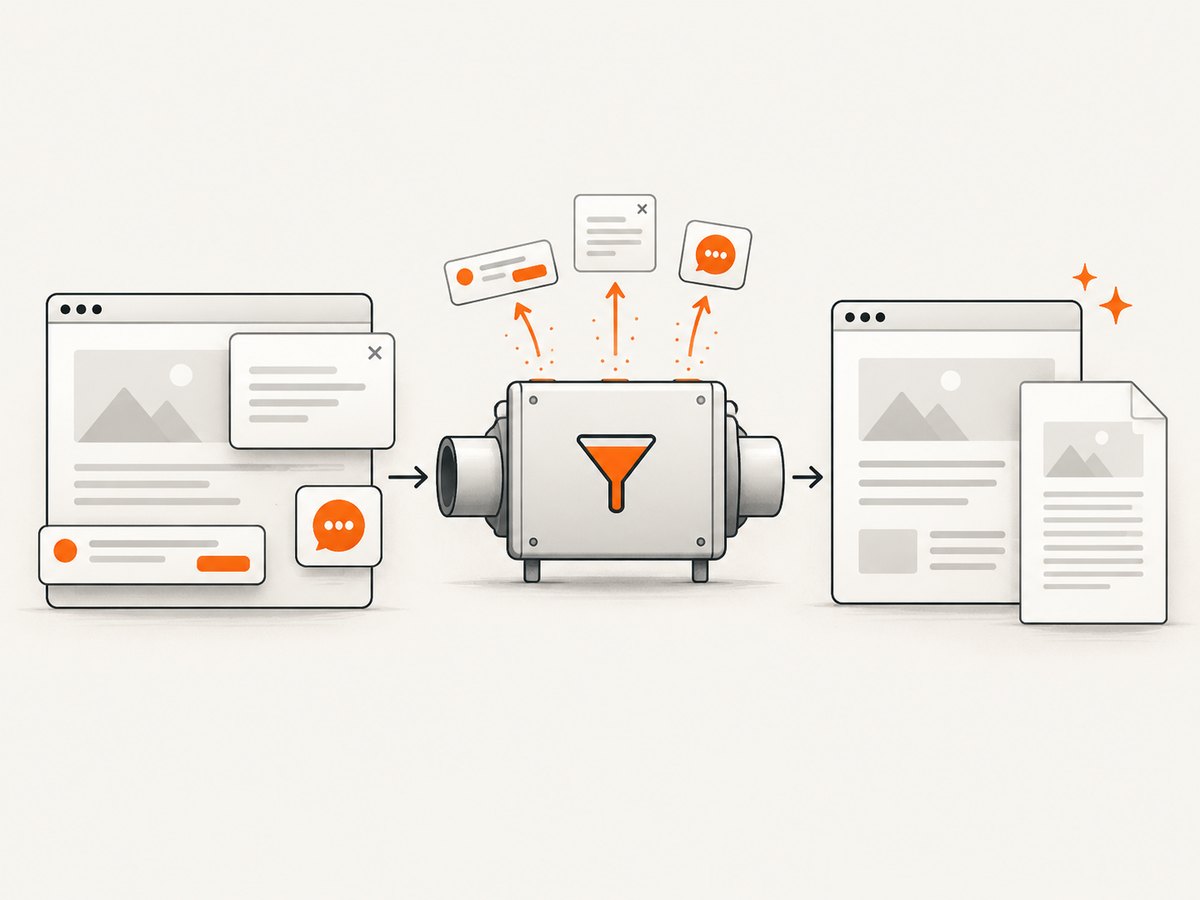
const res = await fetch(`https://api.screenshotneo.com/v1/shot?${q}`);Cookie banners, newsletter popups, and chat widgets are removed before the shot. Bot checks, blank pages, failed loads, timeouts, and cache hits are not billed, and response headers report the page verdict and billing status. ScreenshotNeo also offers an MCP server so Claude, Cursor, and other MCP clients can take screenshots, inspect pages, or capture PDFs. The Free plan includes 1,000 screenshots per month with no card; paid plans start at $5 for 3,000 shots. Create a free ScreenshotNeo account.
11. Cost and deployment trade-offs
Self-hosting Puppeteer gives control over browser versions, CSS, fonts, and output files, but you maintain buildpacks, Linux libraries, concurrency, retries, and font distribution. A hosted API moves those operational concerns to a capture service. Compare the engineering time, required PDF controls, traffic volume, and data handling requirements before choosing.
12. FAQ
Does Heroku itself change CSS page breaks?
Heroku provides the runtime; differences usually come from the browser build, fonts, dependencies, application timing, or PDF options used in that runtime.
Should I add page-break-after: always?
Only for intentional document boundaries. It cannot reliably correct changed font metrics, paper size, margins, or scale.
Is networkidle0 enough?
Not always. Wait for an application-ready selector, fonts, images, and any client-side rendering that happens after navigation.
Can I use screen media for every PDF?
You can, but only when screen styling is the intended design. Print media is Puppeteer’s default and is usually more appropriate for printable documents.
What should I capture when asking for help?
Provide a minimal fixture, both PDFs, the first divergent page, exact Puppeteer and browser versions, fonts, Heroku stack/buildpacks, print CSS, and every PDF option.


