How to Fix Puppeteer PDF Generation on Windows
Fix missing Chrome, Windows sandbox errors, blank PDFs, fonts, paths, and layout problems in Puppeteer with tested configuration patterns.
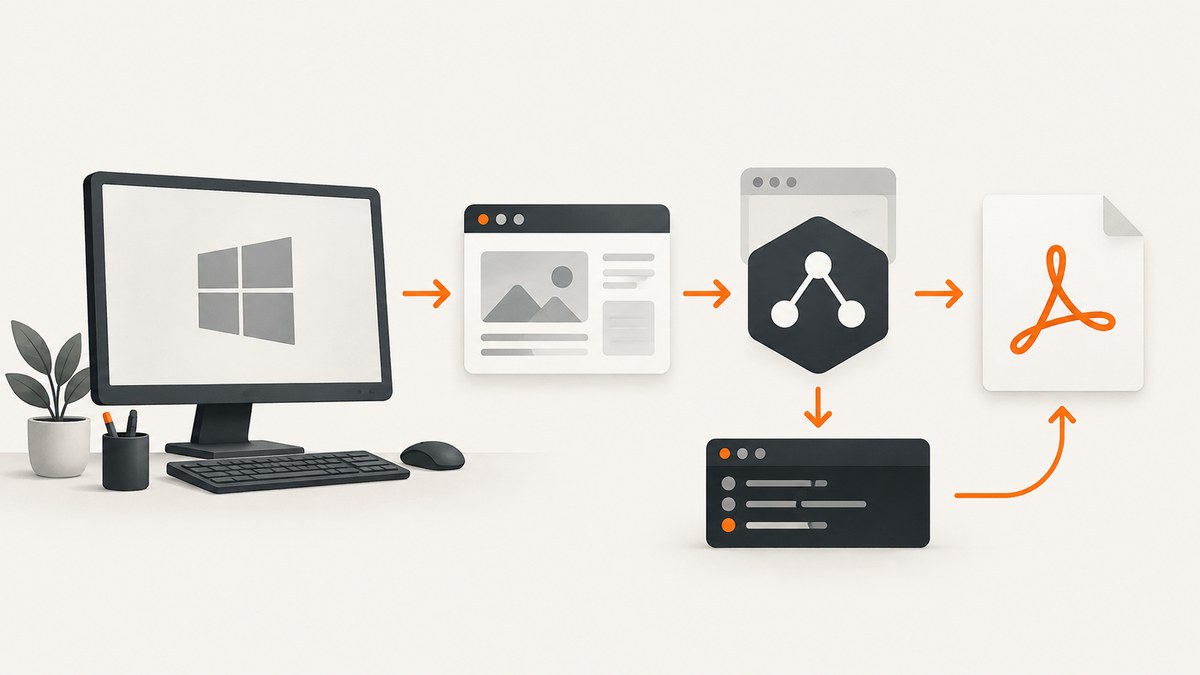
Puppeteer PDF failures on Windows usually come from one of four places: Chrome was not installed or cannot be found, Windows permissions block the browser sandbox, Node cannot write the output file, or the page is printed before its content and fonts are ready. Fix those layers in that order. The supported API is page.pdf(); a reliable flow launches a compatible browser, navigates with an explicit readiness condition, waits for application content, writes the PDF, and closes the browser in a finally block. See the official PDF guide and the Page.pdf API reference.
Use a known-good Windows baseline
Start with a small script against a simple URL. This separates Puppeteer, Chrome, permissions, and output-path problems from your application.

const puppeteer = require('puppeteer');

(async () => {
  const browser = await puppeteer.launch();
  try {
    const page = await browser.newPage();
    await page.goto('https://example.com', { waitUntil: 'networkidle2' });
    await page.pdf({
      path: 'output.pdf',
      printBackground: true,
      preferCSSPageSize: true
    });
  } finally {
    await browser.close();
  }
})();
Run it from a directory where the process can create files:
npm install puppeteer
node generate-pdf.js
If this creates output.pdf, add your application URL and readiness waits incrementally. If it fails, record the exact error, Puppeteer version, Node version, current working directory, and browser path before changing options.
1. Fix “Could not find Chrome” and browser discovery
Puppeteer normally downloads a compatible Chrome for Testing build and stores it in its user cache. npm, pnpm, Yarn Berry, Bun, Deno, or a corporate install policy can block that installation script. The result is often an error saying that Chrome cannot be found.
Reinstall the browser for your Puppeteer version
Use the browser-install command documented for the version you installed, then rerun the script. Do not copy a cache directory from another machine: the path and permissions can differ between Windows accounts.
npx puppeteer browsers install chromeCheck that the install completed under the same Windows account that runs Node. If your package manager disables lifecycle scripts, allow the Puppeteer browser installation step or install the browser explicitly after dependency installation.
Provide an explicit executable path
When Chrome is managed by IT, installed system-wide, or stored outside Puppeteer’s cache, pass its real executable path:
const browser = await puppeteer.launch({
  executablePath: 'C:\\Program Files\\Google\\Chrome\\Application\\chrome.exe'
});
Use the browser actually installed on the machine. Log the resolved path while diagnosing instead of guessing between Chrome, Edge, and a Puppeteer-managed tree. Puppeteer also exposes PUPPETEER_CACHE_DIR and PUPPETEER_EXECUTABLE_PATH configuration controls; set them consistently for local development and CI. See the configuration reference.
2. Repair Windows sandbox and ACL errors
A common Windows launch failure looks like: “Sandbox cannot access executable. Check filesystem permissions are valid. Access is denied. (0x5).” This means Chrome’s Windows sandbox cannot read or execute files in the downloaded browser tree. Puppeteer’s troubleshooting guide documents the issue and notes that starting with v22.14.0, installation attempts to configure the permissions.
For an older installation or a persistent failure, open an elevated Command Prompt and grant the required read and execute permissions:
icacls "%USERPROFILE%/.cache/puppeteer/chrome" /grant *S-1-15-2-1:(OI)(CI)(RX)Use the more restrictive security identifier supplied by your installer or administrator when your environment requires one. Also check that antivirus software, controlled-folder access, or a roaming profile is not locking the executable.
Do not disable the sandbox casually
--no-sandbox can hide a permissions problem but removes an important browser boundary. Treat it as a last-resort, environment-specific setting only for trusted content and a host you control. The official Puppeteer troubleshooting guide strongly discourages disabling the sandbox.
Check enterprise extension policy
Puppeteer passes --disable-extensions by default. A managed Chrome policy can require extensions and prevent launch. If policy is the cause, try:
const browser = await puppeteer.launch({ enableExtensions: true });Ask your administrator which policies apply before adding flags. Keep the launch configuration minimal so a policy change is visible in the next error.
3. Fix output paths and zero-byte PDFs
page.pdf() writes to the path you provide. A relative path is resolved against Node’s current working directory, which can differ between a terminal, IDE, Windows service, scheduled task, and CI worker.
const path = require('node:path');
console.log('cwd:', process.cwd());
const outputPath = path.resolve(process.cwd(), 'artifacts', 'report.pdf');
Create the directory first and verify that the account running Node can create and replace files there:
const fs = require('node:fs');
const path = require('node:path');
const outputDir = path.resolve(process.cwd(), 'artifacts');
fs.mkdirSync(outputDir, { recursive: true });
const outputPath = path.join(outputDir, 'report.pdf');
If Windows reports that the file is in use, close the PDF viewer or write a unique temporary filename before replacing the final file. If the file is blank, continue with readiness diagnostics rather than changing the output path repeatedly.
4. Wait for the page’s actual content
networkidle2 waits for a quiet network, but it does not guarantee that a client-side chart, table, image, or component has rendered. Add an application-specific selector, data condition, or short delay after navigation.
await page.goto('https://your-site.example/report', {
  waitUntil: 'networkidle2',
  timeout: 60000
});
await page.waitForSelector('[data-report-ready]', { timeout: 30000 });
await page.evaluate(() => document.fonts.ready);
await page.pdf({ path: outputPath, printBackground: true });
Prefer a selector that your application sets after data arrives. A delay is useful for an animation or a third-party widget, but it is less deterministic:
await new Promise(resolve => setTimeout(resolve, 1000));For lazy-loaded images, scroll or trigger the page’s loading behavior before printing. Also inspect the page in a headed browser when the HTML shell appears but the data does not.
5. Control print CSS, paper, margins, and page ranges
Puppeteer prints using the print CSS media type. A page that looks correct on screen can therefore have different colors, visibility, and spacing in a PDF. Add print-specific CSS where needed:
@media print {
  .navigation, .chat-widget { display: none !important; }
  .report { break-inside: avoid; }
}
@page { size: A4; margin: 12mm; }
The most useful page.pdf() options are:
| Option | Purpose |
|---|---|
printBackground |
Retain background colors and images. |
preferCSSPageSize |
Prioritize the CSS @page size over format, width, or height. |
format |
Use a named paper size such as A4 or Letter. |
width, height |
Set custom paper dimensions. |
margin |
Set top, right, bottom, and left margins. |
landscape |
Rotate the page for wide tables or dashboards. |
scale |
Scale printed content; check readability after changing it. |
pageRanges |
Export selected pages, such as 1-3. |
timeout |
Limit how long the PDF operation may wait. |
waitForFonts |
Wait for document.fonts.ready; it defaults to true. |
A production configuration might look like this:
await page.pdf({
  path: outputPath,
  format: 'A4',
  landscape: false,
  printBackground: true,
  preferCSSPageSize: true,
  margin: { top: '12mm', right: '12mm', bottom: '14mm', left: '12mm' },
  pageRanges: '1-10',
  scale: 1,
  timeout: 60000,
  waitForFonts: true
});
6. Diagnose missing fonts and assets
By default, Puppeteer waits for fonts before producing the PDF. Missing glyphs usually mean the font file cannot be reached by headless Chrome, the Windows process lacks access, the URL is blocked, or printing began before the page’s own font-loading work completed.
- Open the font URL from the same machine and account.
- Check DevTools or request logs for failed
@font-facefiles. - Wait for
document.fonts.readyand your application readiness selector. - Prefer a font format supported by the target Chrome build and include a fallback family.
- Verify that external images, stylesheets, and scripts are not blocked by authentication, CORS, or a firewall.
For deterministic documents, serve assets from a reachable origin, authenticate before navigation, and avoid relying on a font that exists only on one developer’s workstation.
7. Use Microsoft Edge when Chrome is controlled
Microsoft documents Puppeteer support for full Microsoft Edge. Open edge://version, copy the executable path shown there, and pass it to Puppeteer:
const browser = await puppeteer.launch({
  executablePath: 'C:\\Program Files (x86)\\Microsoft\\Edge\\Application\\msedge.exe'
});
Edge is useful when enterprise policy requires it or a managed Chrome installation cannot be used. Compare browser version ownership, executable-path stability, policy compatibility, cache and ACL control, font availability, and reproducibility across developer machines and CI workers. See Microsoft’s Puppeteer support documentation for Edge.
8. A complete diagnostic script
This script records the variables that most often explain a Windows failure and uses explicit waits and an absolute output path.
const fs = require('node:fs');
const path = require('node:path');
const puppeteer = require('puppeteer');

(async () => {
  const outputDir = path.resolve(process.cwd(), 'artifacts');
  fs.mkdirSync(outputDir, { recursive: true });
  const outputPath = path.join(outputDir, 'report.pdf');
  console.log({ cwd: process.cwd(), outputPath });

  const browser = await puppeteer.launch({
    // executablePath: 'C:\\Program Files\\Google\\Chrome\\Application\\chrome.exe'
  });
  try {
    const page = await browser.newPage();
    page.on('console', message => console.log('[page]', message.text()));
    page.on('requestfailed', request => console.warn('[request failed]', request.url(), request.failure()));
    await page.goto('https://example.com', { waitUntil: 'networkidle2', timeout: 60000 });
    await page.evaluate(() => document.fonts.ready);
    await page.pdf({ path: outputPath, printBackground: true, preferCSSPageSize: true, timeout: 60000 });
    console.log('wrote:', outputPath);
  } finally {
    await browser.close();
  }
})();
9. Troubleshooting checklist
| Symptom | Likely cause | Fix |
|---|---|---|
| Could not find Chrome | Browser install script was skipped or cache path changed. | Install the browser for your Puppeteer version, set PUPPETEER_CACHE_DIR, or pass executablePath. |
| Sandbox access denied, 0x5 | ACLs on downloaded Chrome files do not permit execution. | Repair permissions with icacls, reinstall a current Puppeteer release, and check security software. |
| PDF path not found | Relative path resolves from an unexpected working directory. | Log process.cwd(), create the directory, and use an absolute path. |
| Zero-byte or blank PDF | Page shell loaded before data, images, or components rendered. | Use networkidle2 plus a selector or data readiness condition. |
| Missing backgrounds | Print backgrounds are disabled. | Set printBackground: true and inspect print CSS. |
| Wrong paper size | CSS @page and PDF options conflict. |
Choose preferCSSPageSize or configure format/width/height deliberately. |
| Missing glyphs | Font URL, permissions, or loading timing failure. | Check font requests, wait for document.fonts.ready, and provide fallbacks. |
| Chrome launches then exits | Enterprise policy, extension requirement, or blocked executable. | Inspect policy, try enableExtensions: true, or use a controlled Edge path. |

10. Performance, reliability, and cost
Launching a browser for every document is simple but adds startup work. For a trusted worker, reuse one browser and create a new page per job; always close pages so memory does not grow. Set navigation and PDF timeouts, cap concurrent pages, and retry only transient navigation failures. Do not retry a deterministic missing-browser or permission error.
Keep assets close to the worker, avoid unnecessary third-party requests, and use a readiness selector instead of an excessively long fixed delay. For reproducibility, pin Puppeteer, record the browser version, use the same fonts on every worker, and write to a dedicated directory. Measure your own workload; the official sources do not publish a general PDF-generation speed or failure-rate statistic.
Or skip the browser setup
If you only need a clean image or PDF from a URL, ScreenshotNeo provides a single-request screenshot API and an MCP server. Cookie and consent banners are accepted and removed before capture, along with more than 60 known consent platforms, newsletter popups, and chat widgets. Bot checks, blank pages, timeouts, failed loads, and cache hits are not billed, and each response identifies the result with X-Page-Verdict and X-Billed headers.
See the ScreenshotNeo API documentation for all options. A PDF request uses the same endpoint:
curl -G "https://api.screenshotneo.com/v1/shot" -d access_key=YOUR_API_KEY --data-urlencode url=https://stripe.com -o shot.webpimport requests
r = requests.get("https://api.screenshotneo.com/v1/shot", params={"access_key": "YOUR_API_KEY", "url": "https://stripe.com"}, timeout=90)
open("shot.webp", "wb").write(r.content)const q = new URLSearchParams({ access_key: 'YOUR_API_KEY', url: 'https://stripe.com' });
const res = await fetch(`https://api.screenshotneo.com/v1/shot?${q}`);ScreenshotNeo also supports PDF paper size, margins, landscape mode, page ranges, full-page capture, element selectors, custom CSS and JavaScript, clicks, waits, blocked resources, headers, cookies, user agents, authorization, timezone, geolocation, caching, signed links, asynchronous jobs, webhooks, bulk capture, and an MCP server with take_screenshot, get_page_info, and capture_pdf tools for Claude, Cursor, and other MCP clients. One thousand screenshots per month are free with no card; paid plans start at $5 for 3,000. Create a free ScreenshotNeo account.
FAQ
Does Puppeteer generate PDFs on Windows?
Yes. page.pdf() is the supported printing API. Most failures are browser discovery, permissions, readiness, output paths, or print-CSS configuration.
Should I use waitUntil: 'networkidle0'?
Only when your application can become completely idle. Many pages keep analytics or sockets open; networkidle2 plus an application readiness selector is often more practical.
Can I use Edge instead of Chrome?
Yes. Copy the executable path from edge://version and pass it as Puppeteer’s executablePath.
Why does the PDF differ from the browser view?
Printing uses the print media type and can apply different page geometry. Define print CSS and choose paper, margins, scale, and background settings explicitly.


