How to Fix Puppeteer PDFs That Won’t Download
Puppeteer can generate valid PDF bytes without creating a browser download. Learn to diagnose generation, HTTP headers, response completion, and client errors.

Short answer: Puppeteer’s page.pdf() creates PDF bytes (a Uint8Array); it does not download a file by itself. First prove that PDF generation completes. Then return those bytes from your server with Content-Type: application/pdf, an appropriate Content-Disposition, and a completed response. Finally inspect the actual HTTP status, headers, and body in the client.
This guide follows the failure from browser rendering to HTTP delivery. It applies to plain Node.js servers and Express routes and includes diagnostics for navigation, failed resources, response length, and corrupted output.
1. Separate PDF generation from downloading
The official Puppeteer API describes Page.pdf() as generating a PDF with the print CSS media type and returning Promise<Uint8Array> (Puppeteer API documentation). Saving a file with the path option is also generation-side behavior; a browser download prompt only happens when your application sends an HTTP response that tells the client to download the bytes.
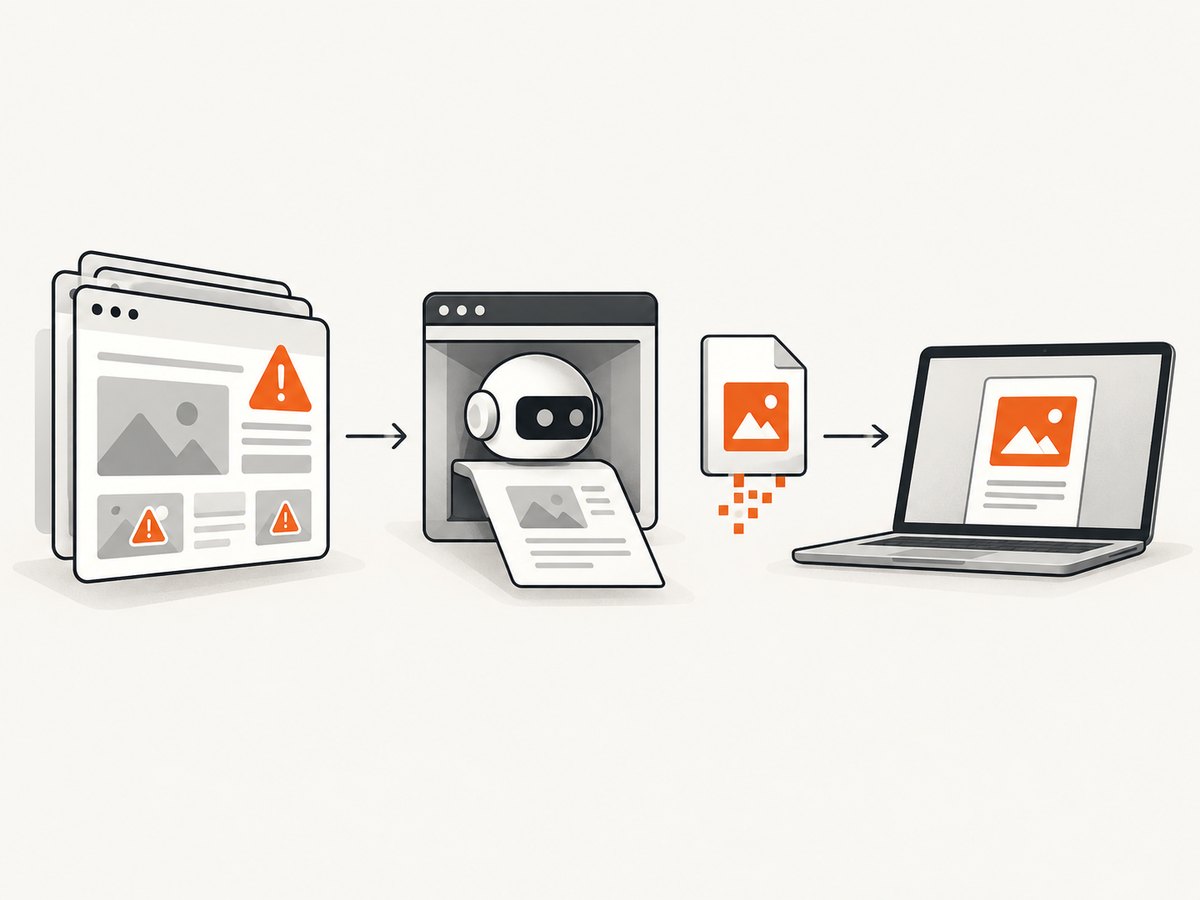
Use this three-layer model:
- Navigation: did the page load the expected document and resources?
- Generation: did
page.pdf()resolve to non-empty bytes? - Delivery: did your route send those bytes with correct headers and finish the response?
A failure in one layer can look like a failure in another. For example, an HTML error page returned by your route may be mistaken for a PDF download problem, while a valid PDF sitting in memory may never reach the client because the response was not ended.
2. Confirm navigation before creating the PDF
Capture the navigation response and inspect its status. Puppeteer’s request lifecycle matters here: a 404 or 503 can still produce a requestfinished event, so request completion alone does not prove a successful HTTP status (HTTPRequest documentation).
import puppeteer from 'puppeteer';

const browser = await puppeteer.launch({ headless: true });
try {
  const page = await browser.newPage();
  page.on('requestfailed', request => {
    console.error('Request failed:', request.url(), request.failure());
  });

  const response = await page.goto('https://example.com/invoice/123', {
    waitUntil: 'networkidle0',
    timeout: 30_000
  });

  if (!response) {
    throw new Error('Navigation returned no response');
  }
  console.log('Navigation status:', response.status(), response.statusText());
  if (!response.ok()) {
    throw new Error(`Page returned HTTP ${response.status()}`);
  }

  await page.waitForSelector('#invoice-total', { timeout: 10_000 });
  const pdf = await page.pdf({
    format: 'A4',
    printBackground: true,
    preferCSSPageSize: true
  });
  console.log('PDF bytes:', pdf.byteLength);
} finally {
  await browser.close();
}
Use waitUntil: 'networkidle0' only when the page can become idle. Applications with analytics, WebSockets, or long polling may never satisfy it; in those cases use domcontentloaded plus an explicit selector or a bounded delay. A successful navigation response still does not guarantee every image, font, or stylesheet loaded, so keep the requestfailed listener while diagnosing.
3. Generate a PDF and inspect the bytes
Keep generation in a try/finally block so Chromium closes on every path. Check the result before sending it. A zero-length or unexpectedly small result points to rendering or application logic, not download headers.
import puppeteer from 'puppeteer';

export async function makePdf(url) {
  const browser = await puppeteer.launch({ headless: true });
  try {
    const page = await browser.newPage();
    const navigation = await page.goto(url, {
      waitUntil: 'domcontentloaded',
      timeout: 30_000
    });

    if (!navigation || !navigation.ok()) {
      const status = navigation ? navigation.status() : 'no response';
      throw new Error(`Navigation failed: ${status}`);
    }

    await page.emulateMediaType('print');
    const pdf = await page.pdf({
      format: 'A4',
      printBackground: true,
      margin: { top: '16mm', right: '16mm', bottom: '16mm', left: '16mm' },
      preferCSSPageSize: true,
      waitForFonts: true
    });

    if (!pdf || pdf.byteLength === 0) {
      throw new Error('Puppeteer returned an empty PDF');
    }
    return pdf;
  } finally {
    await browser.close();
  }
}
The PDF guide documents that fonts are awaited by default and that the output can be written to a path (Puppeteer PDF generation guide). If you use path for debugging, verify the file exists and opens, then test the HTTP route separately. A path on the server does not cause a client’s browser to download it.
4. Return the bytes correctly from Node.js
For a download prompt, send the generated bytes as the response body, set the media type, set an attachment disposition, and call response.end(). Node’s HTTP documentation states that headers can be set with setHeader() and that end() completes the message (Node.js HTTP documentation).
import http from 'node:http';
import { makePdf } from './make-pdf.js';

const server = http.createServer(async (req, res) => {
  if (req.method !== 'GET' || req.url !== '/report.pdf') {
    res.statusCode = 404;
    res.end('Not found');
    return;
  }

  try {
    const pdf = await makePdf('https://example.com/report');
    const body = Buffer.from(pdf);

    res.statusCode = 200;
    res.setHeader('Content-Type', 'application/pdf');
    res.setHeader('Content-Disposition', 'attachment; filename="report.pdf"');
    res.setHeader('Content-Length', body.byteLength);
    res.end(body);
  } catch (error) {
    console.error(error);
    if (!res.headersSent) {
      res.statusCode = 500;
      res.setHeader('Content-Type', 'application/json');
      res.end(JSON.stringify({ error: 'PDF generation failed' }));
    } else {
      res.destroy(error);
    }
  }
});

server.listen(3000);
Content-Length is optional, but if you set it, calculate it from the bytes. Node treats the length as bytes and checks it against the transmitted body. Do not convert the PDF to a UTF-8 string, wrap it in JSON, or send a base64 string unless your client explicitly expects that format.
5. Express delivery: send memory, do not use a path helper by mistake
Express documents res.download() as a path-based file transfer helper that sets attachment behavior (Express response API). When Puppeteer has already returned a Uint8Array, send those bytes directly:
import express from 'express';
import { makePdf } from './make-pdf.js';

const app = express();

app.get('/report.pdf', async (req, res, next) => {
  try {
    const pdf = await makePdf('https://example.com/report');
    const body = Buffer.from(pdf);
    res.status(200)
      .type('application/pdf')
      .set('Content-Disposition', 'attachment; filename="report.pdf"')
      .set('Content-Length', String(body.byteLength))
      .send(body);
  } catch (error) {
    next(error);
  }
});

app.listen(3000);
Use res.download('/absolute/path/report.pdf') only when you intentionally saved a file and want Express to transfer that path. Passing PDF bytes where a path is expected causes errors or a response that never contains the generated document.
6. Inspect what the client actually received
Open the browser developer tools Network panel or use curl against your route:
curl -v http://localhost:3000/report.pdf -o received.pdf
file received.pdf
Check all of these:
- Status is 200 (or the status your API intentionally uses).
Content-Typeisapplication/pdf, not HTML or JSON.Content-Dispositioncontainsattachmentand a safe filename when a prompt is required.- The body is non-empty and begins with the PDF signature; inspect with a PDF tool rather than trusting the filename.
- If
Content-Lengthis present, it matches the number of bytes received.
Also inspect the navigation response inside Puppeteer. HTTPResponse exposes status(), ok(), and headers(); do not infer success only from request events (Page.goto() documentation).
7. Common errors and fixes
| Symptom | Likely cause | Fix |
|---|---|---|
page.pdf() throws |
Navigation timeout, closed page, invalid options, or rendering failure | Catch the error, log the navigation status, increase or bound the timeout, and capture requestfailed events. |
| Route returns an HTML error page | Exception handler replaced the PDF response | Inspect status and Content-Type; log the original exception and only send JSON/HTML on a deliberate error path. |
| Browser displays the PDF but does not prompt download | Missing or inline Content-Disposition |
Set Content-Disposition: attachment; filename="report.pdf". |
res.download() says file not found |
A Uint8Array was passed where Express expects a filesystem path |
Use res.send(Buffer.from(pdf)) with PDF headers, or save a file first and pass its absolute path. |
| Downloaded file cannot be opened | Bytes converted to text, JSON, or truncated output | Send a Buffer/Uint8Array directly and compare byte length with the declared length. |
| PDF is blank or missing images | Page captured before content loaded, blocked resources, or CSS hides print content | Wait for a meaningful selector, use a suitable waitUntil, inspect failed requests, and check print CSS. |
| Navigation appears finished but page is an error | HTTP 404/503 still emitted requestfinished |
Check response.status() and response.ok() explicitly. |
| Client hangs indefinitely | Response was never ended or an exception occurred after headers were sent | Call res.end()/res.send() on success and destroy the socket when a partially sent response cannot be completed. |
8. PDF options that affect output
Choose options based on the document rather than trying to fix delivery with rendering settings:
formatsuch asA4standardizes paper dimensions; usewidth/heightfor custom sizes.printBackground: truepreserves background colors and images.landscape: truerotates the page orientation.marginprevents content from touching the edge.pageRangeslimits output to selected pages.preferCSSPageSize: truehonors CSS@pagedimensions when your document defines them.pathwrites a server-side copy for inspection; it does not deliver that copy to a browser.
Remember that Puppeteer uses print media CSS for PDF generation. Rules inside @media print can hide elements that are visible on screen. If the page looks correct in a normal tab but not in the PDF, inspect print-specific styles before changing HTTP code.
9. Performance and reliability practices
- Reuse a browser process: launching Chromium for every request adds startup cost. Create a bounded pool of pages or browser contexts and close pages after each job.
- Bound every wait: set navigation and selector timeouts. A page waiting forever prevents the HTTP response from finishing.
- Wait for the right signal: a stable selector is often more reliable than global network idle on pages with analytics or live connections.
- Limit concurrency: too many simultaneous PDFs increase memory pressure and can make Chromium crash. Queue jobs and apply backpressure.
- Keep failures observable: log URL, navigation status, elapsed time, PDF byte length, and failed request URLs without logging secrets.
- Retry selectively: retry transient navigation failures, but do not blindly retry deterministic 404s or invalid application data.
- Clean up on cancellation: if a client disconnects, stop unnecessary work where your framework supports request cancellation.
10. Or skip the browser setup
If your goal is a clean screenshot or PDF endpoint rather than maintaining Chromium, ScreenshotNeo provides a website capture API. One GET request returns a PNG, JPEG, WebP, or PDF. Its capture flow accepts cookie and consent banners like a visitor, then removes more than 60 known consent platforms, newsletter popups, and chat widgets; each cleanup step can be turned off.

For a screenshot request, use the same API base for any target URL:
cURL
curl -G "https://api.screenshotneo.com/v1/shot" -d access_key=YOUR_API_KEY --data-urlencode url=https://stripe.com -o shot.webpPython
import requests
r = requests.get("https://api.screenshotneo.com/v1/shot", params={"access_key": "YOUR_API_KEY", "url": "https://stripe.com"}, timeout=90)
open("shot.webp", "wb").write(r.content)
Node.js
const q = new URLSearchParams({ access_key: 'YOUR_API_KEY', url: 'https://stripe.com' });
const res = await fetch(`https://api.screenshotneo.com/v1/shot?${q}`);
See the ScreenshotNeo documentation for request parameters and response details. Failed loads, bot checks/CAPTCHAs, blank pages, timeouts, and cache hits are not billed, and response headers identify the page verdict and whether it was billed. ScreenshotNeo also provides PDF output, custom waits, headers, cookies, user agents, geolocation, caching, asynchronous jobs, bulk capture, signed links, usage data, and an MCP server with take_screenshot, get_page_info, and capture_pdf tools for AI clients.
There is a free tier of 1,000 screenshots per month without a card. Paid plans start at $5 for 3,000 shots, and every feature is available on every plan. Create a free ScreenshotNeo account.
11. Cost and operational notes
Self-hosted Puppeteer costs your infrastructure time: Chromium memory, CPU, queueing, patching, and failure handling. Measure concurrency and document size in your own workload before setting limits. If you use ScreenshotNeo, clean shots are billed while bot checks, blank pages, timeouts, failed loads, and cache hits are not; inspect X-Page-Verdict and X-Billed in each response for accounting.
FAQ
Does page.pdf() trigger a browser download?
No. It returns PDF bytes or writes a server-side path. Your HTTP route must deliver the bytes.
Should I use res.download()?
Only when you have a file path. For in-memory Puppeteer output, send a Buffer with PDF and attachment headers.
Why does a finished request still represent an error page?
HTTP error responses such as 404 and 503 can still finish. Check the navigation response status and ok().
Can I display the PDF inline?
Yes. Use Content-Disposition: inline or omit the disposition when your client should open the document instead of prompting for a save.
What is the fastest diagnostic?
Log whether page.pdf() resolved, its byte length, the route status, response headers, and the first client-side error. That immediately identifies the failing layer.


