How to Fix Puppeteer Running the Postinstall Script
Fix Puppeteer postinstall hangs, blocked browser downloads, missing Chrome errors, cache problems, CI failures, and WSL or Docker issues.

Direct answer: Puppeteer’s postinstall step normally downloads a compatible Chrome for Testing browser. If installation appears stuck, the script is often blocked by your package manager, the download is intentionally disabled, or the browser cache is inaccessible to the user who runs Puppeteer. Read the complete installer output, verify script policy, check download suppression variables, align the cache directory between build and runtime, and then run the official recovery command:
npx puppeteer browsers installIf you installed puppeteer-core, there is no postinstall browser download. You must provide a browser yourself and launch it with an executable path, channel, or remote connection.
What the Puppeteer postinstall script does
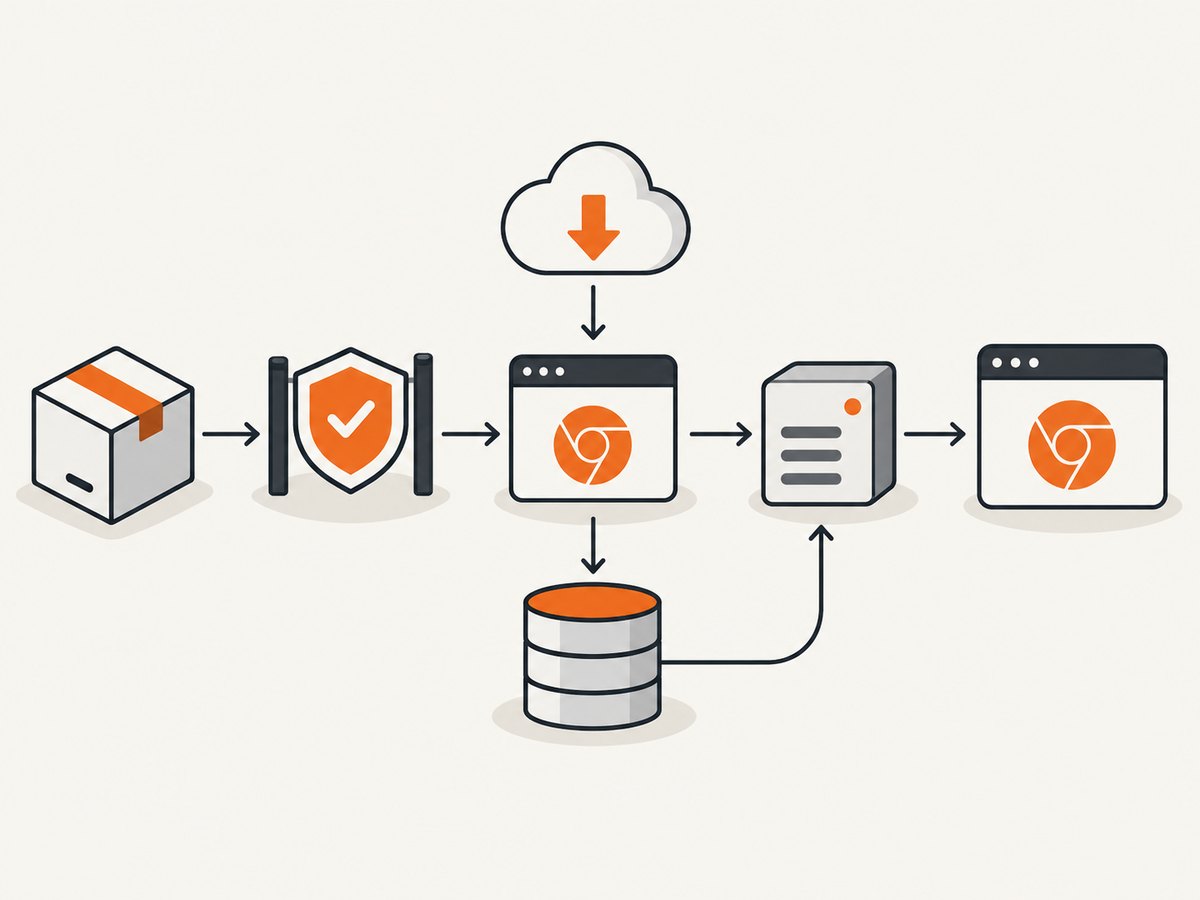
The full puppeteer package downloads a browser version compatible with the package. The official installation guide states that installing Puppeteer automatically downloads a recent Chrome for Testing browser. The download is performed by an installation lifecycle script, commonly called postinstall. See the official installation guide.
A package can therefore appear to install successfully while the browser is absent. Modern npm policies and other package managers can block dependency scripts. In that case, node_modules/puppeteer exists, but no browser was downloaded. The failure appears later when code calls puppeteer.launch() and reports that Chrome cannot be found.
puppeteer versus puppeteer-core
| Package | Browser download | What you must configure | Typical use |
|---|---|---|---|
puppeteer |
Downloads a compatible browser during installation | Allow the install script, or run the browser installer manually | Local development and deployments where Puppeteer manages Chrome |
puppeteer-core |
Never downloads Chrome | executablePath, channel, or a remote browser connection |
Teams that manage the browser image or host themselves |
Do not “fix” a deliberate puppeteer-core choice by repeatedly reinstalling dependencies. Supply a compatible browser instead.
Step 1: capture the real installer error
Start by collecting facts instead of assuming the network is at fault. Run installation with lifecycle output visible. With npm, use its foreground-script option:
npm install puppeteer --foreground-scriptsAlso record:
- the complete error and the first warning above it;
- Node.js, npm, pnpm, Yarn, Bun, or Deno versions;
- operating system and CPU architecture;
- whether the command runs locally, in CI, Docker, WSL, or a serverless build;
- the account that installs dependencies and the account that runs the application.
A visible lifecycle log distinguishes a blocked script from a failed download, permission error, missing system library, or a browser that was downloaded into a cache the runtime cannot read.
Step 2: allow or manually run dependency scripts
Check your package manager’s script policy. npm under newer security policies, pnpm, Yarn Berry, Bun, and Deno can require explicit approval for dependency scripts. If scripts are blocked, install the package and run:
npx puppeteer browsers installThis is the official manual recovery command. If your environment requires an allowlist, add Puppeteer to it. For npm’s documented configuration format, use:
{
  "allowScripts": {
    "puppeteer": true
  }
}
Then reinstall Puppeteer or run the browser installation command again. In CI, make this policy part of the reproducible build rather than relying on a developer’s local approval. A clean install should produce the same browser files on every worker.
How to tell that scripts were blocked
Common clues include a warning that install scripts were ignored, a successful dependency resolution with no browser download lines, or a later error such as Could not find Chrome. If the package manager reports that scripts were disabled, changing DNS, proxy, or timeout settings will not help until the script is permitted.
Step 3: remove accidental download suppression
Search shell profiles, CI secrets, Dockerfiles, hosting settings, and configuration files for these controls:
PUPPETEER_SKIP_DOWNLOAD
PUPPETEER_CHROME_SKIP_DOWNLOAD
skipDownload: true
The Puppeteer configuration API documents these settings as download suppression controls. They are useful when your image already contains Chrome, but they prevent the postinstall step from supplying one. Remove them when Puppeteer should manage the browser.
If suppression is intentional, install a compatible browser in the image and pass its location at runtime:
const puppeteer = require('puppeteer-core');

(async () => {
  const browser = await puppeteer.launch({
    executablePath: process.env.CHROME_PATH
  });
  const page = await browser.newPage();
  await page.goto('https://example.com', {waitUntil: 'networkidle2'});
  console.log(await page.title());
  await browser.close();
})();
With the full package, the equivalent launch option is still executablePath. A channel such as a locally installed Chrome channel can also be used when supported by your environment. Verify that the binary exists and is executable as the deployment user.
Step 4: align the browser cache
Since Puppeteer v19, the default browser cache is $HOME/.cache/puppeteer. Installation and runtime must resolve the same home directory and cache path, and both users need appropriate read, write, and execute permissions.
Problems occur when a root build writes the browser under /root/.cache but a non-root process later searches under another home directory, or when a CI cache restores only node_modules and omits the browser cache.
Choose a stable cache path for containers and CI. Set PUPPETEER_CACHE_DIR in the environment, or use the supported cacheDirectory setting in .puppeteerrc or a Puppeteer configuration file. After changing it, rerun:
npx puppeteer browsers installCheck the result inside the same image and user context that will run your application. Do not rely on a browser downloaded on the host machine unless the deployment artifact includes it.
Container checklist
- Set one cache directory in the build stage and runtime stage.
- Run the installer as the same user, or change ownership after installation.
- Copy the cache into the final image if using multi-stage builds.
- Confirm the runtime user can execute the browser and its helper files.
- Keep the browser cache in the deployment artifact or configure a persistent volume.
Step 5: separate download failures from launch failures
A postinstall error and a browser launch error can look similar but require different fixes. If the browser directory is empty, repair script policy, suppression, network access, or cache settings. If the binary exists but launch fails, inspect operating-system libraries and permissions.
WSL and Linux libraries
WSL and minimal Linux images may lack libraries required by Chrome. Puppeteer’s troubleshooting guidance lists packages such as libgtk-3-dev, libnotify-dev, libgconf-2-4, libnss3, libxss1, and libasound2 among the dependencies that may be needed, depending on the distribution and browser build. Install the packages for your distribution, then retry the launch. This is a runtime prerequisite issue, not proof that the postinstall script was skipped.
Windows cache permissions
On Windows, Chrome can download correctly but fail to launch if sandbox files in the cache directory have unsuitable permissions. The official troubleshooting guide documents an icacls remedy for the affected cache directory. Apply the documented command to the actual cache path, then launch as the intended user.
Step 6: make CI, Docker, and serverless builds reproducible
Build systems often cache node_modules. A cache hit can skip installation, leaving dependencies present while the browser cache is missing. Invalidate the dependency cache when changing the Puppeteer version, cache directory, Node version, or operating-system image.
For Google App Engine and Cloud Functions, the official guidance places Puppeteer’s cache under node_modules/.puppeteer_cache so the browser travels with the cached dependency tree. Use that pattern only when your deployment actually reuses that directory and the runtime user can read it.
A reliable build sequence is:
npm ci --foreground-scripts
npx puppeteer browsers install
node -e "const p=require('puppeteer'); p.launch().then(b=>b.close())"
Run the smoke check in the final image, not just in the build stage. It catches missing shared libraries, incorrect ownership, and cache paths that differ between stages.
Complete working examples
JavaScript screenshot script
const puppeteer = require('puppeteer');

(async () => {
  const browser = await puppeteer.launch({headless: true});
  try {
    const page = await browser.newPage();
    await page.setViewport({width: 1440, height: 900, deviceScaleFactor: 1});
    await page.goto('https://example.com', {
      waitUntil: 'networkidle2',
      timeout: 60000
    });
    await page.screenshot({path: 'example.png', fullPage: true});
  } finally {
    await browser.close();
  }
})();
Install with Puppeteer’s documented installation process, allow its lifecycle script, and run the browser installer manually if the script was blocked.

cURL
curl -G "https://api.screenshotneo.com/v1/shot" -d access_key=YOUR_API_KEY --data-urlencode url=https://stripe.com -o shot.webpPython
import requests
r = requests.get("https://api.screenshotneo.com/v1/shot", params={"access_key": "YOUR_API_KEY", "url": "https://stripe.com"}, timeout=90)
open("shot.webp", "wb").write(r.content)
Node.js
const q = new URLSearchParams({ access_key: 'YOUR_API_KEY', url: 'https://stripe.com' }); const res = await fetch(`https://api.screenshotneo.com/v1/shot?${q}`);Or skip the browser setup
If your goal is a dependable website screenshot rather than maintaining Chrome in every build, ScreenshotNeo provides a single GET request. The API documentation covers the request and its options.
ScreenshotNeo accepts cookie and consent banners before capture and removes more than 60 known consent platforms, newsletter popups, and chat widgets. Each step can be turned off. Bot checks and CAPTCHAs, blank pages, timeouts, failed loads, and cache hits are not billed; response headers identify the page verdict and whether the request was billed. Its MCP server provides take_screenshot, get_page_info, and capture_pdf tools for Claude, Cursor, and other MCP clients.
The API also supports full-page captures with lazy images loaded, CSS-selector element captures, dark mode, device presets and custom viewports, retina scale, PDF paper and margin settings, custom CSS and JavaScript, clicks, selector waits, delays, network-idle waits, request and resource blocking, headers, cookies, user agents, authorization, timezone, geolocation, transparent backgrounds, resizing, configurable caching, signed links, asynchronous jobs with signed webhooks, bulk capture of up to 100 URLs per call, a usage API, and an OpenAPI specification. Parameter names used by other screenshot APIs also work, which helps when switching.
Plans include 1,000 screenshots per month free with no card; paid plans start at $5 for 3,000 shots. Yearly billing gives two months free, and every feature is available on every plan. Create a free ScreenshotNeo account.
Troubleshooting: common errors and fixes
| Error or symptom | Likely cause | Fix |
|---|---|---|
| “Could not find Chrome” | Lifecycle script blocked, download skipped, or cache not visible | Allow scripts, run npx puppeteer browsers install, remove skip settings, and align the cache path |
| Install hangs with little output | Hidden lifecycle logs, proxy or certificate issue, or a blocked script waiting on policy | Use foreground script output; inspect the first network or policy error; verify proxy and certificates |
| Package installs but no browser directory exists | Script approval denied or skipDownload enabled |
Approve Puppeteer’s script or run the manual browser installer; remove suppression when appropriate |
| Works locally, fails in CI | Different user, cache directory, architecture, or dependency-cache hit | Install and smoke-test in the final CI image; persist the cache and invalidate stale caches |
| Works in build stage, fails in Docker runtime | Browser or libraries were not copied into the final stage | Copy the cache, install runtime libraries, and verify ownership and executable permissions |
| Browser launches then exits | Missing Linux libraries, sandbox permissions, or incompatible binary | Install required libraries, correct permissions, and confirm the binary matches the platform |
| WSL launch error | Missing GUI or audio-related shared libraries | Install the libraries listed in Puppeteer’s troubleshooting guide and retry |
| Windows sandbox permission error | Cache files cannot be accessed by Chrome’s sandbox | Apply the documented icacls fix to the actual cache directory |
Using puppeteer-core with no executable path |
The package intentionally supplies no browser | Install Chrome yourself and set executablePath or channel |
Performance, reliability, and cost considerations
Performance
Browser download time belongs in the build, not the request path. Cache the browser between CI runs, but key the cache by Puppeteer version, operating system, architecture, and cache-directory setting. Reusing a cache reduces install time while avoiding an incompatible binary.
At runtime, reuse a browser process when taking several screenshots and create pages per job. Set navigation and selector timeouts explicitly, wait only for the condition your page needs, and close pages and browsers in finally blocks. Full-page screenshots and pages with many lazy images require more memory than viewport captures.
Reliability
Pin Node.js, Puppeteer, and the deployment image together. Run a launch smoke test after installation. Log the browser version, resolved executable path, cache directory, and runtime user when diagnosing failures. Keep network retries bounded; repeated downloads can hide a permissions or policy error.
Cost
Puppeteer itself has no per-screenshot API charge, but you pay in build minutes, storage, memory, and maintenance for browser downloads and system dependencies. A managed endpoint can shift that work out of your application. ScreenshotNeo’s free tier includes 1,000 shots per month with no card; paid plans are $5 for 3,000, $15 for 15,000, $39 for 60,000, $99 for 250,000, and $249 for 1,000,000. Only clean shots are billed, while failed loads and other listed non-page verdicts are free.
FAQ
Why is Puppeteer stuck on running the postinstall script?
First expose the full lifecycle output. The process may be waiting on package-manager approval, downloading through a proxy, or failing to write its cache. A script-policy warning means approval is the first fix.
How do I fix “Puppeteer postinstall failed”?
Classify the failure from the complete log, then check script permissions, download suppression, cache ownership, network access, and platform libraries in that order. Run npx puppeteer browsers install after correcting configuration.
Why can’t Puppeteer find Chrome after npm install?
The package install can succeed while its browser script is blocked or skipped. Confirm that the browser exists in the configured cache and that the runtime user resolves the same cache path.
Can I use a system Chrome?
Yes. Use executablePath or a supported channel, and ensure the system browser version and required libraries are compatible with your Puppeteer code.
Should I use Puppeteer or Puppeteer-core?
Use puppeteer when you want the package to download a compatible browser. Use puppeteer-core when your team supplies and controls the browser separately.


