How to Fix Puppeteer’s “Page.printToPDF: Printing Failed” Error in AWS Lambda
Diagnose Puppeteer’s Page.printToPDF failure in Lambda by isolating content, assets, browser versions, memory, timeout and /tmp pressure.
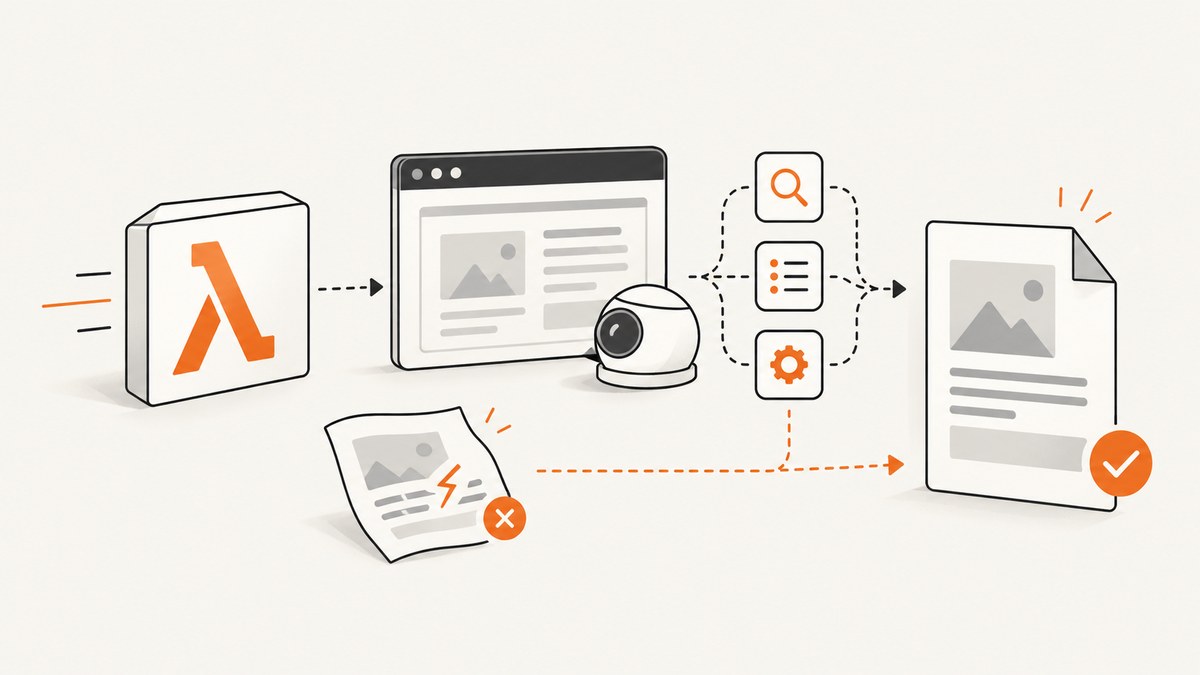
Short answer: Protocol error (Page.printToPDF): Printing failed is a failure reported at the PDF generation step, not a diagnosis of one specific Lambda problem. The trigger may be unusually large HTML or images, header and footer assets, a Puppeteer or Chromium regression, memory or CPU pressure, a timeout, temporary disk usage, or state retained by a warm Lambda environment. The reliable fix is to isolate those variables in a controlled order and then test again with production-sized input.
This guide gives you a repeatable workflow, a Lambda handler you can run, resource checks, version checks, troubleshooting guidance and a browser-free option with ScreenshotNeo.
1. Capture the deployed facts before changing anything
Write down the exact environment for a failing invocation. Historical Puppeteer reports describe materially different failures, so a version and configuration comparison is essential.
- Lambda runtime and architecture (for example, Node.js on x86_64 or arm64).
- Node.js version, Puppeteer version, and the Chromium build and executable path.
- Launch arguments, including whether a Lambda-compatible Chromium package is used.
- The complete
page.pdf()options object. - Input URL or HTML size, image count and approximate image bytes.
- Whether
displayHeaderFooter,headerTemplate,footerTemplate, custom fonts or base64 images are present. - Configured memory, timeout, ephemeral storage, maximum memory used and duration from CloudWatch.
- Whether the first invocation succeeds while a later warm invocation fails.
Keep the failing request, the rendered HTML and the browser package from the same deployment when you collect this information. Mixing a local browser with a Lambda browser can hide a version-specific problem.
2. Establish a minimal PDF baseline
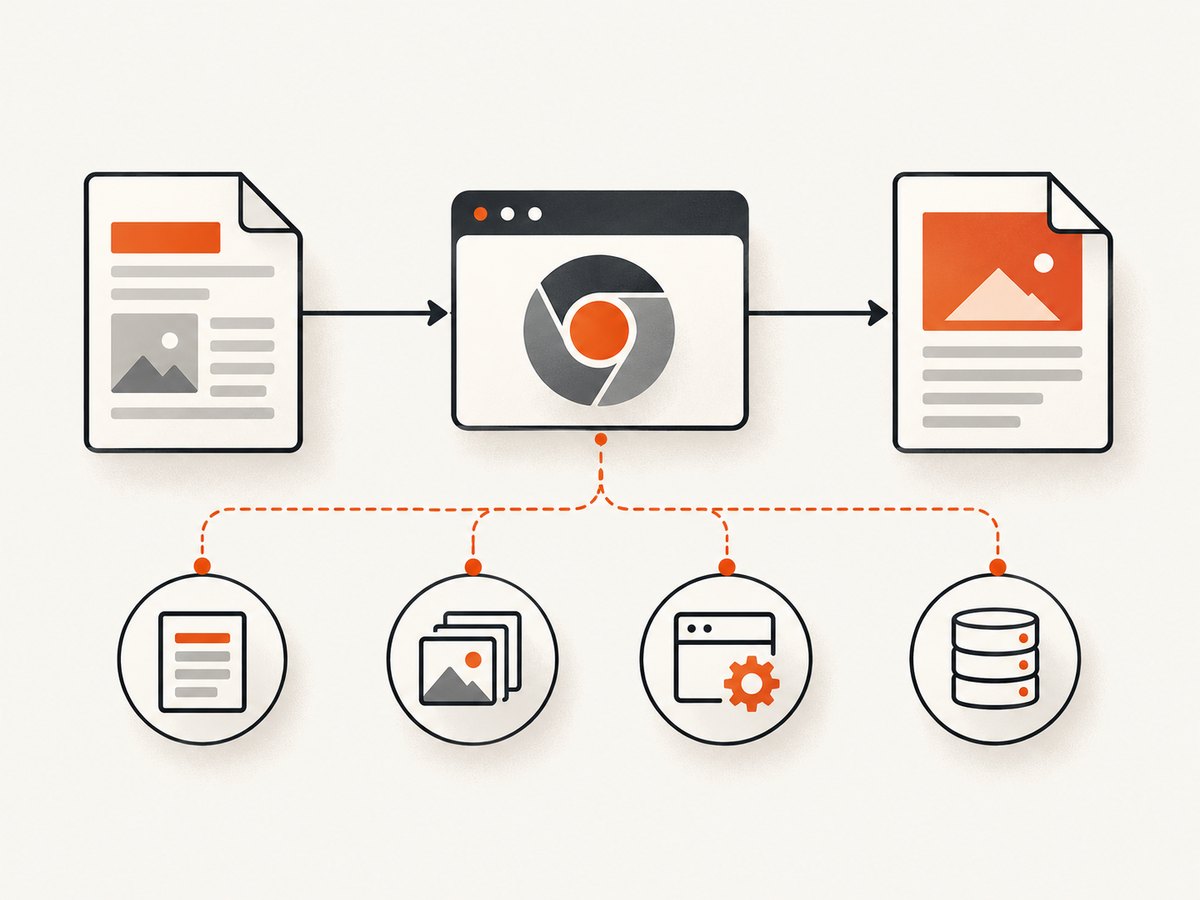
Start with a tiny document in the deployed Lambda package. This separates browser startup and PDF plumbing from your application page. The following handler uses Puppeteer and an executable path supplied by your Chromium layer or package.
const puppeteer = require('puppeteer-core');

exports.handler = async () => {
  let browser;
  try {
    browser = await puppeteer.launch({
      executablePath: process.env.CHROMIUM_PATH,
      headless: true,
      args: ['--no-sandbox', '--disable-setuid-sandbox']
    });

    const page = await browser.newPage();
    await page.setContent('<!doctype html><html><body><h1>Lambda PDF baseline</h1><p>ok</p></body></html>', {
      waitUntil: 'load'
    });

    const pdf = await page.pdf({
      format: 'A4',
      printBackground: true
    });

    return {
      statusCode: 200,
      headers: { 'content-type': 'application/pdf' },
      isBase64Encoded: true,
      body: pdf.toString('base64')
    };
  } finally {
    if (browser) await browser.close();
  }
};
If this baseline fails, inspect the browser executable, package architecture, launch arguments, permissions and Lambda logs before investigating document content. If it succeeds, add your production features one at a time.
3. Add the real document incrementally
- Render the real HTML without PDF templates or external assets.
- Add images in batches, starting with the largest files.
- Add web fonts and wait for
document.fonts.readyif your layout depends on them. - Enable
displayHeaderFooterand add the header template. - Add the footer template, custom CSS and any base64 images.
- Finally restore the complete
page.pdf()options object.
After each change, record whether the failure returns. This gives you a smallest reproducing input instead of guessing at Lambda settings.
Test without templates first
const pdf = await page.pdf({
  format: 'A4',
  printBackground: true,
  displayHeaderFooter: false
});
Custom fonts loaded by a header or footer template have been associated with a reported failure. Base64 images in header markup have also had version-specific behavior reports. Remove those assets temporarily, then reintroduce one resource at a time. For remote resources, confirm they are reachable from Lambda and that the page is not closing before they finish loading.
Bound the document while diagnosing
Try a reduced page count, smaller images and a shorter HTML document. One Puppeteer report described roughly 15 MB of HTML and approximately 500 MB of images failing in Lambda or Docker while succeeding locally. Those quantities are a report, not a recommended limit or benchmark. Use them as a reminder to measure the largest input your application actually accepts.
4. Separate Lambda memory, CPU, timeout and /tmp
Lambda controls that look similar affect different failure modes.
| Setting | What it changes | When to investigate |
|---|---|---|
| Memory | RAM and proportional virtual CPU | Maximum memory used is near the configured value, or rendering is CPU-bound |
| Timeout | Maximum invocation duration | Duration approaches the configured limit or logs show a timeout |
| Ephemeral storage | Space available in /tmp |
Browser extraction, temporary files or downloaded assets fill disk |
| Concurrency and reuse | How often environments are created and reused | Warm invocations retain state or failures grow over time |
A standard Lambda function supports 128 MB through 10,240 MB of memory, and the standard timeout range is 1 to 900 seconds. AWS documents that CPU allocation rises with memory, reaching one vCPU at 1.8 GB and six vCPUs at 10,240 MB. These are service limits and scaling facts, not universal Puppeteer recommendations. Change memory when metrics indicate memory or CPU pressure, and change timeout when measured work needs more time.
The default /tmp allocation is 512 MB and can be configured from 512 MB to 10,240 MB. Increasing it does not provide more RAM. Only raise ephemeral storage when logs or file measurements show that temporary disk is the constraint.
Use CloudWatch to compare Max Memory Used, duration, timeout messages and the input size for successful and failed requests. AWS recommends testing with datasets at the upper bounds reasonably expected for the workload; apply that guidance to your largest HTML, image and template combinations.
5. Check warm-invocation cleanup
Lambda may reuse the same process. Globals and third-party libraries can retain growing state between calls. Keep browser and page objects scoped to an invocation where possible, close pages in finally blocks and avoid appending to global arrays or caches without bounds.
exports.handler = async (event) => {
  const browser = await launchBrowser();
  try {
    const page = await browser.newPage();
    await render(page, event);
    return await page.pdf({ format: 'A4' });
  } finally {
    await browser.close();
  }
};
As a diagnostic, compare a fresh execution environment with repeated invocations of the same function and input. A failure that appears only after several calls points toward retained state, leaked pages, temporary files or browser-process growth.
6. Investigate Puppeteer and Chromium regressions
Record the exact Puppeteer and Chromium pair. If the error started immediately after an upgrade and the minimal document still fails, deploy the previous known-good pair to a staging alias and compare. Pin versions while investigating so that a moving browser build does not change the result.
Historical reports include a change in base64 header-image behavior beginning around Puppeteer 24.4.0, with different results between stable Chrome and Canary at that time. That report does not establish a current universal fix. Consult the official Page.pdf() reference for the version you actually deploy and review the relevant Puppeteer issue before changing production to an experimental browser.
7. A production-oriented handler
Once the baseline works, add explicit navigation and rendering waits, input limits and structured logs. Do not use an unbounded wait for network idle on pages that keep analytics connections open.
const puppeteer = require('puppeteer-core');

exports.handler = async (event) => {
  const started = Date.now();
  let browser;
  try {
    const html = event.html;
    if (typeof html !== 'string' || Buffer.byteLength(html, 'utf8') > 20 * 1024 * 1024) {
      return { statusCode: 413, body: 'HTML input is missing or too large' };
    }

    browser = await puppeteer.launch({
      executablePath: process.env.CHROMIUM_PATH,
      headless: true,
      args: ['--no-sandbox', '--disable-setuid-sandbox']
    });
    const page = await browser.newPage();
    await page.setContent(html, { waitUntil: 'domcontentloaded', timeout: 30000 });
    await page.evaluate(() => document.fonts ? document.fonts.ready : Promise.resolve());

    const pdf = await page.pdf({
      format: 'A4',
      printBackground: true,
      preferCSSPageSize: true,
      displayHeaderFooter: false
    });

    console.log(JSON.stringify({ ok: true, bytes: pdf.length, ms: Date.now() - started }));
    return {
      statusCode: 200,
      headers: { 'content-type': 'application/pdf' },
      isBase64Encoded: true,
      body: pdf.toString('base64')
    };
  } catch (error) {
    console.error(JSON.stringify({ ok: false, name: error.name, message: error.message, ms: Date.now() - started }));
    throw error;
  } finally {
    if (browser) await browser.close();
  }
};
The 20 MB check above is an application guard, not an AWS or Puppeteer limit. Set a bound that matches your product and test it with realistic upper-bound documents.
8. Troubleshooting checklist
| Symptom | Likely area | Action |
|---|---|---|
| Minimal HTML fails | Browser package or launch | Verify executable path, architecture, permissions, Chromium build and launch logs. |
| Only large pages fail | Content pressure | Reduce images and pages, inspect memory metrics, then test the largest expected input. |
| Removing header/footer fixes it | Template or asset | Re-add templates separately; remove custom fonts and base64 images to identify the trigger. |
| Failure began after upgrade | Version regression | Pin and compare the previous Puppeteer/Chromium pair; read the version-specific API and issue. |
| Logs show timeout | Timeout | Measure navigation, font and PDF durations; increase timeout only when the workload requires it. |
/tmp errors or extraction failures |
Ephemeral disk | Inspect temporary files and raise storage only when disk usage proves it is needed. |
| First call works, later calls fail | Warm state | Close pages and browsers, clear bounded caches and compare fresh versus reused environments. |
| Works locally but not Lambda | Environment mismatch | Run the same browser build, runtime architecture, fonts and launch flags in a Lambda-like package. |
9. Or skip the browser setup
If your goal is a dependable screenshot or PDF endpoint rather than maintaining Chromium in Lambda, ScreenshotNeo provides a GET API and an MCP server. Cookie and consent banners are accepted and 60+ known consent platforms, newsletter popups and chat widgets are removed before capture. Bot checks, blank pages, timeouts, failed loads and cache hits are not billed, and response headers identify the page verdict and billing status. Its MCP tools let Claude, Cursor and other MCP clients call take_screenshot, get_page_info and capture_pdf.

See the ScreenshotNeo API documentation for all options. A one-call request looks like this:
curl -G 'https://api.screenshotneo.com/v1/shot' \
  -d access_key=YOUR_API_KEY \
  --data-urlencode url=https://stripe.com \
  -o shot.webp
import requests
r = requests.get('https://api.screenshotneo.com/v1/shot', params={'access_key': 'YOUR_API_KEY', 'url': 'https://stripe.com'}, timeout=90)
r.raise_for_status()
open('shot.webp', 'wb').write(r.content)const q = new URLSearchParams({ access_key: 'YOUR_API_KEY', url: 'https://stripe.com' });
const res = await fetch(`https://api.screenshotneo.com/v1/shot?${q}`);
if (!res.ok) throw new Error(`HTTP ${res.status}`);
const bytes = Buffer.from(await res.arrayBuffer());
require('fs').writeFileSync('shot.webp', bytes);You can choose full-page capture with lazy images loaded, CSS-element capture, device or custom viewports, dark mode, retina scale, custom CSS and JavaScript, waits, request blocking, headers, cookies, user agents, authorization, timezone, geolocation, transparent backgrounds, resizing, caching, signed links, asynchronous jobs, webhooks, bulk capture and PDF settings. The service includes 1,000 screenshots per month free with no card; paid plans start at $5 for 3,000 shots. Create a free ScreenshotNeo account to try it.
10. FAQ
Does increasing Lambda memory always fix this error?
No. More memory also gives more CPU, so it can help a resource-bound render, but template assets, browser regressions and malformed content can fail at any size.
Should I switch to Chromium Canary?
Use Canary only as a controlled comparison. Pin a known-good Puppeteer/Chromium pair for production and document the result.
Is /tmp the same as memory?
No. /tmp is ephemeral disk. Raise it only when temporary files or browser extraction consume the available space.
Can a page that opens in my laptop still fail in Lambda?
Yes. Fonts, architecture, browser versions, network access, time limits and resource ceilings differ. Reproduce with the deployed pair and a Lambda-sized workload.
How do I know whether a failed request was billed by ScreenshotNeo?
Inspect the X-Page-Verdict and X-Billed response headers; failed loads, bot checks, blank pages, timeouts and cache hits are not billed.


