How to Fix Puppeteer’s Page.printToPDF “Printing Failed” Error
Fix Puppeteer’s Page.printToPDF “Printing failed” error with a reproducible workflow for Chrome revisions, Docker, Alpine, Windows, CI, and Cloud Run.
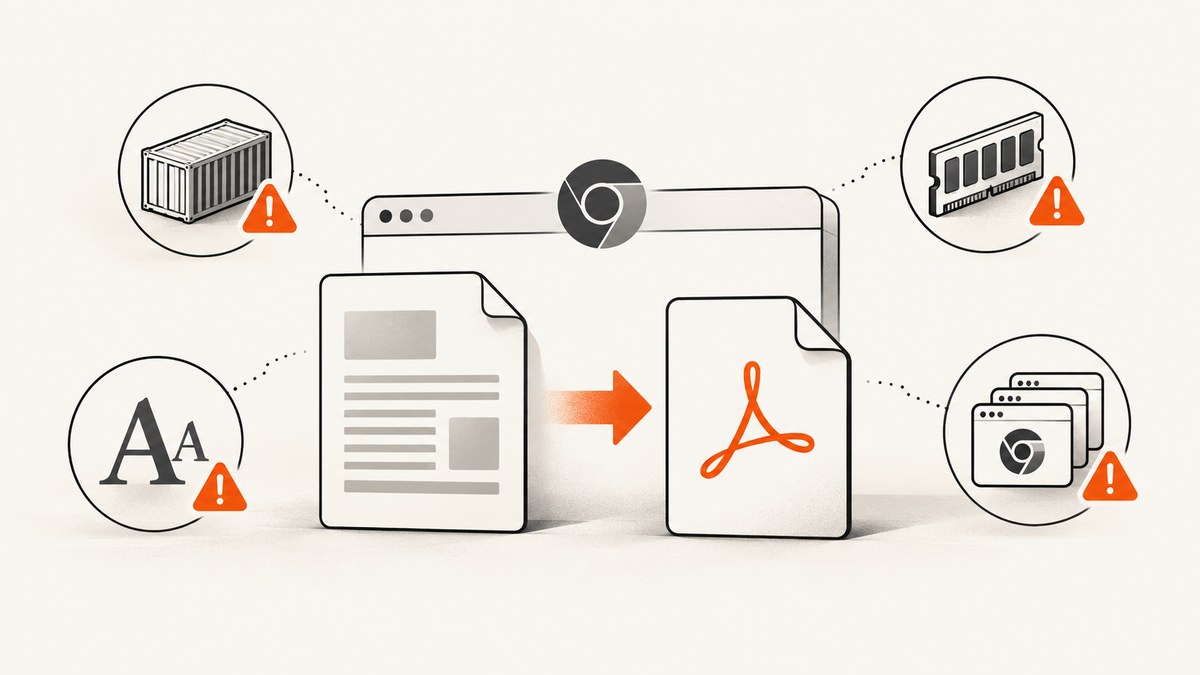
Start here: Puppeteer’s page.pdf() calls Chromium’s DevTools Page.printToPDF operation. “Protocol error (Page.printToPDF): Printing failed” usually means Chromium could not complete printing because of a browser regression, an incompatible runtime, missing Linux dependencies, an unwritable profile, sandbox permissions, resource pressure, or page content that fails during print layout.
Use this order: reproduce with a tiny page, record every version, test a known-good browser revision, verify the execution environment, reduce concurrency and document size, then inspect print CSS and assets. Changing several variables at once makes the cause harder to identify.
What the error means
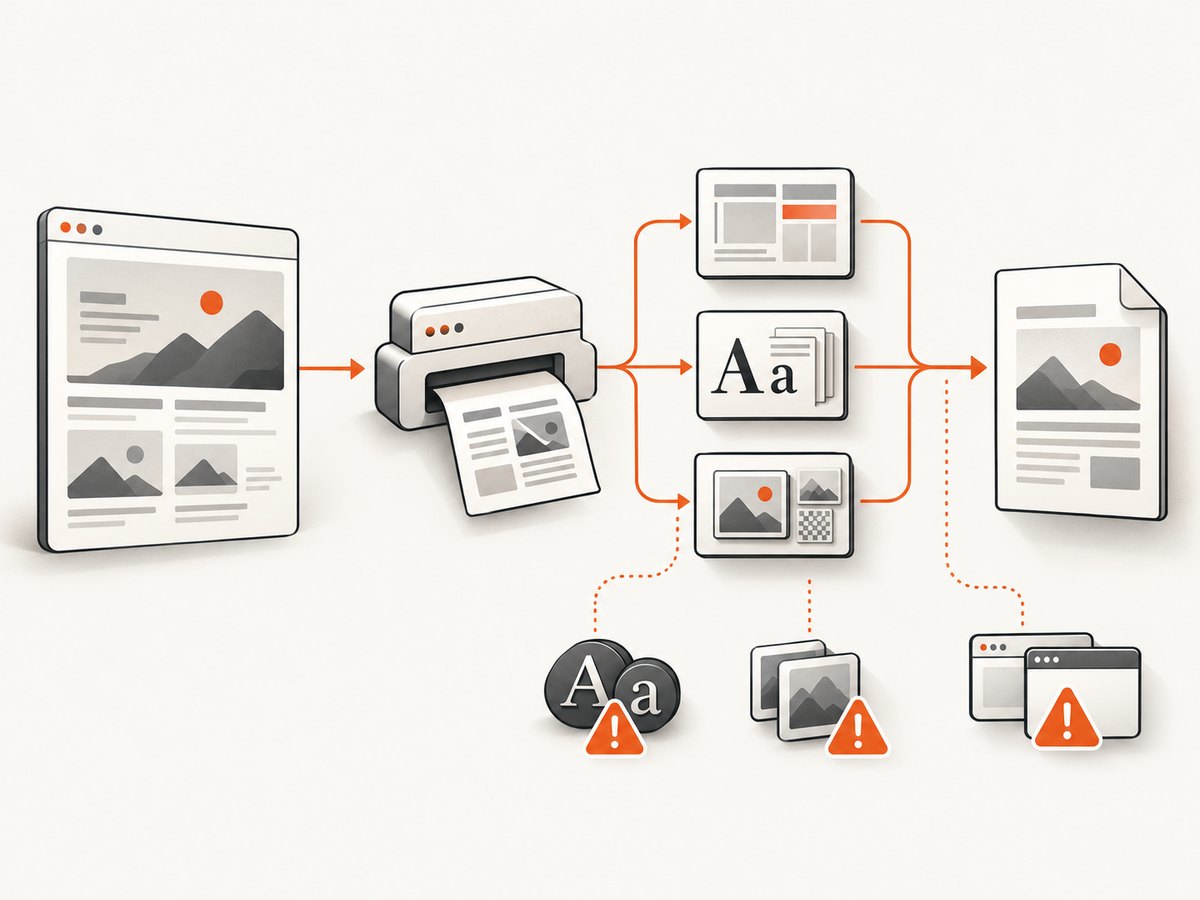
page.pdf() sends a DevTools Protocol command to Chromium. Chromium renders the page using the print CSS media type by default, waits for fonts, and returns the generated PDF bytes or writes them to a path. The Puppeteer API reference describes this behavior in Page.pdf(), while the PDF generation guide shows the basic launch, navigation, PDF, and close sequence.
The message is not a diagnosis. It is a final protocol-level failure. A page that works in a local desktop browser can fail in a container because the Chromium revision, shared libraries, fonts, filesystem, sandbox, memory limit, or CPU allocation differs.
1. Reproduce the failure with a minimal script
First separate a browser/runtime failure from a document-specific failure. Create a new directory, install Puppeteer, and run this script:
const puppeteer = require('puppeteer');

(async () => {
  const browser = await puppeteer.launch({ headless: true });
  try {
    const page = await browser.newPage();
    await page.setContent('<!doctype html><html><body><h1>PDF smoke test</h1><p>Hello.</p></body></html>', {
      waitUntil: 'load'
    });
    await page.pdf({ path: 'smoke-test.pdf', format: 'A4', printBackground: true });
    console.log('PDF created');
  } finally {
    await browser.close();
  }
})();
Record the output of these commands with the failing run:
node --version
npm list puppeteer puppeteer-core
npx puppeteer browsers list
uname -a                  # Linux and containers
cat /etc/os-release       # Linux
# On Windows, record the Windows version and downloaded Chrome revision
If the smoke test fails, the page itself is unlikely to be the main cause. If it succeeds, add your real navigation, assets, CSS, fonts, headers, and PDF options one at a time.
2. Check browser revisions before changing application code
A Chrome update can expose a regression without any change to your script. Puppeteer issue #10353 reports PDF failures after moving from Chrome 113 to 114, including memory spikes before a crash. Issue #12470 reports a timeout with Chrome for Testing 125.0.6422.60 that did not occur with 121.0.6167.85.
- Run the minimal script with the revision that currently fails.
- Run it with a known-good revision or the Puppeteer-bundled browser.
- Keep Node.js, the operating system, page, and launch flags the same.
- If only one revision fails, pin the known-good revision temporarily and plan a deliberate upgrade.
Do not assume that “latest Chrome” is automatically the safest choice for a production PDF service. Upgrade Chromium and Puppeteer as a tested pair, and retain a rollback revision until your representative documents pass.
3. Use the correct media type and wait for content
Print media is the default. If the site hides or rearranges content under print CSS, request screen styles explicitly:
await page.emulateMediaType('screen');
await page.pdf({
  path: 'screen-styled.pdf',
  format: 'A4',
  printBackground: true,
  preferCSSPageSize: true
});
Use print media when the page has a deliberate print stylesheet. The API also supports CSS color adjustment; add this rule when exact background colors matter:
@media print {
  * {
    -webkit-print-color-adjust: exact;
    print-color-adjust: exact;
  }
}
Wait for navigation and the assets your document needs. Puppeteer’s PDF guide notes that Page.pdf() waits for fonts by default, but application code still needs to wait for data, images, and client-side rendering.
await page.goto('https://example.com/invoice/123', {
  waitUntil: 'networkidle2',
  timeout: 60000
});
await page.waitForSelector('[data-report-ready]', { timeout: 30000 });
await page.evaluate(() => document.fonts.ready);
await page.pdf({ path: 'invoice.pdf', format: 'A4', printBackground: true });
Avoid using an unlimited wait as a cure for a page that never becomes idle. Third-party analytics, WebSockets, and ads can keep the network busy forever. Prefer a readiness selector or a bounded delay after the critical content is present.
4. Verify writable paths in Docker and CI
Chromium writes profile, configuration, and cache data during startup and printing. A read-only container or a directory owned by another user can make printing fail before page content is relevant.
const browser = await puppeteer.launch({
  headless: true,
  userDataDir: '/tmp/puppeteer-profile',
  args: ['--disable-dev-shm-usage']
});
Set writable XDG paths in the process environment:
ENV XDG_CONFIG_HOME=/tmp/chrome-config
ENV XDG_CACHE_HOME=/tmp/chrome-cache
RUN mkdir -p /tmp/chrome-config /tmp/chrome-cache /tmp/puppeteer-profile
Confirm that the account running Node owns these directories. In CI, inspect the mounted workspace and temporary directory permissions rather than assuming the local user and container user match.
5. Install Linux libraries, fonts, and certificates
Minimal Linux images often lack libraries Chromium needs for startup, layout, font loading, or PDF output. The Puppeteer troubleshooting guide lists packages including libnss3, libgbm1, GTK libraries, font packages, ca-certificates, xdg-utils, and wget. Install the packages required by your distribution, then rebuild the image.
Missing fonts can also produce blank sections, fallback glyphs, or failures on documents with complex text. Install the language fonts your pages use and verify that remote font URLs are reachable from the container. Keep certificate authorities current when fonts, images, or stylesheets load over HTTPS.
6. Treat Alpine as a browser compatibility problem
Chrome does not support Alpine out of the box. The Puppeteer troubleshooting documentation records timeout problems with the current Chromium package on Alpine 3.20 and cases fixed by downgrading to Alpine 3.19. Match the installed Chromium version to a Puppeteer version that supports it, or use a Debian/Ubuntu-based image with the expected libraries.
Do not mix an arbitrary Alpine Chromium package with a Puppeteer release and assume the DevTools protocol is compatible. Capture the exact browser version in build logs and test the image that will run in production.
7. Fix Windows downloaded-Chrome permissions
On Windows, downloaded Chrome files need the permissions required by the browser sandbox. Puppeteer 22.14.0 and later attempts to configure these permissions with Chrome’s setup tool. Older installations, or persistent failures after an upgrade, may require the icacls command documented in the troubleshooting guide for the directory under %USERPROFILE%/.cache/puppeteer/chrome.
Run the permission repair from an elevated shell only when necessary, then rerun the smoke test as the same Windows account used by the service. A successful test in an administrator shell does not prove that a scheduled task or web worker has the same access.
8. Check sandbox flags carefully
Chromium’s sandbox is part of its security boundary. In constrained CI environments, the troubleshooting guide documents --no-sandbox as a workaround, but this weakens isolation.
const browser = await puppeteer.launch({
  headless: true,
  args: ['--no-sandbox', '--disable-setuid-sandbox']
});
Use these flags only in an environment you trust and understand. First check whether the container can run the normal sandbox with the correct user, permissions, and kernel support. If you must disable it, isolate the service, restrict what it can reach, and avoid treating the flag as a universal PDF fix.
9. Reduce memory pressure and concurrency
PDF printing can use substantially more memory than a normal page screenshot because Chromium lays out every printed page and may decode large images. The Chrome 114 incident in issue #10353 observed memory spikes before crashes.
- Measure the container memory limit, not only host memory.
- Reduce the number of simultaneous pages and browser processes.
- Close pages and browsers in
finallyblocks. - Resize or compress oversized source images before embedding them.
- Split very long documents into bounded page ranges when practical.
- Use a queue so a burst of requests does not start unbounded Chromium jobs.
--disable-dev-shm-usage can help containers with a small /dev/shm mount by using a writable temporary directory, but it does not fix missing libraries, browser regressions, or malformed page content.
10. Cloud Run and background execution
On Cloud Run, work started after the HTTP response can become extremely slow because CPU is disabled by default after the response. The Puppeteer troubleshooting guidance recommends completing the PDF work before responding or enabling CPU always for background execution.
Keep the request open until the file is generated, or move the job to a worker configured for continuous CPU. Add an application timeout longer than the browser navigation and PDF timeouts, and return a clear job status instead of leaving a client waiting indefinitely.
Useful PDF options and their failure modes
| Option | Use | Things to check |
|---|---|---|
format |
Standard paper size such as A4 or Letter | Conflicts with a CSS page size when preferCSSPageSize is enabled |
width, height |
Custom page dimensions | Use valid units such as px, in, cm, or mm |
margin |
Page margins | Large margins can make content appear missing or create unexpected pages |
landscape |
Landscape orientation | Check responsive breakpoints and wide tables |
printBackground |
Include background colors and images | Large backgrounds increase memory and output size |
displayHeaderFooter |
Add header and footer templates | Templates have restricted HTML and can fail with unsupported resources |
pageRanges |
Print selected pages | Invalid ranges can produce errors or empty output |
preferCSSPageSize |
Honor CSS @page size |
Inspect @page rules and overflow |
11. Inspect page-specific rendering problems
Once the smoke test works in the target environment, add page features incrementally. Common triggers include:
- Images with enormous intrinsic dimensions or data URLs.
- Cross-origin resources that are blocked or never finish loading.
- Client-side content that is printed before hydration completes.
- Print CSS that creates recursive layout, extreme overflow, or thousands of pages.
- Header/footer templates referencing unsupported CSS or external assets.
- Invalid
pageRanges, negative dimensions, or conflicting custom sizes. - Pages that intentionally keep network connections open.
Save the HTML used for a failing job, disable nonessential assets, and reintroduce them in groups. Capture browser console errors and failed requests:
page.on('console', message => console.log('console:', message.text()));
page.on('requestfailed', request => {
  console.error('request failed:', request.url(), request.failure()?.errorText);
});
Or skip the browser setup
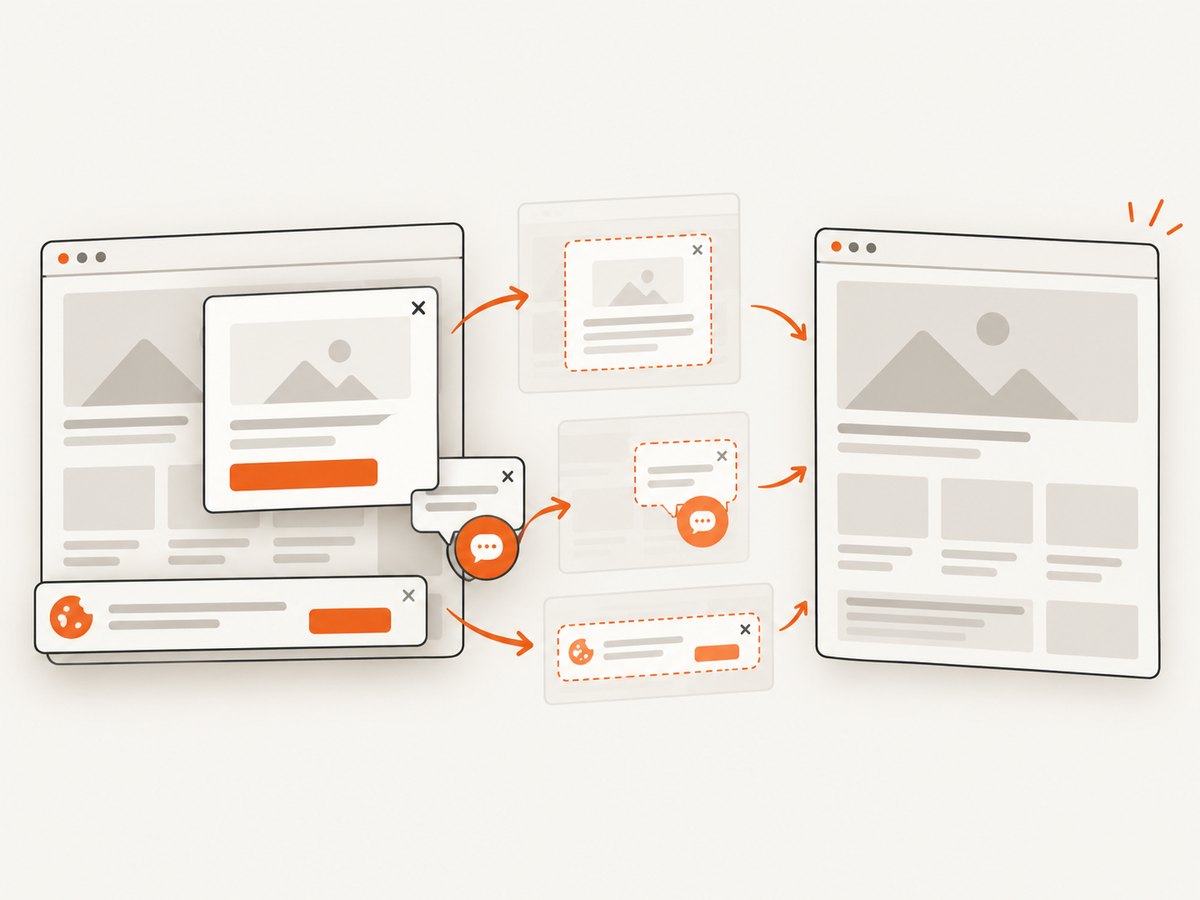
If you need a reliable website PDF or screenshot endpoint without maintaining Chromium, ScreenshotNeo provides a GET API and an MCP server. Its PDF options cover paper size, margins, landscape mode, and page ranges. Before capture it accepts consent banners and removes more than 60 known consent platforms, newsletter popups, and chat widgets; each step can be disabled.
Only clean shots are billed. Bot checks and CAPTCHAs, blank pages, timeouts, failed loads, and cache hits cost nothing, and the response identifies the result with X-Page-Verdict and X-Billed headers. The same service also offers custom CSS and JavaScript, waits for selectors, delays or network idle, custom headers and cookies, blocking rules, caching, asynchronous jobs, bulk capture, signed links, a usage API, and an OpenAPI specification.
See the ScreenshotNeo documentation for the complete option list. A PDF request uses the same endpoint and your API key:
curl -G "https://api.screenshotneo.com/v1/shot" \
  -d access_key=YOUR_API_KEY \
  --data-urlencode url=https://stripe.com \
  -d format=pdf \
  -o page.pdf
import requests
r = requests.get(
"https://api.screenshotneo.com/v1/shot",
params={
"access_key": "YOUR_API_KEY",
"url": "https://stripe.com",
"format": "pdf",
},
timeout=90,
)
r.raise_for_status()
open("page.pdf", "wb").write(r.content)const q = new URLSearchParams({
access_key: 'YOUR_API_KEY',
url: 'https://stripe.com',
format: 'pdf'
});
const res = await fetch(`https://api.screenshotneo.com/v1/shot?${q}`);
if (!res.ok) throw new Error(`ScreenshotNeo HTTP ${res.status}`);
const fs = require('node:fs/promises');
await fs.writeFile('page.pdf', Buffer.from(await res.arrayBuffer()));An MCP server lets Claude, Cursor, and other MCP clients call take_screenshot, get_page_info, and capture_pdf. ScreenshotNeo includes 1,000 screenshots per month free with no card; paid plans start at $5 for 3,000 shots. Create a free ScreenshotNeo account to get an API key.
Troubleshooting checklist
| Symptom | Likely cause | Fix |
|---|---|---|
| Minimal HTML also fails | Browser revision, permissions, libraries, sandbox, or writable-path issue | Compare revisions, inspect logs, install dependencies, verify paths and sandbox |
| Only Chrome 114 or 125 fails | Chromium regression | Pin a known-good revision and upgrade deliberately |
| Works locally, fails in Docker | Missing packages, fonts, shared memory, or read-only filesystem | Install dependencies, set writable XDG paths, inspect /dev/shm |
| Alpine times out | Unsupported Chromium/package combination | Use a compatible pair or a Debian/Ubuntu image |
| Windows launch or print fails | Downloaded Chrome sandbox permissions | Update Puppeteer or apply documented icacls permissions |
| Intermittent crashes | Memory pressure or excessive concurrency | Lower concurrency, resize images, increase memory, queue jobs |
| PDF is blank or missing sections | Print CSS, hydration, fonts, or assets not ready | Choose the intended media type and wait for readiness, fonts, and assets |
| Cloud Run job hangs after response | CPU disabled after response | Finish before responding or enable CPU always |
Performance, reliability, and cost notes
For self-hosted Puppeteer, the largest reliability variables are browser version, memory, concurrency, and page complexity. Reuse a controlled browser process where appropriate, but always close pages and enforce navigation and job timeouts. Keep a small PDF smoke test in CI and run representative documents whenever Chromium or the base image changes.
Measure document size and generation time at realistic concurrency. A fast single request can become a memory failure when many large pages print simultaneously. Cache immutable documents at the application layer when possible, and avoid regenerating a PDF whose inputs have not changed.
With ScreenshotNeo, caching has a TTL you choose, failed loads and cache hits are not billed, and plans range from free 1,000 shots per month to paid tiers of $5 for 3,000, $15 for 15,000, $39 for 60,000, $99 for 250,000, and $249 for 1,000,000. Yearly billing gives two months free, and every feature is available on every plan.
FAQ
Does page.pdf() use screen CSS?
No. It uses print CSS by default. Call page.emulateMediaType('screen') when the PDF should match screen styles.
Should I always add --no-sandbox?
No. First fix user permissions and container support for the normal sandbox. Disable it only when the environment is trusted and the security tradeoff is understood.
Why does increasing the timeout not fix the error?
A timeout cannot repair a browser regression, missing library, unwritable profile, invalid page range, or memory crash. Identify which stage fails before changing timeout values.
Can a browser update break unchanged Puppeteer code?
Yes. The documented Chrome 114 and Chrome for Testing 125 incidents show why browser revisions must be tested and pinned deliberately.
When should I use an external screenshot or PDF API?
Use one when maintaining browser binaries, fonts, sandbox permissions, scaling, and failed-load handling costs more than the request volume justifies. ScreenshotNeo is one option when you want those concerns handled behind a single request and also need MCP tools for AI agents.


