How to Fix Puppeteer Screenshot Failures on Heroku
Diagnose missing Chrome, launch failures, cache issues, and R14 memory errors when Puppeteer screenshots fail on Heroku.
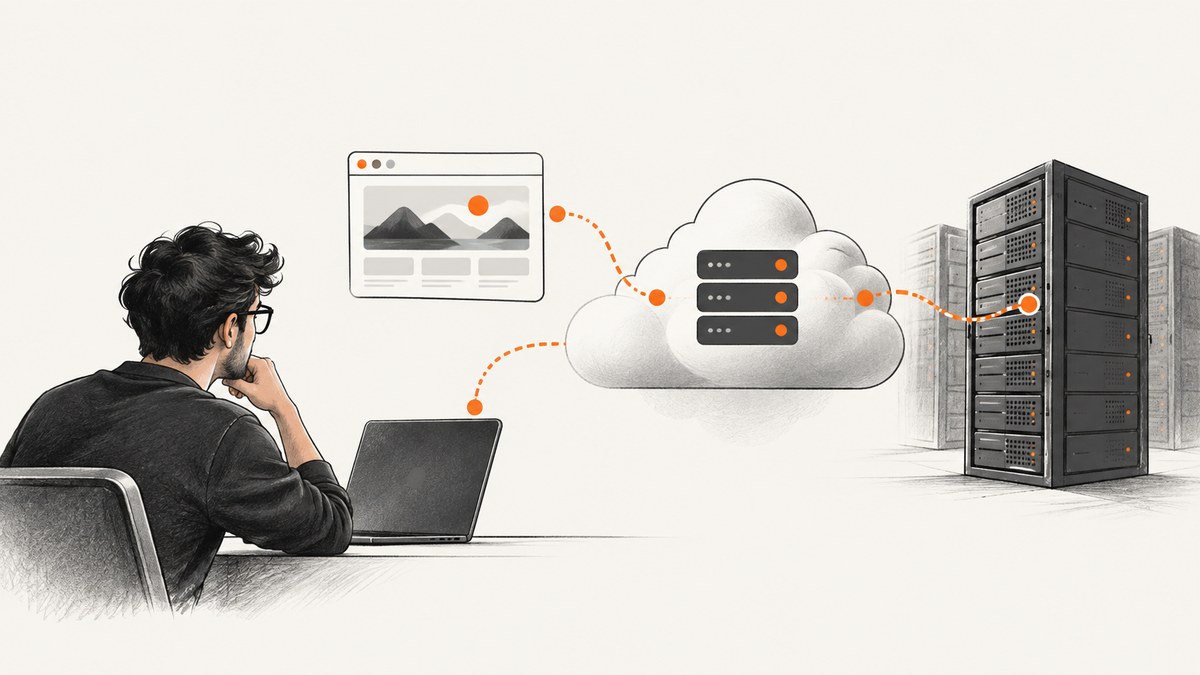
Puppeteer screenshot failures on Heroku usually come from one of four places: Chrome or its Linux dependencies are missing from the deployed app, Chrome launches with unsuitable settings, the installed browser is absent from the deployed cache, or the dyno is under memory pressure. Read the exact build and runtime errors first; there is no single fix that applies to every Puppeteer version and Heroku setup.
A practical first pass: confirm the browser installation and buildpack order, launch Puppeteer headlessly with --no-sandbox, check that the browser executable exists in the deployed dyno, then investigate memory if the failure correlates with load or an R14 message. Puppeteer’s Heroku troubleshooting guide specifically calls out additional Linux dependencies and the --no-sandbox argument.
1. Classify the failure before changing configuration
Save the complete deployment log and the runtime exception, including its stack trace. The text helps distinguish a browser installation problem from a page or workload problem.
| Symptom | First thing to check |
|---|---|
Could not find Chrome or Chromium |
Was a browser installed during the build, is its cache in the deployed slug, and does Puppeteer point to the correct executable? |
| Chrome exits on launch | Required Linux dependencies, headless mode, --no-sandbox, and compatibility between the installed browser and Puppeteer. |
| Works locally, fails after deployment | Compare browser and Puppeteer versions, cache paths, buildpack configuration, and the deployed runtime. |
| Fails intermittently or under traffic | Check dyno memory, concurrent screenshot jobs, and whether pages and browsers are closed after use. |
| Screenshot is blank or navigation times out | Determine whether Chrome launched and navigated. Inspect the page’s load behavior, timeouts, and network access before assuming a browser installation issue. |
Do not diagnose every timeout or blank image as an R14 or a Chrome problem. The title does not identify your Puppeteer version, the error, or your buildpacks, so the deployed logs are the evidence for a case-specific fix.
2. Install the browser dependencies Heroku needs
Heroku’s Linux dynos do not include all the additional dependencies Puppeteer requires by default. Puppeteer’s documented Heroku route is to add its referenced Heroku buildpack, which installs dependencies needed to run Puppeteer. Review the app’s existing buildpacks before adding another: two competing browser installations can make the executable and cache harder to reason about.
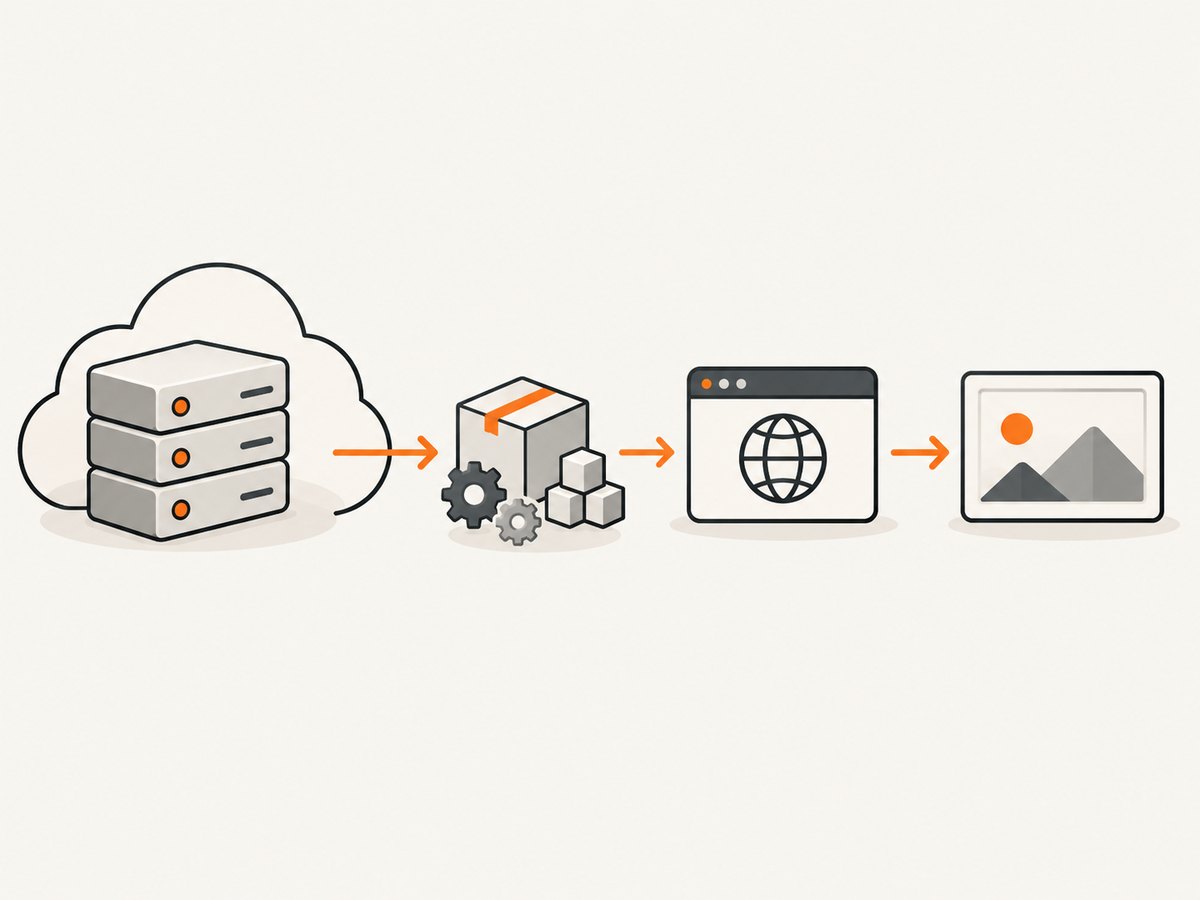
For an app using the community Puppeteer buildpack, add it through the Heroku dashboard under Settings > Buildpacks, or use the CLI:
heroku buildpacks:add jontewks/puppeteer
heroku buildpacks
Deploy after changing buildpacks, then inspect the build output to confirm the install step ran. Heroku documents multiple classic buildpacks; when an app has several, its primary language buildpack should be last. Check the configured order instead of assuming the new buildpack was applied in the intended sequence. See Heroku’s multiple-buildpack guidance.
Alternative: Chrome for Testing buildpack
Heroku also maintains a Chrome for Testing buildpack. It installs Chrome and ChromeDriver, defaults to Google’s Stable channel, and puts chrome and chromedriver on the dyno’s PATH. This route is principally documented for Chrome/ChromeDriver testing, so check that it suits your Puppeteer setup. Avoid layering it on top of an existing Chrome installation without first understanding which browser Puppeteer will use.
heroku buildpacks:add -i 1 heroku-community/chrome-for-testing
heroku buildpacks
To see what the deployed dyno resolves from PATH, run:
heroku run bash
which chrome
which chromedriver
Use the resolved path or let the operating system find chrome on PATH. The buildpack warns that absolute paths may change. Its optional GOOGLE_CHROME_CHANNEL setting selects Stable, Beta, Dev, or Canary; use a non-default channel only when your deployment needs it. Details are in the Chrome for Testing buildpack documentation.
3. Launch Puppeteer in Heroku’s headless environment
Heroku dynos have no GUI for a visible browser. Keep Puppeteer headless and pass --no-sandbox, as the Puppeteer Heroku guide documents. This complete Node.js example launches Chrome, takes a screenshot, and closes resources even if navigation or capture fails:
const puppeteer = require('puppeteer');

async function capture() {
  const browser = await puppeteer.launch({
    headless: true,
    args: ['--no-sandbox'],
  });

  try {
    const page = await browser.newPage();
    await page.goto('https://example.com', {
      waitUntil: 'networkidle2',
      timeout: 30000,
    });
    await page.screenshot({ path: '/tmp/example.png', fullPage: true });
  } finally {
    await browser.close();
  }
}

capture().catch((error) => {
  console.error('Screenshot failed:', error);
  process.exitCode = 1;
});
If using ES modules, the equivalent import is import puppeteer from 'puppeteer';; the launch and cleanup logic is the same. Use a writable path such as /tmp for a temporary screenshot, then send or persist it using the storage approach your app already uses. The example’s networkidle2 condition may be unsuitable for pages with long polling or persistent network activity; in that case use an appropriate selector or a different navigation condition and keep a finite timeout.
Start with the documented arguments. The Chrome for Testing buildpack notes that some cases may also require --disable-gpu or --remote-debugging-port=9222, but those are not universal fixes. Add extra flags only when the observed error and chosen integration call for them.
4. Check browser cache and executable paths
A missing executable after deployment can mean the browser was not installed, its cache was not included in the deployed app, or Puppeteer is looking in a different location. Check the installed Puppeteer version, build output, and the actual cache directory before changing paths.
Puppeteer supports the PUPPETEER_CACHE_DIR environment variable to select a browser cache directory. For example, set it consistently during build and runtime if your installation process uses a non-default location:
heroku config:set PUPPETEER_CACHE_DIR=/app/.cache/puppeteerThe value must match where the browser was actually installed and where it remains available in the deployed app. Setting the variable alone does not install Chrome or move a cache into the slug.
The community Puppeteer buildpack README describes a version-sensitive cache relocation for Puppeteer v19 and later. It says to move /app/.cache/puppeteer into the app’s .cache directory during heroku-postbuild, so the cache is included. Apply it only if your installed version, buildpack, source path, and deployment behavior match that setup:
{
  "scripts": {
    "heroku-postbuild": "mkdir -p ./.cache && mv /app/.cache/puppeteer ./.cache"
  }
}
If a build script already exists, preserve it in the postbuild command, for example npm run build && mkdir -p ./.cache && mv /app/.cache/puppeteer ./.cache. Verify the source directory exists before relying on this command; blindly copying a buildpack-specific recipe can cause a different build failure. The buildpack README also suggests clearing Heroku’s build cache for some missing-library or Chrome-startup symptoms. Treat that as a troubleshooting step if logs point toward stale build artifacts, not as a guaranteed remedy.
5. Investigate memory pressure and concurrency
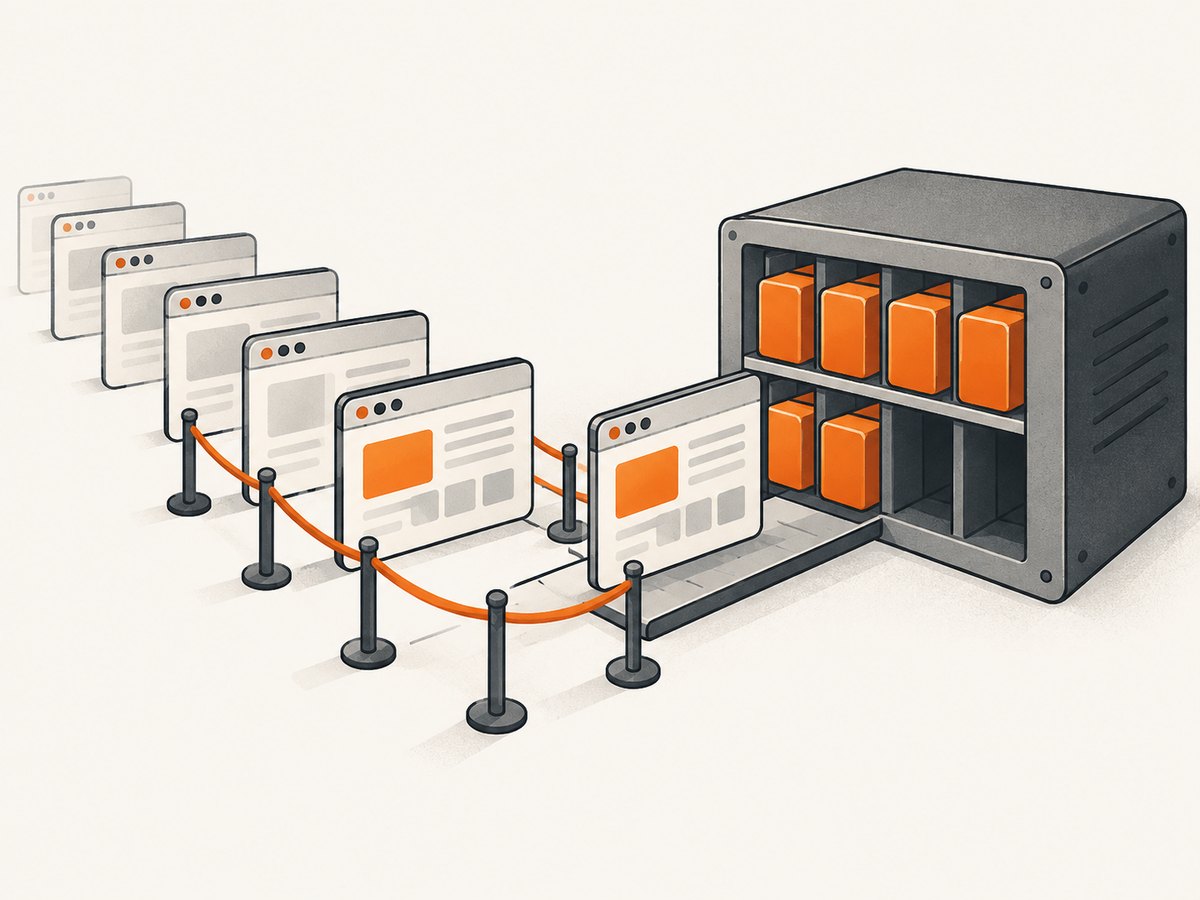
Heroku defines R14 as “Memory quota exceeded”: it is emitted when a Node application uses more memory than the dyno has available. Excess use pages to slower disk, which can make work slower. An R14 is evidence of memory pressure, not proof that Puppeteer itself has a defect. See Heroku’s Node memory guidance.
- Look for R14 messages and compare them with the timing of screenshot failures.
- Measure memory for the complete Node process and browser workload, not just the web request handler.
- Check how many browser instances, pages, and jobs can run at the same time.
- Close pages and browsers after each job, including error paths, as the example’s
finallyblock does. - Size worker or web process concurrency against the dyno’s memory limit. Do not select it from CPU count alone.
Heroku’s guidance discusses WEB_MEMORY and WEB_CONCURRENCY for process sizing. Those settings do not control how many tabs your own queue starts inside one process; cap screenshot-job concurrency in your application too. If failures occur only during bursts, use a bounded queue or lower simultaneous browser work, then observe whether memory pressure changes.
6. Troubleshooting checklist
| Error or condition | Likely cause to investigate | Action |
|---|---|---|
| “Could not find Chrome” | Browser missing from slug, cache path mismatch, or browser install step did not run. | Check build logs, Puppeteer version, cache directory, and deployed executable path. Confirm any version-specific relocation matches this buildpack. |
| Chrome exits immediately | Missing Linux dependency, incompatible browser install, or launch configuration. | Confirm the selected browser buildpack and dependencies; use headless mode and --no-sandbox. Inspect stderr for a specific missing library. |
| Works locally, not on Heroku | Local Chrome and dependencies differ from what the dyno contains. | Compare Puppeteer/browser versions and paths; verify buildpack installation and ordering on the deployed app. |
| R14 appears during captures | Dyno memory quota exceeded, potentially aggravated by concurrent pages or retained resources. | Measure process memory, cap concurrency, and close browser resources. Review dyno capacity and process sizing. |
| Only some pages time out | Page load conditions, remote site behavior, or network delay rather than a missing executable. | Log the failing URL and navigation phase; use a finite timeout and wait for the page condition your capture needs. |
| Missing fonts or wrong glyphs | The dyno’s installed fonts do not cover the page’s character set. | Check font availability and whether your chosen buildpack includes the required font files; Puppeteer’s guide notes some CJK pages may need a buildpack with extra fonts. |
When asking for help, include the exact error and stack trace, Puppeteer version, browser version and resolved path, configured buildpack list and order, relevant build log, and whether R14 occurs. Redact credentials, cookies, and private URLs.
7. Performance, reliability, and cost considerations
Launching a browser for every individual screenshot adds startup work. Reusing a browser can reduce repeated launches, but it also means browser lifetime and page cleanup must be managed carefully. If you reuse one, close each page after capture, detect browser disconnections, and recreate the browser when it exits. A queue with bounded concurrency helps keep bursts from starting unbounded Chrome processes. These are workload-management practices; actual memory use depends on the pages and dyno configuration, so measure your app rather than assuming a fixed safe number.
Keep timeouts finite at navigation and job levels so one slow page does not occupy a worker indefinitely. Log the URL or a safe identifier, elapsed time, failure stage, and browser version. Avoid logging authorization headers, cookies, or page content. For reliability, distinguish retryable network/navigation errors from deterministic configuration errors such as a missing executable; retrying the latter only repeats the failure.
Browser dependencies and cached binaries also consume build artifact space. Check the deployed slug and build logs if adding a browser buildpack causes build or deploy issues. For cost control, correlate worker count and screenshot volume with dyno memory and runtime; the dossier documents no universal memory requirement or throughput figure, so a numeric capacity estimate must come from measurements of your own pages and dynos.
8. Or skip the browser setup
If your goal is to obtain screenshots rather than operate Chrome on a dyno, ScreenshotNeo is a website screenshot API and MCP server. One GET request returns a PNG, JPEG, WebP, or PDF. See the API documentation for request options.
curl -G "https://api.screenshotneo.com/v1/shot" \
  -d access_key=YOUR_API_KEY \
  --data-urlencode url=https://stripe.com \
  -o shot.webp
import requests
r = requests.get(
"https://api.screenshotneo.com/v1/shot",
params={"access_key": "YOUR_API_KEY", "url": "https://stripe.com"},
timeout=90,
)
open("shot.webp", "wb").write(r.content)const q = new URLSearchParams({
access_key: 'YOUR_API_KEY',
url: 'https://stripe.com',
});
const res = await fetch(`https://api.screenshotneo.com/v1/shot?${q}`);
if (!res.ok) throw new Error(`Screenshot request failed: ${res.status}`);
const image = Buffer.from(await res.arrayBuffer());ScreenshotNeo removes cookie banners, newsletter popups, and chat widgets before capture. Bot checks, blank pages, and failed loads are never billed; responses identify the page verdict and billing status in headers. Its MCP server gives AI agents tools to take screenshots, get page information, and capture PDFs. The Free plan includes 1,000 screenshots monthly with no card; paid plans start at $5 for 3,000 screenshots. Create a free ScreenshotNeo account to get 1,000 screenshots a month with no card.
FAQ
Does Puppeteer need --no-sandbox on Heroku?
Puppeteer’s Heroku troubleshooting guidance says to launch with --no-sandbox. Use it with the browser installation and headless setup appropriate to your app.
Should I use the Puppeteer buildpack or Chrome for Testing?
The documented routes install different things and manage browser paths differently. Choose based on your existing installation, versions, and logs; neither route is a universal fit for every app.
Is a blank screenshot proof Chrome failed?
No. Confirm whether Chrome launched and whether navigation completed, then investigate page load conditions as well as browser configuration.
Does R14 mean I must upgrade dynos?
It means memory exceeded the dyno quota. First measure memory and concurrency; then use that evidence to decide whether workload changes or a different dyno size is appropriate.


