How to Fix Puppeteer page.screenshot Timeouts
Diagnose Puppeteer screenshot timeouts, separate navigation from capture failures, and fix protocol, concurrency, Docker, and browser issues.
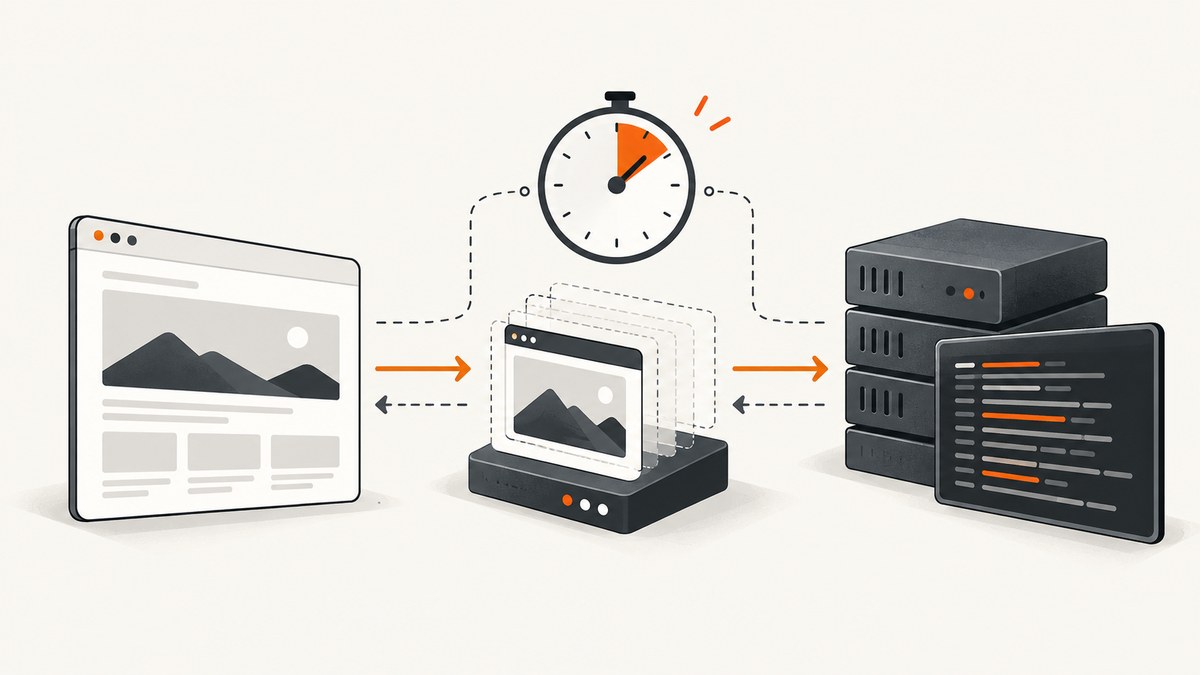
Short answer: first identify which operation timed out. A timeout while navigating or waiting for a selector needs a different fix from ProtocolError: Page.captureScreenshot timed out, which means the browser protocol request used for the capture did not complete. Puppeteer’s documented ScreenshotOptions has no screenshot-specific timeout field. Capture the complete error, record your runtime and browser configuration, reduce the case to one page, then vary protocol, headless mode, concurrency, and navigation conditions one at a time.
This guide shows a repeatable diagnosis, working Puppeteer patterns, logging, concurrency controls, Docker checks, and failure handling. It also explains when a hosted screenshot API is a better fit.
1. Identify the timeout before changing code
These failures look similar in application logs but occur at different stages:
| Where it fails | Typical evidence | What to investigate |
|---|---|---|
| Navigation | Navigation timeout of ... ms exceeded |
URL reachability, redirects, TLS, waitUntil, page load behavior |
| Application wait | TimeoutError: Waiting for selector ... failed |
Selector, SPA state, delayed rendering, cookie dialogs |
| Screenshot protocol call | ProtocolError: Page.captureScreenshot timed out |
Browser protocol, page state, concurrency, browser or container conditions |
| Browser startup | Chrome launch or connection errors | Executable, sandbox, shared memory, permissions, process logs |
Keep the full stack trace. Record Puppeteer and browser versions, Node version, operating system or container image, headless mode, protocol (CDP or WebDriver BiDi), launch or connect options, target type (ordinary HTML or image), and whether other pages are being captured or closed at the same time. The official troubleshooting guidance recommends locating the failed operation because each operation has different causes and remedies.
2. Build a minimal, single-page reproducer
Remove unrelated middleware, queues, retries, screenshots from other tabs, and post-processing. Preserve the launch configuration and page behavior that still triggers the error. Change one condition per run. This tells you whether the problem is caused by the page, the browser, or surrounding orchestration.
import puppeteer from 'puppeteer';

const browser = await puppeteer.launch({ headless: true });
try {
  const page = await browser.newPage();
  await page.goto('https://example.com', {
    waitUntil: 'domcontentloaded',
    timeout: 30_000
  });
  await page.screenshot({ path: 'shot.png', fullPage: true });
} finally {
  await browser.close();
}
Run this against a stable page and then your target. If the stable page works, add your waits, scripts, custom viewport, full-page mode, and concurrent work back one at a time. Do not assume that increasing every timeout fixes a protocol request that is stuck or a browser process that is unhealthy.
3. Understand Puppeteer screenshot options
The Puppeteer 25.12.0 ScreenshotOptions API documents captureBeyondViewport, clip, encoding, fromSurface, fullPage, omitBackground, optimizeForSpeed, path, quality, and type. It does not document a per-call timeout option for page.screenshot().
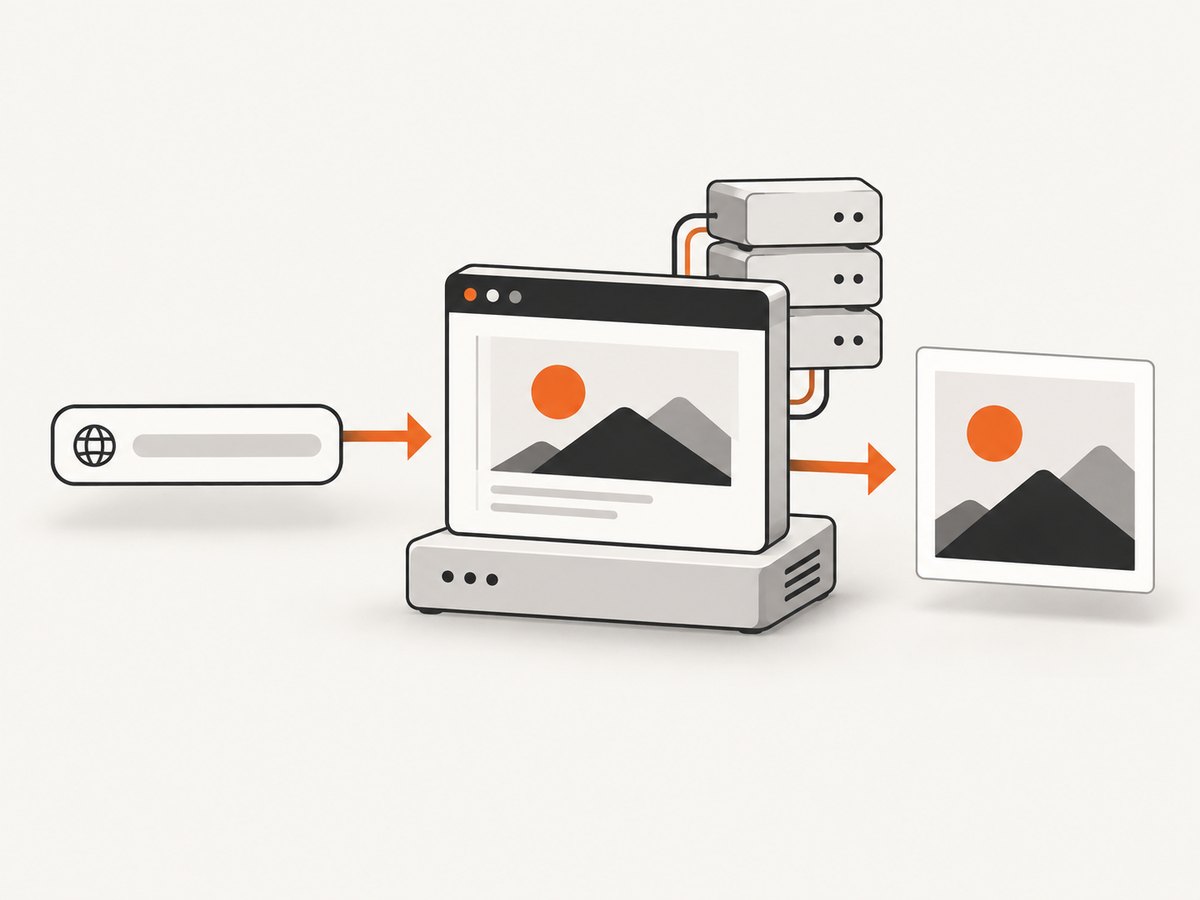
Use the options for the image you need, while putting time limits around the operations that lead to capture:
await page.setViewport({ width: 1440, height: 900, deviceScaleFactor: 1 });
await page.goto(url, { waitUntil: 'domcontentloaded', timeout: 30_000 });
await page.waitForSelector('#main-content', { timeout: 10_000 });

await page.screenshot({
  path: 'page.webp',
  type: 'webp',
  quality: 82,
  fullPage: true,
  omitBackground: false
});
For a bounded application operation, wrap the call yourself. This does not cancel the browser’s underlying work automatically, so close or recycle the page or browser after a timeout rather than continuing to use a possibly stuck page.
function withDeadline(promise, ms, label) {
  let timer;
  const deadline = new Promise((_, reject) => {
    timer = setTimeout(() => reject(new Error(`${label} exceeded ${ms} ms`)), ms);
  });
  return Promise.race([promise, deadline]).finally(() => clearTimeout(timer));
}

try {
  await withDeadline(
    page.screenshot({ path: 'shot.png', fullPage: true }),
    60_000,
    'screenshot'
  );
} catch (error) {
  console.error(error);
  // Treat this page as unhealthy; close it or recycle the browser.
  throw error;
}
Element screenshots
If a full-page capture is the trigger, capture only the required element. Puppeteer’s screenshot guide documents ElementHandle.screenshot():
const element = await page.waitForSelector('[data-report]');
if (!element) throw new Error('report element was not found');
await element.screenshot({ path: 'report.png' });
This reduces the surface area for very tall documents, continuously changing layouts, and pages with problematic content outside the target element.
4. Check concurrency and page lifecycle races
A screenshot already in progress affects browser lifecycle methods. In a BrowserContext, newPage(), browser.newPage(), and page.close() wait for that screenshot to finish. page.bringToFront() does not wait for an existing screenshot. These waits can produce queueing, apparent hangs, and timing-sensitive failures when a worker captures and closes pages in parallel.
Start with one page. Then cap concurrent captures with a small pool and avoid closing a page from another task:
import puppeteer from 'puppeteer';

const browser = await puppeteer.launch({ headless: true });
const urls = ['https://example.com', 'https://example.org'];

try {
  for (const url of urls) {
    const page = await browser.newPage();
    try {
      await page.goto(url, { waitUntil: 'domcontentloaded', timeout: 30_000 });
      await page.screenshot({ path: `shot-${urls.indexOf(url)}.png` });
    } finally {
      await page.close();
    }
  }
} finally {
  await browser.close();
}
When parallelism is required, assign ownership: one worker creates, captures, and closes a page. Do not share one Page object among jobs. Compare one-page and concurrent runs before changing browser flags.
5. Turn on protocol and browser diagnostics
Puppeteer’s debugging guide recommends protocol logging with NODE_DEBUG="puppeteer:*". Use it for a minimal reproducer and inspect the final protocol command and response.
NODE_DEBUG="puppeteer:*" node capture.mjsFor asynchronous calls that never resolve, inspect pending protocol errors:
const pending = browser.debugInfo.pendingProtocolErrors;
console.dir(pending, { depth: null });
If Chrome crashes or fails to launch, forward browser process output:
const browser = await puppeteer.launch({
  headless: true,
  dumpio: true
});
Protocol logs and browser output can contain URLs, headers, cookies, or page data. Review and redact them before sharing.
6. Test protocol and headless mode as controlled experiments
One issue report for Puppeteer 22.12.1, Node 22.4.0, and macOS describes a capture timeout that remained after setting protocolTimeout to three minutes. In that reporter’s reproducer, switching to WebDriver BiDi, using headless: 'shell', or removing another page’s screenshot/close sequence stopped the failure. This is a case report, not a universal fix.
Use a matrix and change one axis at a time:
- CDP versus WebDriver BiDi.
headless: trueversusheadless: 'shell'.- One page versus concurrent pages.
- Full-page versus clipped or element capture.
- Image target versus ordinary HTML.
domcontentloadedversusnetworkidle2.- Direct Node process versus Docker.
- Current Puppeteer, browser, and Node versions versus the versions in production.
A March 9, 2026 issue report describes a Linux Docker reproducer involving multiple tabs, a PNG image target, and waitUntil: 'networkidle2', with Puppeteer 24.38.0 and Node 24.4.1. Compare those conditions only if they match your environment; the report does not prove that any individual factor is a general cause.
7. Navigation waits can make capture look guilty
networkidle2 waits for a network condition. Analytics, long polls, service workers, advertisements, and image requests can keep a page active indefinitely. Test domcontentloaded, then add an explicit readiness condition that reflects your application:
await page.goto(url, {
  waitUntil: 'domcontentloaded',
  timeout: 30_000
});
await page.waitForFunction(
  () => document.querySelector('[data-ready="true"]'),
  { timeout: 15_000 }
);
For image targets or pages with lazy content, wait for the specific resource or element you need. Avoid an unbounded application wait and keep the screenshot operation separate in logs so you know which step failed.
8. Docker and browser-process checks
If the failure exists only in a container, compare the container and local process rather than adding random flags. Check:
- Puppeteer, Chromium, Node, and OS versions.
- Available memory, CPU, and shared memory.
- Whether Chrome can start and write its profile.
- Whether the target URL is reachable from inside the container.
- Whether multiple workers exceed the container’s process or memory limits.
- Whether the same headless mode and protocol are used in both environments.
Capture browser stderr with dumpio, preserve the failing URL and stack trace, and reproduce with one tab. Do not disable Chrome’s sandbox or delete caches as generic timeout remedies; make such changes only when your deployment’s documented security and process constraints require them.
9. Failure handling and reliability patterns
Never return an empty image or HTTP 200 response after a failed capture. Preserve the original error, mark the job failed, and retry only when the failure is plausibly transient. A retry should create a fresh page; repeated work on a stuck page can amplify the problem.
async function capture(browser, url, output) {
  const page = await browser.newPage();
  try {
    await page.goto(url, { waitUntil: 'domcontentloaded', timeout: 30_000 });
    await withDeadline(
      page.screenshot({ path: output, fullPage: true }),
      60_000,
      'Page.screenshot'
    );
  } catch (error) {
    console.error({ url, message: error.message, stack: error.stack });
    throw error;
  } finally {
    await page.close().catch(() => {});
  }
}
Recycle the browser after repeated protocol failures, record attempt numbers, and keep output files temporary until the capture succeeds. This prevents downstream systems from treating a partial or missing file as a valid screenshot.
10. Performance and cost considerations
Full-page screenshots cost more browser work than a viewport or element capture, especially on long pages with lazy images and large canvases. Use a clip or element screenshot when the product requirement allows it. Keep viewport and device scale factor explicit so image dimensions do not change between environments. Limit concurrency according to available CPU and memory, then measure queue time separately from capture time.
Timeouts are operational failures, not a reason to hide errors. Track navigation duration, readiness wait duration, screenshot duration, browser restarts, and retry counts. These measurements show whether you have a slow page, an overloaded worker, or a protocol problem.
11. Or skip the browser setup
If you need a URL turned into an image or PDF without maintaining Chromium workers, ScreenshotNeo provides a GET screenshot API and an MCP server. Cookie and consent banners are accepted and 60-plus known consent platforms, newsletter popups, and chat widgets are removed before the shot; each step can be turned off. Bot checks, blank pages, timeouts, failed loads, and cache hits are not billed, and the response identifies the result with X-Page-Verdict and X-Billed headers.

See the ScreenshotNeo API documentation for all options. A minimal call is:
curl -G "https://api.screenshotneo.com/v1/shot" -d access_key=YOUR_API_KEY --data-urlencode url=https://stripe.com -o shot.webpimport requests
r = requests.get("https://api.screenshotneo.com/v1/shot", params={"access_key": "YOUR_API_KEY", "url": "https://stripe.com"}, timeout=90)
open("shot.webp", "wb").write(r.content)const q = new URLSearchParams({ access_key: 'YOUR_API_KEY', url: 'https://stripe.com' });
const res = await fetch(`https://api.screenshotneo.com/v1/shot?${q}`);You can request full pages, CSS-selected elements, dark mode, device presets or custom viewports, retina scale, PDF output, custom CSS and JavaScript, clicks, selector or network-idle waits, blocked resources, headers, cookies, user agents, authorization, timezone, geolocation, transparent backgrounds, resizing, caching, signed links, asynchronous jobs, webhooks, bulk capture, usage data, and OpenAPI-compatible parameters.
An MCP server provides take_screenshot, get_page_info, and capture_pdf for Claude, Cursor, and other MCP clients. Free usage includes 1,000 screenshots each month with no card; paid plans start at $5 for 3,000. Create a free ScreenshotNeo account.
12. Troubleshooting checklist
- Copy the complete error and stack trace.
- Label the failing operation: navigation, wait, screenshot, close, or browser launch.
- Record Puppeteer, browser, Node, OS/container, protocol, and headless versions.
- Run one page and one screenshot against a stable URL.
- Remove
networkidle2and test an explicit readiness condition. - Test viewport, element, and full-page captures separately.
- Enable
NODE_DEBUG="puppeteer:*"anddumpio. - Compare serial and concurrent page work.
- Change one protocol, headless, or environment axis per experiment.
- Close or recycle unhealthy pages and rethrow failures.
FAQ
Can I set a timeout on page.screenshot()?
There is no documented screenshot-specific timeout option in Puppeteer 25.12.0. Put deadlines around navigation, readiness waits, and your own screenshot promise, then recycle a page that becomes unhealthy.
Does a larger protocolTimeout fix capture timeouts?
Not necessarily. One issue report says a three-minute protocol timeout did not resolve its reproducer. Treat a larger value as an experiment, not a diagnosis.
Why does it fail only with multiple tabs?
Concurrent screenshots and lifecycle calls can wait on one another or expose browser-state races. Compare one page with concurrent work and give each worker exclusive ownership of its page.
Should I always use networkidle2?
No. Pages with analytics, long polling, ads, service workers, or lazy resources may never reach the condition you expect. Use a bounded navigation wait followed by an explicit readiness signal.
When should I use an API instead of Puppeteer?
Use a hosted API when you want URL-to-image or PDF capture without operating browser processes, and when consent cleanup, billing visibility, asynchronous jobs, or AI-agent access are useful requirements.


