How to Fix Puppeteer Screenshot Errors with Zero Width
Diagnose Puppeteer zero-width screenshots by checking layout boxes, selectors, rendering readiness, viewport settings, and API versions.
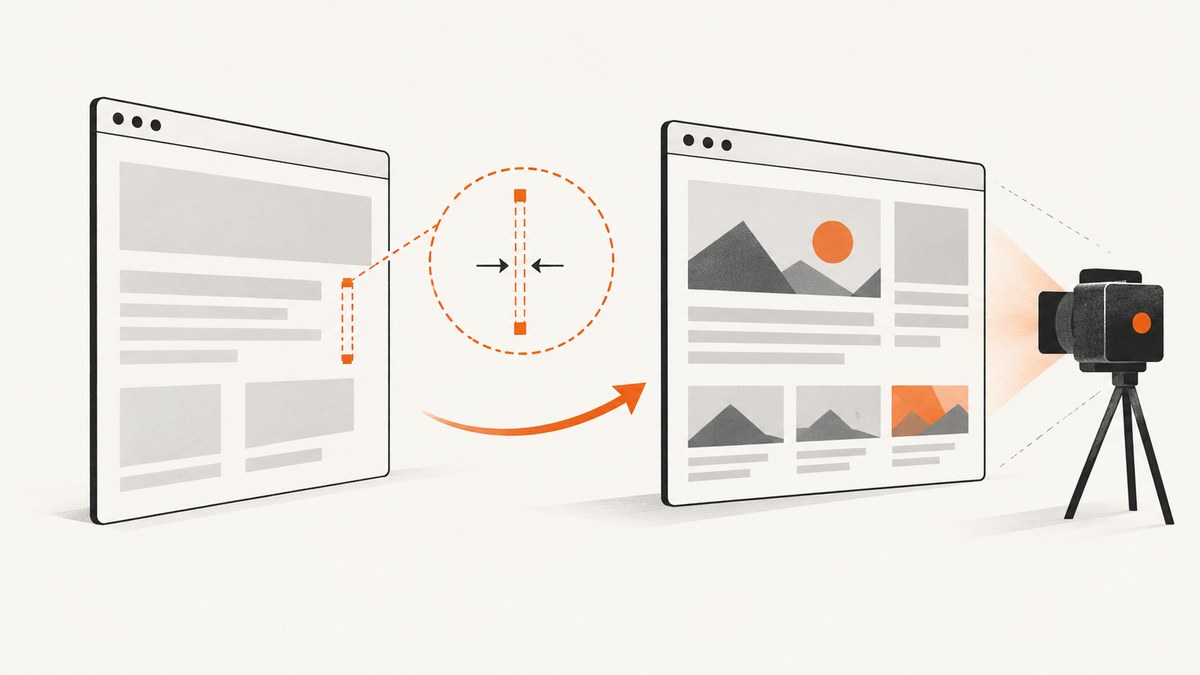
A Puppeteer screenshot with zero width usually means the capture target does not currently have a usable layout box, the selector resolved to an unintended node, rendering has not finished, or viewport and element dimensions were confused. Measure the target before capturing, distinguish null from a non-null box whose width is zero, and choose the page or element screenshot API according to the output you need.
Quick diagnostic sequence
- Confirm that your selector identifies the intended element and that the element is still attached to the document.
- Call
boundingBox()and log its result. - Inspect computed styles, parent constraints, visibility, and application state when the box is missing or has zero dimensions.
- Wait for the application’s real readiness condition, then wait for a stable box if the element is animated or resized.
- Capture the element only after its width and height are positive. Use
page.screenshot()when the intended output is the page. - Check the Puppeteer version installed by the project before relying on behavior described by another release.
- Verify viewport width and height separately from the measured target dimensions.
const element = await page.$('[data-report]');
if (!element) {
  throw new Error('Target selector did not match an element');
}

const box = await element.boundingBox();
console.log('layout box:', box);

if (!box || box.width <= 0 || box.height <= 0) {
  throw new Error('Target has no usable layout box');
}

await element.screenshot({ path: 'report.png' });
This is a diagnostic guard, not a universal fix. Your application may need a different selector, a CSS correction, or a wait for its own render state.
What “zero width” means in Puppeteer
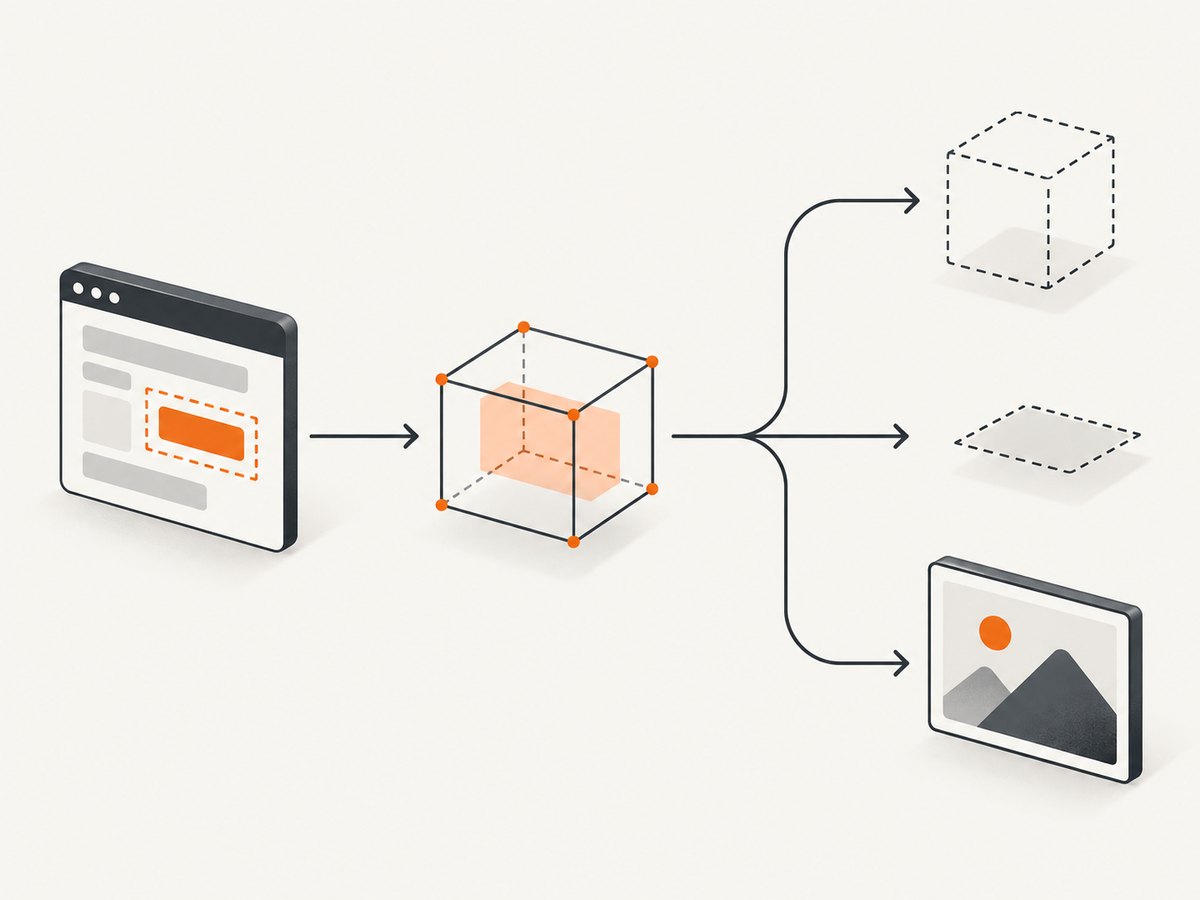
ElementHandle.boundingBox() returns a box relative to the main frame. The documented BoundingBox has pixel-based x, y, width, and height fields. It returns null when the element is not part of layout; the official documentation gives display: none as an example (boundingBox API).
A non-null result with width: 0 is a different state. The node has a layout box, but CSS or content currently gives it no horizontal size. A null result and a zero-sized result should therefore produce different logs and lead to different investigation paths.
| Observed value | Likely diagnostic meaning | Next check |
|---|---|---|
null |
The node is not participating in layout, or the handle is no longer usable. | Check display, visibility, attachment, and application state. |
{width: 0, height: 0} |
The node is in layout but has no usable dimensions. | Inspect parent sizing, CSS rules, empty content, and hidden or collapsed states. |
| Positive box | The target has measurable geometry. | Capture it, then investigate clipping or viewport settings if the image still looks wrong. |
| Unexpectedly large or small box | The selector or responsive layout may differ from your assumption. | Log the selector, viewport, device scale factor, and ancestor dimensions. |
Confirm the element and its attachment
Start with the selector. A broad selector such as div may match a hidden template, an empty wrapper, or a mobile-only branch rather than the visible component. Prefer a stable test attribute or a selector tied to the component’s semantic role.
const selector = '[data-testid="invoice-preview"]';
const element = await page.$(selector);

if (!element) {
  throw new Error(`No element matched ${selector}`);
}

const attached = await element.evaluate(node => node.isConnected);
const details = await element.evaluate(node => {
  const style = getComputedStyle(node);
  const rect = node.getBoundingClientRect();
  return {
    tag: node.tagName,
    connected: node.isConnected,
    display: style.display,
    visibility: style.visibility,
    opacity: style.opacity,
    position: style.position,
    overflow: style.overflow,
    rect: { x: rect.x, y: rect.y, width: rect.width, height: rect.height },
    parent: node.parentElement ? {
      tag: node.parentElement.tagName,
      width: node.parentElement.getBoundingClientRect().width,
      display: getComputedStyle(node.parentElement).display
    } : null
  };
});

console.log({ attached, details });
element.screenshot() throws if the element is detached from the DOM. A framework can replace a node during hydration or a route transition, leaving an old handle detached. Re-query after the transition instead of reusing that handle indefinitely. The method scrolls the element into view when needed and delegates the actual capture to Page.screenshot() (ElementHandle.screenshot API).
Inspect CSS and layout inputs
Once you know the selector is correct, inspect the rules that determine its size. Common checks include a parent with zero width, a flex or grid item that has not received a track, an absolutely positioned child without positioned or sized ancestors, a collapsed container, and an application state that has not inserted content yet. These are diagnostic possibilities, not a universal explanation for every project.
const layout = await element.evaluate(node => {
  const ancestors = [];
  let current = node;
  for (let i = 0; current && i < 5; i++, current = current.parentElement) {
    const rect = current.getBoundingClientRect();
    const style = getComputedStyle(current);
    ancestors.push({
      tag: current.tagName,
      className: current.className,
      width: rect.width,
      height: rect.height,
      display: style.display,
      position: style.position,
      minWidth: style.minWidth,
      maxWidth: style.maxWidth,
      flex: style.flex,
      gridTemplateColumns: style.gridTemplateColumns
    });
  }
  return ancestors;
});
console.table(layout);
Look for CSS that intentionally hides content until data arrives. If a component uses a loading class, wait for that class to disappear or for a specific data attribute to appear. If the component is inside a closed accordion, tab, or modal, open that state before measuring. A screenshot cannot give an element pixels that the page has not laid out.
Wait for rendering to settle
Waiting for networkidle alone is not always sufficient. Client-side rendering may continue after network requests finish, fonts may change line wrapping, and animations may resize the target. Use the application’s readiness signal whenever possible.
await page.goto('https://example.com/report', { waitUntil: 'domcontentloaded' });
await page.waitForSelector('[data-report-ready="true"]', { visible: true });

const handle = await page.$('[data-report]');
if (!handle) throw new Error('Report was not inserted');

const box = await handle.boundingBox();
if (!box || box.width <= 0 || box.height <= 0) {
  throw new Error(`Report is not measurable: ${JSON.stringify(box)}`);
}

await handle.screenshot({ path: 'report.png' });
Puppeteer locators can wait for visibility and stable bounding boxes over two consecutive animation frames. This can avoid measuring during a resize, but it does not replace an application-specific readiness condition. For a page that changes continuously, disable or finish the relevant animation in a capture-only stylesheet, or wait for a stable business state.
await page.addStyleTag({ content: `
  *, *::before, *::after {
    animation: none !important;
    transition: none !important;
    caret-color: transparent !important;
  }
` });
Choose page capture or element capture
Use elementHandle.screenshot() when the output is one component and you need its measured bounds. Use page.screenshot() when the output is the whole page, a full-page document, or a deliberate clip.
| Requirement | Recommended API | Important details |
|---|---|---|
| One chart, card, or component | element.screenshot() |
Handle must remain attached; Puppeteer scrolls it into view. |
| Visible viewport | page.screenshot() |
Captures the page viewport. |
| Entire document | page.screenshot({ fullPage: true }) |
Captures beyond the viewport according to page screenshot behavior. |
| Known rectangle | page.screenshot({ clip }) |
Clip dimensions must be positive and within a sensible page coordinate space. |
// Whole page
await page.screenshot({ path: 'page.png', fullPage: true });

// A measured rectangle
const box = await element.boundingBox();
if (!box || box.width <= 0 || box.height <= 0) throw new Error('Invalid clip');
await page.screenshot({ path: 'clip.png', clip: box });
The ScreenshotOptions documentation describes fullPage, clip, and captureBeyondViewport. The documented default for captureBeyondViewport is false without a clip and true with a clip. Do not use a page clip to hide a target that has no layout box; fix or wait for the target first.
Separate viewport dimensions from element dimensions
Puppeteer viewport width and height are CSS pixels. The documented default viewport is 800×600. Setting a viewport dimension to zero resets it to the system default; it does not create a zero-pixel page (Viewport interface).
await page.setViewport({ width: 1440, height: 900, deviceScaleFactor: 1 });
console.log(await page.evaluate(() => ({
  innerWidth,
  innerHeight,
  devicePixelRatio
})));

const box = await page.$eval('[data-report]', node => {
  const r = node.getBoundingClientRect();
  return { width: r.width, height: r.height };
});
console.log({ viewport: await page.viewport(), target: box });
A narrow viewport can trigger a responsive branch that hides or collapses the target, while a large device scale factor changes output pixels without changing CSS dimensions. Treat these as separate measurements. The window-management guide also demonstrates page.setViewport(null) when removing the default viewport restriction while managing a browser window (window management guide).
Check your Puppeteer version
Element screenshot behavior has changed across Puppeteer releases. Changelog entries include historical changes to viewport handling for element screenshots, including releases that removed or added viewport resizing behavior. Documentation pages may describe a current release rather than the version installed in your project. Record the exact package version and read the matching API documentation before assuming that a behavior is a bug.
npm list puppeteer
# or, in package.json, inspect the puppeteer dependency version
Keep the browser and package versions aligned through your lockfile, and reproduce the measurement with the same launch options in CI and locally.
Complete diagnostic script
import puppeteer from 'puppeteer';

const browser = await puppeteer.launch({ headless: true });
try {
  const page = await browser.newPage();
  await page.setViewport({ width: 1366, height: 900, deviceScaleFactor: 1 });
  await page.goto('https://example.com', { waitUntil: 'networkidle0', timeout: 60000 });

  const selector = 'h1';
  const handle = await page.$(selector);
  if (!handle) throw new Error(`Selector did not match: ${selector}`);

  const info = await handle.evaluate(node => {
    const r = node.getBoundingClientRect();
    const s = getComputedStyle(node);
    return {
      connected: node.isConnected,
      rect: { x: r.x, y: r.y, width: r.width, height: r.height },
      display: s.display,
      visibility: s.visibility,
      text: node.textContent?.trim()
    };
  });
  console.log(info);

  const box = await handle.boundingBox();
  if (!box || box.width <= 0 || box.height <= 0) {
    throw new Error(`Unusable layout box: ${JSON.stringify(box)}`);
  }
  await handle.screenshot({ path: 'target.png', type: 'png' });
} finally {
  await browser.close();
}
Common errors and fixes
| Symptom | Cause to investigate | Fix |
|---|---|---|
boundingBox() returns null |
Element is not in layout, is hidden, or the handle is stale. | Check attachment and computed styles; re-query after DOM replacement; wait for visible application state. |
| Width is zero but height is positive | Parent or flex/grid constraints provide no horizontal space. | Inspect ancestor widths, min/max constraints, and responsive CSS. |
| Element screenshot throws after navigation | Navigation or hydration detached the handle. | Wait for navigation, then query a fresh handle. |
| Screenshot is blank | Capture happened before content or fonts rendered, or a bot check replaced the page. | Wait for a real readiness signal and inspect page text and URL before capture. |
| Full page works, element capture fails | The element selector or layout state is wrong. | Log the box and use page capture while isolating the component. |
| Only CI fails | Different viewport, fonts, browser revision, timing, or environment. | Log versions and viewport; install the same browser revision; use deterministic waits. |
| Clip error or empty clipped image | Clip has zero or negative dimensions, or coordinates are stale. | Measure immediately before clipping and require positive width and height. |
Performance, reliability, and cost considerations
Measurement and logging are inexpensive compared with launching a browser, loading a page, and waiting for application JavaScript. Reuse a browser process for batches, create isolated pages, and avoid arbitrary long delays when a selector or readiness flag is available. For large pages, full-page screenshots can use substantial memory; capture a component or a deliberate clip when that is the actual requirement.
Reliability improves when captures use deterministic viewport settings, stable fonts, disabled capture-time animations, explicit timeouts, and retries limited to transient navigation failures. Record the URL, selector, viewport, Puppeteer version, box result, and page verdict in failure logs. Do not treat retries as a fix for a consistently null box: that usually indicates a selector, layout, or readiness problem that must be corrected.
Puppeteer itself has no per-screenshot service fee, but browser CPU, memory, storage, and engineering time are operational costs. If you need a hosted API, account for whether failed loads, bot checks, blank pages, and cache hits are billed by the provider and whether it supports the capture controls your workflow requires.
Or skip the browser setup
ScreenshotNeo provides a website screenshot API and MCP server. Its endpoint accepts one GET request and returns PNG, JPEG, WebP, or PDF. The same request can include full-page capture, an element selector, a viewport or device preset, retina scale, waits, custom CSS or JavaScript, cookies, headers, user agent, timezone, geolocation, blocking rules, caching, resizing, signed links, asynchronous jobs, bulk capture, and PDF options. See the ScreenshotNeo API documentation for parameter details.
curl -G "https://api.screenshotneo.com/v1/shot" -d access_key=YOUR_API_KEY --data-urlencode url=https://stripe.com -o shot.webpimport requests
r = requests.get("https://api.screenshotneo.com/v1/shot", params={"access_key": "YOUR_API_KEY", "url": "https://stripe.com"}, timeout=90)
open("shot.webp", "wb").write(r.content)const q = new URLSearchParams({ access_key: 'YOUR_API_KEY', url: 'https://stripe.com' });
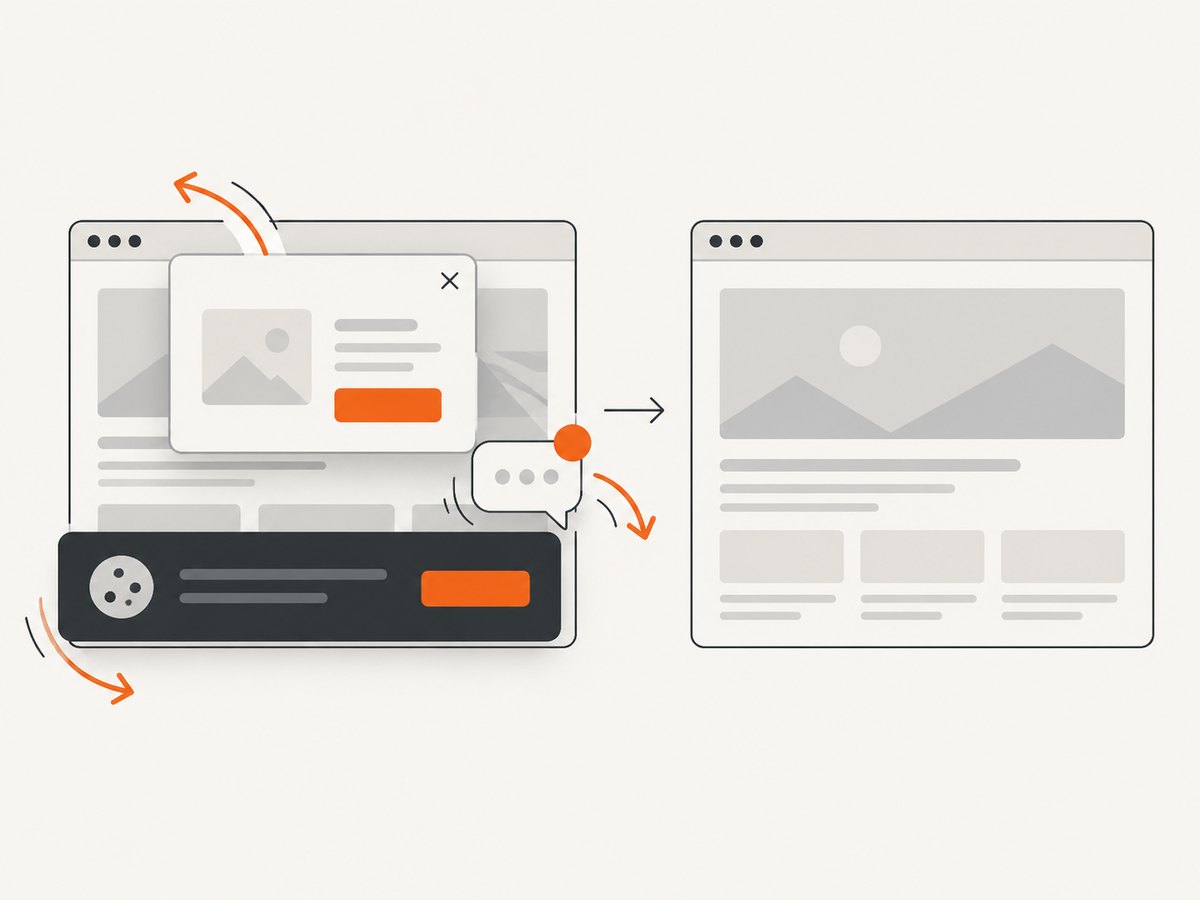
const res = await fetch(`https://api.screenshotneo.com/v1/shot?${q}`);Cookie and consent banners are accepted before capture, and more than 60 known consent platforms, newsletter popups, and chat widgets are removed. Bot checks, blank pages, timeouts, failed loads, and cache hits cost nothing; response headers identify the page verdict and whether the shot was billed. An MCP server exposes take_screenshot, get_page_info, and capture_pdf to Claude, Cursor, and other MCP clients. The free plan includes 1,000 screenshots per month with no card; paid plans start at $5 for 3,000. Create a free ScreenshotNeo account.
FAQ
Does a null bounding box mean the selector is invalid?
Not necessarily. The selector may match a real node that is hidden or otherwise not participating in layout. Check the handle, isConnected, computed styles, and application state.
Can I force Puppeteer to screenshot a zero-width element?
There is no useful image area to capture until the element receives dimensions. Fix its layout or wait for its content and parent constraints to resolve.
Should I increase the viewport to fix the target?
Only if your application intentionally changes layout at that breakpoint. A viewport change can expose a responsive branch, but it does not correct a hidden or incorrectly sized component by itself.
Why does page capture succeed when element capture fails?
Page capture does not require the selected handle to remain attached or have a positive box. The page can render correctly while the chosen selector points to a hidden, empty, or replaced node.
Is network idle a reliable readiness signal?
It can help, but it is not universal. Client rendering, fonts, animations, and data updates may continue after network activity becomes idle. Prefer a readiness marker owned by the application.


