How to Fix Broken Puppeteer Screenshots in GitHub Actions
Diagnose broken Puppeteer screenshots in GitHub Actions: readiness, browser installs, Linux libraries, sandboxing, writable paths, and CI diagnostics.

Broken Puppeteer screenshots in GitHub Actions usually come from one of two layers: Chrome never installed or launched correctly, or Chrome launched but captured the wrong page state. Separate those problems before changing your workflow. A missing file, a Chrome connection error, and a valid image showing a blank or stale page require different fixes.
This guide gives you a repeatable diagnostic sequence, a working GitHub Actions example, browser installation and cache fixes, Linux dependency checks, sandbox guidance, writable-directory configuration, and ways to make captures reliable. The examples use Node.js and Puppeteer. Official references are linked to the Puppeteer troubleshooting guide, screenshot guide, system requirements, debugging guide, and FAQ.
1. Identify which kind of screenshot failure you have
Start by recording facts from the failed job rather than guessing. Add a step that prints the runner image, Node version, Puppeteer version, output-file existence, and file size. Keep page URLs and captured artifacts private if they contain sensitive data.
node --version
npm --version
node -e "console.log(require('puppeteer/package.json').version)"
ls -l artifacts/ || true
file artifacts/page.png || true| Symptom | Likely layer | First check |
|---|---|---|
| No image file or zero-byte file | Process, path, or permission | Exit status, output directory, and writable paths |
Could not find expected browser locally |
Browser installation/cache | Install scripts, browser cache, and explicit browser install |
Failed to launch, missing library, or connection error |
Linux runtime | Chrome stderr and shared-library dependencies |
No usable sandbox! |
Sandbox or host security policy | Runner/AppArmor configuration and browser user |
| Valid image is blank, stale, or missing content | Page readiness | Navigation condition, application readiness, and target selector |
Do not “fix” a blank page by adding Linux packages until you know Chrome launched. Conversely, do not keep increasing wait delays when the browser process never started.
2. Use a deterministic Puppeteer capture script
Puppeteer documents the basic sequence: launch a browser, create a page, navigate with an appropriate waitUntil condition, call page.screenshot(), and close the browser. The following script is a complete CI-friendly starting point.

const puppeteer = require('puppeteer');

(async () => {
  const browser = await puppeteer.launch({
    headless: true,
    dumpio: process.env.PUPPETEER_DUMPIO === '1',
    args: process.env.CI ? [] : []
  });

  try {
    const page = await browser.newPage();
    await page.setViewport({ width: 1440, height: 900, deviceScaleFactor: 1 });
    await page.goto(process.env.TARGET_URL || 'https://example.com', {
      waitUntil: 'networkidle2',
      timeout: 60_000
    });

    // Replace this with an application-specific readiness check when possible.
    await page.waitForSelector('body', { timeout: 15_000 });
    await page.screenshot({
      path: 'artifacts/page.png',
      fullPage: true,
      type: 'png'
    });
  } finally {
    await browser.close();
  }
})();
networkidle2 is useful for pages that settle after navigation, but it is not universal. Analytics, WebSockets, polling, advertisements, or other long-lived requests can prevent network idle or make it occur before your application is visually ready. Prefer a meaningful selector or application state when one exists.
Element screenshots versus full-page screenshots
Use page.screenshot({ fullPage: true }) for the document. For one component, query the element and use elementHandle.screenshot(); Puppeteer attempts to scroll a hidden element into view before capturing it.
const card = await page.waitForSelector('[data-testid="invoice"]');
if (!card) throw new Error('invoice element was not found');
await card.screenshot({ path: 'artifacts/invoice.png' });
3. A GitHub Actions workflow that installs and captures
Use a known Node version, install dependencies with the lockfile, explicitly install Puppeteer’s browser when install scripts may be blocked, create an artifact directory, and upload the result even when the capture fails.
name: screenshots

on:
  push:
  workflow_dispatch:

jobs:
  capture:
    runs-on: ubuntu-latest
    permissions:
      contents: read
    steps:
      - uses: actions/checkout@v4

      - uses: actions/setup-node@v4
        with:
          node-version: 22.12.x
          cache: npm

      - run: npm ci
      # Needed when package-manager policy disables Puppeteer's install script.
      - run: npx puppeteer browsers install

      - run: mkdir -p artifacts
        shell: bash

      - run: node scripts/capture.js
        env:
          TARGET_URL: https://example.com
          PUPPETEER_DUMPIO: '1'

      - if: always()
        uses: actions/upload-artifact@v4
        with:
          name: screenshot-debug
          path: artifacts/
          if-no-files-found: warn
The exact browser and operating-system combination matters. Puppeteer releases are tightly bundled with a specific browser release, and the current Puppeteer 25.12.0 system requirements document Node 22.12 or newer. Keep Puppeteer, Node, the runner image, and the browser installation step aligned. Do not assume a system Chrome version is interchangeable with the browser bundled for your Puppeteer release.
4. Fix browser installation and cache problems
When package-manager install scripts are disabled, Puppeteer may be installed without its downloaded browser. The documented repair is:
npx puppeteer browsers installPuppeteer v19 and later use ~/.cache/puppeteer by default. If your workflow uses a custom home directory, container user, or cache action, verify that the install step and the execution step see the same cache. You can set PUPPETEER_CACHE_DIR to a known writable location.
- name: Install browser into the workspace cache
  run: |
    export PUPPETEER_CACHE_DIR="$GITHUB_WORKSPACE/.puppeteer-cache"
    npx puppeteer browsers install

- name: Capture
  env:
    PUPPETEER_CACHE_DIR: ${{ github.workspace }}/.puppeteer-cache
  run: node scripts/capture.js
If you cache this directory between jobs, include the operating system, architecture, Puppeteer version, and lockfile hash in the cache key. A cache created by a different browser version can produce confusing launch failures; clearing it is a useful diagnostic step.
5. Diagnose Linux libraries and runner compatibility
A Chrome binary can exist and still fail before Puppeteer connects because shared libraries are missing. Puppeteer recommends checking the binary with:
ldd /path/to/chrome | grep notUse the actual executable path printed by your browser installation. The Puppeteer troubleshooting documentation lists common Debian and Ubuntu dependencies and points to Chromium’s dependency lists for current requirements. Avoid copying an old package list blindly into every runner image: package names vary by distribution, image release, architecture, and browser build.
Capture the runner details in the failing job:
uname -a
cat /etc/os-release
node --version
npm list puppeteer puppeteer-core --depth=0
uname -m
Match those values against Puppeteer’s system requirements. The current documentation lists supported Chrome for Testing combinations across Debian/Ubuntu, openSUSE/Fedora, Windows, and macOS architectures. A local laptop succeeding does not prove that an Ubuntu GitHub runner has the same libraries or architecture.
6. Handle the Chrome sandbox safely
Chrome’s Linux sandbox protects against untrusted web content. Puppeteer strongly discourages disabling it. Treat --no-sandbox as a constrained workaround for a trusted, isolated environment, not as the default GitHub Actions fix.
// Avoid adding these unless you have evaluated the security impact:
// args: ['--no-sandbox', '--disable-setuid-sandbox']
First fix the runner’s user, permissions, kernel policy, and sandbox configuration. Puppeteer also documents an Ubuntu 23.10 or newer AppArmor interaction that can produce No usable sandbox! with downloaded Chrome for Testing binaries. Check the runner image and security policy before changing launch flags.
7. Give Chrome writable configuration and profile paths
Browser startup writes configuration, cache, and profile data. Read-only containers, restrictive mounts, or a home directory owned by another user can fail before Puppeteer connects. Point these locations at writable temporary directories and use a fresh profile per job.
const fs = require('fs');
const os = require('os');
const path = require('path');
const puppeteer = require('puppeteer');

(async () => {
  const root = fs.mkdtempSync(path.join(os.tmpdir(), 'puppeteer-'));
  const browser = await puppeteer.launch({
    headless: true,
    userDataDir: path.join(root, 'profile'),
    env: {
      ...process.env,
      XDG_CONFIG_HOME: path.join(root, 'config'),
      XDG_CACHE_HOME: path.join(root, 'cache')
    },
    dumpio: true
  });
  // capture here
  await browser.close();
})();
Ensure the browser user can create every parent directory. A fresh userDataDir also prevents a corrupted profile left by a previous attempt from affecting the next capture.
8. Debug the browser process and page separately
Set dumpio: true to forward browser-process output to the Node process. For protocol-level diagnostics, Puppeteer documents NODE_DEBUG="puppeteer:*".
- name: Capture with Puppeteer diagnostics
  env:
    NODE_DEBUG: puppeteer:*
    PUPPETEER_DUMPIO: '1'
  run: node scripts/capture.js
Logs can contain URLs, headers, cookies, page text, or other sensitive information. Keep diagnostic artifacts private and redact secrets before sharing them. Add a timeout around each phase so a hung navigation does not consume the entire job:
await page.goto(url, { waitUntil: 'domcontentloaded', timeout: 60_000 });
await page.waitForFunction(
  () => document.querySelector('[data-ready="true"]'),
  { timeout: 30_000 }
);
When the image is valid but incomplete, inspect the DOM, selector visibility, fonts, lazy-loaded images, redirects, authentication state, and consent dialogs. A screenshot API call can succeed while the application is still rendering.
9. Common errors and precise fixes
| Error or symptom | Cause to investigate | Fix |
|---|---|---|
Could not find expected browser locally |
Install script was skipped or cache is different between steps | Run npx puppeteer browsers install; set one shared PUPPETEER_CACHE_DIR; clear stale caches |
Missing libX... or shared-library error |
Runner lacks a Chrome dependency | Run ldd chrome | grep not; install dependencies appropriate to that runner image |
No usable sandbox! |
Sandbox policy, AppArmor, user, or kernel mismatch | Fix host security configuration; only use a no-sandbox workaround for trusted isolated content |
| Browser exits immediately | Read-only profile/cache, bad permissions, incompatible binary, or exhausted resources | Use writable XDG_* paths and a fresh userDataDir; inspect stderr and versions |
| Blank screenshot | Capture occurred before application rendering or after a failed navigation | Check navigation status, wait for a meaningful selector/state, and save HTML for diagnosis |
| Stale screenshot | Service worker, cache, or reused profile returned old content | Use a fresh profile, verify URL/redirects, and control cache behavior in the application |
| Full-page image cuts off content | Lazy content or layout continues changing | Wait for the lazy-loaded section or scroll progressively before capture; confirm the DOM height |
| Job hangs at navigation | Persistent requests prevent the chosen network-idle condition | Use domcontentloaded plus an application readiness selector and a finite timeout |
10. Reliability, performance, and cost considerations
- Reliability: Pin Node and Puppeteer through your lockfile, use a known runner image, install the matching browser explicitly, and record versions in every failed artifact.
- Readiness: Prefer a deterministic application marker over a large fixed delay. Fixed delays make fast jobs slower and still fail on slower pages.
- Parallelism: Each browser consumes CPU, memory, profile storage, and file descriptors. Limit concurrent pages on small runners and close every browser in a
finallyblock. - Artifacts: Upload the screenshot, console errors, failed-request URLs, a small HTML diagnostic, and browser stderr. Remove cookies, tokens, and private page data first.
- Cost: GitHub Actions billing depends on your account and runner usage. Browser startup and dependency installation add job time; caching can reduce repeated downloads but must be keyed by platform and Puppeteer version.
- Retries: Retry only transient navigation or runner failures. Repeating a deterministic missing-library or permission error hides the root cause.
11. Or skip the browser setup
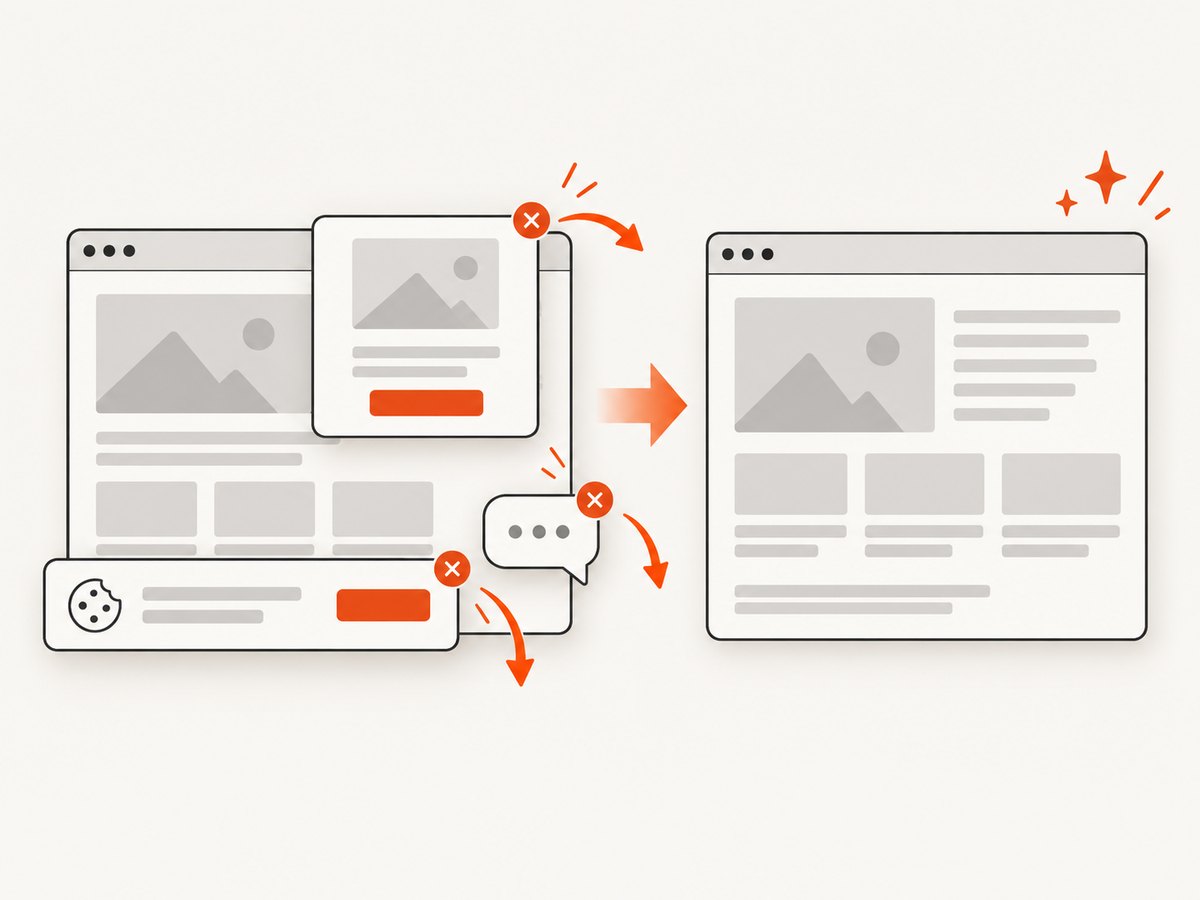
If your goal is a clean image from a URL rather than maintaining Chrome inside CI, ScreenshotNeo provides a GET endpoint and an MCP server for AI agents. It removes cookie and consent banners, newsletter popups, and chat widgets before capture. Bot checks, blank pages, failed loads, timeouts, and cache hits are not billed, and the response identifies the result with X-Page-Verdict and X-Billed headers. Its MCP tools let Claude, Cursor, or another MCP client call take_screenshot, get_page_info, and capture_pdf.
See the ScreenshotNeo API documentation for all options. These runnable calls capture Stripe; replace the URL with yours.
cURL
curl -G "https://api.screenshotneo.com/v1/shot" -d access_key=YOUR_API_KEY --data-urlencode url=https://stripe.com -o shot.webpPython
import requests
r = requests.get("https://api.screenshotneo.com/v1/shot", params={"access_key": "YOUR_API_KEY", "url": "https://stripe.com"}, timeout=90)
open("shot.webp", "wb").write(r.content)
Node.js
const q = new URLSearchParams({ access_key: 'YOUR_API_KEY', url: 'https://stripe.com' });
const res = await fetch(`https://api.screenshotneo.com/v1/shot?${q}`);
You can configure full-page or element captures, dark mode, device presets or custom viewports, retina scale, PDF paper and margins, custom CSS and JavaScript, clicks, waits, blocked resources, headers, cookies, user agents, authorization, timezone, geolocation, transparent backgrounds, resizing, caching TTL, signed image links, asynchronous webhooks, bulk capture of up to 100 URLs, and usage reporting. Existing parameter names used by other screenshot APIs also work, which can simplify a migration.
The Free plan includes 1,000 screenshots per month with no card. Paid plans start at $5 for 3,000 screenshots, and every feature is available on every plan. Create a free ScreenshotNeo account to get started.
12. A short diagnostic checklist
- Classify the failure: missing file, launch error, or wrong page state.
- Print Node, Puppeteer, runner OS, architecture, and browser versions.
- Run
npx puppeteer browsers installand share one cache path. - Check
ldd chrome | grep notfor missing Linux libraries. - Keep Chrome’s sandbox enabled while correcting host configuration.
- Use writable
XDG_CONFIG_HOME,XDG_CACHE_HOME, and profile paths. - Use an application readiness selector instead of assuming network idle is sufficient.
- Enable
dumpioandNODE_DEBUG="puppeteer:*"temporarily, then redact logs. - Upload the screenshot and diagnostics as private CI artifacts.
FAQ
Should I always use networkidle2?
No. It is a documented example, but applications with polling, WebSockets, or third-party requests may never settle. Combine a finite navigation timeout with a selector or application-specific readiness signal.
Does a successful page.screenshot() prove the page is correct?
No. It proves that Puppeteer produced an image. The page can still be blank, redirected, unauthenticated, or mid-render. Validate URL, title, key selectors, and expected content.
Why does the same workflow work locally but fail on GitHub Actions?
The runner may use a different OS image, architecture, Node version, browser cache, user, sandbox policy, or set of shared libraries. Compare those values directly.
When is --no-sandbox acceptable?
Only as a deliberate workaround in a trusted and isolated environment after understanding the security trade-off. Correct the runner sandbox configuration first.
Can I cache Puppeteer’s browser?
Yes, but key the cache by platform, architecture, Puppeteer version, and lockfile. Ensure the install and capture steps use the same PUPPETEER_CACHE_DIR.


