How to Fix Puppeteer Screenshots That Are Not Being Saved
Puppeteer screenshots usually go missing because no save path was supplied, the path resolves somewhere unexpected, or the runtime cannot write there. Trace the full path from screenshot call to file system and fix it step by step.
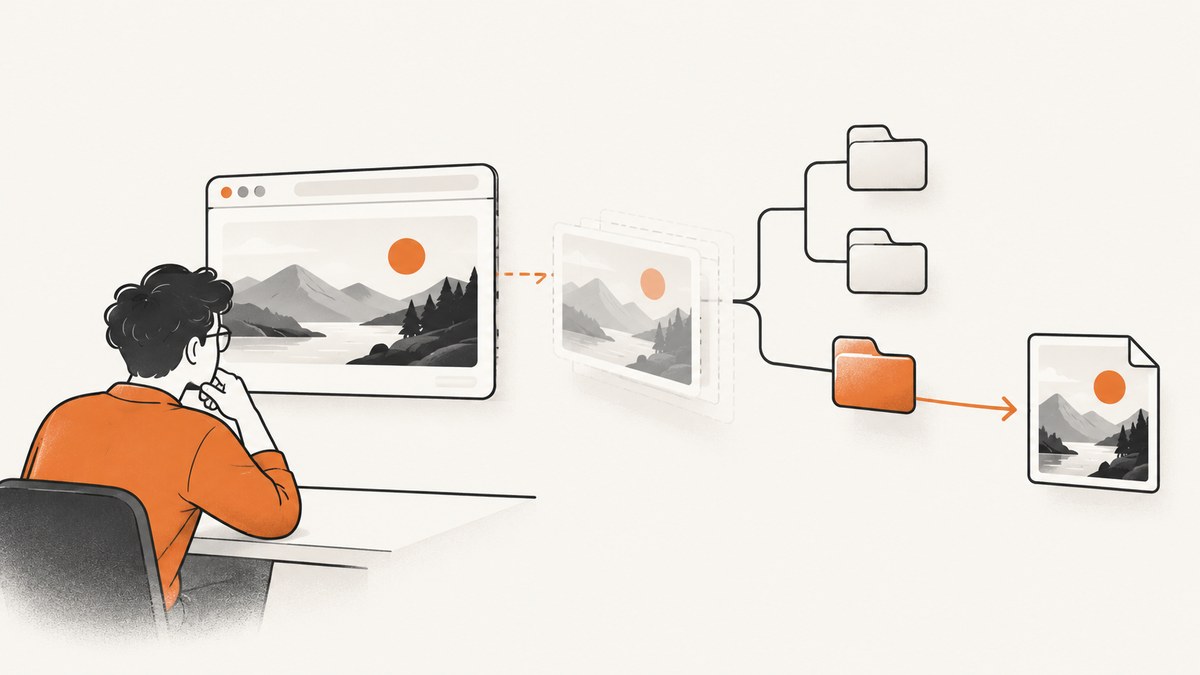
Puppeteer screenshots are not saved to disk unless you pass a path option. When a path is present, check where it resolves: relative paths start from Node.js’s current working directory, which may not be the folder containing your script. Then confirm the destination directory exists, the runtime user can write to it, and the screenshot promise completes before your program exits or closes the browser.
The most common fix is explicit and small:
await page.screenshot({ path: 'screenshot.png' });The steps below separate capture from persistence, show a complete runnable example, and help you find the actual output location or the error preventing the file from being written.
1. Check whether Puppeteer was told where to save the image
The Puppeteer ScreenshotOptions reference documents path as the file path used to save the screenshot. If you omit it, Puppeteer returns the screenshot data but does not write a file. This distinction explains many reports that a screenshot “worked” while no image appeared in the expected folder.
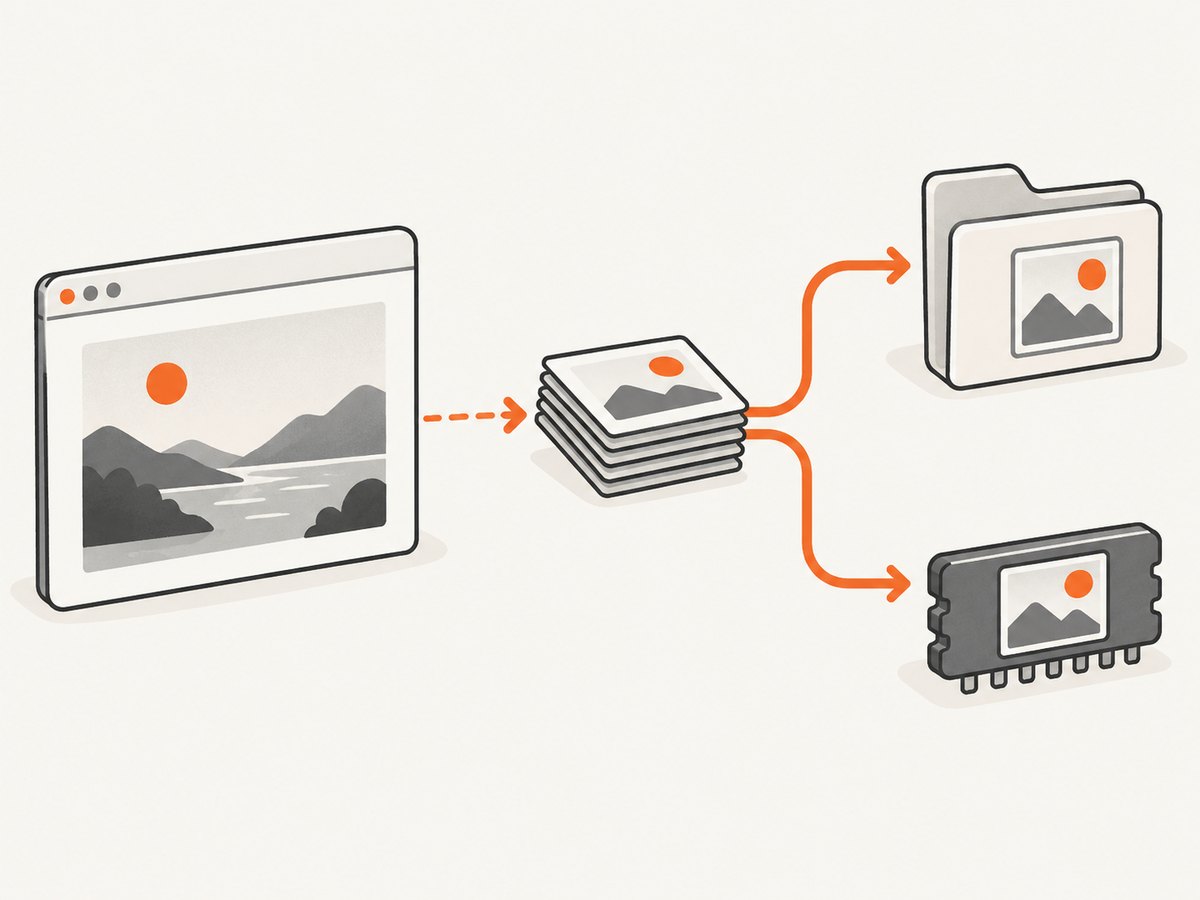
// Captures image data, but does not write a file by itself
const imageData = await page.screenshot();

// Captures and writes the file
await page.screenshot({ path: 'screenshot.png' });
page.screenshot() returns image data: by default, a binary Uint8Array, or a base64 string if that encoding is requested. A returned value is not proof of a file write. See the Page.screenshot() API reference.
2. Run a minimal complete example
First establish that a basic navigation and explicit screenshot path work in your environment. The example uses a relative path deliberately; the next section shows how to make that destination unambiguous.
import puppeteer from 'puppeteer';

const browser = await puppeteer.launch();
try {
  const page = await browser.newPage();
  await page.goto('https://example.com');
  await page.screenshot({ path: 'screenshot.png' });
} finally {
  await browser.close();
}
Save this as an ES module, for example screenshot.mjs, in a project where Puppeteer is installed, then run it with Node.js. The official Puppeteer Page API follows the same essential sequence: launch, create a page, navigate, await the screenshot, and close the browser. The finally block ensures browser cleanup even if navigation or capture fails.
3. Find the real destination path
A relative screenshot path is resolved against process.cwd(), the current working directory of the Node process. That directory can differ from the script’s directory and from the project folder you expected, especially when a task runner, IDE, service manager, container entrypoint, or shell launches the program.
Log the working directory to see the base directory Puppeteer uses:
console.log('Node current working directory:', process.cwd());
await page.screenshot({ path: 'screenshots/page.png' });
The result is a path under the printed working directory, such as <cwd>/screenshots/page.png. If you want the script’s directory instead, build a path explicitly. For an ES module:
import { fileURLToPath } from 'node:url';
import path from 'node:path';

const scriptFile = fileURLToPath(import.meta.url);
const scriptDirectory = path.dirname(scriptFile);
const outputPath = path.join(scriptDirectory, 'screenshot.png');

await page.screenshot({ path: outputPath });
console.log('Saved screenshot to:', outputPath);
For a quick diagnostic, use an absolute path to a directory you know exists and is writable by the current process. Absolute paths remove ambiguity about the working directory, but they do not create missing directories or grant permissions.
4. Confirm the directory exists and can be written
Puppeteer can save a file only if the runtime can reach and write to its destination. If you use a nested directory such as screenshots/run-1/page.png, create the parent directories first. Also check which operating-system user runs Node: a directory writable from your interactive account may not be writable by a container, CI worker, or service account.
import { mkdir } from 'node:fs/promises';
import path from 'node:path';

const outputDirectory = path.resolve('screenshots');
await mkdir(outputDirectory, { recursive: true });
const outputPath = path.join(outputDirectory, 'page.png');

await page.screenshot({ path: outputPath });
console.log('Saved screenshot to:', outputPath);
In deployed environments, inspect the container or process user, mounted volume, directory ownership, and write permissions. Puppeteer’s troubleshooting guide discusses filesystem permissions and writable volumes as deployment concerns. These are checks to make when the explicit path is correct; they are not a universal explanation for every missing file.
5. Await capture and let errors reach your logs
page.screenshot() is asynchronous. Await it before you close the browser, report success, or let the process finish. If you start the promise without waiting, cleanup or process exit can happen before the write completes.
A useful diagnostic wrapper logs the output path and preserves the original error:
const outputPath = '/tmp/page.png';

try {
  console.log('Saving screenshot to:', outputPath);
  await page.screenshot({ path: outputPath });
  console.log('Screenshot saved');
} catch (error) {
  console.error('Screenshot failed:', error);
  throw error;
}
Avoid catching an exception and then continuing as if the capture succeeded. During diagnosis, include the error stack and the path you attempted. Once you know the cause, your application can decide whether to retry, return an error, or continue without the image.
6. Separate screenshot settings from file persistence
Capture options affect what image Puppeteer produces; path determines where it writes that image. Changing capture extent, type, or target element will not fix a missing or unwritable destination.
| Need | Relevant setting or method | What it changes |
|---|---|---|
| Save an image to disk | path |
Output destination. Without it, no file is written. |
| Capture beyond the viewport | fullPage: true |
Captures the full page; it does not choose a destination. |
| Choose PNG, JPEG, or WebP | type or filename extension |
Image encoding and, when inferred, the output format. |
| Capture one page element | elementHandle.screenshot() |
Captures the element; pass its own explicit path to save it. |
PNG is the default screenshot type. Puppeteer can infer a format from the path extension. The options and defaults are documented in ScreenshotOptions. For element capture, the screenshots guide demonstrates ElementHandle.screenshot(); as with page capture, supply a path when you want a file.
// Full page saved as PNG
await page.screenshot({ path: 'full-page.png', fullPage: true });

// Find an element and save its screenshot
const card = await page.$('.product-card');
if (!card) throw new Error('Product card not found');
await card.screenshot({ path: 'product-card.png' });
If the capture itself is blank, clipped, or targets the wrong element, troubleshoot navigation and capture behavior separately. If no file exists at all, return to the path, working directory, permissions, and awaited promise.
7. Use a decision sequence to isolate the cause
- Confirm execution reaches the screenshot line. Put a log immediately before it and verify that the preceding navigation or selector lookup did not fail.
- Await the call. Use
await page.screenshot(...)orawait element.screenshot(...)and keep the browser open until it resolves. - Pass
path. If your code expects a file, make the destination explicit. - Resolve the path. Print
process.cwd()and the full output path, or use an absolute path. - Check parent directories and permissions. Create needed directories and verify the effective runtime user can write there.
- Read the exact error. Do not discard the exception; its message and stack provide the next diagnostic branch.
- Inspect the filesystem at that exact path. Check the application host or container filesystem, not only a local development folder.
- Only then change capture options. Format and full-page settings affect the image, not the save location.
8. Common errors and fixes
| Symptom | Likely cause | Fix |
|---|---|---|
| No error, but no file appears | No path was supplied; screenshot data was returned in memory. |
Pass { path: 'screenshot.png' }, or explicitly write returned image data yourself. |
| File is in an unexpected folder | Relative path resolved from process.cwd(), not the script folder. |
Log process.cwd(); use an absolute path or construct one from the script directory. |
| Screenshot write rejects with a filesystem error | Parent directory may not exist, or the process lacks write access. | Create the directory recursively; check ownership, permissions, and mounted volumes for the effective runtime user. |
| Program says “saved” before file exists | The screenshot promise was not awaited, or success was logged before completion. | Await the promise and log success afterward. |
| Browser closes during screenshot work | Cleanup ran before the asynchronous capture completed. | Await capture inside the browser’s lifetime; close in finally after it settles. |
| Output has an unexpected image type | Format inference from extension or an explicit type setting differs from expectation. | Set the desired type and use a matching extension; consult the options reference. |
| Element screenshot fails or is absent | The element lookup may return no match, or the wrong capture method/path was used. | Check the handle before capturing and pass a path to elementHandle.screenshot(). |
| Works locally, fails in a container or CI | Different working directory, filesystem layout, process user, or volume permissions. | Log the resolved path and runtime user context; write to a known writable mounted location. |
These branches reflect documented Puppeteer path behavior and general filesystem diagnostics. The official references do not identify one universal cause beyond the missing-path behavior, so use the actual runtime error and deployment details to choose the fix.
9. Reliability, performance, and cost considerations
For reliable local or server-side capture, make output locations deterministic, create destination directories during setup, await every capture, and log both the resolved path and failures. If many captures run concurrently, give each output a unique filename; otherwise, separate executions may overwrite the same path. Retain only the images your workflow needs, particularly when full-page captures produce large files.

Screenshot capture also consumes browser-process resources. Reusing a browser for a batch can avoid repeatedly launching it, while keeping each page’s output path distinct. Bound concurrency according to the memory and CPU available to the host. These are operational practices; the supplied Puppeteer references do not provide universal performance benchmarks, so measure with your pages, image sizes, and deployment limits.
Cost depends on where the browser runs and how often it captures pages: account for compute, storage, and transfer in your own deployment. A path fix has no special Puppeteer license cost implication. If you prefer not to operate browser setup and file persistence yourself, a screenshot API is another approach.
Or skip the browser setup
ScreenshotNeo is a website screenshot API: one GET request takes a URL and returns PNG, JPEG, WebP, or PDF. It handles the browser capture and returns the result directly. See the ScreenshotNeo documentation for the API options and setup.
curl -G "https://api.screenshotneo.com/v1/shot" -d access_key=YOUR_API_KEY --data-urlencode url=https://stripe.com -o shot.webpCookie banners are accepted and removed before the shot, along with known newsletter popups and chat widgets. Bot checks, blank pages, failed loads, timeouts, and cache hits are not billed; response headers identify the page verdict and billing outcome. An MCP server gives AI agents tools to take screenshots, get page information, and capture PDFs. The free plan includes 1,000 screenshots a month with no card; paid plans start at $5 for 3,000.
Create a free ScreenshotNeo account to get 1,000 screenshots a month with no card.
10. Short FAQ
Where does Puppeteer save a screenshot by default?
It does not save a file by default. Without path, the call returns image data instead.
Is a relative path based on the JavaScript file’s location?
No. Puppeteer resolves a relative screenshot path from Node’s current working directory. Print process.cwd() to see it.
Can I get screenshot bytes without creating a file?
Yes. Call page.screenshot() without a path and use the returned image data in memory. To save it later, write those bytes using Node’s filesystem APIs.
Does fullPage: true save the screenshot?
No. It changes the captured extent. Supply path separately to write an image file.
How do I save just one element?
Find its element handle and call elementHandle.screenshot({ path: 'element.png' }), checking that the selector matched first.


