How to Fix Puppeteer Selectors That Are Not Found
Fix Puppeteer selector errors by checking timing, frames, shadow DOM, selector syntax, and stale handles with practical code and diagnostics.
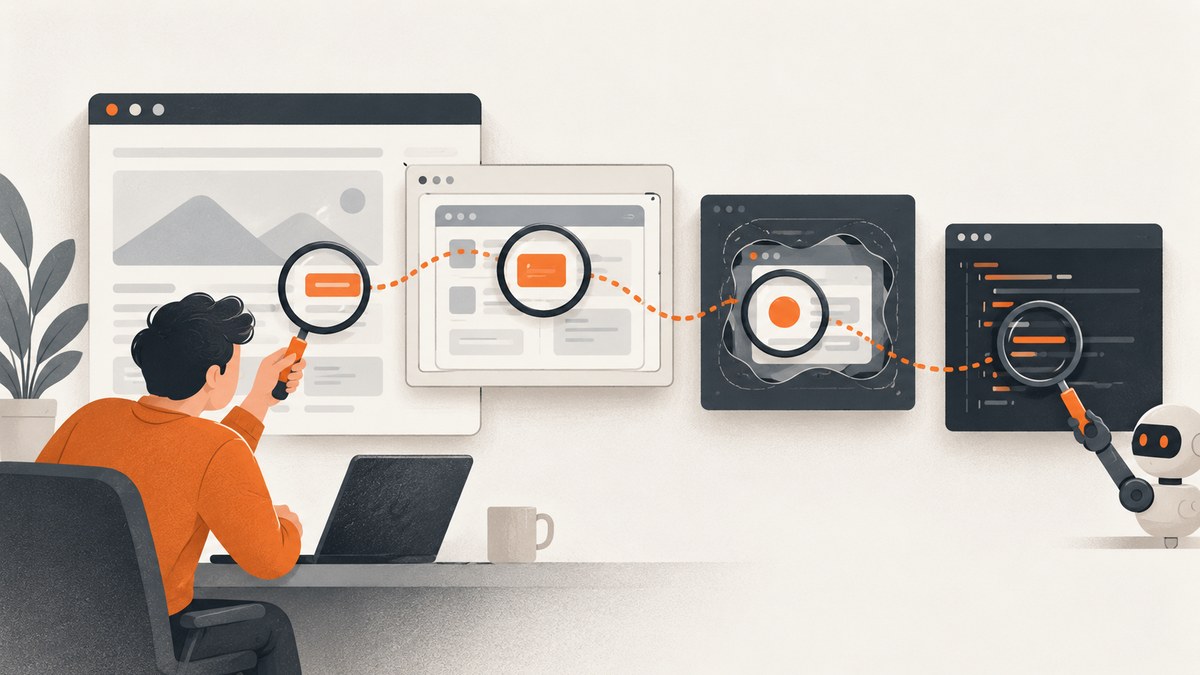
Most Puppeteer “selector not found” errors have five causes: the query runs before rendering finishes, the selector does not match the live DOM, the target is inside another frame, the target is inside an open shadow root, or an ElementHandle became stale after navigation or re-rendering.
Check the URL and frame first, inspect the live DOM, then use a locator or an explicit wait with a selector that matches the current page. The examples below cover dynamic pages, iframes, shadow DOM, hidden elements, navigation, stale handles, and browser setup failures.
1. Confirm the page before debugging the selector
A surprising number of selector failures are page-state failures. Log the URL immediately before the query and make navigation completion explicit.

import puppeteer from 'puppeteer';

const browser = await puppeteer.launch({headless: true});
const page = await browser.newPage();

await page.goto('https://example.com/account', {
  waitUntil: 'networkidle2',
  timeout: 60000
});

console.log('Current URL:', page.url());
console.log('Title:', await page.title());

await page.locator('button[data-testid="save"]').click();
await browser.close();
networkidle2 waits until there are no more than two active network connections for a short period. It is useful for many applications, but it does not guarantee that every framework component has finished rendering. For pages with polling, analytics, or streaming connections, wait for a meaningful selector as well.
await page.goto(url, {waitUntil: 'domcontentloaded'});
await page.waitForSelector('main[data-page="dashboard"]', {
  visible: true,
  timeout: 30000
});
Use a fresh locator or query after navigation. An ElementHandle obtained before navigation can refer to a detached node. Puppeteer documents that ElementHandle.waitForSelector() does not work across navigations or when the element is detached, while Frame.waitForSelector() is designed to wait within a frame across navigations. See the ElementHandle reference and Frame reference.
2. Check selector syntax against the live DOM
Puppeteer uses CSS selectors by default. A selector can be syntactically valid and still match nothing because a class, attribute, or DOM structure changed after the original HTML response. Open DevTools on the same URL and test the exact selector in the Elements panel or the console with document.querySelector().
// Test in the browser console
[...document.querySelectorAll('button[data-testid="save"]')]

// Test from Puppeteer
console.log(await page.locator('button[data-testid="save"]').count());
Prefer stable attributes such as data-testid, accessible roles, labels, or semantic text over generated class names. Puppeteer’s selector syntax supports CSS, XPath, text, accessibility selectors, and combinations for shadow DOM. The Page interactions guide explains locators and automatic waiting.
Common selector mistakes
| Problem | Example | Fix |
|---|---|---|
| Wrong attribute syntax | button[data-test=save] |
Quote values: button[data-test="save"] |
| Class changed by a build | .css-1a2b3c |
Use a stable test ID or role |
| Element is nested | button matches a different button |
Scope it: form#login button[type="submit"] |
| Text is not CSS | button:has-text("Save") |
Use Puppeteer text or accessibility selector syntax |
| Escaping is missing | #item:123 |
Escape special characters or use an attribute selector |
3. Wait for dynamic rendering
page.waitForSelector(selector, options) waits for an element to appear. Its documented default timeout is 30 seconds; set a shorter timeout for fast failure or a longer timeout for slow applications. With visible: true, the node must exist and be visible. With hidden: true, Puppeteer waits until it is hidden or absent and may resolve to null.
await page.waitForSelector('form#login', {
  visible: true,
  timeout: 30000
});

await page.type('input[name="email"]', 'dev@example.com');
await page.type('input[name="password"]', 'correct-horse-battery-staple');
await page.click('button[type="submit"]');

await page.waitForSelector('[role="alert"]', {visible: true});
Locators are usually the safer default for actions because they wait for presence and action readiness. They also avoid holding a handle while a framework replaces the node.
const save = page.locator('button[data-testid="save"]');
await save.click();
Do not use a fixed delay as the primary synchronization method. await new Promise(r => setTimeout(r, 5000)) can be too short on a slow run and wastes time on a fast run. Wait for the state your next operation actually needs: a selector, navigation, a URL, a response, or network idle.
4. Query elements inside an iframe
Selectors run against the current document. They do not cross an iframe boundary. Find the frame, then query it with frame.locator() or frame.waitForSelector().
await page.goto('https://example.com/checkout', {waitUntil: 'networkidle2'});

const frame = page.frames().find(f => f.url().includes('/payment-widget'));
if (!frame) {
  throw new Error('Payment frame was not found');
}

await frame.waitForSelector('button.submit', {
  visible: true,
  timeout: 30000
});
await frame.locator('button.submit').click();
For a stable iframe, select it by name or a distinctive attribute. For dynamically created frames, inspect page.frames().map(f => f.url()) after navigation. A cross-origin frame can still be automated through Puppeteer’s Frame API, but JavaScript you run in the page context remains subject to browser origin rules.
5. Query elements inside open shadow DOM
Ordinary CSS selectors stop at a shadow root. If a web component renders the target inside an open shadow root, use Puppeteer’s deep selector support.
await page.locator('my-component >>> button').click();Puppeteer also documents the pierce/ prefix and combinations with text and other selector types. These methods depend on the shadow root being open. Closed shadow roots intentionally hide their internals; select the component itself, use its public API, or ask the application to expose a stable test hook.
6. Avoid stale ElementHandles
Single-page applications frequently replace nodes during hydration, route changes, or state updates. A handle captured before replacement is detached even when an identical element appears in the new DOM.
const oldButton = await page.$('button[data-testid="save"]');
await page.click('button[data-testid="rerender"]');

// oldButton may now be detached. Reacquire or use a locator.
await page.locator('button[data-testid="save"]').click();
If you must use a handle, check it immediately before use and reacquire it after every navigation or known DOM replacement. Locators keep the selection logic and resolve the current node when the action runs.
7. A repeatable diagnostic script
Use this small script to separate URL, selector, frame, and timing problems.
import puppeteer from 'puppeteer';

const url = process.argv[2] || 'https://example.com';
const selector = process.argv[3] || 'button';
const browser = await puppeteer.launch({headless: true});
const page = await browser.newPage();

try {
  await page.goto(url, {waitUntil: 'domcontentloaded', timeout: 60000});
  console.log({url: page.url(), title: await page.title()});
  console.log('Frames:', page.frames().map(frame => frame.url()));
  console.log('Matches before wait:', await page.locator(selector).count());
  await page.waitForSelector(selector, {visible: true, timeout: 10000});
  console.log('Selector is visible:', selector);
} catch (error) {
  console.error('Selector diagnostic failed:', error.message);
  console.error('Final URL:', page.url());
  await page.screenshot({path: 'selector-debug.png', fullPage: true});
  console.error('Saved selector-debug.png');
  process.exitCode = 1;
} finally {
  await browser.close();
}
8. Troubleshooting common errors
| Error or symptom | Likely cause | Fix |
|---|---|---|
Waiting for selector ... failed: timeout |
Wrong selector, early query, wrong frame, or hidden node | Log the URL, inspect the live DOM, wait for a parent state, and query the correct frame. |
| Selector works in DevTools but not Puppeteer | Puppeteer reaches a different URL, user state, viewport, or frame | Log page.url(), cookies, viewport, and frame URLs; reproduce the same state. |
Element exists but visible: true fails |
Node is hidden, covered, zero-sized, or not yet laid out | Wait for the visible state or remove the overlay in a test environment; do not confuse presence with interactability. |
| Works once, then fails after clicking | React/Vue/etc. replaced the node | Use a locator or reacquire the handle after the update. |
| Iframe selector returns zero matches | Query is running in the top document | Find the frame and call frame.locator(). |
| Shadow component is found but child is not | Child is inside an open shadow root | Use >>> or pierce/; closed roots require a public hook. |
| Browser cannot launch | Chromium is not installed, cache is unavailable, or the executable path is invalid | Fix browser installation and cache configuration first. This is an environment problem, not evidence that the selector is wrong. See Puppeteer’s installation guide. |
9. Reliability and performance practices
- Use locators for actions and explicit waits for states that matter to the workflow.
- Set a per-navigation and per-selector timeout so a stuck page does not consume the entire job.
- Reuse a browser process for multiple pages when isolation permits; creating Chromium for every URL adds startup cost.
- Capture diagnostics only on failure. Screenshots, HTML dumps, console logs, and network traces are valuable but increase storage and runtime.
- Use stable semantic selectors. They survive CSS refactors better than generated class names.
- Keep frame discovery deterministic. Match a known frame URL, name, or attribute instead of assuming
page.frames()[1]. - Close pages and browsers in
finallyblocks so failures do not leak processes.
10. Or skip the browser setup
If your goal is a clean screenshot rather than browser automation itself, ScreenshotNeo provides a website screenshot API and MCP server. One GET request returns PNG, JPEG, WebP, or PDF. The API accepts options for full-page capture, element selectors, dark mode, device presets, custom viewports, retina scale, waits, custom CSS and JavaScript, clicks, hidden selectors, blocked resources, headers, cookies, user agents, authorization, timezone, geolocation, transparency, resizing, caching, signed links, asynchronous jobs, bulk capture, and PDF output.

Before capture, cookie and consent banners, newsletter popups, and chat widgets from more than 60 known platforms can be removed. Bot checks, blank pages, timeouts, failed loads, and cache hits are not billed; response headers identify the page verdict and whether the request was billed. The MCP server exposes take_screenshot, get_page_info, and capture_pdf for Claude, Cursor, and other MCP clients.
curl -G "https://api.screenshotneo.com/v1/shot" -d access_key=YOUR_API_KEY --data-urlencode url=https://stripe.com -o shot.webpimport requests
r = requests.get("https://api.screenshotneo.com/v1/shot", params={"access_key": "YOUR_API_KEY", "url": "https://stripe.com"}, timeout=90)
open("shot.webp", "wb").write(r.content)const q = new URLSearchParams({ access_key: 'YOUR_API_KEY', url: 'https://stripe.com' });
const res = await fetch(`https://api.screenshotneo.com/v1/shot?${q}`);See the ScreenshotNeo API documentation for parameters and response headers. The free plan includes 1,000 screenshots per month with no card. Paid plans start at $5 for 3,000 screenshots, and every feature is available on every plan. Create a free ScreenshotNeo account.
11. FAQ
Should I increase the timeout?
Only after confirming the URL, frame, selector, and rendering state. A longer timeout cannot fix a selector that never matches.
Can Puppeteer select across every iframe automatically?
No. Query each relevant Frame explicitly. Build a helper that searches page.frames() when the frame URL is dynamic.
Why does a selector work after a manual refresh?
A refresh can change timing, cookies, cached assets, or application state. Replace timing assumptions with a wait for the page state your action needs.
Can I access a closed shadow root?
Not through normal Puppeteer selectors. Use the component’s public interface or add a test hook in the application.
What does “no element found” mean in Puppeteer?
Methods that require a match throw when no element matches. Treat the error as a prompt to verify live DOM state, timing, frame context, and selector grammar.


