How to Fix Puppeteer Sharp PDFs That Cut Off Page Content
Fix clipped Puppeteer Sharp PDFs by checking page-size settings, print CSS, margins, fonts, and scale in a clear diagnostic sequence.
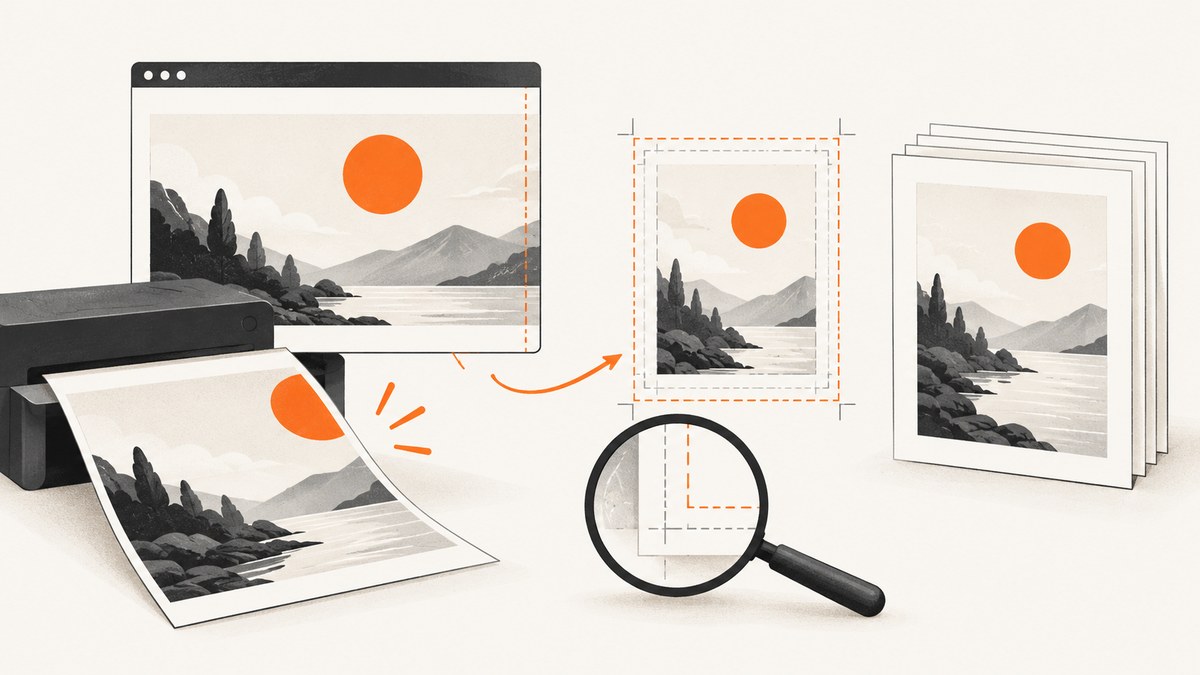
Start by checking whether the page size in your CSS @page rule agrees with the size set in Puppeteer Sharp’s PdfOptions. By default, PreferCSSPageSize is false, so Puppeteer Sharp scales the content to fit the paper size specified by Format, Width, or Height. Set PreferCSSPageSize = true when CSS should control the page dimensions. Then inspect print-specific CSS, margins, fixed dimensions, overflow, font loading, and scale.
There is no single setting that fixes every cutoff. The right change depends on whether content is clipped at a page edge, disappears between pages, or wraps differently than it does on screen. This guide gives you a sequence to isolate the cause and a C# example you can adapt.
1. Check which page size controls the PDF
A PDF can have two sources for its page dimensions: the CSS @page rule and Puppeteer Sharp’s PDF options. Choose one to own the paper size, then make the other settings and the page layout agree with it.
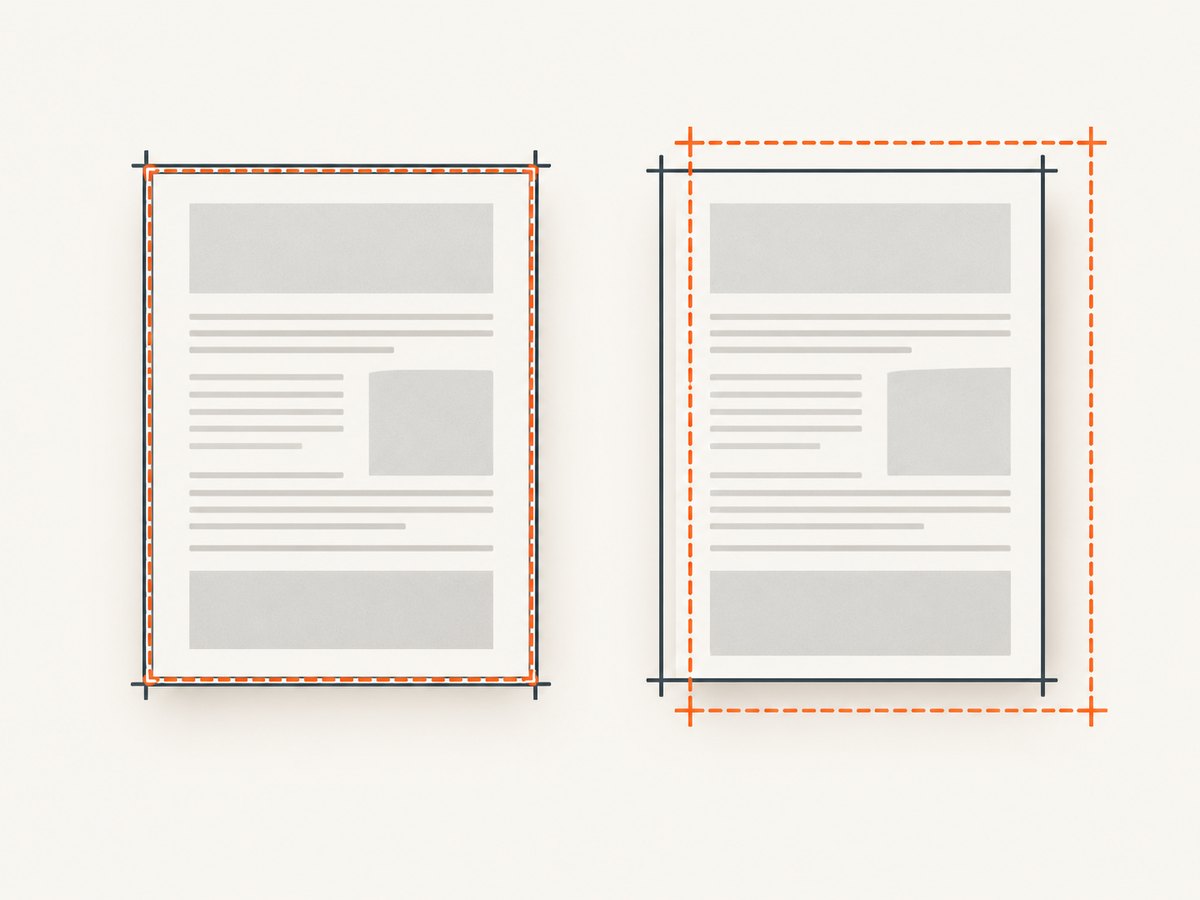
When PreferCSSPageSize is false (the documented default), the dimensions in Format, Width, or Height control the paper, and content is scaled to fit. When it is true, a CSS @page size takes priority. A mismatch can result in unexpected scaling or content positioned outside the intended printable area.
For example, if the document’s print CSS defines an A4 page and you want that rule to control the PDF, set PreferCSSPageSize to true. If the API options should control the paper size instead, set the matching format and ensure the print layout fits within it.
2. Generate a PDF with deliberate page settings
This example uses A4, gives CSS page dimensions priority, prints background colors, and sets API margins. Adjust the paper format and margins to match your document. The example is a starting point, not a universal fix.
using PuppeteerSharp;

await new BrowserFetcher().DownloadAsync();

await using var browser = await Puppeteer.LaunchAsync(new LaunchOptions
{
    Headless = true
});

await using var page = await browser.NewPageAsync();
await page.GoToAsync("https://example.com", WaitUntilNavigation.Networkidle0);

await page.PdfAsync("output.pdf", new PdfOptions
{
    Format = PaperFormat.A4,
    PreferCSSPageSize = true,
    PrintBackground = true,
    MarginOptions = new MarginOptions
    {
        Top = "12mm",
        Right = "12mm",
        Bottom = "12mm",
        Left = "12mm"
    }
});
Puppeteer Sharp is a .NET port of the Puppeteer API, and its documented PDF flow uses page.PdfAsync with PdfOptions. See the [Puppeteer Sharp API documentation](https://www.puppeteersharp.com/api/index.html) and [PdfOptions reference](https://www.puppeteersharp.com/api/PuppeteerSharp.PdfOptions.html).
The browser download call is convenient for a simple example. In a deployed application, manage the browser executable and its version as part of your application environment rather than downloading it on every PDF request.
3. Inspect print CSS and page layout
Puppeteer’s PDF generation uses print media CSS by default. A page that looks correct in a normal browser tab may use a different layout when printed. Inspect the styles that apply under @media print and the page rules in @page. MDN documents @media for print-specific styles and @page for printed page dimensions, orientation, and margins ([MDN: Printing](https://developer.mozilla.org/en-US/docs/Web/CSS/CSS_media_queries/Printing)).
- Fixed widths: A content container wider than the printable page can be clipped or scaled. Compare its width with the page width after margins.
- Fixed heights: A short height combined with
overflow: hiddencan hide content that should continue onto another page. - Positioning: Absolutely positioned content may land outside the page or overlap other content when print dimensions differ from screen dimensions.
- Long unbroken content: Wide tables, code, URLs, and non-wrapping text can extend beyond the page. Add print-appropriate wrapping or a layout that fits.
- Print visibility: A print rule may hide or rearrange a section that is visible on screen.
If you intentionally want the screen design in the PDF, Puppeteer’s documented approach is to emulate screen media before PDF generation. Use that only when screen styling is the desired output; for a print-ready document, correct the print stylesheet instead. Refer to the [Puppeteer Page.pdf documentation](https://pptr.dev/api/puppeteer.page.pdf).
await page.EmulateMediaTypeAsync(MediaType.Screen);
await page.PdfAsync("screen-styled.pdf", new PdfOptions
{
    Format = PaperFormat.A4,
    PrintBackground = true
});
4. Review margins and header or footer space
MarginOptions controls the API-level paper margins; its documented default is no margins. CSS @page rules can also specify page margins. Check both sources, because setting one does not mean the other is irrelevant to the rendered print layout.
Headers and footers are off by default. If you enable them with DisplayHeaderFooter, reserve enough top or bottom space for the template and its content. Otherwise, header or footer material may collide with page content or appear to be cut off.
await page.PdfAsync("with-header.pdf", new PdfOptions
{
    Format = PaperFormat.A4,
    DisplayHeaderFooter = true,
    HeaderTemplate = "<div style='font-size:8px;width:100%;text-align:center'>Report</div>",
    FooterTemplate = "<div style='font-size:8px;width:100%;text-align:center'><span class='pageNumber'></span> / <span class='totalPages'></span></div>",
    MarginOptions = new MarginOptions
    {
        Top = "18mm",
        Bottom = "18mm",
        Left = "12mm",
        Right = "12mm"
    }
});
Zero margins can be appropriate for edge-to-edge artwork in a PDF. They are not a general remedy for clipped text, and physical printers may impose their own non-printable areas.
5. Check scale only after dimensions and layout
Scale defaults to 1 and is documented to accept values from 0.1 through 2. First confirm the paper size, printable area, and print layout. Then, if content only narrowly exceeds the page, a restrained scale adjustment can help diagnose whether the layout is just too large. Scaling can make text smaller and conceal a page-size or CSS problem, so compare the resulting readability and page breaks.
await page.PdfAsync("scaled.pdf", new PdfOptions
{
    Format = PaperFormat.A4,
    Scale = 0.95,
    PrintBackground = true
});
6. Wait for fonts and page content
Puppeteer Sharp’s WaitForFonts defaults to true and waits for document.fonts.ready. Font substitution or late-loading page content can change text widths, line breaks, and page count. If the output varies between runs, check whether the fonts and data are ready before capture. The API documentation notes that bringing a background page to the foreground may be necessary for the font wait to complete.
await page.GoToAsync(url, WaitUntilNavigation.Networkidle0);
await page.BringToFrontAsync();
await page.EvaluateExpressionAsync("document.fonts.ready");

await page.PdfAsync("report.pdf", new PdfOptions
{
    Format = PaperFormat.A4,
    WaitForFonts = true
});
Network idle is useful when the page has finished its network activity, but pages with polling or long-lived requests may not reach that state. If navigation waits indefinitely, choose a less strict navigation condition and wait explicitly for the data or selector your report needs. Puppeteer Sharp documents navigation and PDF APIs in its [project API documentation](https://www.puppeteersharp.com/api/index.html).
7. Diagnose one change at a time
- Record the symptom. Note which edge or page loses content, whether it affects all content or one element, and whether the same URL always produces the same result.
- Record the environment. Capture the Puppeteer Sharp version, browser version, paper format or dimensions, margins,
PreferCSSPageSize,Scale, and header/footer options. - Inspect the effective print styles. Review
@media print,@page, fixed dimensions, overflow, positioning, and wide elements. - Change one setting. For example, align the CSS page size with the API paper size. Regenerate the PDF and compare before changing another variable.
- Make a minimal reproduction. Reduce the page to the smallest HTML and CSS that still exhibits the cutoff. This separates the PDF settings from application-specific layout and loading behavior.
Puppeteer Sharp’s options describe the controls available, but without the source page and generated PDF it is not possible to identify the cause of an individual cutoff. Keep the original output so you can compare page dimensions, content placement, and page breaks after each change.
8. Common errors and fixes
| Symptom | Likely cause to check | Next step |
|---|---|---|
| Content is cut off on the left or right | CSS page size conflicts with API format, or a container is wider than the printable area | Choose the page-size authority; inspect fixed widths, wide tables, and long unbroken strings. |
| Bottom of a section disappears | Fixed height or overflow: hidden in the print layout |
Inspect the element and its print styles; allow content to flow or paginate. |
| Screen looks right, PDF does not | Print media rules are active for PDF output | Repair @media print, or emulate screen media only if that is the intended design. |
| PDF pages or line breaks vary | Fonts or data are not ready, or font fallback changes metrics | Wait for required content and fonts; verify the font is available in the browser environment. |
| Header overlaps the first line | Header/footer is enabled without sufficient page margin | Increase the corresponding API margin and check CSS @page margins. |
| Content fits only when text is tiny | Scale is compensating for a paper-size or layout mismatch | Fix dimensions and layout first; use scale only for a measured, small adjustment. |
| Navigation or PDF generation waits too long | The page never reaches the chosen navigation condition, or a font wait is stalled | Use a suitable navigation wait, wait for the required selector/data, and check font readiness. |
9. Reliability, performance, and cost considerations
PDF generation runs a browser and lays out the page for print, so page complexity, external assets, font loading, and wait conditions affect how long a request takes. For reliable output, use explicit readiness conditions for the data that matters, keep browser and library versions controlled in deployment, and avoid changing multiple layout variables in the same diagnostic run.
Do not wait for network idle blindly on a page that continuously polls, and do not remove all waiting just to speed up output: a PDF generated before the report data or fonts arrive can be incomplete. The practical cost is application compute and browser operation; actual time and resource use depend on the page and deployment, so measure with your own documents rather than relying on a generic benchmark.
10. Or skip the browser setup
If your task is to capture a website as an image or PDF and you do not need Puppeteer Sharp’s .NET browser workflow, ScreenshotNeo offers a one-request API. Its screenshot parameters include page sizing, PDF options, wait conditions, and custom CSS. See the ScreenshotNeo website and API documentation for request details.
curl -G "https://api.screenshotneo.com/v1/shot" -d access_key=YOUR_API_KEY --data-urlencode url=https://stripe.com -o shot.webpimport requests
r = requests.get(
"https://api.screenshotneo.com/v1/shot",
params={"access_key": "YOUR_API_KEY", "url": "https://stripe.com"},
timeout=90,
)
open("shot.webp", "wb").write(r.content)const q = new URLSearchParams({ access_key: 'YOUR_API_KEY', url: 'https://stripe.com' });
const res = await fetch(`https://api.screenshotneo.com/v1/shot?${q}`);
if (!res.ok) throw new Error(`Screenshot request failed: ${res.status}`);
await Bun.write('shot.webp', res);ScreenshotNeo accepts cookie and consent banners like a visitor and removes more than 60 known consent platforms, newsletter popups, and chat widgets before the shot; each step can be turned off. Bot checks, blank pages, and failed loads are never billed, and response headers report the page verdict and billing status. Its MCP server lets AI agents use take_screenshot, get_page_info, and capture_pdf. The free plan includes 1,000 screenshots a month with no card; paid plans start at $5 for 3,000 screenshots. Sign up for 1,000 free screenshots a month, no card required.
FAQ
Should I set both Format and PreferCSSPageSize?
You can set a format while allowing CSS page size to take priority. Decide which source should define the output dimensions and keep the print layout consistent with that choice.
Does PrintBackground prevent clipping?
No. It controls whether background graphics are included. It does not correct an oversized layout, conflicting page dimensions, or hidden overflow.
Can I use screen media for every PDF?
Only if the screen layout is the intended PDF design. Puppeteer uses print media by default so print-specific styles can take effect.
What details help someone diagnose a remaining cutoff?
Share a minimal HTML/CSS example, the relevant PdfOptions, library and browser versions, intended paper size, and a description of where the output is cut off.


