How to Fix Puppeteer Screenshot Error: Page.captureScreenshot Target Closed
Learn why Puppeteer reports Page.captureScreenshot Target closed, how to diagnose lifecycle and browser failures, and safer screenshot alternatives.

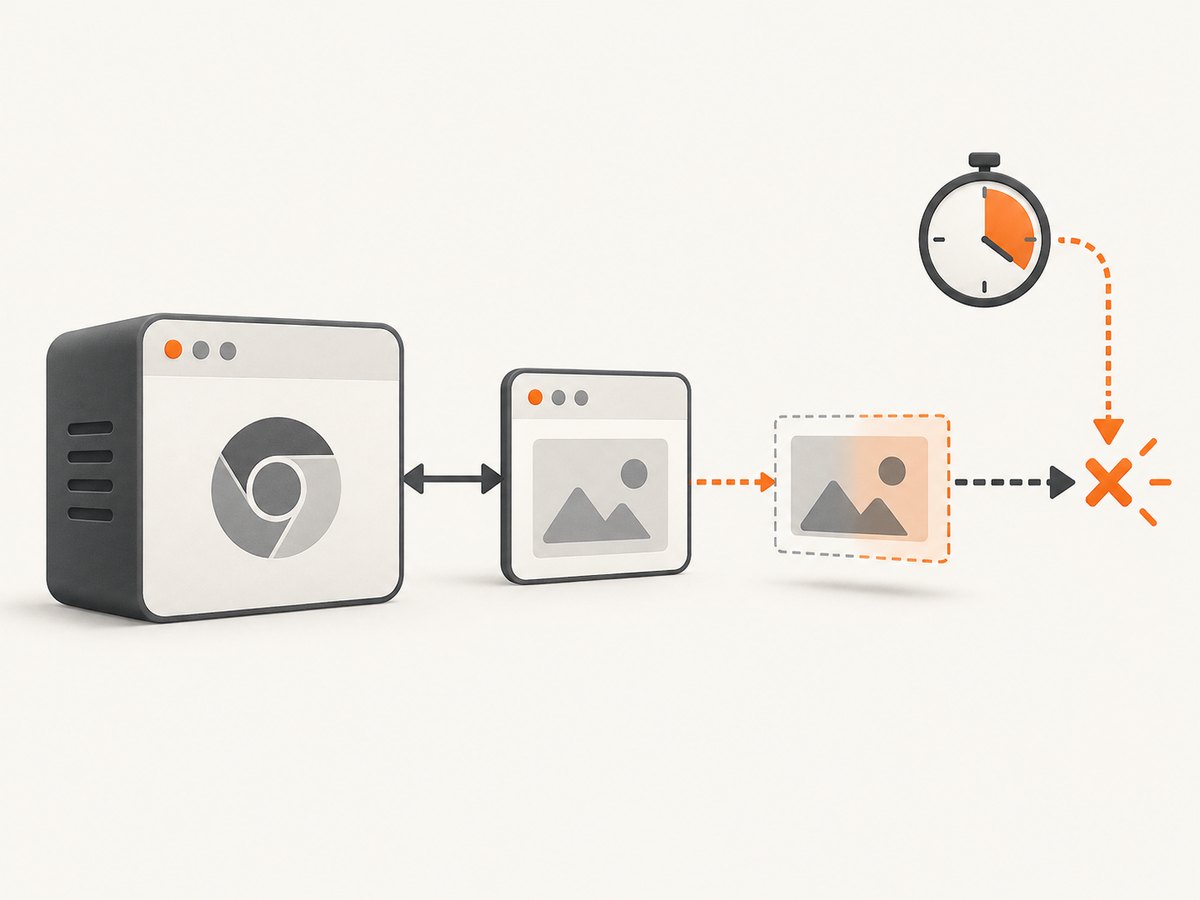
Short answer: Puppeteer reports Protocol error (Page.captureScreenshot): Target closed when the Chrome DevTools Protocol (CDP) page target or its primary session disappears before page.screenshot() receives a response. The message identifies a closed target or disconnected session; it does not, by itself, prove that Chromium crashed, ran out of memory, or contains a Puppeteer bug.
Fix the failure by finding what closed or disconnected the target, awaiting the screenshot before cleanup, testing whether capture dimensions trigger a browser failure, and recording the exact Puppeteer and Chrome versions. The diagnostic code below gives you a minimal reproduction, lifecycle logging, bounded timeouts, and a safe retry decision.
What “Target closed” means
Page.captureScreenshot is the CDP command Puppeteer uses underneath page.screenshot(). Puppeteer’s page implementation rejects its close deferred with a TargetCloseError('Target closed') when the primary CDP session disconnects. In practical terms, the page, browser, or connection went away while the screenshot command was still in flight.
Several different events can produce the same message:
- Your code calls
page.close()orbrowser.close()before the screenshot promise settles. - A timeout,
finallyblock, job cancellation, or test teardown closes the browser concurrently. - Another task sharing the browser disconnects the session.
- Chromium exits or becomes unreachable because of a process, container, or resource failure.
- A very large full-page, clip, viewport, or device-scale capture exposes a browser failure.
- A version-specific Puppeteer, Chromium, or connection-mode problem occurs.
The error text cannot distinguish these causes. Treat it as a lifecycle and connection symptom, then collect evidence.
Minimal working screenshot and lifecycle-safe cleanup
Start with a small capture that does not use fullPage, a large clip, or a high device scale. Keep the browser alive until the screenshot has completed.
const puppeteer = require('puppeteer');

(async () => {
  const browser = await puppeteer.launch({
    headless: true,
    dumpio: true
  });

  const page = await browser.newPage();
  page.on('close', () => console.error('PAGE_CLOSE'));
  browser.on('disconnected', () => console.error('BROWSER_DISCONNECTED'));

  try {
    await page.goto('https://example.com', {
      waitUntil: 'networkidle2',
      timeout: 30000
    });

    const output = await page.screenshot({
      path: 'example.png',
      type: 'png',
      fullPage: false
    });

    console.log(`Captured ${output.length} bytes`);
  } finally {
    // Cleanup runs only after the screenshot promise settles.
    if (browser.isConnected()) {
      await browser.close();
    }
  }
})();
If this succeeds but your production job fails, compare the two environments and options one at a time. A minimal page also tells you whether the issue is tied to the target site rather than to Puppeteer itself.
Diagnostic sequence
1. Trace every close and disconnect path
Search the job for page.close(), browser.close(), browser.disconnect(), timeout callbacks, cancellation handlers, test hooks, and finally blocks. A common race looks like this:
const screenshot = page.screenshot({ path: 'shot.png', fullPage: true });
setTimeout(() => browser.close(), 5000);
await screenshot;
The timeout may fire while CDP is still rendering the image. Put the timeout around the whole operation and close the browser only after the operation has either completed or been explicitly cancelled.
async function captureWithDeadline(page, options, milliseconds) {
  let timer;
  try {
    return await Promise.race([
      page.screenshot(options),
      new Promise((_, reject) => {
        timer = setTimeout(() => {
          reject(new Error(`Screenshot exceeded ${milliseconds} ms`));
        }, milliseconds);
      })
    ]);
  } finally {
    clearTimeout(timer);
  }
}
A deadline promise does not stop Chromium by itself. Decide how your worker cancels the job, and ensure cancellation cannot close a shared browser that other pages still need.
2. Reduce capture size and isolate the trigger
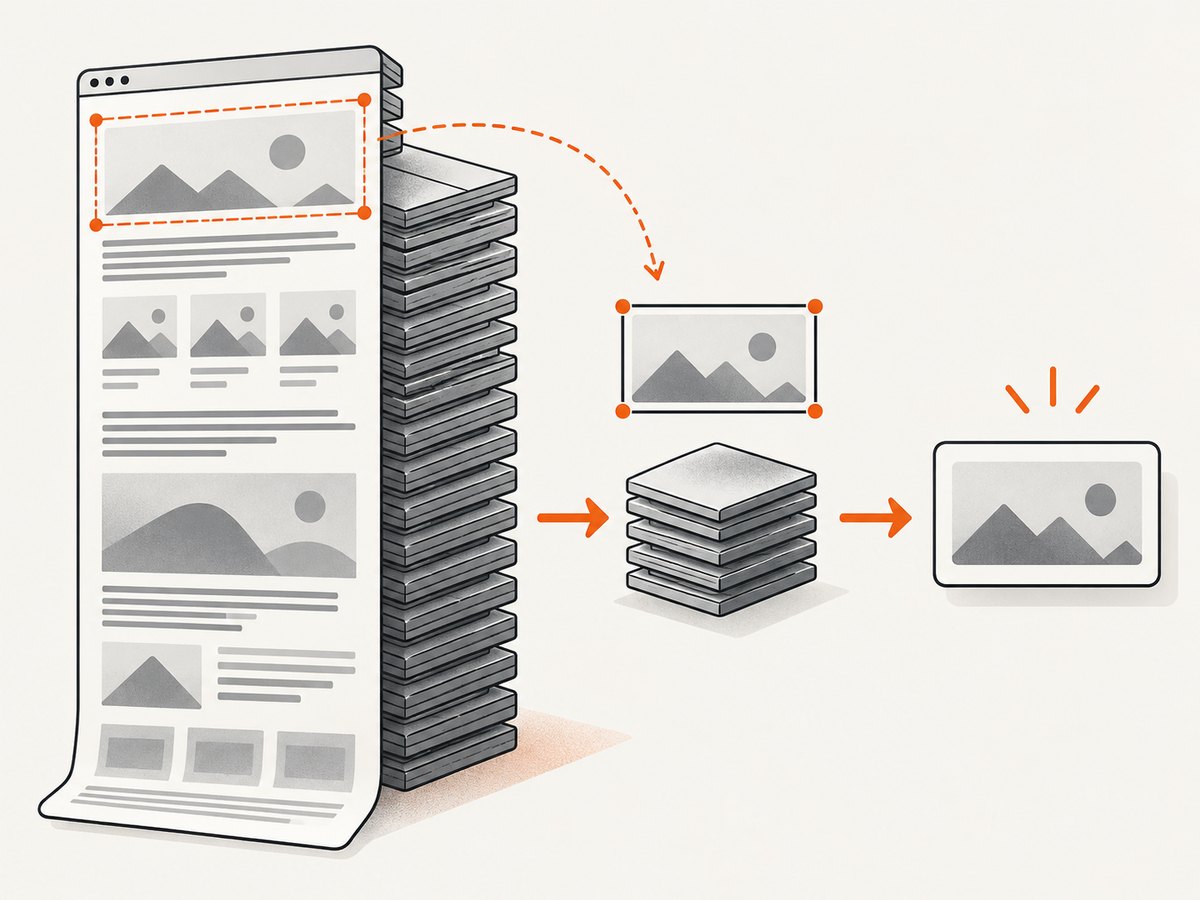
If the error appears only with fullPage: true, a large viewport, a large clip, or a high deviceScaleFactor, capture a viewport or smaller region first. Then vary one dimension at a time:
| Test | What it tells you |
|---|---|
| Viewport-only screenshot | Whether page layout or scrolling expansion is involved |
| Small CSS clip | Whether the requested bitmap is too large |
deviceScaleFactor: 1 |
Whether pixel dimensions are the trigger |
| Short page or local HTML | Whether site scripts, fonts, or lazy content are involved |
| One page at a time | Whether concurrency or shared-browser pressure matters |
Oversized captures are a hypothesis, not a universal diagnosis. There is no single maximum screenshot size that explains every target-closed report. Record the CSS dimensions, scale factor, resulting pixel dimensions, and whether Chromium exited.
3. Check the browser process and CDP connection
Enable browser stderr (dumpio: true or an equivalent process logger), record the process exit status, and listen for disconnected and page close events. In containers, inspect memory limits, shared memory settings, PID limits, and any supervisor that may terminate Chromium. With puppeteer.connect(), also verify that the remote browser remains reachable and that another client is not closing the target.
browser.on('disconnected', () => {
  console.error({ event: 'browser_disconnected', at: new Date().toISOString() });
});

page.on('close', () => {
  console.error({ event: 'page_closed', at: new Date().toISOString() });
});
4. Record versions and connection mode
Include the Puppeteer version, bundled or system Chrome version, operating system, container image, launch versus puppeteer.connect, URL, viewport, scale, clip, and all wait options in a reproducible report. Check the official Puppeteer changelog for the release and Chrome rollup you actually use. Do not claim that a particular version universally fixes this error without matching the release entry to your case.
5. Retry only when the target is still usable
A retry is useful after a transient navigation or browser failure only if you create or verify a live target first. A retry cannot revive a closed page or CDP session. Recreate the page, or relaunch the browser when the browser itself disconnected.
async function screenshotOnce(browser, url) {
  const page = await browser.newPage();
  try {
    await page.goto(url, { waitUntil: 'domcontentloaded', timeout: 30000 });
    return await page.screenshot({ type: 'png' });
  } finally {
    if (!page.isClosed()) await page.close();
  }
}

async function screenshotWithOneRetry(browser, url) {
  try {
    return await screenshotOnce(browser, url);
  } catch (error) {
    if (!String(error.message).includes('Target closed')) throw error;
    return await screenshotOnce(browser, url);
  }
}
Keep retries bounded and log the first failure. Repeated retries can amplify load and hide the real lifecycle bug.
Reliable Puppeteer capture patterns
Do not share a page across jobs
Create one page per capture unless you have a deliberate queue and strict ownership. Two jobs that navigate, alter cookies, or close the same page can invalidate each other’s CDP operations.
Wait for the page you need, not an arbitrary delay
Use waitForSelector for a required element, a small delay only when a site needs settling time, or navigation conditions such as networkidle2. A screenshot started before the page is ready usually produces an incomplete image, while a screenshot started during teardown produces the target-closed error.
await page.goto(url, { waitUntil: 'domcontentloaded', timeout: 30000 });
await page.waitForSelector('#app', { timeout: 15000 });
await page.screenshot({ path: 'app.png', fullPage: true });
Control dimensions deliberately
await page.setViewport({
  width: 1366,
  height: 768,
  deviceScaleFactor: 1,
  isMobile: false,
  hasTouch: false
});

await page.screenshot({
  path: 'viewport.png',
  type: 'webp',
  quality: 85,
  fullPage: false
});
For a known region, prefer a measured clip over an unbounded full-page bitmap:
const box = await page.locator('.report').boundingBox();
if (!box) throw new Error('Report element is not visible');
await page.screenshot({ path: 'report.png', clip: box });
Common errors and fixes
| Symptom | Likely cause | Fix |
|---|---|---|
| Error occurs during cleanup | finally closes the browser before the screenshot settles |
Await the screenshot first; close resources afterward. |
| Only parallel jobs fail | Pages or a browser are shared without ownership | Use one page per job and a bounded concurrency queue. |
| Only full-page captures fail | Large scroll height or bitmap dimensions | Use a viewport or clip, reduce scale, and capture sections. |
| Browser emits exit or disconnect logs | Chromium process or remote CDP connection ended | Inspect stderr, exit status, container limits, and supervisor logs; recreate the browser. |
| Fails after a dependency update | Puppeteer/Chrome mismatch or release regression | Record versions, consult the changelog, and reproduce with a pinned compatible pair. |
| Retry repeats immediately | The target is already closed | Create a new page or browser before retrying. |
| Navigation timeout followed by target closed | Timeout handler also tears down shared resources | Separate per-page cancellation from browser-wide cleanup. |
Performance, reliability and cost considerations
Screenshot time is affected by navigation, fonts, JavaScript, lazy images, network waits, full-page scrolling, encoding, and output size. Measure those phases separately in your worker logs. Use viewport captures when a full document is unnecessary, keep device scale at the minimum acceptable value, and avoid holding many large pages open at once.
Reliability improves when browser ownership is explicit: one worker owns a page, cleanup is idempotent, deadlines are bounded, and a disconnected browser is replaced rather than reused. Capture the URL, options, dimensions, versions, event timestamps, and process status for every failure.
Self-hosted Puppeteer costs include compute, browser processes, storage, bandwidth, and engineering time. A managed API can make those costs predictable, especially for bursty jobs or teams that do not want to maintain Chromium workers.
Or skip the browser setup
ScreenshotNeo provides a website screenshot API and MCP server. One GET request returns PNG, JPEG, WebP, or PDF output. Its capture flow accepts cookie and consent banners like a visitor, then removes more than 60 known consent platforms plus newsletter popups and chat widgets before the shot. Each step can be turned off.
Only clean shots are billed. Bot checks or CAPTCHAs, blank pages, timeouts, failed loads, and cache hits cost nothing, and the response identifies the result with X-Page-Verdict and X-Billed headers. The MCP server exposes take_screenshot, get_page_info, and capture_pdf for Claude, Cursor, and other MCP clients.
See the ScreenshotNeo API documentation for authentication and options. This is a complete cURL example:
curl -G "https://api.screenshotneo.com/v1/shot" -d access_key=YOUR_API_KEY --data-urlencode url=https://stripe.com -o shot.webpPython:
import requests

r = requests.get("https://api.screenshotneo.com/v1/shot", params={"access_key": "YOUR_API_KEY", "url": "https://stripe.com"}, timeout=90)
r.raise_for_status()
open("shot.webp", "wb").write(r.content)
print(r.headers.get("X-Page-Verdict"), r.headers.get("X-Billed"))
Node.js:
const q = new URLSearchParams({ access_key: 'YOUR_API_KEY', url: 'https://stripe.com' });
const res = await fetch(`https://api.screenshotneo.com/v1/shot?${q}`);
if (!res.ok) throw new Error(`HTTP ${res.status}`);
const bytes = new Uint8Array(await res.arrayBuffer());
await import('node:fs/promises').then(fs => fs.writeFile('shot.webp', bytes));
console.log(res.headers.get('X-Page-Verdict'), res.headers.get('X-Billed'));
ScreenshotNeo also supports full-page capture with lazy images loaded, CSS-element capture, dark mode, 12 device presets or custom viewports, retina scale, PDF paper sizes and page ranges, HTML/CSS to image, custom CSS and JavaScript, clicks, selector waits, delays, network-idle waits, ad/tracker/request blocking, custom headers and cookies, user agents, Authorization, timezone, geolocation, transparent backgrounds, resizing, chosen cache TTLs, signed image links, asynchronous jobs with signed webhooks, bulk capture for up to 100 URLs per call, a usage API, and an OpenAPI specification. Common parameter names used by other screenshot APIs also work, which simplifies migration.
The Free plan includes 1,000 shots each month with no card. Paid plans start at $5 for 3,000 shots; every feature is available on every plan. Create a free ScreenshotNeo account and start with 1,000 screenshots per month at no charge.
FAQ
Does “Target closed” always mean Chromium crashed?
No. It proves that the target or primary CDP session closed before the response. A close race, disconnect, browser exit, or oversized capture can all be involved.
Should I increase the screenshot timeout?
Only when logs show a slow but healthy capture. A longer timeout does not repair a closed target and can delay cleanup or increase resource pressure.
Can I reconnect to the same page?
No. Once the target is closed, create a new page or reconnect to a still-running browser and navigate again.
Is fullPage: true unsafe?
No. It is a valid option, but very large documents can expose dimension and resource limits. Compare it with a viewport or measured clip.
What should I include in a bug report?
Provide a minimal URL or reproduction, stack trace, Puppeteer and Chrome versions, operating system or container details, launch mode, capture options and dimensions, browser stderr, process status, and all surrounding close or timeout code.
Final checklist
- Await
page.screenshot()before closing the page or browser. - Trace timeout, cancellation, cleanup, and shared-page code paths.
- Listen for page close and browser disconnect events.
- Compare viewport, clip, full-page, and device-scale captures.
- Record exact Puppeteer, Chrome, OS, container, and connection details.
- Retry only after creating or verifying a live target.
- Use a managed capture API when maintaining Chromium is not worth the operational cost.


