How to Fix Puppeteer Target Errors When Taking Multiple URL Screenshots
Fix Puppeteer Target closed errors in multi-URL screenshot jobs with safe lifecycles, bounded concurrency, retries, diagnostics, and production patterns.
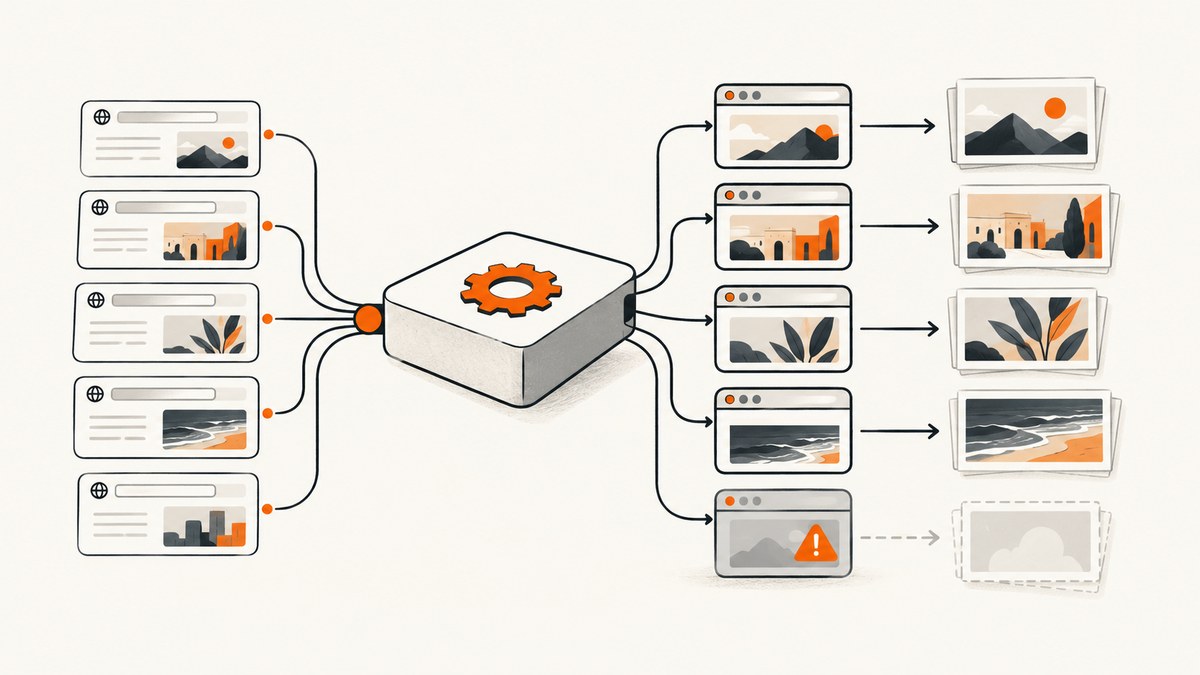
Direct answer: Puppeteer’s Target closed error means the DevTools Protocol target behind a page was destroyed, or the browser connection disappeared, while navigation, evaluation, waiting, or screenshot work was still pending. For multiple URLs, use one long-lived browser, a small bounded worker pool, one page or BrowserContext per job, await every browser operation, and close each page only after its final promise settles. Close the browser only after all jobs have finished.
This guide explains the failure modes, provides complete runnable implementations, and shows how to diagnose browser crashes, close races, resource exhaustion, and environment problems.
1. What “Target closed” means
In Chrome DevTools Protocol terminology, a page, worker, or browser context is a target. Puppeteer sends commands such as Page.navigate, Runtime.evaluate, and Page.captureScreenshot to that target. If the page is closed, its context is closed, Chrome crashes, or the browser disconnects while a command is in flight, Puppeteer cannot finish the command and reports a target-closed error.
The message is a symptom, not a diagnosis. The immediate cause may be your cleanup code, a browser crash, too many simultaneous pages, an invalid container environment, or a race between closing and creating pages.
Typical symptoms
TargetCloseError: Protocol error (Page.captureScreenshot): Target closedProtocol error (Runtime.callFunctionOn): Target closedduringevaluateProtocol error (Page.navigate): Target closedduringgoto- Several URLs fail at once after one Chrome process exits
- The first few screenshots succeed, then later jobs fail as memory or process usage rises
2. The safe lifecycle for multiple screenshots
A reliable batch has four explicit phases:

- Launch one browser and keep it alive for the batch.
- Run a bounded number of jobs concurrently.
- For each job, create a page or isolated BrowserContext, perform every operation with
await, and save the screenshot. - Use
finallyto close the page, then close the browser after the worker pool settles.
One browser can own many pages, and each page can have its own viewport. BrowserContexts isolate cookies and local storage; closing a context closes its pages. A browser disconnect is different from closing a page: it means the client is no longer connected to Chrome and the remaining targets cannot be trusted.
Complete bounded-concurrency example
import puppeteer from 'puppeteer';

const urls = [
  'https://example.com',
  'https://developer.mozilla.org/',
  'https://stripe.com'
];

const browser = await puppeteer.launch({
  // Set dumpio: true while diagnosing browser crashes.
  headless: true
});

browser.on('disconnected', () => {
  console.error('Browser disconnected');
});

browser.on('targetdestroyed', target => {
  console.error('Target destroyed:', target.url());
});

async function capture(url, index) {
  const page = await browser.newPage();
  page.on('error', error => console.error('Page error:', url, error));
  page.on('close', () => console.error('Page closed:', url));
  page.on('console', message => {
    console.log(`[console ${url}] ${message.type()}: ${message.text()}`);
  });

  try {
    await page.setViewport({ width: 1440, height: 900, deviceScaleFactor: 1 });
    await page.goto(url, {
      waitUntil: 'networkidle2',
      timeout: 45_000
    });
    await page.screenshot({
      path: `shot-${index}.png`,
      fullPage: true
    });
    return { url, ok: true };
  } catch (error) {
    return { url, ok: false, error: String(error) };
  } finally {
    if (!page.isClosed()) {
      await page.close();
    }
  }
}

async function runWithConcurrency(items, limit, worker) {
  const results = new Array(items.length);
  let next = 0;

  async function consume() {
    while (true) {
      const index = next++;
      if (index >= items.length) return;
      results[index] = await worker(items[index], index);
    }
  }

  await Promise.all(
    Array.from({ length: Math.min(limit, items.length) }, consume)
  );
  return results;
}

try {
  const results = await runWithConcurrency(urls, 2, capture);
  console.log(results);
} finally {
  await browser.close();
}
Start with one or two workers. Increase the limit only after observing stable memory, CPU, browser-disconnect rates, and page load times. Promise.all(urls.map(capture)) is convenient, but it creates every page immediately and can overwhelm Chrome or the host.
3. Choosing between a shared page, new pages, and BrowserContexts
| Approach | Isolation | Resource use | Failure scope | Use it when |
|---|---|---|---|---|
| Reuse one page | Lowest | Lowest | A bad navigation can affect the next job | URLs are trusted and jobs are strictly sequential |
| New page per URL | Separate page, shared browser profile | Moderate | Usually one page | Most screenshot batches |
| New BrowserContext per URL | Cookies and storage isolated | Higher than a page | Usually one context | Tenants, sessions, or authentication must not leak |
| New browser per URL | Highest | Highest | One process | Only when strong process isolation is required |
During a screenshot, Puppeteer waits for screenshot completion when creating or closing pages and contexts. bringToFront() does not wait for an existing screenshot. Treat screenshot completion as the boundary: do not close, reuse, or navigate the page until await page.screenshot() resolves.
Context-isolated worker
async function captureIsolated(browser, url, outputPath) {
  const context = await browser.createBrowserContext();
  try {
    const page = await context.newPage();
    await page.setViewport({ width: 1440, height: 900 });
    await page.goto(url, { waitUntil: 'networkidle2', timeout: 45_000 });
    await page.screenshot({ path: outputPath, fullPage: true });
  } finally {
    await context.close();
  }
}
4. The races that cause target errors
Closing a page before an operation settles
This pattern is unsafe:
const screenshot = page.screenshot({ path: 'shot.png' });
await page.close();
await screenshot;
The close destroys the target while Page.captureScreenshot is pending. Await the screenshot first, and put cleanup in finally.
Closing the browser inside one job
If one worker calls browser.close(), every other page loses its target. The browser belongs to the batch coordinator, so only the outer finally should close it.
Recreating a page while evaluation is still running
A long-running page.evaluate() can remain active after application code begins cleanup. Calling page.close() and immediately calling browser.newPage() can then race with protocol events. Arbitrary sleeps do not establish completion. Keep a reference to every promise, await it, and make page recreation a separate phase.
Reusing a page after browser disconnect
After browser.on('disconnected'), assume the browser process or connection is unusable. Retry the complete job on a newly launched browser instead of trying to revive a destroyed page.
5. Navigation, waiting, and screenshot settings
Choose waitUntil based on the page rather than applying one value blindly:
domcontentloaded: fast and predictable for static markup.load: waits for the load event and page resources.networkidle2: useful when the page settles, but analytics and long polling may prevent a clean idle period.networkidle0: stricter and often unsuitable for applications with persistent connections.
Use an explicit timeout and add a page-specific readiness check when visual content appears after navigation:
await page.goto(url, { waitUntil: 'domcontentloaded', timeout: 45_000 });
await page.waitForSelector('main', { timeout: 15_000 });
await page.screenshot({ path: outputPath, fullPage: true });
Other useful controls include fullPage, a fixed viewport, deviceScaleFactor, screenshot type, quality for JPEG, and a clip rectangle. A full-page capture can use substantially more memory than a viewport screenshot on a very tall document. For large pages, capture a viewport or split the document into sections.
6. Retry design that does not amplify failures
Retry only failures that are plausibly transient: navigation timeouts, a disconnected browser that you can relaunch, or a temporary network error. Do not retry a deterministic selector failure indefinitely. Use a small attempt count and backoff.
async function withRetry(operation, attempts = 2) {
  let lastError;
  for (let attempt = 1; attempt <= attempts; attempt++) {
    try {
      return await operation(attempt);
    } catch (error) {
      lastError = error;
      if (attempt === attempts) throw error;
      await new Promise(resolve => setTimeout(resolve, 500 * attempt));
    }
  }
  throw lastError;
}

const result = await withRetry(
  () => capture(url, index),
  2
);
Each retry should create a fresh page. If the browser disconnected, relaunch the browser before retrying. Keep output names deterministic so a successful retry replaces or clearly supersedes the failed attempt.
7. Diagnose the actual failure
Events and logs
Register disconnected and targetdestroyed on the browser. Register error, close, and console on pages. Include the URL, attempt number, operation name, elapsed time, and page identifier in every log line.
Run visibly and slow the browser
const browser = await puppeteer.launch({
  headless: false,
  slowMo: 100,
  dumpio: true
});
Visible mode can reveal a page that closes itself, an authentication redirect, or a browser crash. dumpio: true forwards Chrome stderr, which is useful for sandbox and shared-memory errors.
Protocol diagnostics
Set NODE_DEBUG=puppeteer:* when you need protocol traffic. Inspect pending protocol errors in Puppeteer’s browser debug information when available. Avoid enabling verbose protocol logs permanently because they can be large and may contain URLs or request details.
8. Environment causes outside your code
- Sandbox restrictions: the Chrome process exits or cannot create required namespaces. Use a container image and launch configuration appropriate for your deployment security model.
- Missing shared libraries: minimal Linux images may lack libraries Chrome needs. Install the dependencies required by the Chromium build you run.
- Process or file limits: too many workers, open files, or child processes can make new targets fail.
- Memory pressure: full-page screenshots and large images increase renderer memory. Reduce concurrency and capture size.
- Zombie Chrome processes: abandoned processes consume resources and cause later launches or pages to fail. Ensure shutdown paths run and inspect the process table.
- Unwritable profile directories: give Chrome a writable temporary or user-data directory when the runtime requires one.
9. Production checklist
- Launch one browser for a batch and close it in an outer
finally. - Bound concurrency; begin with one or two workers.
- Use a new page per job, or a BrowserContext when cookies and storage need isolation.
- Await
goto, every wait, every evaluation, andscreenshot. - Close a page only after its last operation settles.
- Never close the shared browser from a worker.
- Attach browser and page lifecycle listeners.
- Record URL, operation, timeout, attempt, and elapsed time.
- Retry with a fresh page; relaunch after a browser disconnect.
- Monitor memory, CPU, process counts, and screenshot dimensions.
- Test the actual container, sandbox, filesystem, and Chromium version used in production.
10. Performance, reliability, and cost considerations
A single browser avoids the startup cost of launching Chrome for every URL. Pages are cheaper than browser processes, while contexts add isolation overhead. The best concurrency is the highest level that remains stable under your largest pages, not a fixed number copied from another host.
Use caching for URLs that do not change frequently, avoid unnecessary full-page captures, and select an explicit viewport and device scale. When a batch contains untrusted or slow sites, enforce navigation and total-job deadlines so one URL cannot occupy a worker forever.
For a service that must capture many URLs without maintaining Chrome processes, ScreenshotNeo provides a hosted screenshot API. Its billing model counts only clean shots: bot checks or CAPTCHAs, blank pages, timeouts, failed loads, and cache hits cost nothing, and response headers identify the page verdict and whether the shot was billed.
11. Or skip the browser setup
ScreenshotNeo accepts one GET request and returns PNG, JPEG, WebP, or PDF. Cookie and consent banners are accepted and removed before capture, along with more than 60 known consent platforms, newsletter popups, and chat widgets. Each cleanup step can be turned off.

See the ScreenshotNeo API documentation for all options. This is the minimal call:
curl -G "https://api.screenshotneo.com/v1/shot" -d access_key=YOUR_API_KEY --data-urlencode url=https://stripe.com -o shot.webpimport requests
r = requests.get("https://api.screenshotneo.com/v1/shot", params={"access_key": "YOUR_API_KEY", "url": "https://stripe.com"}, timeout=90)
open("shot.webp", "wb").write(r.content)const q = new URLSearchParams({ access_key: 'YOUR_API_KEY', url: 'https://stripe.com' });
const res = await fetch(`https://api.screenshotneo.com/v1/shot?${q}`);It also supports full-page capture with lazy images loaded, CSS element capture, dark mode, device presets and custom viewports, retina scale, PDF paper and page controls, custom CSS and JavaScript, pre-capture clicks, selector hiding, selector or network-idle waits, request blocking, headers, cookies, user agents, authorization, timezone, geolocation, transparent backgrounds, resizing, configurable caching, signed image links, asynchronous jobs with signed webhooks, bulk capture for up to 100 URLs per call, a usage API, and an OpenAPI specification.
An MCP server exposes take_screenshot, get_page_info, and capture_pdf to Claude, Cursor, and other MCP clients. You do not need to operate a browser process or build page cleanup around every job. Bot checks, blank pages, and failed loads are never billed. The Free plan includes 1,000 screenshots per month with no card; paid plans start at $5 for 3,000 shots. Create a free ScreenshotNeo account.
12. Frequently asked questions
Should I create a new page for every URL?
Usually yes. A new page gives each job a clear lifecycle while sharing one browser process. Use a BrowserContext when cookies or local storage must be isolated.
Does adding a delay fix Target closed?
No. A delay can hide a race temporarily but does not prove that navigation, evaluation, or screenshot work has completed. Await the real promise and coordinate cleanup.
What if every page fails at once?
Check for a browser disconnect, Chrome crash, sandbox or dependency issue, process limits, and memory pressure. A shared browser failure affects all pages.
Can I reuse a page after a failed screenshot?
Only if the browser remains connected and the page is still open and known to be healthy. For uncertain failures, close the page and retry the job on a fresh page.
How do I prevent one URL from blocking the batch?
Set navigation, selector, and total-job timeouts, then release the worker in a finally block. Keep concurrency bounded so stuck pages do not exhaust the host.


