How to Fix Puppeteer Timeout Errors in Docker
Diagnose whether Puppeteer is timing out during browser launch, navigation, or a page wait, then fix the Docker configuration behind it.
A Puppeteer timeout in Docker can come from three different stages: starting Chrome, navigating to a page, or waiting for a selector or other page condition. The fix depends on which stage timed out. Start by reading the complete error and checking browser output. A longer timeout helps only when the browser and container are otherwise configured correctly.
For browser startup, check the Puppeteer and Chrome versions, shared libraries, sandbox permissions, and writable profile paths. For navigation and selector timeouts, investigate page behavior, network access, and the specific wait condition. This guide walks through both classes of failure, with runnable Node.js examples and container configurations.
1. Identify which Puppeteer operation timed out
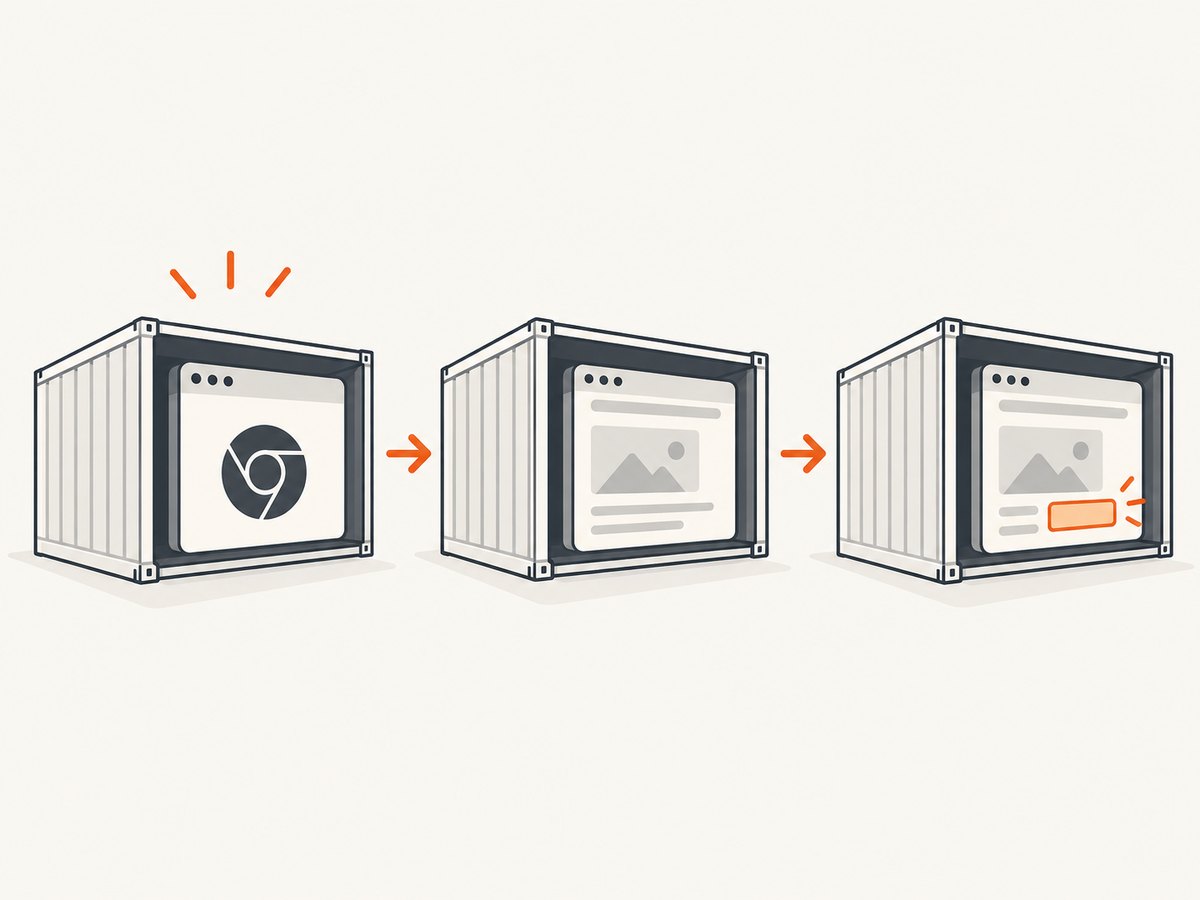
Do not assume every “Timeout” message refers to the same limit. In Puppeteer, launch({ timeout }) limits how long Puppeteer waits for the browser process to start. It defaults to 30 seconds; setting it to 0 disables that startup limit. Navigation and page waits have their own timeout settings. The [launch options reference](https://pptr.dev/api/puppeteer.launchoptions) documents the browser startup limit.
| What the error mentions | Likely stage | First checks |
|---|---|---|
puppeteer.launch(), browser process, or Chrome not responding |
Browser startup | Executable, version compatibility, shared libraries, permissions, writable paths |
Navigation timeout or page.goto() |
Navigation | URL reachability, redirect chain, load condition, page/network behavior |
Waiting for selector or waitForSelector() |
Page condition | Selector correctness, whether the element appears, page state and timing |
Capture the full stack trace and container logs. A startup problem may appear to be a generic timeout when Chrome actually exited immediately because a library is missing or its profile directory is not writable. Puppeteer’s [troubleshooting guide](https://pptr.dev/troubleshooting) recommends surfacing browser process output; the dumpio launch option forwards Chrome stdout and stderr to Node’s streams.
2. Turn on launch diagnostics
Use dumpio: true temporarily and give the profile a known writable location. Keep the finally cleanup so Chrome is closed after either a successful run or an exception.
const puppeteer = require('puppeteer');

(async () => {
  let browser;
  try {
    browser = await puppeteer.launch({
      headless: true,
      dumpio: true,
      userDataDir: '/tmp/puppeteer-profile',
      timeout: 30_000,
    });
    const page = await browser.newPage();
    await page.goto('https://example.com', {
      waitUntil: 'domcontentloaded',
      timeout: 30_000,
    });
    console.log(await page.title());
  } catch (error) {
    console.error('Puppeteer operation failed:', error);
    process.exitCode = 1;
  } finally {
    if (browser) await browser.close();
  }
})();
This separates two limits: the timeout passed to launch governs browser startup, while the timeout passed to goto governs navigation. A browser can start successfully and then fail to reach a page; raising the launch timeout cannot fix that navigation. Conversely, changing page.goto timeout does not make Chrome start.
3. Prefer the official Puppeteer Docker image when practical
The official image includes Chrome for Testing, its required dependencies, and a pre-installed Puppeteer version. The current [Puppeteer Docker guide](https://pptr.dev/guides/docker) documents the image on GitHub Container Registry and version-specific tags. Pin a Puppeteer-compatible image tag in deployments and check the current guide when upgrading; latest can change over time.
docker pull ghcr.io/puppeteer/puppeteer:25.12.0
docker run --rm --init --cap-add=SYS_ADMIN \
  ghcr.io/puppeteer/puppeteer:25.12.0 \
  node -e "console.log('container started')"
Replace the small Node command with your application entry point or mount your project as appropriate for your workflow. The important documented runtime details are --init and --cap-add=SYS_ADMIN: this image runs Chrome in sandbox mode and requires that capability. The init process helps manage child processes. If using Compose or an orchestrator, configure equivalent init and capability settings there, and confirm that your platform permits the capability.
The official guide also says to use an init process or custom entrypoint so Puppeteer’s child processes are managed properly. A missing init process usually concerns process lifecycle and cleanup rather than a slow page. If you build from a different base image, use the project’s Dockerfile as a reference and install the system dependencies needed by the selected browser build.
4. Fix custom-image dependency and version problems
With a custom image, verify that the browser executable exists and can start in the container. A Chrome binary copied from a developer machine may rely on shared libraries absent from the production image. The Puppeteer troubleshooting guide lists distro-specific dependencies and warns that requirements can vary or become outdated. Check the current dependency list for your base distribution instead of copying an old package list blindly.
Keep Puppeteer and its browser aligned. Puppeteer works best with the Chrome for Testing version it downloads by default; the API reference says compatibility with other Chrome versions is not guaranteed. If using puppeteer-core, provide executablePath or channel explicitly, and make sure that executable is present in the image. Avoid silently combining a newly updated Puppeteer package with an unrelated system Chromium package.
# Example Dockerfile for a Node app using Puppeteer's bundled browser.
# Select and pin a supported Node base image for your deployment.
FROM node:22-bookworm-slim
WORKDIR /app
COPY package*.json ./
RUN npm ci
# Install Chrome's Linux dependencies for this distribution using
# Puppeteer's current troubleshooting guidance.
RUN npx puppeteer browsers install chrome
COPY . .
CMD ["node", "app.js"]
This illustrates the build shape; it does not claim that the dependency-install step alone provides every package required by every base-image revision. Consult [Puppeteer’s Docker guide](https://pptr.dev/guides/docker) and [troubleshooting page](https://pptr.dev/troubleshooting) for the current supported image approach and distro-specific dependencies. Pin compatible package and browser versions in production, then rebuild deliberately when updating them.
5. Make Chrome’s profile, cache, and configuration paths writable
Chrome writes profile and configuration data during startup. Containers with read-only filesystems, restricted home directories, or mounted volumes owned by another user can block those writes. One documented symptom is chrome_crashpad_handler: --database is required, which can occur before Puppeteer connects. Route XDG configuration and cache directories to writable locations such as /tmp, set Puppeteer’s userDataDir to a writable directory, or mount writable volumes and ensure the browser user owns them.
ENV XDG_CONFIG_HOME=/tmp/.config
ENV XDG_CACHE_HOME=/tmp/.cache

# In Node.js:
const browser = await puppeteer.launch({
  userDataDir: '/tmp/puppeteer-profile',
  dumpio: true,
});
In a multi-user image, create the target directories during the build and set ownership for the user that actually runs Node and Chrome. Check the effective user, permissions, and available disk space inside the running container; a path that is writable during an image build may not remain writable under a read-only runtime mount. Do not store a shared Chrome profile on a volume used concurrently by multiple browser processes unless the application is designed to isolate profiles.
6. Treat Alpine and sandbox configuration as special cases
Alpine Linux
Chrome does not support Alpine out of the box. The Puppeteer troubleshooting guide says Alpine deployments need compatible system dependencies and matching browser versions. It also notes a version-specific issue in which Chromium on Alpine 3.20 was causing Puppeteer timeouts in reported cases, with Alpine 3.19 cited as a workaround. This is living, version-dependent guidance, not a timeless rule. Verify current Chromium and Puppeteer compatibility before changing production images.
For a custom Alpine setup, confirm the installed Chromium version, the executable path, required packages, and the Puppeteer version that supports that browser. Do not use a timeout increase to mask an unsupported or mismatched binary. If the deployment does not require Alpine’s smaller base, the official Puppeteer image or a supported Debian-based image can reduce the number of moving parts.
Sandbox and process management
Use the sandbox requirements documented for the image you chose. For the official image, grant SYS_ADMIN as shown in its current Docker guide. Avoid adding --no-sandbox as a default timeout fix: it changes the browser’s security posture and does not address missing dependencies, unwritable paths, or a wrong executable. If a hosting platform cannot provide the documented capability, decide on a deployment setup that meets its security requirements rather than copying a flag without understanding the tradeoff.
7. Separate browser startup from page navigation and selector waits
After launch succeeds, diagnose page operations independently. A page can take a long time because of network access, redirects, an unreachable host, or a load event that never occurs. For a screenshot or scrape that only needs the initial document, waiting for domcontentloaded may be more appropriate than waiting for every resource. Choose based on what the task needs; do not switch blindly, because an application that renders content late may require a later condition.
const page = await browser.newPage();
page.setDefaultNavigationTimeout(45_000);
page.setDefaultTimeout(15_000);

await page.goto('https://example.com', {
  waitUntil: 'domcontentloaded',
  timeout: 45_000,
});

// Wait for the page state your task actually needs.
await page.waitForSelector('main', { timeout: 15_000 });
setDefaultNavigationTimeout sets the default for navigation methods; setDefaultTimeout controls other timeout-based page operations. An explicit timeout on a particular call takes precedence for that call. If waitForSelector fails, verify the selector in the rendered DOM and whether the page has reached the state that inserts it. If goto fails, log the URL and navigation error and check whether the container can resolve and connect to the host.
8. Check runtime CPU, memory, and container behavior
Timeouts can follow resource starvation, but first establish that startup works with adequate permissions and dependencies. Browser processes use CPU and memory; a constrained container may start slowly or be killed under load. Inspect container exit status and runtime logs, and compare behavior at low concurrency. Limit parallel browser launches if memory pressure is causing crashes, and close pages and browsers when jobs finish.
Puppeteer’s troubleshooting guide calls out a Cloud Run-specific case: CPU may be disabled after an HTTP response is sent, so launching a browser afterward as background work can appear very slow. It recommends launching before responding or configuring CPU to remain allocated for background work. This explanation applies to that runtime behavior; it is not a general Docker timeout fix.
Use --init or a suitable entrypoint to manage Chrome child processes, close browsers in a finally block, and avoid leaving orphaned Chrome processes after failed jobs. For long-running services, monitor process count and memory across repeated captures. A single successful launch does not prove the container can sustain the intended concurrency.
9. Increase the launch timeout only after configuration checks
If logs show Chrome is starting correctly but the valid startup takes longer than 30 seconds in your environment, increase the launch timeout to a measured, bounded value:
const browser = await puppeteer.launch({
  timeout: 60_000,
  dumpio: true,
});
Setting timeout: 0 removes Puppeteer’s launch wait limit. That can be useful for a controlled diagnostic, but it also means a stuck startup may wait indefinitely. Prefer a finite value in services, with an outer job or request deadline and useful logging. A larger launch timeout does not install libraries, repair version mismatches, make a directory writable, grant sandbox permissions, or restore CPU allocation.
10. Troubleshooting table
| Symptom | Likely cause | What to do |
|---|---|---|
| Browser launch times out at about 30 seconds | Startup is blocked, or valid startup exceeds the default | Enable dumpio; verify executable, dependencies, permissions, writable paths, and matching versions first. Increase launch timeout only if startup is otherwise valid. |
| Chrome exits immediately in a custom image | Missing shared library or incompatible browser binary | Check browser stderr and install current dependencies for the chosen distro; align Puppeteer and browser versions. |
chrome_crashpad_handler: --database is required |
Crashpad/profile/config path is not writable | Set writable XDG and userDataDir paths, or fix mounted-volume ownership. |
| Works locally but fails in Docker | Different user, filesystem, browser, libraries, or container capabilities | Compare the executable, effective user, writable paths, browser versions, installed packages, and sandbox configuration inside the container. |
| Navigation timeout, but launch succeeds | Target cannot be reached, page load condition is too strict, or page is slow | Check network and redirects, use the load condition your task needs, and set navigation timeout separately. |
| Selector wait expires | Selector is wrong or element never appears in the expected state | Inspect the rendered DOM and page flow; wait for a relevant selector or condition, not an assumed delay. |
| Alpine-only timeouts | Unsupported dependencies or browser/version combination | Check current Alpine and Chromium compatibility guidance; test a supported base image if necessary. |
| Browser becomes slow after HTTP response on Cloud Run | CPU allocation stops after response completion | Launch before responding or configure CPU for background work, following the platform’s current settings. |
11. Performance, reliability, and cost considerations
A longer timeout does not make an individual capture faster; it lets the operation wait longer before failing. Keep browser startup and page-operation limits separate so logs identify the slow stage. Choose a navigation condition that matches the output needed, close resources consistently, and control parallel work to fit the memory and CPU limits of the container. Pin compatible browser and Puppeteer versions so a rebuild does not silently change runtime behavior.

Reliability also depends on what happens after a timeout. Record the operation stage, target host, elapsed time, browser version, and relevant browser stderr. Retry only transient failures, with a bounded attempt count and backoff; repeating a deterministic missing-library or permission failure wastes time. If a job can outlive an HTTP request, ensure the runtime continues allocating CPU for that work. No timeout configuration guarantees a page will be reachable or a selector will appear.
Self-hosting has infrastructure costs beyond Puppeteer itself: container CPU and memory, image storage and pulls, runtime duration, and operational work to update the browser and dependencies. Estimate based on your own workload and hosting provider’s pricing; this research does not establish universal benchmarks or cost figures. A managed screenshot API trades control over the browser image for an API call and its plan limits.
Or skip the browser setup
If your goal is to get a screenshot rather than maintain a Chrome container, ScreenshotNeo offers a one-call website screenshot API. It accepts a URL and returns PNG, JPEG, WebP, or PDF. Cookie banners, newsletter popups, and chat widgets are removed before the shot; bot checks, blank pages, and failed loads are never billed. Its MCP server lets AI agents use screenshot tools. The free plan includes 1,000 screenshots a month with no card, and paid plans start at $5 for 3,000. See the [ScreenshotNeo API docs](https://screenshotneo.com/docs/) for request options.
curl -G "https://api.screenshotneo.com/v1/shot" \
  -d access_key=YOUR_API_KEY \
  --data-urlencode url=https://stripe.com \
  -o shot.webp
Python:
import requests

r = requests.get(
    "https://api.screenshotneo.com/v1/shot",
    params={"access_key": "YOUR_API_KEY", "url": "https://stripe.com"},
    timeout=90,
)
r.raise_for_status()
with open("shot.webp", "wb") as f:
    f.write(r.content)
Node.js:
const q = new URLSearchParams({
  access_key: 'YOUR_API_KEY',
  url: 'https://stripe.com',
});
const res = await fetch(`https://api.screenshotneo.com/v1/shot?${q}`);
if (!res.ok) throw new Error(`Screenshot request failed: ${res.status}`);
const bytes = Buffer.from(await res.arrayBuffer());
await import('node:fs/promises').then(fs => fs.writeFile('shot.webp', bytes));
ScreenshotNeo is a website screenshot API and MCP server from [Yorker Media](https://screenshotneo.com). See its [docs](https://screenshotneo.com/docs/) for authentication and the complete option list. Create a free account for 1,000 screenshots a month with no card.
Frequently asked questions
Does timeout: 0 solve Puppeteer timeouts?
It disables the browser startup timeout. It does not repair the cause of a stuck launch, and it can wait indefinitely. It also does not change navigation or selector timeouts unless you configure those operations separately.
Why does Puppeteer work on my machine but not in Docker?
The container may have a different browser binary, fewer system libraries, a different runtime user, restricted writable directories, or different sandbox permissions. Compare those details inside the container rather than relying on the host environment.
Should I use --no-sandbox to fix a timeout?
Not as a general fix. Check the sandbox requirements of the image and deployment. The official Puppeteer image documents sandbox mode and its required capability; changing sandbox settings affects security and may not resolve the underlying failure.
Can I use an arbitrary installed Chrome with Puppeteer?
You can specify an executable path with the appropriate Puppeteer setup, but the project says it is not guaranteed to work with an arbitrary Chrome version. Prefer the browser version bundled for your Puppeteer release or confirm compatibility before deployment.


