How to Fix Puppeteer on Ubuntu When It Works on Windows
A diagnostic guide to Puppeteer launch failures on Ubuntu: libraries, browser paths, versions, sandbox policies, containers, and reliable fixes.
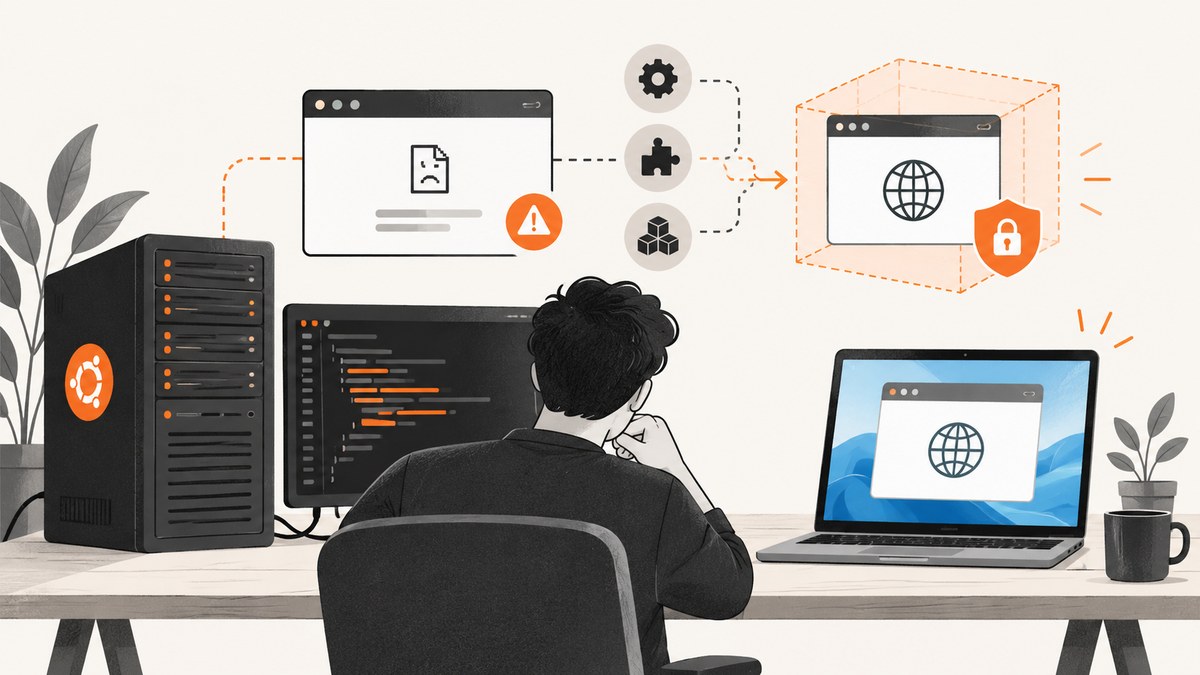
A Puppeteer script that works on Windows can fail immediately on Ubuntu because the two machines do not provide the same Linux libraries, browser binary, executable path, CPU architecture, or security policy. Treat this as a diagnostic sequence rather than one universal fix.
Start by recording the complete launch error and environment. Then branch through four causes in order: missing shared libraries, a missing or mismatched browser executable, version or architecture incompatibility, and sandbox or AppArmor restrictions. The exact Ubuntu release, runtime (host, container, or WSL), Node and Puppeteer versions, browser source, executable path, and full error output determine which fix applies.
1. Capture the facts before changing anything
Run these commands from the project directory and save their output:
node --version
npm ls puppeteer puppeteer-core --depth=0
. /etc/os-release && echo "$PRETTY_NAME"
uname -m
which google-chrome || true
which chromium || true
printenv | grep -E 'PUPPETEER|CHROME|DISPLAY' || true
Also capture the entire exception, including the lines immediately before and after messages such as Could not find Chrome, error while loading shared libraries, Failed to launch the browser process, or No usable sandbox. Do not replace the error with only its last line; the missing library or rejected path is often named earlier.
Puppeteer’s current system requirements identify Node.js 22.12 or later and Chrome for Testing on Debian/Ubuntu for x64 and arm64. Linux also needs system packages that a normal Windows installation does not require. Check the version of the documentation that matches your installed Puppeteer release because browser and flag behavior can change. See the system requirements.
2. Check for missing Linux shared libraries
If Puppeteer finds a Chrome binary but it exits before opening a page, inspect that exact executable. First locate the path Puppeteer is using (the launch log, configuration, or executablePath usually reveals it), then run:
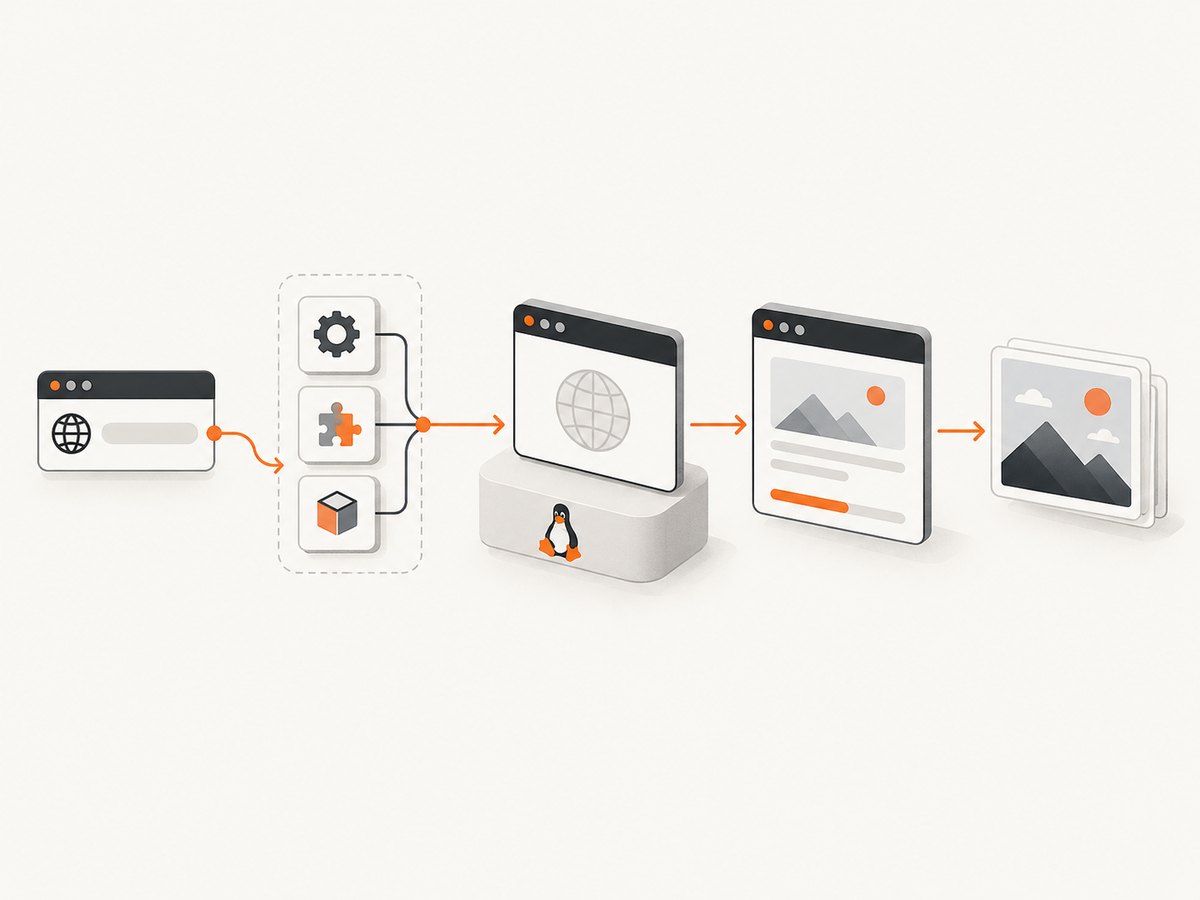
ldd /path/to/chrome | grep notNo output means ldd did not find an unresolved library. Lines ending in not found identify the immediate problem. Map each missing library to the Ubuntu package that supplies it, using Puppeteer’s Debian/Ubuntu dependency list and your release’s package metadata. The list includes common NSS, GTK, GBM, X11, font, audio, and related libraries, but package names can change between Ubuntu releases, so avoid copying an old list blindly. The Puppeteer troubleshooting guide explains the current check and dependency categories.
When your deployment policy permits package installation, Puppeteer documents an installer that attempts to add Chrome and its system dependencies:
npx puppeteer browsers install chrome --install-depsThis requires root privileges and may change the host package set. Review the command and run it only in an image or host where your team allows system changes. In a container, put the required packages in the image build instead of installing them during every application start.
Fonts and non-English pages
A browser can launch while rendering boxes or tofu glyphs because the host lacks fonts. Install the font families required by your pages and test a representative set of scripts. This is a rendering issue, not proof that Puppeteer itself is broken. Keep the font packages in the same immutable image used in production so a rebuild does not silently change screenshots.
3. Verify which browser Puppeteer is launching
The package name changes the browser-management rules:
| Package or setup | What it does | What to check |
|---|---|---|
puppeteer |
Normally downloads a compatible Chrome for Testing during installation. | Whether the install script was skipped, the cache is present, and the process user can read it. |
puppeteer-core |
Does not download a browser. | Provide an installed browser and an explicit executable path. |
| System or managed Chrome | Your operating system or image owns browser updates. | Path, permissions, architecture, and compatibility with your Puppeteer version. |
The standard package’s download can be disabled by package-manager settings or CI policies. If Puppeteer reports that it cannot find Chrome, inspect the cache and installation logs before changing code. Installation documentation covers the download behavior and the puppeteer-core distinction.
If you manage Chrome yourself, configure the path explicitly and print it at startup:
const puppeteer = require('puppeteer-core');

const executablePath = process.env.PUPPETEER_EXECUTABLE_PATH || '/usr/bin/google-chrome';
console.log({ executablePath });

(async () => {
  const browser = await puppeteer.launch({
    executablePath,
    headless: true
  });
  const page = await browser.newPage();
  await page.goto('https://example.com', { waitUntil: 'domcontentloaded' });
  console.log(await page.title());
  await browser.close();
})();
Use a path that exists on the Ubuntu host, not one copied from Windows. Puppeteer guarantees compatibility with its bundled browser; a separately managed executable requires your own compatibility validation. The configuration reference documents executable-path settings, and the LaunchOptions reference describes the bundled-browser guarantee.
4. Check Node, Puppeteer, and architecture compatibility
Confirm that the runtime used by the service is the runtime you inspected in your shell. A systemd unit, Docker process, or CI runner may use a different Node binary, home directory, or Puppeteer cache. Log process.version, process.arch, the Puppeteer package version, and the resolved executable path from inside the application.
node -e "console.log({node:process.version, arch:process.arch})"
node -p "require('puppeteer/package.json').version"
For arm64 and x64, use a browser build supported by that architecture. A binary copied from another machine can fail with an architecture error even when its filename looks correct. Reinstall the browser for the target architecture and keep Node, Puppeteer, and Chrome versions in the same build pipeline.
5. Diagnose sandbox and AppArmor errors separately
Messages containing No usable sandbox, user namespaces, or a rejected sandbox are a different branch from missing libraries. Puppeteer documents an Ubuntu 23.10-and-newer interaction in which an AppArmor profile applied to stable Chrome at /opt/google/chrome/chrome can prevent Chrome for Testing downloaded by Puppeteer from using user namespaces. Follow the upstream AppArmor workaround linked from the troubleshooting guide for the affected Ubuntu release and host policy.
Do not make --no-sandbox your routine fix. Puppeteer’s documentation says, “Running without a sandbox is strongly discouraged.” A disabled sandbox is described only for environments where you absolutely trust all content. Prefer correcting the host’s user-namespace and AppArmor configuration, running as an appropriate non-root user, and using a browser image designed for sandboxed operation.
6. Use a minimal Ubuntu launch probe
Before debugging your full crawler, reduce the problem to one page and one launch. This distinguishes startup failures from navigation, JavaScript, authentication, or selector problems.
const puppeteer = require('puppeteer');

(async () => {
  console.log({
    node: process.version,
    arch: process.arch,
    puppeteer: require('puppeteer/package.json').version
  });

  const browser = await puppeteer.launch({ headless: true });
  try {
    const page = await browser.newPage();
    await page.goto('https://example.com', {
      waitUntil: 'domcontentloaded',
      timeout: 30000
    });
    console.log({ title: await page.title(), url: page.url() });
  } finally {
    await browser.close();
  }
})().catch(error => {
  console.error(error.stack || error);
  process.exitCode = 1;
});
If this fails, fix the host, browser, or sandbox first. If it succeeds, add your original viewport, authentication, scripts, request interception, and wait conditions one at a time.
7. Containers, WSL, and service accounts
Containers
Check the image architecture, installed libraries, browser cache location, and the UID that runs Node. A browser downloaded during an image build may be unreadable by the runtime user if ownership is wrong. Build dependencies and fonts into the image, set a stable cache directory, and avoid downloading a browser on every request.
WSL
WSL is a Linux environment with its own packages and filesystem paths. A Windows Chrome installation is not automatically a valid Linux executable. Install or download a Linux browser inside the distribution and inspect it with ldd.
systemd and CI
Services often have a restricted PATH, a different home directory, and no display server. Use headless mode, absolute paths, and explicit environment variables. Compare the service’s environment with the interactive shell instead of assuming they match.
8. Troubleshooting table
| Error or symptom | Likely cause | Fix |
|---|---|---|
Could not find Chrome |
Download skipped, cache missing, or puppeteer-core used without a browser. |
Install the browser, use puppeteer, or set executablePath. |
error while loading shared libraries |
Ubuntu package absent. | Run ldd ... | grep not and install the package supplying each library. |
| Immediate exit with no useful page error | Wrong binary, architecture mismatch, permissions, or sandbox policy. | Print the resolved path, run the binary under the service user, and inspect launch stderr. |
No usable sandbox |
User namespaces or AppArmor restriction. | Apply the documented Ubuntu/AppArmor configuration; avoid disabling the sandbox. |
| Works in a shell but fails in production | Different Node, user, PATH, home, cache, or container image. |
Log environment details inside the service and make paths and ownership explicit. |
| Blank or incomplete screenshot | Navigation finished before fonts, lazy images, or client rendering. | Use an appropriate waitUntil, wait for a selector or network idle, and set a bounded timeout. |
9. Reliability, performance, and cost considerations
Launching a browser for every request is slow and increases memory pressure. Reuse a browser process where safe, create isolated pages, close pages in a finally block, and cap concurrency according to available CPU and RAM. Recycle a browser after repeated crashes rather than allowing unbounded resource growth.
Use deterministic inputs: pin Node and Puppeteer versions, build the browser and Linux packages into the deployment image, set a known timezone and locale, and keep fonts consistent. Record launch failures separately from navigation failures so retries target the right layer. Retry transient navigation errors with a limit and backoff; do not retry a missing library or rejected sandbox.
Headless browser infrastructure costs include CPU, memory, image storage, bandwidth, and engineering time for patching Chrome and Ubuntu. A managed screenshot API can move those operating concerns out of your service, but you still need to handle authentication, rate limits, and response failures.
10. Or skip the browser setup
ScreenshotNeo provides a website screenshot API and MCP server. One GET request returns PNG, JPEG, WebP, or PDF. Before capture, it accepts cookie and consent banners like a visitor and removes more than 60 known consent platforms, newsletter popups, and chat widgets; each step can be turned off. Bot checks, CAPTCHAs, blank pages, timeouts, failed loads, and cache hits are not billed, and the response identifies the result with X-Page-Verdict and X-Billed headers.

See the ScreenshotNeo API documentation for all options. The same endpoint supports full-page captures with lazy images loaded, CSS-selector element shots, dark mode, device presets or custom viewports, retina scale, PDF paper and margin controls, custom CSS and JavaScript, clicks, selector or network-idle waits, request blocking, headers, cookies, user agents, authorization, timezone, geolocation, transparent backgrounds, resizing, chosen cache TTLs, signed image links, asynchronous jobs with signed webhooks, bulk capture for 100 URLs per call, usage data, and an OpenAPI specification.
cURL
curl -G "https://api.screenshotneo.com/v1/shot" \
  -d access_key=YOUR_API_KEY \
  --data-urlencode url=https://stripe.com \
  -o shot.webp
Python
import requests

r = requests.get(
    "https://api.screenshotneo.com/v1/shot",
    params={"access_key": "YOUR_API_KEY", "url": "https://stripe.com"},
    timeout=90,
)
r.raise_for_status()
open("shot.webp", "wb").write(r.content)
Node.js
const q = new URLSearchParams({ access_key: 'YOUR_API_KEY', url: 'https://stripe.com' });
const res = await fetch(`https://api.screenshotneo.com/v1/shot?${q}`);
if (!res.ok) throw new Error(`ScreenshotNeo: ${res.status}`);
require('fs').writeFileSync('shot.webp', Buffer.from(await res.arrayBuffer()));
ScreenshotNeo includes an MCP server with take_screenshot, get_page_info, and capture_pdf tools for Claude, Cursor, and other MCP clients. Every feature is on every plan: 1,000 shots a month are free with no card; paid plans start at $5 for 3,000 shots, with yearly billing giving two months free. Create a free ScreenshotNeo account and use the 1,000 included screenshots to validate your workflow.
11. A repeatable checklist
- Save the complete launch error and record Node, Puppeteer, Ubuntu, architecture, runtime, and browser source.
- Confirm the service uses the same Node binary, user, home, and cache as your shell.
- Identify the exact Chrome executable and run
ldd <path> | grep not. - Install only the packages indicated by the host and current Puppeteer guide.
- Decide whether
puppeteerorpuppeteer-coreowns browser installation. - Validate executable path, permissions, architecture, and version compatibility.
- If the error names a sandbox, investigate user namespaces and AppArmor before considering any launch flags.
- Prove a minimal one-page launch, then reintroduce application features incrementally.
- Pin the working image and versions, monitor memory, and classify retries by failure type.
FAQ
Why does Windows success prove so little?
Windows and Ubuntu supply different shared libraries, browser paths, sandbox mechanisms, fonts, users, and service environments. A successful Windows run confirms your application logic for that environment, not the Linux host.
Should I always install Google Chrome from an Ubuntu package?
No. The normal puppeteer package downloads Chrome for Testing. A separately managed browser is valid when you control compatibility and configure its path.
Is --no-sandbox the fastest fix?
It can hide a host configuration problem while weakening isolation. Puppeteer strongly discourages it; repair the sandbox or AppArmor setup instead.
Can a screenshot API help when my Ubuntu browser is broken?
Yes. ScreenshotNeo performs the browser capture remotely, removes common consent and popup elements, and provides verdict and billing headers, so your service does not need to package Chrome and Linux libraries.


